
Last Updated: October 28, 2026
Overview
D3 Morpheus can export a playbook as a readable file: one YAML or JSON document that carries the playbook from one D3 Morpheus system to another, together with everything the playbook cannot run without. The same file imports back, on the same system or on another one, through the dialog that has always taken D3's own playbook file.
The file is plain text and deliberately not encrypted. You can read it, have a colleague review it, compare versions, and keep it in version control. Teams that want the older sealed format still have it: Encrypted XML stays available, and stays the default.
Nothing changes unless you choose it: existing files keep importing as they always have, and a team can start with a single playbook.
What a Readable Playbook File Is For
-
Playbooks become reviewable. A change to a playbook is a change to a text file, so it can go through the review, diff, and approval your team already uses for code.
-
Promotion between environments is one file. A playbook built on one system moves to the next with the custom commands, integrations, and command bodies it depends on, in the same file.
-
History lives where you keep it. Each export is a snapshot of a saved version, so a repository of exports is a history that does not depend on any one system.
-
Nothing arrives half-built. Every custom command the playbook calls travels with it.
What Travels in the File
The file is the whole playbook, not a summary of it. It carries every kind of task the editor builds, what starts the playbook, how each task runs, who each manual task is assigned to, and where every input gets its value — and what the playbook depends on:
|
The playbook calls |
What the file carries |
|---|---|
|
A command that ships with the product |
Nothing. It travels as a reference, because the receiving system already has it |
|
A custom command of an integration |
The whole integration, with all of its custom commands |
|
A custom command of no integration |
That command, as its own definition |
|
A command built as a playbook |
The command, plus the playbook that is its body |
A command the file names but does not define is the normal case, not an error: the receiving system is expected to have it already.
An integration travels as the shape of its connection form, never as a credential: the format has nowhere to put a password or key. Connections and assignees are carried by name, so the receiving system has to have them under those names.
WARNING
Hand over the whole file. A playbook document sent on its own leaves the commands it depends on behind.
Control Model
Moving automation between systems is a change to what runs, so the import is built to keep people in the loop:
-
The playbook lands as a draft. It waits for someone to open it, check it, and publish it. It does not start running on arrival.
-
Nothing secret travels. An integration carries the shape of its connection form, never a password or key. Credentials are entered on the receiving system.
-
Schedules stay off. A command that ran on a schedule arrives unscheduled until someone turns the schedule back on.
-
The list must match the file. A file states whether it holds an Investigation or a Preprocessing playbook, and it belongs in the matching list.
The custom commands that travel with a playbook are a deliberate part of the move. Review them along with the playbook before you publish it.
Exporting a Saved Version
You export a saved version of a playbook, from inside the playbook rather than from the list.
-
Go to Configuration > AUTOMATION > Investigation Playbooks, and open the playbook.
-
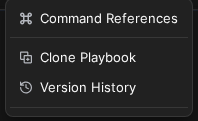
In the playbook header, open the three-dot menu, which holds Command References, Clone Playbook, and Version History.
-
Select Version History.
The playbook header menu
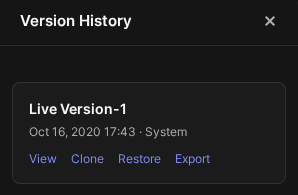
The Version History panel opens on the right. Each row carries the version's name — for example Live Version-1 — the date it was saved and its author, followed by the links View, Clone, Restore, and Export.
Version History
-
On the version you want, select Export.
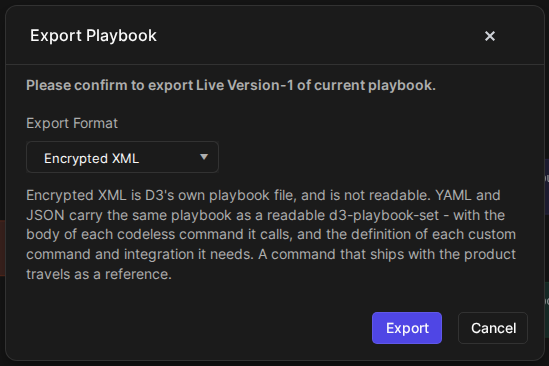
The Export Playbook dialog opens and names the version it is about to export: *Please confirm to export <version> of current playbook.* That line is how you can tell you are exporting a saved version rather than whatever is on the canvas.
-
Under Export Format, choose the format you want. The selector opens on Encrypted XML and offers exactly three options:
|
Export Format |
What it is |
|---|---|
|
Encrypted XML |
D3's own playbook file. The default, and not readable |
|
YAML |
The readable playbook file |
|
JSON |
The same content, written as JSON |
The note under the selector says the same thing in the product's words: *Encrypted XML is D3's own playbook file, and is not readable. YAML and JSON carry the same playbook as a readable d3-playbook-set - with the body of each codeless command it calls, and the definition of each custom command and integration it needs. A command that ships with the product travels as a reference.*
The Export Playbook dialog
-
Select Export. To leave without exporting, select Cancel.
A playbook with no saved version cannot be exported this way. The Export link sits on a version row, so save a version first.
The Export button on the playbook canvas toolbar is the canvas export. It is not the playbook-file export described here, which is reached through Version History.
Choosing Between YAML and JSON
YAML and JSON are one format in two spellings, carrying the same content.
-
YAML: choose it when a person is going to read the file.
-
JSON: choose it when a tool is going to consume the file.
Importing a Playbook File
You import a file into the playbook list it belongs in.
-
Go to Configuration > AUTOMATION > Investigation Playbooks, or Configuration > AUTOMATION > Preprocessing Playbooks, whichever list the playbook belongs in.
-
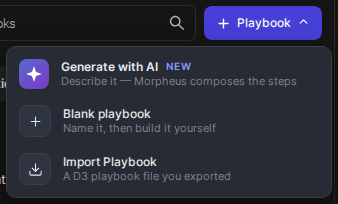
Select + Playbook. The menu holds exactly three items: Generate with AI, Blank playbook, and Import Playbook, which is described as *A D3 playbook file you exported*.
-
Select Import Playbook.
The + Playbook menu
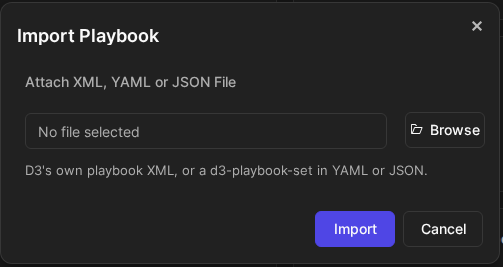
The Import Playbook dialog opens. Under Attach XML, YAML or JSON File, the file field reads No file selected, and the hint beneath it reads *D3's own playbook XML, or a d3-playbook-set in YAML or JSON.*
The Import Playbook dialog
-
Select Browse, and choose your file.
-
Select Import. To leave without importing, select Cancel.
The same dialog takes YAML, JSON, and the older encrypted XML without being told which one you have. The file is recognized by what is inside it, so you may rename it freely.
Import Playbook is for a file exported from D3 Morpheus. To have Morpheus write a new playbook from a description instead, use Generate with AI in the same menu and see Generating a Playbook with Morpheus AI.
Export and Import as Utility Commands
The same work is also available as utility commands, under Configuration > AUTOMATION > Utility Commands, so a move between systems can be scheduled or driven from a ticket: List Playbook, Find Playbook, Export Playbook, and Import Playbook. See Utility Commands: Find, List, Export, and Import Playbook.
Availability
There is nothing to switch on: the format choice sits in the Export Playbook dialog of every saved playbook version. If the readable formats are not offered on your instance, contact your D3 representative.