
Last Updated: October 28, 2026
Overview
Generate with AI drafts a playbook from one real alert and, if you want, from your own description of the response. Morpheus, the D3 AI assistant, drafts the trigger the playbook starts from, the sequence of tasks, the branches between them, and — on an Investigation playbook — the point where a person has to approve before anything is contained.
One line in the dialog states the whole contract: Drafted for review. Nothing runs until you enable it. Generation produces a draft in your playbook list; it does not put it into service.
The draft is not a template with blanks filled in. Morpheus reads the alert record you select and decides what each task takes its values from, using the fields that record actually carries, so two alerts of the same kind can produce different drafts.
Generating only drafts. The alert you point it at is read and left as it is. Enabling, scheduling and running the playbook stay with you.
Availability
The AI playbook features are turned on per instance. If you do not see the AI entry points described here on your playbook list, contact your D3 representative.
Before You Start
The draft is composed from what the selected site already holds.
-
A real alert on a site you can see. The trigger record is required, and it is always a real one: an incident for an Investigation playbook, an event for a Preprocessing one.
-
Connected integrations. A connection is a configured credential for an integration, scoped per integration and per site. A command drafted against an integration your site has not connected will fail when it runs.
-
Anything the draft has to name. Some task parameters are chosen from a list the site supplies — an incident type, a target playbook, a reference list. If the site publishes nothing for one of those, no wording can substitute.
Investigation and Preprocessing Playbooks
D3 Morpheus has two separate playbook systems. They answer different questions, run at different moments, and are not interchangeable.
|
Investigation Playbooks |
Preprocessing Playbooks |
|
|---|---|---|
|
Runs on |
An incident |
An event, as it is ingested |
|
The question |
How do we investigate and respond |
Is this event worth an incident |
|
A person can be asked |
Yes: approval gates |
No |
|
Typical endings |
A conclusion recorded, a containment performed |
The event is dismissed, or escalated into an incident |
|
Found under |
Configuration > AUTOMATION > Investigation Playbooks |
Configuration > AUTOMATION > Preprocessing Playbooks |
An approval gate parks the run until someone replies, with containment placed below it so it cannot be reached without that reply. A preprocessing playbook runs during ingestion, when nobody is watching a particular event, so it has no waiting task at all.
You never pick the kind. Generation is started from a playbook list, and the list you open decides the kind of playbook the draft becomes.
Opening the Dialog
This procedure is written for Investigation Playbooks.
-
Go to Configuration > AUTOMATION > Investigation Playbooks.
-
Start the dialog from either entry point:
|
Where |
What to look for |
|---|---|
|
Above the playbook list |
The bar Generate a playbook with Morpheus AI, with a Generate with AI button |
|
The + Playbook button |
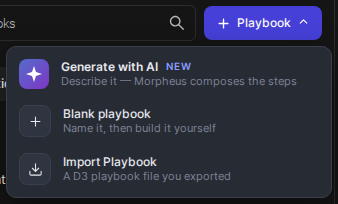
Generate with AI, carrying a NEW badge. It sits beside Blank playbook and Import Playbook; all three are equal choices, and none is the default |
The Generate bar above the playbook list

The + Playbook menu
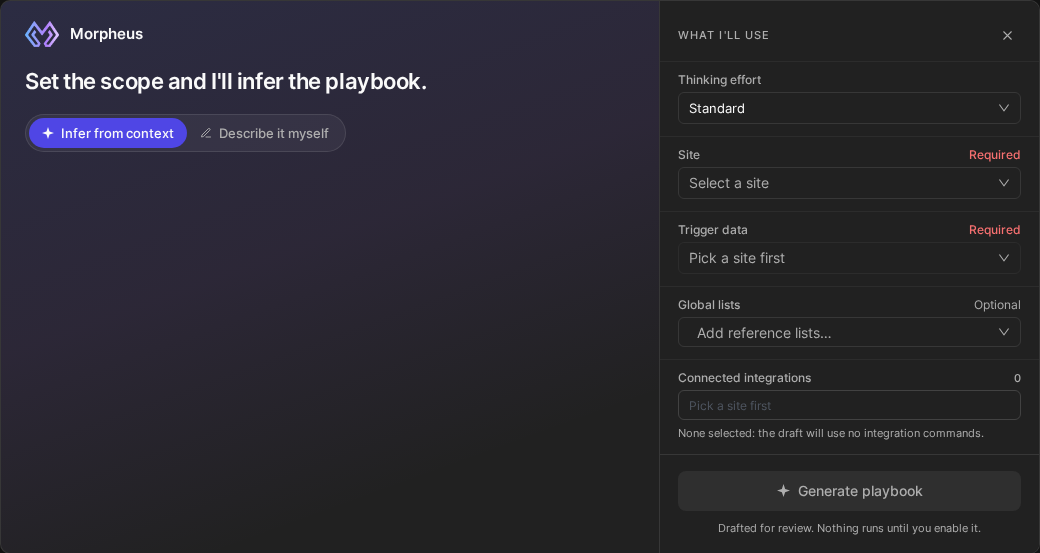
The dialog opens in two halves: Morpheus and the heading Set the scope and I'll infer the playbook. on the left, and the WHAT I'LL USE rail on the right.
The Generate dialog
The bar's dismiss control (x) hides the bar only while the page stays open; it returns on reload.
Choosing What the Draft Uses
The WHAT I'LL USE rail is the whole of what the draft is built from. Rows are marked Required or Optional.
|
Setting |
What it controls |
|---|---|
|
Thinking effort |
How much reasoning the run is given. It opens on Standard |
|
Site (Required) |
The site you generate for. It decides which alerts you can search and which integrations are offered |
|
Trigger data (Required) |
One real incident. The draft's values come from this record's fields |
|
Global lists (Optional) |
Reusable lists your tenant maintains that the logic may check against |
|
Connected integrations (Optional) |
The platforms the draft may call. The label carries a count of what you selected |
Pick Site first. Both Trigger data and Connected integrations read Pick a site first until one is chosen. Generate playbook stays disabled until Site and Trigger data are both set; the other settings are never required.
Trigger data is the most consequential input in the dialog. One alert is one sample, not the shape of every alert of that type, so choose a record that is representative of the class you are automating rather than the most interesting one you have.
A global list takes part in the logic only when it is selected under Global lists. Mentioning it by name in your description does not make it reliably consulted.
Connected integrations is the whole of what the draft may reach, and an empty selection means none, not "anything" — the dialog says so: None selected: the draft will use no integration commands. The draft can still use utility commands, ask a person and branch on what it is told, but every step that would have reached a product becomes a manual one. That is a usable answer, not a draft that failed to find anything.
Describing the Playbook
The dialog offers two modes under its heading. Infer from context, the default, sends no description: the draft is decided from the alert, the site and whatever you narrowed, which is what to use when you want to see what Morpheus makes of the alert on its own. Describe it myself sends your own wording, for when you already know the response you want.
Describe it myself
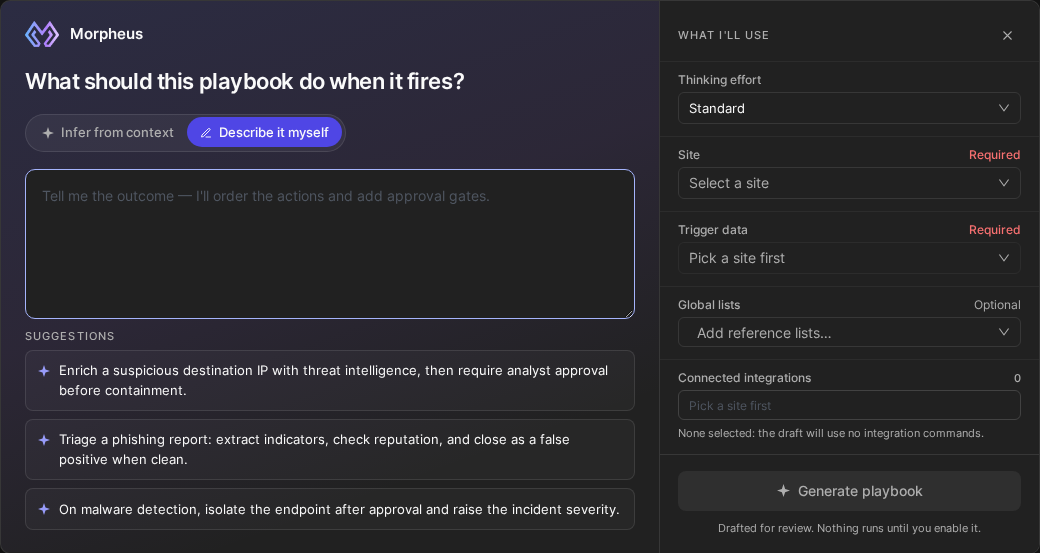
Writing a Description That Works
-
Say what has to happen, and in what order, not which screen to use. "Check the destination address against threat intelligence, then require approval before isolating the host" describes a flow; "open the enrichment task and set the IP field" describes an editor session.
-
Name only platforms you selected. Say the capability — threat intelligence, endpoint isolation — and let Connected integrations decide who provides it, or whether anything does.
-
Separate a step that failed from one that answered nothing. A lookup that errored is not a lookup that came back clean; unless you say so, you may get one ending for both.
-
Name the decision, not just the actions. A list of actions with no decision produces a straight line; "escalate only when an indicator is malicious, and dismiss otherwise" gives the draft a branch.
-
Keep it to one playbook's worth of work.
-
Name a command only when you care which one runs, and then use the display name the product shows: commands are matched against a command's name, display name and description, so a paraphrase may match nothing, and a generic name such as *list devices* is offered by many integrations — naming the platform, or narrowing Connected integrations to it, makes the reference unambiguous.
Generating the Playbook
-
Confirm that Site and Trigger data are set. Generate playbook stays disabled until both are.
-
Select Generate playbook.
What generation produces is a draft playbook in your list. A draft is not in service: review it, test it, and enable it yourself when you are satisfied with it.
Making Custom Commands Easy to Draft With
A draft is built only from commands Morpheus can find and read. Nothing excludes a command for being one your team wrote, but it is offered only when it is live, no older version of it is live beside it, and it is reachable: an integration's command needs an active connection on the site and has to be selected under Connected integrations, while a utility command belongs to no integration and is offered on every run. Beyond that, how it is named and described decides whether a draft picks it up.
-
Name the object and the action, in the words an analyst would use rather than your API's. *Get host isolation status* is findable; *Status2* is not.
-
Do not let two live commands differ only by a suffix, with nothing to choose between them; retire the one that was superseded.
-
Write a description that earns the match. It is the widest field a command search reads, and one that repeats the name adds nothing. In two or three sentences, say what the command does in an analyst's words, what it needs, what it gives back, and whether it changes anything — the last so a draft can place it behind an approval where that matters. Then add the alternative words for its subject: the vendor's terminology, the common synonym, the abbreviation your team says aloud.
-
Mark required parameters as required, give a default where there is a sensible one, and give at least one sample per parameter — more than one where the parameter takes more than one shape, so the samples say what it refuses as well as what it takes.
-
Declare what the command returns. A command with no declared return model offers the next task no field to bind to, so a draft that needs the answer reaches for something else instead.
RELATED ARTICLES
-
Modifying a Playbook with AI
-
Generating a Utility Command with AI
-
Exporting and Importing a Playbook as YAML or JSON