Last Updated: November 10, 2026
An API key is a unique token used to authenticate systems or applications accessing a platform via an application programming interface (API). This article outlines the steps for sending an API key-authenticated request using Postman to interact with the D3 platform.
Prerequisites
-
Ability to set up D3 webhook keys
Setting Up API Keys for Data Ingestion
-
In Configuration > Integrations, open the integration's event or incident intake command, such as Fetch Event.
On the command's Settings tab, under WEBHOOK AUTHENTICATION, make sure API Key & JWT is switched on.
From this point, users create and manage their webhook keys in the Data Ingestion module. A command's Settings tab in the Integrations module shows the same keys, read-only.
Setting Up API Keys from the Integrations Module
The API keys on a command's Settings tab are read-only. Create, rotate and revoke webhook keys in Data Ingestion. See API Credentials and Webhook Keys.
A fetch event or fetch incident command lists the webhook keys on its Settings tab, so you can see which sites a vendor can post to from the command itself. That list is read-only: Open Data Ingestion takes you to where keys are created, rotated and revoked.
Setting Up API Keys from the Data Ingestion Module
-
Go to Configuration > Data Ingestion.
-
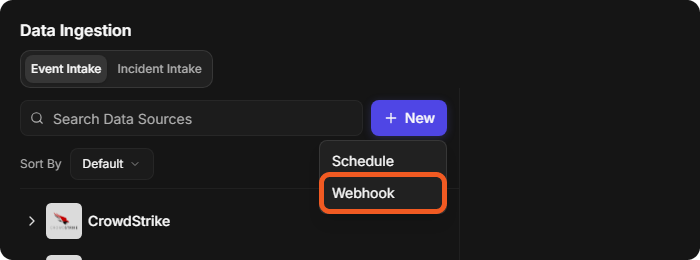
Select New > Webhook.
-
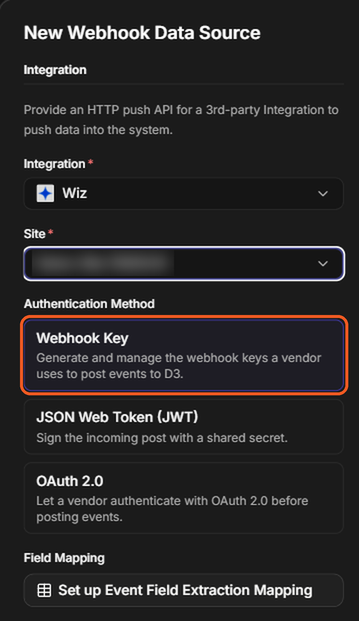
Configure the webhook data source.
-
Select the integration to use, such as Wiz.
-
Choose the Site into which the data will be ingested.
-
Select the Webhook Key card.
-
Under Webhook Keys, select Generate a Key.
-
-
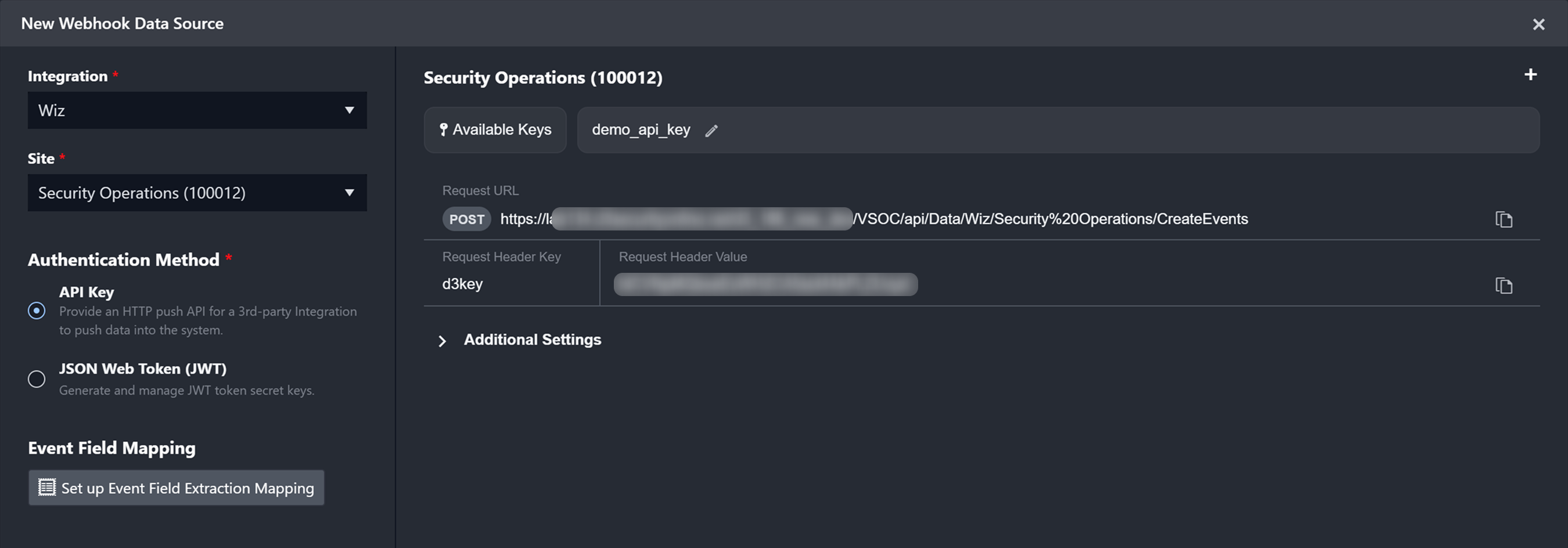
Enter a unique key name, then select Generate.
The user will see a display similar to the following:
Setting Up API Keys for Integration Commands
-
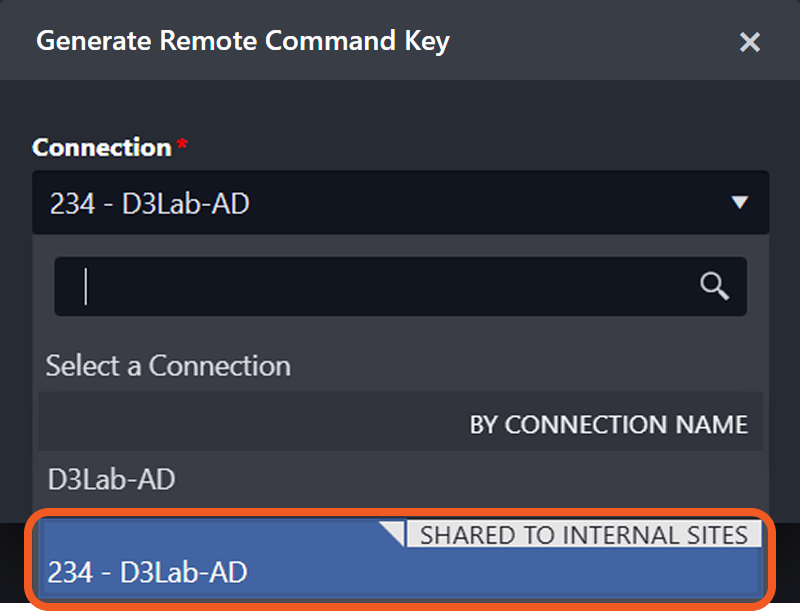
Establish a connection between D3 Morpheus and the integration. On the integration's page, the connection must be switched on under Active and show the Passed status, as shown in the image below.
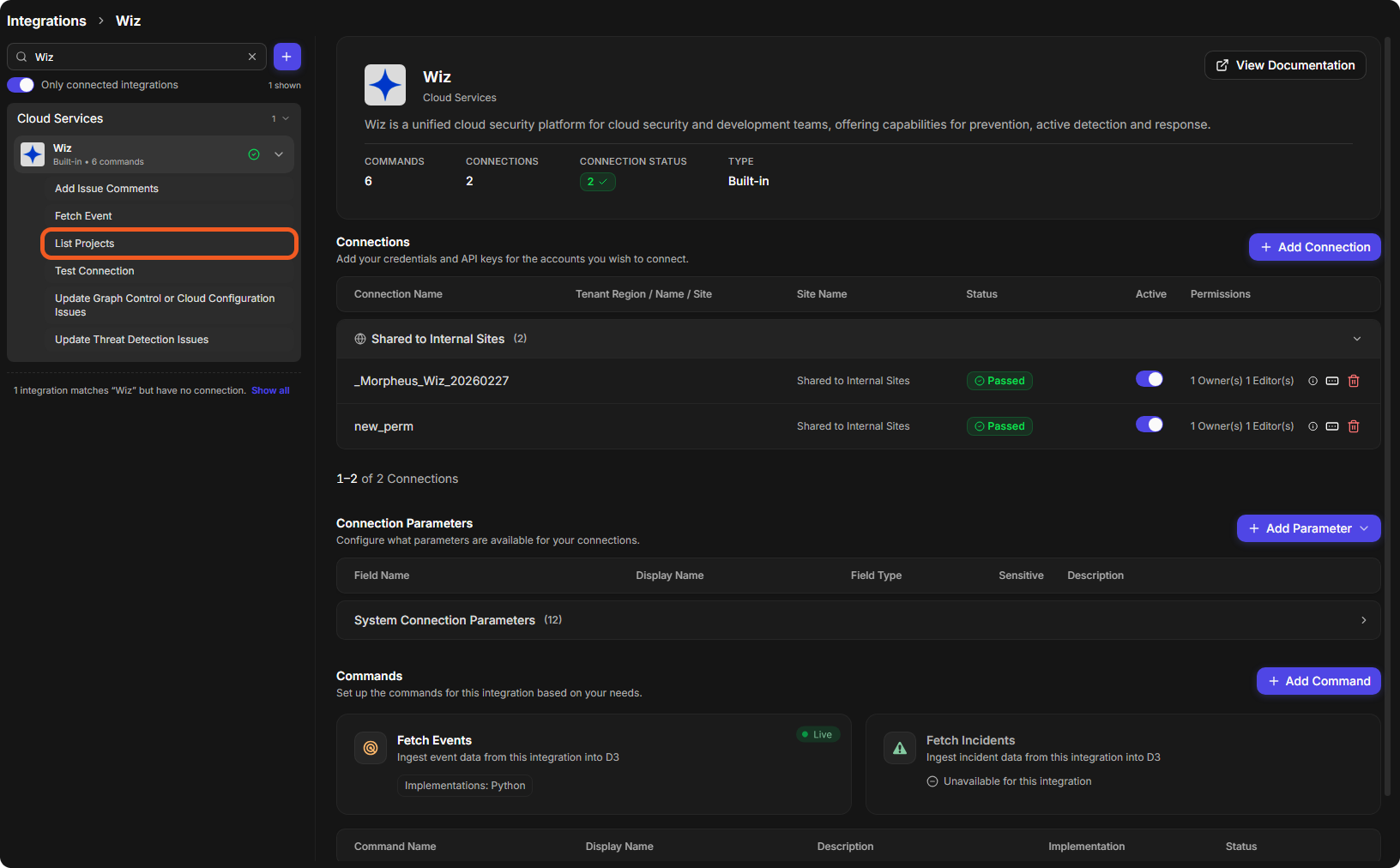
Ensure the connection is shared with a specific site (the Site Name column), not only with all internal or client sites.
-
Select the desired integration command.
For demonstration purposes, the Get Computers command will be used.
-
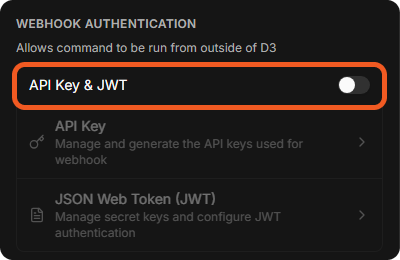
On the command's Settings tab, under WEBHOOK AUTHENTICATION, make sure API Key & JWT is switched on, then select the API Key button.
-
Open the Setup API Key window.
On a deployment upgraded to 18.6, remote command keys can still be created and managed. On a new D3 deployment, set up from 18.6 on, they can no longer be created; existing keys keep working and still appear in the Setup API Key window. Either way, OAuth credentials are the recommended way to call a command from outside D3. See API Credentials and Webhook Keys.
An existing key shows details similar to the following:
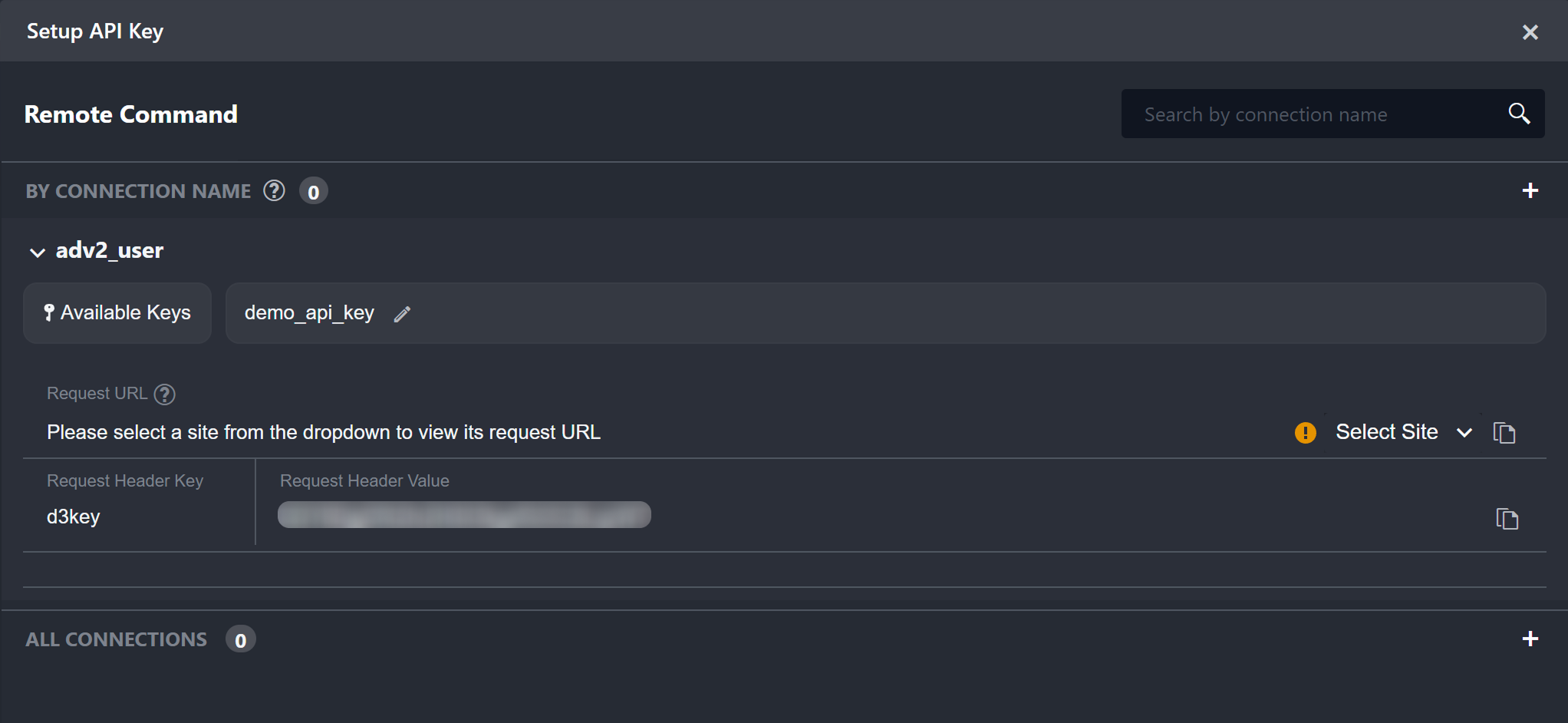
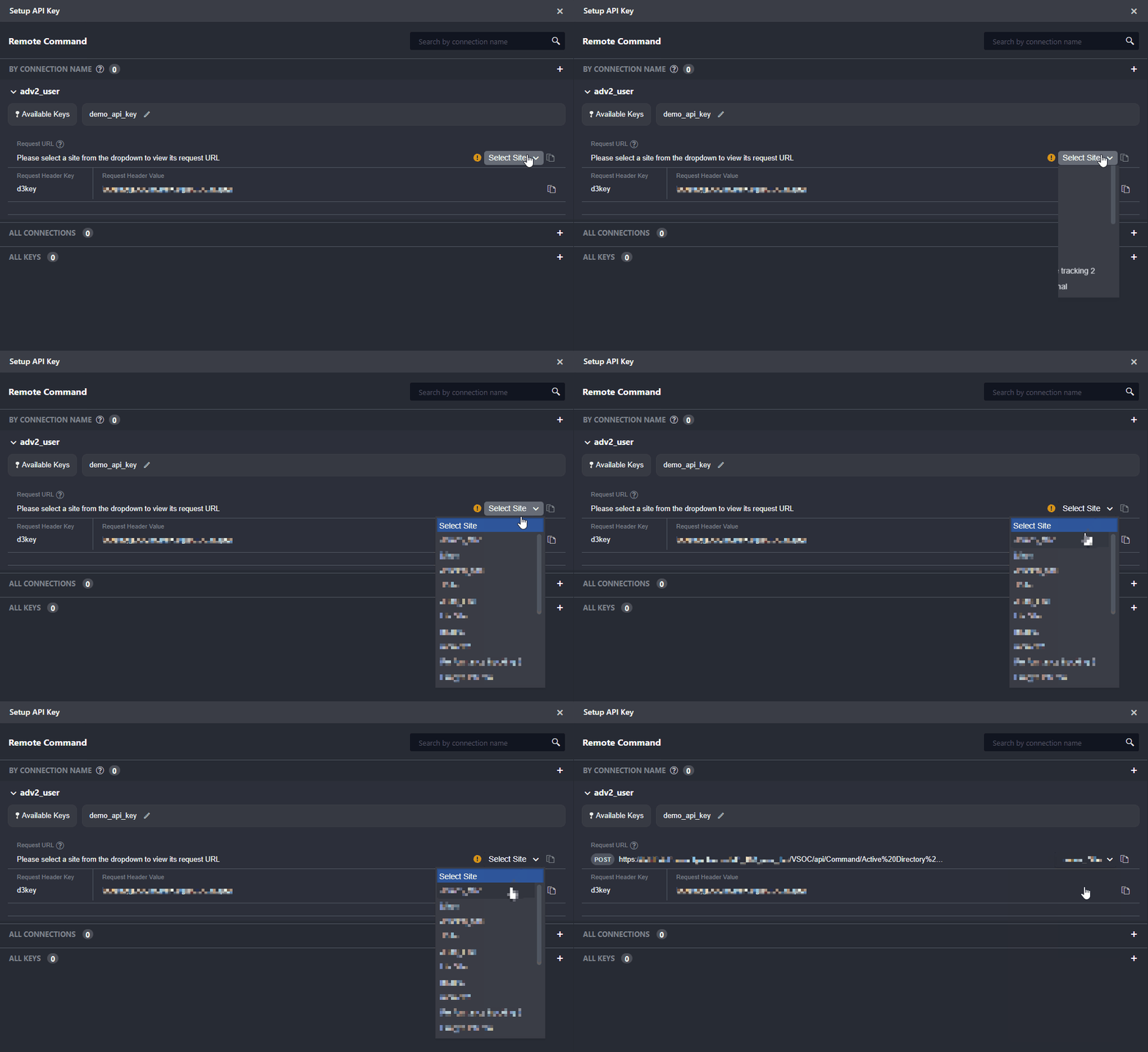
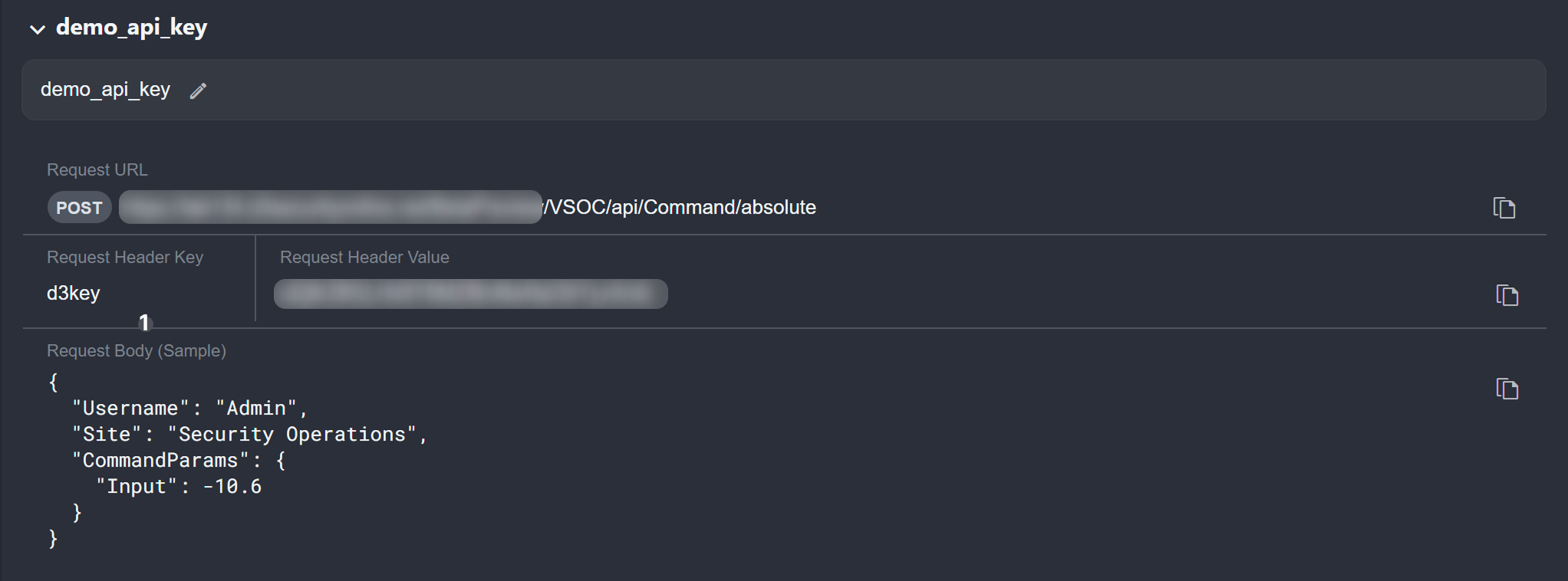
Users must select a site to display and copy the API request URL.
READER NOTE
If users selected a connection that was shared with all internal sites, then they will not see the Select Site list.
Setting Up API Keys for Utility Commands
-
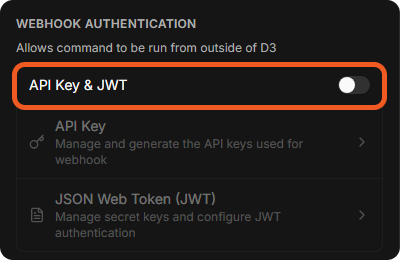
On the command's Settings tab, under WEBHOOK AUTHENTICATION, make sure API Key & JWT is switched on, then select the API Key button.
-
Open the Setup API Key window.
On a deployment upgraded to 18.6, remote command keys can still be created and managed. On a new D3 deployment, set up from 18.6 on, they can no longer be created; existing keys keep working and still appear in the Setup API Key window. Either way, OAuth credentials are the recommended way to call a command from outside D3. See API Credentials and Webhook Keys.
An existing key shows details similar to the following:
Sending an API Key-Authenticated Request: Data Ingestion
Users can send an API key-authenticated request to push data into D3 using the webhook data ingestion method to create D3 events.
READER NOTE
For clarity, the example below demonstrates how to send an API key-authenticated request using Postman. However, this approach is intended only for testing purposes. In typical use cases, webhook ingestion is handled automatically through external software or scripts.
-
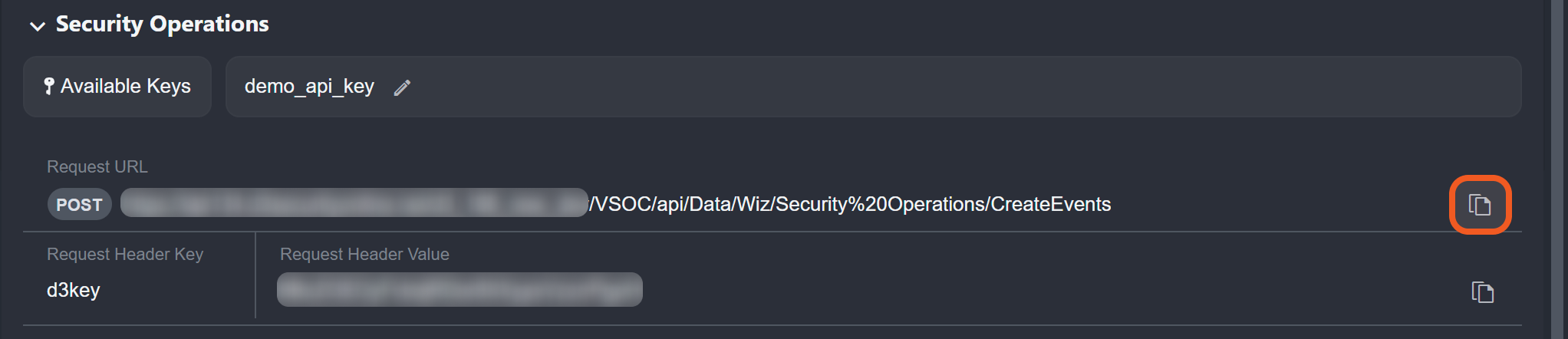
Copy the request URL in D3 Morpheus.
-
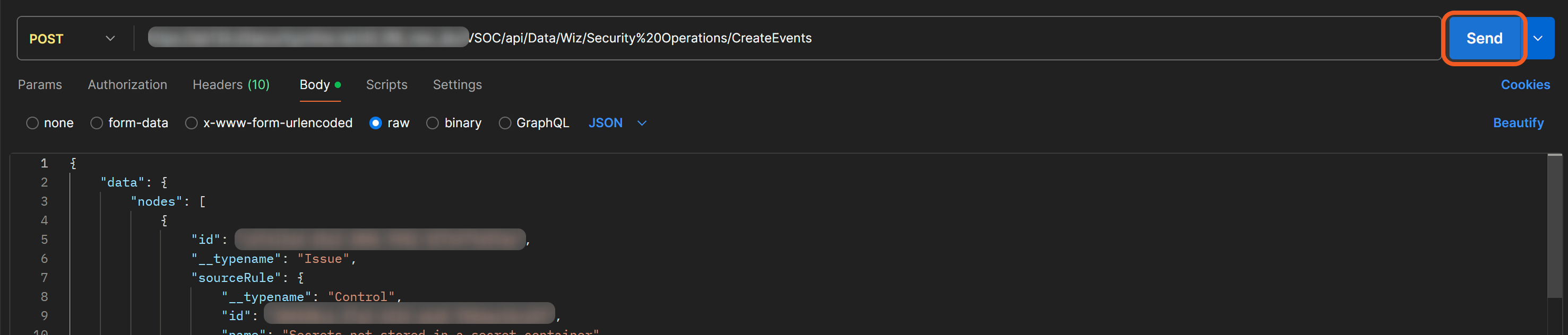
In Postman, set the HTTP request method to POST, then paste the request URL in the designated field.

-
In D3 Morpheus, copy the request header key.
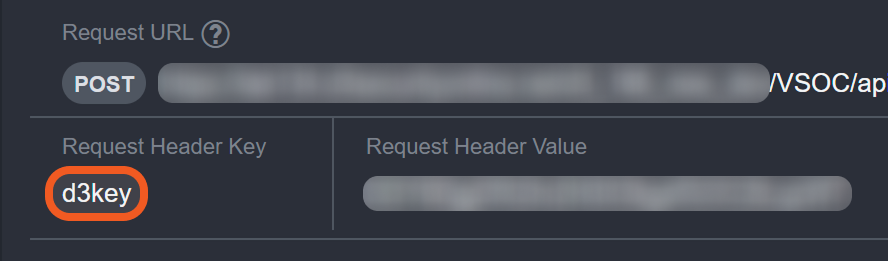
-
In Postman, click on the Headers tab, then paste the request header key under the Key column.
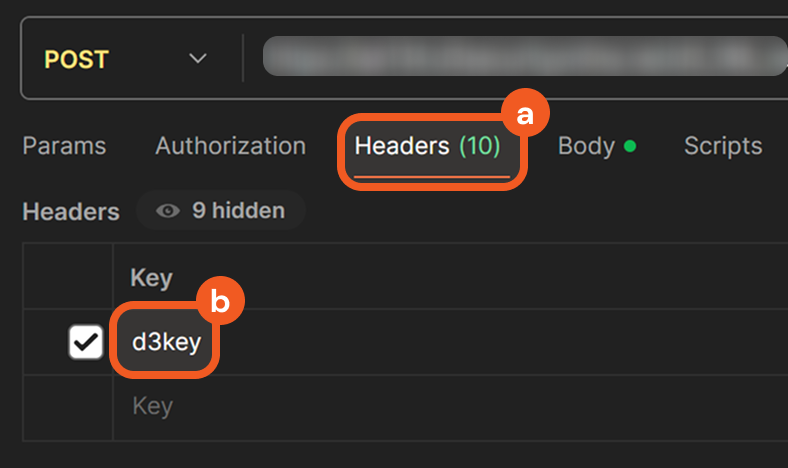
-
In D3 Morpheus, copy the request header value.

-
In Postman, paste the request header value under the Value column.

-
Select the Body tab, choose the raw option, then paste sample request body data.
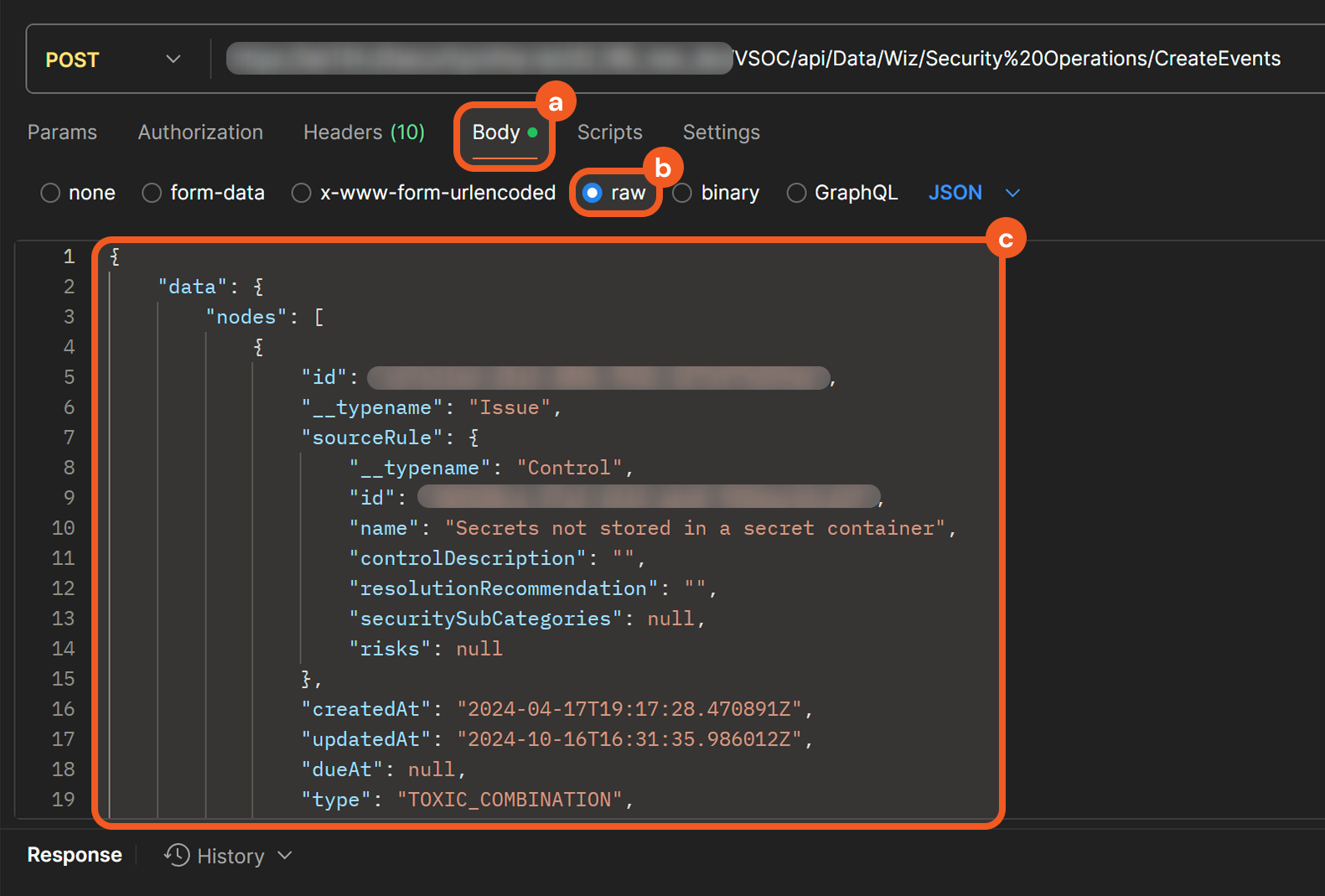
READER NOTE*
The request body data is copied from the raw sample available under the Outputs > Raw Data tab of Wiz's Fetch Event command. Any D3 events created using this data are not real security events.
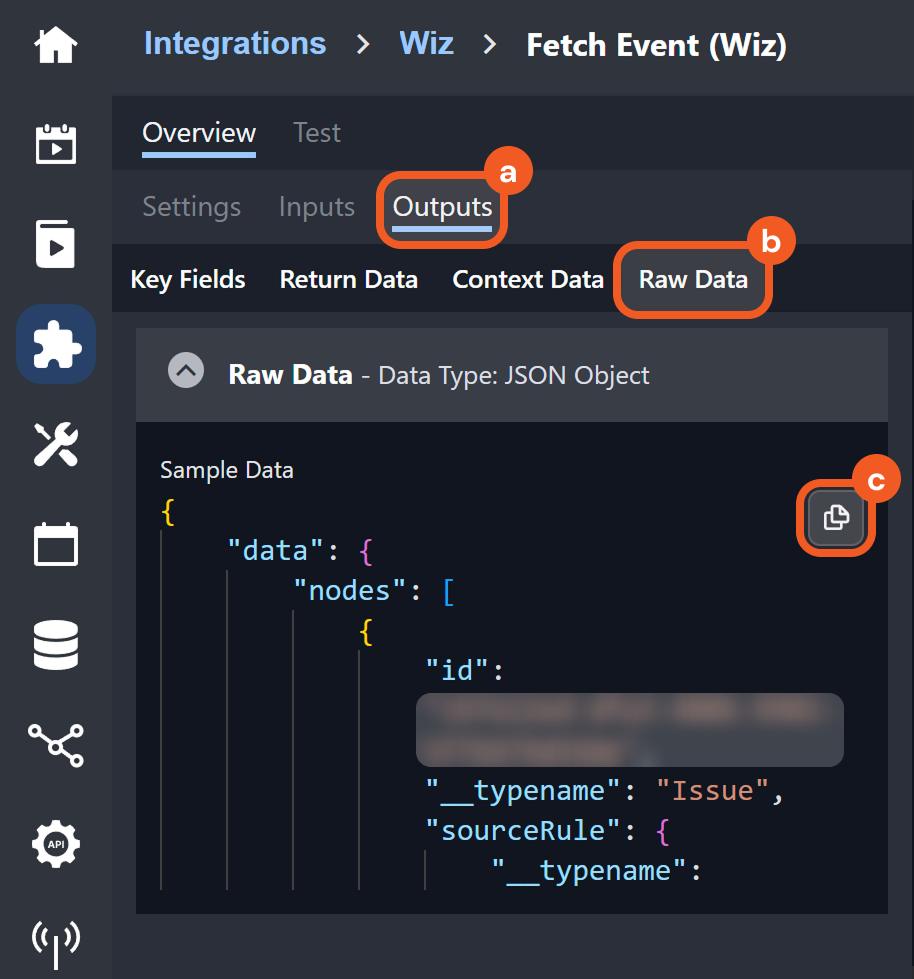
Users can treat this as a template for structuring data pushed into D3 to create D3 events, specifically for Wiz's Fetch Event command. For example, this demonstrates that the main event JSON path is data.nodes, which means that event data from Wiz should be within that path.
-
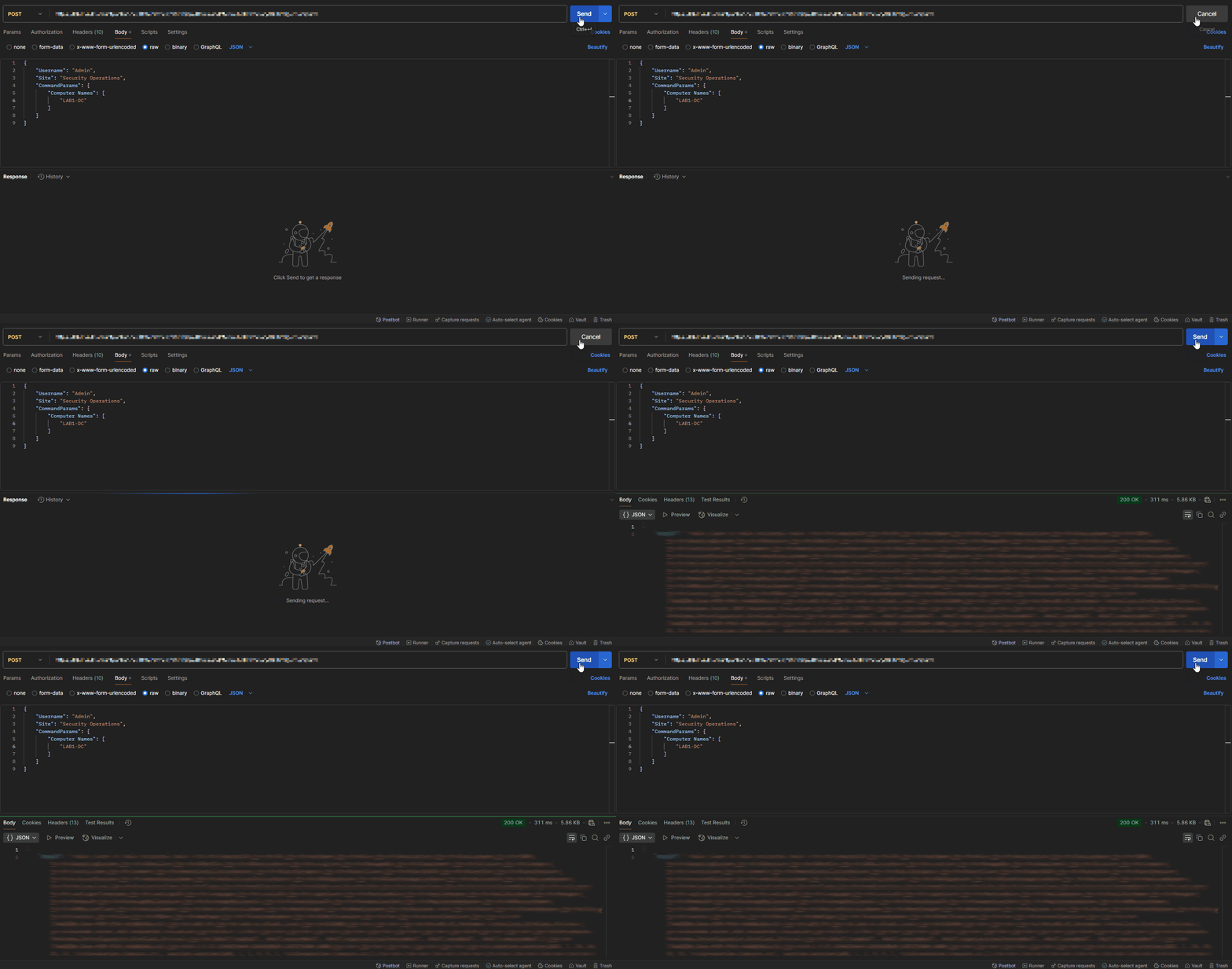
Click the Send button to send the request.
RESULT
If the request is successful and the conditions for event creation are met, the ingested event can be viewed in D3 by going to Configuration > Data Ingestion and selecting the webhook card under the integration (for example, Wiz).
Sending an API Key-Authenticated Request: Remote Command
The process of sending an API key-authenticated request is the same for utility and integration commands. Users should consult the specific command's documentation for details on the commandParams object in the request body, as input parameters vary by command.
-
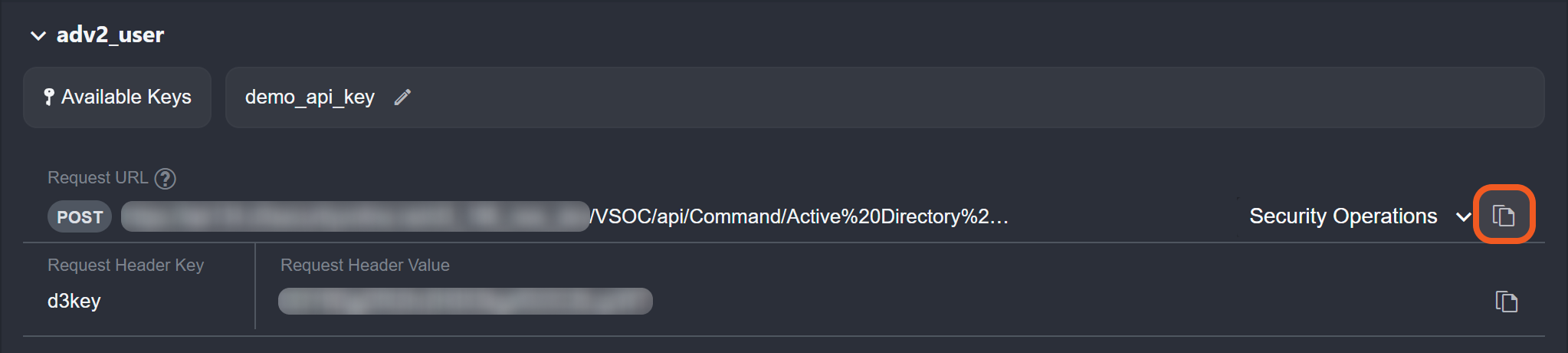
Copy the request URL in D3 Morpheus.
-
In Postman, set the HTTP request method to POST, then paste the request URL in the designated field.

-
In D3 Morpheus, copy the request header key.
-
In Postman, click on the Headers tab, then paste the request header key under the Key column.
-
In D3 Morpheus, copy the request header value.

-
In Postman, paste the request header value under the Value column.
-
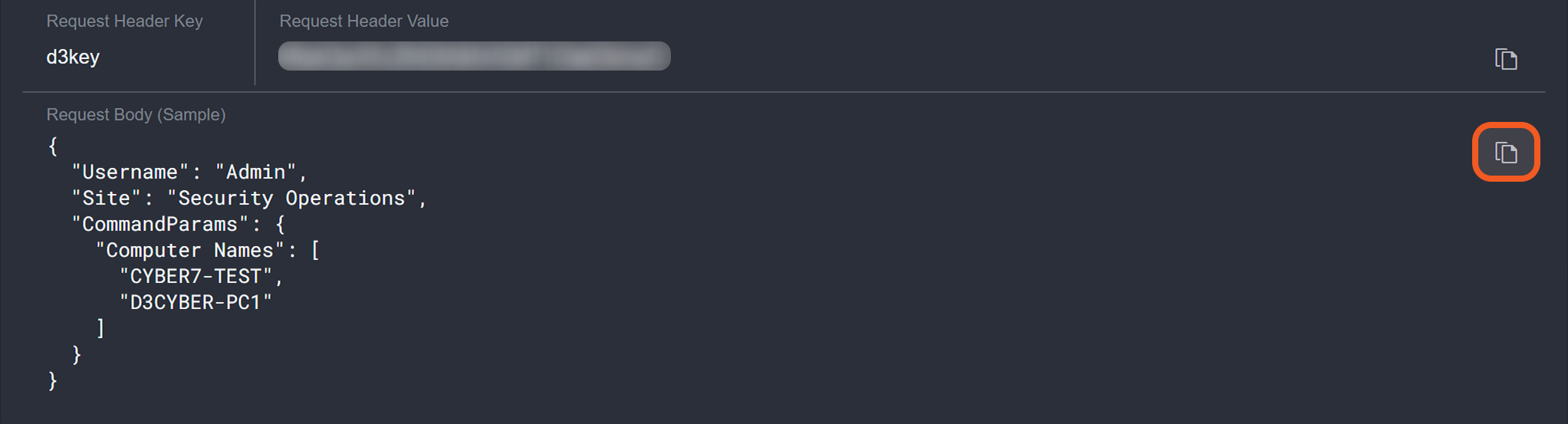
In D3 Morpheus, copy the request body sample.
-
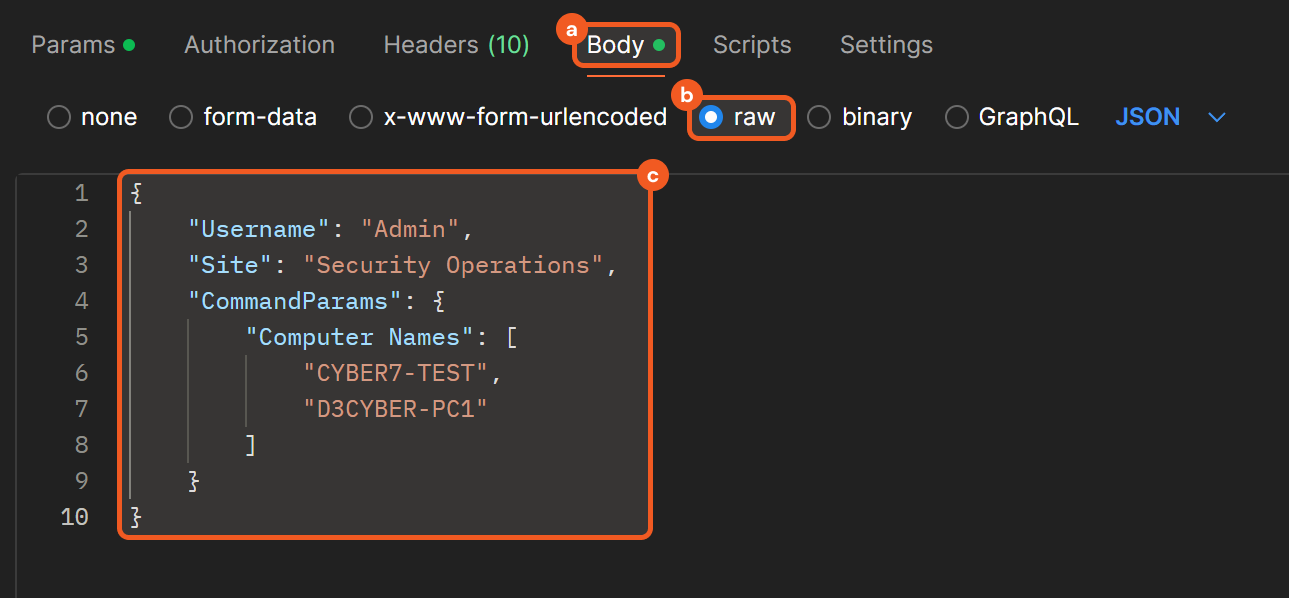
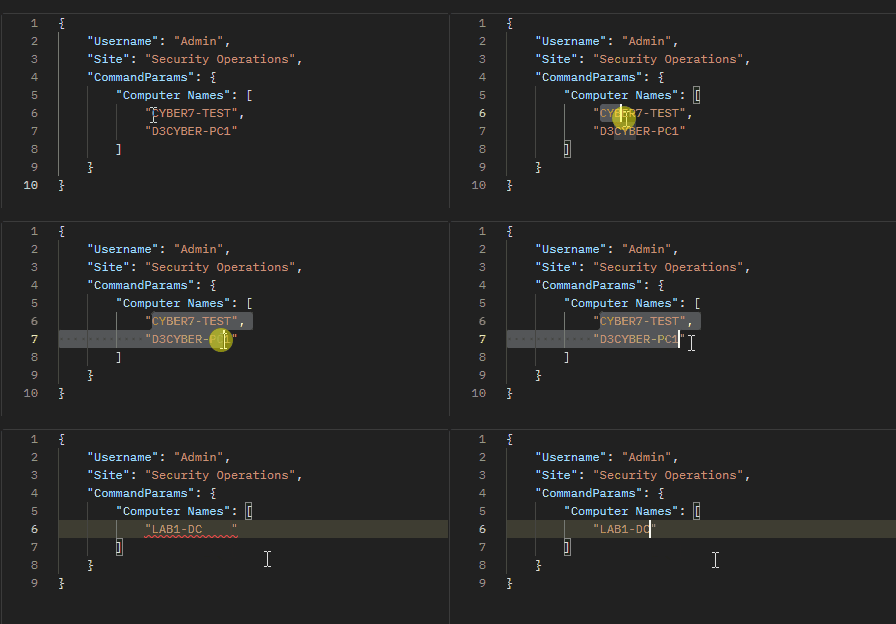
In Postman, select the Body tab, choose the raw option, then paste the sample request body data.
-
Adjust the values as necessary.
-
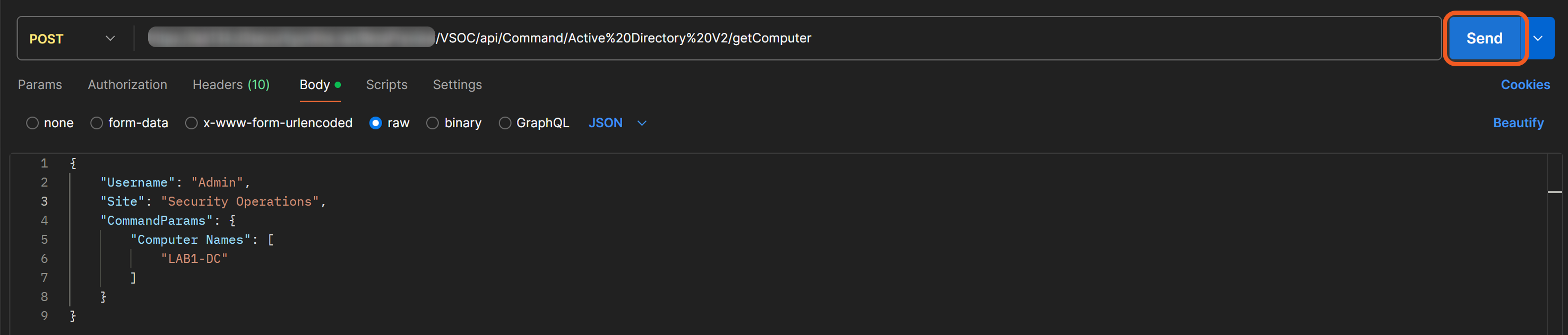
Click the Send button to send the request.
RESULT
A successful call with a valid response will resemble the following: