
Last Updated: October 22, 2026
Overview
Linked artifacts are the observables tied to an incident: the IP addresses, hosts, users, hashes, URLs and other entities an investigation is about. Linking an artifact to an incident keeps the evidence in one place, lets playbooks and commands act on it, and shows how often the same artifact appears across events and incidents.
The Linked Artifacts panel is part of the Incident Workspace. Open an incident from Incidents to reach it. The workspace opens in a new browser tab.
The Linked Artifacts panel
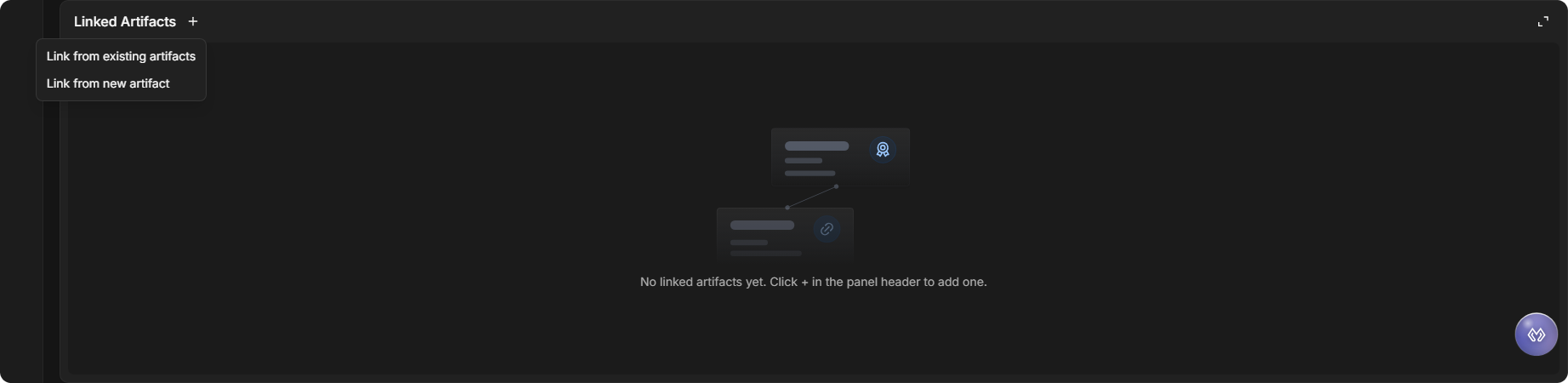
Select + beside the panel's title to add an artifact. There are two ways:
|
Option |
Use it when |
|---|---|
|
Link from existing artifacts |
The artifact is already known to D3 vSOC, for example from another event or incident. |
|
Link from new artifact |
The artifact has not been seen before, or you are recording several at once. |
An incident with nothing linked yet shows No linked artifacts yet. Click + in the panel header to add one.
Linking Existing Artifacts
Link an artifact D3 vSOC already knows, so the incident shares its history: how many events and incidents it has appeared in, and when it was first seen.
-
In the Linked Artifacts panel, select +, then Link from existing artifacts.
-
In the Link Existing Artifact window, choose a type under Select artifact type (optional), enter part of the artifact's name in Search artifact name, and select Search.
-
Select an artifact's row to add it to Selected Artifacts. Repeat for each artifact to link.
-
Select Link Selected Artifacts.
The Link Existing Artifact window
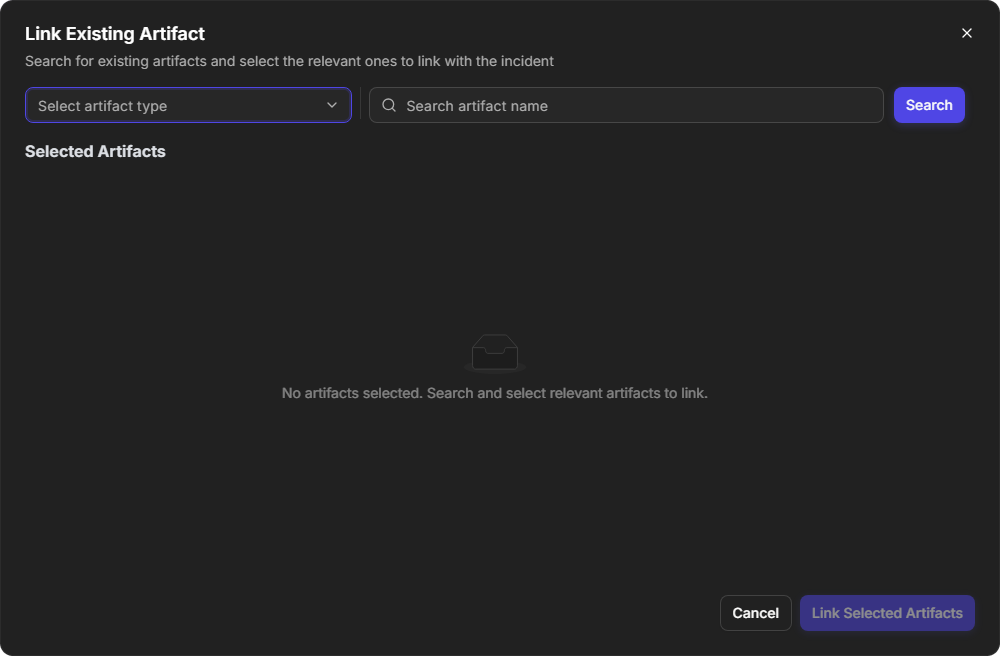
The search results show each match's Artifact Name, Type, Risk Level, First Seen, Event Count and Incident Count. Use the counts to spot an artifact that already appears in other investigations.
Search results
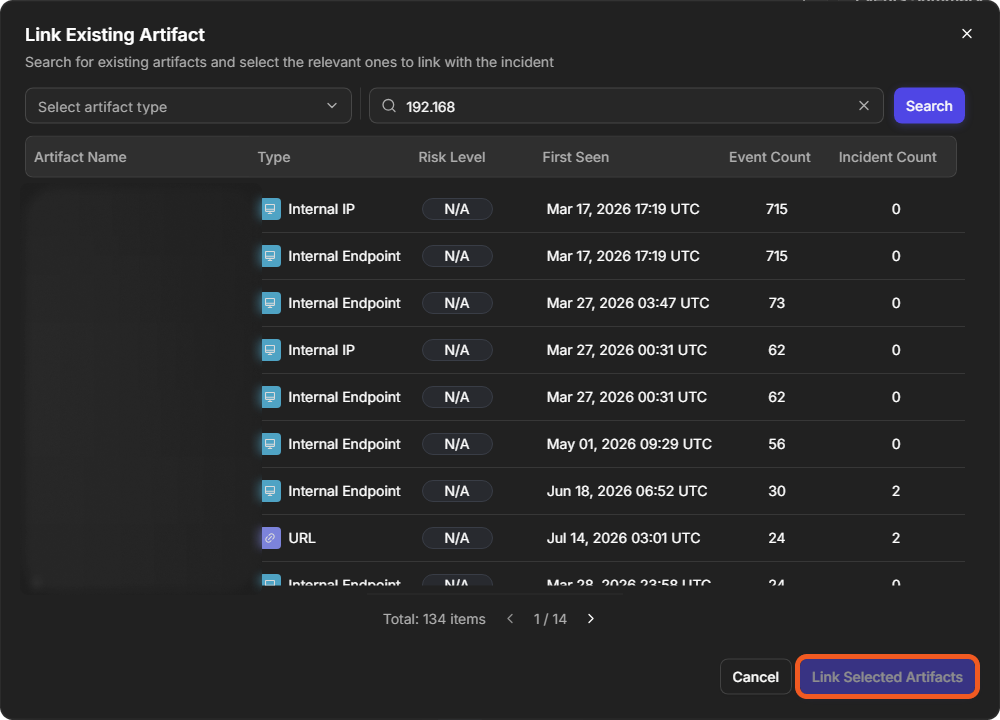
Link Selected Artifacts stays disabled until at least one artifact is selected.
The selected artifacts appear in the incident's Linked Artifacts panel.
Creating and Linking a New Artifact
Record an artifact D3 vSOC has not seen yet, and link it to the incident in the same step.
-
In the Linked Artifacts panel, select +, then Link from new artifact.
-
In the New Artifact window, choose the Artifact Type.
-
Fill in the artifact's fields, in either view:
-
Editor shows each field as a form entry: Identity, the artifact's value, such as the IP address or the hash; Reputation, one of ZeroRisk, Low, Medium, High or N/A; and Additional, for any extra fields.
-
Raw shows the same fields as JSON, for pasting a value you already have. Switch with the Editor/Raw toggle.
-
-
Select Save.
The New Artifact window in Editor view
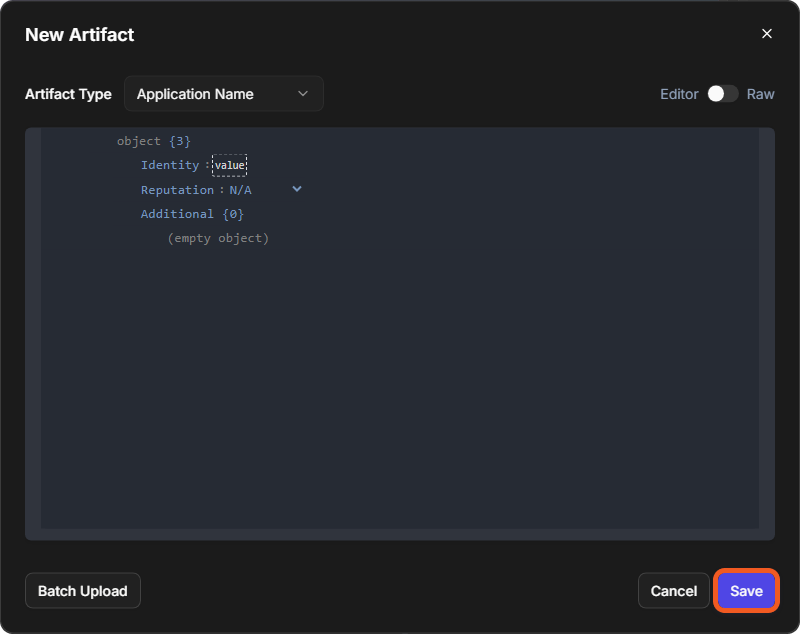
The New Artifact window in Raw view
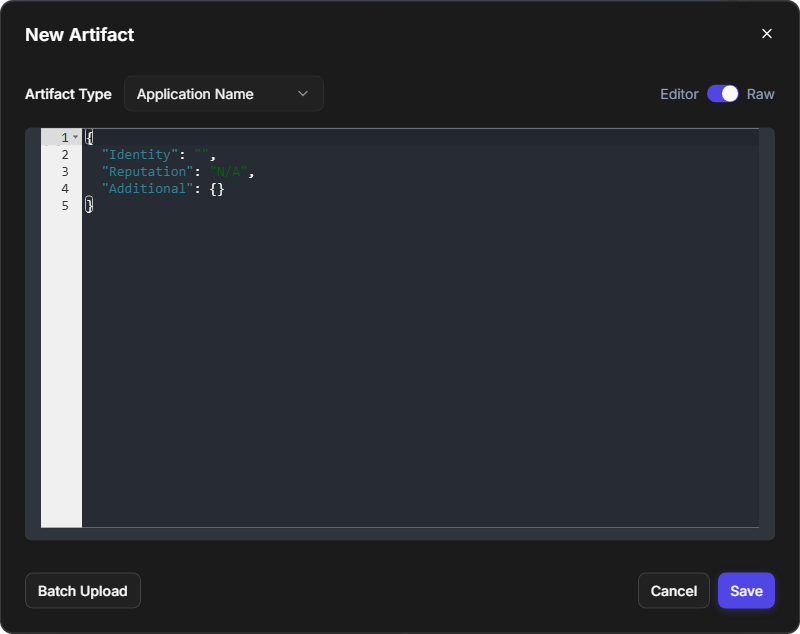
The new artifact is created and appears in the incident's Linked Artifacts panel.
Adding Several Artifacts at Once
Batch Upload creates and links many artifacts in one step, which is quicker than adding them one at a time when an investigation turns up a list of indicators.
-
In the New Artifact window, select Batch Upload.
-
The Batch Upload Artifacts window opens with a JSON template: one object per artifact type, each with its
ArtifactTypeand aFieldblock (Identity,Reputation,Additional). Replace the template with your artifacts, keeping the same shape. -
Select Upload. Select Return to go back to the single-artifact form instead.
The Batch Upload Artifacts window
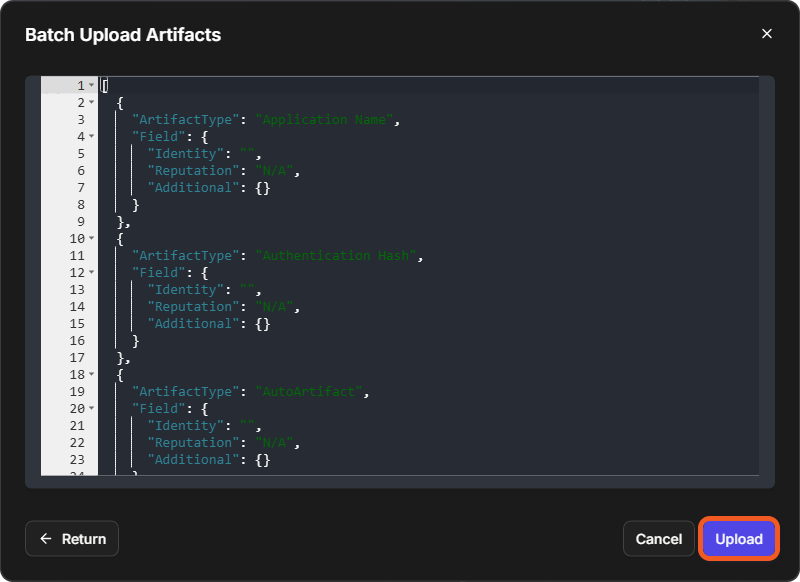
Prepare the list in a text editor by copying the template, filling it in, and pasting it back. Each object needs its ArtifactType exactly as the template spells it.
Working with Linked Artifacts
To run a command directly against an artifact, open it from WORKSPACE > Artifacts. In Artifact Detail, select the Execute Command icon at the top right, then choose the command in the Execute Command window. Commands are grouped by category, and Favorites collects the ones you use most.