
Last updated: November 10, 2026
Overview
Artifact attributes are the facts your site knows about an artifact—such as a user's privilege level, whether the user is enrolled in multi-factor authentication, or whether an IP address is internal—shown as labeled values, each with the source it came from and when it was last seen. Instead of reading a block of raw data, analysts get the facts that matter for triage in one list, and can tell an integration's value from a Morpheus AI guess at a glance.
The Attributes tab of a user artifact
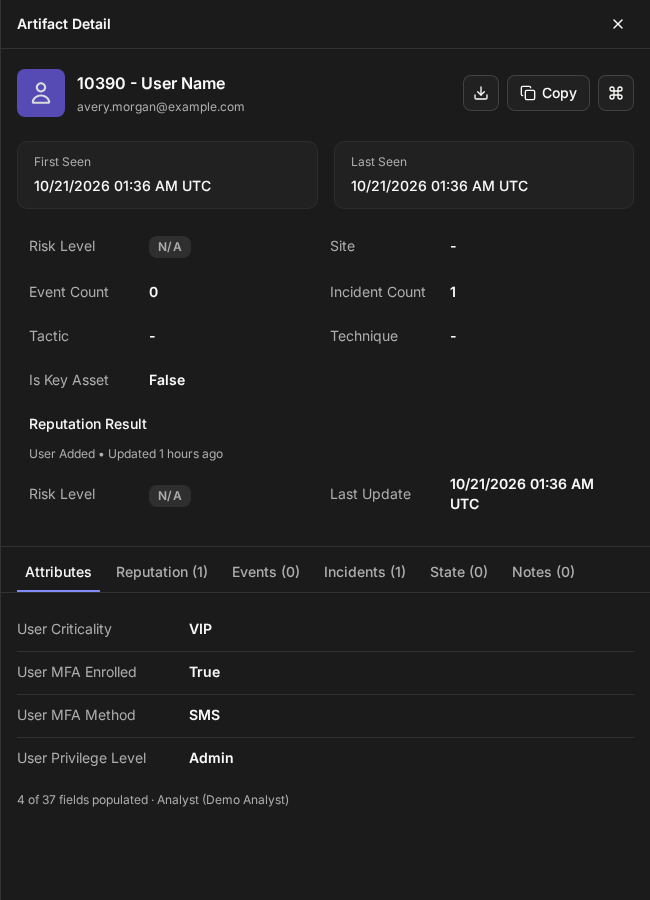
Attributes appear on their own. Any artifact whose type has fields set up for it gets an Attributes tab, and the tab fills in as event ingestion, playbook commands and analysts supply values. Attributes are shown in the new UI.
In short
|
# |
Stage |
Where it happens |
|---|---|---|
|
1 |
Choose which fields an artifact type carries |
Configuration > Artifacts > an artifact type > Fields for Additional Information |
|
2 |
Values arrive |
Event ingestion, the Save and Link Artifacts to Incident playbook command, commands called through the public API, and analysts adding artifacts to an incident |
|
3 |
Read an artifact's attributes |
The Attributes tab of the Artifact Detail panel, or the Attributes section of the Artifact Details window in the incident workspace |
|
4 |
Compare attributes across artifacts |
The incident's Artifacts list, filtered to one artifact type, with attribute columns added |
|
5 |
(Optional) Hide the tab when nothing is filled in |
Global Settings > Application Settings > Feature Settings > Hide attributes when empty |
The Attributes Tab
The Attributes tab is the first tab of the Artifact Detail panel: it lists every field of the artifact's type that has a value, so the facts about an artifact are the first thing you see when you open it. The panel opens on this tab whenever the artifact has one.
You reach the same panel by selecting an artifact in Artifacts on the main menu, in an incident's Artifacts list, in SOAR > Monitor, or on an artifact node in an incident's Morpheus AI Graph.
Each row shows:
-
The field's label, as your site names it—for example, User Privilege Level.
-
The value, formatted for its type (see Value Types). A value that is not on the field's list of allowed values carries a Not in list badge.
-
A source mark at the end of the row. Point to it, or move to it with the keyboard, to see who supplied the value and how old it is.
Only fields that have a value are listed, so the tab never pads out with empty rows. The line under the list counts them and names the sources—for example, 4 of 37 fields populated · Analyst (Demo Analyst).
When some of the type's fields are still empty, Show 33 empty fields below that line lists them, and Hide 33 empty fields closes the list again; the number is how many are still empty. If Artifacts appears in your Configuration menu, a Manage these fields in Configuration link also appears below that line, whether or not any fields are empty (see When Nothing Is Filled In Yet).
Source and age of a value
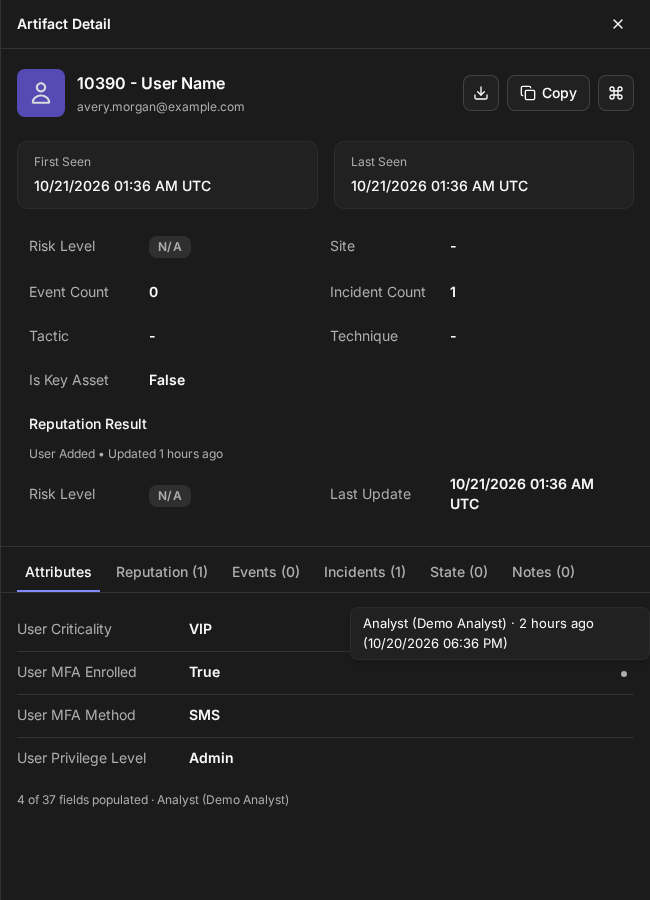
Values Supplied by Morpheus AI
A value inferred by Morpheus AI always carries a sparkle marker, so you can tell an inference from a value an integration or a person supplied without opening anything. Other rows show their source mark only when you point to the row or move to the mark with the keyboard.
A value supplied by Morpheus AI
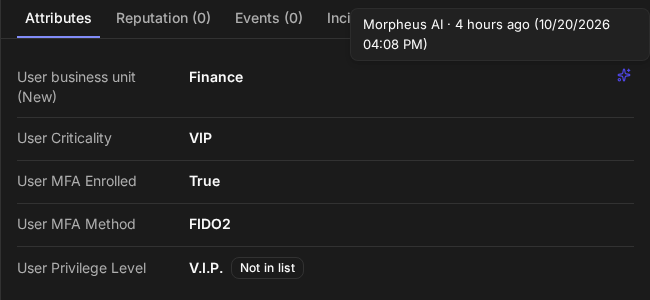
Morpheus AI only fills gaps, or updates its own earlier inference. It never replaces a value that an integration or a person supplied (see Where Values Come From).
When Nothing Is Filled In Yet
An artifact whose type has fields, but none with a value, shows the tab with this message, giving the number of fields and the name of the artifact's type—for a User Name artifact:
Nothing is filled in yet. 37 fields are defined for User Name; none are populated.
This tells you the facts are missing rather than leaving you wondering whether the tab failed to load. If you would rather not show the tab at all in this case, see Hiding the Attributes Tab When Empty.
Below the message:
-
Show 37 fields lists the fields set up for the artifact's type, by label, so you can see which facts the artifact can carry. Hide 37 fields closes the list again. The list is shown regardless of Configuration access.
-
Manage these fields in Configuration opens Configuration > Artifacts in a new browser tab, with the artifact's type already selected, so you can add or remove its fields (see Choosing Which Fields a Type Shows). The link appears only if Artifacts appears in your Configuration menu.
The picture below shows an Email Address artifact, whose type has 24 fields.
An artifact with nothing filled in
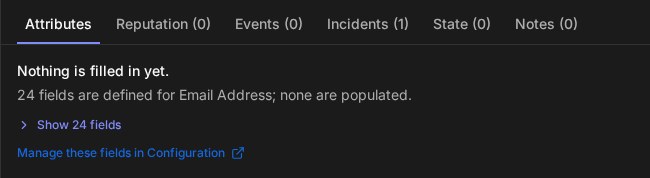
An artifact whose type has no fields set up has no Attributes tab, and the panel opens on Reputation instead.
If the attributes cannot be loaded, the tab still appears and reads Couldn't load attributes. The rest of the panel is unaffected. Reopen the artifact to try again.
Attributes in the Incident Workspace
In an incident's workspace, selecting an artifact in the Artifacts panel of the workspace layout opens the Artifact Details window. Its Overview tab shows an Attributes section below the Artifact Summary. The section follows the same rules as the tab: populated fields only, the same source marks, the same message when nothing is filled in, and the same field list and Manage these fields in Configuration link.
Attributes in the incident workspace's artifact window
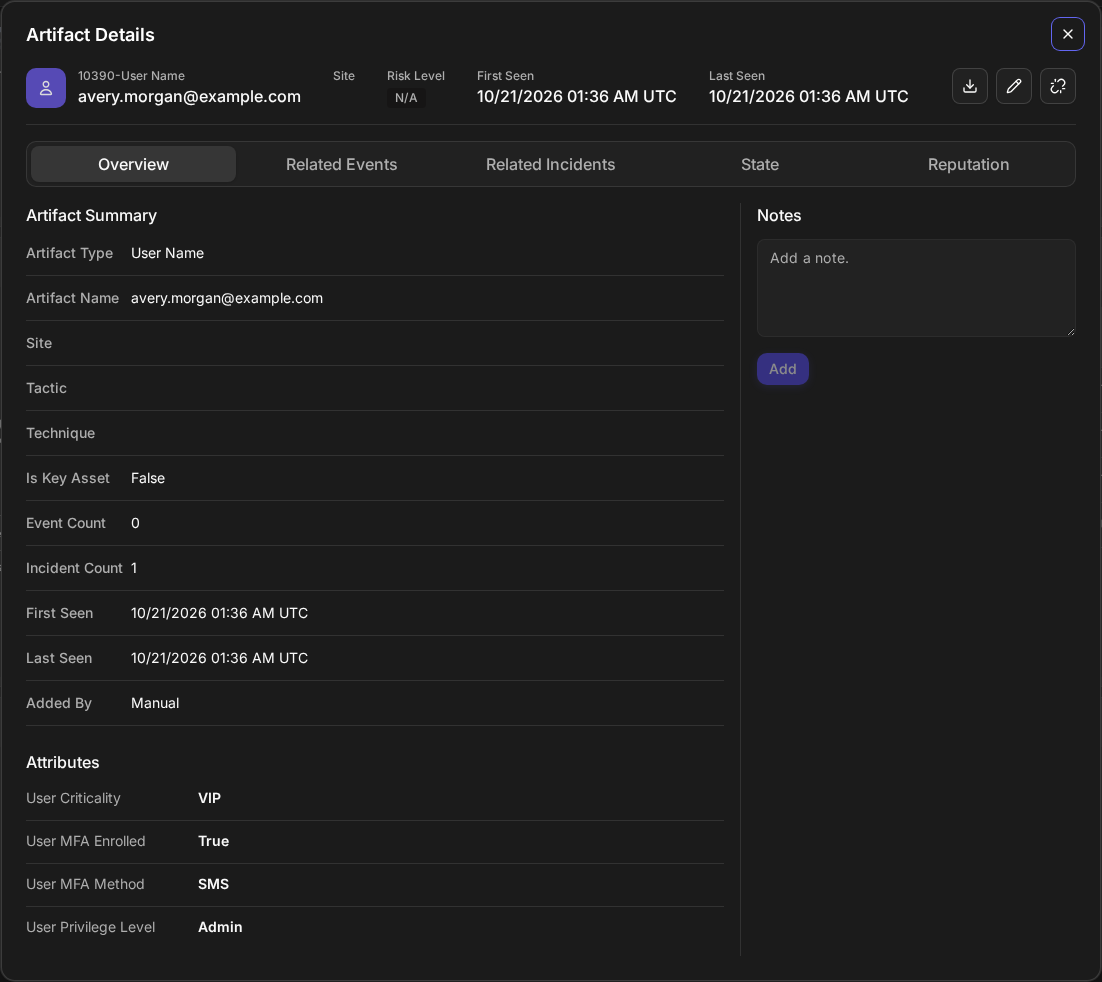
For custom artifact types, and for built-in types identified by a single field such as User Name, data on the artifact that does not belong to one of its type's fields still shows in the Artifact Summary rows above, one row per item. Other built-in types, such as URL and Email Address, keep that data with the artifact but do not show it.
Value Types
Every attribute field has a type, so a value reads the same way wherever it appears and can be checked when it arrives. A field with no type set is treated as text.
|
Type |
How it is shown |
What is accepted when a value arrives |
|---|---|---|
|
Text |
As sent |
Any text |
|
Number |
As sent—for example, |
A number, including scientific notation such as |
|
Date |
In your date and time format |
An ISO 8601 date and time, such as |
|
Boolean |
True or False |
|
|
List |
The list's own spelling, matched without regard to capitalization |
Any value. A value that is not on the list is kept as sent and marked Not in list, so data from an integration is never dropped |
A value that cannot be read as its field's type—for example, maybe for a Boolean field—is not stored as an attribute. If the field has no value yet, artifacts of custom types and of single-field types such as User Name still show what was sent among their other details; types such as URL and Email Address do not. If the field already has a value, that value stays (see Limitations).
Fields With a List of Allowed Values
These fields are set up with a list of allowed values, and the two Boolean fields with a yes or no answer:
|
Field |
Type |
Allowed values |
|---|---|---|
|
User Criticality, Subject User Criticality, Target User Criticality |
List |
VIP, Normal |
|
User Privilege Level, Subject User Privilege Level, Target User Privilege Level |
List |
Admin, Privileged, Standard, Service |
|
User Principal Type, Subject Principal Type |
List |
User, Service, Computer |
|
Target Principal Type |
List |
User, Service, Computer, Application, Group, Mailbox |
|
User MFA Method |
List |
App, FIDO2, SMS, None |
|
User MFA Enrolled |
Boolean |
True, False |
|
IP Is Internal |
Boolean |
True, False |
Every other field that has a description and was attached to an artifact type when your site was upgraded takes its type from the field's existing data type: text, number, date or Boolean. A field without a description, or first attached to a type after the upgrade, is treated as text.
The MFA Fields
Two new fields describe a user's multi-factor authentication, so an analyst can see at once whether a compromised account was protected:
-
User MFA Enrolled: whether the user is enrolled in multi-factor authentication.
-
User MFA Method: the user's primary method—App, FIDO2, SMS or None.
Both are set up on the User Name artifact type and are available for your playbooks and API calls to fill. To fill them from event ingestion as well, see Values From Event Ingestion.
Where Values Come From
An attribute can be supplied by several sources over time, and each value records which one supplied it. When two sources disagree, the product decides which value to show, so that a correction an analyst made is not quietly undone by the next integration sync.
|
Source |
Shown as |
Supplies values when |
|---|---|---|
|
Analyst |
Analyst (name) |
An analyst adds an artifact to an incident with Add New and fills in a field, for custom artifact types and single-field built-in types such as User Name; not for Email Address or URL (see the New Artifact dialog below) |
|
Integration |
The data source's internal name, or Event ingestion |
An ingested event carries a value for a field that is attached to the type of artifact the event creates (see Values From Event Ingestion) |
|
Playbook |
Playbook |
The Save and Link Artifacts to Incident command adds an artifact with field values in a playbook or through the public API, or the Add D3 Incident Artifacts command does so through the public API (see Values From Playbooks and the API) |
|
API |
API |
A custom Python command updates an artifact's additional data ( |
|
Migrated |
Migrated |
The value was already on the artifact before your site was upgraded |
|
Morpheus AI |
Morpheus AI, with the sparkle marker |
Morpheus AI supplies a value for a field that has none. The built-in Morpheus AI investigation adds artifacts to an incident without field values, so today it fills no attribute. A call to Add D3 Incident Artifacts that marks an artifact as added by an AI investigation also records this source (see Values From Playbooks and the API) |
To enter values yourself, add the artifact to the incident with Add New and fill in its fields (see Adding Attribute Values to an Artifact).
Adding values yourself: the New Artifact dialog
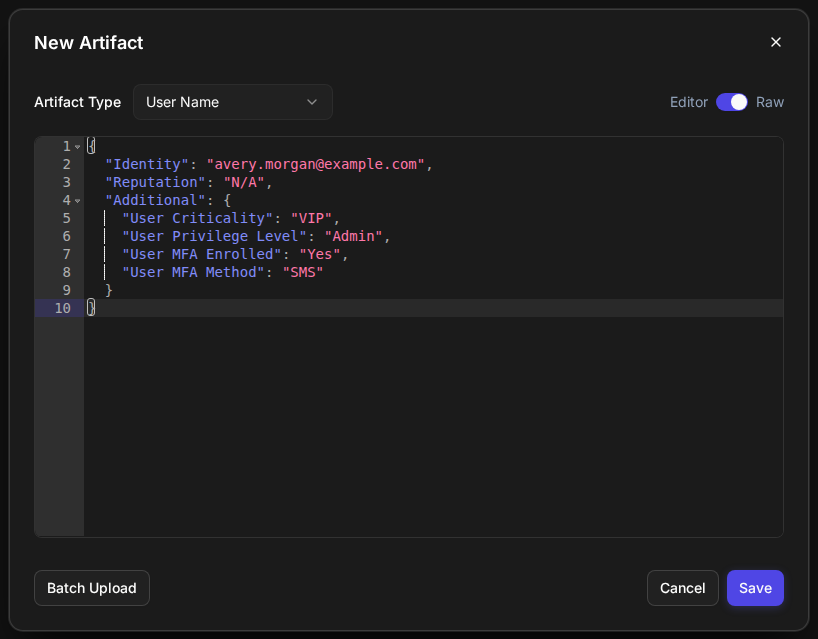
Editing an artifact with its pencil icon changes the artifact's data but not its attributes. To change a value, add the artifact again with Add New.
Which sources can fill which artifact types:
|
Source |
Custom types |
Single-field built-in types, such as User Name |
Email Address and URL |
|---|---|---|---|
|
Analyst (Add New) |
Yes |
Yes |
No |
|
Event ingestion |
Yes |
Yes, when the fields are attached to the type the event creates |
No |
|
Add D3 Incident Artifacts (public API only) |
Yes |
Yes |
Yes |
|
Save and Link Artifacts to Incident (playbook or public API) |
Yes |
Yes |
No |
|
Morpheus AI investigation |
No |
No |
No |
|
Migrated |
Yes |
Yes |
Yes |
Values From Event Ingestion
Event ingestion fills attributes on its own, with nothing to switch on, when all of these are true:
-
The data source's field mapping maps the vendor's field to the D3 field—for example,
$.criticalityto User Criticality. -
That field is attached to the type of artifact the event creates. For user names, ingestion creates Username artifacts, a built-in type with no fields attached when your site is upgraded; the user fields in this article are attached to User Name. To fill a user field from ingestion, attach it to the Username type as well (see Choosing Which Fields a Type Shows).
-
The value can be read as the field's type (see Value Types).
-
The event carries only one artifact of that type. If it carries two user names, for example, neither artifact gets the event's values.
For example, with $.username mapped to Username, $.criticality mapped to User Criticality, and User Criticality attached to the Username type, this event:
{"username": "avery.morgan", "criticality": "VIP"}
gives the Username artifact avery.morgan the attribute User Criticality = VIP, marked with the data source's internal name, such as crowdstrike, rather than the integration's display name. For a custom integration, the internal name starts with cusint-.
Event ingestion does not fill Email Address or URL artifacts, even when the field is mapped and attached.
Values From Playbooks and the API
Two utility commands record the field values they are given as attributes, marked Playbook (one exception is noted below). Only one of them can be added to a playbook; the other runs only through D3 Morpheus's public API (see the article API Credentials and Webhook Keys). Use each field's label, as listed under Fields for Additional Information, as the key.
|
Command |
System name |
Where it runs |
Fills |
|---|---|---|---|
|
Add D3 Incident Artifacts |
|
Through the public API only. The playbook editor does not offer it |
Any artifact type, including Email Address and URL |
|
Save and Link Artifacts to Incident |
|
In a playbook, or through the public API |
Custom types and single-field built-in types such as User Name |
In this release, attribute values for Email Address and URL artifacts can therefore be supplied only through the public API.
To call a command through the public API, send POST /api/v2/commands/<system name>/execute. Put the ID of the incident's site in site_id, and the command's inputs, by input name, in command_params. In a playbook, add a Save and Link Artifacts to Incident task and enter the same inputs in its fields. The site ID and incident number in the examples below are placeholders.
Add D3 Incident Artifacts takes Incident Number (incidentNumber) and Artifacts (artifacts). Give each artifact an AdditionalFields object:
{ "site_id": 1001, "command_params": { "incidentNumber": "20260101-1", "artifacts": [ { "Type": "User Name", "Identity": "avery.morgan@example.com", "AdditionalFields": { "User Criticality": "VIP", "User MFA Enrolled": "yes" } } ] } }
If an artifact's AddedBy object has the Type AI Investigation, its values are marked Morpheus AI instead of Playbook, and are treated as Morpheus AI values (see Which Value Wins).
Save and Link Artifacts to Incident takes Artifact Type (type), Artifact Fields (fields) and Incident Number (incidentNumber). Give each entry in Artifact Fields an Additional object:
{ "site_id": 1001, "command_params": { "type": "User Name", "fields": [ { "Identity": "avery.morgan@example.com", "Additional": { "User Criticality": "Normal" } } ], "incidentNumber": "20260101-1" } }
Which Value Wins
The value shown is decided by these rules:
-
An analyst's value wins over everything else, and stays until an analyst changes it. Integration syncs never replace it, and its age keeps showing, so you can judge whether it is still current.
-
Integrations, playbooks and migrated values rank equally: among them, the most recently observed value wins.
-
Morpheus AI only fills gaps. It never replaces a value from any other source; a newer Morpheus AI inference can replace an older one. When an integration later sends the same value, the value counts as the integration's.
-
A blank value never clears an attribute. An empty value from any source leaves the current value in place.
Example
|
Day |
What arrives |
What the tab shows |
|---|---|---|
|
1 |
Morpheus AI infers User Criticality = VIP |
VIP, from Morpheus AI |
|
2 |
An identity integration sends Normal |
Normal, from the integration |
|
3 |
An analyst adds the artifact with VIP |
VIP, from the analyst |
|
9 |
The integration sends Normal again |
VIP, from the analyst |
|
10 |
Morpheus AI infers Normal |
VIP, from the analyst |
|
11 |
A source sends an empty value |
VIP, from the analyst |
READER NOTE
Adding an artifact again with a value you did not change does not make that value yours. Only a value that differs from the one shown is recorded as an analyst value, so untouched values keep updating from your integrations.
Adding Attribute Values to an Artifact
Add a value yourself when you know a fact your integrations do not supply, or when an integration's value is wrong. Your value is recorded as an analyst value and wins over integrations from then on—so enter one only when you mean it to stay.
You need permission to edit the incident's artifacts. The Add New button appears only when you can.
READER NOTE
Values entered this way are recorded as attributes for custom artifact types and for built-in types identified by a single field, such as User Name. Other built-in types, such as URL and Email Address, save the artifact but do not record attribute values from this dialog.
WARNING
A value you enter here cannot be handed back to your integrations. It stays, and wins over every integration, until an analyst enters a different value; the product has no way to clear it.
-
Open the incident and select Artifacts in the incident's left-hand menu.
-
Select Add New. The New Artifact dialog opens.
-
In Artifact Type, select the artifact's type—for example, User Name.
-
Enter the artifact in Identity—for example, the user name—and add each attribute under Additional as a key and value, using the field's label as the key—for example,
"User Criticality": "VIP". To type the data directly, switch the dialog from Editor to Raw.Adding attribute values in the New Artifact dialog
-
Select Save.
RESULT
The artifact is saved to the incident, and the values you entered appear on its Attributes tab, marked Analyst with your name.
READER NOTE
Only keys that match a field set up for the artifact's type become attributes. Other keys are kept with the artifact's data and appear in its Artifact Summary rows.
Choosing Which Fields a Type Shows
The fields an artifact type carries decide which attributes its artifacts can show. Set them up on the artifact type, so every artifact of that type offers the same facts.
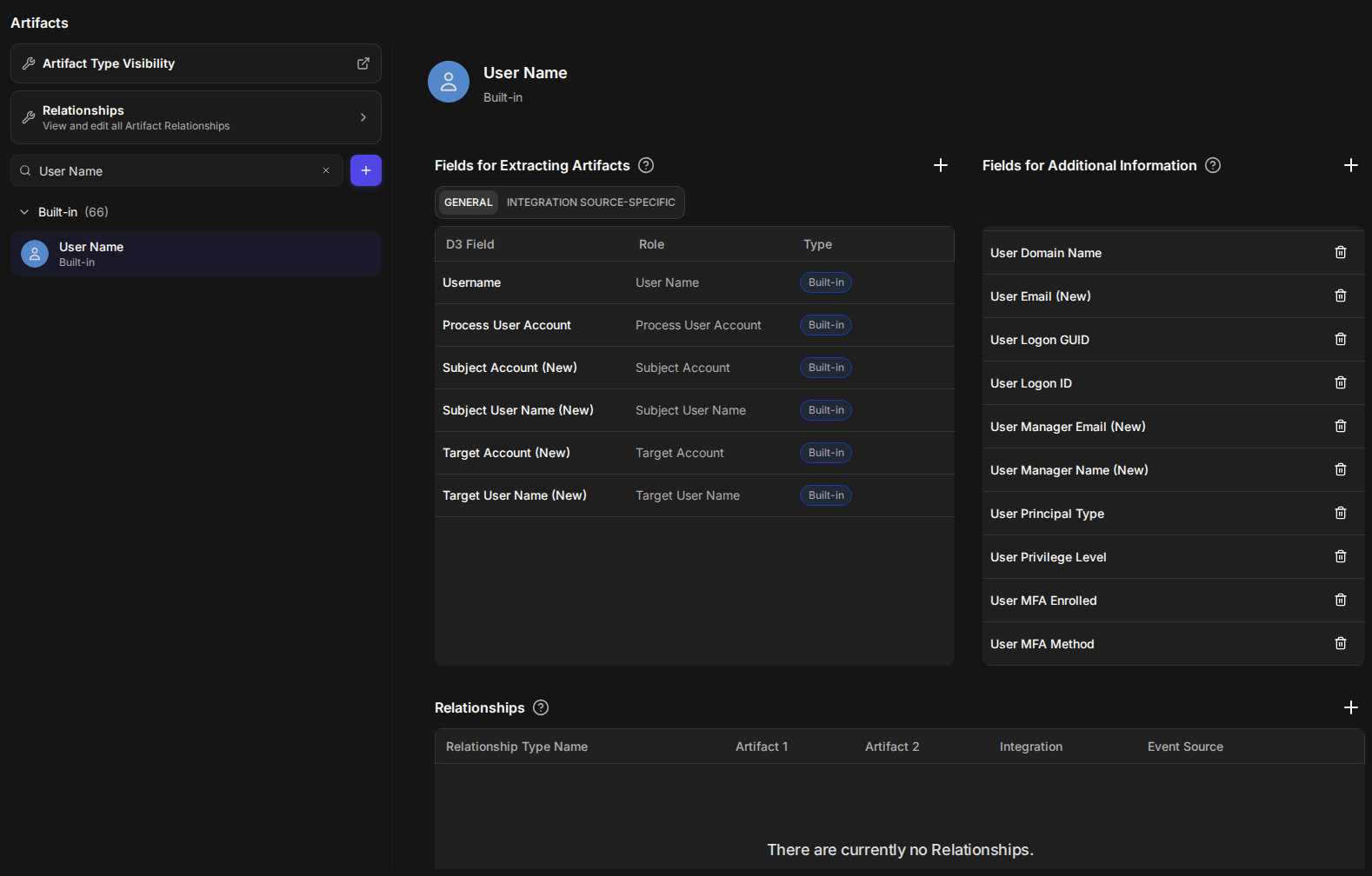
The Attributes tab and the attribute columns use the fields listed for the type under Configuration > Artifacts. Select the artifact type—under Built-in or Custom, or by searching for it—and look at Fields for Additional Information. Add a field with the + beside that heading, or remove one with its trash icon. Removing a field stops it showing on the type's artifacts and in the column chooser. Its stored values are kept, and show again if you add the field back. A field you attach that was not attached to any type when your site was upgraded is treated as text: it has no list of allowed values, and a yes or no answer shows as sent rather than as True or False.
From an artifact, the Manage these fields in Configuration link on its Attributes tab opens this page with the artifact's type already selected.
The fields set up for an artifact type
Adding Attribute Columns to the Artifacts List
Attribute columns let you compare one fact across all the artifacts of an incident—for example, which of the users involved are VIPs, or which have no MFA—without opening each artifact. Columns are offered for one artifact type at a time, because each type has its own fields.
Attribute columns are available in the incident's Artifacts tab and in Key Findings > Bad Reputation.
-
Open the incident and select Artifacts in the incident's left-hand menu.
-
In the type filter, which reads All Artifacts until you choose, select one artifact type—for example, User Name.
-
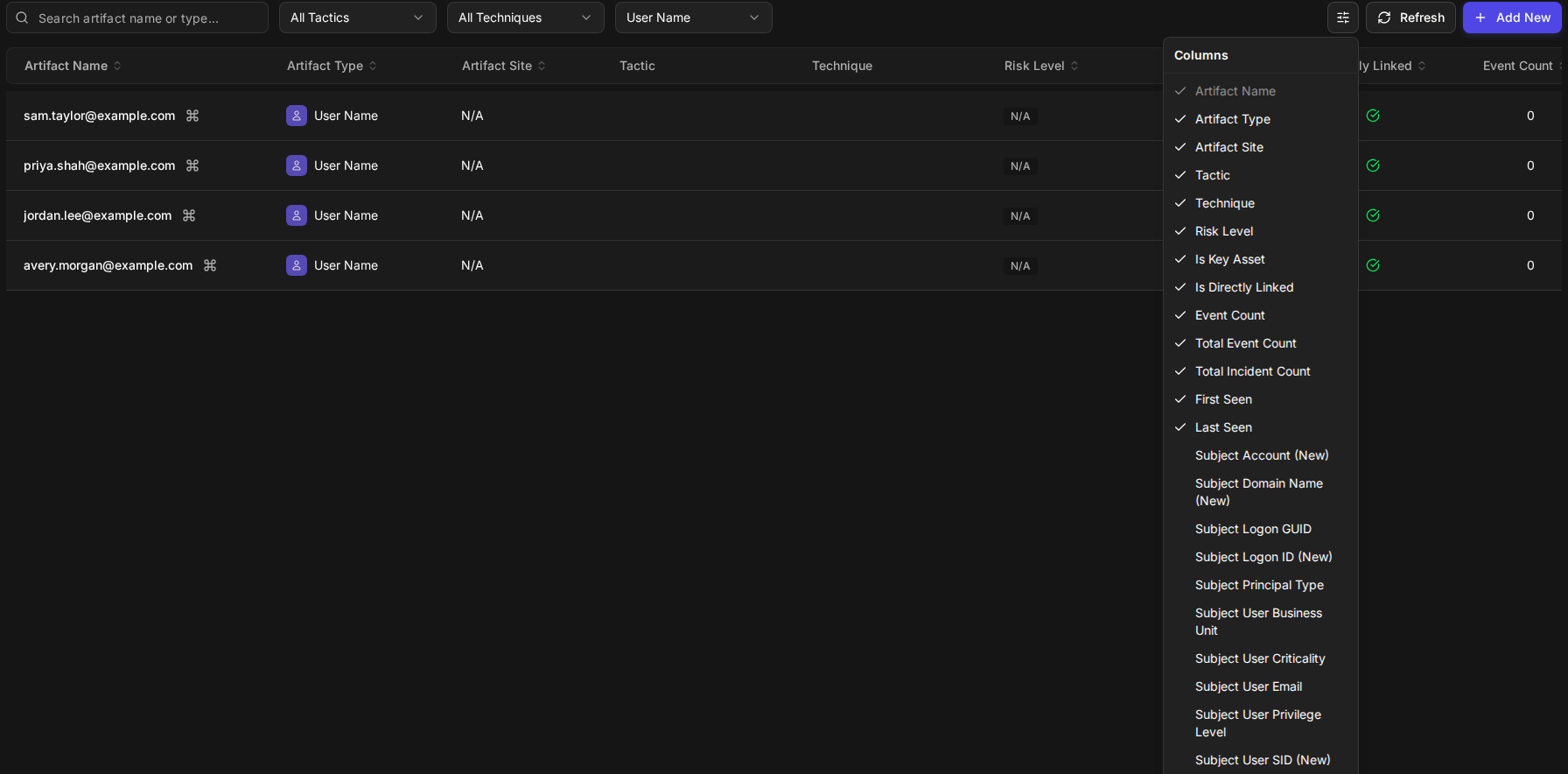
Select the columns button beside Refresh (its tooltip reads Columns). The Columns menu now lists the type's fields below the standard columns.
The column chooser for one artifact type
-
Select the fields you want to see as columns. To make room, you can also clear standard columns you do not need.
RESULT
Each field you selected appears as a column. Artifacts with no value for it show —, and a list value that is not on the field's list carries Not in list.
Attribute columns in the Artifacts list

Things to know about attribute columns:
-
They are remembered per artifact type and per list, in your browser. Each type keeps its own choice, separately for the incident's Artifacts list and Key Findings > Bad Reputation, and the choice stays when you reload. It does not follow you to another browser or computer.
-
They start hidden. A type's fields are offered in the chooser but are not shown until you pick them. Reset columns hides them again.
-
They cannot be sorted. The standard columns still sort as before.
-
The chooser is unavailable for a moment after you change the type, while the type's fields load. This keeps your saved choice for that type from being lost.
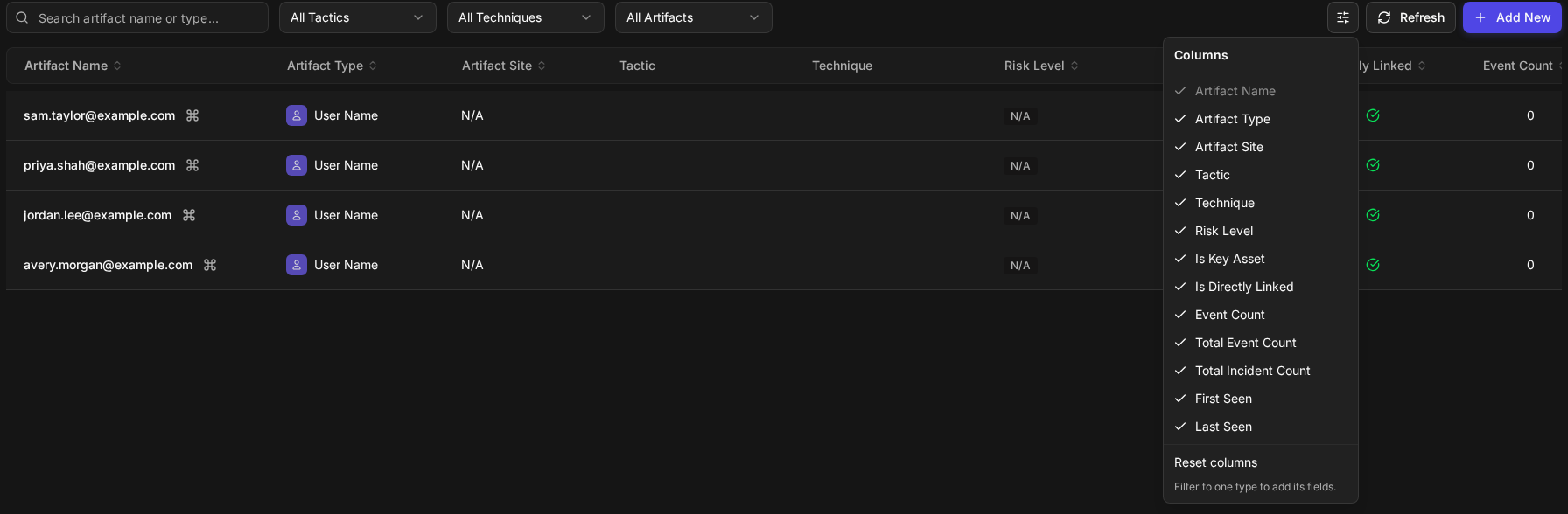
When the list is not filtered to one type, the chooser offers only the standard columns and says Filter to one type to add its fields.
The column chooser on an unfiltered list
Hiding the Attributes Tab When Empty
Hide attributes when empty is a setting that removes the Attributes tab from artifacts that have nothing filled in, for teams that would rather not see an empty tab. It is off by default, so the tab is never hidden unless an administrator turns the setting on.
You need access to Application Settings to change this setting.
-
Go to Global Settings > Application Settings.
-
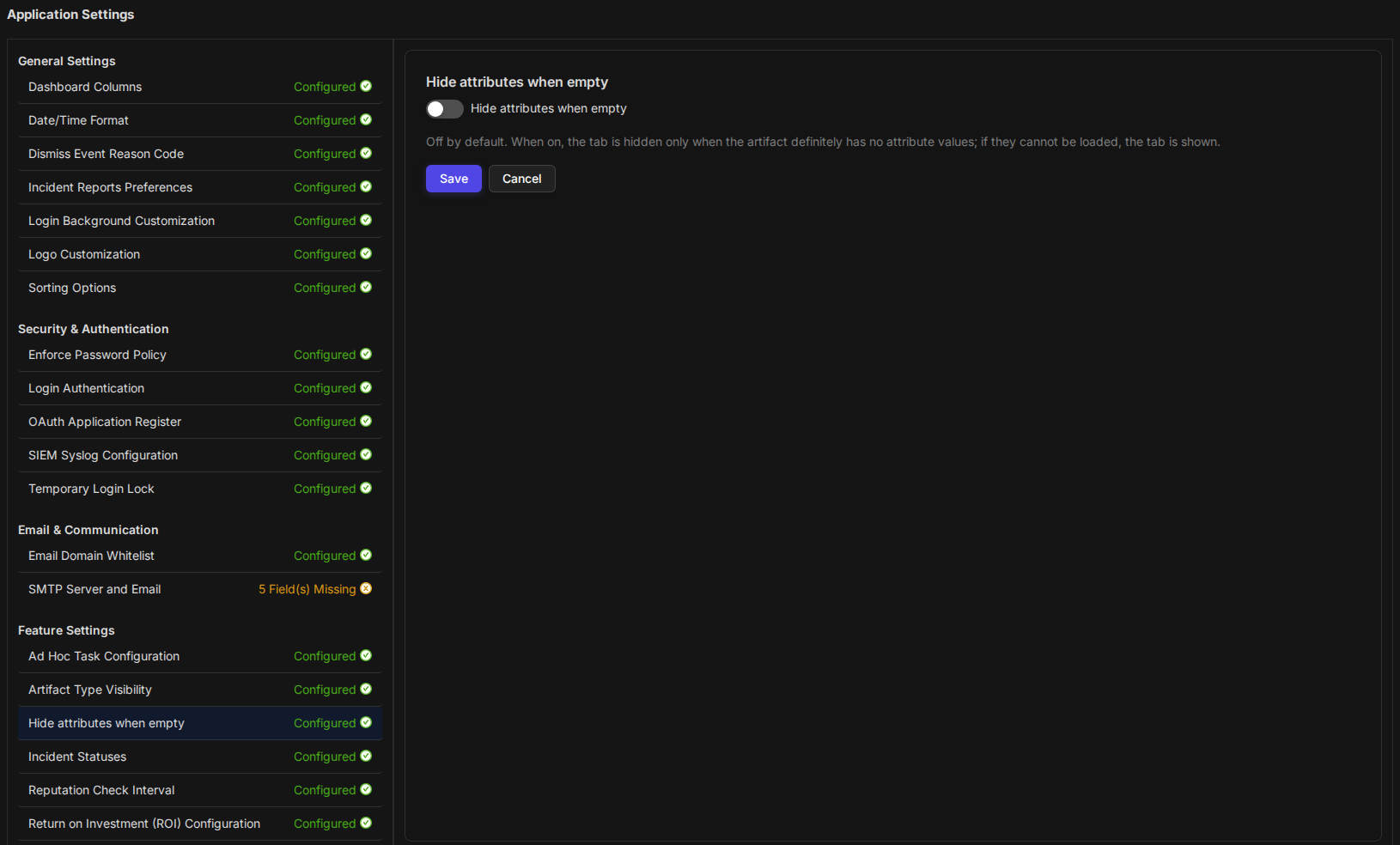
Under Feature Settings, select Hide attributes when empty. It is listed directly below Artifact Type Visibility.
-
Switch on Hide attributes when empty.
The Hide attributes when empty setting
-
Select Save.
RESULT
The message Hide attributes when empty saved! appears. The next time anyone opens an artifact with nothing filled in, it has no Attributes tab.
|
The artifact… |
Setting off |
Setting on |
|---|---|---|
|
Has at least one value |
Attributes tab, listing the values |
Attributes tab, listing the values |
|
Has fields, none filled in |
Attributes tab with Nothing is filled in yet. |
No Attributes tab; the panel opens on Reputation |
|
Has attributes that could not be loaded |
Attributes tab with Couldn't load attributes. |
Attributes tab with Couldn't load attributes. |
|
Has a type with no fields |
No Attributes tab |
No Attributes tab |
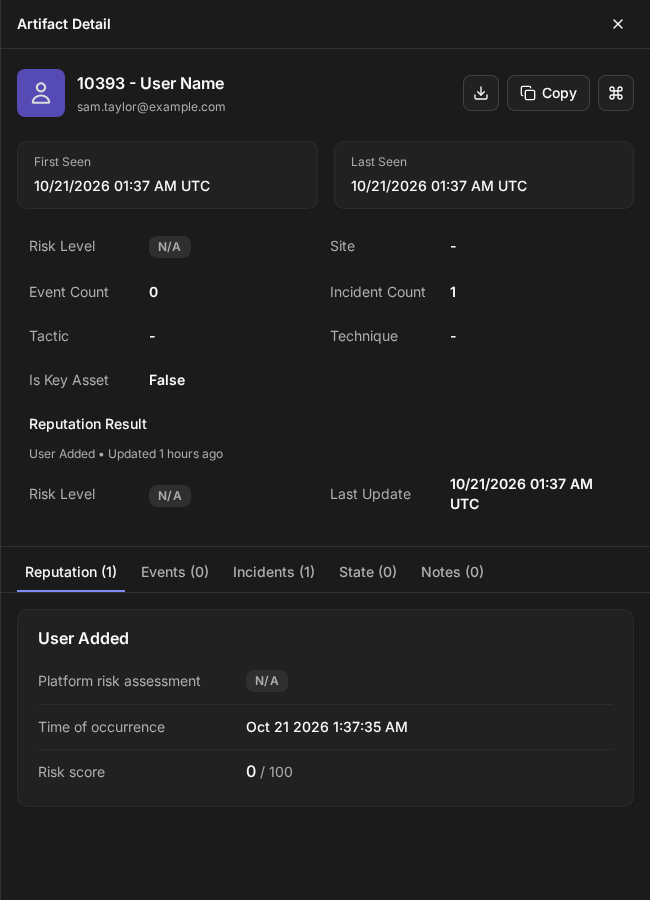
An artifact with nothing filled in, with the setting on
READER NOTE
The tab is hidden only when the artifact is known to have nothing filled in. If its attributes are still loading or could not be loaded, the tab stays, so a fact is never hidden because of a slow or failed load. In the incident workspace's artifact window, the setting removes the Attributes section in the same way.
There is one setting for all artifact types on all sites. It changes only the Attributes tab and section; artifact cards do not show attributes.
Values From Before an Upgrade
When your site is upgraded to this release, values already stored on your artifacts under one of their type's fields are copied in as attributes. They show the source Migrated, and their age reads age unknown, because the time they were first recorded was not kept. Nothing is removed from the artifact's existing data.
A migrated value ranks with integrations, so the next value an integration sends for the field replaces it.
Limitations
-
The Attributes tab is read-only. There is no control to edit, clear or confirm a value on the tab. To set a value, add the artifact to an incident with the value filled in (see Adding Attribute Values to an Artifact).
-
A value cannot be cleared. Removing a field from an artifact's data, or sending it blank, leaves the stored attribute in place.
-
A rejected value on a filled field is not shown. If a new value cannot be read as the field's type, the field keeps its previous value, and nothing shows that a newer value was refused.
-
Two artifacts of the same type in one event get no attributes from event ingestion. Ingestion cannot tell which values belong to which artifact, so it records none rather than risk giving one user another's facts. Values added by analysts and by playbook commands are still recorded.
-
Only the public API can give Email Address or URL artifacts attribute values. Event ingestion and Add New do not fill them, and Add D3 Incident Artifacts, the command that does, cannot be added to a playbook. Call it through the public API (see Values From Playbooks and the API).
-
Event ingestion creates user names as the Username type, which has no fields attached when your site is upgraded. Attach the user fields you map to Username for ingestion to fill them (see Values From Event Ingestion).
-
Only the fields listed under Fields With a List of Allowed Values have a list. Other fields whose descriptions give examples are treated as text.
-
A field first attached to a type after the upgrade is treated as text, whatever its data type.
-
Some field labels end in (New), for example User Email (New). This is the label stored in your site's field vocabulary.
-
The Unknown artifact type offers no attribute columns.
-
The classic UI does not show attributes.
FAQs
Why does an artifact have no Attributes tab? Either its type has no fields set up (see Choosing Which Fields a Type Shows), or Hide attributes when empty is on and the artifact has nothing filled in.
Why is a value I can see in the Artifact Summary rows not an attribute? Its key does not match a field set up for the artifact's type, or the value could not be read as the field's type—for example, text sent to a number field. A value from event ingestion is also not recorded when the event carried two artifacts of that type (see Values From Event Ingestion).
An integration keeps sending a value, but the tab shows something else. Why? An analyst supplied that field, and an analyst's value wins over integrations until an analyst changes it. Point to the source mark to see who supplied it and when.
Can Morpheus AI overwrite what my integrations report? No. Morpheus AI fills only fields that no other source has supplied, and updates only its own earlier inferences.
Do attribute columns follow me to another computer? No. Your column choice is saved in the browser you used.