
Last updated: November 10, 2026
Overview
Forensic Evidence is an incident widget that keeps the files of an investigation as evidence you can stand behind later—in front of a court, an insurer, a regulator or law enforcement. Every file you add is fingerprinted with its SHA-256 and SHA-1 hashes the moment it arrives, sealed so that no one can change or replace it, and given its own chain of custody: a log of everything that happens to it, from who collected it to who viewed, downloaded, examined or handed it over.
The same widget lets you place the whole incident on legal hold while a legal matter is open, which locks the incident's fields and its existing evidence but still lets you add evidence and custody entries, and shows you at a glance whether the same file has turned up in other incidents.
The Forensic Evidence widget
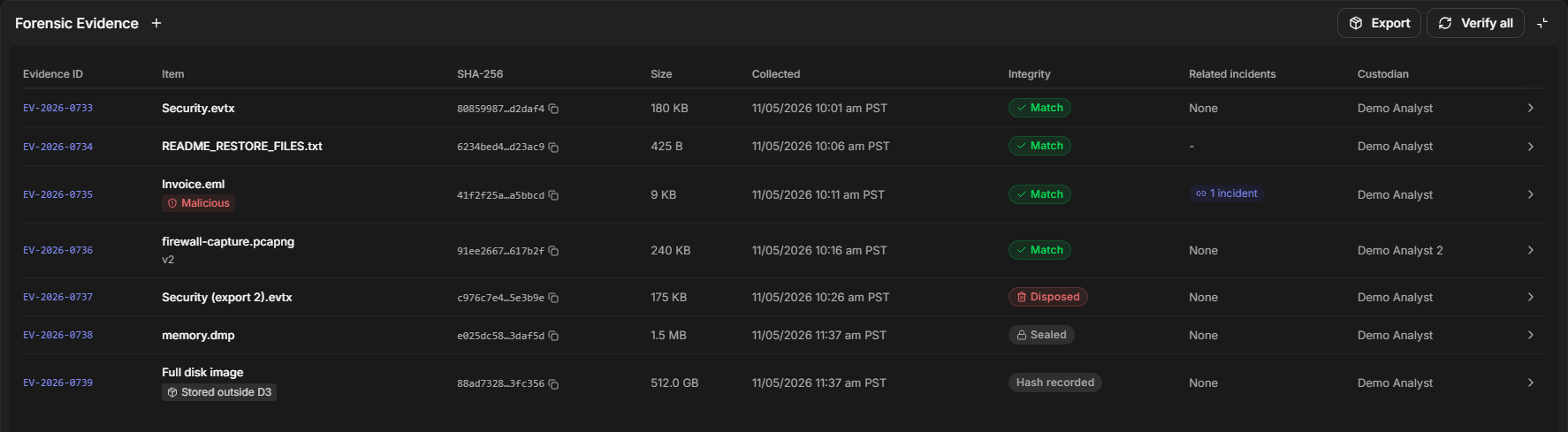
Use Forensic Evidence when what you collect during an incident may need to be proven later: memory captures, disk images, event logs, packet captures, phishing emails, ransom notes. Instead of a folder of attachments and a spreadsheet of who touched what, each item carries its own proof that it is the file that was collected and an unbroken record of where it has been.
In short
|
# |
Stage |
Where it happens |
|---|---|---|
|
1 |
Turn the feature on and put the widget on the incident workspace |
D3 Support, then Configuration > Incident Type Manager > an incident type > Incident Workspace |
|
2 |
Add evidence: upload a file, or record one kept outside D3 |
The + on the Forensic Evidence widget |
|
3 |
Record what happens to an item outside D3 |
The item's drawer > Chain of custody > Add entry |
|
4 |
Check, preview, download, version, transfer or mark an item malicious |
The item's drawer: Download, Preview, Verify now and More |
|
5 |
Hand evidence over |
More > Custody report for one item; Export on the widget for all of them |
|
6 |
Preserve the incident while a legal matter is open |
Legal hold in the incident header |
|
7 |
Destroy a file that is no longer needed |
The item's drawer > More > Dispose of file or Request disposal |
Before You Start
Two things must be in place before analysts see the widget on an incident.
-
Forensic Evidence is turned on for your D3 Morpheus deployment. It is off by default. To turn it on, contact D3 Support.
-
The widget is on the incident workspace. An administrator adds Forensic Evidence to the incident workspace of each incident type that should collect evidence: open Configuration > Incident Type Manager, select the incident type, open Incident Workspace, open the workspace, search the Widgets list for Forensic, and add the Forensic Evidence widget to the page. It works best at full width, because the table has eight columns.
The Forensic Evidence widget in the workspace builder
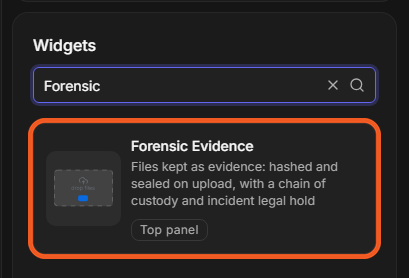
In the workspace builder the widget shows example rows, so you can judge its size before you save. The card's Top panel tag means it can also be placed in the incident's top panel; refer to [Incident Top Panel] for that.
READER NOTE
If Forensic Evidence is turned off later, existing evidence stays readable and checkable, and legal holds keep working, but no new evidence can be added and the widget is no longer offered in the Widgets list.
Who can do what with evidence depends on the role; see Who Can Do What.
The Forensic Evidence Widget
The Forensic Evidence widget is the incident's evidence register: one row per item, with the facts you need to trust it. Select a row to open the item's drawer.
|
Column |
What it shows |
|---|---|
|
Evidence ID |
The item's unique ID, such as |
|
Item |
The file or record name, with a tag when it applies: Malicious, Stored outside D3, or the current version (for example v2). |
|
SHA-256 |
The start and end of the file's SHA-256. Select the copy icon to copy the whole hash. |
|
Size |
The size of the file as collected. |
|
Collected |
When the item was collected, in the incident's time zone. |
|
Integrity |
The result of the last check of the stored file (see below). |
|
Related incidents |
How many other incidents on the same site hold the same file. None means no other incident does; a dash means the file is too small to compare; Common file means it appears in very many incidents. |
|
Custodian |
Who currently has custody of the item. A pending handover shows as → name (pending), and Waiting for you to accept when it is addressed to you. |
The Integrity column tells you, without opening anything, whether each file is still the one that was collected:
|
Integrity |
What it means |
|---|---|
|
Sealed |
Hashed and sealed on upload, not re-checked since. |
|
Match |
The last check re-read the stored file and it still matches its recorded hashes. |
|
Mismatch |
The stored file no longer matches what was recorded. Treat the item as compromised and investigate. |
|
Hash recorded |
An item stored outside D3: D3 holds the hash you entered, not the file, so it cannot re-check it. |
|
Disposal pending |
Someone asked for the file to be destroyed and the request is waiting for approval. |
|
Disposed |
The file was destroyed. Its record, hashes and custody log remain. |
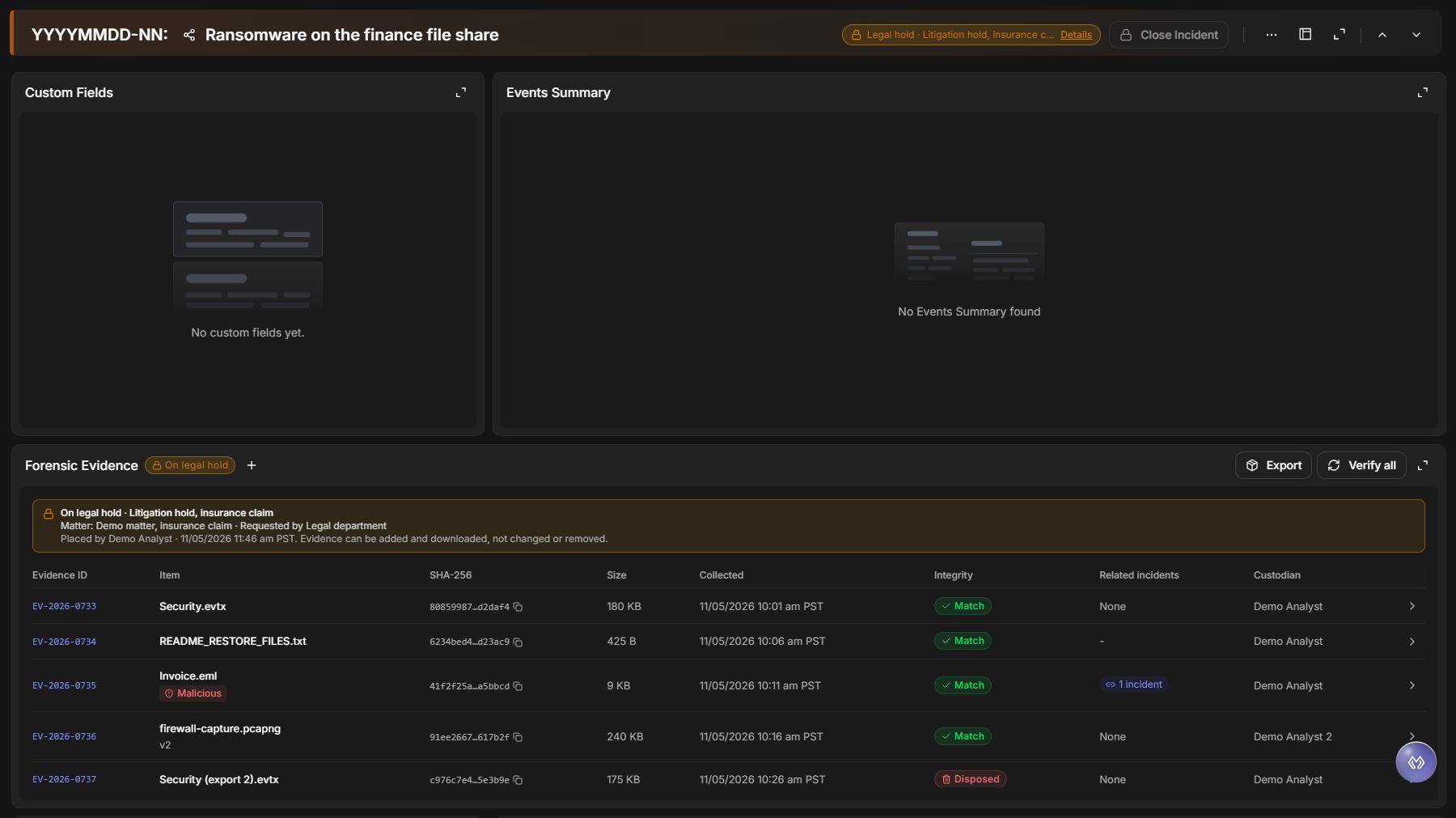
The widget header carries Export (an export package of every item, see Export Packages) and Verify all (see Checking Integrity). When the incident is on legal hold, the title shows On legal hold and a banner above the table gives the reason.
Before anything is added
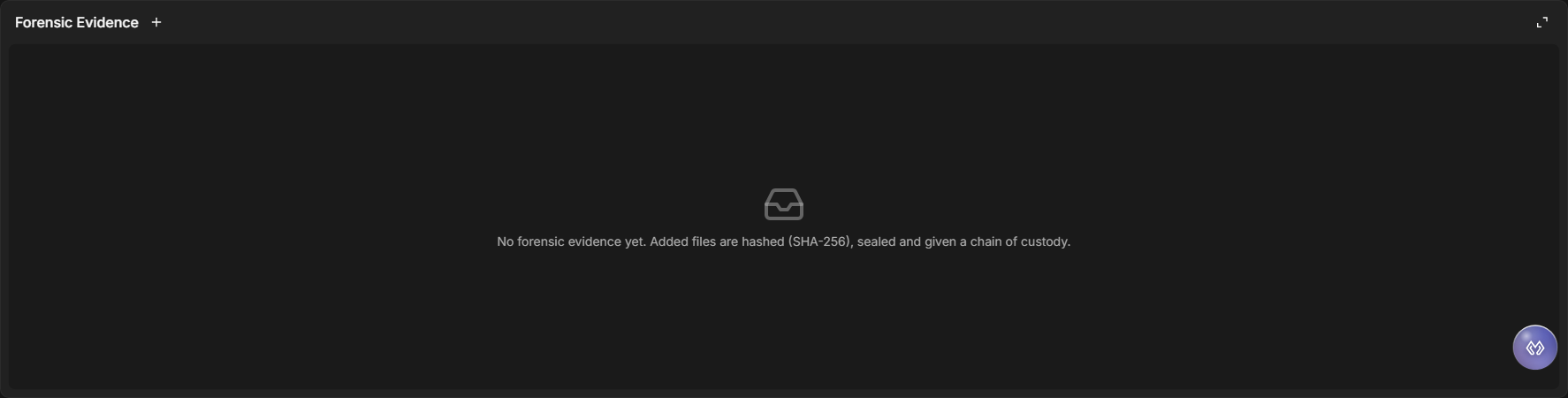
Adding Evidence
Evidence comes in two forms. A file you upload is stored by D3, which can re-check it at any time. A file too large to upload, or one that must stay where it is—a full disk image on a sealed drive, say—is recorded as external evidence: D3 keeps its hash, where it is, and its chain of custody.
Either way, adding evidence never changes anything that is already there, so you can add evidence at any point, including while the incident is on legal hold.
Uploading a File
Upload a file when you want D3 to hold it, fingerprint it and prove later that it has not changed.
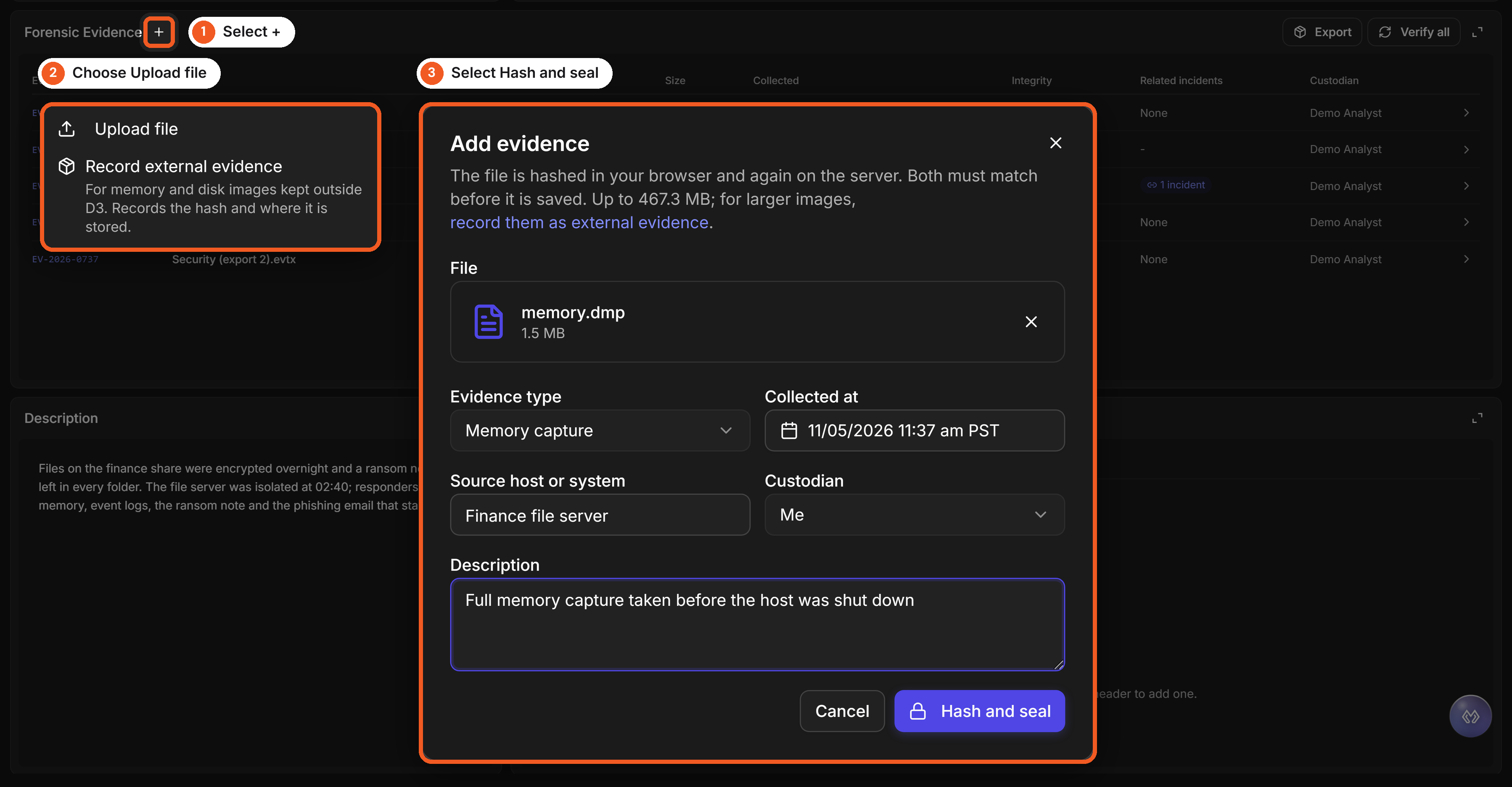
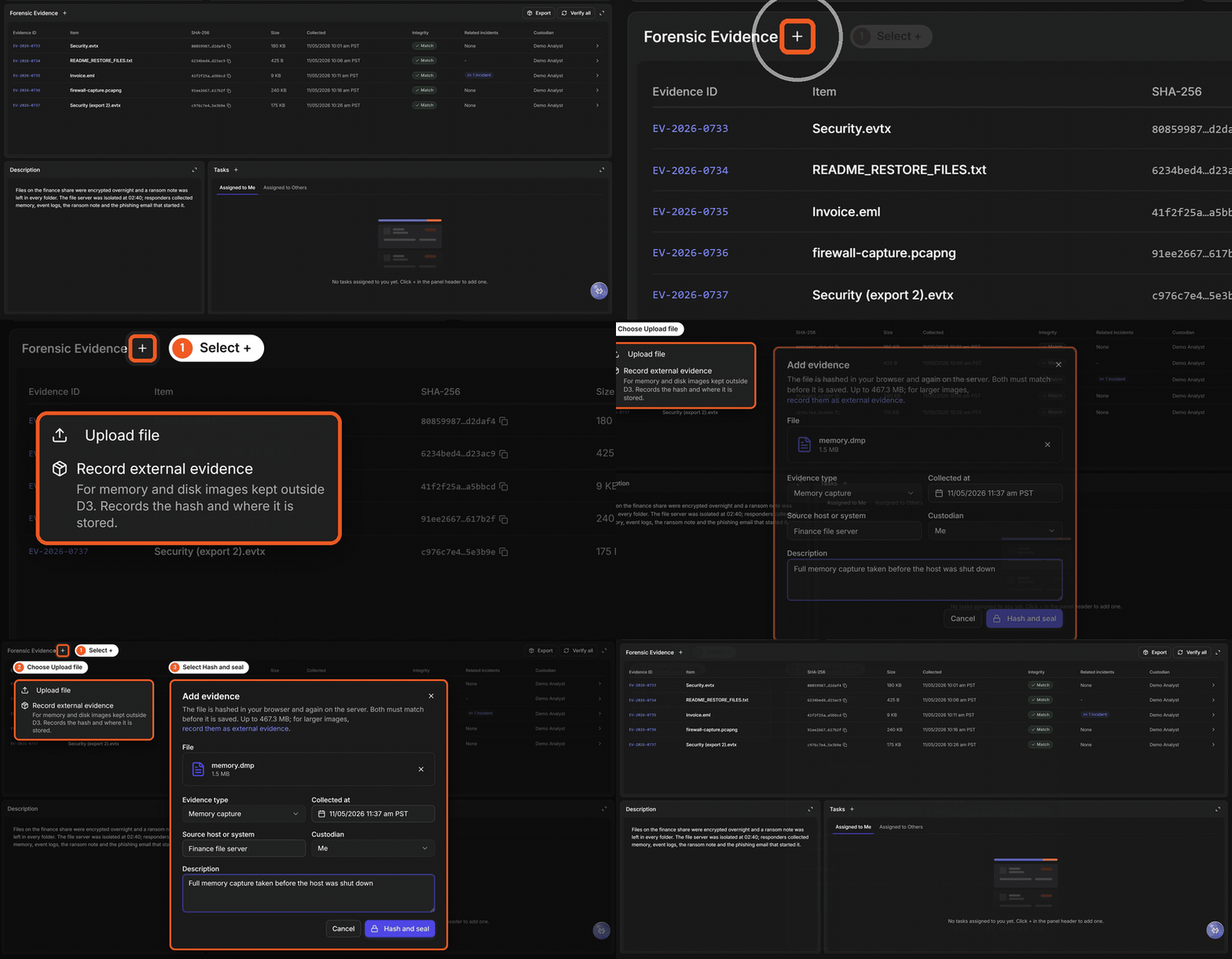
Adding evidence, in three moves
The same steps as a short animation (MP4):
-
On the Forensic Evidence widget, select +, then Upload file.
-
Drop the file on File, or select it from your computer.
-
Check Evidence type. D3 suggests one from the file name—Memory capture for a
.dmp, Event log for an.evtx, Email for an.eml—and you can choose another. -
Set Collected at to when the file was collected, if that was earlier than now.
-
Enter the Source host or system it came from.
-
Choose the Custodian: Me, or another user of the incident's site who now holds it.
-
Enter a Description that says what the file is and why it matters.
-
Select Hash and seal.
RESULT
The item appears in the table with a new Evidence ID and the integrity Sealed. Its chain of custody starts with two entries: who collected it, and the hashes that were recorded and sealed.
While you wait, D3 checks the file twice: your browser calculates its SHA-256 before the upload, and the server calculates it again on arrival. If the two differ, the file changed on its way to the server, and it is refused rather than stored. A file that is saved is therefore exactly the file you selected.
The dialog shows the largest file you can upload (467.3 MB by default). For anything larger, record it as external evidence instead.
READER NOTE
Evidence follows your site's attachment rules, with one difference: archives (.zip, .rar) are accepted, so zipped triage packages can be evidence. Programs are always refused, whatever their name, because D3 checks the file's content as well as its extension.
Each file you upload also adds its SHA-256 to the incident's Artifacts as a File Hash SHA256 artifact, so the Suggested tab of the Linked Incidents widget can point you to other incidents that hold the same file.
Recording External Evidence
Record external evidence for a file you keep outside D3, such as a multi-terabyte disk image or a memory image on a sealed drive. You get the same Evidence ID, the same custody log and the same place in reports and export packages, without uploading the file.
-
On the Forensic Evidence widget, select +, then Record external evidence.
-
Fill in the dialog (see the table below).
-
Select Save record.
The Record external evidence dialog
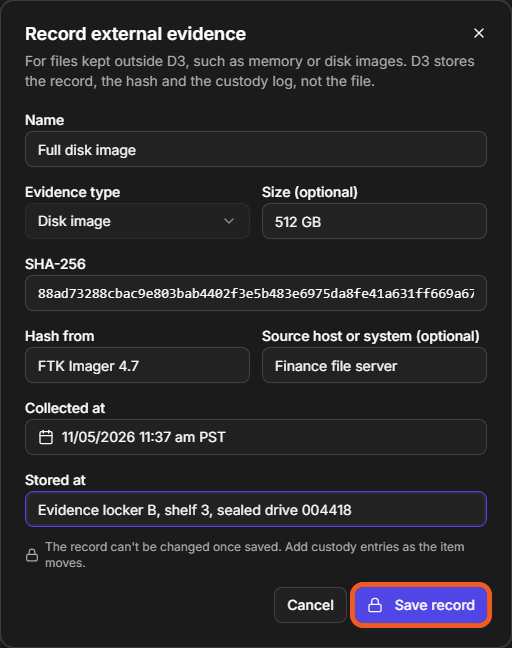
|
Field |
What to enter |
|---|---|
|
Name (Required) |
What the item is, for example |
|
Evidence type (Required) |
The kind of item; Memory image is preselected. |
|
Size (Optional) |
The size as text, for example |
|
SHA-256 (Required) |
The 64-character hash your imaging tool calculated. |
|
Hash from (Required) |
The tool that calculated it, for example |
|
Source host or system (Optional) |
Where the item was taken from. |
|
Collected at (Required) |
When it was collected. |
|
Stored at (Required) |
Where the item is kept: a share path, a locker, a seal number. |
RESULT
The item appears with the tag Stored outside D3 and the integrity Hash recorded.
WARNING
An external record cannot be changed once saved. As the item moves—to a lab, back to the locker—record each move as a custody entry. D3 cannot open or re-check an external item, because it does not hold the file.
The Evidence Drawer
The evidence drawer is everything D3 knows about one item. Select a row in the widget to open it. Its header shows the Evidence ID, the name and badges for the type, the integrity and, when they apply, Malicious, On legal hold and File disposed of. Below it are three tabs: Details, Chain of custody and Versions.
The evidence drawer, Details tab
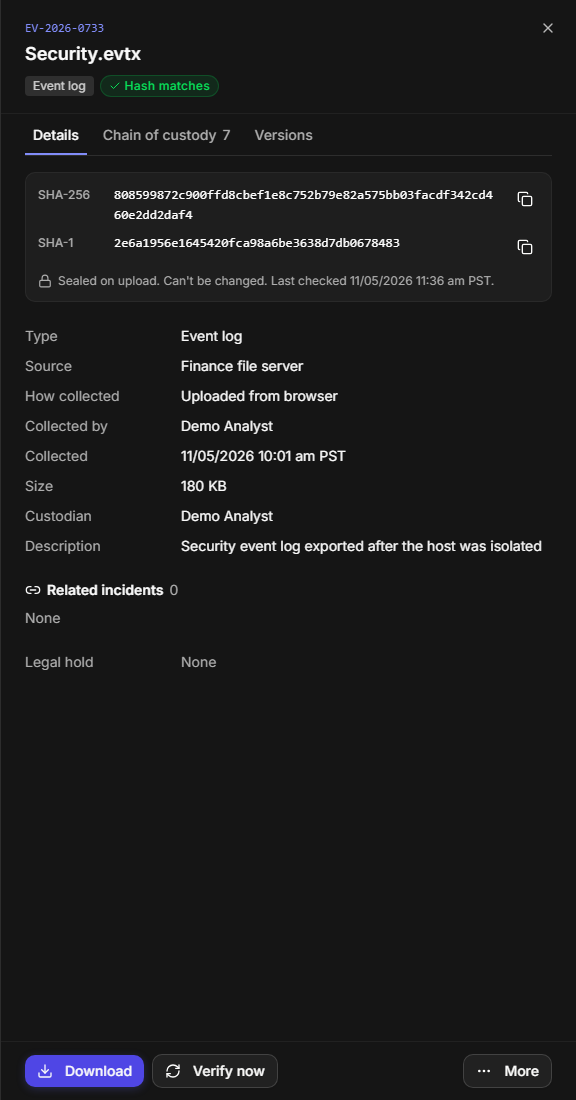
Details shows the item's SHA-256 and SHA-1, each with a copy button, and when the stored file was last checked. Below them are the facts recorded when it was collected—Type, Source, How collected, Collected by, Collected, Size, Custodian and Description—followed by Related incidents and the incident's Legal hold. All times are in the incident's time zone, labelled, so everyone reads the same moment whatever their own time zone.
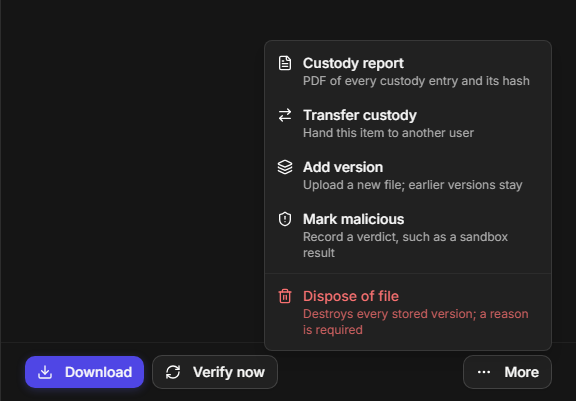
The footer holds the actions: Download, Preview (for files a browser can show safely), Verify now, and More.
The More menu
Related Incidents
Related incidents lists the other incidents on the same site that hold the same file, so an analyst sees at once that a phishing email, a dropper or a ransom note has been seen before.
A related incident
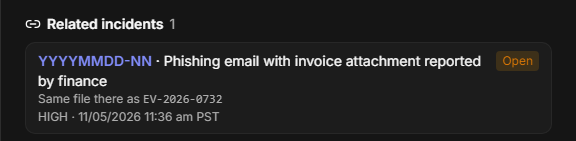
A match means the same file contents, compared by SHA-256:
-
A renamed copy matches; a different file that only shares the name does not.
-
Matches stay within the site, so incidents of another site—another client of an MSSP, for example—are never shown.
-
An incident you are not allowed to open is counted, not listed.
-
Very small files are not compared, because empty and tiny files share hashes by chance.
-
A file found in very many incidents is labelled Common file instead of being listed.
Each related incident shows its number, title, status, severity and date, and the Evidence ID the file has there. Select the number to open it.
The Chain of Custody
The chain of custody is the item's history: who collected it, every time it was viewed, downloaded, checked, handed over, versioned, marked or put on hold, and everything people did with it outside D3. It is what lets you say, months later, exactly where a file has been and who has had it.
The Chain of custody tab
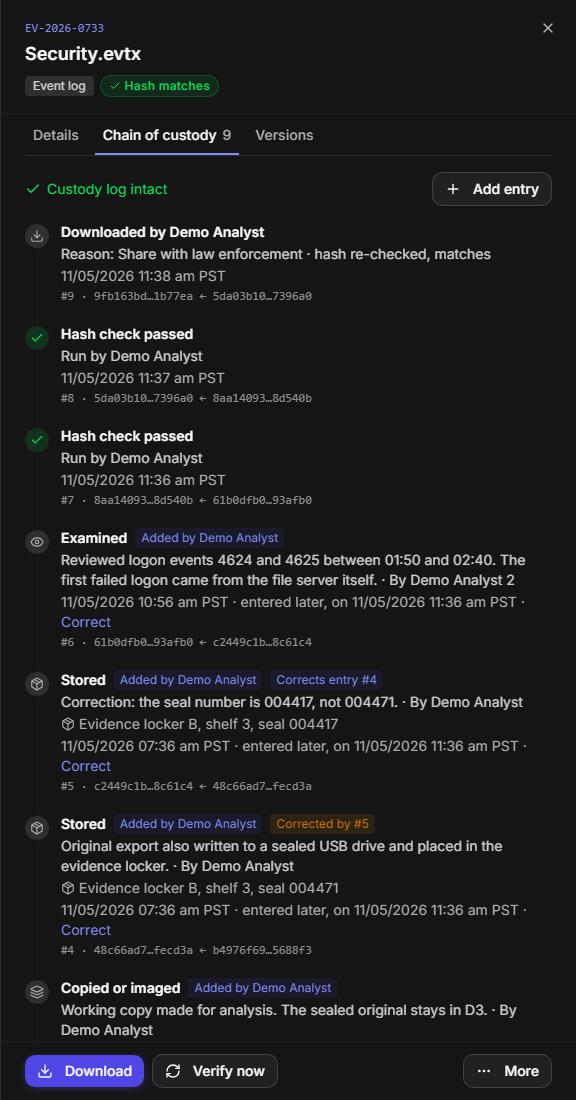
Entries are listed newest first. D3 writes most of them itself—Collected by, Hash recorded and file sealed, Viewed by, Downloaded by with the reason given, Hash check passed, transfers, versions, verdicts, reports, exports, legal holds and disposals—and people add the rest.
Every entry is permanent. No one can edit or delete one, in the product or through the API. Each entry is also linked to the one before it by a hash, shown at the bottom of the entry (#9 · fd30a900…c4a6b2 ← 9a9fc546…dba655). If anyone ever changed an earlier entry, every link after it would break. The top of the tab tells you which: Custody log intact, or Custody log changed at entry #n with the changed entry marked.
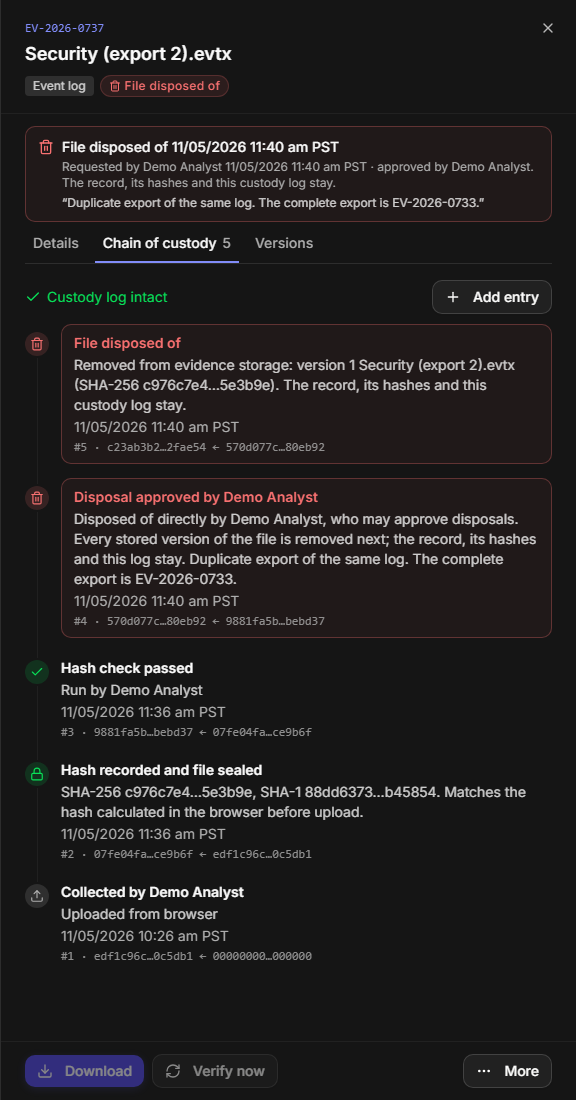
Entries that destroy or condemn something—a disposal, a hash mismatch, a malicious verdict—are shown in red, so they stand out in a long log.
Adding a Custody Entry
Add an entry for anything that happens to the item outside D3: a handover, storage in a locker, an examination, a copy, sharing with someone outside the team, or a note. The entry is labelled with your name.
-
Open the item's drawer and select Chain of custody.
-
Select Add entry.
-
Fill in the dialog (see the table below).
-
Select Add entry.
The Add custody entry dialog
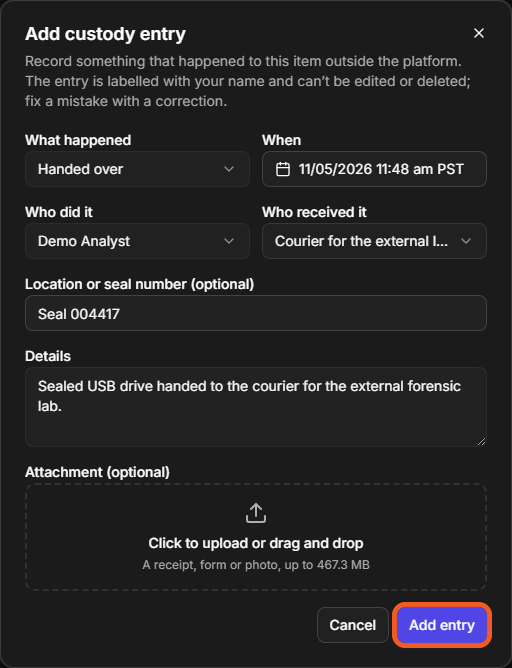
|
Field |
What to enter |
|---|---|
|
What happened |
Handed over, Stored, Examined, Copied or imaged, Shared outside the team or Note. |
|
When |
When it happened. If it was earlier than now, the entry is marked entered later, with the time you recorded it. |
|
Who did it |
Pick a user, or type the name of someone who is not a D3 user. |
|
Who received it |
For a handover, pick a user or type a name—a courier, a lab, outside counsel. |
|
Location or seal number |
Where the item is now, or the number on its seal. |
|
Details |
What happened, in your words. |
|
Attachment |
A receipt, a signed form or a photo of the seal. |
Location or seal number and Attachment are optional.
RESULT
The entry appears at the top of the log, labelled Added by you.
You can add custody entries while the incident is on legal hold.
Correcting an entry. A mistake is never erased; it is corrected. Select Correct on the entry, fix the values, and select Add correction. The new entry is marked Corrects entry #n, the original is marked Corrected by #n, and both stay in the log, so the record shows what was written and what it should have said.
Checking Integrity
A hash check proves that the file D3 holds is still, bit for bit, the file that was collected. D3 re-reads the stored file, calculates its SHA-256 and SHA-1 again, and compares them with the hashes recorded on the day it arrived.
-
One item: open its drawer and select Verify now. You see Hash check passed: the stored file matches its recorded hash., or a failure that names the version that no longer matches.
-
Every item: select Verify all on the widget. You see, for example, All 6 files match their recorded hash.
Every check is written to the item's chain of custody, and the Integrity column and the drawer's Last checked time are updated. An item with several versions has every version checked.
READER NOTE
If a check cannot read the stored file—storage is unreachable for a moment, say—it says so and leaves the item as it was. Only a file that was really read and really differs is reported as Mismatch.
Previewing and Downloading
You can look at a file without it leaving D3, or take a copy out of D3 for analysis or to hand to someone. Both are recorded in the chain of custody.
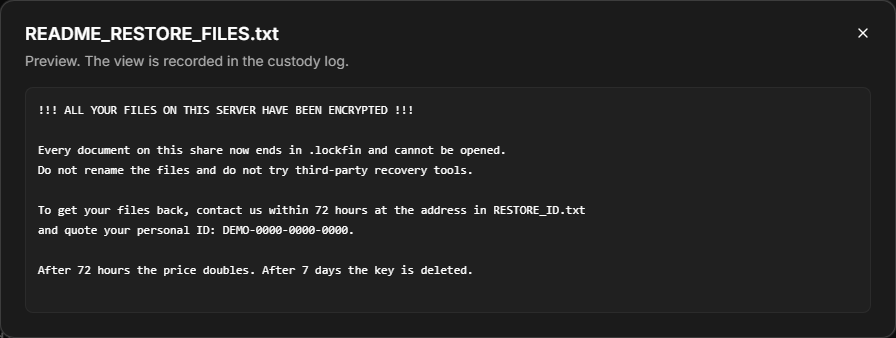
Preview opens the file inside the page—images, PDFs and text files such as logs, CSV, JSON and email—and records a Viewed by entry.
A preview
Downloading a file
-
Open the item's drawer and select Download.
-
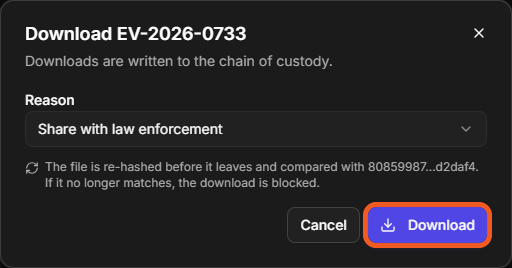
Choose a Reason: Analysis, Share with law enforcement, Share with outside counsel, Report, or Other (and type it).
-
Select Download.
The Download dialog
RESULT
The file is saved to your computer, and the chain of custody shows Downloaded by you, with your reason and hash re-checked, matches.
Before a file leaves D3, it is hashed again. If it no longer matches its recorded hash, the download is blocked—you are never handed a file that is not the evidence—and a Download blocked entry is added to the log. To download an older version, use the download button next to it on the Versions tab.
Adding a Version
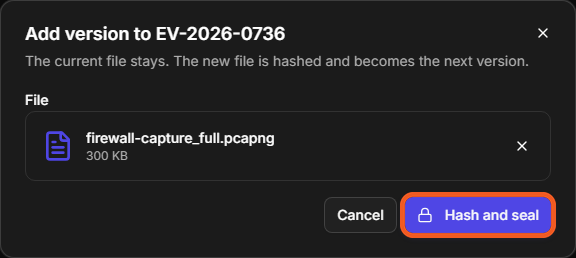
Add a version when there is a newer file for the same piece of evidence—a full capture after a partial one, a log re-exported once the collector caught up. The original stays exactly as it was; the new file becomes the next version, with its own hashes.
-
Open the item's drawer and select More > Add version.
-
Select the new file.
-
Select Hash and seal.
The Add version dialog
RESULT
The item shows v2 (or the next number) in the table, and the Versions tab lists every version with its file name, size, SHA-256, who added it and when, and its own download button.
The Versions tab
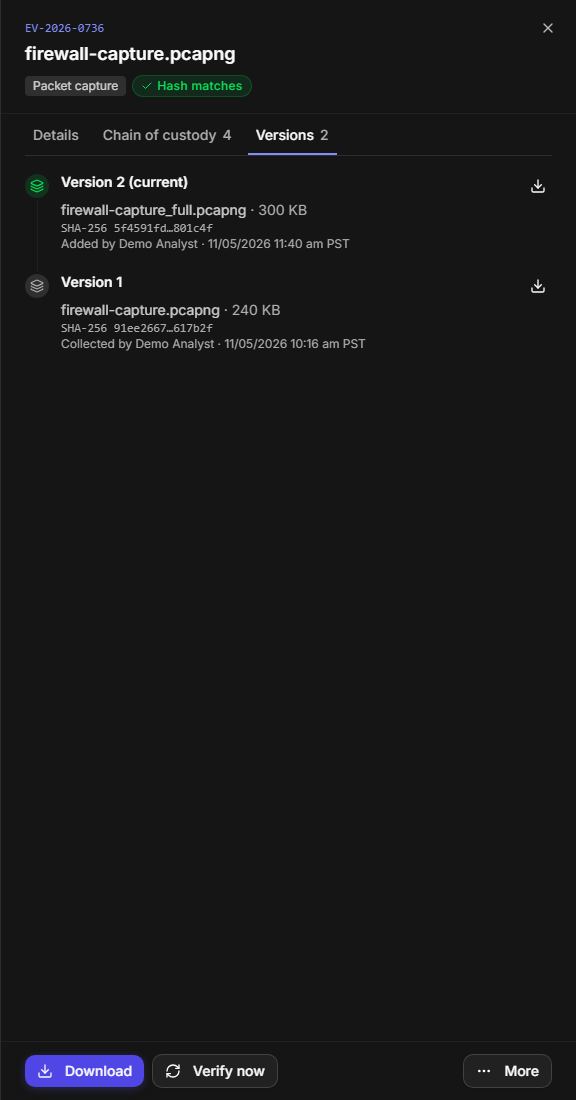
Verify now and Verify all check every version, and related incidents are found through the hash of any version. An item stored outside D3, or one whose file was disposed of, cannot get a new version.
Transferring Custody
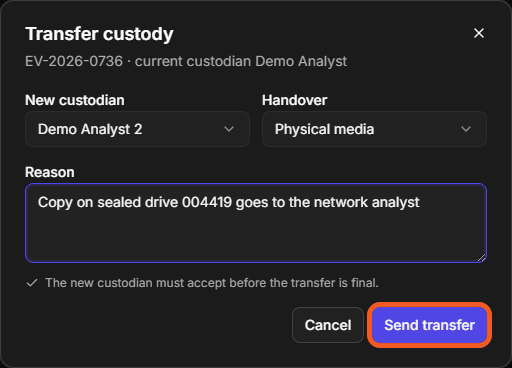
Transfer custody when an item changes hands: a drive goes to the analyst who will examine it, a copy goes to the network team. Custody moves only when the new custodian accepts, so the log never claims someone holds evidence they never agreed to take.
-
Open the item's drawer and select More > Transfer custody.
-
Choose the New custodian. Only users of the incident's site who can open the incident are offered.
-
Choose the Handover: Digital (in platform) or Physical media.
-
Enter the Reason.
-
Select Send transfer.
The Transfer custody dialog
RESULT
The drawer shows Waiting for name to accept custody, with Cancel transfer, and the Custodian column shows the pending handover.
The new custodian sees Waiting for you to accept in the table and, in the drawer, who is asking and why, with Accept and Decline.
What the new custodian sees
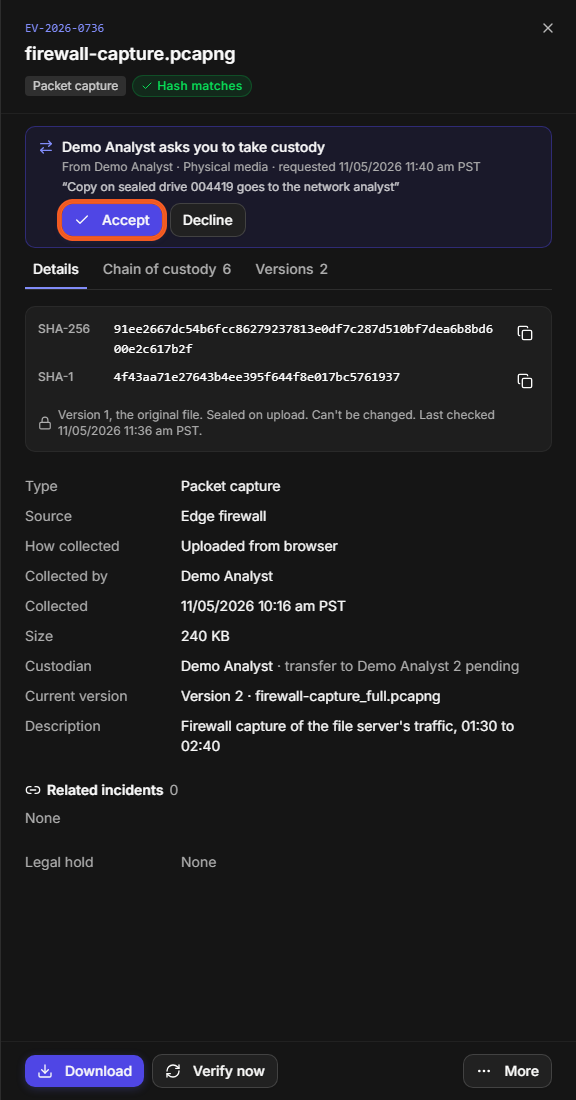
When they accept, they become the custodian. They can decline instead, and you, or anyone who can change the incident, can cancel the request while it waits. Every step—requested, accepted, declined or cancelled—is a custody entry.
A transfer cannot be requested or accepted while the incident is on legal hold, or while a disposal of the item is waiting for approval. A transfer that is already waiting can still be declined or cancelled during a hold.
Marking Evidence Malicious
Mark an item malicious when it is a threat in its own right—a phishing attachment, a dropper, a sample a sandbox has convicted. The verdict follows the item everywhere, and D3 then keeps the file from running by accident on anyone's computer.
-
Open the item's drawer and select More > Mark malicious.
-
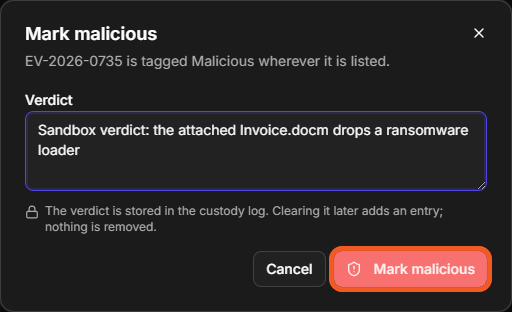
Enter the Verdict, for example the sandbox result.
-
Select Mark malicious.
The Mark malicious dialog
RESULT
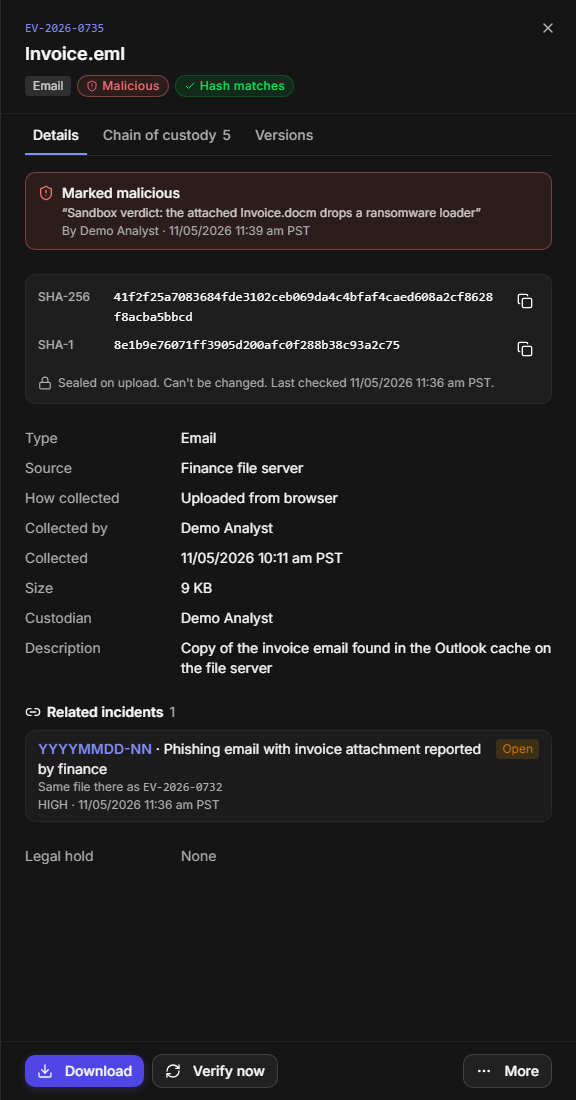
The item is tagged Malicious in the table and the drawer, and Details shows the verdict, who marked it and when.
An item marked malicious
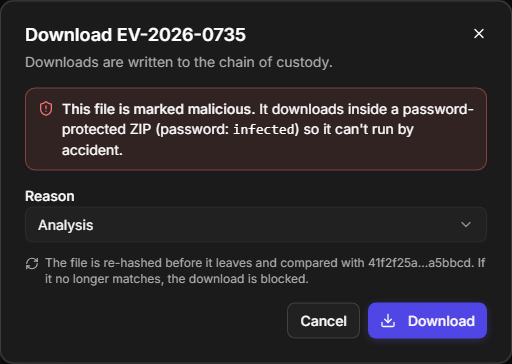
From then on, the file is never previewed, and a download arrives inside a password-protected ZIP. The password is infected, the convention in security work: it does not keep the file secret, it stops it from being opened by a double-click.
Downloading a malicious file
To withdraw a verdict, select More > Clear malicious verdict and give a reason. Both steps stay in the chain of custody; the item's verdict is always its latest one. A verdict can be set or cleared during a legal hold and after the file was disposed of, because it changes nothing about the file.
Custody Reports and Export Packages
When evidence has to leave the investigation—to legal, an insurer, a regulator or law enforcement—hand over a custody report for one item or an export package of the whole incident. Both carry the proof with them, so the recipient can check the evidence without access to D3.
Custody Reports
A custody report is a PDF of one item's complete chain of custody. Open the item's drawer and select More > Custody report.
A custody report
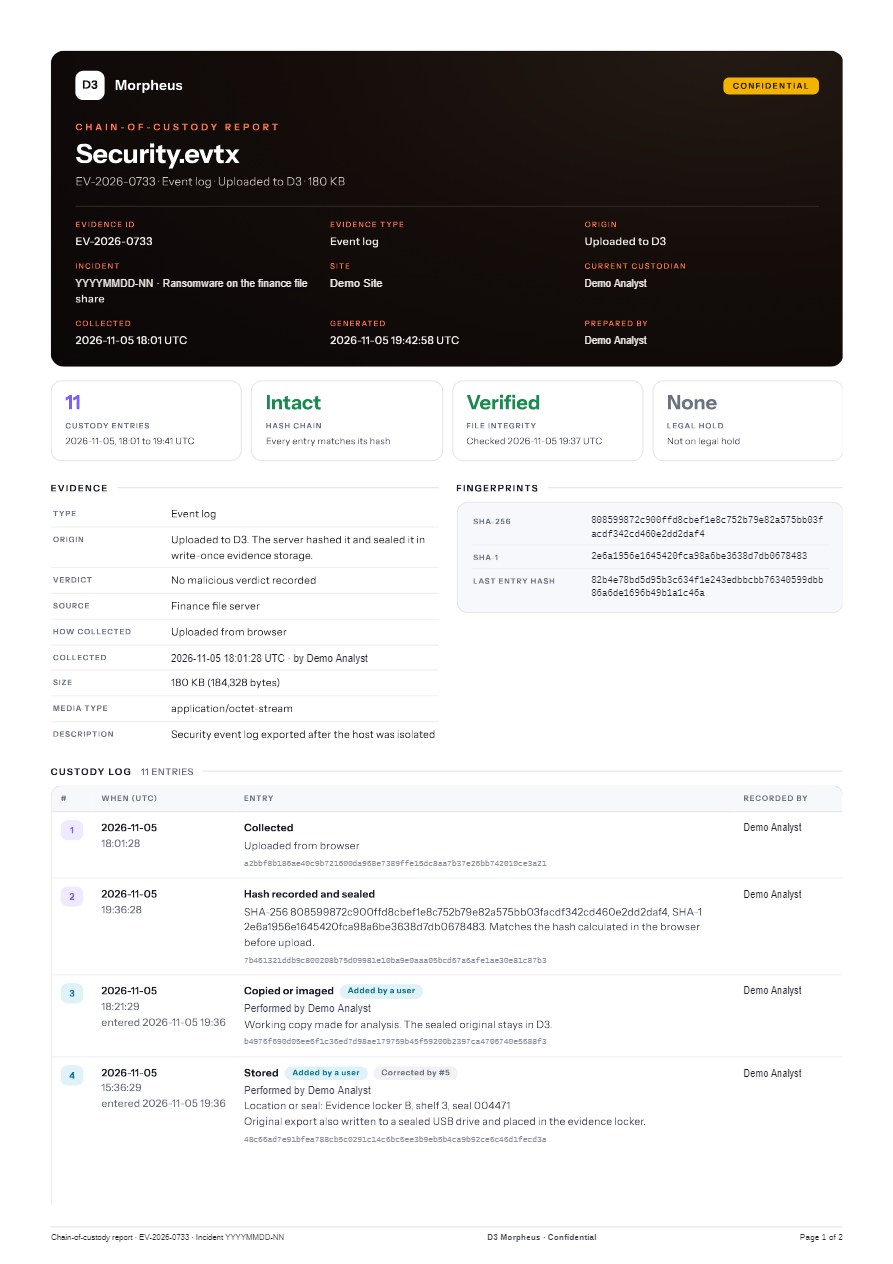
The report opens with the item's Evidence ID, incident, site and current custodian, and four summaries: the number of custody entries, whether the hash chain is intact, the result of the last integrity check, and the legal hold. Then come the item's facts and verdict, its fingerprints (SHA-256, SHA-1 and the hash of the last custody entry), any versions and disposal, and every custody entry with its own hash.
Downloading a report is itself recorded in the chain of custody, so the log always shows which version of the story was handed out.
Export Packages
An export package is one ZIP of every item on the incident, for legal, law enforcement or a regulator.
-
On the Forensic Evidence widget, select Export.
-
Choose whether to include Chain-of-custody report (PDF) for each item. The files,
manifest.jsonand a fresh hash check of every file are always included. -
Review the
manifest.jsonpreview. -
Select Build package.
The Export evidence package dialog
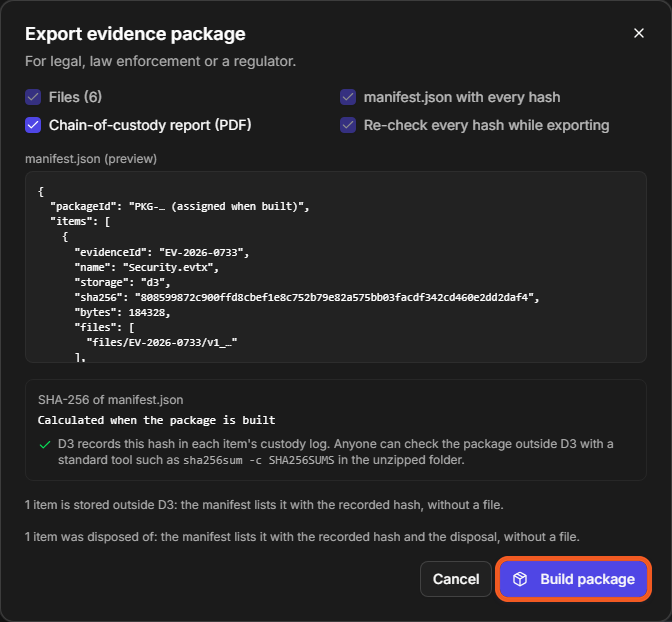
RESULT
The dialog shows the package ID and the SHA-256 of its manifest.json, with a Copy button, and your browser downloads the package.
The package is built
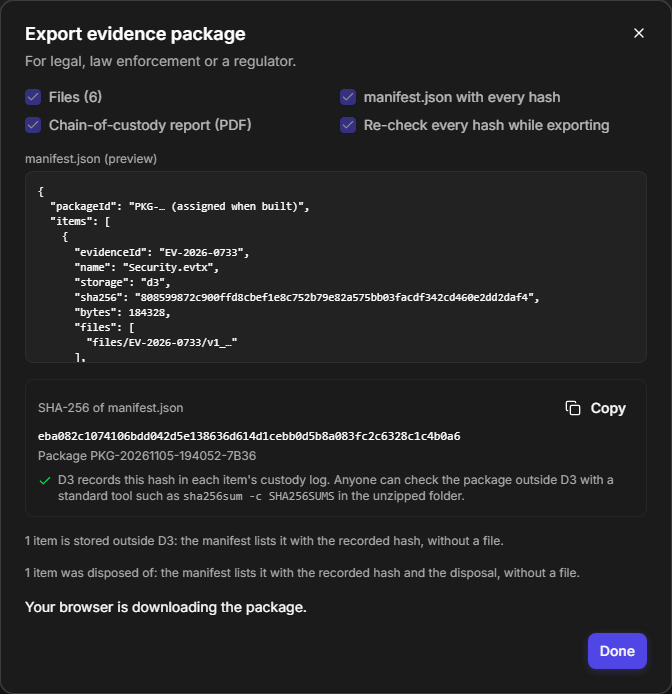
The package contains:
|
In the package |
What it is |
|---|---|
|
|
What the package is, which incident it comes from, and how to check it. |
|
|
Every item with the SHA-256 recorded when it was added, its custody summary, its verdict and its files. |
|
|
The SHA-256 of every file in the package. |
|
|
One folder per Evidence ID, with every version ( |
|
|
Each item's custody report, when you chose to include them. |
|
|
Present only if a stored file no longer matched its recorded hash while the package was built. |
Items stored outside D3 and items whose file was disposed of are listed in the manifest with their recorded hash, without a file.
Anyone who receives the package can check it outside D3: in the unzipped folder, sha256sum -c SHA256SUMS (or Get-FileHash -Algorithm SHA256 on Windows) confirms every file. The SHA-256 of manifest.json is written into the chain of custody of every item, so the package can always be matched back to D3.
READER NOTE
The package is built and streamed to your computer as it goes, so its size is not limited, but a large incident takes as long as its files take to read. Export from a reliable connection and let the download finish.
Disposing of Evidence
Dispose of a file when it is no longer needed and must not be kept—a duplicate collected by mistake, or evidence whose retention has ended. Disposal destroys every stored version of the file, and keeps the record that it existed: its Evidence ID, hashes and chain of custody stay, with the reason it was destroyed.
Because it cannot be undone, disposal always needs a reason, and it is done by—or approved by—someone whose role holds the Approve Evidence Disposal privilege.
WARNING
Destroying a file cannot be undone. Every stored version is removed at once; only the record, the hashes and the custody log remain.
If you hold Approve Evidence Disposal
-
Open the item's drawer and select More > Dispose of file.
-
Enter the Reason.
-
Select Destroy file now.
The Dispose of file dialog
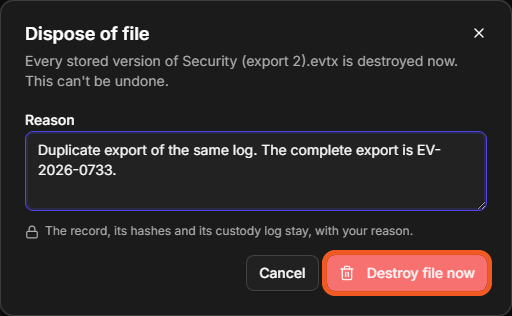
If you do not
-
Open the item's drawer and select More > Request disposal.
-
Choose the Approver. Only users who hold Approve Evidence Disposal and can change the incident are offered; you cannot approve your own request.
-
Enter the Reason, and select Send request.
The Request disposal dialog
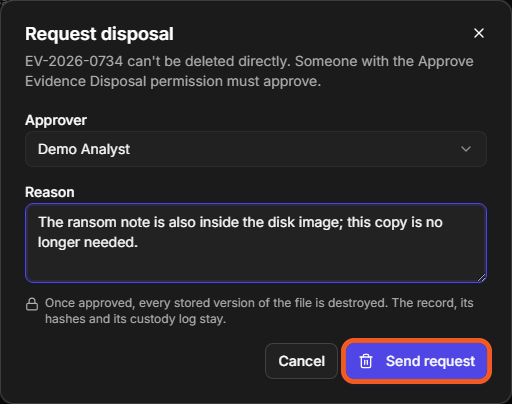
The item shows Disposal pending until the approver answers. The approver opens the item and approves (Approve and destroy file) or rejects the request; you, or anyone who can change the incident, can cancel it while it waits. Every step is a custody entry.
RESULT
The item shows File disposed of with the date, who asked and who approved, and the reason. Download, Preview and Verify now are no longer available, and the disposal entries stand out in red in the custody log.
A disposed item
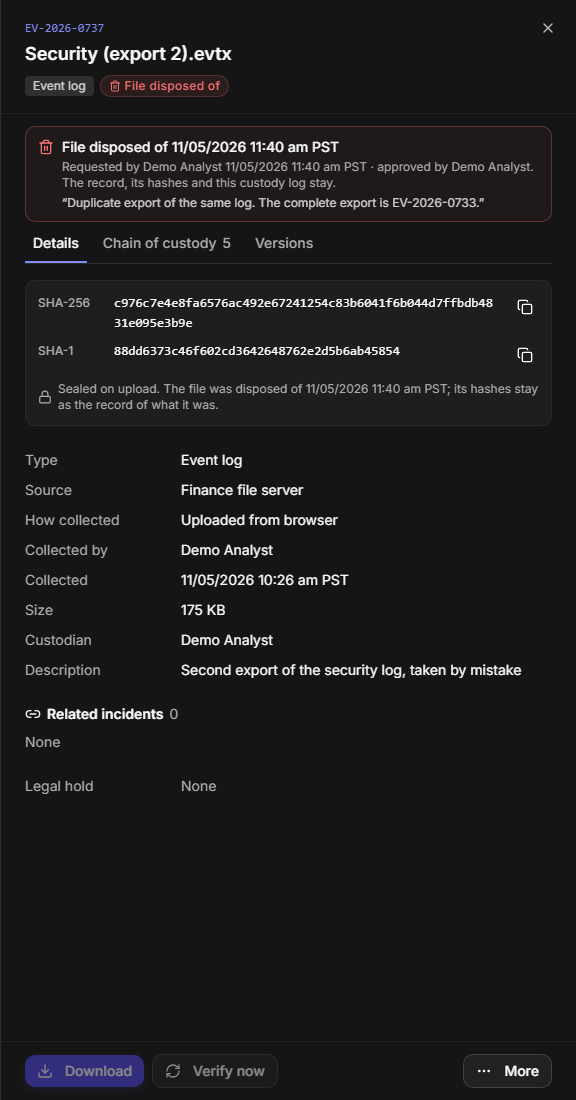
Disposal in the custody log
A disposal is refused while the incident is on legal hold, for an item stored outside D3 (there is no file to destroy), and while a transfer of the item is waiting. If a legal hold is placed after a disposal was approved, the files stay until the hold is released.
READER NOTE
If the stored file cannot be removed at the moment of approval, the item stays marked as approved and the drawer offers Finish disposal to try again. The File disposed of entry is written only once every version is gone.
Legal Hold
A legal hold preserves an incident's record while a legal matter is open—litigation, an insurance claim, a regulatory inquiry. While it is on, the incident's fields and its existing evidence cannot be changed or removed, by people or by playbooks, so nothing the matter depends on can be altered, closed or cleaned up by accident. Collection goes on: new evidence, versions and custody entries can still be added.
Placing a Legal Hold
Place a hold as soon as you know the incident may be needed for a legal matter.
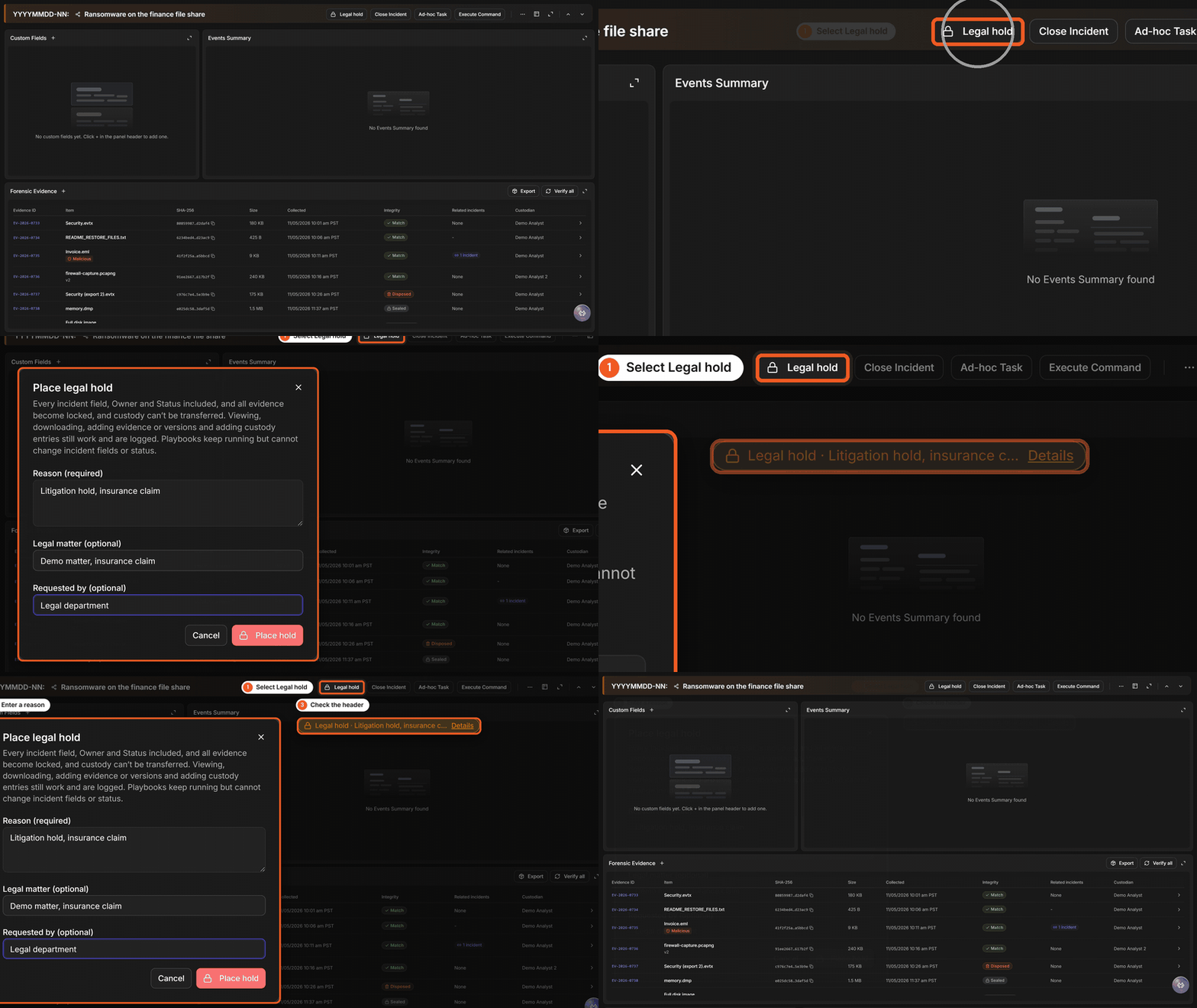
Placing a legal hold, in three moves
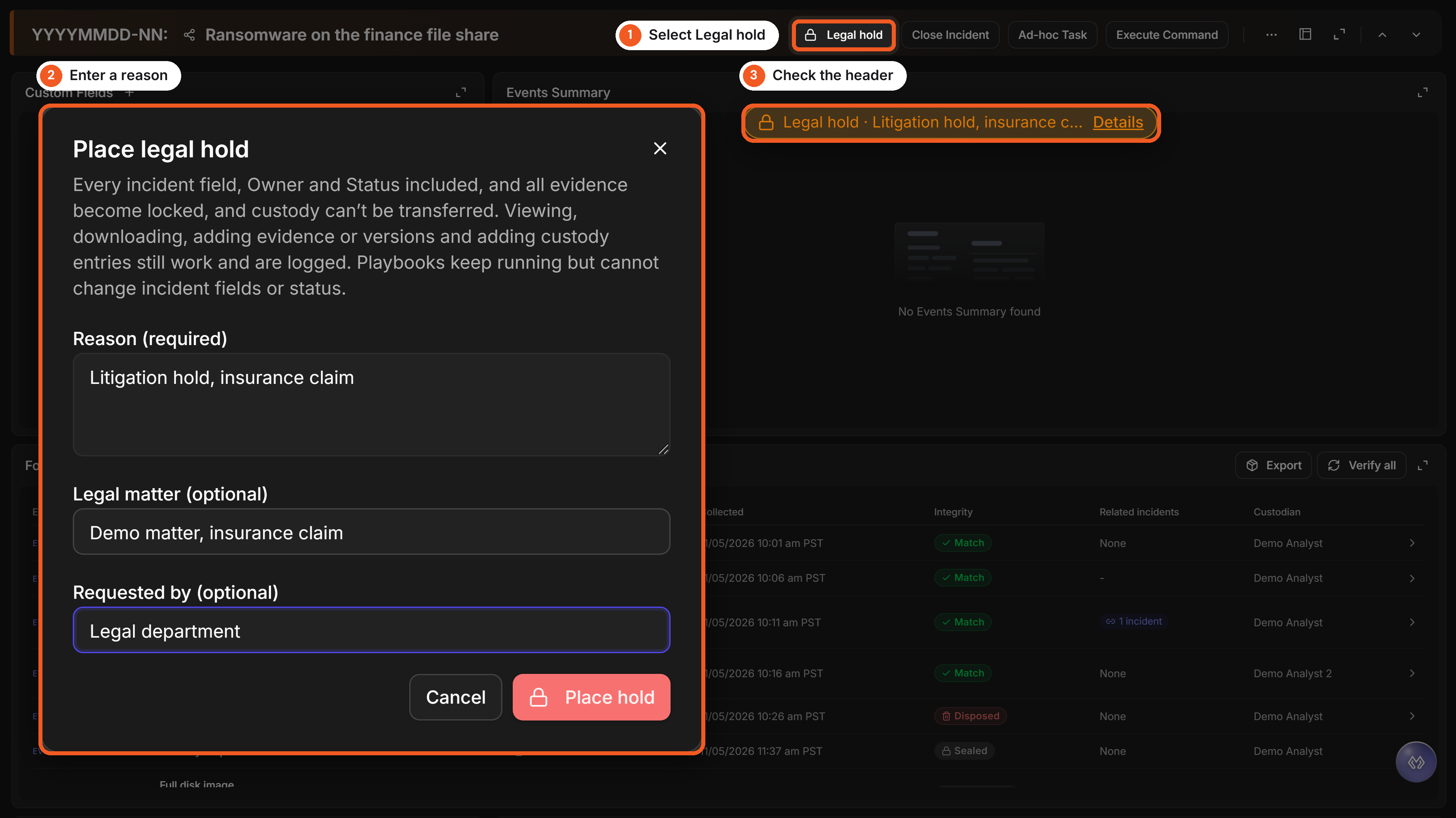
The same steps as a short animation (MP4):
-
In the incident header, select Legal hold.
-
Enter the Reason (required): why the incident must be preserved.
-
Optionally enter the Legal matter, such as a matter or case number, and Requested by, such as the legal department or counsel.
-
Select Place hold.
RESULT
The header shows Legal hold with the reason, and the Forensic Evidence widget shows On legal hold and a banner with the reason, the matter, who requested it, who placed it and when. Every item's chain of custody gets a Legal hold placed entry.
The Legal hold button is shown to everyone who can change the incident. Placing a hold does not need a special privilege; releasing one does.
While an Incident Is on Hold
An incident on legal hold
|
During a hold |
What happens |
|---|---|
|
Incident fields, Owner and Status |
Locked. A change is refused with This incident is on legal hold., and Close Incident is unavailable. |
|
Evidence |
Cannot be changed, transferred or disposed of. |
|
Viewing and downloading evidence |
Allowed, and recorded in the chain of custody as usual. |
|
Adding evidence, versions and custody entries |
Allowed, so collection can go on. |
|
Marking or clearing a malicious verdict |
Allowed. |
|
Playbooks |
Keep running and can still add to the incident—notes, tasks, artifacts, attachments—but anything that would change or remove incident data is refused. |
|
Automatic clean-up |
An incident on hold, or one that holds evidence, is never removed by the automatic retention clean-up, and a site cannot be deleted while any of its incidents does. |
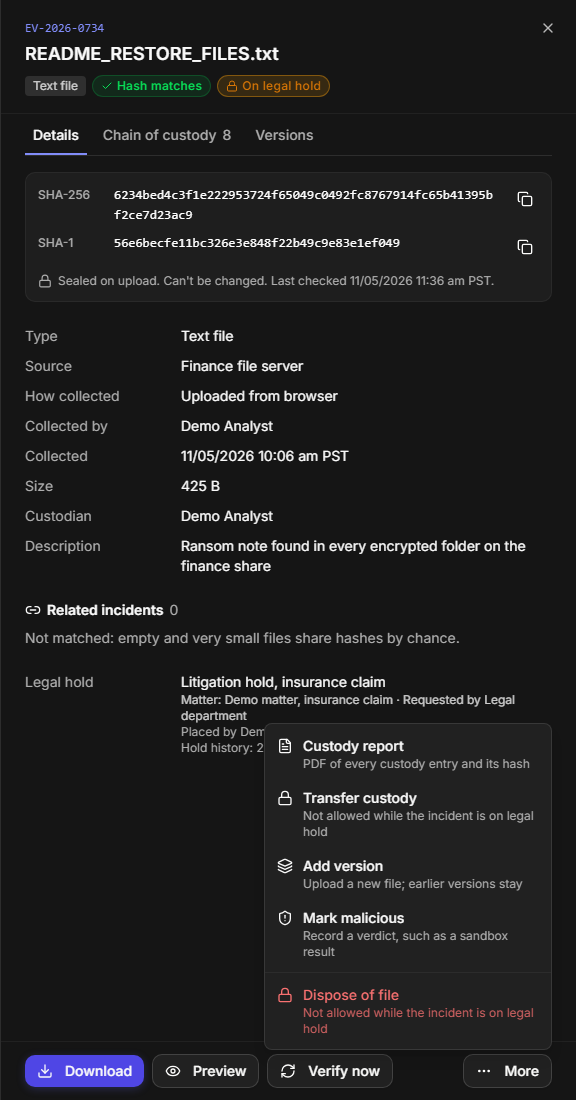
In an item's drawer, the hold shows as a badge and in the Legal hold fact, and the actions it blocks say so.
Actions during a hold
Releasing a Legal Hold
Release the hold when the matter no longer requires the incident to be preserved—when counsel confirms it, for example.
READER NOTE
Releasing a hold needs the Release Legal Hold privilege. Without it, the header shows a disabled Release whose hint says Releasing a legal hold needs the Release Legal Hold permission.
-
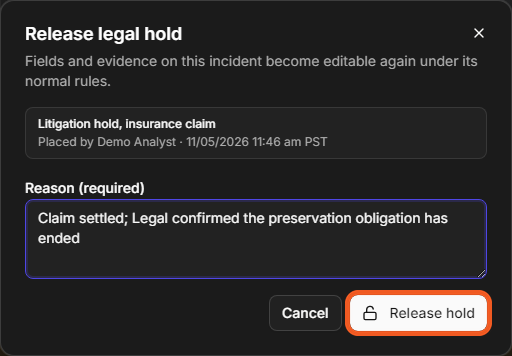
In the incident header, select Details on the Legal hold label.
-
Enter the Reason (required) why the hold can end.
-
Select Release hold.
The Release legal hold dialog
RESULT
Fields and evidence become editable again under their normal rules. Every item's chain of custody gets a Legal hold released entry, and the hold, with both reasons, stays in the incident's hold history.
Who Can Do What
What you can do with evidence follows what your role lets you do with the incident, plus three privileges in the role editor's Incident group (Global Settings > Organization Management > Roles).
|
Task |
Who |
|---|---|
|
See the widget, the drawer, related incidents and the chain of custody; run Verify now or Verify all; download a custody report |
Anyone who can open the incident |
|
Preview or download a file; build an export package |
Anyone who can open the incident and whose role has Edit Attachments |
|
Add evidence or versions, add custody entries, transfer custody, mark or clear a malicious verdict, request a disposal, place a legal hold |
Anyone who can change the incident |
|
Accept or decline a transfer |
The user it is addressed to |
|
Dispose of a file directly, or approve someone else's request |
Anyone who can change the incident and whose role has Approve Evidence Disposal |
|
Release a legal hold |
Anyone who can change the incident and whose role has Release Legal Hold |
The two privileges in the role editor
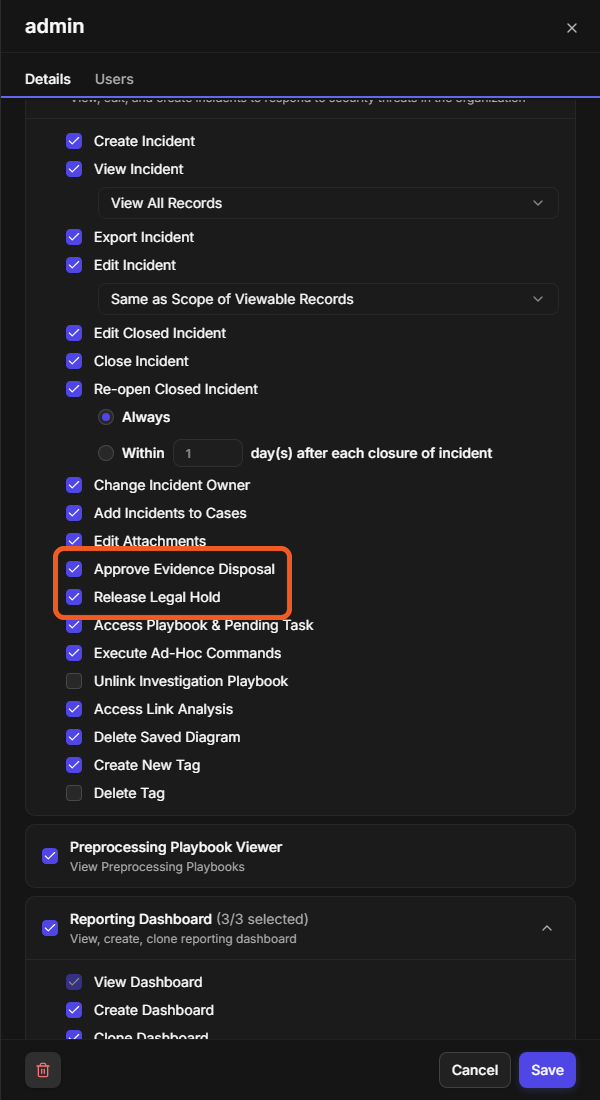
When D3 Morpheus is upgraded to this release, roles that have the Administrator permission receive Approve Evidence Disposal and Release Legal Hold. Grant them to other roles in the role editor.
The Audit Log
Every Forensic Evidence action is also written to the platform's Audit Log, so compliance reviewers can see who did what across all incidents, not only item by item. Open Global Settings > Audit Log and set Type to ForensicEvidence.
Forensic Evidence actions in the audit log
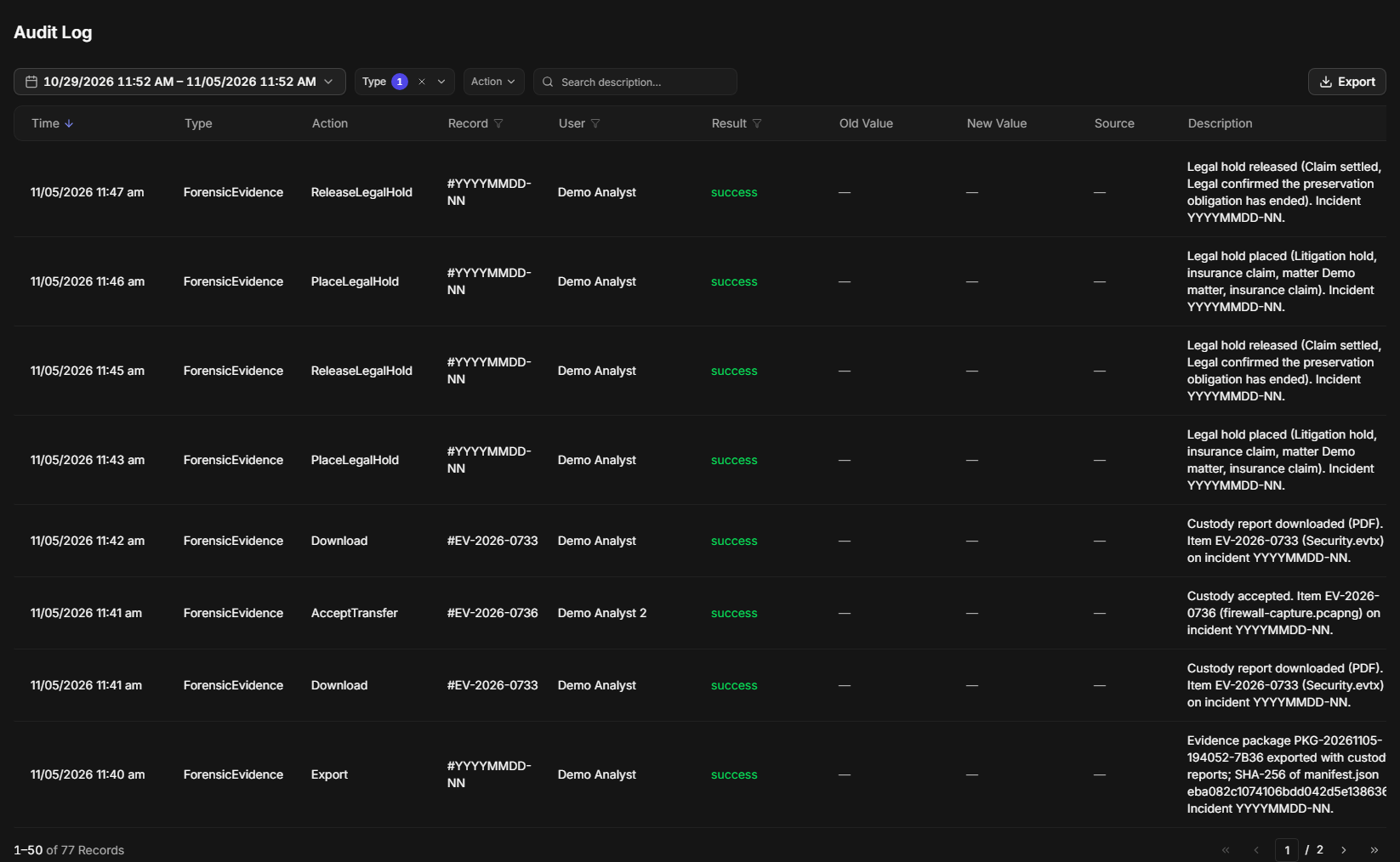
Each row names the action, the Evidence ID or incident, the user, the result and a description. An attempt that was refused—a disposal during a legal hold, say—is logged too, as failed, so a blocked attempt is as visible as a successful one.
Messages You May See
|
Message |
What it means |
|---|---|
|
This incident is on legal hold. |
A change to the incident was refused because it is on legal hold. |
|
Custody can't be transferred. This incident is on legal hold. |
Transfers wait until the hold is released. |
|
Evidence can't be disposed of. This incident is on legal hold. |
Disposals wait until the hold is released. |
|
Releasing a legal hold needs the Release Legal Hold permission. |
Ask someone whose role has Release Legal Hold. |
|
Disposing of evidence directly needs the Approve Evidence Disposal permission. Ask someone who has it to approve instead. |
Use Request disposal. |
|
Forensic Evidence is turned off for this site. |
New evidence cannot be added; see Before You Start. |
|
The file size exceeds the maximum allowed limit of … |
The file is larger than an upload allows. Record it as external evidence. |
|
The file type of name is not allowed. |
The file is refused by your site's attachment rules, or it is a program. |
|
The file changed on its way to the server: … |
The hash your browser calculated differs from the server's. Nothing was stored; upload it again. |
|
Download blocked. Evidence ID no longer matches its recorded hash. |
The stored file changed since it was collected. The attempt is recorded; investigate before relying on the item. |
|
This file is marked malicious, so it isn't previewed. Download it as a protected ZIP instead. |
The item has a malicious verdict. |
|
This item is stored outside D3, so D3 can't re-check it. |
External items hold a hash, not a file. |
|
That user can't open this incident, so they could never accept the transfer. |
Choose a custodian who has access to the incident. |
|
Give a reason for the download. It is stored in the custody log. |
Choose a Reason in the Download dialog. |
|
The disposal is approved, but the stored file could not be removed yet. Open the item and choose Finish disposal to try again. |
Removal did not complete; select Finish disposal. |
|
You don't have permission to change this incident. |
Your role lets you view the incident, not change it. |
FAQs
Can I delete evidence added by mistake? No. Nothing in the chain of custody can be deleted, and that includes the fact that an item was added. Dispose of the file with a reason that says it was added by mistake; the record shows what happened and why.
A colleague renamed the file before sending it. Will it still match? Yes. Matching is by content, not by name, so a renamed copy shows as the same file under Related incidents.
Why does an item show a dash under Related incidents? The file is too small to compare. Empty and very small files share hashes by chance, so matching them would link unrelated incidents.
Why is the password for protected ZIPs always infected? It is the convention for exchanging malware in security work. The ZIP is there so the file cannot run by accident, not to keep it secret, and every analyst and lab knows the password.
Does the chain of custody show times in my time zone? It shows them in the incident's time zone, with the zone's label, so everyone working the incident reads the same time.