
Last Updated: October 22, 2026
Overview
The MITRE ATT&CK Monitor maps your events and incidents onto the MITRE ATT&CK framework, so you can see which tactics and techniques are active in your environment, how fast they are changing, and where the threats are coming from. It turns a long list of alerts into a picture of what an attacker is trying to do.
The monitor is under WORKSPACE > MITRE ATT&CK Monitor.
The MITRE ATT&CK Monitor
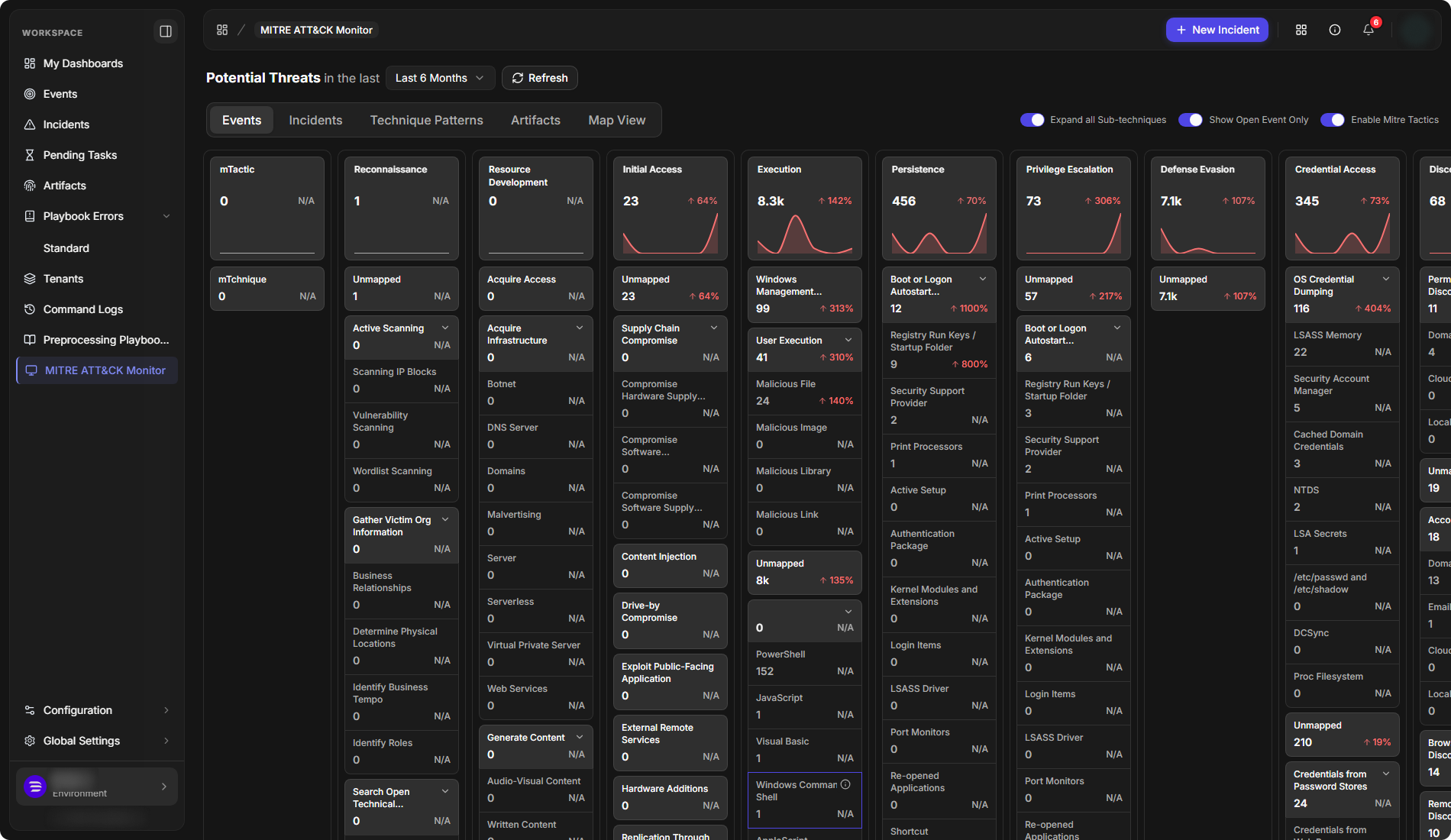
The monitor has five tabs:
|
Tab |
What it shows |
|---|---|
|
Events |
Events mapped to the ATT&CK matrix, by tactic and technique. |
|
Incidents |
Incidents mapped the same way: threats confirmed by an analyst or escalated by a rule. |
|
Technique Patterns |
Events grouped by the search criteria that tagged them with a technique. |
|
Artifacts |
The artifacts extracted from events, filterable by tactic, technique and artifact type. |
|
Map View |
Artifact locations on a world map. |
The Period
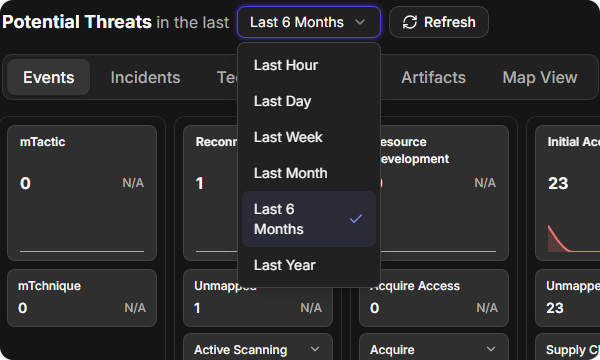
Potential Threats in the last sets the period every tab covers: Last Hour, Last Day, Last Week, Last Month, Last 6 Months or Last Year. Select Refresh to reload the data.
The period list
Reading the Matrix
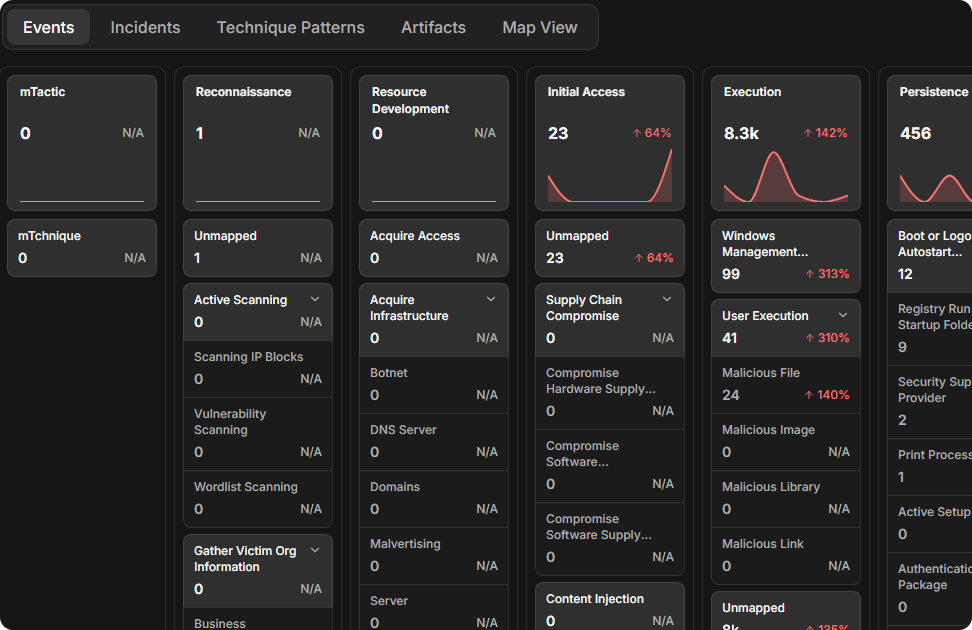
On the Events and Incidents tabs, each column is a tactic, such as Reconnaissance, Initial Access or Execution, with its techniques listed below it. Each tactic and technique card shows:
-
the number of events (or incidents) mapped to it in the period;
-
how much that number has changed, as a percentage;
-
a trend line for the tactic.
Select a tactic or technique to list the events or incidents behind it, then open one to investigate.
Tactics and techniques
Three switches at the top right change what the matrix shows:
|
Switch |
What it does |
|---|---|
|
Expand all Sub-techniques |
Shows the sub-techniques under each technique. They are collapsed by default. |
|
Show Open Event Only (on Incidents: Show Open Incident Only) |
Counts only open items. |
|
Enable Mitre Tactics |
Turns MITRE tactics on or off across D3 vSOC. |
Enable Mitre Tactics is a global setting, not a view option. Turning it off stops tactics being used anywhere in D3 vSOC, including tagging incidents, for every user.
Adding Tactics and Techniques
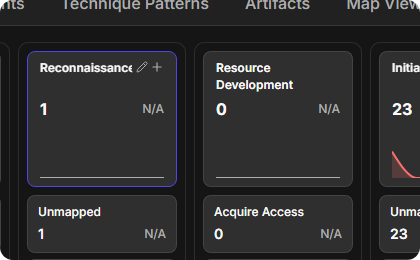
The matrix can be extended with your own tactics and techniques, for threats specific to your environment. On the Events tab, hovering over a tactic card shows Edit tactic (pencil) and Add technique (+). Each tactic column also ends with Add technique, and hovering over the edge of a column shows Insert tactic here (+).
A tactic card's actions
-
Insert tactic here opens Add Tactic, with a Tactic Name and a Description.
-
Edit tactic opens Edit Tactic, with the same fields and Delete.
-
Add technique opens Add Technique, with a Technique Name, Description, Mitigation, Detection, Group and Software.
Select Save to keep the change, or Cancel.
Tagging Events with a Technique
Search criteria decide which events are tagged with a technique as they are ingested. For example, Office 365 alerts with a certain subject can be tagged Spearphishing Link.
-
On the Events tab, hover over the technique and select its details icon (i). The technique's window shows its Summary and its Search Criteria, with each search's Search Name, Type, Risk and Active state.
-
Select Create a New Search.
-
Enter a Search Name, an optional Description, and a Risk Level.
-
Under Search Conditions, select Add Condition, then choose a Field, an Operator and a Value. Select Add OR Condition to add another condition. Enter dates as yyyy-MM-dd HH:mm:ss.
-
Select Save. A search needs at least one condition.
Look at a few sample events first, to find the fields and values that really identify the technique.
Technique Patterns
Technique Patterns lists the patterns that tagged events, with each pattern's Indicator, Tactic, Technique, Risk Level, Event Count, First Seen and Last Seen. Filter by tactic and technique, and select Export to save the list.
Artifacts
Artifacts lists the artifacts extracted from events in the period. Search them by name, filter by Tactic, Technique and Artifact Type, and select Export to save the list. Select an artifact to open Artifact Detail: its first and last seen dates, risk level, event and incident counts, tactic and technique, with the Reputation, Events, Incidents, State and Notes tabs. Its Export icon downloads the artifact as a STIX 2.1 JSON file.
Map View
Map View places artifacts on a world map by location. Markers group into clusters, and the cluster colour shows how dense the threats are there, from green (low) to red (high). Zoom with the + and − controls or the scroll wheel, filter by Tactic and Technique, and select a marker to open what it represents.
Map View
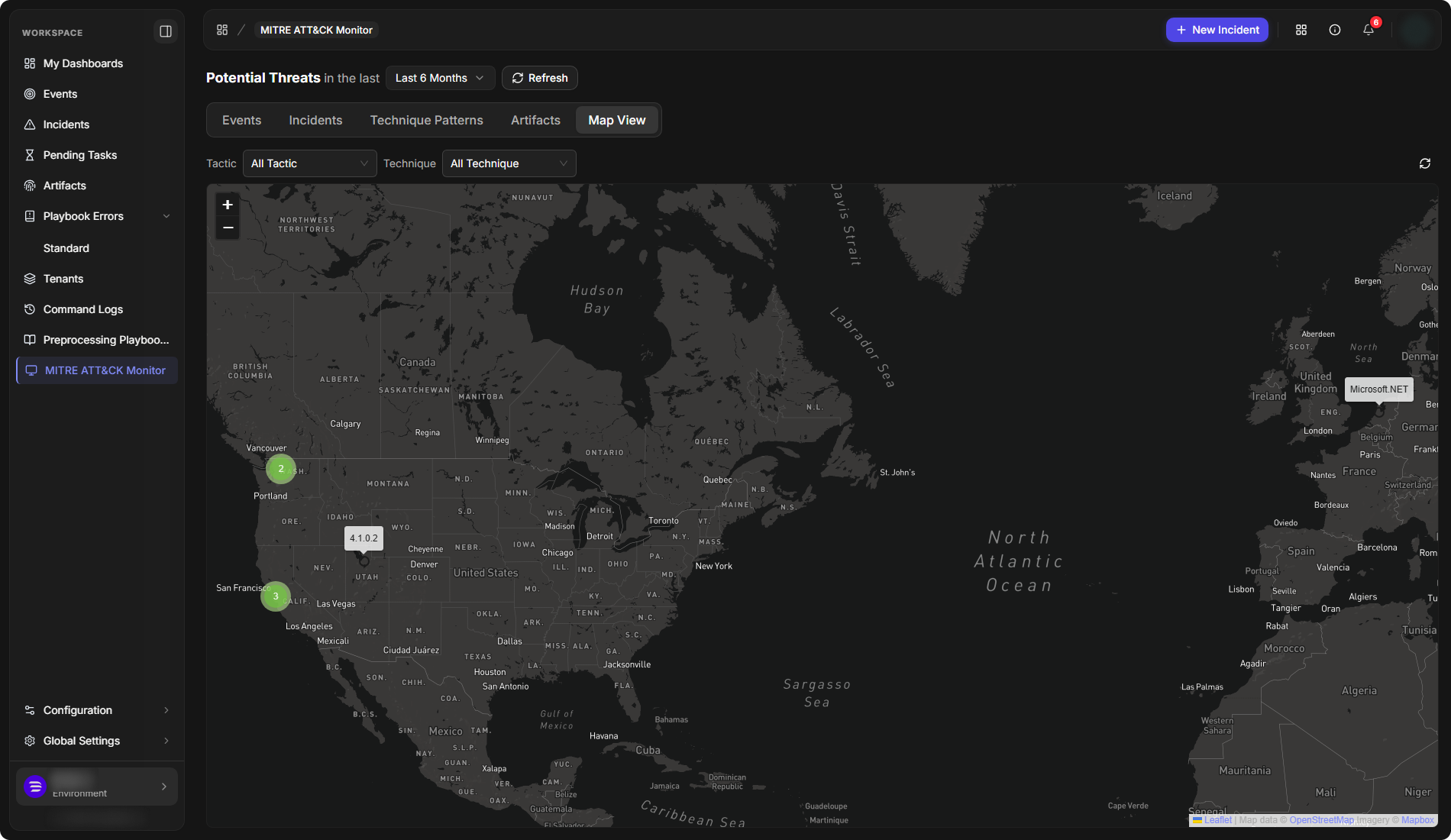
Map View needs three things in place:
-
a connected ipstack integration on the site, to look up locations;
-
event data sources whose IP and host name fields are mapped to the External Endpoint artifact;
-
for the tactic and technique filters, tactic and technique fields in the events, and Enable Mitre Tactics on.
Locations come from a cache first and then from ipstack, which counts against its quota. Addresses ipstack cannot place do not appear.