Last Updated: October 26, 2026
Overview
From the Incidents list you can run a command without building a playbook. There are two ways in:
-
Execute Command, the ⌘ button at the bottom right of the list, runs a command on its own with the parameters you enter.
-
Execute command, the ⌘ icon at the top of an incident's quick view panel, runs a command from that incident.
Both list utility commands and integration commands. Each command shows its description, its category and whether it is a utility command or which integration it belongs to.
WARNING
Run Command runs the command. An integration command acts on the system it connects to: for example, Add Access Rule creates a new access rule in CheckPoint Firewall, as its description says. Read the description and check every parameter before you select Run Command.
Running a Command from the Incidents List
-
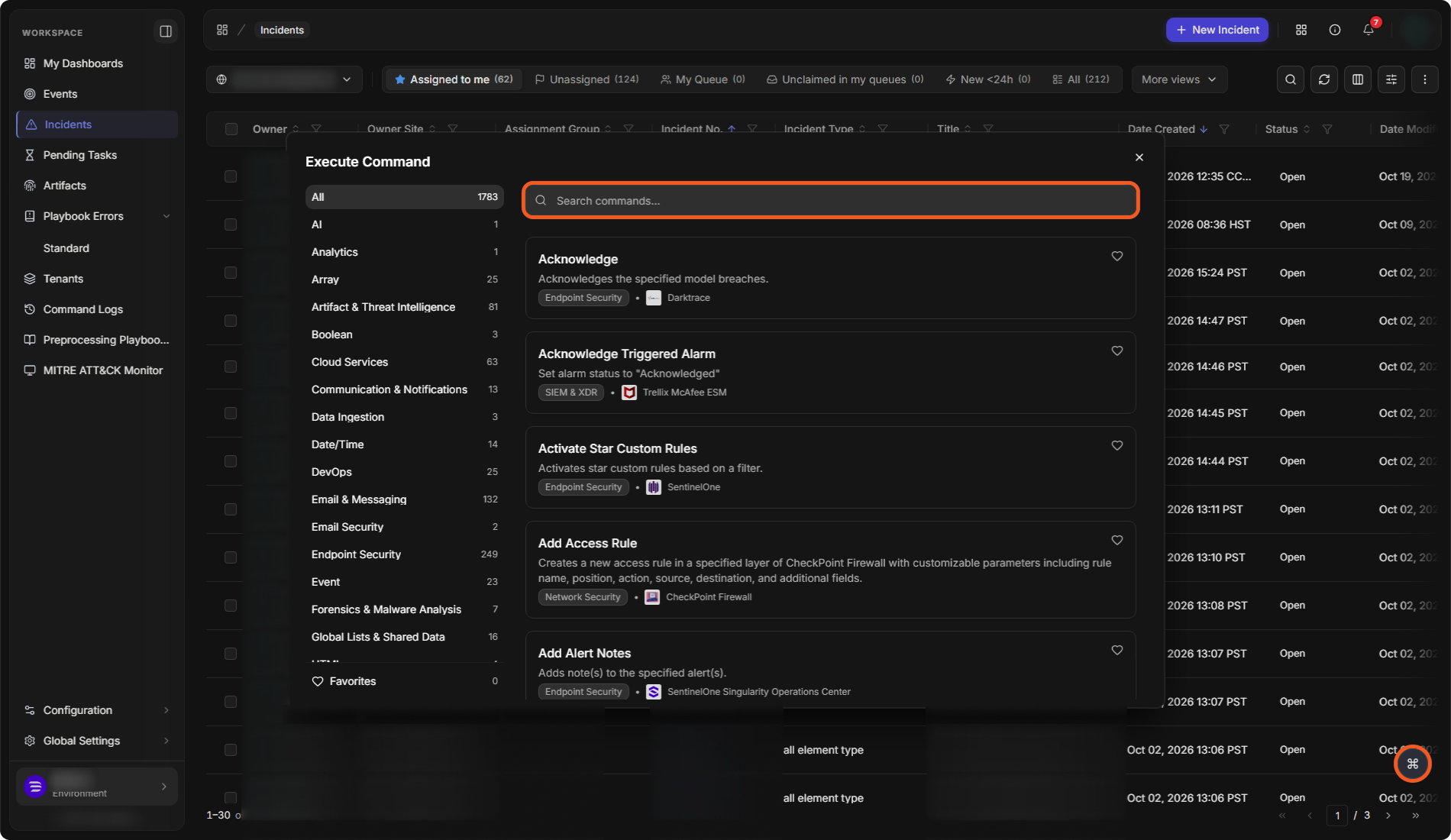
On the Incidents list, select Execute Command (⌘) at the bottom right.
The Execute Command window
-
Find the command. Choose a category on the left, such as All, Array or Endpoint Security, each with the number of commands it holds, or type in Search commands.... Each card shows the command's name, description and category, and the integration it belongs to.
-
Select the command's card. The window shows the command at the top, marked Selected Command, and its Command Parameters: "Fill in the following command input parameters and start running it". Each parameter shows its type, such as Text Array.
-
Optionally, select Sample Data to see example values for the command, on its Input and Return Data tabs.
-
Enter the parameters, then select Run Command.
The command parameters
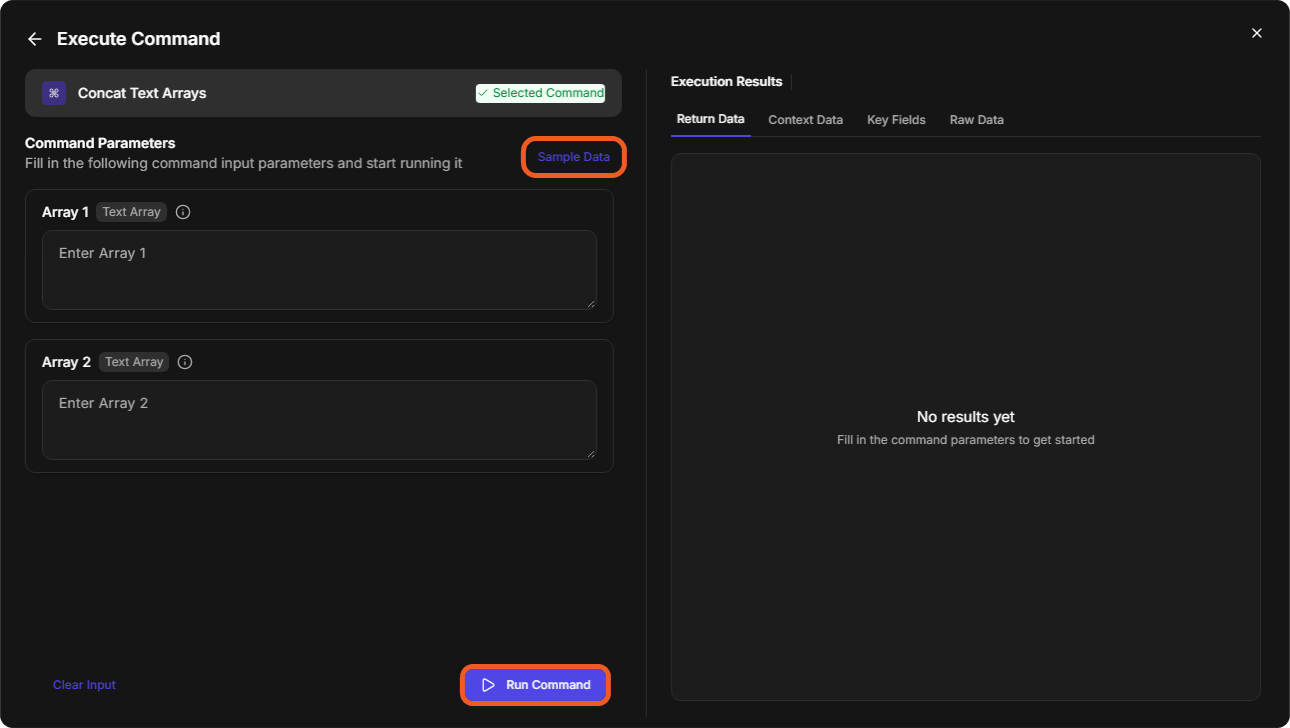
The results appear under Execution Results, on the Return Data, Context Data, Key Fields and Raw Data tabs. Until a command runs, they read "No results yet". The back arrow beside Execute Command returns to the list of commands, and × closes the window.
Running a Command on an Incident
-
On the Incidents list, select anywhere on the incident's row except its number. The quick view panel opens on the right. See Previewing an Incident.
-
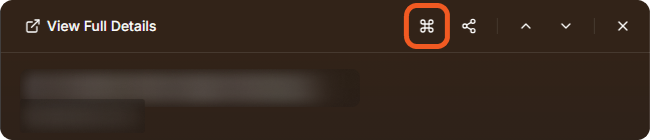
At the top of the panel, select Execute command (⌘). The Execute a Command window opens.
Execute command in the quick view panel
-
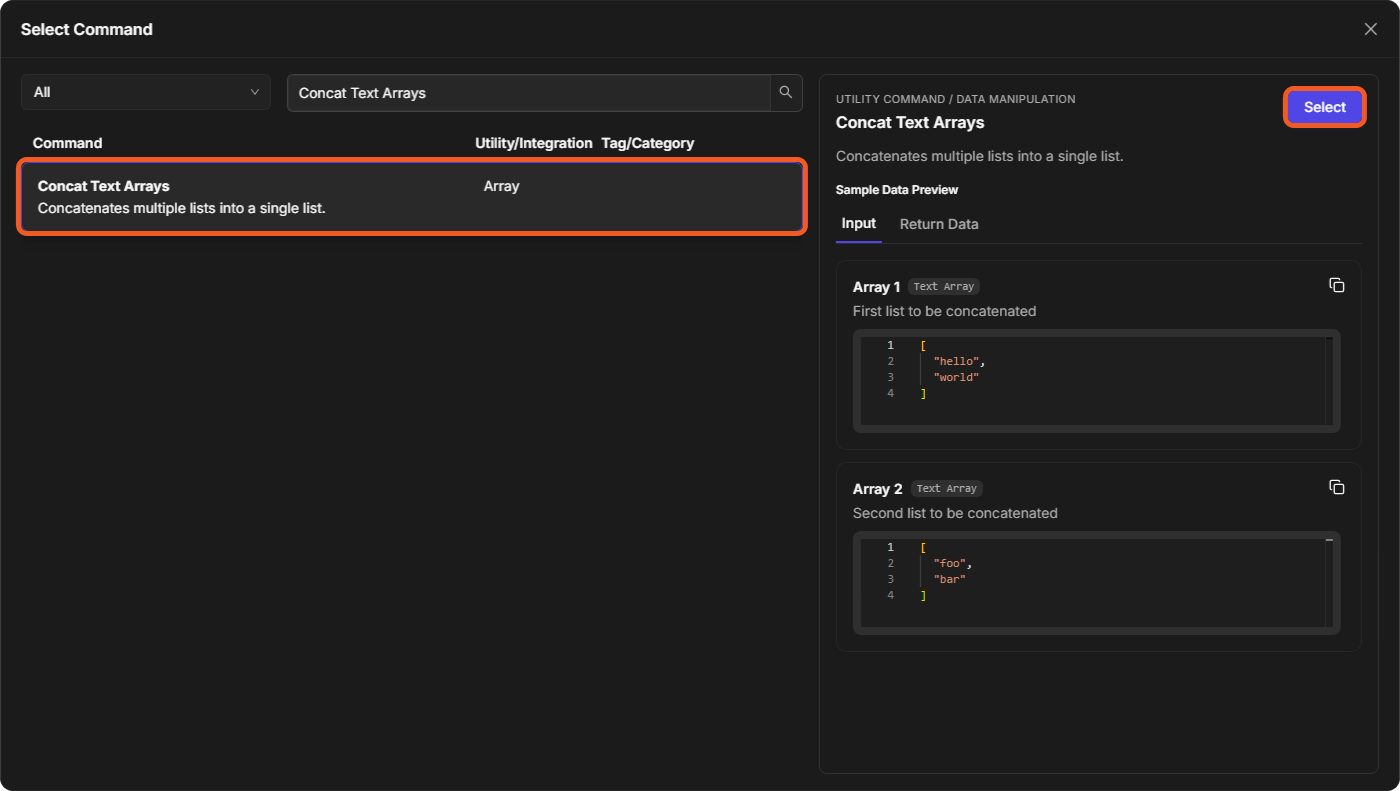
Choose the command. Type its name in Search or select a command, or select the more icon (⋮) beside it to browse in the Select Command window. There, filter by category (All by default), search with Search Commands, and select a command to see its description and a Sample Data Preview on the Input and Return Data tabs. Select Select to use it.
The Select Command window
-
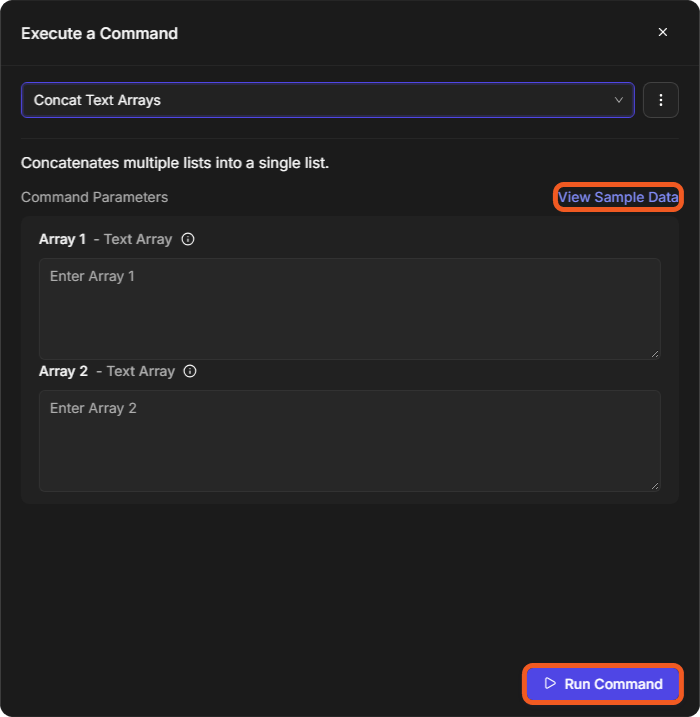
The window shows the command's description and its Command Parameters. View Sample Data shows example values. Enter the parameters, then select Run Command.
The Execute a Command window