Last Updated: October 23, 2026
Overview
My Dashboards is your personal view of the reporting dashboards that matter to your work: incident volumes, trends by type and severity, pending tasks and other metrics, on one page and for the sites and time range you choose. It is the first page under WORKSPACE in the navigation, so it is usually the first thing you see.
Each dashboard is made of widgets: charts, counts and tables built in Reporting Dashboard. My Dashboards shows them. It is not where they are built.
My Dashboards
In short
|
# |
To |
Use |
|---|---|---|
|
1 |
Switch to another dashboard |
The dashboard list at the top left |
|
2 |
Change the sites the widgets cover |
The site selector |
|
3 |
Change the period |
The time range selector |
|
4 |
Add a reporting dashboard to the list |
+ New Dashboard |
|
5 |
See the records behind a widget |
The expand icon on the widget |
The Dashboard Controls
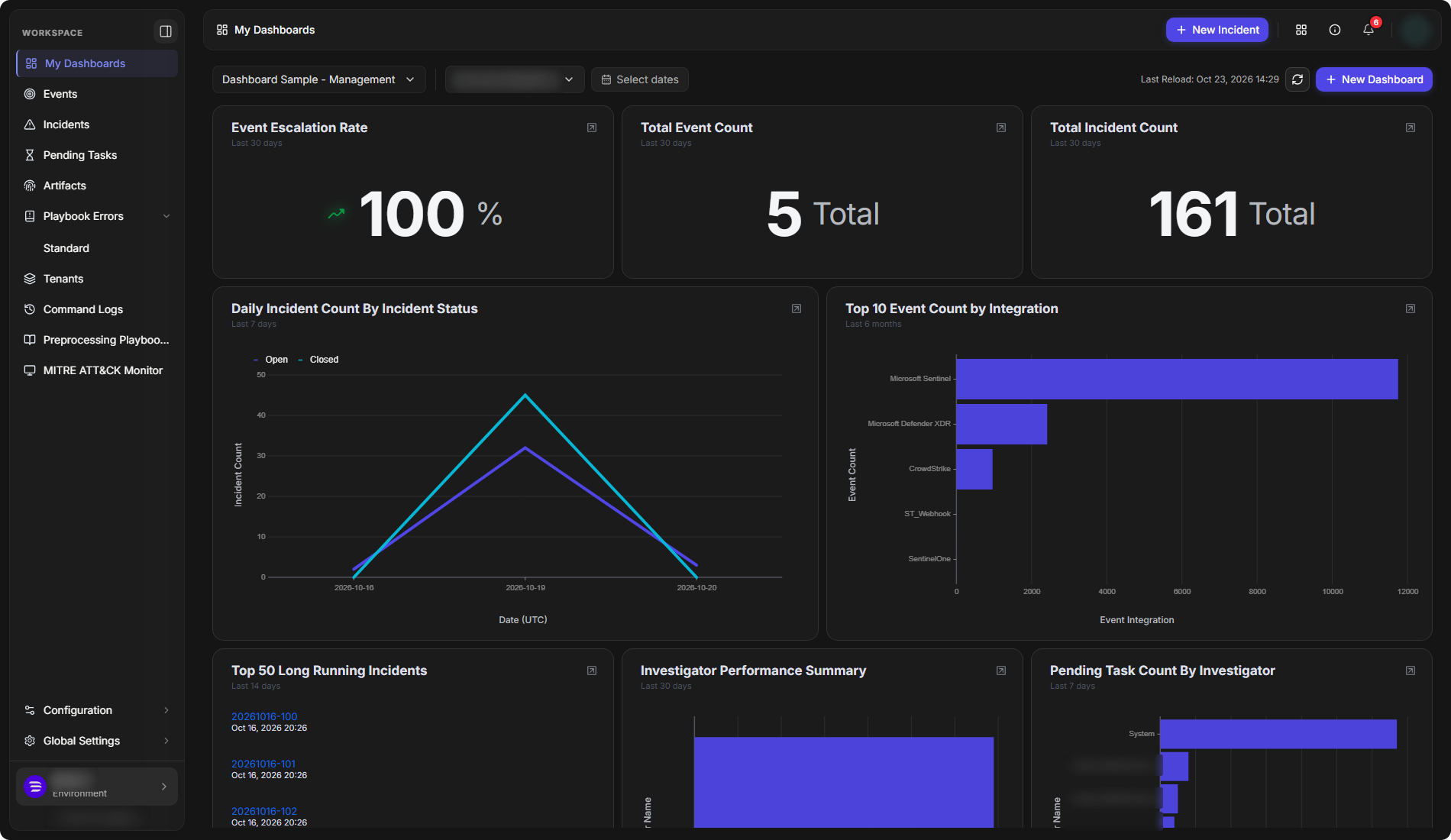
The bar across the top of the page decides what every widget on the dashboard shows:
-
The dashboard list (for example Dashboard Sample - Management) switches between your dashboards.
-
The site selector (for example Security Operations) chooses the sites the widgets report on.
-
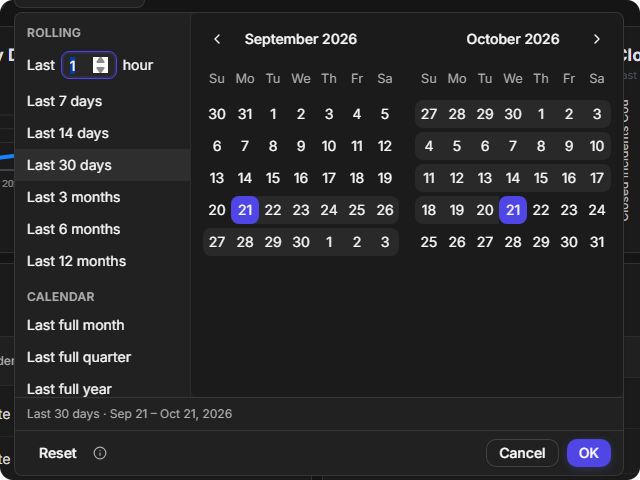
The time range chooses the period. Until one is chosen it shows Select dates, and each widget uses its own period, shown under its title (for example Last 30 days).
-
Last Reload shows when the data was last fetched. The button beside it reloads it now.
-
+ New Dashboard adds a reporting dashboard to your list.
The dashboard controls and first widgets

Switching Dashboards
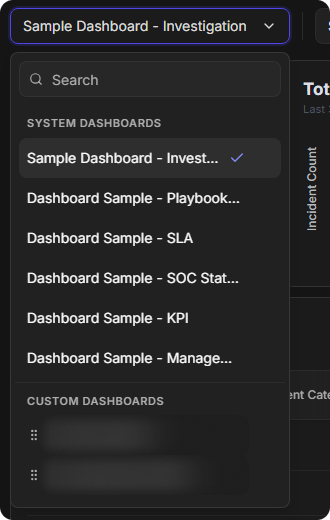
Open the dashboard list to move between dashboards. Type in Search to find one by name. The list has two groups:
|
Group |
What it holds |
|---|---|
|
SYSTEM DASHBOARDS |
The built-in dashboards, such as Sample Dashboard - Investigation, Dashboard Sample - Management, Dashboard Sample - SLA and Dashboard Sample - KPI. They always appear first. |
|
CUSTOM DASHBOARDS |
Dashboards built in Reporting Dashboard and added to your list. |
The current dashboard is marked with a check mark.
The dashboard list
Adding a Dashboard
Add a dashboard built in Reporting Dashboard to bring it into your own list.
-
Select + New Dashboard.
-
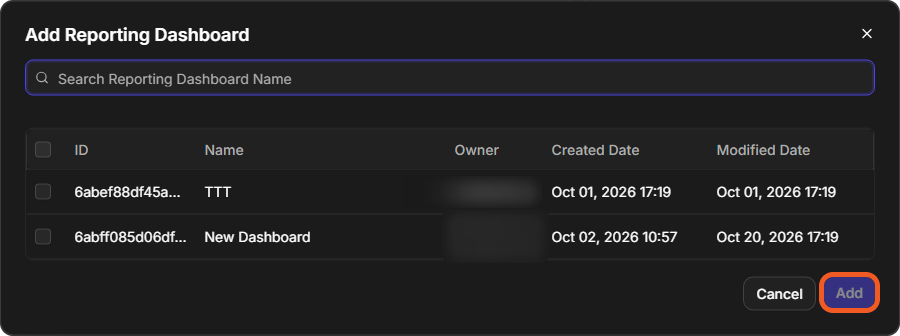
In the Add Reporting Dashboard window, find the dashboard. Use Search Reporting Dashboard Name to narrow the list, which shows each dashboard's Name, Owner, Created Date and Modified Date.
-
Select the checkbox for each dashboard to add. Several can be added at once.
-
Select Add.
The Add Reporting Dashboard window
The dashboards appear under CUSTOM DASHBOARDS in the dashboard list.
To build a new dashboard or change its widgets, use Reporting Dashboard. Refer to Reporting Dashboard.
To take a custom dashboard off your list, open the dashboard list, hover over the dashboard under CUSTOM DASHBOARDS, select ⋯, then select Remove Dashboard. It is removed at once, without a confirmation. The dashboard itself stays in Reporting Dashboard.
Choosing the Sites
The site selector decides which sites' data the widgets report on. It lists BOOKMARKS, the ALL SITES shortcuts (All client sites, All internal sites) and each site under INTERNAL SITES and its client sites.
Choosing the Time Range
The time range applies to every widget on the dashboard.
-
ROLLING ranges move with today: Last a set number of hours, Last 7 days, Last 14 days, Last 30 days, Last 3 months, Last 6 months and Last 12 months.
-
CALENDAR ranges cover complete periods: Last full month, Last full quarter and Last full year.
-
The calendar picks any start and end date.
The picker shows the range it will apply, for example Last 30 days · Sep 21 – Oct 21, 2026. Select OK to apply it, Cancel to keep the current one, or Reset to go back to the default.
The time range picker
Looking Behind a Widget
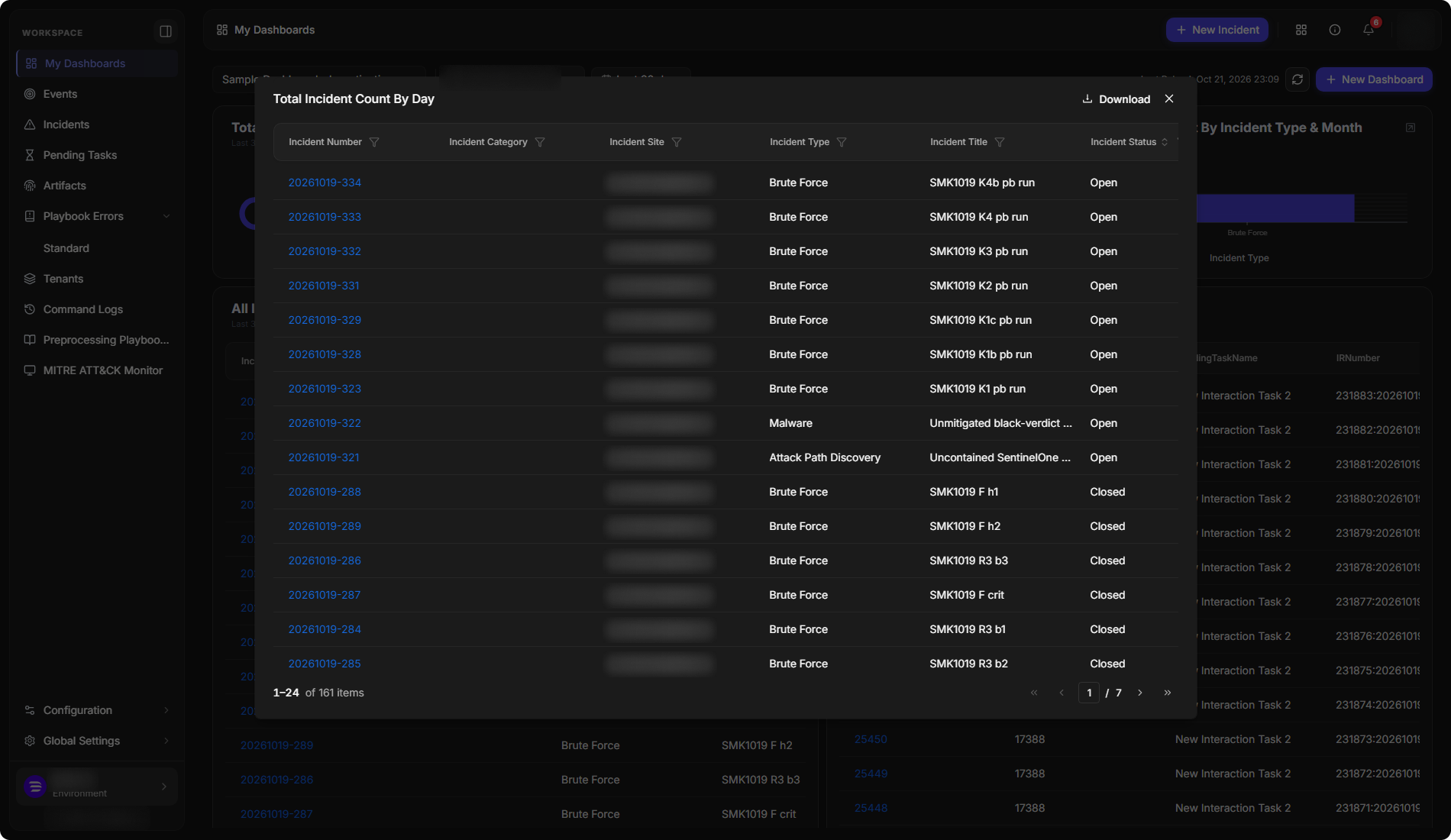
A chart summarizes. Its expand icon, at the top right of the widget, shows the records behind it. The widget opens in its own window as a table of the incidents it counts, with columns such as Incident Number, Incident Type, Incident Title and Incident Status. Select Download to save them.
An expanded widget