Last Updated: October 22, 2026
Overview
A custom view saves a list exactly as you have arranged it, with its sorting and filters, so you can return to it in one click and share it with colleagues. This article builds one on the Incidents list: open incidents, sorted by date created. The same steps work on the Events list.
Your role needs the Enable Custom View permission. See Custom Views.
Sorting and Filtering the List
-
Go to WORKSPACE > Incidents and select the view to start from, for example All.
-
Sort: select a column header, such as Date Created. An arrow shows the direction; select the header again to reverse it.
-
Filter: select the filter icon in a column header, such as Status. Tick the values to keep, for example Open, then select Filter. The filter appears above the list, for example Status: Open, with × to remove it.
A column filter
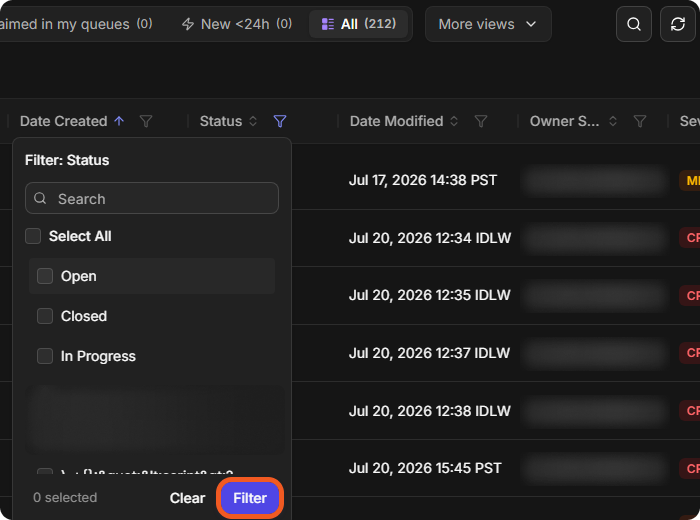
You can filter several columns, and use Advanced Search (the filter icon beside the search icon) as well.
Saving the View
-
Select the more icon (⋮) at the top right of the list, then Create Custom View.
-
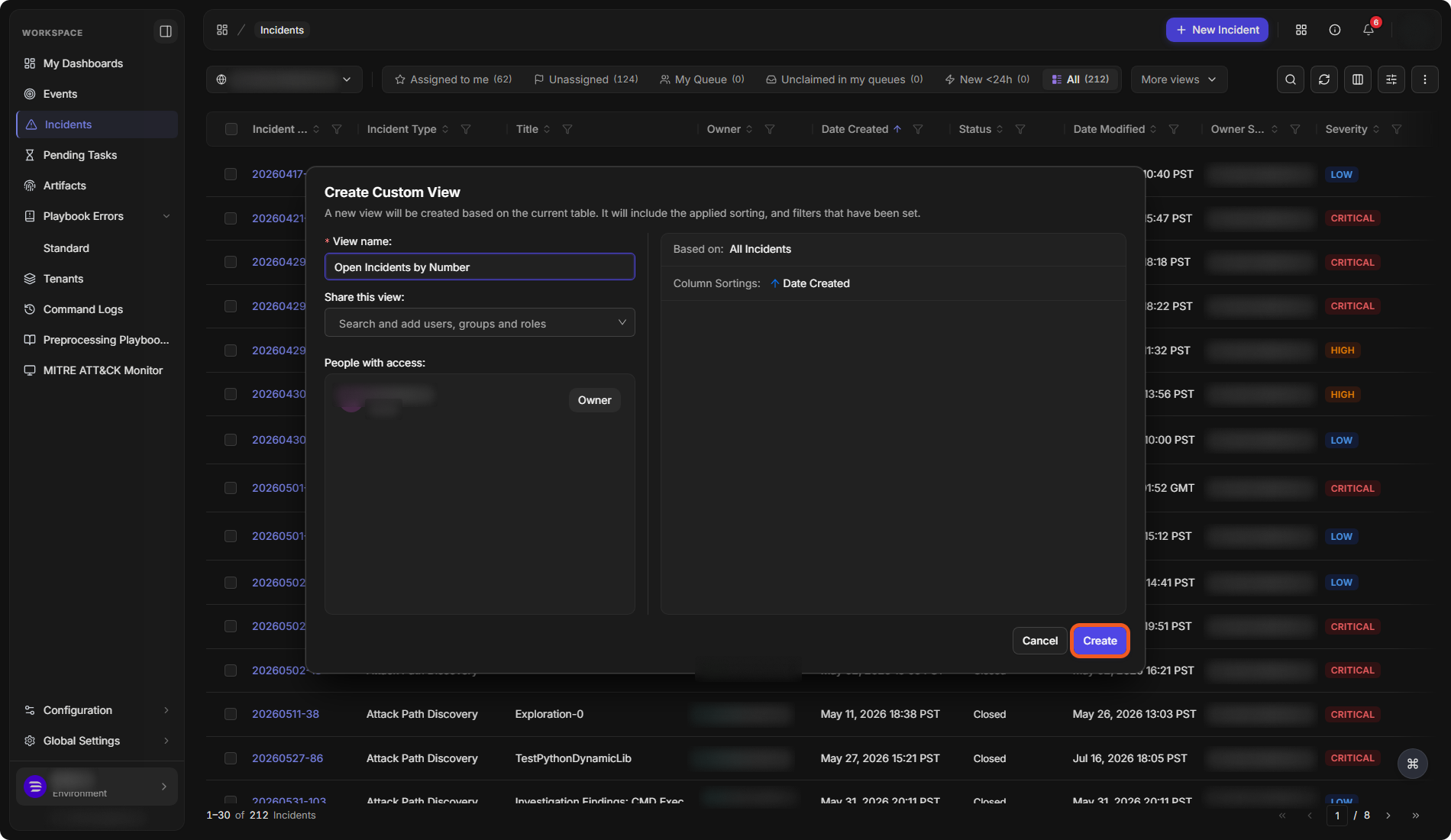
Enter a View name.
-
Optionally, in Share this view, search for and add the users, groups or roles who should also see it. People with access lists them, with you as Owner.
-
Check the summary on the right: the view it is Based on, its Column Sortings, and under Filters, the columns it filters on, such as Status.
-
Select Create.
Create Custom View
The new view opens at once, and its name replaces More views at the top of the list. The view keeps its filters: the filter still shows above the list, for example Status: Open, each time the view is opened.
Opening a Custom View
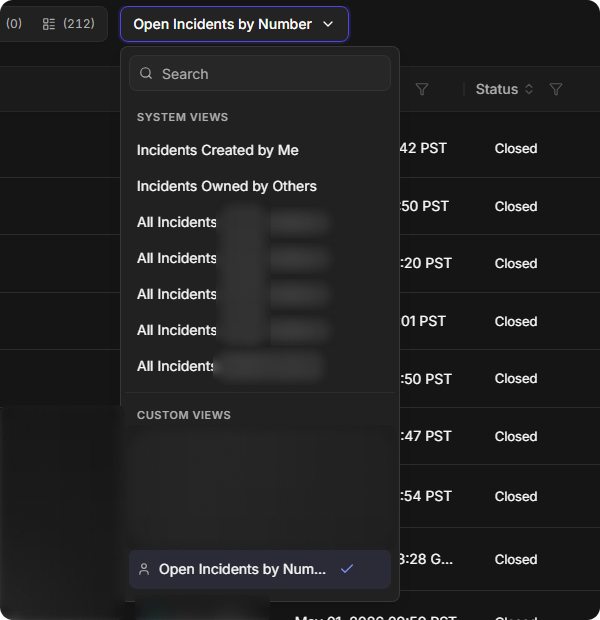
Select the view menu (More views, or the name of the current view) and choose the view under CUSTOM VIEWS. A person icon marks views you own; an eye icon marks views shared with you.
The view in the view list
Changing or Removing a View
Hover over the view in the list and select ⋯:
-
Edit View changes its name, sharing, sorting or filters.
-
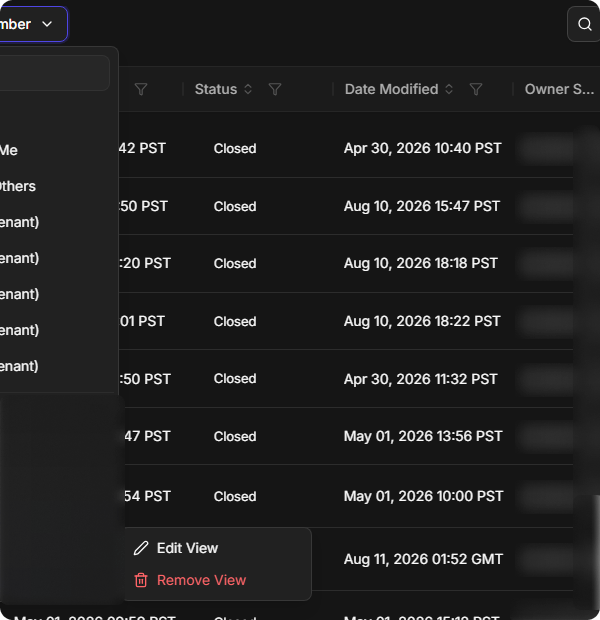
Remove View deletes it, after you select Confirm.
A view's actions