Last Updated: October 23, 2026
Custom views offer a tailored perspective into event, incident, pending task, artifacts and playbook error data by allowing users to define how information is grouped, sorted, and filtered within a table.
A custom view
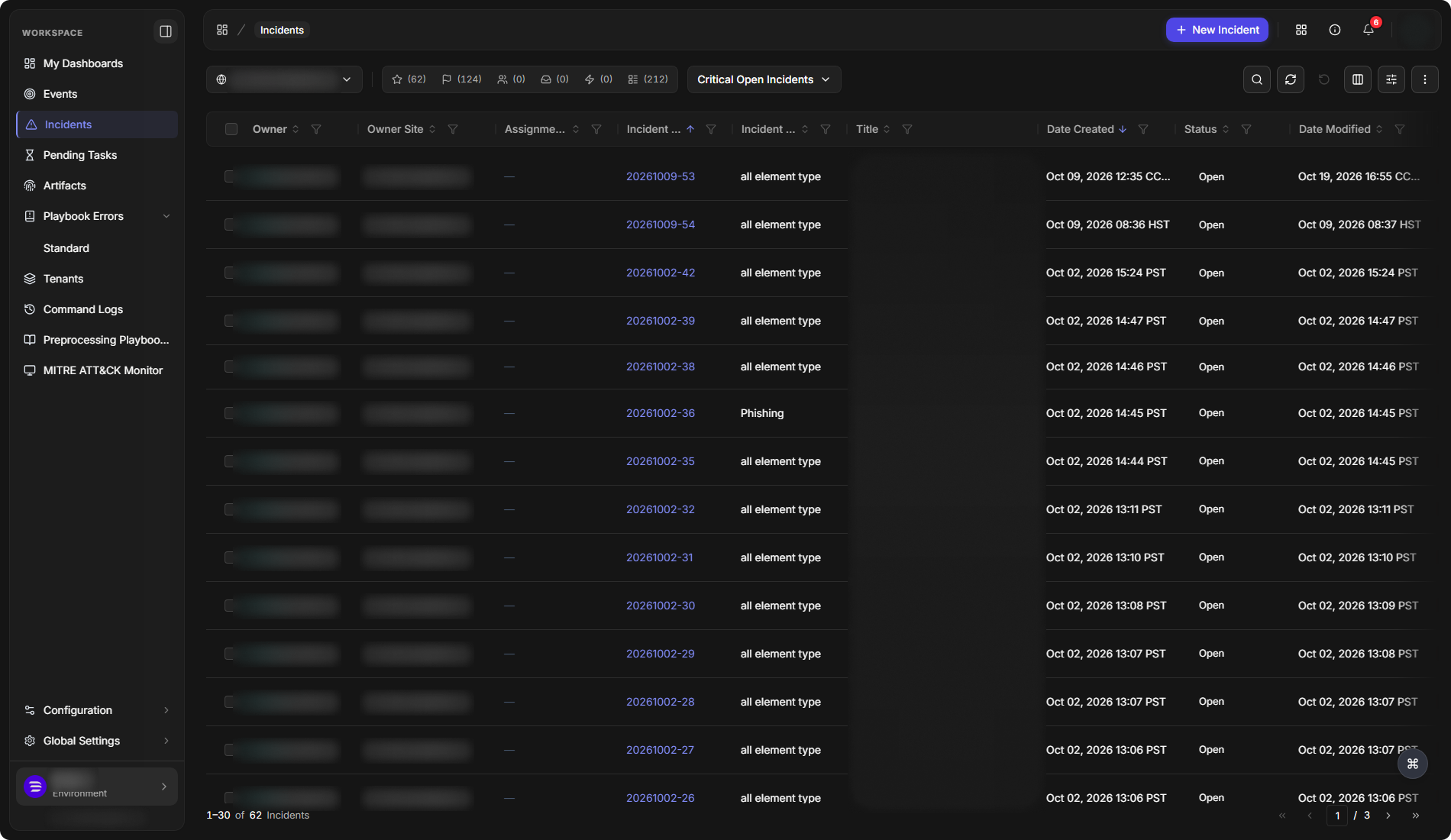
Each custom view acts as a saved configuration of the table's presentation, optimized to highlight the most relevant data for a specific role, workflow, or investigative need.
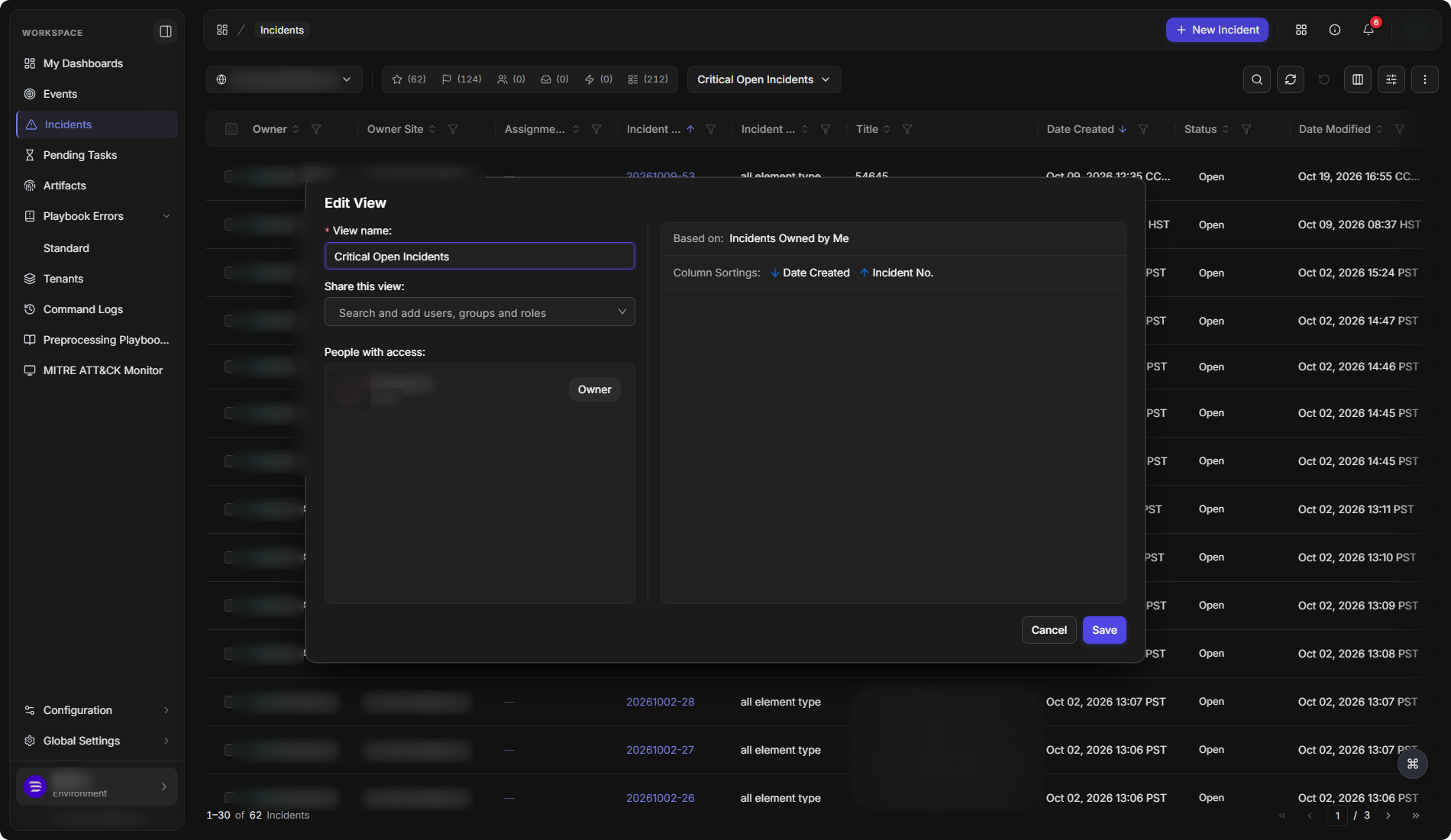
Edit View
Accessing Custom Views
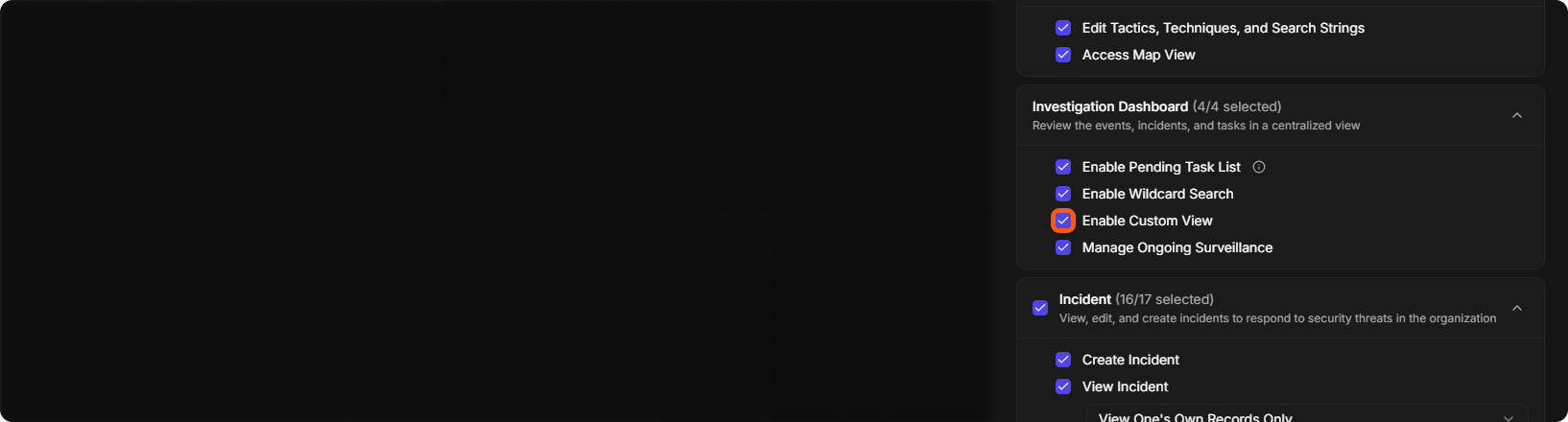
The Enable Custom View role token is required for a user to create and view custom views.
Enable this token by selecting the checkbox at: Global Settings > Organization Management > Roles > [Role] > Operational Modules > Investigation Dashboard > Enable Custom View.
The Enable Custom View permission
Editing and Deleting Custom Views
To edit or delete a custom view, click on the ⋯ icon.
A view's options
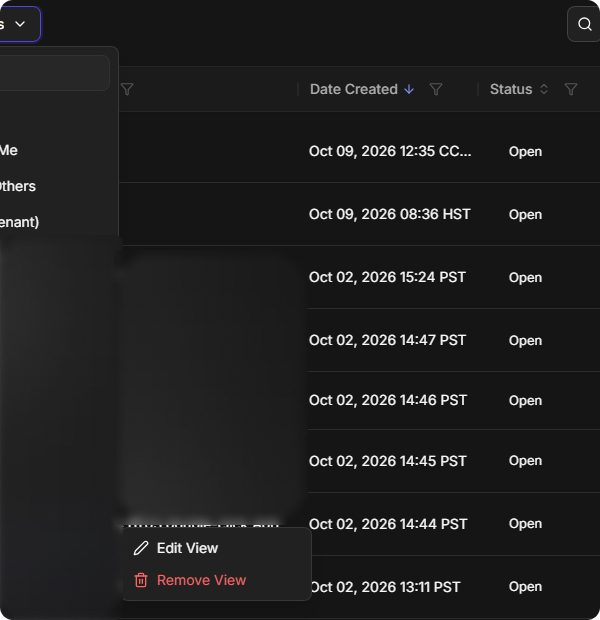
Clicking on the Edit View option will reopen the Edit View popover.
Clicking on the Remove View option will open a popover, prompting the user to confirm and delete the selected custom view.
Only the owner can delete their custom view. No one else has permission.
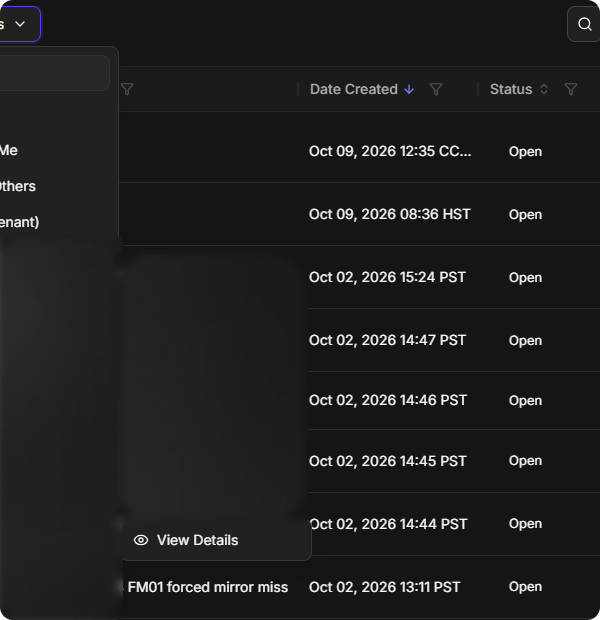
If a user did not create the custom view, only the View Details option will be available.
A shared view's options