
Last updated: November 10, 2026
Overview
The Activity log is the view the Command Centre of an incident opens on. It retells everything that happened to the incident as short, plain-language lines, so you can follow an incident's history at a glance instead of reading every log entry one by one: who changed the owner and to whom, which playbooks started and what they did, which notes were added, and which notices the system raised.
A playbook that runs dozens of tasks no longer fills the screen: each run is one line, with a summary such as 7 stage changes · 4 decisions · 22 tasks ran, and its steps open on request. Reminders that repeat are merged into one line.
The Activity log view
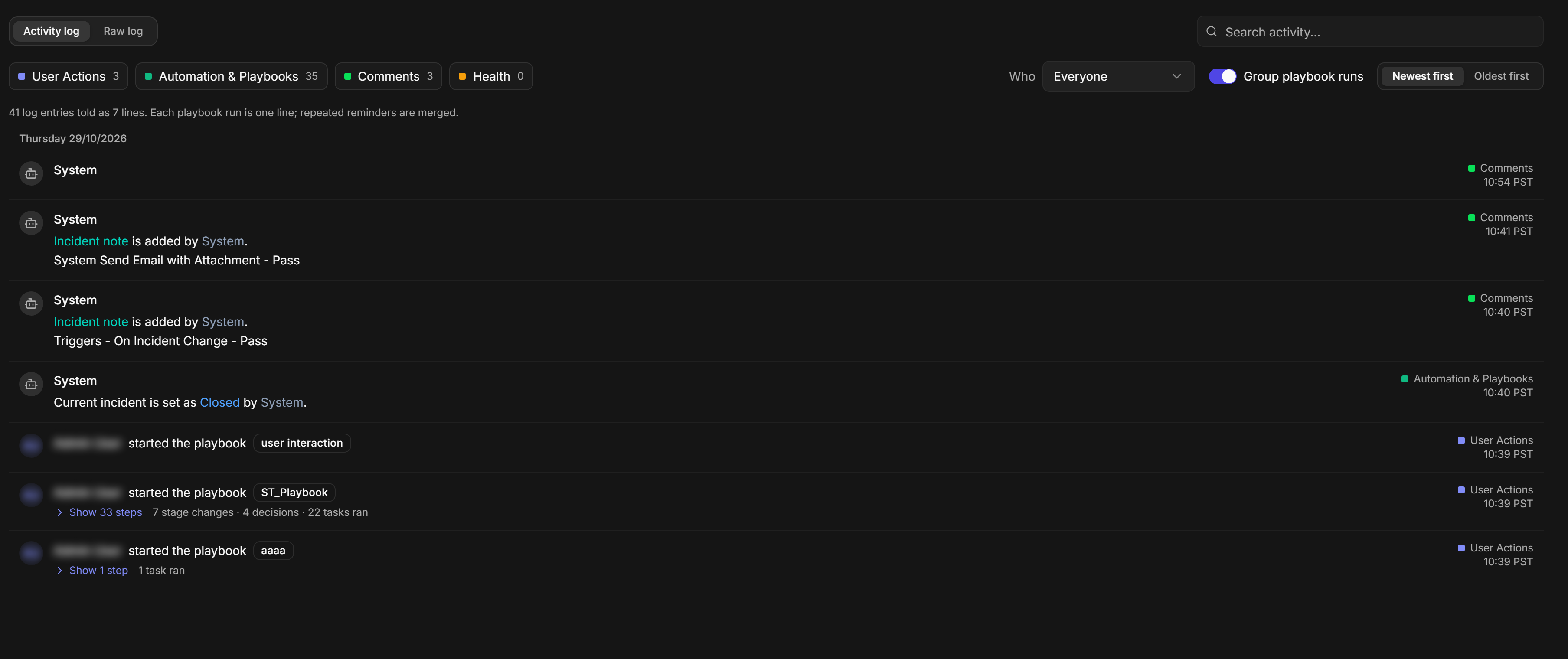
Nothing is removed: the previous entry-by-entry log is still one click away as the Raw log view. The Activity log is part of the new UI; the classic view's Command Centre is unchanged.
In short
|
# |
Stage |
Where it happens |
|---|---|---|
|
1 |
Open the incident's history |
Incident workspace > Command Centre (opens on Activity log) |
|
2 |
Narrow it down |
The category filters, Who, and Search activity... |
|
3 |
Read a playbook run |
Show N steps on the run's line |
|
4 |
See the original entries |
See in raw log, or the Raw log switch |
Who Can Use It
Anyone who can open an incident's Command Centre in the new UI sees the Activity log; there is nothing to turn on. Users who sign in through client access keep the raw log only, without the Activity log and Raw log switch.
Opening the Activity Log
-
Open an incident in the new UI.
-
In the incident's page list, select Command Centre.
RESULT
The Command Centre opens with Activity log selected. Lines are grouped by day, newest first. Each line shows who or what acted, what happened, the category, and the time.
Reading the Activity Log
Each line starts with who acted: a person (with their initials) or the system and its playbooks (with a robot icon). The rest of the line says what happened in words, and keeps the details that matter. A change of owner, for example, names both the previous owner and the new one.
An owner change

When an entry cannot be retold in a short sentence, the line shows the sentence exactly as the system recorded it, so nothing is ever summarised wrongly.
The category and the time sit at the right of every line. The four categories are:
|
Category |
What it holds |
|---|---|
|
User Actions |
What people did: started or unlinked a playbook, changed a field such as the owner, added a timeline note |
|
Automation & Playbooks |
What playbooks and the system did: tasks, decisions, stage changes, status changes |
|
Comments |
Incident notes and messages |
|
Health |
System notices, such as an overdue task, and system errors |
The line above the list counts the entries and the lines they were told as, for example 41 log entries told as 7 lines. At the bottom, Showing all activity since gives the date of the oldest entry shown.
Reading a Playbook Run
A playbook run is one line: who started it, the playbook's name, and, from the second run of the same playbook on, which run it is. Below it, a summary counts what the run did.
-
On the run's line, select Show N steps.
RESULT
The steps open in order: stage changes as from → to, decisions with the value that was chosen, and tasks with the result they reported. Select Hide steps to close them.
A playbook run with its steps open
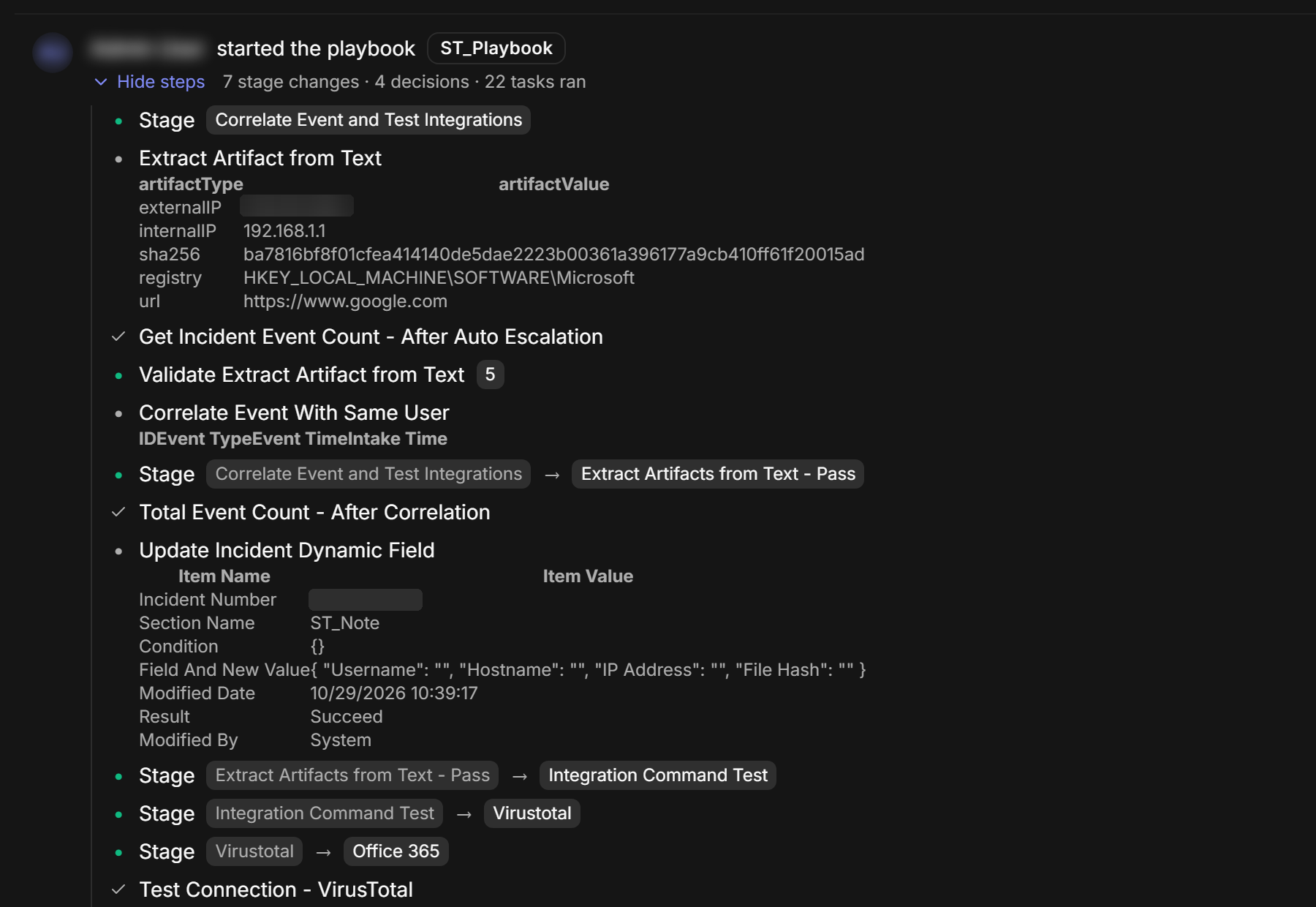
To see the original entries behind a run, select See in raw log below its steps. The Command Centre switches to the Raw log view at that run.
Filtering the Activity Log
Filters help you answer one question at a time: what did the analysts do, what did automation do, was anything flagged.
The filter bar

|
Control |
What it does |
|---|---|
|
User Actions, Automation & Playbooks, Comments, Health |
Show or hide that category. The number on each is how many entries it holds for the incident (and for the current search). All four are on when the log opens. |
|
Who |
Everyone, one person who acted on the incident, or Automation & system for the system and its playbooks only. |
|
Group playbook runs |
On: each run is one line and repeated reminders are merged. Off: every entry is its own line. |
|
Newest first / Oldest first |
The order of the lines. |
The Who list
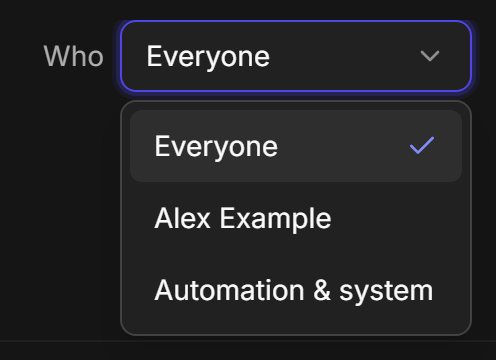
The Who list includes everyone who has acted on the incident, even if their entries are older than what is on screen.
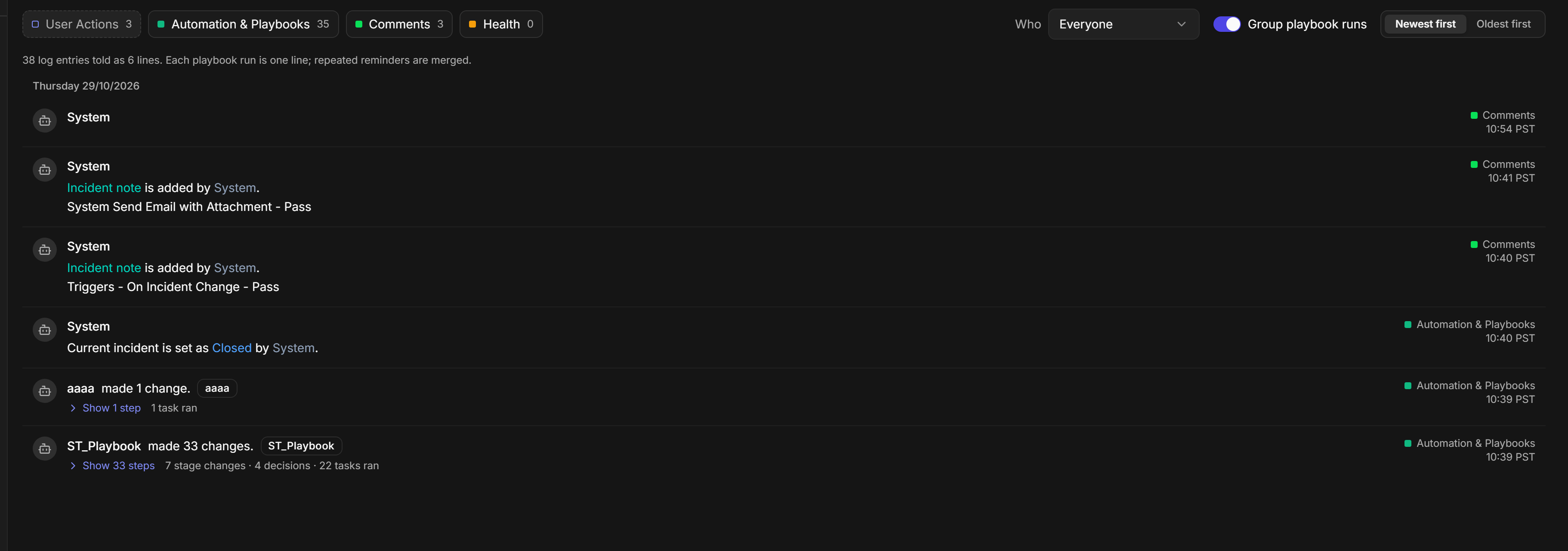
When User Actions is off, a playbook run that a person started is still shown, told as the playbook making its changes, so turning off one category never hides the automation inside it.
A run with User Actions turned off
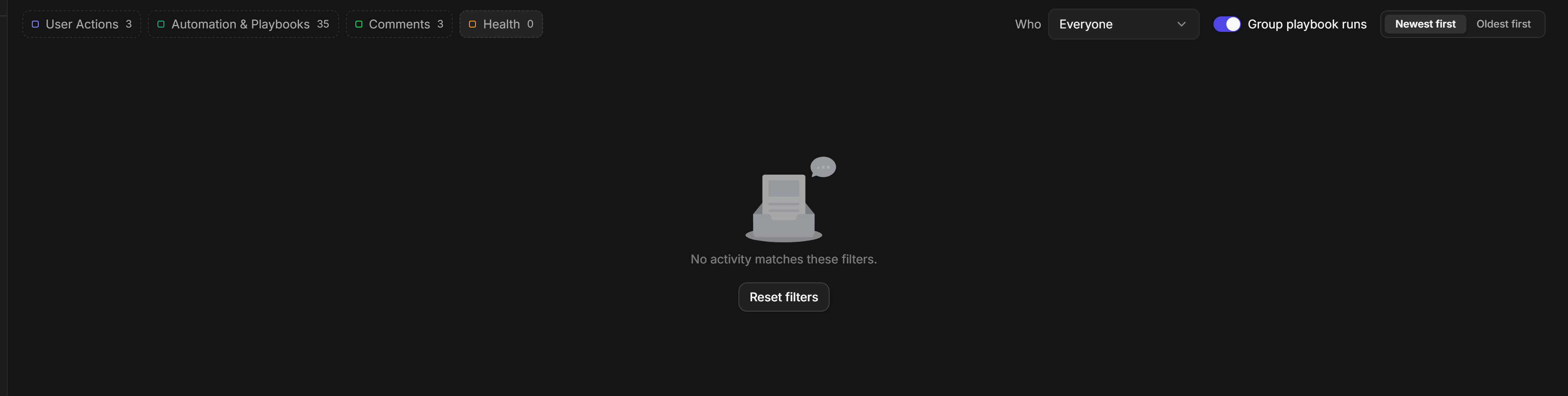
If every category is turned off, or the filters leave nothing to show, the log says No activity matches these filters. Select Reset filters to turn all four categories back on and set Who to Everyone.
When every filter is off
Searching the Log
The search box at the top right searches the incident's log as you type. The lines and the category counts follow the search.
Searching the activity log

If nothing matches, the log says No activity matches this search. The search is shared by both views: switch to Raw log and the same text stays in Search logs....
Switching to the Raw Log
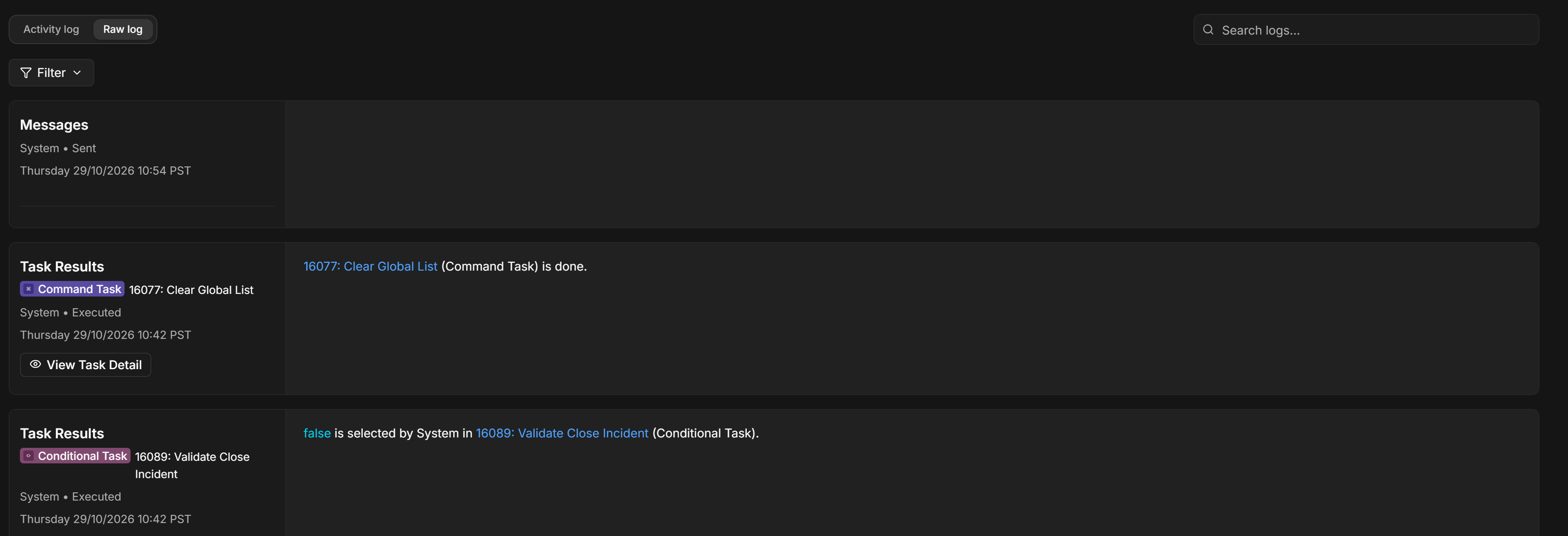
The Raw log is the Command Centre's entry-by-entry log, as it was before the Activity log was added. Use it when you need every entry as it was recorded, or to open a task's details.
-
At the top left of the Command Centre, select Raw log.
RESULT
Each log entry is a card with its type, who or what wrote it, when, and its full content. Select Activity log to go back; each view keeps its own filters while you switch.
The Raw log view
Questions
Why does a run say "tasks ran" rather than "tasks succeeded"? The summary counts every task the run reported on, successful or not, and names the failures separately: 22 tasks ran · 2 failed. Open the run's steps to see which ones — a task that failed is marked with a cross and the word failed, and the run itself is listed under Health.