
Last updated: November 10, 2026
Overview
Artifact source and artifact reputation answer the two questions an analyst asks first about an artifact on an incident: how did this get here? and what do threat intelligence vendors say about it? The source tells you whether an artifact came from the alert's own fields, from a correlated event, from a Morpheus AI investigation, from a playbook or from a person, so you can judge how much weight to give it. The reputation shows each vendor's verdict on its own row under one summary line, so a single alarming verdict is never mistaken for agreement.
An artifact's source and reputation in the Artifact Detail panel
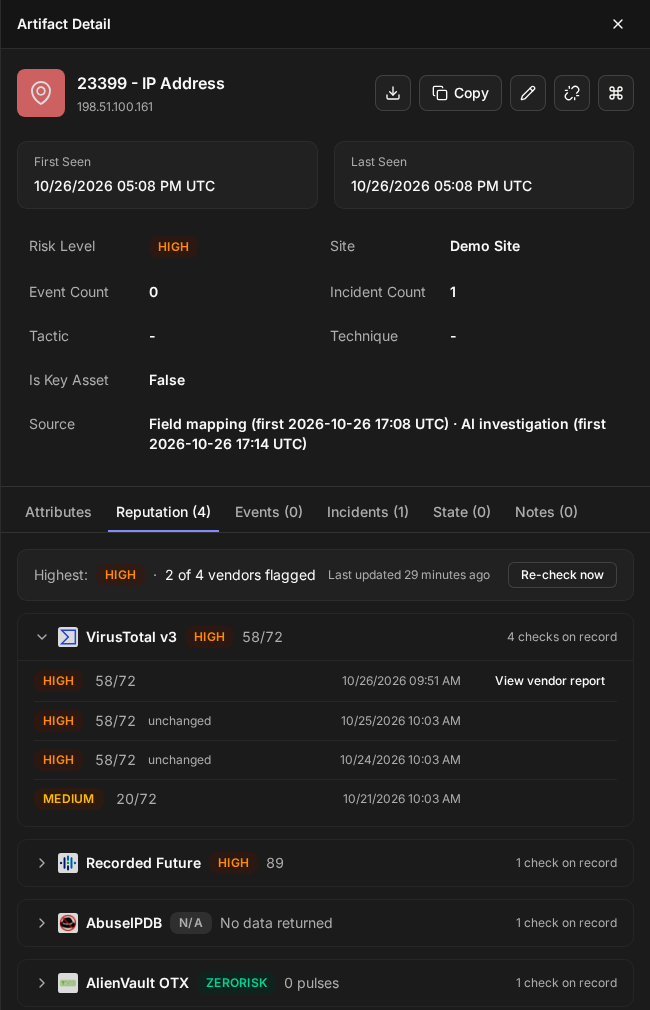
Both appear on their own in the new UI. There is nothing to switch on: from this release on, each way an artifact is added to an incident is recorded and shown, and the Reputation tab of the Artifact Detail panel shows whatever vendor checks are on record for the artifact.
In short
|
# |
Stage |
Where it happens |
|---|---|---|
|
1 |
See how each artifact reached the incident |
The Source column of the incident's Artifacts list (also Key Findings > Artifacts with Bad Reputation and Quick View > Linked Artifacts) |
|
2 |
Show only the artifacts found one way |
The All sources filter above the Artifacts list, or Source: All on the incident's Artifacts widget when it shows Cards |
|
3 |
See every source of one artifact, and when each first linked it |
The Source row of the Artifact Detail panel, opened from the incident |
|
4 |
Read what each vendor says |
The Reputation tab of the Artifact Detail panel |
|
5 |
Ask the vendors again |
Re-check now on the Reputation tab, with one site selected |
How an Artifact Reaches an Incident
The source of an artifact is the way it was added to the incident. One artifact can arrive more than once—for example, from the alert's own fields at escalation and again from a Morpheus AI investigation—and each way is kept, so you can see that two independent paths point at the same thing.
|
Source |
What it means |
|---|---|
|
Field mapping |
The artifact came from the alert's own fields when the event was escalated to the incident, or Morpheus AI found the alert's own entity again |
|
Correlation event |
The artifact belongs to an event correlated with the incident, and was not added to the incident any other way |
|
AI investigation |
A Morpheus AI investigation discovered the artifact and added it |
|
Playbook |
A playbook task or utility command added the artifact |
|
Manual |
An analyst added the artifact, or linked an existing one, to the incident |
|
Ingestion |
The artifact was linked when event data was ingested. New artifacts no longer arrive this way; the category remains for artifacts linked by it in earlier releases |
An artifact whose source was never recorded shows no source in lists and reads Unknown in the Artifact Detail panel. Most artifacts linked before your site was upgraded to this release fall in this group (see Artifacts Linked Before the Upgrade).
The Source Column
The Source column shows, on every row of an incident's artifact list, how the artifact reached the incident—so you can tell an artifact taken straight from the alert from one an investigation turned up, without opening it.
The Source column in an incident's Artifacts list
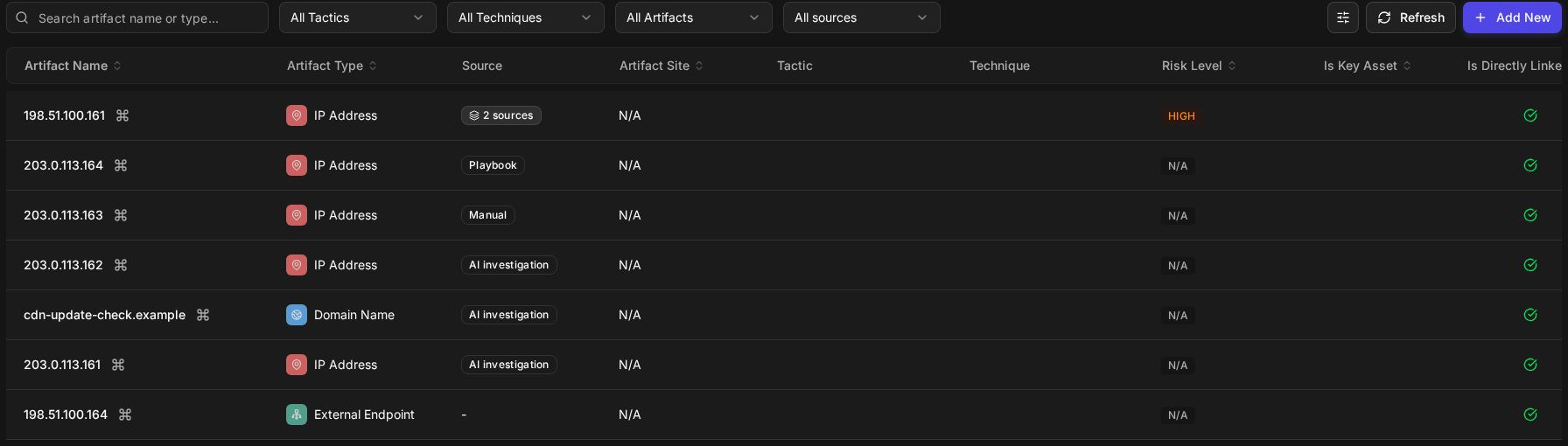
Each cell shows one of:
-
One source, as a label—for example, Field mapping.
-
N sources, when the artifact reached the incident in more than one way—for example, 2 sources. Point to it, or move to it with the keyboard, to see every source, oldest first—for example, Field mapping · AI investigation.
-
-, when no source was recorded.
Every source of an artifact found more than one way
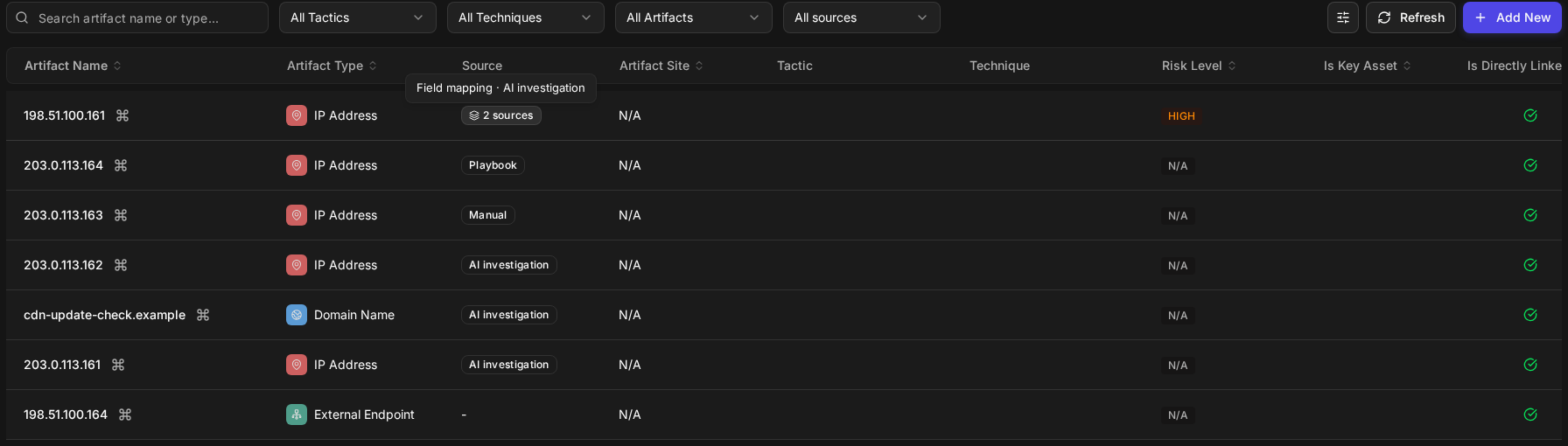
The column is shown by default, right after Artifact Type, in:
-
the incident's Artifacts list;
-
Key Findings > Artifacts with Bad Reputation;
-
Quick View > Linked Artifacts on the incidents list.
In the new UI, the incident's widget and page are named Artifacts. The Quick View tab and the classic UI still call them Linked Artifacts.
It appears even if you saved your own column choice earlier. In the incident's Artifacts list and in Key Findings > Artifacts with Bad Reputation, you can hide it from the Columns menu like any other column. The column cannot be sorted, because one artifact can have several sources.
On the incident's Artifacts widget, each card shows its source the same way: one label, or N sources. A card with no recorded source shows none.
Filtering by How It Was Found
Filtering by how an artifact was found narrows an incident's artifacts to those that arrived one particular way—for example, only what Morpheus AI discovered, to review the investigation's findings, or only what came from the alert's own fields. An artifact with several sources is included when any of them matches.
There are two such filters: one above the incident's artifact list, and one on the cards of the incident's Artifacts widget. Both offer Field mapping, Correlation event, AI investigation, Playbook, Manual and Ingestion, one at a time. Neither has an Unknown choice: artifacts with no recorded source are included only when the filter is off.
Filtering the Artifacts List
Use the list filter in the incident's Artifacts list or in Key Findings > Artifacts with Bad Reputation. It works together with the list's other filters and its search.
-
Open the incident. Point to the icon rail on its left to open the incident's menu, then select Artifacts (the fingerprint icon).
-
Select the filter that reads All sources, beside the list's other filters.
The All sources filter
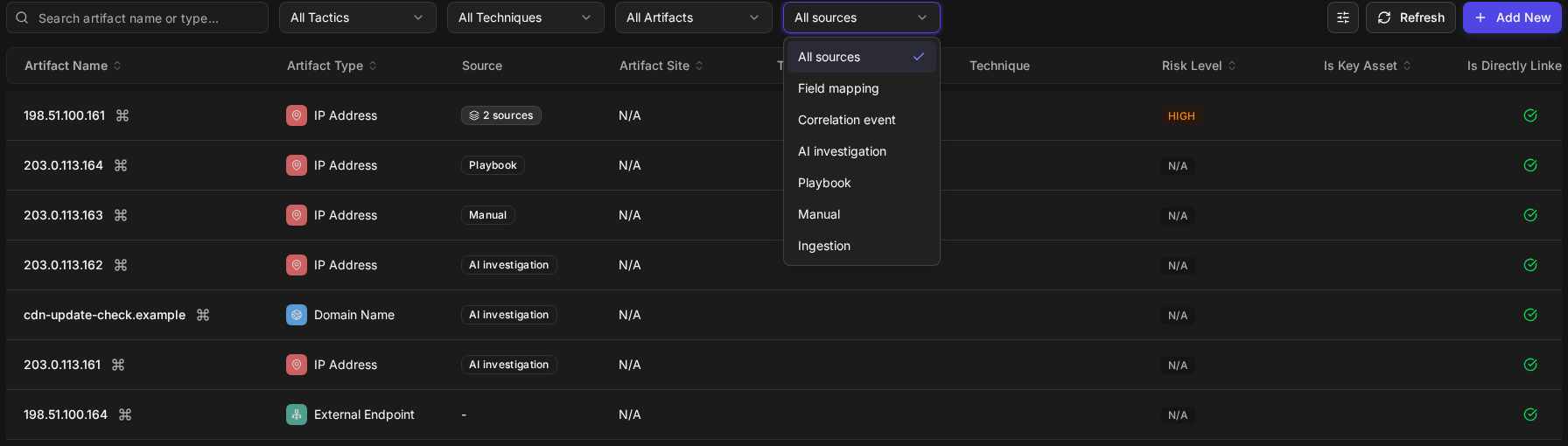
-
Select a source—for example, AI investigation.
RESULT
The list shows only the artifacts that arrived that way, starting from its first page. In the incident's Artifacts list, the page count follows the filter. Select All sources to show every artifact again.
The Artifacts list filtered to one source

The filter is not offered on Quick View > Linked Artifacts, or on Artifacts on the main menu, which lists artifacts across incidents.
Filtering Artifact Cards
The incident's Artifacts widget has the same filter when it shows cards, so you can narrow the cards without leaving the incident's overview. The widget's view switch reads List and Cards.
-
On the incident's overview, select Cards in the Artifacts widget.
-
Select Source: All.
-
Select a source—for example, Field mapping.
The Source filter on artifact cards
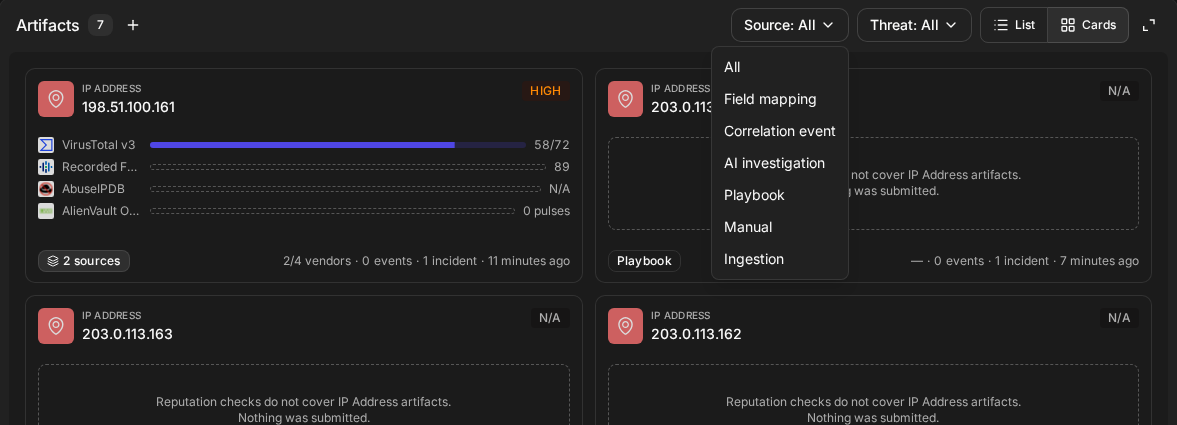
RESULT
The button reads Source: Field mapping, and only the matching cards are shown. If none match, the widget reads No artifacts match this filter. Select All to show every card again.
A card filter that matches nothing

READER NOTE
While a source is selected, the count in the widget's header keeps showing the incident's total number of artifacts, not the number of cards shown. The widget's List view has no Source column.
The Source Row in the Artifact Detail Panel
The Source row of the Artifact Detail panel names every way the artifact reached this incident and when each one first did, so you can reconstruct the order in which the evidence arrived—for example, that the alert supplied an address and Morpheus AI found it again twenty minutes later.
Open an artifact from the incident—for example, by selecting it in the incident's Artifacts list, in Quick View > Linked Artifacts, or on the incident's Morpheus AI Graph. The Source row sits among the artifact's details at the top of the panel:
Field mapping (first 2026-10-26 17:08 UTC) · AI investigation (first 2026-10-26 17:14 UTC)
Sources are listed oldest first. Times on this row are always shown in UTC, whatever your own time zone; the check times on the Reputation tab follow your own date and time settings.
The Source row with two sources
The row can also read:
|
The row reads |
When |
|---|---|
|
A source with no time—for example, Manual |
The artifact was linked before your site was upgraded, and its link recorded only its category |
|
Correlation event |
The artifact reaches the incident only through a correlated event |
|
Unknown |
The artifact is on the incident, but how it was added was not recorded |
There is no Source row when you open an artifact from Artifacts on the main menu or from SOAR > Monitor, because the panel is not tied to an incident there.
The Reputation Tab
The Reputation tab of the Artifact Detail panel shows what threat intelligence vendors say about the artifact: one summary line for the verdict across vendors, then one row per vendor with its current verdict and its earlier checks. You can see at a glance how many vendors flagged the artifact, and open any one vendor to see what it said and when.
The Reputation tab
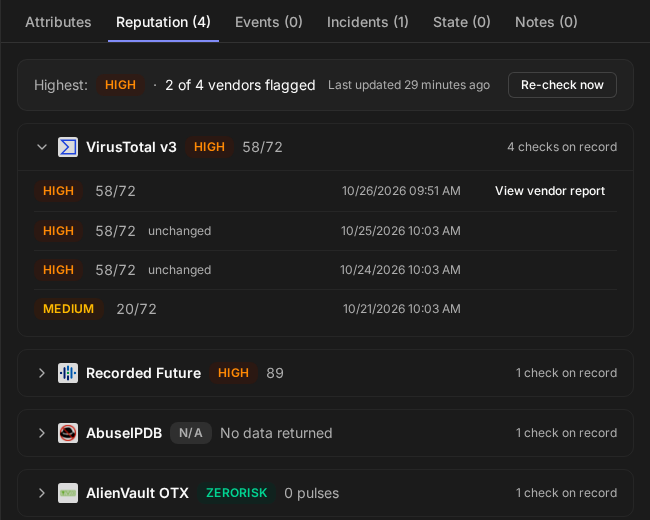
The tab's label counts the vendors that have a verdict—for example, Reputation (4)—and always matches the M in the summary line. Verdicts that did not come from a vendor, and levels the product does not recognize, are shown but not counted, so an artifact whose only verdict was set by an analyst reads Reputation (0).
The Summary Line
The summary line is the first thing on the tab. It reads, for example:
Highest: HIGH · 2 of 4 vendors flagged, followed by Last updated 29 minutes ago
-
Highest is the most severe verdict any vendor gave. It is the worst case, not a verdict every vendor agrees on—read it with the count beside it.
-
k of M vendors flagged counts the vendors whose verdict is High, Medium or Low, out of all the vendors with a verdict. A vendor whose verdict is ZeroRisk or N/A, including one that returned no data, counts in M but not as flagged.
-
Last updated shows how long ago the most recent vendor result was recorded—for example, Last updated 29 minutes ago, or Last updated about 1 hour ago once it is rounded. An integration can answer with a result it already holds, so this is when the result was recorded, not necessarily when the vendor was last asked.
-
Re-check now asks the vendors again (see Re-Checking Reputation). It appears only when one site is selected.
When no vendor has given a verdict—for example, only an analyst has set one—the line reads No vendor verdict.
Vendor Rows
Each vendor has one row, so its verdicts over time stay together rather than mixing with other vendors' in one list. The vendor with the most recent check comes first, and its row is open when the tab loads.
A row's header shows the vendor's logo and name, its current verdict, the detail behind the verdict, and how many checks are on record:
-
The verdict: High, Medium, Low, ZeroRisk or N/A, shown on the badge in capitals—for example, HIGH or ZERORISK. A level the product does not recognize reads Unknown level; it is shown but not counted in the summary line.
-
The detail: for example, 58/72—how many of the vendor's engines flagged the artifact out of how many looked—or the vendor's own score. A vendor that answered with nothing reads No data returned.
-
The checks on record: 1 check on record, 3 checks on record, or 10 most recent checks when 10 or more are on record.
Select a row's header to open or close it. An open row lists the vendor's checks, newest first, each with its verdict, detail and time. A check that gave the same result as the next newer one is marked unchanged, so you can see when a verdict actually changed. View vendor report opens what the vendor sent for that check, where the vendor sent a report.
A vendor row opened to its checks
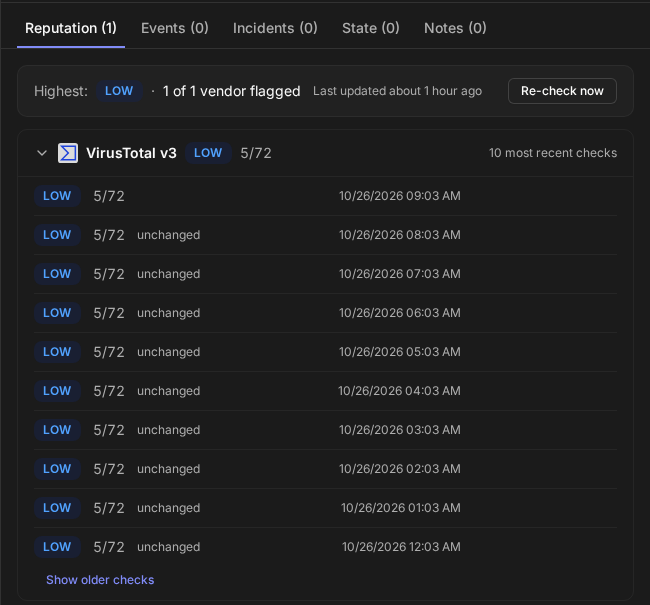
When a row reads 10 most recent checks, select Show older checks at the end of the open row to load the rest.
Viewing a Vendor's Report
A vendor's report shows exactly what the vendor returned for one check, for when you need the evidence behind a verdict.
-
Open the vendor's row on the Reputation tab.
-
Select View vendor report on the check you want.
A vendor's report
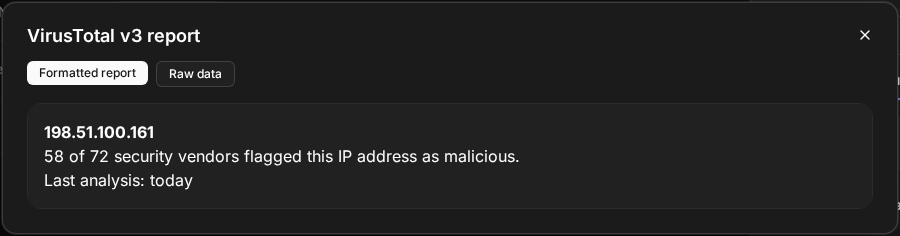
RESULT
A dialog titled with the vendor's name—for example, VirusTotal v3 report—shows the report for that check. When the vendor sent both a formatted report and its raw data, switch between them with Formatted report and Raw data.
If the vendor sent nothing for that check, the dialog reads The vendor returned no report. Very large raw data is cut short and the dialog says so: Note: the data is over the display limit, so only the first part is shown.
Verdicts Not From a Vendor
Some verdicts on the tab did not come from a vendor check. They are shown above the vendor rows, so you can see them, but they are not counted in the summary line, because no vendor gave them:
-
Set by analyst: a risk level set by hand on the artifact. Only its level is shown.
-
Unattributed: a verdict with a risk level but no vendor recorded against it.
When a vendor has no current result, for example because a later check by another vendor replaced it, that vendor's row still shows the vendor's last check, with the note No current result from this vendor. This is its last check on record. A risk level set by hand does not replace a vendor's result.
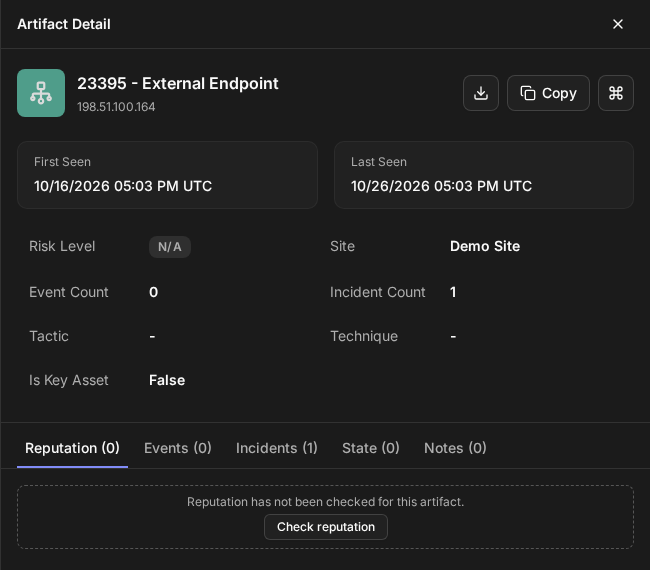
When Reputation Has Not Been Checked
An artifact with no vendor checks on record says so in plain words, so a missing check is never mistaken for a clean result:
Reputation has not been checked for this artifact.
With one site selected, a Check reputation button sits below it (see Re-Checking Reputation).
An artifact that has not been checked
If the reputation cannot be loaded, the tab shows the reason with a Retry button instead—never an empty or clean result.
READER NOTE
The Artifact Detail panel has no separate Reputation Result summary. The vendor verdicts are on the Reputation tab, under the one summary line, so there is a single place to read them.
Re-Checking Reputation
Re-check an artifact when its verdicts are old, or when an investigation has moved on and you want the vendors' current view before you decide. A re-check asks your site's vendor integrations again and adds each answer to the vendor's row.
READER NOTE
Re-check now and Check reputation appear only when a single site is selected, because a check runs with one site's integrations. With several sites in scope, an artifact that has not been checked reads Reputation has not been checked for this artifact. Select a single site to check it.
An artifact that has not been checked, with several sites in scope
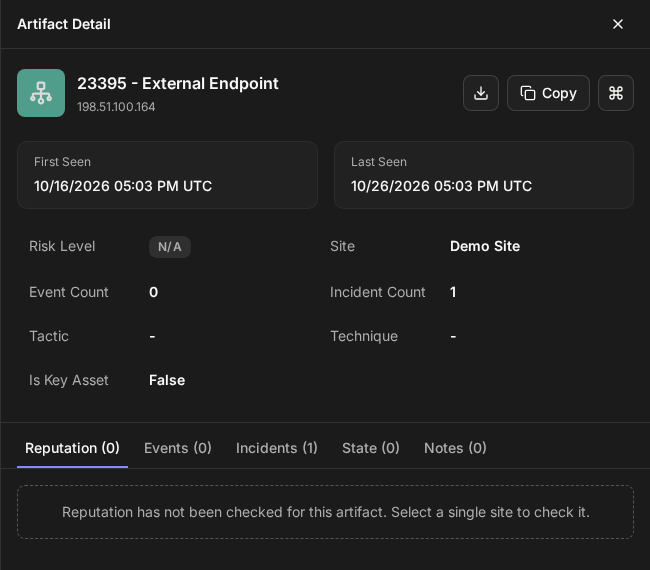
-
Select a single site.
-
Open the artifact and select its Reputation tab.
-
Select Re-check now on the summary line, or Check reputation if the artifact has not been checked before.
RESULT
The button shows that the check is running. When vendors answer, the tab reloads with their new verdicts, and Last updated resets.
If a vendor could not answer, a message names it with the reason the vendor gave. If no connected vendor can check this kind of artifact, the message reads No vendor could assess this artifact.
Artifacts Linked Before the Upgrade
Artifacts already on your incidents when your site is upgraded to this release keep a category only where their link recorded one, and nothing is invented for them. Most older links recorded none, so expect most artifacts on older incidents to show no source:
-
An artifact whose link recorded its category shows that one source—Manual, Playbook, AI investigation or Ingestion—with no time in the Artifact Detail panel.
-
Every other older artifact—including many that a person added, and those that came from an alert's fields at escalation—shows no source in lists, cannot be picked out with the source filters, and reads Unknown in the panel. In earlier releases these read Manual under Added By.
When an older artifact is added to the incident again in a new way, the new source is recorded with its time. If the old link recorded a category, that category stays next to the new source and then also shows a time, which can be later than when the artifact was first linked. If the old link read Unknown, only the new source shows afterwards.
Changes From the Previous Release
-
Added By is now Source. The row that read Added By is now Source, lists every source with its first time, and reads Unknown rather than Manual when the source was not recorded.
-
Two source labels changed. Playbook Task now reads Playbook, and AI Investigation now reads AI investigation.
-
The Reputation tab is organized by vendor. It used to list each check on its own line. In the Artifact Detail panel it now opens on a summary line, groups each vendor's checks in one row, and marks checks that did not change.
Limitations
-
The filter takes one source at a time.
-
Artifacts with no recorded source cannot be filtered for. They show no source in lists and appear only with the filter off.
-
The Source column cannot be sorted.
-
Times on the Source row are in UTC.
-
The widget's header count does not follow the card filter. It keeps showing the incident's total.
-
The Artifacts widget's List view and Quick View > Linked Artifacts have no source filter. The widget's List view has no Source column either.
-
There is no Source row outside an incident: on Artifacts on the main menu and on SOAR > Monitor.
-
A re-check needs one site selected.
-
A vendor report cannot be downloaded from the dialog, and very large raw data shows only its first part.
-
The Artifact Details window keeps its earlier Reputation tab. The window opens when you select a row in the List view of the incident's Artifacts widget; the tab described here is in the Artifact Detail panel.
FAQs
Why does an artifact show no source? Its source was not recorded—usually because it was linked before your site was upgraded, when most links recorded none. Open it from the incident: the Source row reads Unknown.
Why does an artifact show 2 sources? It reached the incident in two ways—for example, from the alert's fields and again from a Morpheus AI investigation. Point to 2 sources to see both, or open the artifact to see when each first linked it.
The summary line says High, but most vendors did not flag the artifact. Which is right? Both. Highest is the most severe single verdict; the count beside it says how many vendors flagged the artifact. Open the vendor rows to see who said what.
Why is there no Re-check now button? More than one site is in scope. Select a single site.
Does Re-check now ask every vendor? It asks the vendor integrations available to the selected site. If none of them can check this kind of artifact, the message reads No vendor could assess this artifact.