
LAST UPDATED: Oct 23, 2026
Overview
Google SecOps is Google Cloud's security operations platform, combining a SIEM for large-scale telemetry ingestion, detection and threat hunting with a SOAR module for case management. This integration covers the case management surface: it lists and retrieves cases, and changes their priority, stage, assignee and other fields directly from a playbook.
Google SecOps is available for use in:
|
D3 ASOC |
V18.4.0+ |
|
Category |
SIEM & XDR |
|
Deployment Options |
Option I, Option II, Option III, Option IV |
Connection
Gather the following information to connect D3 to Google SecOps.
|
Parameter |
Description |
Example |
|---|---|---|
|
Server URL |
The regional Chronicle API host for the Google SecOps instance. Enter the host only, without a path. Standard tenants use the form https://{region}-chronicle.googleapis.com, for example https://us-chronicle.googleapis.com or https://europe-chronicle.googleapis.com. Data residency tenants use the form https://chronicle.{region}.rep.googleapis.com, for example https://chronicle.eu.rep.googleapis.com. To find the region, check the Google SecOps console URL: a tenant URL without a region label, such as https://example.backstory.chronicle.security, indicates region us, while https://example.europe.backstory.chronicle.security indicates region europe. The full endpoint list is at https://docs.cloud.google.com/chronicle/docs/reference/rest . |
|
|
Service Account JSON |
The contents of the Google Cloud service account JSON key file used for authentication. The service account must be granted the IAM permissions listed for each command in the Permission Requirements section. Refer to https://developers.google.com/identity/protocols/oauth2/service-account . |
{"type":"service_account","project_id":"my-project","private_key_id":"...","private_key":"-----BEGIN PRIVATE KEY-----...","client_email":"d3-secops@my-project.iam.gserviceaccount.com"} |
|
Customer ID |
The customer ID of the Google SecOps instance, obtainable from the Google SecOps console under Settings > Profile. This value identifies the tenant in every API request. |
01234567-89ab-cdef-0123-456789abcdef |
|
Project ID |
The Google Cloud project hosting the Google SecOps instance, from Settings > Profile > Organization Details. Leave blank to use the project_id from the Service Account JSON, which is correct only when the service account was created in that same project. |
123456789012 |
Permission Requirements
Each endpoint in the Google SecOps API requires a certain permission scope. The following are required scopes for the commands in this integration:
|
Command |
Required Permissions |
|---|---|
|
Test Connection |
chronicle.instances.get |
|
Fetch Event |
chronicle.cases.get, plus chronicle.caseAlerts.get when Include Case Alerts is set, and chronicle.involvedEntities.get when it is Alerts and Entities |
|
UDM Search |
chronicle.events.udmSearch |
|
Update Case |
chronicle.cases.update |
|
Assign Case |
chronicle.cases.update |
|
Get Case |
chronicle.cases.get |
|
List Case Alerts |
chronicle.caseAlerts.get, plus chronicle.involvedEntities.get when Include Entities is true |
|
Change Case Priority |
chronicle.cases.update |
|
Change Case Stage |
chronicle.cases.update |
|
List Cases |
chronicle.cases.get |
|
List Case Stages |
chronicle.caseStageDefinitions.get |
|
List Case Comments |
chronicle.caseComments.get |
|
List Case Activity |
chronicle.caseWallRecords.get |
Configuring Google SecOps to Work with D3
Complete the following steps in the vendor environment before configuring the D3 connection:
-
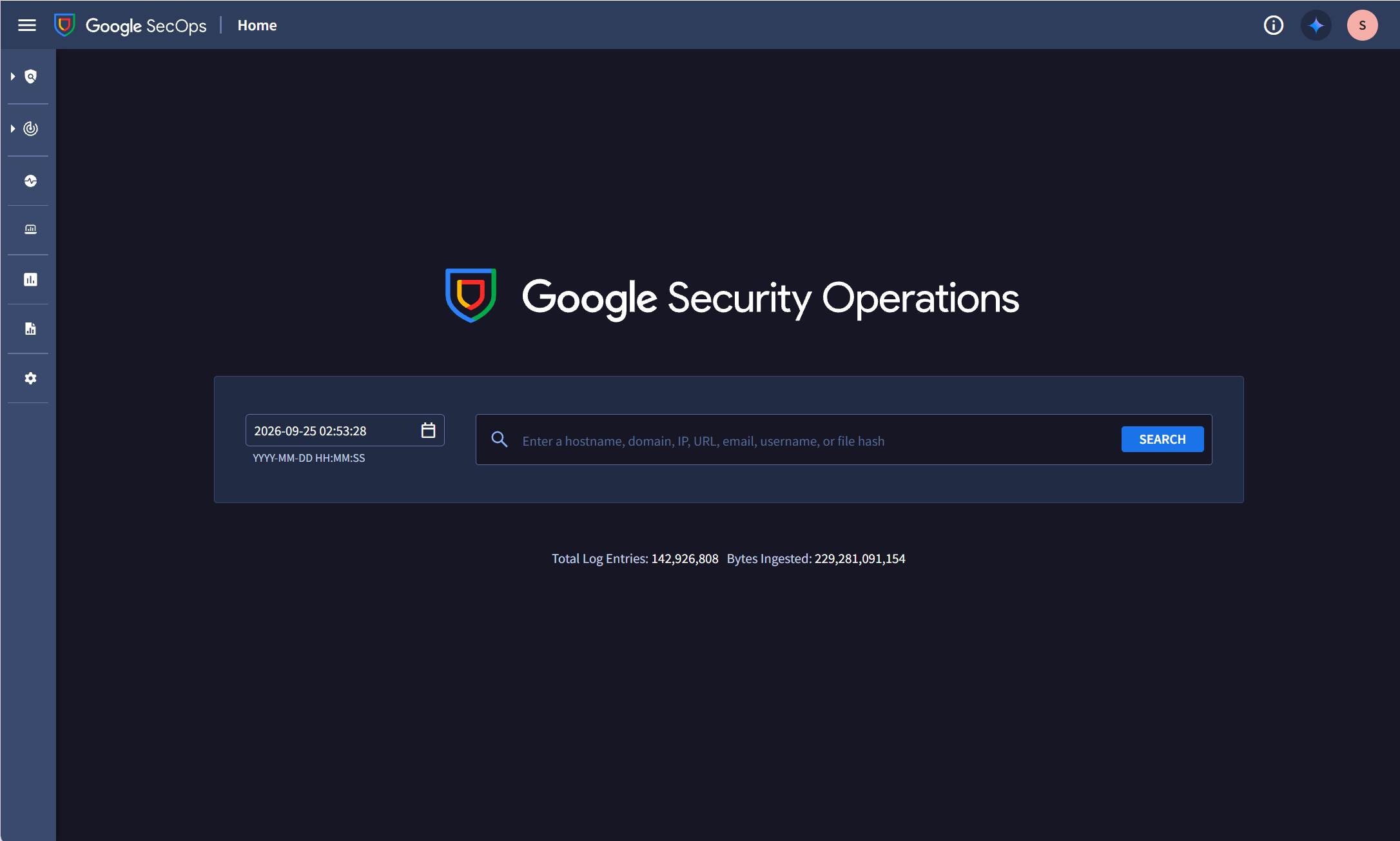
Sign in to the Google SecOps console.
-
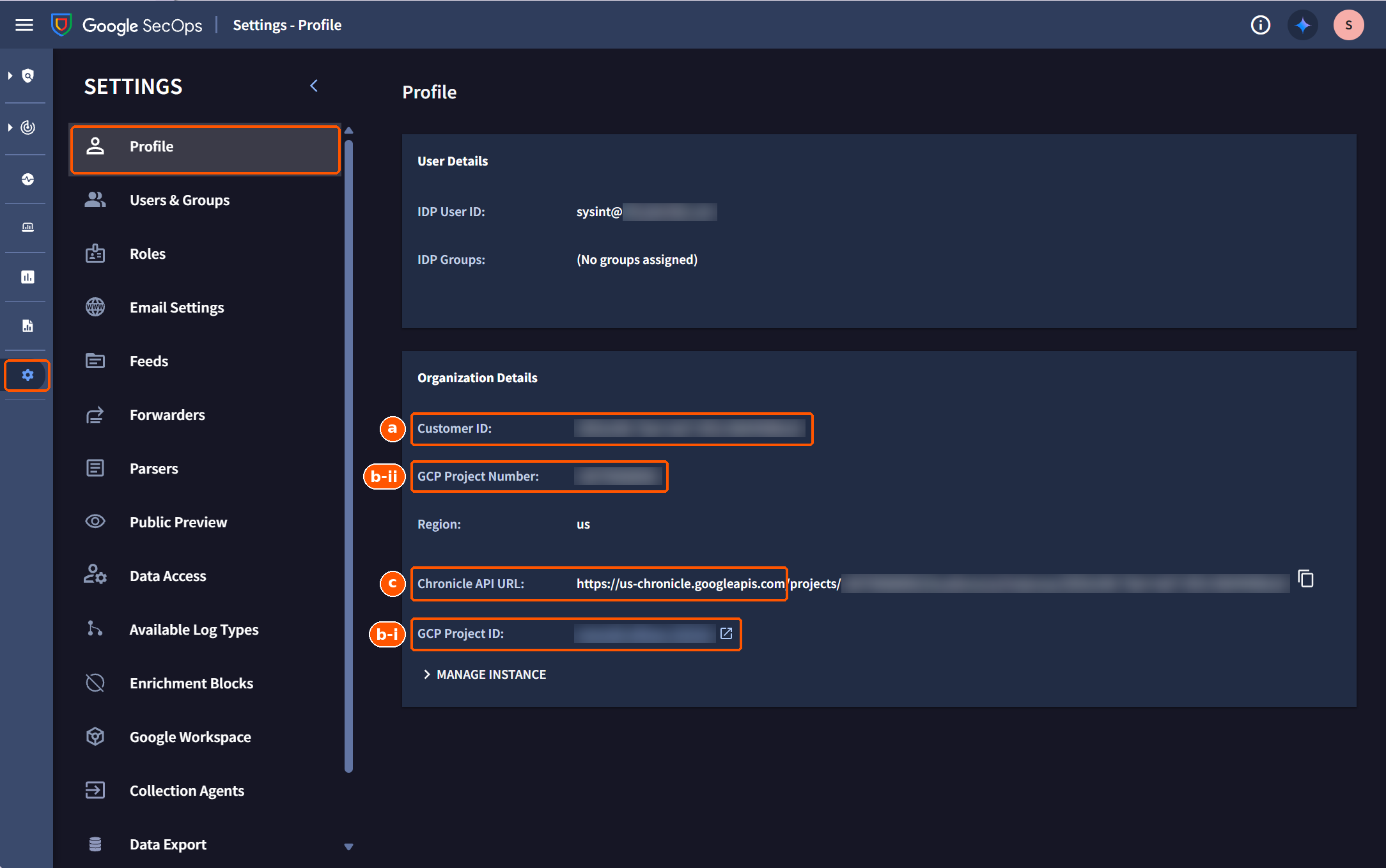
In the Google SecOps console, go to Settings > Profile. In the Organization Details section, copy the following values. The Chronicle API identifies the target tenant from the request URL, so the Customer ID and Server URL must be correct; there is no fallback.
-
Customer ID: The unique identifier of your Google SecOps instance, shown as a UUID (for example,
xxxxxxxx-xxxx-xxxx-xxxx-xxxxxxxxxxxx). Copy the full value exactly as displayed. -
Project ID: The Google Cloud project that hosts your Google SecOps instance. Leave this field blank only if the service account was created in the same project as your Google SecOps instance. If the service account belongs to a different project, this field is required. Enter either of the following:
-
GCP Project ID: The alphanumeric project identifier, shown as a link.
-
GCP Project Number: The numeric project identifier.
-
-
Server URL: The regional base URL of the Chronicle API. The Chronicle API URL field shows the full endpoint, but only the base URL, the part before
/projects/, is needed. For example:-
Full value shown:
https://us-chronicle.googleapis.com/projects/<project>/locations/us/instances/<customer-id> -
Value to enter:
https://us-chronicle.googleapis.comin the connection Server URL. -
Do not include
/projects/, the location, or the instance path in the Server URL; D3 builds the full request path from the Project ID and Customer ID. The regional prefix depends on where your instance is hosted (for example,us-,eu-, orasia-southeast1-), so always copy it from your own console rather than using the example above.
-
-
-
Enable the Chronicle API.
-
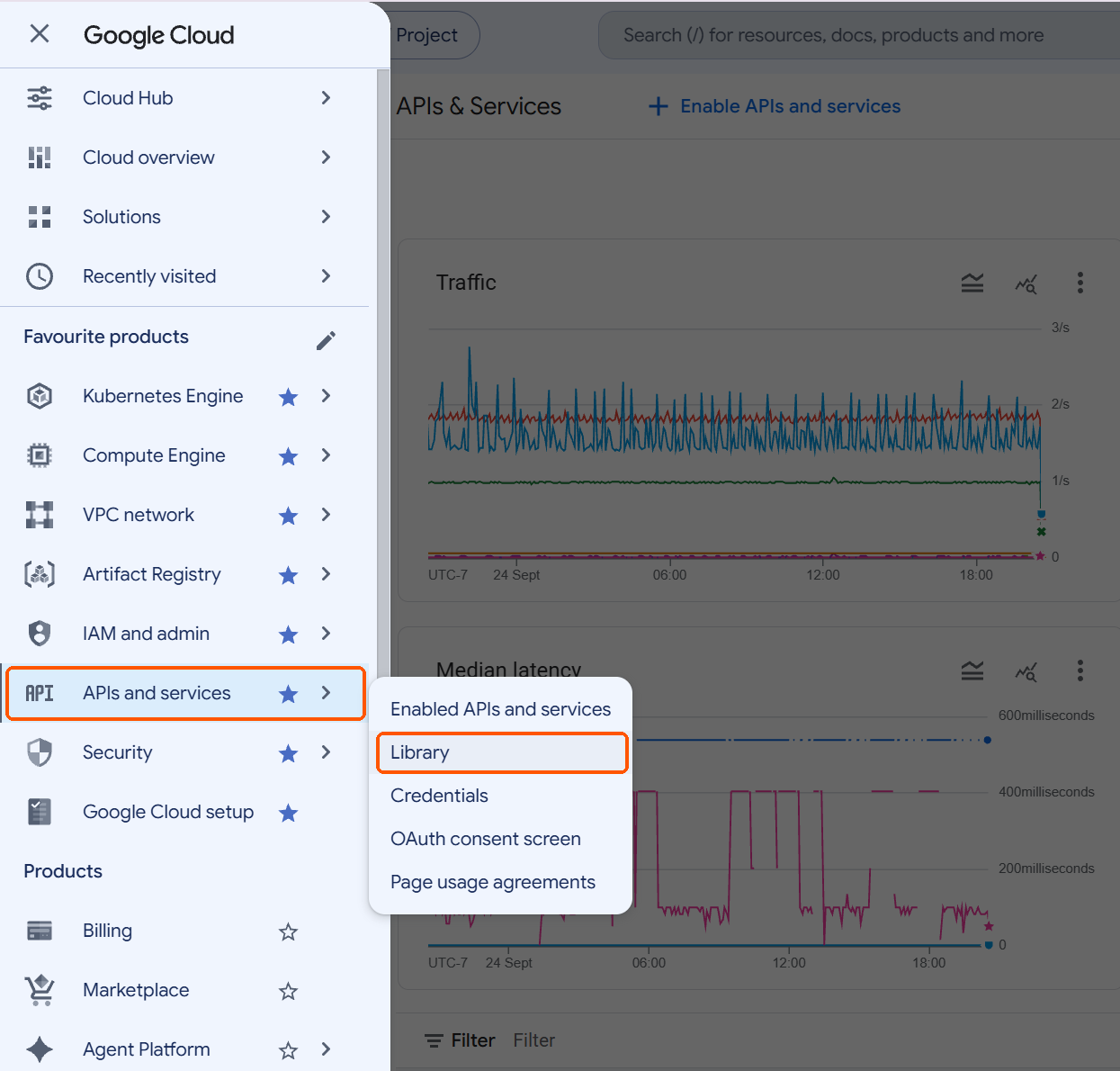
In the Google Cloud console for that project, open APIs & Services > Library
-
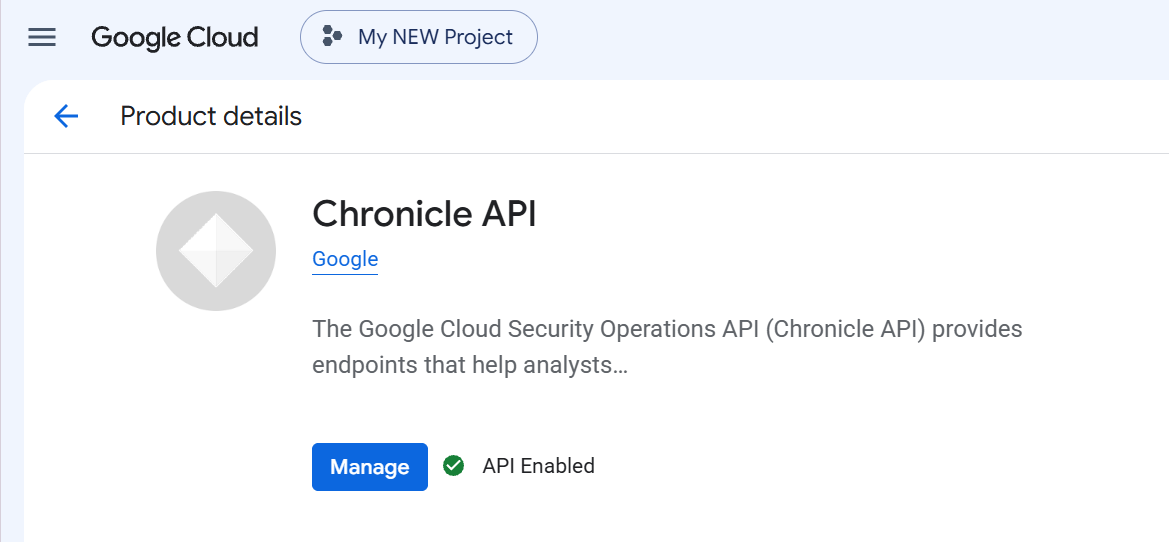
Search for Chronicle API, and click Enable. Skipping this produces an HTTP 403 naming the project number.
-
-
Service Account JSON:
-
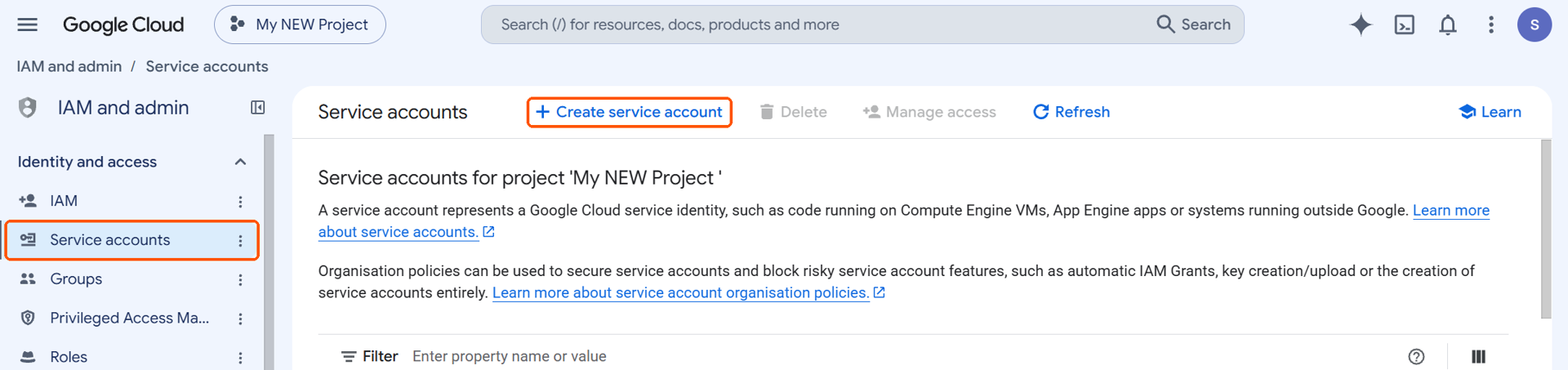
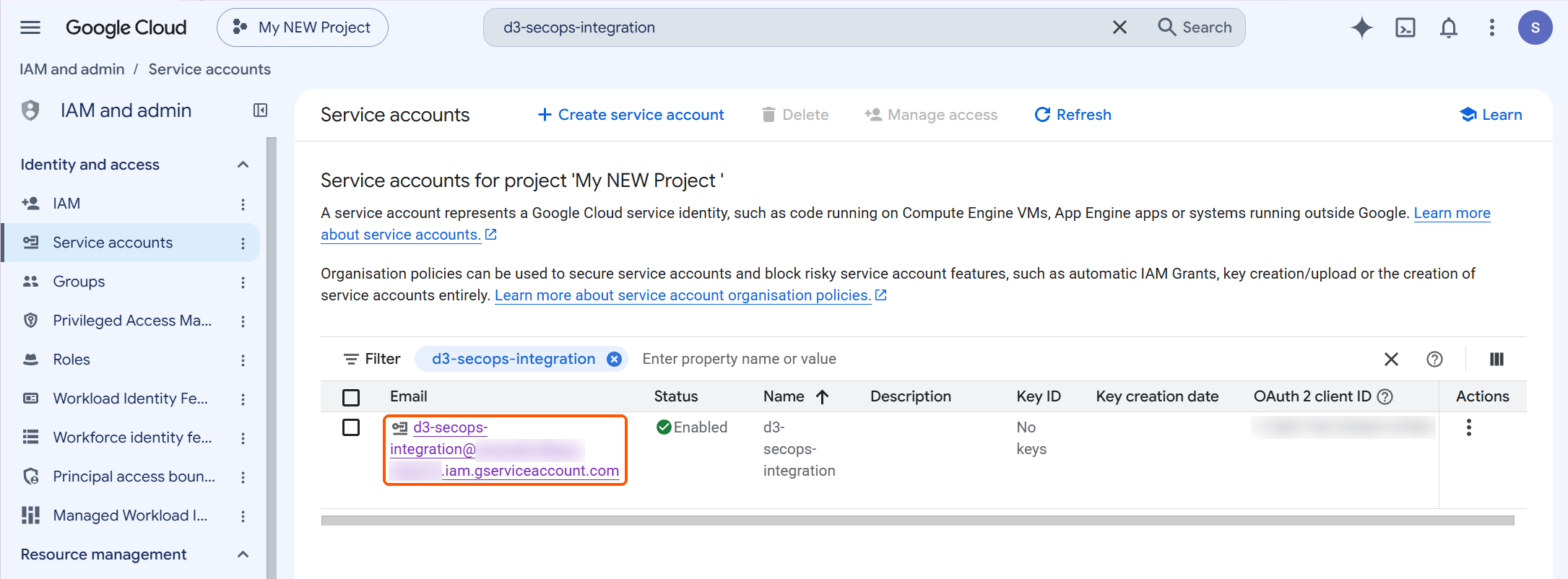
Open IAM & Admin > Service Accounts, click Create service account, and give it a name such as d3-secops-integration.
-
Enter a Service account name (for example,
d3-secops-integration), then click Create and continue.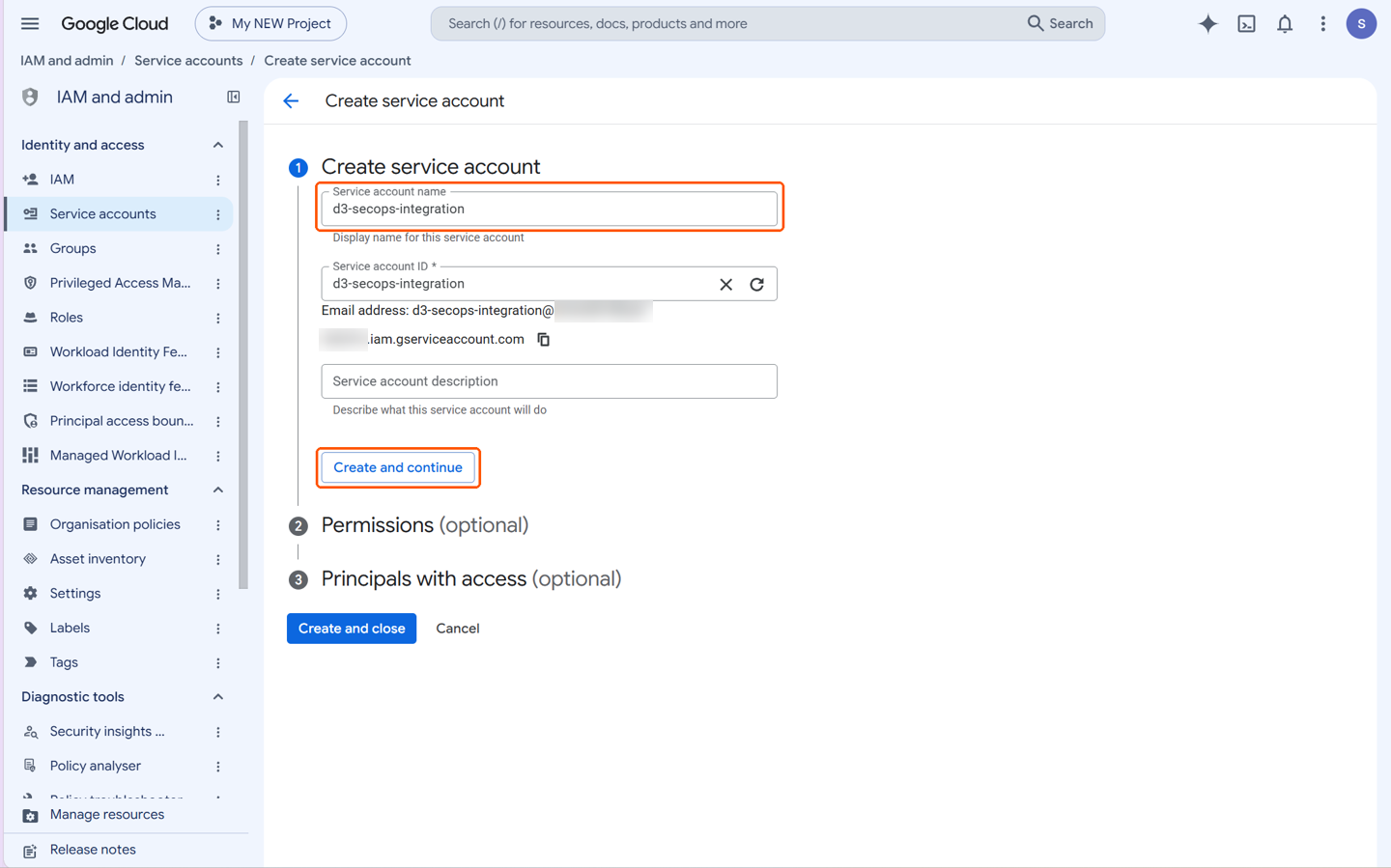
-
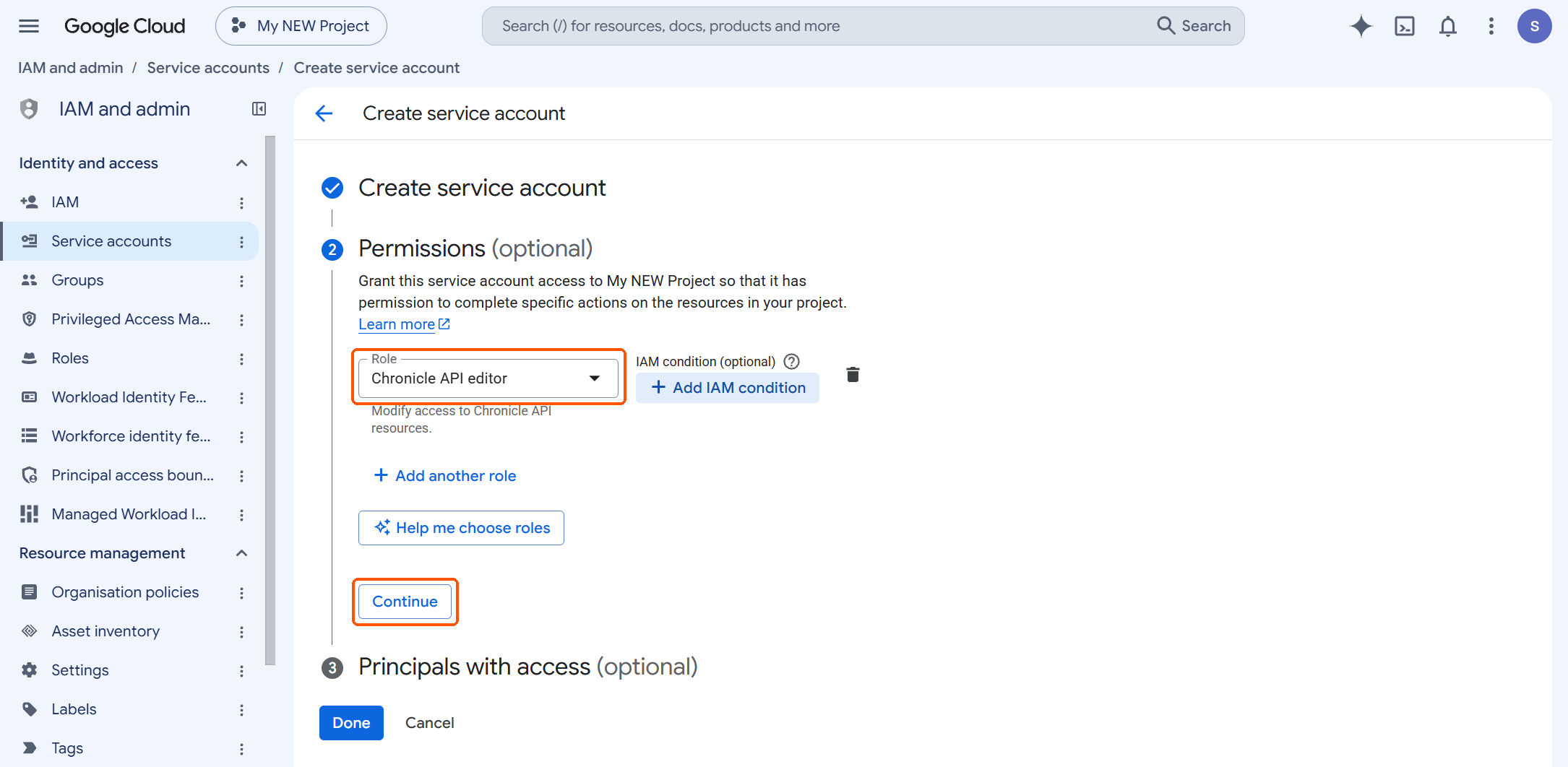
Under Permissions, select the Chronicle API editor role or a custom role including all the permissions for this integration, then click Continue.
-
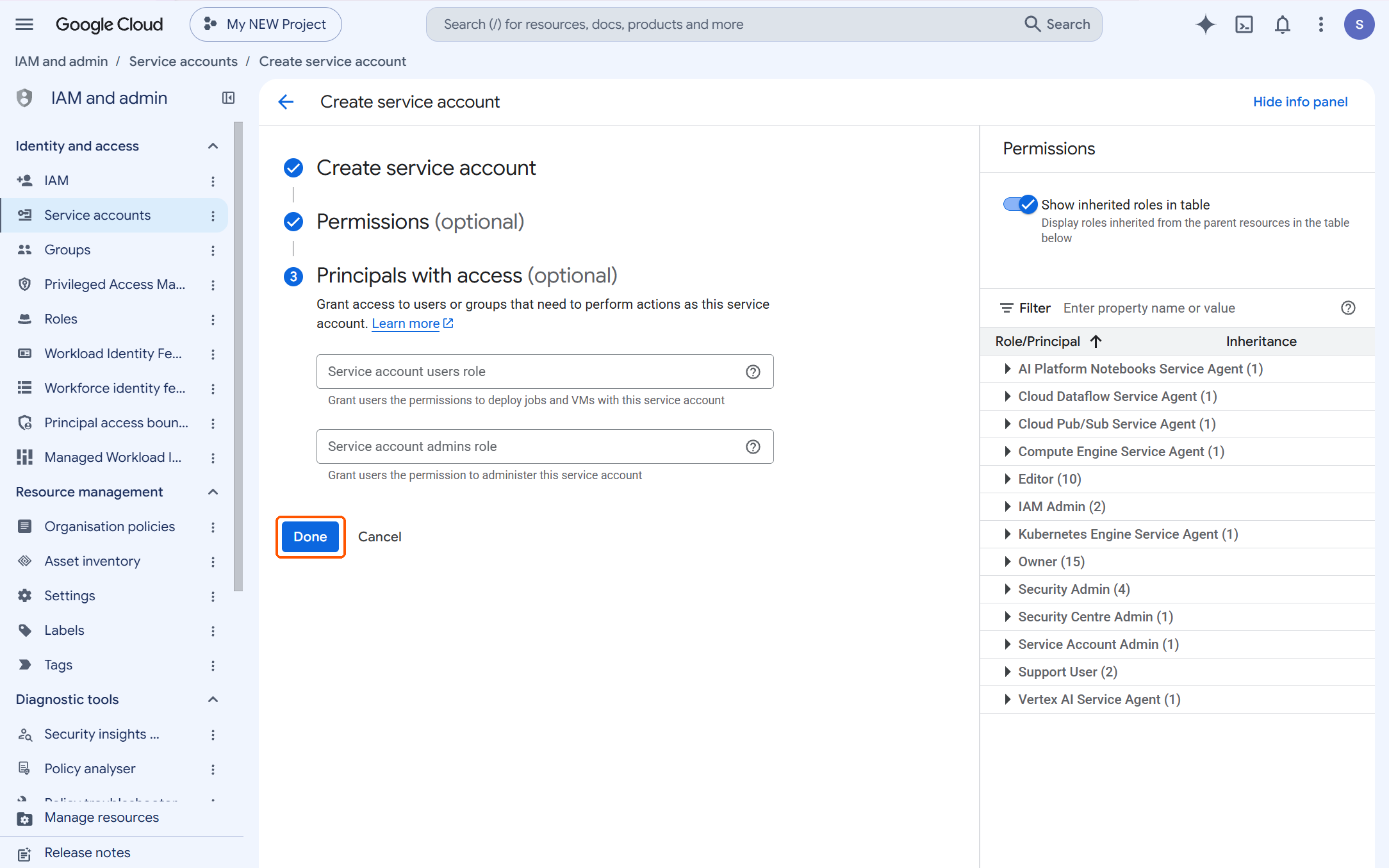
Under Principals with access (optional), leave both fields blank; D3 doesn't need them. Click Done to create the service account.
-
-
In the Service accounts list, find the service account you just created. Click to open the new service account.
-
Create the Service Account JSON.
-
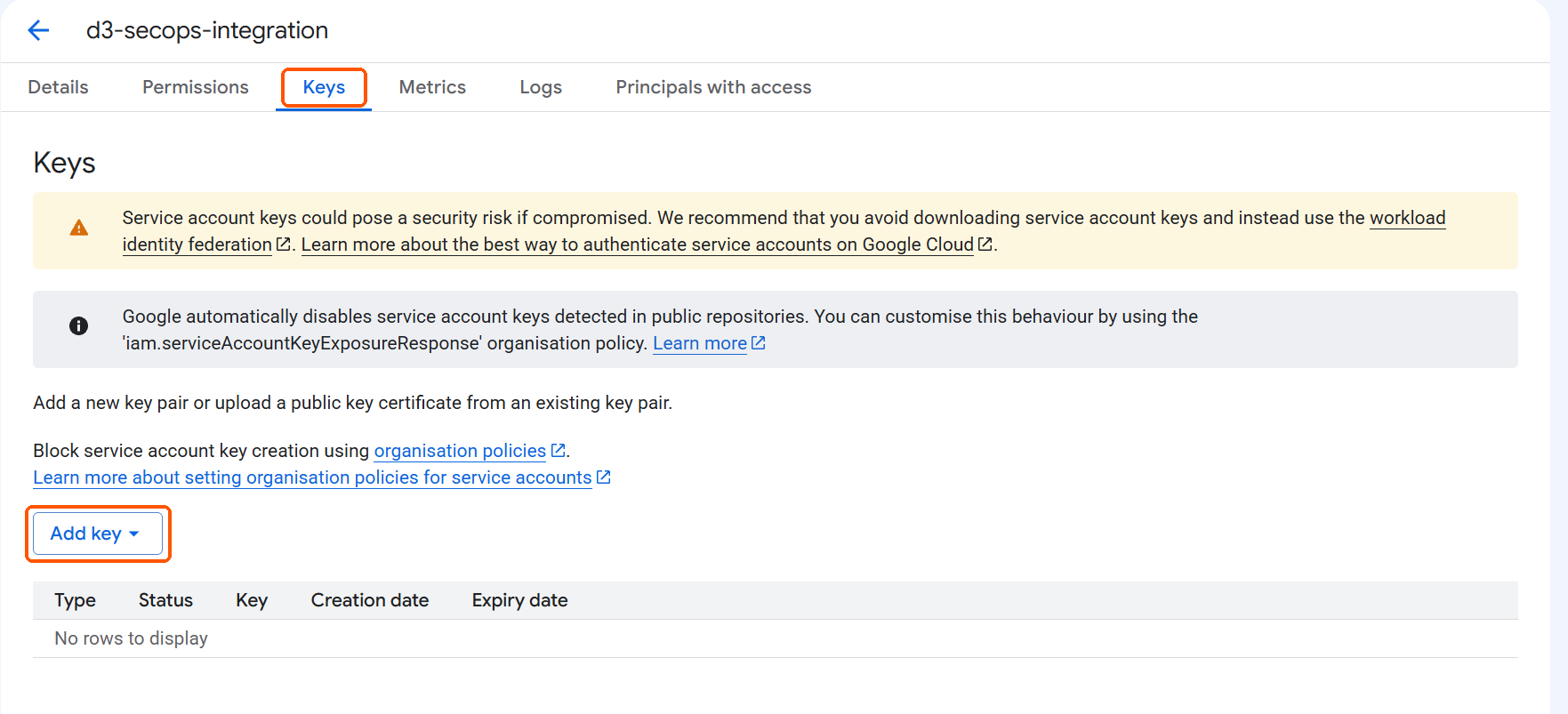
On the service account details page, select the Keys tab.
-
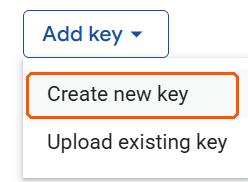
On the Keys tab, click Add key > Create new key.
-
Select Create new key.
-
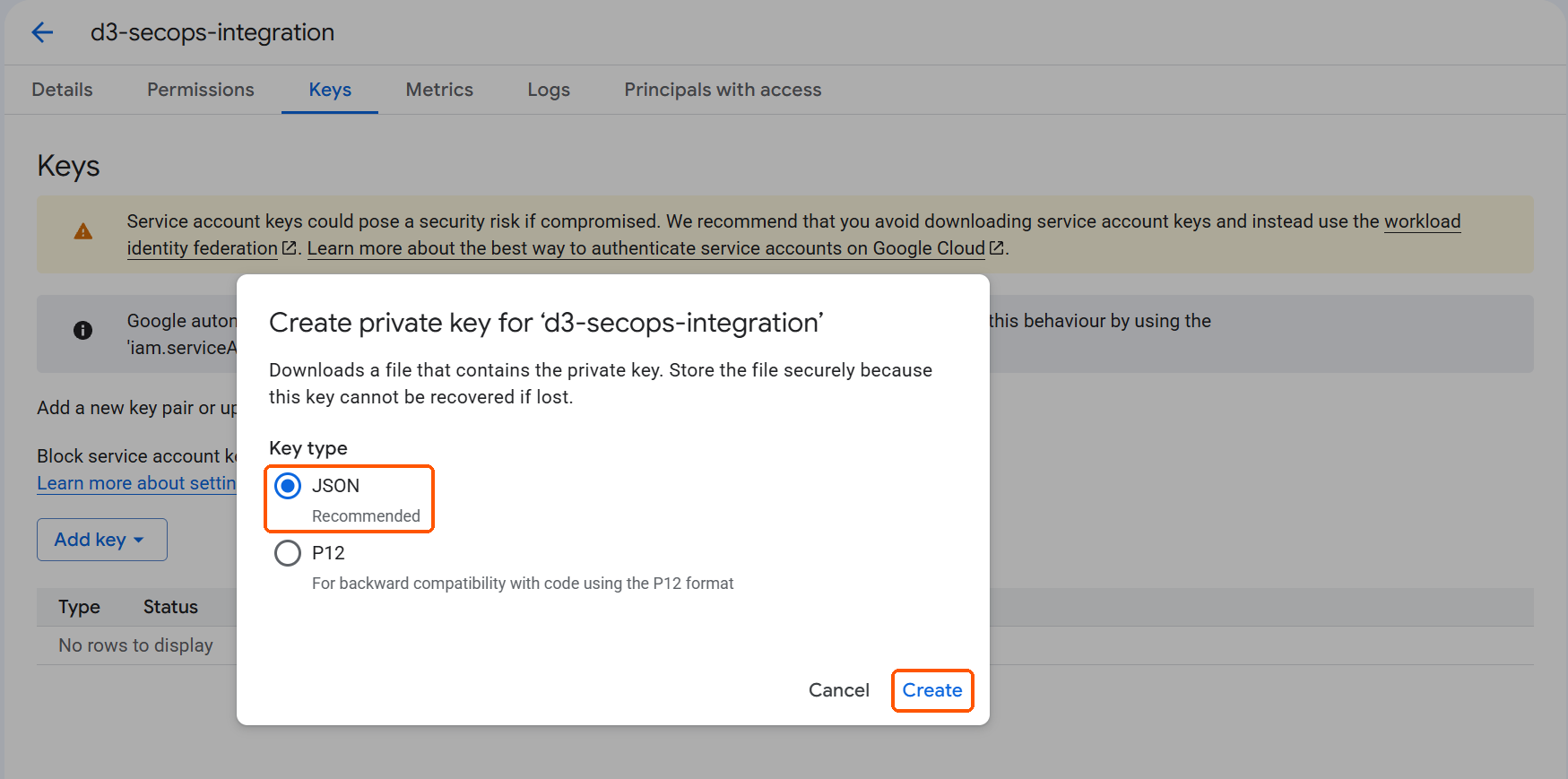
Under Key type, select JSON, then click Create. The JSON key file downloads to your computer automatically. Store it securely: the private key can't be downloaded again, and if it's lost, you'll need to create a new key. You'll paste its contents into the D3 integration connection Service Account JSON.
-
-
Grant the service account a role covering the permissions its commands need - the Permission Requirements section lists them per command. The predefined Chronicle API Viewer role covers the read-only commands; commands that write require an editor-level or custom role. A read-only service account passes Test Connection and every list command, then returns HTTP 403 on every write, so under-granting here fails late and misleadingly.
-
(Optional) Create a custom role:
-
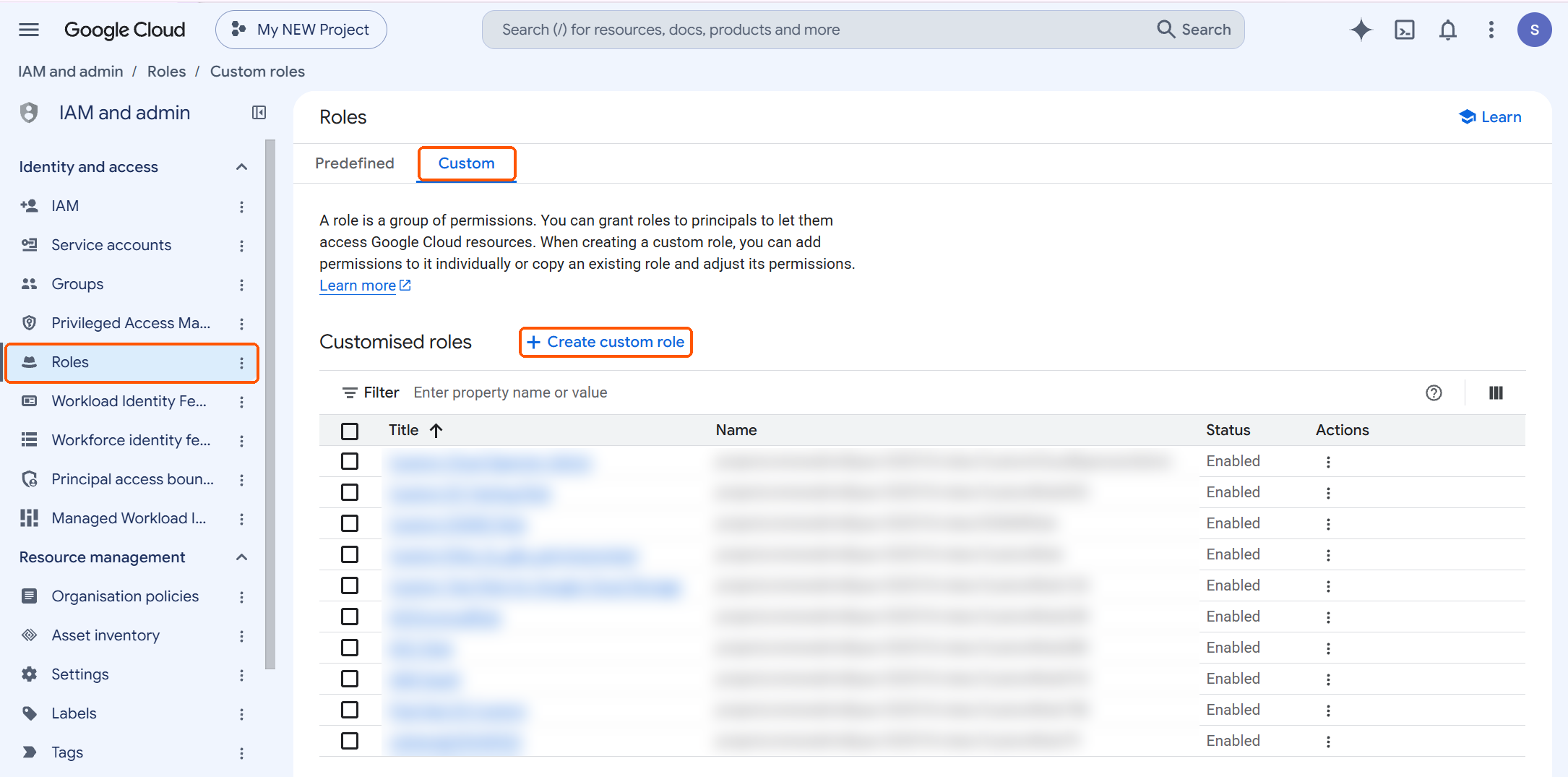
In the Google Cloud console, go to IAM and admin > Roles, click the Custom tab, then click + Create custom role.
-
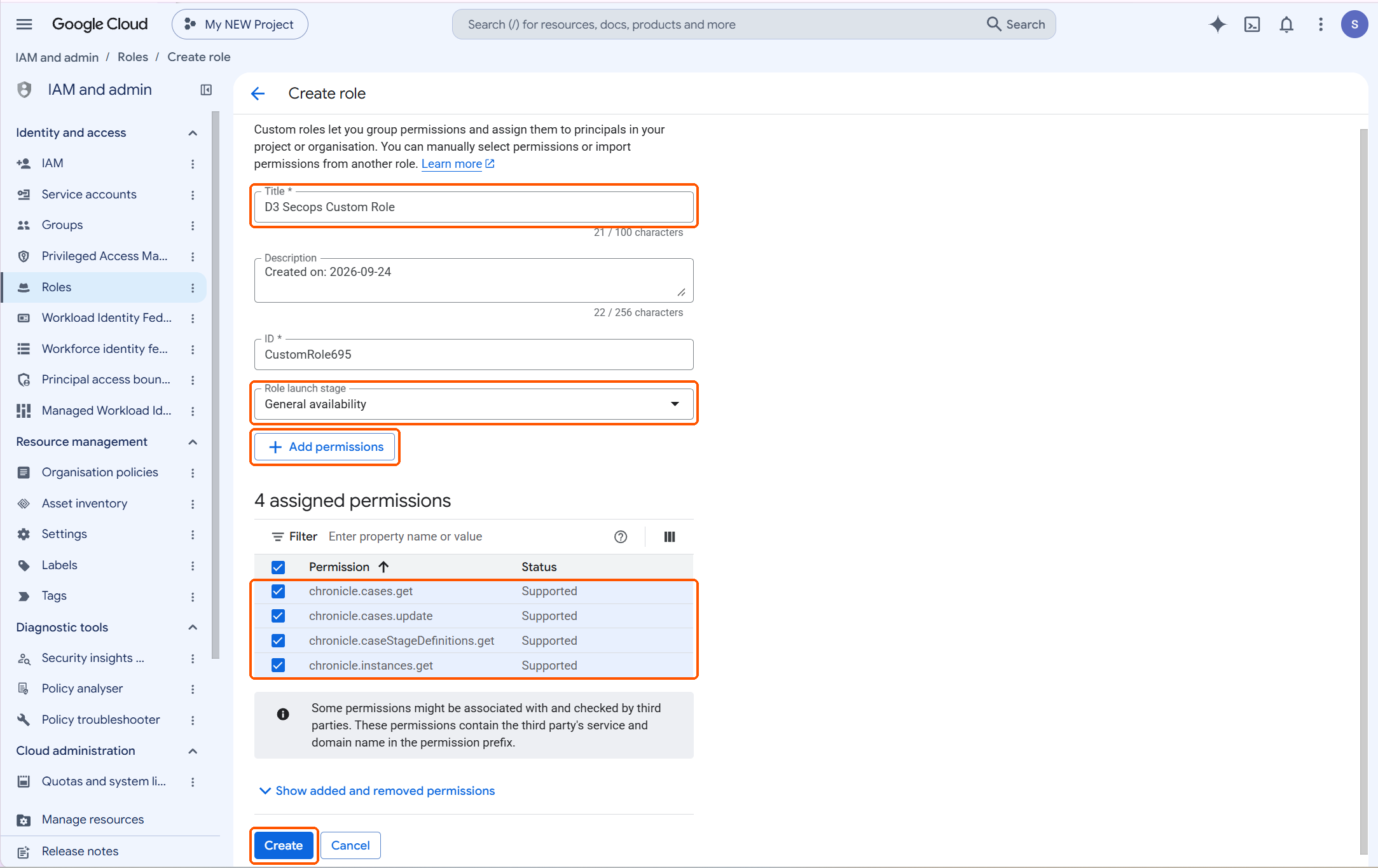
Enter the role details:
-
Title:
D3 SecOps Integration Custom Role -
Description:
Permissions required by the D3 Google SecOps integration -
Set the Role launch stage to General availability.
-
Click + Add permissions, filter by each permission name, select it, and click Add:
-
-
chronicle.instances.get -
chronicle.cases.get -
chronicle.cases.update -
chronicle.caseAlerts.get -
chronicle.involvedEntities.get -
chronicle.caseStageDefinitions.get -
chronicle.caseComments.get -
chronicle.caseWallRecords.get -
chronicle.events.udmSearch
-
-
-
Click Create.
-
-
Note: If you used the custom role, remove Chronicle API Editor from the service account.
-
Configuring D3 to Work with Google SecOps
-
Log in to D3.
-
Find the Google SecOps integration.
-
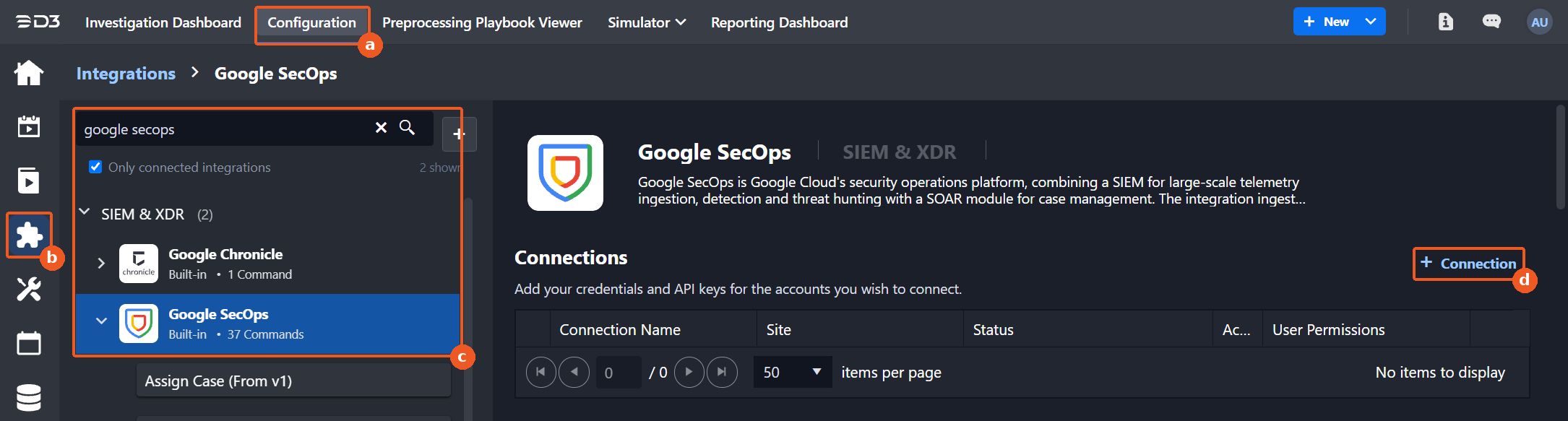
Navigate to Configuration on the top header menu.
-
Click on the Integration icon on the left sidebar.
-
Type Google SecOps in the search box to find the integration, then click it.
-
Click + Connection on the right side of the Connections section. A new connection window will appear.
-
-
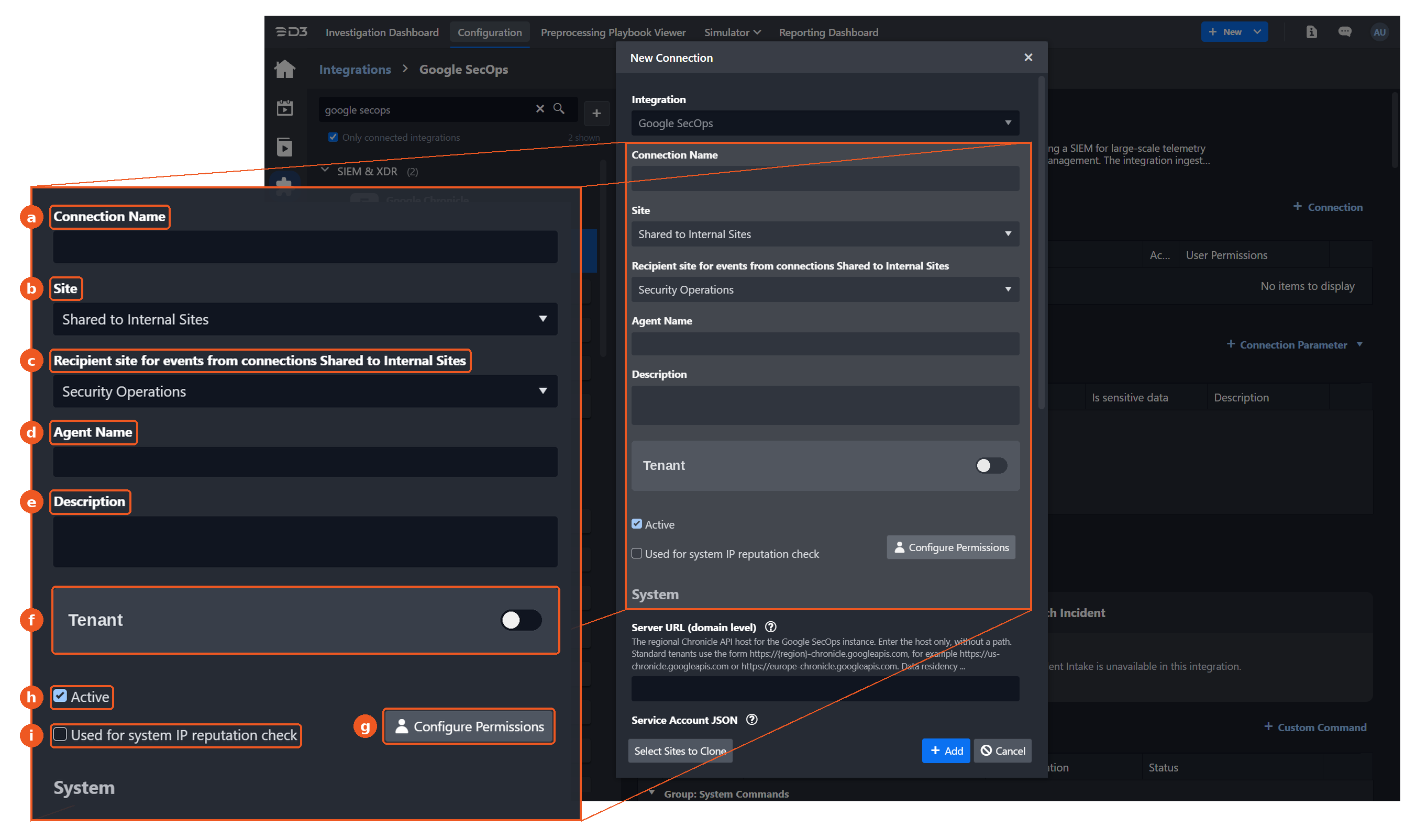
Configure the following fields to create a Connection to Google SecOps.
-
Connection Name: The desired name for the connection.
-
Site: Specifies the site to use the integration connection. Use the drop-down menu to select the site. The Share to Internal Sites option enables all sites defined as internal sites to use the connection. Selecting a specific site will only enable that site to use the connection.
-
Recipient site for events from connections Shared to Internal Sites: This field appears if you selected Share to Internal Sites for Site to let you select the internal site to deploy the integration connection.
-
Agent Name (Optional): Specifies the proxy agent required to build the connection. Use the dropdown menu to select the proxy agent from a list of previously configured proxy agents.
-
Description (Optional): Add your desired description for the connection.
-
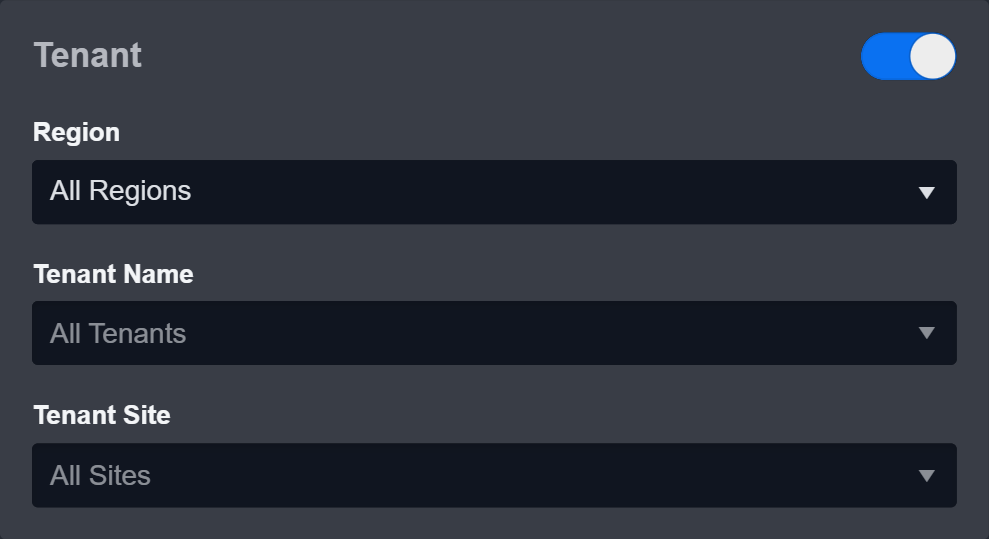
Tenant (Optional): When configuring the connection from a master tenant site, users have the option to choose the specific tenant sites to share the connection with. Once this settingsis enabled, users can filter and select the desired tenant sites from the dropdowns to share the connection.
-
Configure User Permissions: Defines which users have access to the connection.
-
Active: Check the tick box to ensure the connection is available for use.
-
System Reputation Check: Selecting one or more reputation checkboxes will run the corresponding check reputation commands under this integration connection to enrich the corresponding artifacts with reputation details.
For example, an integration connection named "ConnectionA" is configured with the "Sandbox" site. All URL artifacts from the "Sandbox" site will undergo a reputation check using the Check URL Reputation command from that integration. The return data output from this command will then be used to update the risk level of artifacts, which may affect the risk level of incoming events.
.png?cb=098b7696cb8e4492c6e4966cf1dba253)
-
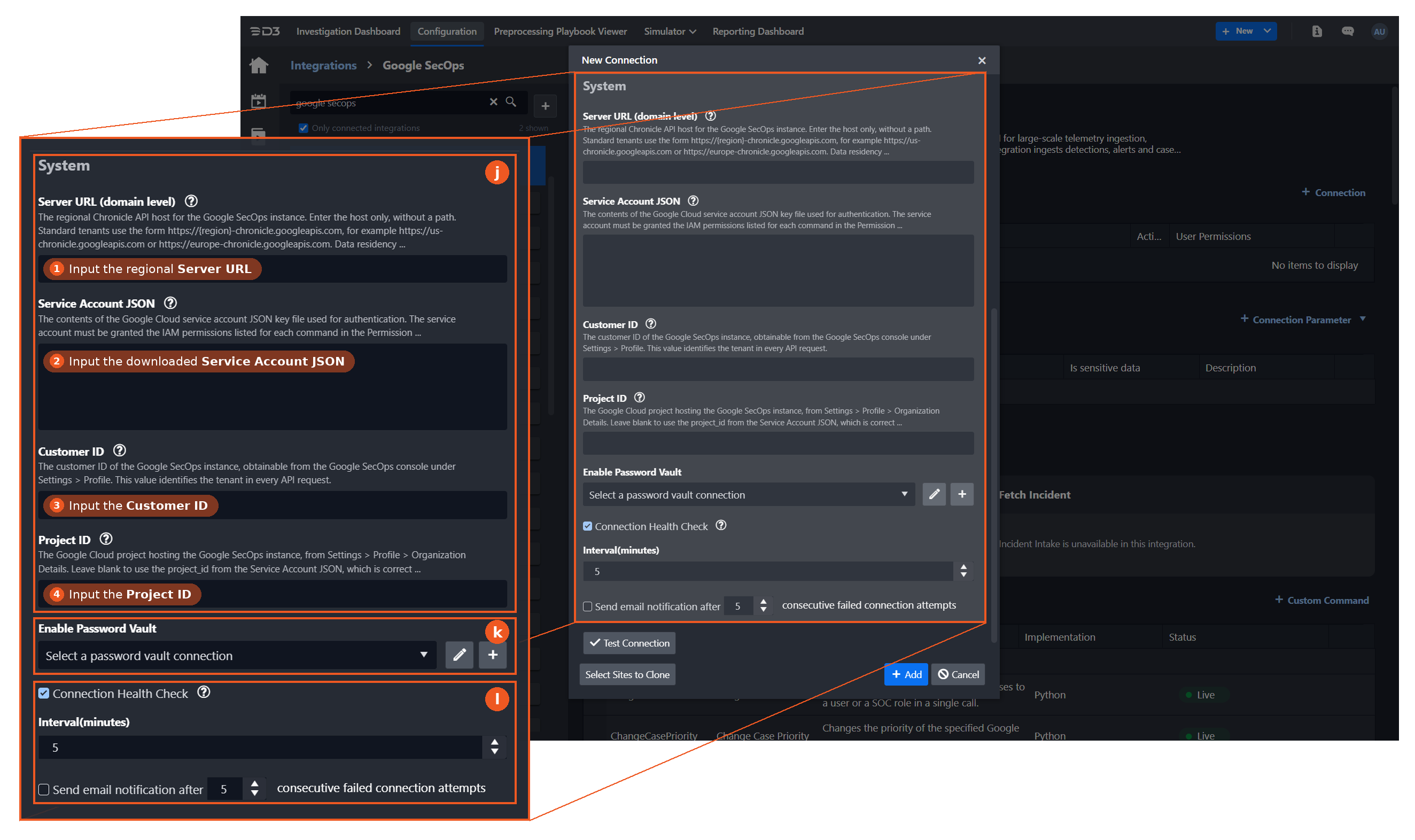
System: This section contains the parameters defined specifically for the integration. These parameters must be configured to create the integration connection.
-
-
Input the Server URL of the Google SecOps instance. Use the regional Chronicle API host, for example, https://us-chronicle.googleapis.com (data residency tenants: https://chronicle.{region}.rep.googleapis.com). Do not use the Google SecOps console URL. Refer to Configuring Google SecOps to Work with D3 (Step 2) to find the region.
-
Input the Service Account JSON. Paste the entire contents of the JSON key file. Refer to Configuring Google SecOps to Work with D3 (Step 6) to create the service account and obtain the JSON key file.
-
Input the Customer ID of the Google SecOps instance. It is found in the Google SecOps console under Settings > Profile.
-
Input the Project ID of the Google Cloud project that hosts the Google SecOps instance (project ID or project number). It is found under Settings > Profile > Organization Details. Leave it blank only if the service account was created in that same project; the project_id from the Service Account JSON is then used.
-
-
-
Enable Password Vault: An optional feature that allows users to take the stored credentials from their own password vault. Refer to the password vault connection guide if needed.
-
Connection Health Check: Periodically checks the connection status by scheduling the Test Connection command at the specified interval (in minutes). Available only for active connections, this feature also allows configuring email notifications for failed attempts.
-
-
Test the connection.
-
Click on the Test Connection button to verify credentials and connectivity. A success alert displays Passed with a green checkmark. If the connection fails, review the parameters and retry.
-
Click OK to close the alert window.
-
Click + Add to create and add the configured connection.
-
Commands
Google SecOps includes the following executable commands for users to set up schedules or create playbook workflows. With the Test Command function, users can execute these commands independently for playbook troubleshooting.
Integration API Note
For more information about the Google SecOps API, refer to the Google SecOps API reference.
|
READER NOTE
|
Fetch Event
Ingests Google SecOps SOAR cases into D3 AI SOC as events. Cases are selected by create or update time, with optional filters on type, status and priority.
Input
|
Input Parameter |
Required/Optional |
Description |
Example |
|---|---|---|---|
|
Start Time |
Required |
The start of the time range to ingest, in UTC. The range is inclusive of Start Time and exclusive of End Time. |
2026-09-16T07:58:05Z |
|
End Time |
Optional |
The end of the time range to ingest, in UTC. By default, or when the value is empty, the value is the current time. |
2026-09-23T07:58:05Z |
|
Number of Events Fetched |
Optional |
The maximum number of events to ingest in a single fetch cycle. By default, all events within the specified time range that satisfy the other filters are returned. |
100 |
|
Event Source |
Optional |
The Google SecOps surface the events are read from. By default, the value is Cases. |
Cases (SOAR) |
|
Case Time Field |
Optional |
The case time field that the time range is applied to. Create Time selects cases created within the range, and Update Time selects cases modified within it, ingesting each update of a case as a new event. Each fetch reads up to 200,000 cases matching the other filters, most recently created first, and applies the time range to those, so with Update Time an older case outside that set is not returned. With Update Time, a change that D3 makes to a case, for example through Update Case or Assign Case in a playbook, also updates the case, so the case is fetched again as a new event; a playbook that writes back to cases should check for this so that the change is not repeated on every fetch. By default, the value is Create Time. |
Create Time |
|
Case Type |
Optional |
Filters returned cases by type. EXTERNAL cases are created from ingested alerts, TEST cases from simulated alerts, and REQUEST cases through the Homepage feature. When several types are selected, cases matching any of them are returned. By default, cases of all types are returned. |
["External", "Test"] |
|
Case Status |
Optional |
Filters returned cases by status. Valid values are OPENED or CLOSED. When both are selected, cases of either status are returned. By default, cases of all statuses are returned. |
["Opened"] |
|
Case Priority |
Optional |
Filters returned cases by priority. When several priorities are selected, cases matching any of them are returned. By default, cases of all priorities are returned. |
["High", "Critical"] |
|
Additional Case Filters |
Optional |
Filters returned cases by additional conditions, combined with the time range and the other case parameters using AND. String values are wrapped in single quotes, and conditions are combined with AND and OR. Supported fields include stage, assignee, environment, tags, important, incident, score, products, and displayName. By default, or when the value is empty, no additional conditions are applied. |
assignee = '5f2b8c41-9d3e-4a7b-b6f0-2c8e1d9a4b73' AND important = true |
|
Include Case Alerts |
Optional |
Returns the alerts of each ingested case alongside the case. Alerts and Entities additionally returns the entities involved in each alert, at the cost of one request per alert. When the alerts or entities of a case cannot all be read, the case is not fetched in that run and is listed in D3Errors. Later scheduled runs do not fetch it again; run the fetch again for that time range to ingest it with all its alerts. By default, or when the value is empty, no alerts are returned. |
Alerts |
Output
To view the sample output data for all commands, refer to this article.
|
READER NOTE
|
Error Handling
If the Return Data displays Partially Successful or Failed, an Error tab will appear in the Test Result window.
The error tab contains the details responded from D3 or third-party API calls, including Failure Indicator, Status Code, and Message. This can help locate the root cause of a command failure.
|
Parts in Error |
Description |
Example |
|---|---|---|
|
Failure Indicator |
Indicates the command failure that happened at a specific input and/or API call. |
Fetch Event failed. |
|
Status Code |
The response code issued by the third-party API server or the D3 system that can be used to locate the corresponding error category. For example, if the returned status code is 401, the selected connection is unauthorized to run the command. The user or system support would need to check the permission setting in the Google SecOps portal. Refer to the HTTP Status Code Registry for details. |
Status Code: 403. |
|
Message |
The raw data or captured key error message from the integration API server about the API request failure. |
Message: Permission 'chronicle.cases.get' denied on resource '//chronicle.googleapis.com/projects/soc-prod-418273/locations/us/instances/7c1e4b9a-2f63-4d8e-9a15-b3c0e6f2d847' (or it may not exist). |
|
Error Sample Data
|
UDM Search
Runs a UDM query in YARA-L 2.0 syntax against the Google SecOps event store and returns the matching events. The method has no pagination; when more data is available than the limit returns, the time window must be narrowed.
Input
|
Input Parameter |
Required/Optional |
Description |
Example |
|---|---|---|---|
|
Query |
Required |
The UDM query in YARA-L 2.0 syntax. |
metadata.event_type != "EVENTTYPE_UNSPECIFIED" |
|
Start Time |
Required |
The start of the time range (in UTC). The time range cannot exceed 90 days. Google SecOps rejects longer UDM searches. |
2026-09-16T07:58:05Z |
|
End Time |
Optional |
The end of the time range (in UTC). By default, the value is the current time. |
2026-09-23T07:58:05Z |
|
Limit |
Optional |
The maximum number of events to return. By default, the value is 100. When the value is -1, up to 10,000 events are returned. |
100 |
|
READER NOTE
|
Output
To view the sample output data for all commands, refer to this article.
Error Handling
If the Return Data displays Partially Successful or Failed, an Error tab will appear in the Test Result window.
The error tab contains the details responded from D3 or third-party API calls, including Failure Indicator, Status Code, and Message. This can help locate the root cause of a command failure.
|
Parts in Error |
Description |
Example |
|---|---|---|
|
Failure Indicator |
Indicates the command failure that happened at a specific input and/or API call. |
UDM Search failed. |
|
Status Code |
The response code issued by the third-party API server or the D3 system that can be used to locate the corresponding error category. For example, if the returned status code is 401, the selected connection is unauthorized to run the command. The user or system support would need to check the permission setting in the Google SecOps portal. Refer to the HTTP Status Code Registry for details. |
Status Code: 403. |
|
Message |
The raw data or captured key error message from the integration API server about the API request failure. |
Message: Permission 'chronicle.events.udmSearch' denied on resource '//chronicle.googleapis.com/projects/soc-prod-418273/locations/us/instances/7c1e4b9a-2f63-4d8e-9a15-b3c0e6f2d847' (or it may not exist). |
|
Error Sample Data
|
Update Case
Updates the specified Google SecOps cases. The case status is read-only on the Case resource, so this command cannot close a case, and it cannot set tags.
Input
|
Input Parameter |
Required/Optional |
Description |
Example |
|---|---|---|---|
|
Case IDs |
Required |
The cases to update. Case IDs can be obtained using the List Cases command. Every field supplied below is applied to every case in this list, and at least one field must be supplied. |
["41"] |
|
Display Name |
Optional |
The new display name for the case. By default, or when the value is empty, the current value is unchanged. |
Suspicious sign-in |
|
Priority |
Optional |
The new priority for the case. By default, or when the value is empty, the current value is unchanged. |
High |
|
Stage |
Optional |
The new stage for the case. Stages are configured per tenant in Google SecOps, so the valid names depend on the tenant - use the List Case Stages command to retrieve them. By default, or when the value is empty, the current value is unchanged. |
Triage |
|
Assignee |
Optional |
The user the case is assigned to. By default, or when the value is empty, the current value is unchanged. To assign several cases in one call, or to assign to a SOC role, use the Assign Case command instead. |
|
|
Description |
Optional |
The new description for the case. By default, or when the value is empty, the current value is unchanged. |
Escalated to Tier 2 after repeated failed sign-ins. |
|
Environment |
Optional |
The environment the case belongs to. By default, or when the value is empty, the current value is unchanged. |
Default Environment |
|
Important |
Optional |
The flag that marks the case as important. By default, or when the value is empty, the current value is unchanged. |
True |
|
Incident |
Optional |
The flag that marks the case as an incident. By default, or when the value is empty, the current value is unchanged. |
True |
|
Score |
Optional |
The score assigned to the case. By default, or when the value is empty, the current value is unchanged. |
75 |
|
READER NOTE
|
Output
To view the sample output data for all commands, refer to this article.
Error Handling
If the Return Data displays Partially Successful or Failed, an Error tab will appear in the Test Result window.
The error tab contains the details responded from D3 or third-party API calls, including Failure Indicator, Status Code, and Message. This can help locate the root cause of a command failure.
|
Parts in Error |
Description |
Example |
|---|---|---|
|
Failure Indicator |
Indicates the command failure that happened at a specific input and/or API call. |
Update Case failed. |
|
Status Code |
The response code issued by the third-party API server or the D3 system that can be used to locate the corresponding error category. For example, if the returned status code is 401, the selected connection is unauthorized to run the command. The user or system support would need to check the permission setting in the Google SecOps portal. Refer to the HTTP Status Code Registry for details. |
Status Code: 403. |
|
Message |
The raw data or captured key error message from the integration API server about the API request failure. |
Message: Permission 'chronicle.cases.update' denied on resource '//chronicle.googleapis.com/projects/soc-prod-418273/locations/us/instances/7c1e4b9a-2f63-4d8e-9a15-b3c0e6f2d847' (or it may not exist). |
|
Error Sample Data
|
Assign Case
Assigns the specified Google SecOps cases to a user or a SOC role in a single call.
Input
|
Input Parameter |
Required/Optional |
Description |
Example |
|---|---|---|---|
|
Case IDs |
Required |
The cases to assign. Case IDs can be obtained using the List Cases command. |
["41"] |
|
Assignee |
Required |
The user name to assign the cases to. Google SecOps also supports assigning to a SOC role, but the format for naming a role is not documented, so the exact value should be confirmed with a Google SecOps administrator. This command returns no confirmation of who was assigned, so an unrecognized name appears to succeed without assigning anyone. |
|
READER NOTE
|
Output
To view the sample output data for all commands, refer to this article.
Error Handling
If the Return Data displays Partially Successful or Failed, an Error tab will appear in the Test Result window.
The error tab contains the details responded from D3 or third-party API calls, including Failure Indicator, Status Code, and Message. This can help locate the root cause of a command failure.
|
Parts in Error |
Description |
Example |
|---|---|---|
|
Failure Indicator |
Indicates the command failure that happened at a specific input and/or API call. |
Assign Case failed. |
|
Status Code |
The response code issued by the third-party API server or the D3 system that can be used to locate the corresponding error category. For example, if the returned status code is 401, the selected connection is unauthorized to run the command. The user or system support would need to check the permission setting in the Google SecOps portal. Refer to the HTTP Status Code Registry for details. |
Status Code: 403. |
|
Message |
The raw data or captured key error message from the integration API server about the API request failure. |
Message: Permission 'chronicle.cases.update' denied on resource '//chronicle.googleapis.com/projects/soc-prod-418273/locations/us/instances/7c1e4b9a-2f63-4d8e-9a15-b3c0e6f2d847' (or it may not exist). |
|
Error Sample Data
|
Get Case
Retrieves the specified Google SecOps cases, including their display name, priority, stage, status, assignee, type, environment and alert count.
Input
|
Input Parameter |
Required/Optional |
Description |
Example |
|---|---|---|---|
|
Case IDs |
Required |
The cases to retrieve. Case IDs can be obtained using the List Cases command. |
["41"] |
Output
To view the sample output data for all commands, refer to this article.
Error Handling
If the Return Data displays Partially Successful or Failed, an Error tab will appear in the Test Result window.
The error tab contains the details responded from D3 or third-party API calls, including Failure Indicator, Status Code, and Message. This can help locate the root cause of a command failure.
|
Parts in Error |
Description |
Example |
|---|---|---|
|
Failure Indicator |
Indicates the command failure that happened at a specific input and/or API call. |
Get Case failed. |
|
Status Code |
The response code issued by the third-party API server or the D3 system that can be used to locate the corresponding error category. For example, if the returned status code is 401, the selected connection is unauthorized to run the command. The user or system support would need to check the permission setting in the Google SecOps portal. Refer to the HTTP Status Code Registry for details. |
Status Code: 403. |
|
Message |
The raw data or captured key error message from the integration API server about the API request failure. |
Message: Permission 'chronicle.cases.get' denied on resource '//chronicle.googleapis.com/projects/soc-prod-418273/locations/us/instances/7c1e4b9a-2f63-4d8e-9a15-b3c0e6f2d847' (or it may not exist). |
|
Error Sample Data
|
List Case Alerts
Returns the alerts attached to one or more Google SecOps cases, optionally with the entities involved in each alert. Alerts have no top-level collection of their own, so this is the only way to read the alerts of a case that was not ingested with them.
Input
|
Input Parameter |
Required/Optional |
Description |
Example |
|---|---|---|---|
|
Case IDs |
Required |
The cases whose alerts are returned. Case IDs can be obtained using the List Cases command. |
["41"] |
|
Alert Filter |
Optional |
Filters the returned alerts. Supported filter fields are displayName, caseId, identifier, sourceGroupingIdentifier, product, vendor, environment, ticketId, sourceSystemName, creation_method, priority, status, startTime, and endTime. String values are wrapped in single quotes, for example priority='HIGH'. By default, or when the value is empty, all alerts of the case are returned. |
priority='HIGH' |
|
Include Entities |
Optional |
Returns the entities involved in each alert alongside the alert. Each alert costs one additional request, so a large result set is slower to return. By default, the value is false and no entities are returned. |
True |
Output
To view the sample output data for all commands, refer to this article.
Error Handling
If the Return Data displays Partially Successful or Failed, an Error tab will appear in the Test Result window.
The error tab contains the details responded from D3 or third-party API calls, including Failure Indicator, Status Code, and Message. This can help locate the root cause of a command failure.
|
Parts in Error |
Description |
Example |
|---|---|---|
|
Failure Indicator |
Indicates the command failure that happened at a specific input and/or API call. |
List Case Alerts failed. |
|
Status Code |
The response code issued by the third-party API server or the D3 system that can be used to locate the corresponding error category. For example, if the returned status code is 401, the selected connection is unauthorized to run the command. The user or system support would need to check the permission setting in the Google SecOps portal. Refer to the HTTP Status Code Registry for details. |
Status Code: 403. |
|
Message |
The raw data or captured key error message from the integration API server about the API request failure. |
Message: Permission 'chronicle.caseAlerts.get' denied on resource '//chronicle.googleapis.com/projects/soc-prod-418273/locations/us/instances/7c1e4b9a-2f63-4d8e-9a15-b3c0e6f2d847' (or it may not exist). |
|
Error Sample Data
|
Change Case Priority
Changes the priority of the specified Google SecOps cases in a single bulk call.
Input
|
Input Parameter |
Required/Optional |
Description |
Example |
|---|---|---|---|
|
Case IDs |
Required |
The cases to act on. Case IDs can be obtained using the List Cases command. |
["41","42"] |
|
Priority |
Required |
The priority to set on the cases. |
High |
|
READER NOTE
|
Output
To view the sample output data for all commands, refer to this article.
Error Handling
If the Return Data displays Partially Successful or Failed, an Error tab will appear in the Test Result window.
The error tab contains the details responded from D3 or third-party API calls, including Failure Indicator, Status Code, and Message. This can help locate the root cause of a command failure.
|
Parts in Error |
Description |
Example |
|---|---|---|
|
Failure Indicator |
Indicates the command failure that happened at a specific input and/or API call. |
Change Case Priority failed. |
|
Status Code |
The response code issued by the third-party API server or the D3 system that can be used to locate the corresponding error category. For example, if the returned status code is 401, the selected connection is unauthorized to run the command. The user or system support would need to check the permission setting in the Google SecOps portal. Refer to the HTTP Status Code Registry for details. |
Status Code: 403. |
|
Message |
The raw data or captured key error message from the integration API server about the API request failure. |
Message: Permission 'chronicle.cases.update' denied on resource '//chronicle.googleapis.com/projects/soc-prod-418273/locations/us/instances/7c1e4b9a-2f63-4d8e-9a15-b3c0e6f2d847' (or it may not exist). |
|
Error Sample Data
|
Change Case Stage
Changes the stage of the specified Google SecOps cases in a single bulk call.
Input
|
Input Parameter |
Required/Optional |
Description |
Example |
|---|---|---|---|
|
Case IDs |
Required |
The cases to act on. Case IDs can be obtained using the List Cases command. |
["41","42"] |
|
Stage |
Required |
The case stage to set. Stages are configured per tenant in Google SecOps; use the List Case Stages command to retrieve the valid names for a tenant. |
Triage |
|
READER NOTE
|
Output
To view the sample output data for all commands, refer to this article.
Error Handling
If the Return Data displays Partially Successful or Failed, an Error tab will appear in the Test Result window.
The error tab contains the details responded from D3 or third-party API calls, including Failure Indicator, Status Code, and Message. This can help locate the root cause of a command failure.
|
Parts in Error |
Description |
Example |
|---|---|---|
|
Failure Indicator |
Indicates the command failure that happened at a specific input and/or API call. |
Change Case Stage failed. |
|
Status Code |
The response code issued by the third-party API server or the D3 system that can be used to locate the corresponding error category. For example, if the returned status code is 401, the selected connection is unauthorized to run the command. The user or system support would need to check the permission setting in the Google SecOps portal. Refer to the HTTP Status Code Registry for details. |
Status Code: 403. |
|
Message |
The raw data or captured key error message from the integration API server about the API request failure. |
Message: Permission 'chronicle.cases.update' denied on resource '//chronicle.googleapis.com/projects/soc-prod-418273/locations/us/instances/7c1e4b9a-2f63-4d8e-9a15-b3c0e6f2d847' (or it may not exist). |
|
Error Sample Data
|
List Cases
Returns Google SecOps cases, optionally filtered and ordered. This is the only way for a playbook to discover case IDs when it did not begin from a fetched case event.
Input
|
Input Parameter |
Required/Optional |
Description |
Example |
|---|---|---|---|
|
Case Filter |
Optional |
The expression restricting which cases are returned. Supported filter fields are displayName, creatorUserId, creatorUser, lastModifyingUserId, lastModifyingUser, assignee, assignedUser, stage, priority, important, type, environment, status, score, alertsSla, sla, tags, products, closureDetails, and tasks. String values are wrapped in single quotes, for example displayName='some_name'. By default, or when the value is empty, all cases are returned. |
displayName='Suspicious sign-in' |
|
Order By |
Optional |
The order of the cases in the response, given as a comma separated list of fields, each optionally followed by desc, for example displayName desc, priority. Supported sort fields are the same as the filter fields. By default, cases are returned in descending order of their create time. |
displayName desc |
|
Limit |
Optional |
The maximum number of cases to return. By default, the value is 100. When the value is -1, all available cases are returned. |
100 |
Output
To view the sample output data for all commands, refer to this article.
Error Handling
If the Return Data displays Partially Successful or Failed, an Error tab will appear in the Test Result window.
The error tab contains the details responded from D3 or third-party API calls, including Failure Indicator, Status Code, and Message. This can help locate the root cause of a command failure.
|
Parts in Error |
Description |
Example |
|---|---|---|
|
Failure Indicator |
Indicates the command failure that happened at a specific input and/or API call. |
List Cases failed. |
|
Status Code |
The response code issued by the third-party API server or the D3 system that can be used to locate the corresponding error category. For example, if the returned status code is 401, the selected connection is unauthorized to run the command. The user or system support would need to check the permission setting in the Google SecOps portal. Refer to the HTTP Status Code Registry for details. |
Status Code: 403. |
|
Message |
The raw data or captured key error message from the integration API server about the API request failure. |
Message: Permission 'chronicle.cases.get' denied on resource '//chronicle.googleapis.com/projects/soc-prod-418273/locations/us/instances/7c1e4b9a-2f63-4d8e-9a15-b3c0e6f2d847' (or it may not exist). |
|
Error Sample Data
|
List Case Stages
Returns the case stages configured on this Google SecOps instance. Use it to discover the valid values for the Stage parameter of the Change Case Stage and Update Case commands, which are tenant-specific and cannot be guessed.
Input
N/A
Output
To view the sample output data for all commands, refer to this article.
Error Handling
If the Return Data displays Partially Successful or Failed, an Error tab will appear in the Test Result window.
The error tab contains the details responded from D3 or third-party API calls, including Failure Indicator, Status Code, and Message. This can help locate the root cause of a command failure.
|
Parts in Error |
Description |
Example |
|---|---|---|
|
Failure Indicator |
Indicates the command failure that happened at a specific input and/or API call. |
List Case Stages failed. |
|
Status Code |
The response code issued by the third-party API server or the D3 system that can be used to locate the corresponding error category. For example, if the returned status code is 401, the selected connection is unauthorized to run the command. The user or system support would need to check the permission setting in the Google SecOps portal. Refer to the HTTP Status Code Registry for details. |
Status Code: 403. |
|
Message |
The raw data or captured key error message from the integration API server about the API request failure. |
Message: Permission 'chronicle.caseStageDefinitions.get' denied on resource '//chronicle.googleapis.com/projects/soc-prod-418273/locations/us/instances/7c1e4b9a-2f63-4d8e-9a15-b3c0e6f2d847' (or it may not exist). |
|
Error Sample Data
|
List Case Comments
Returns the comments recorded on one or more Google SecOps cases. The comments carry the analyst discussion a playbook needs before it closes, escalates or syncs a case.
Input
|
Input Parameter |
Required/Optional |
Description |
Example |
|---|---|---|---|
|
Case IDs |
Required |
The cases whose comments are returned. Case IDs can be obtained using the List Cases command. |
["41"] |
Output
To view the sample output data for all commands, refer to this article.
Error Handling
If the Return Data displays Partially Successful or Failed, an Error tab will appear in the Test Result window.
The error tab contains the details responded from D3 or third-party API calls, including Failure Indicator, Status Code, and Message. This can help locate the root cause of a command failure.
|
Parts in Error |
Description |
Example |
|---|---|---|
|
Failure Indicator |
Indicates the command failure that happened at a specific input and/or API call. |
List Case Comments failed. |
|
Status Code |
The response code issued by the third-party API server or the D3 system that can be used to locate the corresponding error category. For example, if the returned status code is 401, the selected connection is unauthorized to run the command. The user or system support would need to check the permission setting in the Google SecOps portal. Refer to the HTTP Status Code Registry for details. |
Status Code: 403. |
|
Message |
The raw data or captured key error message from the integration API server about the API request failure. |
Message: Permission 'chronicle.caseComments.get' denied on resource '//chronicle.googleapis.com/projects/soc-prod-418273/locations/us/instances/7c1e4b9a-2f63-4d8e-9a15-b3c0e6f2d847' (or it may not exist). |
|
Error Sample Data
|
List Case Activity
Returns the case wall records of one or more Google SecOps cases. The records are the audit trail of the case, showing which actions were taken, by whom, and which playbooks ran.
Input
|
Input Parameter |
Required/Optional |
Description |
Example |
|---|---|---|---|
|
Case IDs |
Required |
The cases whose activity is returned. Case IDs can be obtained using the List Cases command. |
["41"] |
Output
To view the sample output data for all commands, refer to this article.
Error Handling
If the Return Data displays Partially Successful or Failed, an Error tab will appear in the Test Result window.
The error tab contains the details responded from D3 or third-party API calls, including Failure Indicator, Status Code, and Message. This can help locate the root cause of a command failure.
|
Parts in Error |
Description |
Example |
|---|---|---|
|
Failure Indicator |
Indicates the command failure that happened at a specific input and/or API call. |
List Case Activity failed. |
|
Status Code |
The response code issued by the third-party API server or the D3 system that can be used to locate the corresponding error category. For example, if the returned status code is 401, the selected connection is unauthorized to run the command. The user or system support would need to check the permission setting in the Google SecOps portal. Refer to the HTTP Status Code Registry for details. |
Status Code: 403. |
|
Message |
The raw data or captured key error message from the integration API server about the API request failure. |
Message: Permission 'chronicle.caseWallRecords.get' denied on resource '//chronicle.googleapis.com/projects/soc-prod-418273/locations/us/instances/7c1e4b9a-2f63-4d8e-9a15-b3c0e6f2d847' (or it may not exist). |
|
Error Sample Data
|
Test Connection
Performs a health check on the integration connection. A periodic health check can be scheduled by selecting Connection Health Check when editing the integration connection.
Input
N/A
Output
|
Output Type |
Description |
Return Data Type |
|---|---|---|
|
Return Data |
Indicates one of the possible command execution states: Successful or Failed.
|
String |
Error Handling
If the Return Data displays Failed, an Error tab will appear in the Test Result window.
The error tab contains the details responded from D3 or third-party API calls, including Failure Indicator, Status Code, and Message. This can help locate the root cause of a command failure.
|
Parts in Error |
Description |
Example |
|---|---|---|
|
Failure Indicator |
Indicates the command failure that happened at a specific input and/or API call. |
Test Connection failed. Failed to check the connector. |
|
Status Code |
The response code issued by the third-party API server or the D3 system that can be used to locate the corresponding error category. For example, if the returned status code is 401, the selected connection is unauthorized to run the command. The user or system support would need to check the permission setting in the Google SecOps portal. Refer to the HTTP Status Code Registry for details. |
Status Code: 403. |
|
Message |
The raw data or captured key error message from the integration API server about the API request failure. |
Message: Permission 'chronicle.instances.get' denied on resource '//chronicle.googleapis.com/projects/soc-prod-418273/locations/us/instances/7c1e4b9a-2f63-4d8e-9a15-b3c0e6f2d847' (or it may not exist). |
|
Error Sample Data
|