
LAST UPDATED: May 29, 2026
Overview
Microsoft Lists is a Microsoft 365 app that helps teams track information and organize work. It provides customizable lists backed by SharePoint for managing structured data such as issues, assets, contacts, and inventory across an organization.
Microsoft Lists is available for use in:
Known Limitations
-
Microsoft Entra ID v2.0 is not supported for cloud-solution-provider (CSP) apps. CSP apps must use the v1.0 endpoint to obtain tokens for Microsoft Graph.
-
Microsoft Lists is backed by SharePoint. The internal name of a column may differ from its displayName - SharePoint encodes certain characters in the internal name (for example, a column displayed as "CL1" may have the internal name "_x0043_L1"). Use the List Columns command to confirm a column's internal name before referencing it in Create Item.
Refer to the SharePoint service limits documentation for detailed information on list and item thresholds.
Connection
Gather the following information to connect D3 to Microsoft Lists.
|
Parameter |
Description |
Example |
|---|---|---|
|
Default (Grant Type: Client Credentials) |
||
|
Tenant ID |
The Microsoft Entra ID tenant identifier. |
f62-...-kY8 |
|
Grant Type |
The OAuth 2.0 grant type used to authenticate. |
client_credentials |
|
Client ID |
The client ID of the registered Microsoft Entra application. |
9c8...f8a |
|
Client Secret |
The client secret of the registered Microsoft Entra application. |
o14...817 |
|
API Version |
The Microsoft Graph API version to use. The default is v1.0. |
v1.0 |
|
Grant Type: Authorization Code |
||
|
Authorization Code |
The authorization code used to obtain a refresh token. Required only for the authorization\_code grant type. |
2kP...gAA |
|
Callback URL |
The redirect URL registered with the Microsoft Entra application. |
https://*****/*****Callback.aspx |
|
Refresh Token |
The refresh token used to renew access tokens. Populated automatically after a successful connection test. |
0.AX...5Yg |
Permission Requirements
Each command in this integration calls the Microsoft Graph API and requires specific SharePoint permission scopes. Use the links in the API Reference column to confirm the current permission requirements for each command.
-
Scopes: The Requirements column lists the scopes for each command, grouped into least-privileged and higher-privileged. Add the least-privileged scope first, and escalate to a higher-privileged scope only if the command fails to run with your intended parameters.
-
Delegated and Application use the same scopes: For each command, the required scopes are the same whether you authenticate with Delegated (Authorization Code) or Application (Client Credentials) permissions, except where the table notes an Application-only scope. All scopes are SharePoint Sites.\* permissions.
-
Admin consent required: Because the integration requests the https://graph.microsoft.com/.default scope when obtaining a token, all required permissions must be added to the Microsoft Entra application and granted admin consent in advance. See Configuring Microsoft Lists to Work with D3.
|
Command |
Requirements |
API Reference |
|---|---|---|
|
Test Connection |
None required |
N/A |
|
Create Columns |
Least-privileged:
Higher-privileged:
|
|
|
Create Item |
Least-privileged:
|
Create a new entry in a SharePoint list – Microsoft Graph v1.0 |
|
Create List |
Least-privileged:
Higher-privileged:
|
|
|
List Columns |
Least-privileged:
Higher-privileged:
|
|
|
List ContentType |
Least-privileged:
Higher-privileged:
|
|
|
List Items |
Least-privileged:
Higher-privileged:
|
|
|
List Lists |
Least-privileged:
Higher-privileged:
|
|
|
List Sites |
Least-privileged:
Higher-privileged:
|
Configuring Microsoft Lists to Work with D3
Complete the following steps in the vendor environment before configuring the D3 connection:
-
Register an application from Microsoft Entra ID / Azure Portal. Follow Microsoft’s guide: Register an application with the Microsoft identity platform. Choose Single tenant for internal use. From the app’s Overview page, record the Application (client) ID and Directory (tenant) ID – you’ll enter these into the D3 connection as Client ID and Tenant ID.
-
Reusing an existing app: If your organization already has a suitable Microsoft Entra application, you can reuse it instead of registering a new one — just record its Application (client) ID and Directory (tenant) ID, and make sure it has the client secret (step 2) and Graph permissions (steps 4–5) this integration requires.
-
-
Add a client secret. In your app registration, go to Certificates & secrets and add a new client secret (see Add credentials). Copy the secret Value immediately — it's shown only once — and enter it into the D3 connection as Client Secret. Note the expiry; the connection stops working when the secret expires, so renew it before then.
-
(Authorization Code grant only) Add the D3 redirect URI. Copy the Callback URL from the D3 connection window (see Configuring D3 to Work with Microsoft Lists), then add it to your Entra app under Authentication → Redirect URIs as a Web platform URI. Skip this step if you're using the Client Credentials grant.
-
Add Microsoft Graph API permissions. Follow Web API app registration and API permissions and select Microsoft Graph. Choose Application permissions for the Client Credentials grant, or Delegated permissions for the Authorization Code grant. Add the SharePoint Sites.\* scopes required by the commands you plan to use — see the Permission Requirements table.
-
Grant admin consent. Because the integration requests the https://graph.microsoft.com/.default scope, every configured permission must be admin-consented in advance. On the app's API permissions page, select Grant admin consent for [your tenant] and confirm.
Configuring D3 to Work with Microsoft Lists
-
Log in to D3.
-
See Adding a Connection for instructions on finding the integration in D3 and configuring the General Settings (Connection Name, Active).
-
System: This section contains the parameters defined specifically for the integration. These parameters must be configured to create the integration connection. See System Section for the shared System options available to all integrations (Enable Password Vault, Connection Health Check, Test Connection).
-
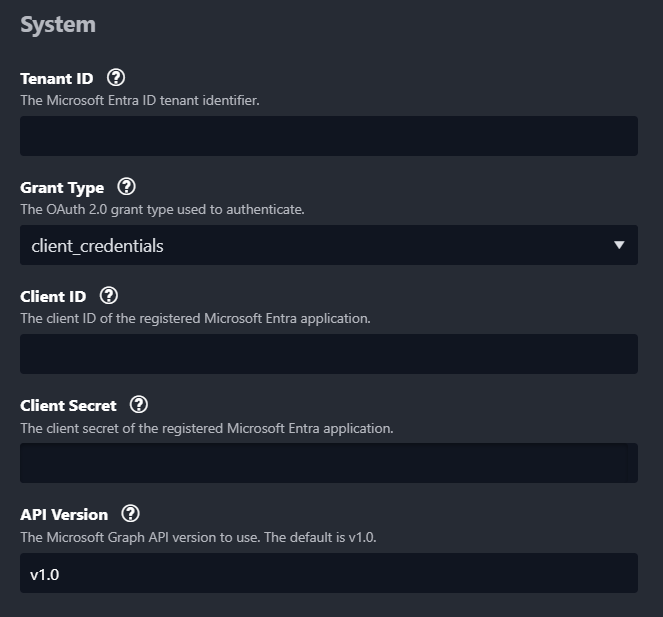
Grant Type: Client Credentials
-
Tenant ID — the Directory (tenant) ID from your Entra app.
-
Client ID — the Application (client) ID from your Entra app.
-
Client Secret — the secret Value you copied when creating the client secret.
-
API Version — the Microsoft Graph version. The default is v1.0.
-
-
Grant Type: Authorization Code
-
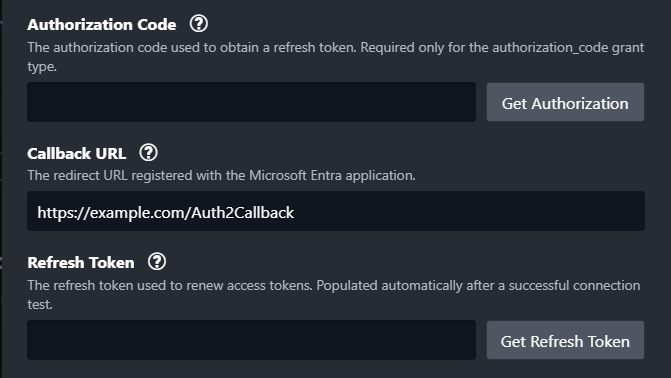
Complete the same Tenant ID, Client ID, Client Secret, and API Version fields above, then:
-
Copy the Callback URL shown on the connection form and add it to your Entra app's Authentication → Redirect URIs as a Web platform URI (see step 3 of Configuring Microsoft Lists to Work with D3).
-
Click Get Authorization to sign in and automatically populate the Authorization Code.
-
Click Get Refresh Token to automatically populate the Refresh Token.
-
-
-
-
Test the connection.
-
Click on the Test Connection button to verify credentials and connectivity. A success alert displays Passed with a green checkmark. If the connection fails, review the parameters and retry.
-
Click OK to close the alert window.
-
Click + Add to create and add the configured connection.
-
Commands
Microsoft Lists includes the following executable commands for users to set up schedules or create playbook workflows. With the Test Command function, users can execute these commands independently for playbook troubleshooting.
Integration API Note
For more information about the Microsoft Lists API, refer to the Microsoft Lists API reference column in the Permission Requirements table.
READER NOTE
Certain permissions are required for each command. Refer to the Permission Requirements and Configuring Microsoft Lists to Work with D3 sections for details.
Create Columns
Creates one or more columns in a list.
Input
|
Input Parameter |
Required/Optional |
Description |
Example |
|---|---|---|---|
|
Site ID |
Required |
The site ID where the columns will be created. Site ID can be obtained using the List Sites command. |
e54c*****2aa5 |
|
List ID |
Required |
The list ID where the columns will be created. List ID can be obtained using the List Lists command. |
787c*****2702 |
|
Column Content |
Required |
The columns to create in the list. |
x000*****000D |
Output
To view the sample output data for all commands, refer to this article.
Error Handling
If the Return Data displays Failed, an Error tab will appear in the Test Result window.
The error tab contains the details responded from D3 or third-party API calls, including Failure Indicator, Status Code, and Message. This can help locate the root cause of a command failure.
|
Parts in Error |
Description |
Example |
|
Failure Indicator |
Indicates the command failure that happened at a specific input and/or API call. |
Create Columns failed. |
|
Status Code |
The response code issued by the third-party API server or the D3 system that can be used to locate the corresponding error category. For example, if the returned status code is 401, the selected connection is unauthorized to run the command. The user or system support would need to check the permission setting in the Microsoft Lists portal. Refer to the HTTP Status Code Registry for details. |
Status Code: 403. |
|
Message |
The raw data or captured key error message from the integration API server about the API request failure. |
Message: Access denied. You do not have permission to perform this action or access this resource. |
|
Error Sample Data Create Columns failed. Status Code: 403. Message: Access denied. You do not have permission to perform this action or access this resource. |
Create Item
Creates a new item in a list.
Input
|
Input Parameter |
Required/Optional |
Description |
Example |
|
Site ID |
Required |
The site ID where the item will be created. Site ID can be obtained using the List Sites command. |
e54c*****2aa5 |
|
List ID |
Required |
The list ID where the item will be created. List ID can be obtained using the List Lists command. |
787c*****2702 |
|
Item Content |
Required |
The content for the new item. Valid columns can be obtained using the List Columns command. |
x000*****000D |
Output
To view the sample output data for all commands, refer to this article.
Error Handling
If the Return Data displays Failed, an Error tab will appear in the Test Result window.
The error tab contains the details responded from D3 or third-party API calls, including Failure Indicator, Status Code, and Message. This can help locate the root cause of a command failure.
|
Parts in Error |
Description |
Example |
|
Failure Indicator |
Indicates the command failure that happened at a specific input and/or API call. |
Create Item failed. |
|
Status Code |
The response code issued by the third-party API server or the D3 system that can be used to locate the corresponding error category. For example, if the returned status code is 401, the selected connection is unauthorized to run the command. The user or system support would need to check the permission setting in the Microsoft Lists portal. Refer to the HTTP Status Code Registry for details. |
Status Code: 403. |
|
Message |
The raw data or captured key error message from the integration API server about the API request failure. |
Message: Access denied. You do not have permission to perform this action or access this resource. |
|
Error Sample Data Create Item failed. Status Code: 403. Message: Access denied. You do not have permission to perform this action or access this resource. |
Create List
Creates a new list in a SharePoint site.
Input
|
Input Parameter |
Required/Optional |
Description |
Example |
|
Site ID |
Required |
The site ID where the list will be created. Site ID can be obtained using the List Sites command. |
e54c*****2aa5 |
|
List Name |
Required |
The display name of the list to create. |
D3_TestList_01 |
|
List Content |
Optional |
Additional properties for the new list. By default, only the display name is set. |
x000*****000D |
Output
To view the sample output data for all commands, refer to this article.
Error Handling
If the Return Data displays Failed, an Error tab will appear in the Test Result window.
The error tab contains the details responded from D3 or third-party API calls, including Failure Indicator, Status Code, and Message. This can help locate the root cause of a command failure.
|
Parts in Error |
Description |
Example |
|
Failure Indicator |
Indicates the command failure that happened at a specific input and/or API call. |
Create List failed. |
|
Status Code |
The response code issued by the third-party API server or the D3 system that can be used to locate the corresponding error category. For example, if the returned status code is 401, the selected connection is unauthorized to run the command. The user or system support would need to check the permission setting in the Microsoft Lists portal. Refer to the HTTP Status Code Registry for details. |
Status Code: 403. |
|
Message |
The raw data or captured key error message from the integration API server about the API request failure. |
Message: Access denied. You do not have permission to perform this action or access this resource. |
|
Error Sample Data Create List failed. Status Code: 403. Message: Access denied. You do not have permission to perform this action or access this resource. |
List Columns
Retrieves all columns defined for a list.
Input
|
Input Parameter |
Required/Optional |
Description |
Example |
|
Site ID |
Required |
The site ID to retrieve columns from. Site ID can be obtained using the List Sites command. |
e54c*****2aa5 |
|
List ID |
Required |
The list ID to retrieve columns from. List ID can be obtained using the List Lists command. |
787c*****2702 |
Output
To view the sample output data for all commands, refer to this article.
Error Handling
If the Return Data displays Failed, an Error tab will appear in the Test Result window.
The error tab contains the details responded from D3 or third-party API calls, including Failure Indicator, Status Code, and Message. This can help locate the root cause of a command failure.
|
Parts in Error |
Description |
Example |
|
Failure Indicator |
Indicates the command failure that happened at a specific input and/or API call. |
List Columns failed. |
|
Status Code |
The response code issued by the third-party API server or the D3 system that can be used to locate the corresponding error category. For example, if the returned status code is 401, the selected connection is unauthorized to run the command. The user or system support would need to check the permission setting in the Microsoft Lists portal. Refer to the HTTP Status Code Registry for details. |
Status Code: 403. |
|
Message |
The raw data or captured key error message from the integration API server about the API request failure. |
Message: Access denied. You do not have permission to perform this action or access this resource. |
|
Error Sample Data List Columns failed. Status Code: 403. Message: Access denied. You do not have permission to perform this action or access this resource. |
List ContentType
Retrieves all content types defined for a list.
Input
|
Input Parameter |
Required/Optional |
Description |
Example |
|
Site ID |
Required |
The site ID to retrieve content types from. Site ID can be obtained using the List Sites command. |
e54c*****2aa5 |
|
List ID |
Required |
The list ID to retrieve content types from. List ID can be obtained using the List Lists command. |
787c*****2702 |
Output
To view the sample output data for all commands, refer to this article.
Error Handling
If the Return Data displays Failed, an Error tab will appear in the Test Result window.
The error tab contains the details responded from D3 or third-party API calls, including Failure Indicator, Status Code, and Message. This can help locate the root cause of a command failure.
|
Parts in Error |
Description |
Example |
|
Failure Indicator |
Indicates the command failure that happened at a specific input and/or API call. |
List ContentType failed. |
|
Status Code |
The response code issued by the third-party API server or the D3 system that can be used to locate the corresponding error category. For example, if the returned status code is 401, the selected connection is unauthorized to run the command. The user or system support would need to check the permission setting in the Microsoft Lists portal. Refer to the HTTP Status Code Registry for details. |
Status Code: 403. |
|
Message |
The raw data or captured key error message from the integration API server about the API request failure. |
Message: Access denied. You do not have permission to perform this action or access this resource. |
|
Error Sample Data List ContentType failed. Status Code: 403. Message: Access denied. You do not have permission to perform this action or access this resource. |
List Items
Retrieves all items in a list.
Input
|
Input Parameter |
Required/Optional |
Description |
Example |
|
Site ID |
Required |
The site ID to retrieve items from. Site ID can be obtained using the List Sites command. |
e54c*****000D |
|
List ID |
Required |
The list ID to retrieve items from. List ID can be obtained using the List Lists command. |
787c*****000D |
|
Top |
Optional |
The maximum number of items to return. |
1 |
Output
To view the sample output data for all commands, refer to this article.
Error Handling
If the Return Data displays Failed, an Error tab will appear in the Test Result window.
The error tab contains the details responded from D3 or third-party API calls, including Failure Indicator, Status Code, and Message. This can help locate the root cause of a command failure.
|
Parts in Error |
Description |
Example |
|
Failure Indicator |
Indicates the command failure that happened at a specific input and/or API call. |
List Items failed. |
|
Status Code |
The response code issued by the third-party API server or the D3 system that can be used to locate the corresponding error category. For example, if the returned status code is 401, the selected connection is unauthorized to run the command. The user or system support would need to check the permission setting in the Microsoft Lists portal. Refer to the HTTP Status Code Registry for details. |
Status Code: 403. |
|
Message |
The raw data or captured key error message from the integration API server about the API request failure. |
Message: Access denied. You do not have permission to perform this action or access this resource. |
|
Error Sample Data List Items failed. Status Code: 403. Message: Access denied. You do not have permission to perform this action or access this resource. |
List Lists
Retrieves all lists in a SharePoint site.
Input
|
Input Parameter |
Required/Optional |
Description |
Example |
|
Site ID |
Required |
The site ID to retrieve lists from. Site ID can be obtained using the List Sites command. |
e54c*****2aa5 |
|
Filter |
Optional |
Filters lists by an OData $filter expression. |
displayName eq 'D3_TestList_01' |
|
Top |
Optional |
The maximum number of lists to return. |
1 |
Output
To view the sample output data for all commands, refer to this article.
Error Handling
If the Return Data displays Failed, an Error tab will appear in the Test Result window.
The error tab contains the details responded from D3 or third-party API calls, including Failure Indicator, Status Code, and Message. This can help locate the root cause of a command failure.
|
Parts in Error |
Description |
Example |
|
Failure Indicator |
Indicates the command failure that happened at a specific input and/or API call. |
List Lists failed. |
|
Status Code |
The response code issued by the third-party API server or the D3 system that can be used to locate the corresponding error category. For example, if the returned status code is 401, the selected connection is unauthorized to run the command. The user or system support would need to check the permission setting in the Microsoft Lists portal. Refer to the HTTP Status Code Registry for details. |
Status Code: 403. |
|
Message |
The raw data or captured key error message from the integration API server about the API request failure. |
Message: Access denied. You do not have permission to perform this action or access this resource. |
|
Error Sample Data List Lists failed. Status Code: 403. Message: Access denied. You do not have permission to perform this action or access this resource. |
List Sites
Retrieves SharePoint sites accessible to the authenticated user.
Input
|
Input Parameter |
Required/Optional |
Description |
Example |
|
Site Name |
Optional |
Filters sites by name. By default, all accessible sites are returned. |
["My Sample Team1"] |
|
Top |
Optional |
The maximum number of sites to return per site name search. |
1 |
Output
To view the sample output data for all commands, refer to this article.
Error Handling
If the Return Data displays Failed, an Error tab will appear in the Test Result window.
The error tab contains the details responded from D3 or third-party API calls, including Failure Indicator, Status Code, and Message. This can help locate the root cause of a command failure.
|
Parts in Error |
Description |
Example |
|
Failure Indicator |
Indicates the command failure that happened at a specific input and/or API call. |
List Sites failed. |
|
Status Code |
The response code issued by the third-party API server or the D3 system that can be used to locate the corresponding error category. For example, if the returned status code is 401, the selected connection is unauthorized to run the command. The user or system support would need to check the permission setting in the Microsoft Lists portal. Refer to the HTTP Status Code Registry for details. |
Status Code: 403. |
|
Message |
The raw data or captured key error message from the integration API server about the API request failure. |
Message: Access denied. You do not have permission to perform this action or access this resource. |
|
Error Sample Data List Sites failed. Status Code: 403. Message: Access denied. You do not have permission to perform this action or access this resource. |
Test Connection
Performs a health check on the integration connection. A periodic health check can be scheduled by selecting Connection Health Check when editing the integration connection.
Input
N/A
Output
|
Output Type |
Description |
Return Data Type |
|---|---|---|
|
Return Data |
Indicates one of the possible command execution states: Successful or Failed. The Failed state can be triggered by any of the following errors:
|
String |
Error Handling
If the Return Data displays Failed, an Error tab will appear in the Test Result window.
The error tab contains the details responded from D3 or third-party API calls, including Failure Indicator, Status Code, and Message. This can help locate the root cause of a command failure.
|
Parts in Error |
Description |
Example |
|
Failure Indicator |
Indicates the command failure that happened at a specific input and/or API call. |
Test Connection failed. Failed to check the connector. |
|
Status Code |
The response code issued by the third-party API server or the D3 system that can be used to locate the corresponding error category. For example, if the returned status code is 401, the selected connection is unauthorized to run the command. The user or system support would need to check the permission setting in the Microsoft Lists portal. Refer to the HTTP Status Code Registry for details. |
Status Code: 403. |
|
Message |
The raw data or captured key error message from the integration API server about the API request failure. |
Message: Access denied. You do not have permission to perform this action or access this resource. |
|
Error Sample Data Test Connection failed. Failed to check the connector. Status Code: 403. Message: Access denied. You do not have permission to perform this action or access this resource. |