
LAST UPDATED: October 27, 2025
Overview
FortiGate Next-Generation Firewall (NGFW) filters network traffic such as packet filtering, VPN support, network monitoring, and more.
FortiGate is available for use in:
|
D3 ASOC |
V12.7.83.0+ |
|
Category |
Network Security |
|
Deployment Options |
Connection
To connect to FortiGate from D3, follow this part to collect the required information below:
|
Parameter |
Description |
Example |
|
Server URL |
The server URL of the FortiGate firewall instance. The connection must use the HTTPS protocol. |
https://***.***.***.*** |
|
API Token |
The API token used to authenticate the connection. |
4r5x*****xzt7 |
|
API Version |
The API version to use for the connection. |
v2 |
Permission Requirements
Each endpoint in the FortiGate API requires a certain permission scope. The following are required scopes for the commands in this integration:
|
Command |
Required Permissions |
|
Add IPs To Address Group |
Firewall > Address > Read/Write |
|
Add IPs To Address Group V2 |
|
|
Add URLs To Address Group |
|
|
Add URLs To Address Group V2 |
|
|
Create Address Group |
|
|
Create Threat Feed |
System > Configuration > Read/Write |
|
Get Threat Feed Entry List |
System > Configuration > Read |
|
List Addresses |
Firewall > Address > Read |
|
List Address Groups |
|
|
List Policies |
Firewall > Policy > Read |
|
List Threat Feeds |
Firewall > Address > Read |
|
Refresh Threat Feeds |
System > Configuration > Read/Write |
|
Remove IPs From Address Group |
Firewall > Address > Read/Write
|
|
Remove IPs From Address Group V2 |
|
|
Remove URLs From Address Group |
|
|
Remove URLs From Address Group V2 |
|
|
Update Policy |
Firewall > Policy > Read/Write |
|
Update Threat Feed |
System > Configuration > Read/Write |
|
Test Connection |
Firewall > Address > Read |
As FortiGate is using role-based access control (RBAC), the API Token is generated based on a specific user account and the application. Therefore, the command permissions are inherited from the user account’s role. Users need to configure their user profile from the FortiGate console for each command in this integration.
Configuring FortiGate to Work with D3
-
Log into the FortiGate console.
.png?cb=de35558343f7e4eef2f146352ece28f7)
-
Navigate to System > Admin Profiles, then click the + Create New button to create an administrator profile for API users.
.png?cb=e9599fd90a91809ed5ede6275b41fc64)
-
Configure the profile.
.png?cb=7451ad96428f124f4849424ef2cecf3b)
-
Create a name for the profile.
-
Click the Custom option for the the appropriate category (i.e., Firewall or System).
-
Select the appropriate custom permissions according to the Permissions Requirements table.
-
Click the OK button to save.
-
-
Open the Administrators tab, click the + Create New button, then select the REST API Admin option.
.png?cb=2fd18c64c3301a3de2e96555f71d3fde)
-
Configure the user profile.
.png?cb=6e2734b25a834a6c9ce3950b33f314cd)
-
Create a username.
-
Select the previously configured administrator profile.
-
Ensure that the PKI Group toggle is turned off.
-
Click the OK button to save.
-
-
Click the
.png?cb=0b74a129c4a2154bd9869692fb161f4b)
.png?cb=37f968e31c0bfd9b4fd120525534a815)
Refer to step 3.i.2 in Configuring D3 to Work with FortiGate.
READER NOTE*
The API key will no longer be visible after exiting this side panel.
Configuring D3 to Work with FortiGate
-
Log in to D3.
-
Find the FortiGate integration.
.png?cb=8d90d35099c623ed15d9951a7a24648f)
-
Navigate to Configuration on the top header menu.
-
Click on the Integration icon on the left sidebar.
-
Type FortiGate in the search box to find the integration, then click it to select it.
-
Click + Connection, on the right side of the Connections section. A new connection window will appear.
-
-
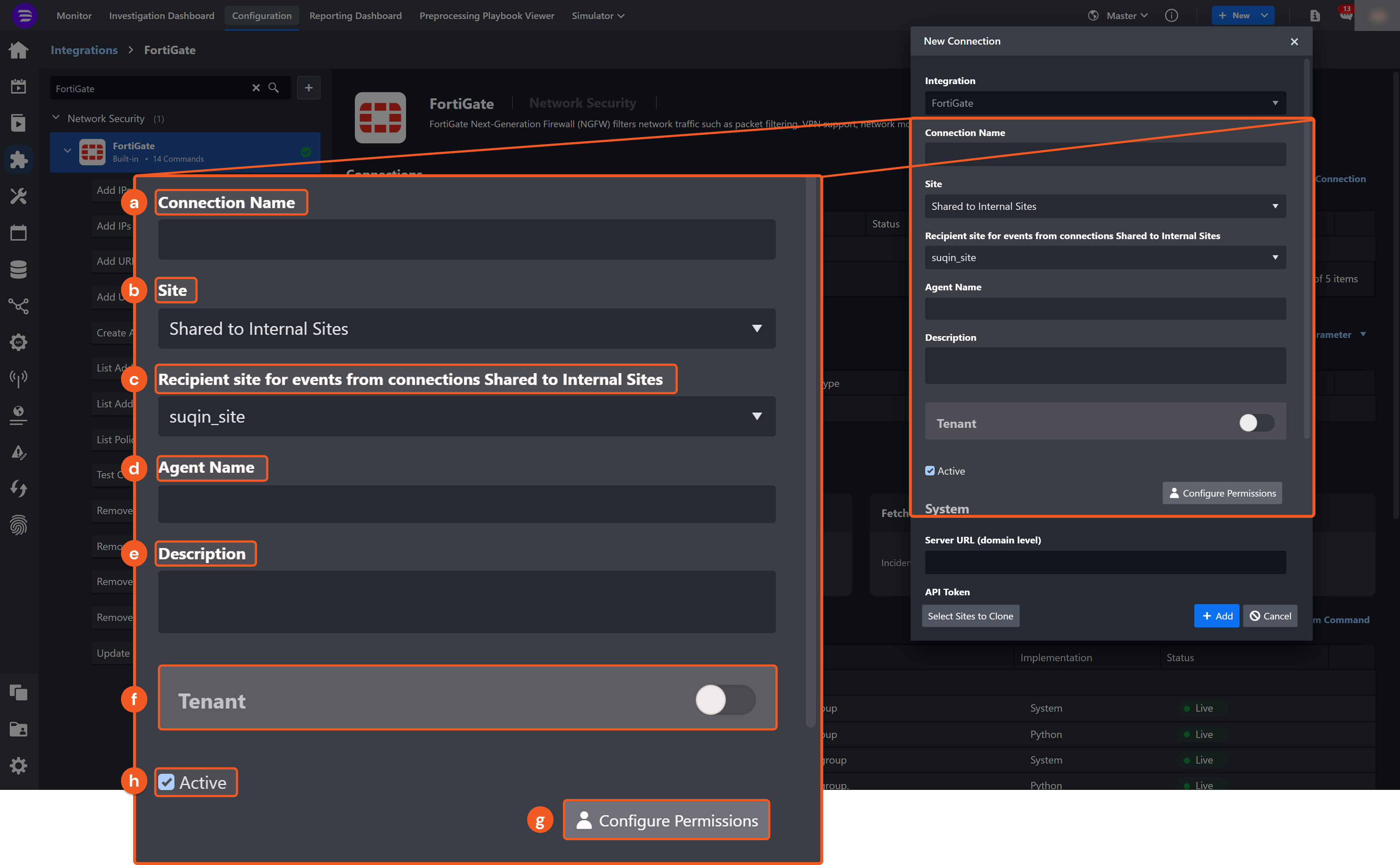
Configure the following fields to create a connection to FortiGate.
-
Connection Name: The desired name for the connection.
-
Site: The site on which to use the integration connection. Use the drop-down menu to select the site. The Share to Internal Sites option enables all internal sites to use the connection. Selecting a specific site will only enable that site to use the connection.
-
Recipient site for events from connections Shared to Internal Sites: This field is displayed when Share to Internal Sites is selected for the Site field, allowing selection of the internal site for deploying the integration connection.
-
Agent Name (Optional): The proxy agent required to build the connection. Use the dropdown menu to select the proxy agent from a list of previously configured proxy agents.
-
Description (Optional): The description for the connection.
-
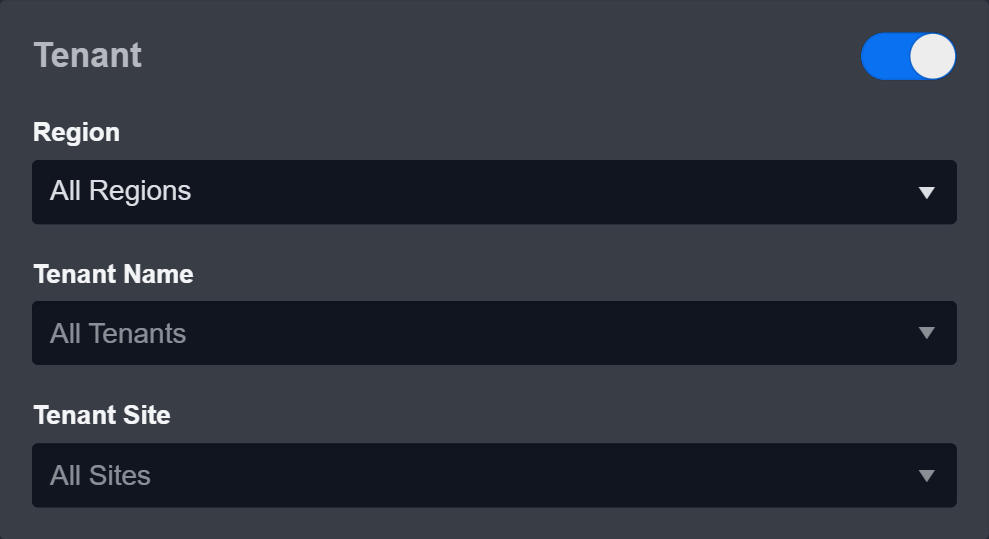
Tenant (Optional): When configuring the connection from a master tenant site, users can choose the specific tenant sites with which to share the connection. Once this setting is enabled, users can filter and select the desired tenant sites from the dropdowns to share the connection.
-
Configure User Permissions: Defines which users have access to the connection.
-
Active: The checkbox that enables the connection to be used when selected.
-
System: This section contains the parameters defined specifically for the integration. These parameters must be configured to create the integration connection.
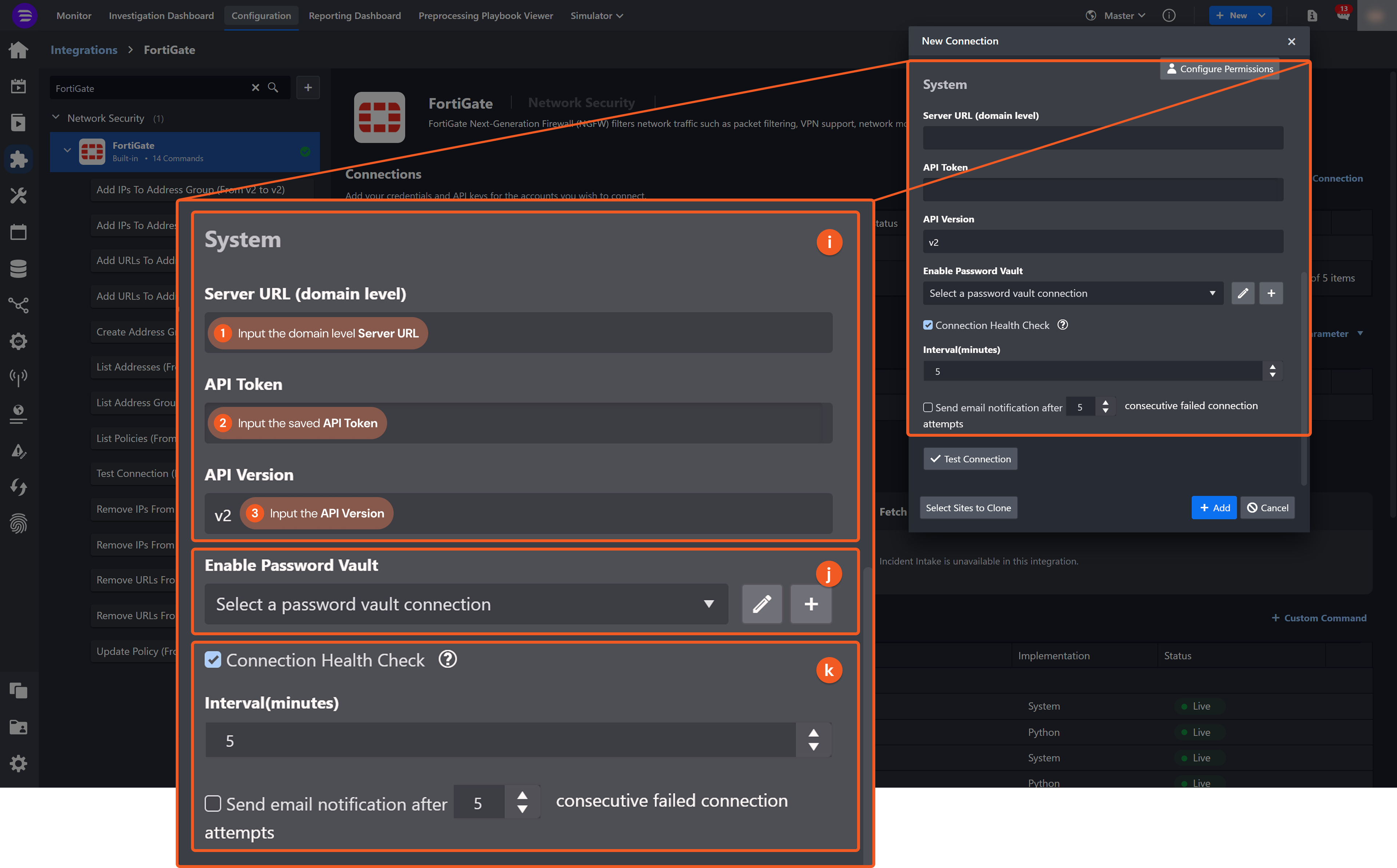
1. Input the domain level Server URL.
2. Input the API Token. Refer to step 6 in Configuring FortiGate to Work with D3.
3. Input the API Version. The default value is v2. -
Enable Password Vault: An optional feature that allows users to take the stored credentials from their own password vault. Refer to the password vault connection guide if needed.
-
Connection Health Check: Periodically checks the connection status by scheduling the Test Connection command at the specified interval (in minutes). Available only for active connections, this feature also allows configuring email notifications for failed attempts.
-
-
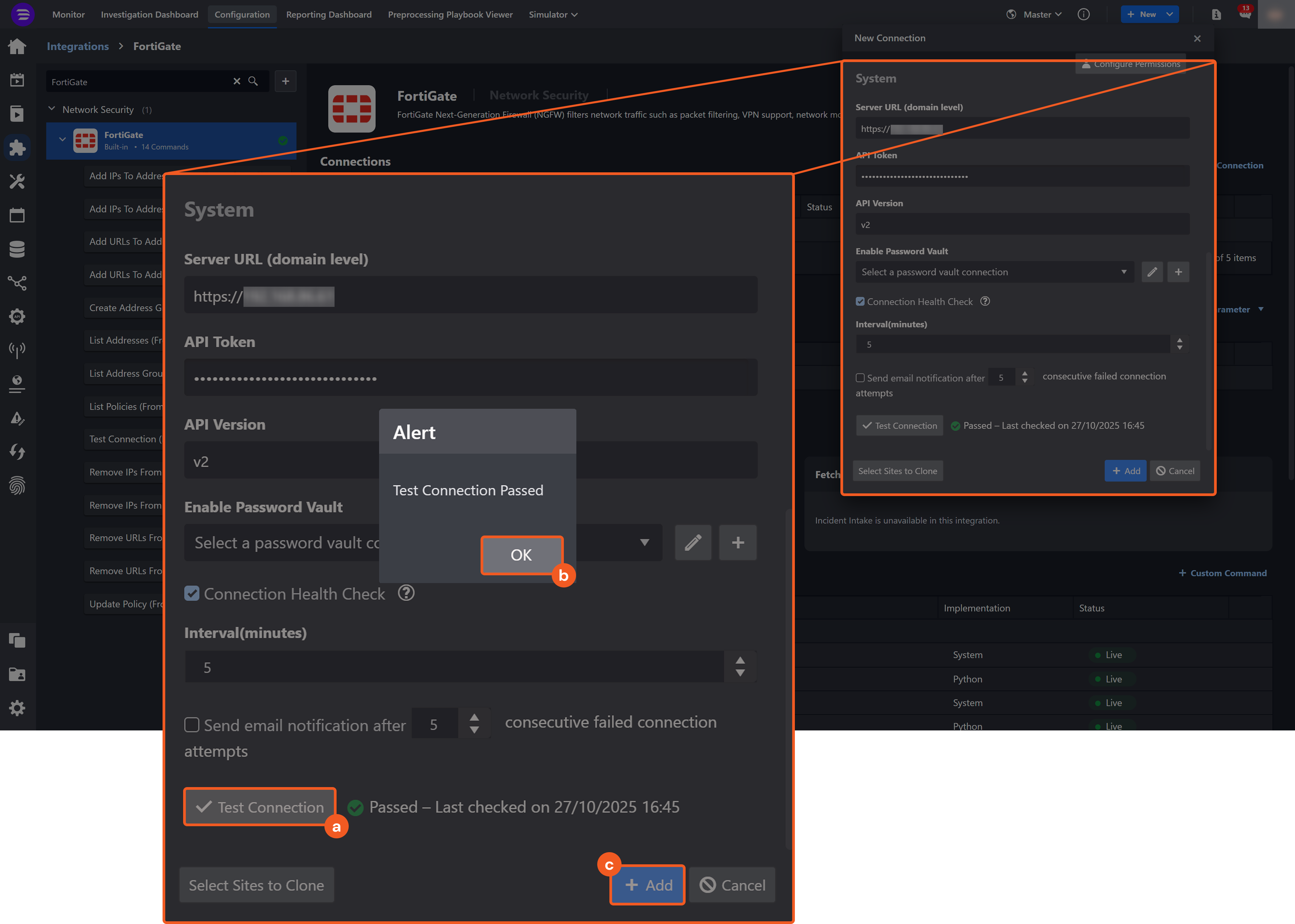
Test the connection.
-
Click on the Test Connection button to verify credentials and connectivity. A success alert displays Passed with a green checkmark. If the connection fails, review the parameters and retry.
-
Click OK to close the alert window.
-
Click + Add to create and add the configured connection.
-
Commands
FortiGate includes the following executable commands for users to set up schedules or create playbook workflows. With the Test Command, users can execute these commands independently for playbook troubleshooting.
Integration API Note
For more information about the FortiGate API, refer to the FortiGate API reference.
READER NOTE
Certain permissions are required for each command. Refer to the Permission Requirements and Configuring FortiGate to Work with D3 for details.
Add IPs To Address Group
Adds IP addresses to an Address Group.
READER NOTE
Address Group Name is a required parameter to run this command.
-
Run the List Address Groups command to obtain the Address Group Name. Address Group Names can be found in the raw data at $[*].results[*].name.
Input
|
Input Parameter |
Required/Optional |
Description |
Example |
|
IPs |
Required |
The IP addresses with subnet mask to add to the Address Group. |
JSON
|
|
Address Group Name |
Required |
The name of the Address Group where the IPs will be added. Address Group Name can be obtained using the List Address Groups command. |
Block_Group |
Output
To view the sample output data for all commands, refer to this article.
Error Handling
If the Return Data is Failed, an Error tab will appear in the Test Result window.
The error tab contains the details responded from D3 or third-party API calls, including Failure Indicator, Status Code, and Message. This can help locate the root cause of a command failure.
|
Parts in Error |
Description |
Example |
|
Failure Indicator |
Indicates the command failure that happened at a specific input and/or API call. |
Add IPs To Address Group failed. |
|
Status Code |
The response code issued by the third-party API server or the D3 system that can be used to locate the corresponding error category. For example, if the returned status code is 401, the selected connection is unauthorized to run the command. The user or system support would need to check the permission setting in the FortiGate portal. Refer to the HTTP Status Code Registry for details. |
Status Code: 404. |
|
Message |
The raw data or captured key error message from the integration API server about the API request failure. |
Message: Address group name Not Found. |
|
Error Sample Data Add IPs To Address Group failed. Status Code: 404. Message: Address group name Not Found. |
Add IPs To Address Group V2
Adds IP addresses to an Address Group.
READER NOTE
Address Group Name is a required parameter to run this command.
-
Run the List Address Groups command to obtain the Address Group Name. Address Group Names can be found in the raw data at $[*].results[*].name.
Input
|
Input Parameter |
Required/Optional |
Description |
Example |
|
IPs |
Required |
The IP addresses with subnet mask to add to the Address Group. |
JSON
|
|
Address Group Name |
Required |
The name of the Address Group where the IPs will be added. Address Group Name can be obtained using the List Address Groups command. |
Block_Group |
|
Virtual Dom |
Optional |
The Virtual Domain from which results are retrieved or changes are applied. By default, the value is root. |
root |
Output
To view the sample output data for all commands, refer to this article.
Error Handling
If the Return Data displays Failed, an Error tab will appear in the Test Result window.
The error tab contains the details responded from D3 or third-party API calls, including Failure Indicator, Status Code, and Message. This can help locate the root cause of a command failure.
|
Parts in Error |
Description |
Example |
|
Failure Indicator |
Indicates the command failure that happened at a specific input and/or API call. |
Add IPs To Address Group V2 failed. |
|
Status Code |
The response code issued by the third-party API server or the D3 system that can be used to locate the corresponding error category. For example, if the returned status code is 401, the selected connection is unauthorized to run the command. The user or system support would need to check the permission setting in the FortiGate portal. Refer to the HTTP Status Code Registry for details. |
Status Code: 404. |
|
Message |
The raw data or captured key error message from the integration API server about the API request failure. |
Message: Address group name Not Found. |
|
Error Sample Data Add IPs To Address Group V2 failed. Status Code: 404. Message: Address group name Not Found. |
Add URLs To Address Group
Adds URLs to an Address Group.
READER NOTE
Address Group Name is a required parameter to run this command.
-
Run the List Address Groups command to obtain the Address Group Name. Address Group Names can be found in the raw data at $[*].results[*].name.
Input
|
Input Parameter |
Required/Optional |
Description |
Example |
|
URLs |
Required |
The URLs to add to the Address Group. |
JSON
|
|
Address Group Name |
Required |
The name of the Address Group where the URLs will be added. Address Group Name can be obtained using the List Address Groups command. |
BlockURLGroup |
Output
To view the sample output data for all commands, refer to this article.
Error Handling
If the Return Data is Failed, an Error tab will appear in the Test Result window.
The error tab contains the details responded from D3 or third-party API calls, including Failure Indicator, Status Code, and Message. This can help locate the root cause of a command failure.
|
Parts in Error |
Description |
Example |
|
Failure Indicator |
Indicates the command failure that happened at a specific input and/or API call. |
Add URLs To Address Group failed. |
|
Status Code |
The response code issued by the third-party API server or the D3 system that can be used to locate the corresponding error category. For example, if the returned status code is 401, the selected connection is unauthorized to run the command. The user or system support would need to check the permission setting in the FortiGate portal. Refer to the HTTP Status Code Registry for details. |
Status Code: 404. |
|
Message |
The raw data or captured key error message from the integration API server about the API request failure. |
Message: Address group name Not Found. |
|
Error Sample Data Add URLs To Address Group failed. Status Code: 404. Message: Address group name Not Found. |
Add URLs To Address Group V2
Adds IP addresses to an Address Group.
READER NOTE
Address Group Name is a required parameter to run this command.
-
Run the List Address Groups command to obtain the Address Group Name. Address Group Names can be found in the raw data at $[*].results[*].name.
Input
|
Input Parameter |
Required/Optional |
Description |
Example |
|
URLs |
Required |
The URLs to add to the Address Group. |
JSON
|
|
Address Group Name |
Required |
The name of the Address Group where the URLs will be added. Address Group Name can be obtained using the List Address Groups command. |
BlockURLGroup |
|
Virtual Dom |
Optional |
The Virtual Domain from which results are retrieved or changes are applied. By default, the value is root. |
root |
Output
To view the sample output data for all commands, refer to this article.
Error Handling
If the Return Data displays Failed, an Error tab will appear in the Test Result window.
The error tab contains the details responded from D3 or third-party API calls, including Failure Indicator, Status Code, and Message. This can help locate the root cause of a command failure.
|
Parts in Error |
Description |
Example |
|
Failure Indicator |
Indicates the command failure that happened at a specific input and/or API call. |
Add URLs To Address Group V2 failed. |
|
Status Code |
The response code issued by the third-party API server or the D3 system that can be used to locate the corresponding error category. For example, if the returned status code is 401, the selected connection is unauthorized to run the command. The user or system support would need to check the permission setting in the FortiGate portal. Refer to the HTTP Status Code Registry for details. |
Status Code: 404. |
|
Message |
The raw data or captured key error message from the integration API server about the API request failure. |
Message: Address group name Not Found. |
|
Error Sample Data Add URLs To Address Group V2 failed. Status Code: 404. Message: Address group name Not Found. |
Create Address Group
Creates an address group on the firewall.
READER NOTE
Members and Exclude Members are required parameters to run this command.
-
Run the List Addresses command to obtain the Members and Exclude Members. Members and Exclude Members is referring to address names, which can be found in the raw data at $.results[*].name.
Input
|
Input Parameter |
Required/Optional |
Description |
Example |
|
Group Name |
Required |
The name of the address group to create. |
testGroup33 |
|
Members |
Required |
The address names to include in the group as members. Ensure that the IP addresses, ranges, or address names already exist in the database before adding them. Address names can be obtained using the List Addresses command. |
JSON
|
|
Exclude Members |
Optional |
The address names, IP addresses, or ranges to exclude from the group. Address names can be obtained using the List Addresses command. |
JSON
|
|
Comment |
Optional |
A comment or note for the address group. |
Test02 |
|
Color |
Optional |
The display color assigned to the address group. Enter a number from 1 to 32. .png?cb=65105f85f49e1e4974d9a469e3a676f1)
|
2 |
|
Virtual Domains |
Optional |
The Virtual Domains from which the group is created. |
JSON
|
Output
To view the sample output data for all commands, refer to this article.
Error Handling
If the Return Data displays Failed, an Error tab will appear in the Test Result window.
The error tab contains the details responded from D3 or third-party API calls, including Failure Indicator, Status Code, and Message. This can help locate the root cause of a command failure.
|
Parts in Error |
Description |
Example |
|
Failure Indicator |
Indicates the command failure that happened at a specific input and/or API call. |
Create Address Group failed. |
|
Status Code |
The response code issued by the third-party API server or the D3 system that can be used to locate the corresponding error category. For example, if the returned status code is 401, the selected connection is unauthorized to run the command. The user or system support would need to check the permission setting in the FortiGate portal. Refer to the HTTP Status Code Registry for details. |
Status Code: 500. |
|
Message |
The raw data or captured key error message from the integration API server about the API request failure. |
Message: entry not found in datasource\n\nvalue parse error before '***.***.***.***'\nCommand fail. Return code -3\n. |
|
Error Sample Data Create Address Group failed. Status Code: 500. Message: entry not found in datasource\n\nvalue parse error before '***.***.***.***'\nCommand fail. Return code -3\n. |
Create Threat Feed
Creates a new threat feed from an external resource on the FortiGate firewall.
Input
|
Input Parameter |
Required/Optional |
Description |
Example |
|
Threat Feed Name |
Required |
The name of the threat feed to create. |
D3TestBlockedIPs |
|
Type |
Optional |
The type of the threat feed to create. Valid options are:
By default, the value is set to IP Address. |
IP Address |
|
External Resource URL |
Required |
The URL of the external resource. The maximum length is 511 characters. When the resource requires authentication (only HTTP Basic Authentication is supported), credentials must be provided using the Username and Password parameters. |
http://***.***.***.***/EDL/IPs.txt |
|
Username |
Optional |
The HTTP Basic Authentication username for the external resource if the URL is secured. |
administrator |
|
Password |
Optional |
The HTTP Basic Authentication password for the external resource if the URL is secured. |
***** |
|
Refresh Rate |
Optional |
The refresh interval (in minutes) for updating the external resource. Acceptable values range from 1 to 43,200. If the specified value exceeds 43,200, it will be capped at 43,200. If the value is less than 1 or unspecified, the value is set to 5. |
5 |
|
Virtual Dom |
Optional |
The Virtual Domain from which results are retrieved or changes are applied. By default, the value is root. |
root |
Output
To view the sample output data for all commands, refer to this article.
Error Handling
If the Return Data displays Failed, an Error tab will appear in the Test Result window.
The error tab contains the details responded from D3 or third-party API calls, including Failure Indicator, Status Code, and Message. This can help locate the root cause of a command failure.
|
Parts in Error |
Description |
Example |
|
Failure Indicator |
Indicates the command failure that happened at a specific input and/or API call. |
Create Threat Feed failed. |
|
Status Code |
The response code issued by the third-party API server or the D3 system that can be used to locate the corresponding error category. For example, if the returned status code is 401, the selected connection is unauthorized to run the command. The user or system support would need to check the permission setting in the FortiGate portal. Refer to the HTTP Status Code Registry for details. |
Status Code: 500. |
|
Message |
The raw data or captured key error message from the integration API server about the API request failure. |
Message: Internal Server Error. |
|
Error Sample Data Create Threat Feed failed. Status Code: 500. Message: Internal Server Error. |
Get Threat Feed Entry List
Retrieves the list of entries from a specified FortiGate external threat feed.
READER NOTE
Threat Feed Name is a required parameter to run this command.
-
Run the List Threat Feeds command to obtain the Threat Feed Name. Threat Feed Names can be found in the raw data at $.results[*].name.
Input
|
Input Parameter |
Required/Optional |
Description |
Example |
|
Threat Feed Name |
Required |
The name of the threat feed from which to retrieve the entry list. Threat Feed Name can be obtained using the List Threat Feeds command. |
Blocked IPs |
|
Entries |
Optional |
Filters the response by the specified entries. |
JSON
|
|
Virtual Dom |
Optional |
The Virtual Domain from which results are retrieved or changes are applied. By default, the value is root. |
root |
Output
To view the sample output data for all commands, refer to this article.
Error Handling
If the Return Data displays Failed, an Error tab will appear in the Test Result window.
The error tab contains the details responded from D3 or third-party API calls, including Failure Indicator, Status Code, and Message. This can help locate the root cause of a command failure.
|
Parts in Error |
Description |
Example |
|
Failure Indicator |
Indicates the command failure that happened at a specific input and/or API call. |
Get Threat Feed Entry List failed. |
|
Status Code |
The response code issued by the third-party API server or the D3 system that can be used to locate the corresponding error category. For example, if the returned status code is 401, the selected connection is unauthorized to run the command. The user or system support would need to check the permission setting in the FortiGate portal. Refer to the HTTP Status Code Registry for details. |
Status Code: 404. |
|
Message |
The raw data or captured key error message from the integration API server about the API request failure. |
Message: Not Found. |
|
Error Sample Data Get Threat Feed Entry List failed. Status Code: 404. Message: Not Found. |
List Addresses
Retrieves all IPv4 and FQDN address objects from the firewall configuration.
Input
|
Input Parameter |
Required/Optional |
Description |
Example |
|
Address Name |
Optional |
The pattern of the address name by which to filter results. |
*****.***** |
|
Address |
Optional |
The pattern of the address by which to filter results. It can include part or all of an address. |
www.***** |
|
Limit |
Optional |
The maximum number of address records to return. By default, the value is 20. |
10 |
|
Offset |
Optional |
The number of records to skip when returning results. This is useful for pagination. By default, the value is 0. |
1 |
Output
To view the sample output data for all commands, refer to this article.
Error Handling
If the Return Data displays Failed, an Error tab will appear in the Test Result window.
The error tab contains the details responded from D3 or third-party API calls, including Failure Indicator, Status Code, and Message. This can help locate the root cause of a command failure.
|
Parts in Error |
Description |
Example |
|
Failure Indicator |
Indicates the command failure that happened at a specific input and/or API call. |
List Addresses failed. |
|
Status Code |
The response code issued by the third-party API server or the D3 system that can be used to locate the corresponding error category. For example, if the returned status code is 401, the selected connection is unauthorized to run the command. The user or system support would need to check the permission setting in the FortiGate portal. Refer to the HTTP Status Code Registry for details. |
Status Code: 403. |
|
Message |
The raw data or captured key error message from the integration API server about the API request failure. |
Message: Forbidden. |
|
Error Sample Data List Addresses failed. Status Code: 403. Message: Forbidden. |
List Address Groups
Retrieves all address groups from the firewall configuration.
Input
|
Input Parameter |
Required/Optional |
Description |
Example |
|
Group Name |
Optional |
The part or full name of the address group by which to filter results. |
My |
|
Virtual Domains |
Optional |
The Virtual Domains from which results are returned. By default, all groups from accessible VDOMs are returned. |
JSON
|
|
Scope |
Optional |
The filter scope. Valid options are:
By default, the value is set to Both. |
Both |
|
Offset |
Optional |
The number of records to skip when returning results. This is useful for pagination. By default, the value is 0. |
0 |
|
Limit |
Optional |
The maximum number of address groups to return. By default, the value is 20. |
5 |
Output
To view the sample output data for all commands, refer to this article.
Error Handling
If the Return Data displays Failed, an Error tab will appear in the Test Result window.
The error tab contains the details responded from D3 or third-party API calls, including Failure Indicator, Status Code, and Message. This can help locate the root cause of a command failure.
|
Parts in Error |
Description |
Example |
|
Failure Indicator |
Indicates the command failure that happened at a specific input and/or API call. |
List Address Groups failed. |
|
Status Code |
The response code issued by the third-party API server or the D3 system that can be used to locate the corresponding error category. For example, if the returned status code is 401, the selected connection is unauthorized to run the command. The user or system support would need to check the permission setting in the FortiGate portal. Refer to the HTTP Status Code Registry for details. |
Status Code: 403. |
|
Message |
The raw data or captured key error message from the integration API server about the API request failure. |
Message: Forbidden. |
|
Error Sample Data List Address Groups failed. Status Code: 403. Message: Forbidden. |
List Policies
Returns all firewall policies.
READER NOTE
Address Group Name is an optional parameter to run this command.
-
Run the List Address Groups command to obtain the Address Group Name. Address Group Names can be found in the raw data at $[*].results[*].name.
Input
|
Input Parameter |
Required/Optional |
Description |
Example |
|
Address Group Name |
Optional |
The name of the address group by which to filter results. Address Group Name can be obtained using the List Address Groups command. By default, all address groups are returned. |
blockIPAddressGroup |
Output
To view the sample output data for all commands, refer to this article.
Error Handling
If the Return Data displays Failed, an Error tab will appear in the Test Result window.
The error tab contains the details responded from D3 or third-party API calls, including Failure Indicator, Status Code, and Message. This can help locate the root cause of a command failure.
|
Parts in Error |
Description |
Example |
|
Failure Indicator |
Indicates the command failure that happened at a specific input and/or API call. |
List Policies failed. |
|
Status Code |
The response code issued by the third-party API server or the D3 system that can be used to locate the corresponding error category. For example, if the returned status code is 401, the selected connection is unauthorized to run the command. The user or system support would need to check the permission setting in the FortiGate portal. Refer to the HTTP Status Code Registry for details. |
Status Code: 403. |
|
Message |
The raw data or captured key error message from the integration API server about the API request failure. |
Message: Forbidden. |
|
Error Sample Data List Policies failed. Status Code: 403. Message: Forbidden. |
List Threat Feeds
Retrieves all configured external threat feeds from FortiGate.
Input
|
Input Parameter |
Required/Optional |
Description |
Example |
|
Limit |
Optional |
The maximum number of external resources to return. By default, the value is 20. |
10 |
|
Offset |
Optional |
The number of records to skip when returning results. This is useful for pagination. |
1 |
|
Virtual Dom |
Optional |
The Virtual Domain from which results are retrieved or changes are applied. By default, the value is root. |
root |
Output
To view the sample output data for all commands, refer to this article.
Error Handling
If the Return Data displays Failed, an Error tab will appear in the Test Result window.
The error tab contains the details responded from D3 or third-party API calls, including Failure Indicator, Status Code, and Message. This can help locate the root cause of a command failure.
|
Parts in Error |
Description |
Example |
|
Failure Indicator |
Indicates the command failure that happened at a specific input and/or API call. |
List Threat Feeds failed. |
|
Status Code |
The response code issued by the third-party API server or the D3 system that can be used to locate the corresponding error category. For example, if the returned status code is 401, the selected connection is unauthorized to run the command. The user or system support would need to check the permission setting in the FortiGate portal. Refer to the HTTP Status Code Registry for details. |
Status Code: 403. |
|
Message |
The raw data or captured key error message from the integration API server about the API request failure. |
Message: Forbidden. |
|
Error Sample Data List Threat Feeds failed. Status Code: 403. Message: Forbidden. |
Refresh Threat Feeds
Fetches the external threat feed file and refreshes the status for the specified threat feeds. After refreshing the specified threat feeds, use the Get Threat Feed Entry List command to view the feed’s latest refreshed results or refresh progress status.
READER NOTE
Threat Feed Names is a required parameter to run this command.
-
Run the List Threat Feeds command to obtain the Threat Feed Names. Threat Feed Names can be found in the raw data at $.results[*].name.
Input
|
Input Parameter |
Required/Optional |
Description |
Example |
|
Threat Feed Names |
Required |
The names of threat feeds to refresh. Threat Feed Names can be obtained using the List Threat Feeds command. |
JSON
|
|
Virtual Dom |
Optional |
The Virtual Domain from which results are retrieved or changes are applied. By default, the value is root. |
root |
Output
To view the sample output data for all commands, refer to this article.
Error Handling
If the Return Data displays Partially Successful or Failed, an Error tab will appear in the Test Result window.
The error tab contains the details responded from D3 or third-party API calls, including Failure Indicator, Status Code, and Message. This can help locate the root cause of a command failure.
|
Parts in Error |
Description |
Example |
|
Failure Indicator |
Indicates the command failure that happened at a specific input and/or API call. |
Refresh Threat Feeds failed. |
|
Status Code |
The response code issued by the third-party API server or the D3 system that can be used to locate the corresponding error category. For example, if the returned status code is 401, the selected connection is unauthorized to run the command. The user or system support would need to check the permission setting in the FortiGate portal. Refer to the HTTP Status Code Registry for details. |
Status Code: 404. |
|
Message |
The raw data or captured key error message from the integration API server about the API request failure. |
Message: Not Found. |
|
Error Sample Data Refresh Threat Feeds failed. Status Code: 404. Message: Not Found. |
Remove IPs From Address Group
Removes IP addresses from the specified Address Group.
READER NOTE
Address Group Name is a required parameter to run this command.
-
Run the List Address Groups command to obtain the Address Group Name. Address Group Names can be found in the raw data at $[*].results[*].name.
Input
|
Input Parameter |
Required/Optional |
Description |
Example |
|
IPs |
Required |
The IP addresses with subnet masks to remove from the Address Group. |
JSON
|
|
Address Group Name |
Required |
The name of the Address Group from which to remove the IPs. Address Group Name can be obtained using the List Address Groups command. |
Block_Group |
Output
To view the sample output data for all commands, refer to this article.
Error Handling
If the Return Data is Partially Successful or Failed, an Error tab will appear in the Test Result window.
The error tab contains the details responded from D3 or third-party API calls, including Failure Indicator, Status Code, and Message. This can help locate the root cause of a command failure.
|
Parts in Error |
Description |
Example |
|
Failure Indicator |
Indicates the command failure that happened at a specific input and/or API call. |
Remove IPs From Address Group failed. |
|
Status Code |
The response code issued by the third-party API server or the D3 system that can be used to locate the corresponding error category. For example, if the returned status code is 401, the selected connection is unauthorized to run the command. The user or system support would need to check the permission setting in the FortiGate portal. Refer to the HTTP Status Code Registry for details. |
Status Code: 404. |
|
Message |
The raw data or captured key error message from the integration API server about the API request failure. |
Message: Address group name Not Found. |
|
Error Sample Data Remove IPs From Address Group failed. Status Code: 404. Message: Address group name Not Found. |
Remove IPs From Address Group V2
Removes IP addresses from the specified Address Group.
READER NOTE
Address Group Name is a required parameter to run this command.
-
Run the List Address Groups command to obtain the Address Group Name. Address Group Names can be found in the raw data at $[*].results[*].name.
Input
|
Input Parameter |
Required/Optional |
Description |
Example |
|
IPs |
Required |
The IP addresses with subnet masks to remove from the Address Group. |
JSON
|
|
Address Group Name |
Required |
The name of the Address Group from which to remove the IPs. Address Group Name can be obtained using the List Address Groups command. |
Block_Group |
|
Virtual Dom |
Optional |
The Virtual Domain from which results are retrieved or changes are applied. By default, the value is root. |
root |
Output
To view the sample output data for all commands, refer to this article.
Error Handling
If the Return Data displays Partially Successful or Failed, an Error tab will appear in the Test Result window.
The error tab contains the details responded from D3 or third-party API calls, including Failure Indicator, Status Code, and Message. This can help locate the root cause of a command failure.
|
Parts in Error |
Description |
Example |
|
Failure Indicator |
Indicates the command failure that happened at a specific input and/or API call. |
Remove IPs From Address Group V2 failed. |
|
Status Code |
The response code issued by the third-party API server or the D3 system that can be used to locate the corresponding error category. For example, if the returned status code is 401, the selected connection is unauthorized to run the command. The user or system support would need to check the permission setting in the FortiGate portal. Refer to the HTTP Status Code Registry for details. |
Status Code: 404. |
|
Message |
The raw data or captured key error message from the integration API server about the API request failure. |
Message: Address group name Not Found. |
|
Error Sample Data Remove IPs From Address Group V2 failed. Status Code: 404. Message: Address group name Not Found. |
Remove URLs From Address Group
Removes URLs from the specified Address Group.
READER NOTE
Address Group Name is a required parameter to run this command.
-
Run the List Address Groups command to obtain the Address Group Name. Address Group Names can be found in the raw data at $[*].results[*].name.
Input
|
Input Parameter |
Required/Optional |
Description |
Example |
|
URLs |
Required |
The URLs to remove from the Address Group. |
JSON
|
|
Address Group Name |
Required |
The name of the Address Group from which to remove the URLs. Address Group Name can be obtained using the List Address Groups command. |
BlockURLGroup |
Output
To view the sample output data for all commands, refer to this article.
Error Handling
If the Return Data is Failed, an Error tab will appear in the Test Result window.
The error tab contains the details responded from D3 or third-party API calls, including Failure Indicator, Status Code, and Message. This can help locate the root cause of a command failure.
|
Parts in Error |
Description |
Example |
|
Failure Indicator |
Indicates the command failure that happened at a specific input and/or API call. |
Remove URLs From Address Group failed. |
|
Status Code |
The response code issued by the third-party API server or the D3 system that can be used to locate the corresponding error category. For example, if the returned status code is 401, the selected connection is unauthorized to run the command. The user or system support would need to check the permission setting in the FortiGate portal. Refer to the HTTP Status Code Registry for details. |
Status Code: 404. |
|
Message |
The raw data or captured key error message from the integration API server about the API request failure. |
Message: Address group name Not Found. |
|
Error Sample Data Remove URLs From Address Group failed. Status Code: 404. Message: Address group name Not Found. |
Remove URLs From Address Group V2
Removes URLs from the specified Address Group.
READER NOTE
Address Group Name is a required parameter to run this command.
-
Run the List Address Groups command to obtain the Address Group Name. Address Group Names can be found in the raw data at $[*].results[*].name.
Input
|
Input Parameter |
Required/Optional |
Description |
Example |
|
URLs |
Required |
The URLs to remove from the Address Group. |
JSON
|
|
Address Group Name |
Required |
The name of the Address Group from which to remove the URLs. Address Group Name can be obtained using the List Address Groups command. |
BlockURLGroup |
|
Virtual Dom |
Optional |
The Virtual Domain from which results are retrieved or changes are applied. By default, the value is root. |
root |
Output
To view the sample output data for all commands, refer to this article.
Error Handling
If the Return Data displays Failed, an Error tab will appear in the Test Result window.
The error tab contains the details responded from D3 or third-party API calls, including Failure Indicator, Status Code, and Message. This can help locate the root cause of a command failure.
|
Parts in Error |
Description |
Example |
|
Failure Indicator |
Indicates the command failure that happened at a specific input and/or API call. |
Remove URLs From Address Group V2 failed. |
|
Status Code |
The response code issued by the third-party API server or the D3 system that can be used to locate the corresponding error category. For example, if the returned status code is 401, the selected connection is unauthorized to run the command. The user or system support would need to check the permission setting in the FortiGate portal. Refer to the HTTP Status Code Registry for details. |
Status Code: 404. |
|
Message |
The raw data or captured key error message from the integration API server about the API request failure. |
Message: Address group name Not Found. |
|
Error Sample Data Remove URLs From Address Group V2 failed. Status Code: 404. Message: Address group name Not Found. |
Update Policy
Updates the specified firewall policy. This command can be used to add an address group to the source address of a policy configured with the Deny action, blocking traffic from the IP addresses included in that group.
READER NOTE
Policy ID is a required parameter to run this command.
-
Run the List Policies command to obtain the Policy ID. Policy IDs can be found in the raw data at $.results[*].policyid.
To add additional values using the Source Addresses, Destination Addresses, Source Interfaces, or Destination Interfaces parameters, first retrieve the existing list with the List Policies command, then append the new entries.
-
Source Addresses can be found in the raw data at $.results[*].srcaddr
-
Destination Addresses can be found in the raw data at $.results[*].dstaddr
-
Source Interfaces can be found in the raw data at $.results[*].srcintf
-
Destination Interfaces can be found in the raw data at $.results[*].dstintf
Input
|
Input Parameter |
Required/Optional |
Description |
Example |
|
Policy ID |
Required |
The ID of the policy to update. Policy ID can be obtained using the List Policies command. |
5 |
|
Policy Name |
Optional |
The new name of the policy. |
blockIPAddressGroup1 |
|
Source Addresses |
Optional |
The source IPv4 addresses or address group names. If specified, existing entries are replaced. To add new ones, retrieve the current list using the List Policies command and append the new entries. |
JSON
|
|
Destination Addresses |
Optional |
The destination IPv4 addresses or address group names. If specified, existing entries are replaced. To add new ones, retrieve the current list using the List Policies command and append the new entries. |
JSON
|
|
Source Interfaces |
Optional |
The source interface names. If specified, existing interfaces are replaced. To add new ones, retrieve the current list using the List Policies command and append the new entries. |
JSON
|
|
Destination Interfaces |
Optional |
The destination interface names. If specified, existing interfaces are replaced. To add new ones, retrieve the current list using the List Policies command and append the new entries. |
JSON
|
|
Action |
Optional |
The action to apply to the policy. Valid options are:
|
Deny |
|
Additional Parameters |
Optional |
Used to update additional policy attributes not listed above. Valid additional parameters include schedule and service. Refer to the raw data at $.results[*] returned by the List Policies command to view all available fields. |
JSON
|
Output
To view the sample output data for all commands, refer to this article.
Error Handling
If the Return Data displays Failed, an Error tab will appear in the Test Result window.
The error tab contains the details responded from D3 or third-party API calls, including Failure Indicator, Status Code, and Message. This can help locate the root cause of a command failure.
|
Parts in Error |
Description |
Example |
|
Failure Indicator |
Indicates the command failure that happened at a specific input and/or API call. |
Update Policy failed. |
|
Status Code |
The response code issued by the third-party API server or the D3 system that can be used to locate the corresponding error category. For example, if the returned status code is 401, the selected connection is unauthorized to run the command. The user or system support would need to check the permission setting in the FortiGate portal. Refer to the HTTP Status Code Registry for details. |
Status Code: 404. |
|
Message |
The raw data or captured key error message from the integration API server about the API request failure. |
Message: Not Found. |
|
Error Sample Data Update Policy failed. Status Code: 404. Message: Not Found. |
Update Threat Feed
Update the specified threat feed in an external resource on the FortiGate firewall.
READER NOTE
Threat Feed Names is a required parameter to run this command.
-
Run the List Threat Feeds command to obtain the Threat Feed Name. Threat Feed Names can be found in the raw data at $.results[*].name.
Input
|
Input Parameter |
Required/Optional |
Description |
Example |
|
Threat Feed Name |
Required |
The name of the threat feed to update. Threat Feed Name can be obtained using the List Threat Feeds command. |
D3TestBlockedIPs |
|
Type |
Optional |
The updated type of the threat feed. |
IP Address |
|
External Resource URL |
Optional |
The updated URL of the external resource. The maximum length is 511 characters. When the resource requires authentication (only HTTP Basic Authentication is supported), credentials must be provided using the Username and Password parameters. |
http://***.***.***.***/EDL/IPs.txt |
|
Username |
Optional |
The updated HTTP Basic Authentication username for the external resource if the URL is secured. |
administrator |
|
Password |
Optional |
The updated HTTP Basic Authentication password for the external resource if the URL is secured. |
***** |
|
Refresh Rate |
Optional |
The updated refresh interval (in minutes) for updating the external resource. Acceptable values range from 1 to 43,200. If the specified value exceeds 43,200, it will be capped at 43,200. |
15 |
|
Status |
Optional |
The updated operational status of the external resource. Valid options are:
|
Enable |
|
Comments |
Optional |
The updated comment associated with the external resource. |
D3 Test Update Comment |
|
Virtual Dom |
Optional |
The Virtual Domain from which results are retrieved or changes are applied. By default, the value is root. |
root |
Output
To view the sample output data for all commands, refer to this article.
Error Handling
If the Return Data displays Failed, an Error tab will appear in the Test Result window.
The error tab contains the details responded from D3 or third-party API calls, including Failure Indicator, Status Code, and Message. This can help locate the root cause of a command failure.
|
Parts in Error |
Description |
Example |
|
Failure Indicator |
Indicates the command failure that happened at a specific input and/or API call. |
Update Threat Feed failed. |
|
Status Code |
The response code issued by the third-party API server or the D3 system that can be used to locate the corresponding error category. For example, if the returned status code is 401, the selected connection is unauthorized to run the command. The user or system support would need to check the permission setting in the FortiGate portal. Refer to the HTTP Status Code Registry for details. |
Status Code: 404. |
|
Message |
The raw data or captured key error message from the integration API server about the API request failure. |
Message: Not Found. |
|
Error Sample Data Update Threat Feed failed. Status Code: 404. Message: Not Found. |
Test Connection
Allows users to perform a health check on an integration connection. Users can schedule a periodic health check by selecting Connection Health Check when editing an integration connection.
Input
N/A
Output
|
Output Type |
Description |
Return Data Type |
|
Return Data |
Indicates one of the possible command execution states: Successful or Failed. The Failed state can be triggered by any of the following errors:
More details about an error can be viewed in the Error tab. |
String |
Error Handling
If the Return Data displays Failed, an Error tab will appear in the Test Result window.
The error tab contains the details responded from D3 or third-party API calls, including Failure Indicator, Status Code, and Message. This can help locate the root cause of a command failure.
|
Parts in Error |
Description |
Example |
|
Failure Indicator |
Indicates the command failure that happened at a specific input and/or API call. |
Test Connection failed. Failed to check the connector. |
|
Status Code |
The response code issued by the third-party API server or the D3 system that can be used to locate the corresponding error category. For example, if the returned status code is 401, the selected connection is unauthorized to run the command. The user or system support would need to check the permission setting in the FortiGate portal. Refer to the HTTP Status Code Registry for details. |
Status Code: 403. |
|
Message |
The raw data or captured key error message from the integration API server about the API request failure. |
Message: Forbidden. |
|
Error Sample Data Test Connection failed. Failed to check the connector. Status Code: 403. Message: Forbidden. |