
Last updated: august 06, 2025
A connection facilitates communication between D3 and a third-party application. It includes authentication details, endpoints, and other configuration settings required for communication with the external system.
Executing integration commands depends on an established connection. Establishing the connection involves configuring settings on both the integration side and the D3 side.
-
Integration Configuration: Users must first configure settings within the integration's environment to retrieve the necessary credentials, such as client ID, secret, and base URL.
.png?cb=d2d4af83a2b192354ae38f85cf0c830a)
-
D3 Configuration: After obtaining the connection parameters, they are entered into D3 to complete the connection setup.
.png?cb=13e64f71c5272a4385a625ff3a0554f8)
Adding a Connection
Add a connection using the + Connection button. For example, the configuration for a CrowdStrike connection can be completed with the following steps:
Find the CrowdStrike integration
-
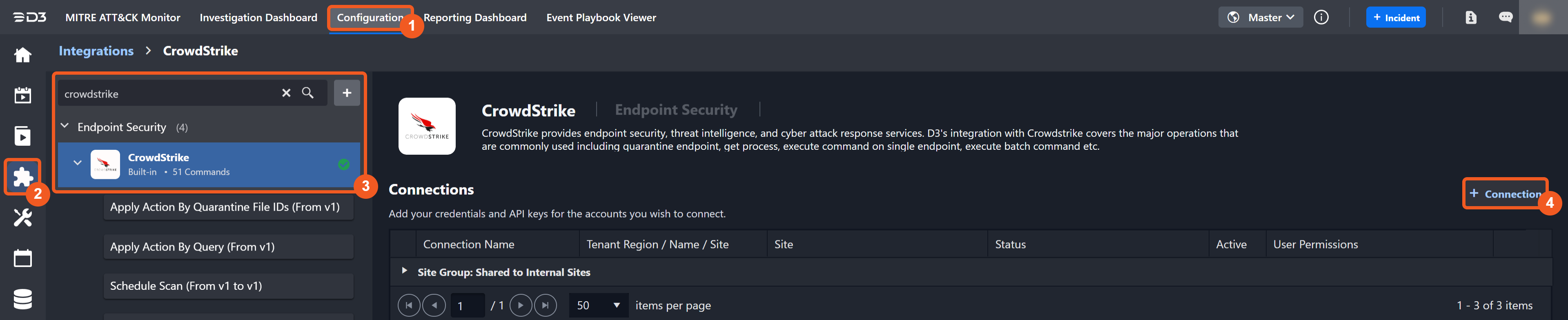
Navigate to Configuration on the top header menu.
-
Click on the Integration icon on the left sidebar.
-
Type CrowdStrike in the search box, then click on its integration menu item.
-
Click on the + Connection button.
Complete the following steps
General Settings
-
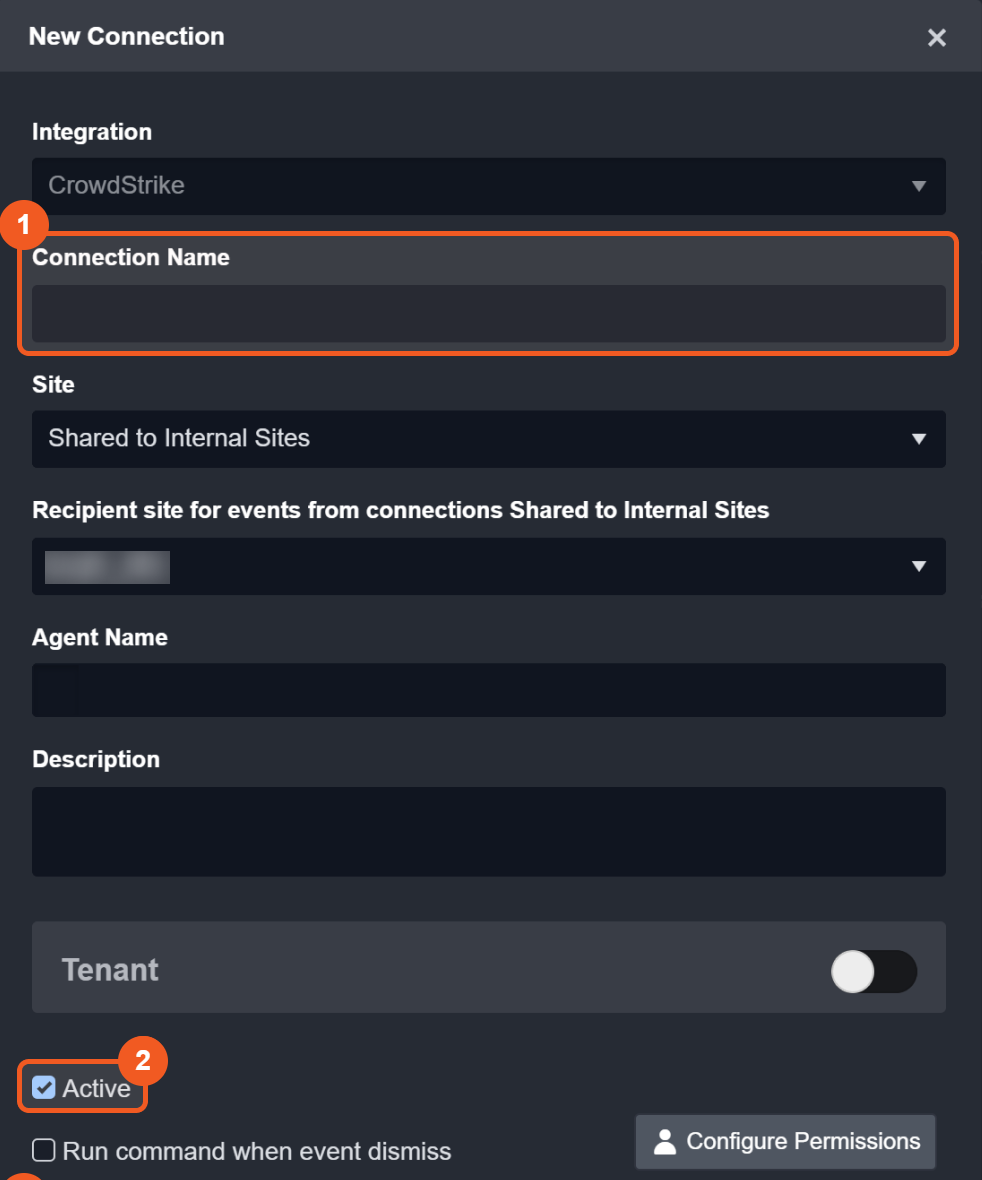
Input a Connection Name.
-
Ensure the Active checkbox is selected to make the connection available for use.
System Section
-
.png?cb=44a369c81e3b6b557a07eeeee639f618)
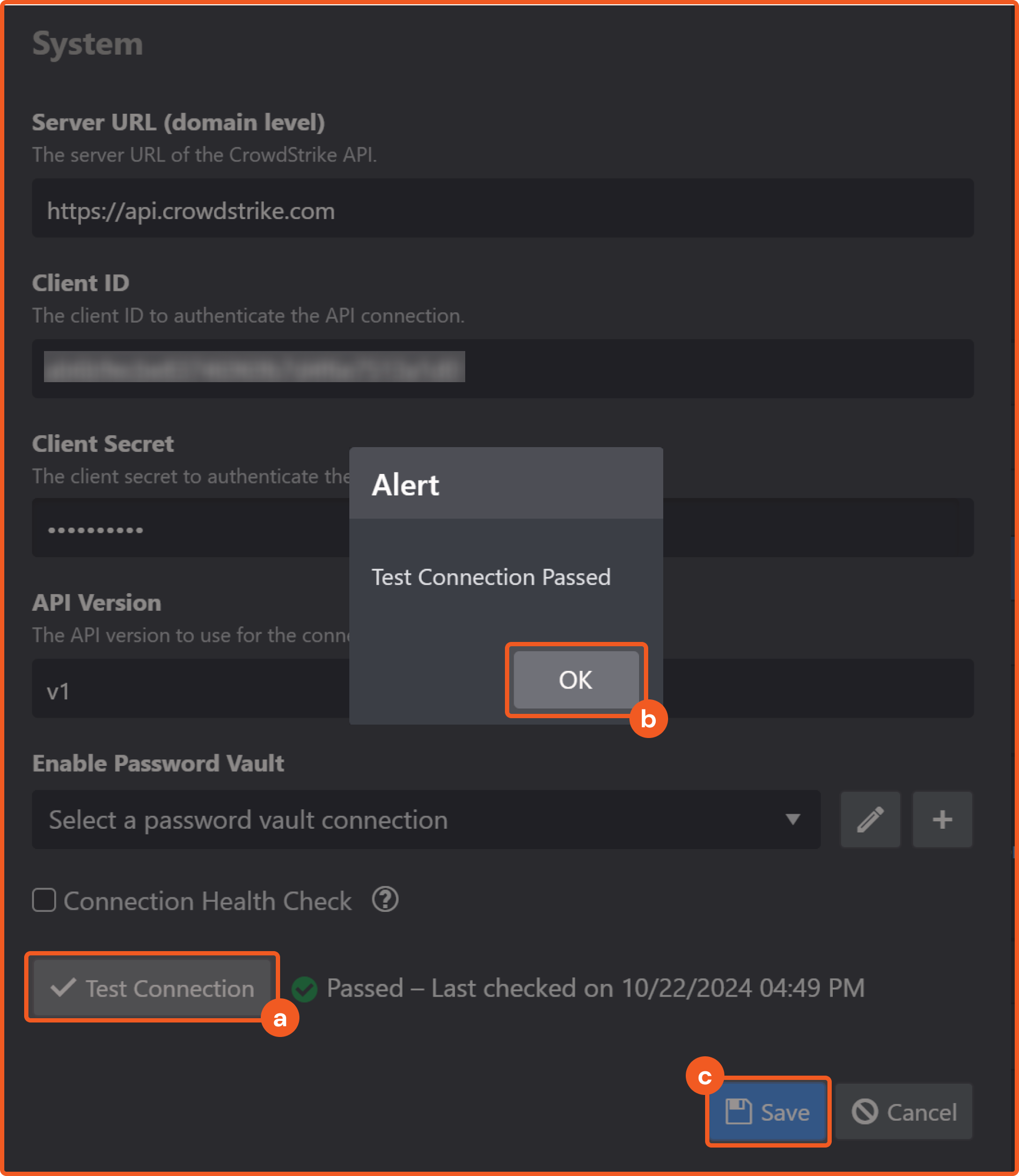
Enter the required integration-specific system parameters obtained from the integration's environment. In the case of CrowdStrike, the following parameters must be filled in manually:
-
Client ID
-
Client Secret
-
-
Enable Password Vault: An optional feature that allows users to take the stored credentials from their own password vault. Refer to the password vault connection guide if needed.
-
Connection Health Check: Periodically checks the connection status by scheduling the Test Connection command at the specified interval (in minutes). Available only for active connections, this feature also allows configuring email notifications for failed attempts.
-
Click on the Test Connection button.
-
Click on the
%201-20250415-182338.png?cb=2ad44c57990ebc4ce4924ee7ca5f6827)
Test Connection Result
If system parameter values are correct and current, users will see the following:
READER NOTE
Some parameters in the System section, such as Server URL and API Version, are prefilled by D3 for certain integrations. Modify these values as needed.
Alternative Method of Adding an Integration Connection
Integration connections can also be added by navigating to the Connections module.
.png?cb=961dd44a7ae0769544f445e9d0b0c48a)
-
Click on the Configuration link.
-
Click on the Connections module.
-
Click on the + Add Integration Connection button.
-
Configure the connection and save.