LAST UPDATED: mar 21, 2025
Event playbooks (now preprocessing playbooks) are used to automate preparatory tasks—deduplicating, enriching, filtering, and performing correlation—essential for enabling deeper analysis and subsequent incident response activities.
Creating a New Event Playbook
-
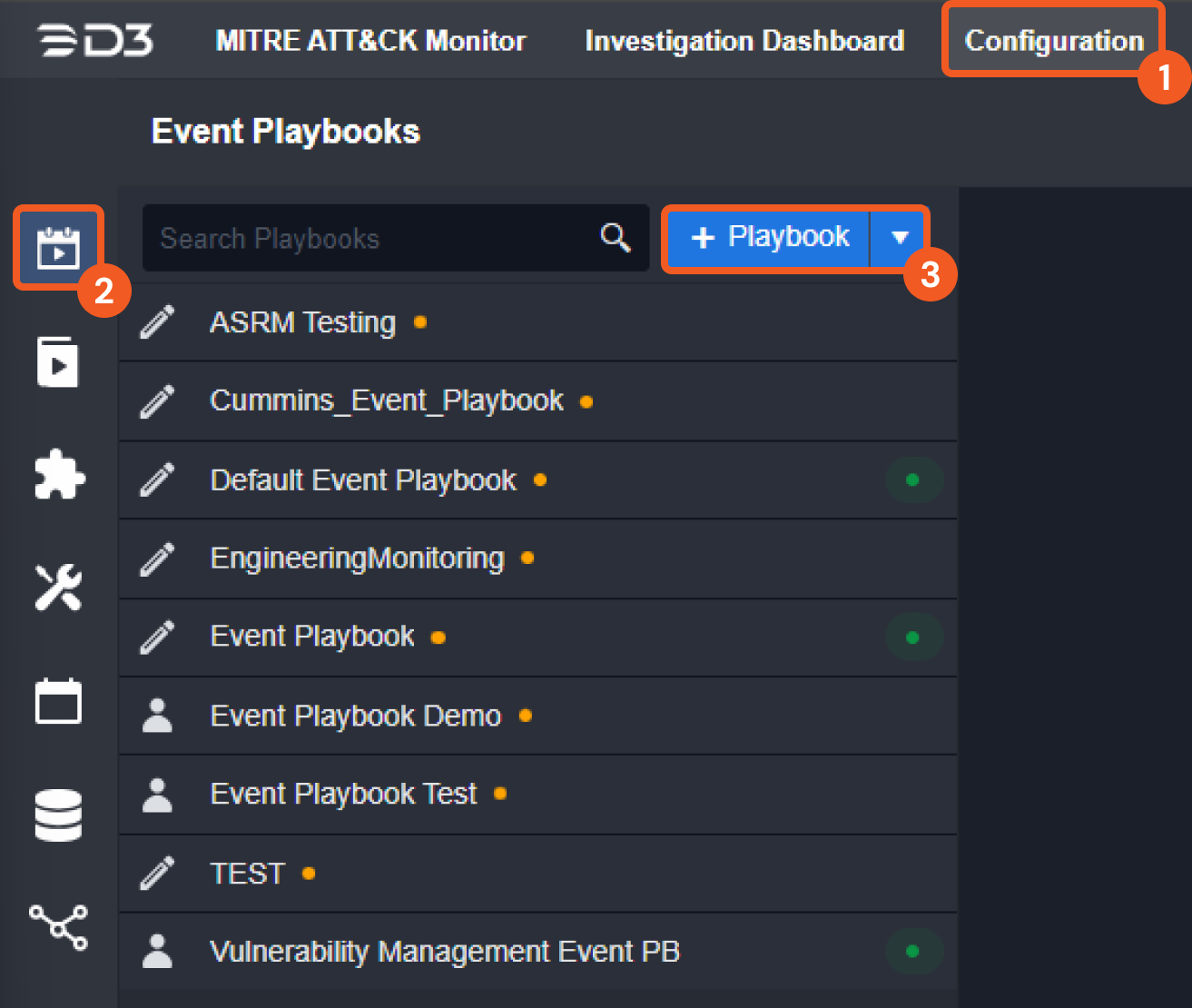
Click on the Configuration navigational link.
-
Click on the Event Playbook icon.
-
Select the + Playbook button.
-20241128-031447.png?cb=e4b55ed62d0c6c10565ff6d87ed49f72)
-
Enter a name for the playbook.
-
Click on the OK button.
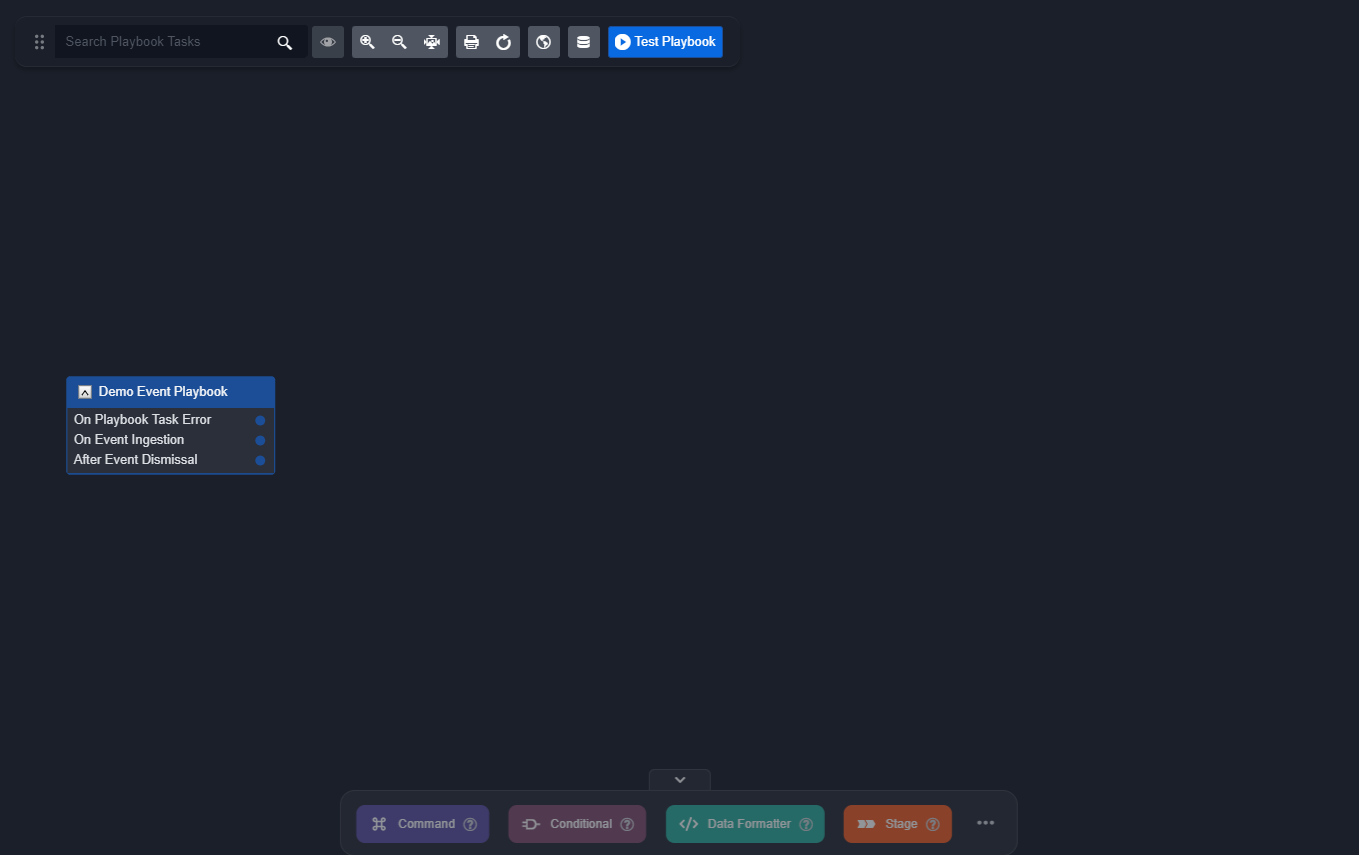
The system automatically redirects you to the newly created playbook, allowing you to begin building your workflow.
Adding Playbook Tasks
-
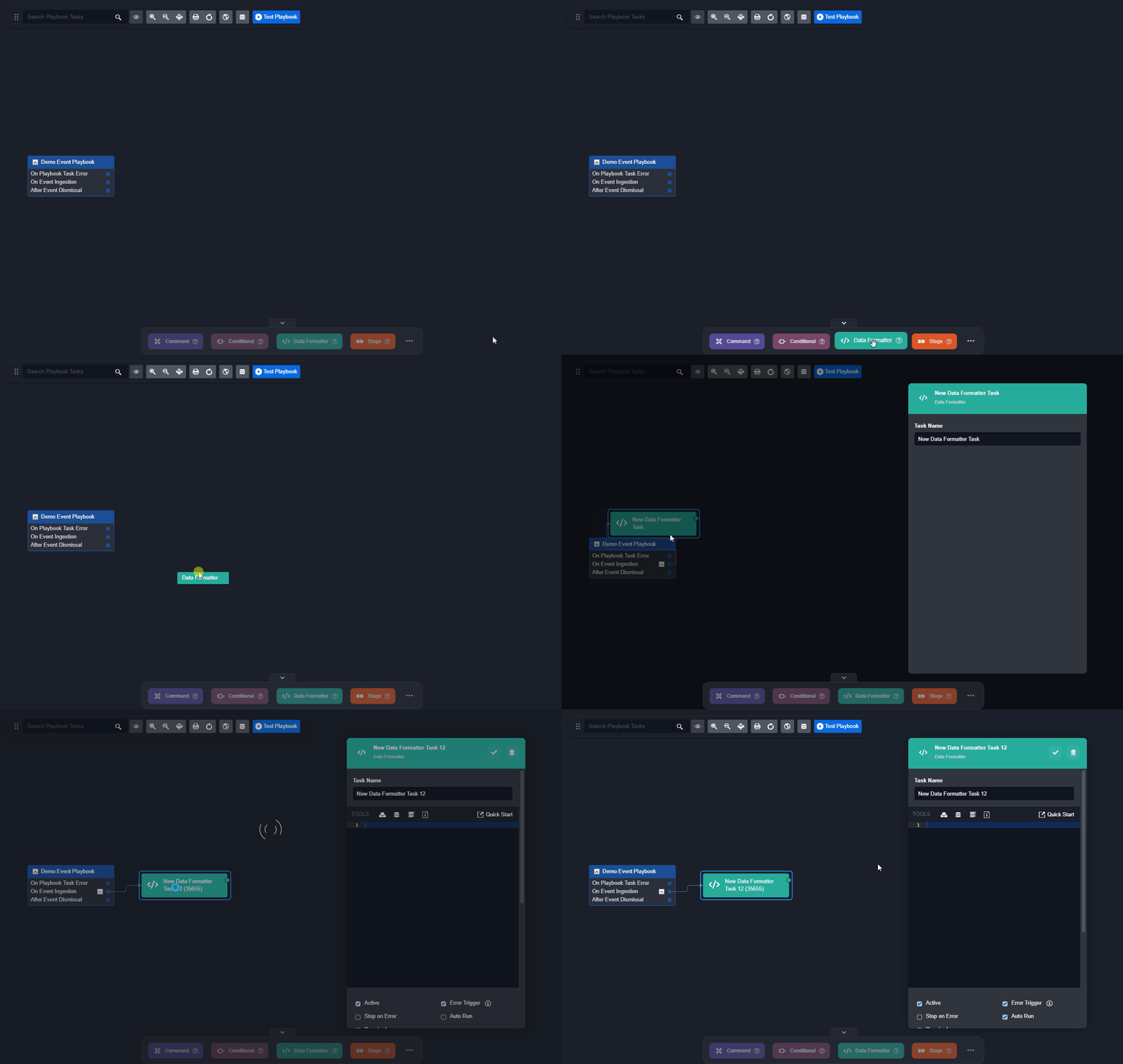
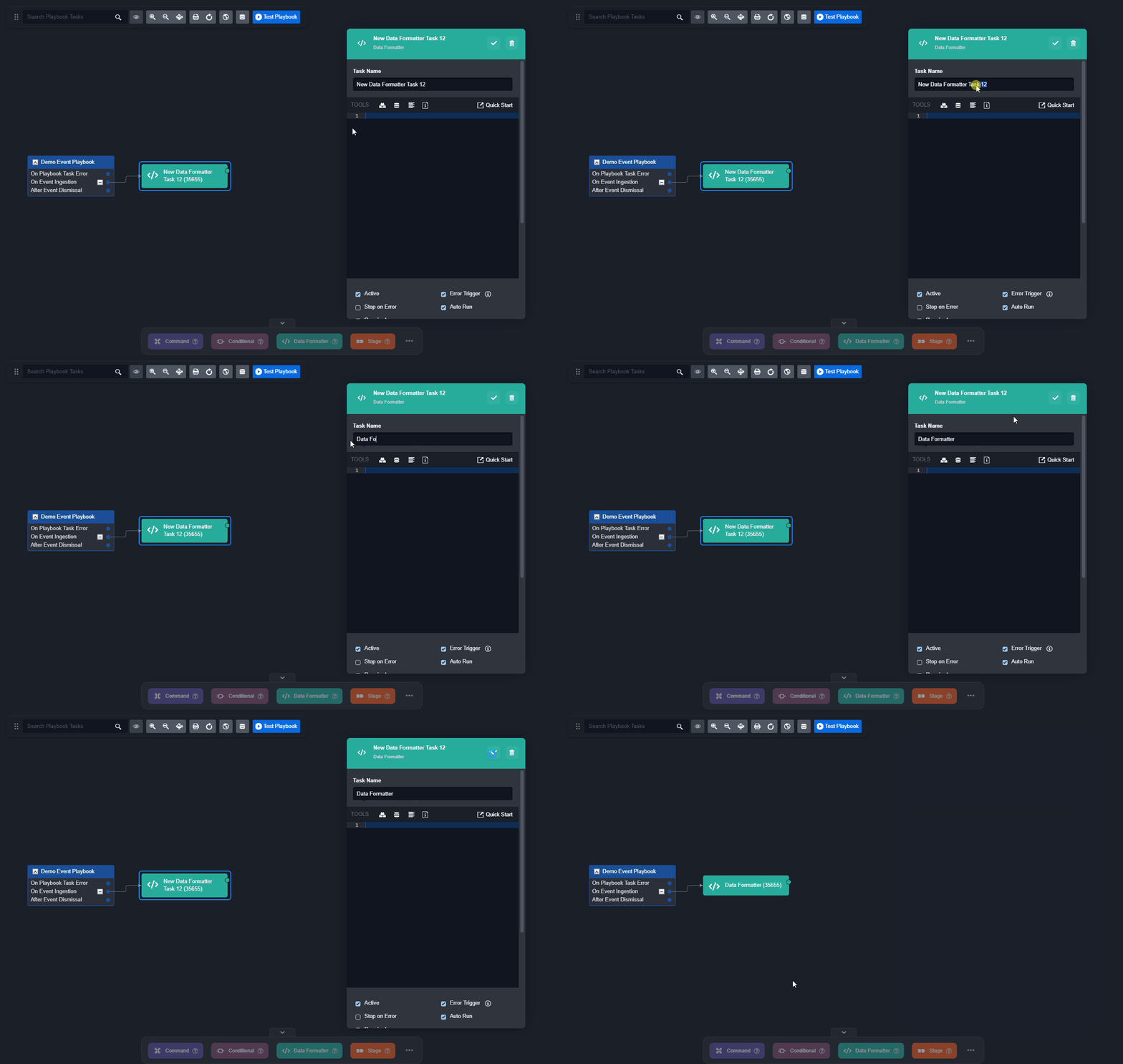
Drag and drop a Data Formatter task onto the On Event Ingestion trigger.
-
Enter a name for this playbook task to enable easy identification
-
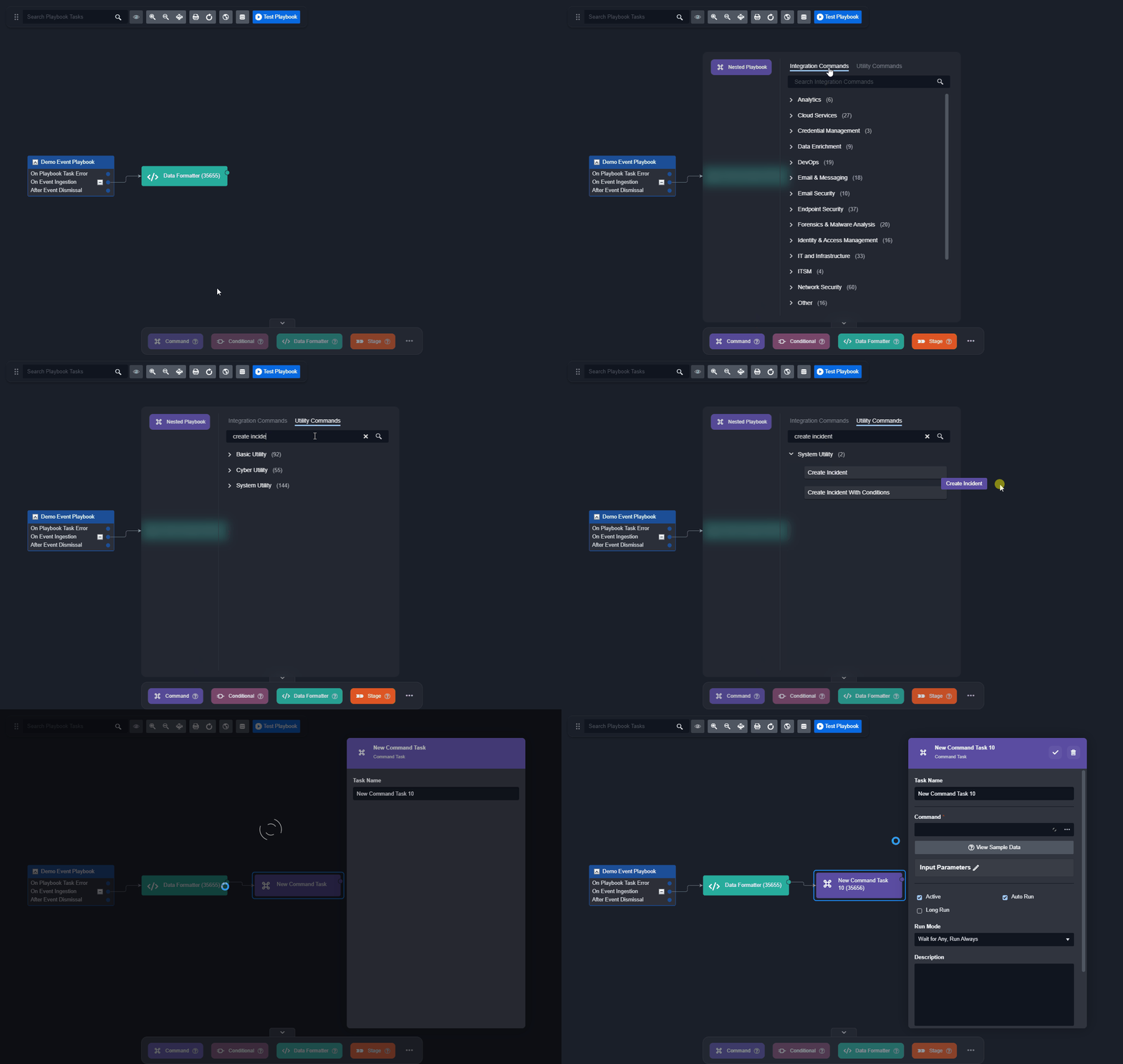
Drag a Create Incident Command task onto the previous Data Formatter.
-
Click on the Command task within the task menu to render the command selection modal.
-
Click on the Utility Commands tab.
-
Type Create Incident within the search field.
-
Drag the Create Incident task outside the command selection modal, then onto the Data Formatter task.
-
-
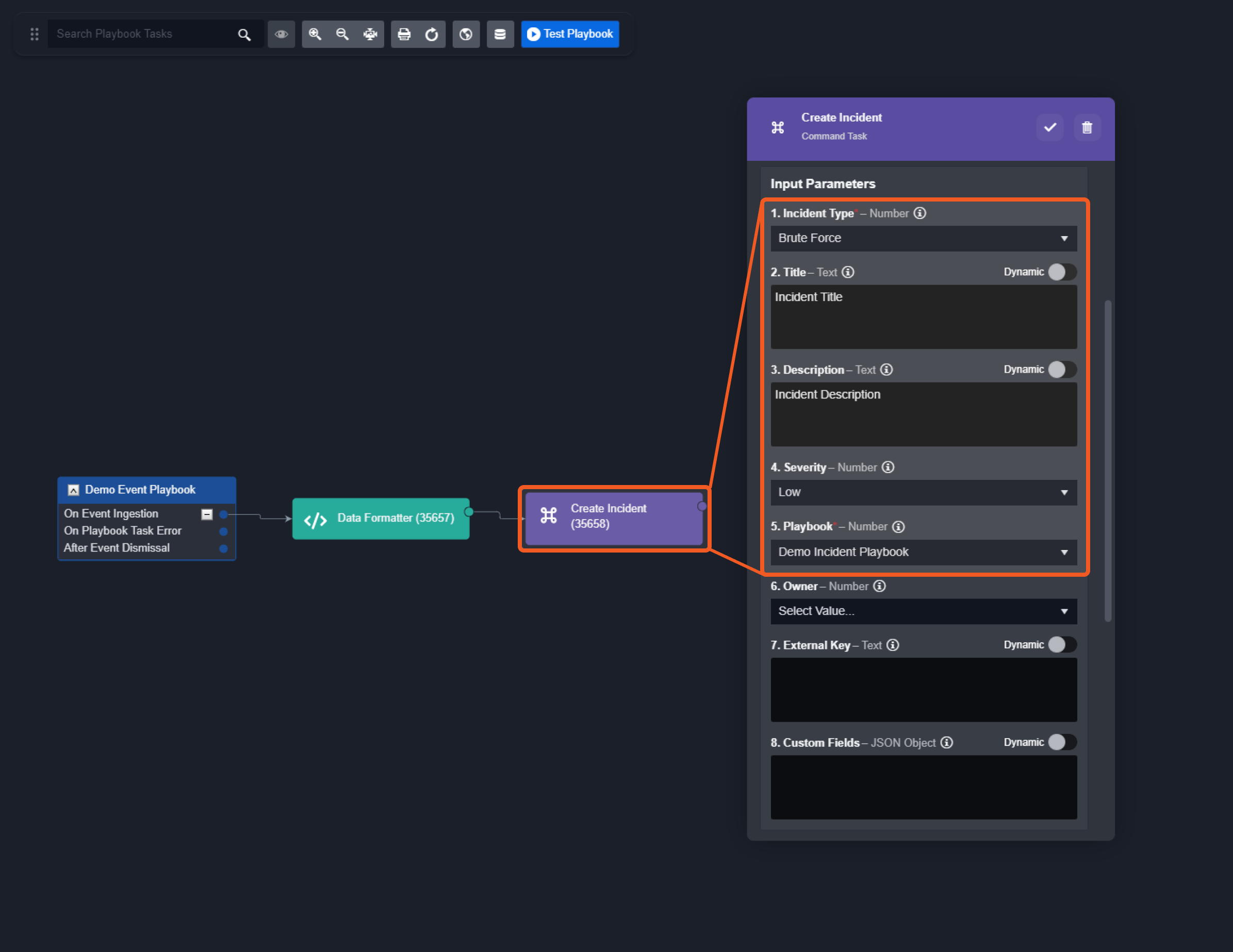
Click on the newly added Create Incident command task to render its configuration pop-up, for simplicity, we configured the first five input parameters as example.
Implementing Workflows in the Playbook
Within the playbook, users can design and build workflows tailored to specific requirements by using drag-and-drop tasks from the task menu.
Using the Task Menu
Exploring Task Options
-
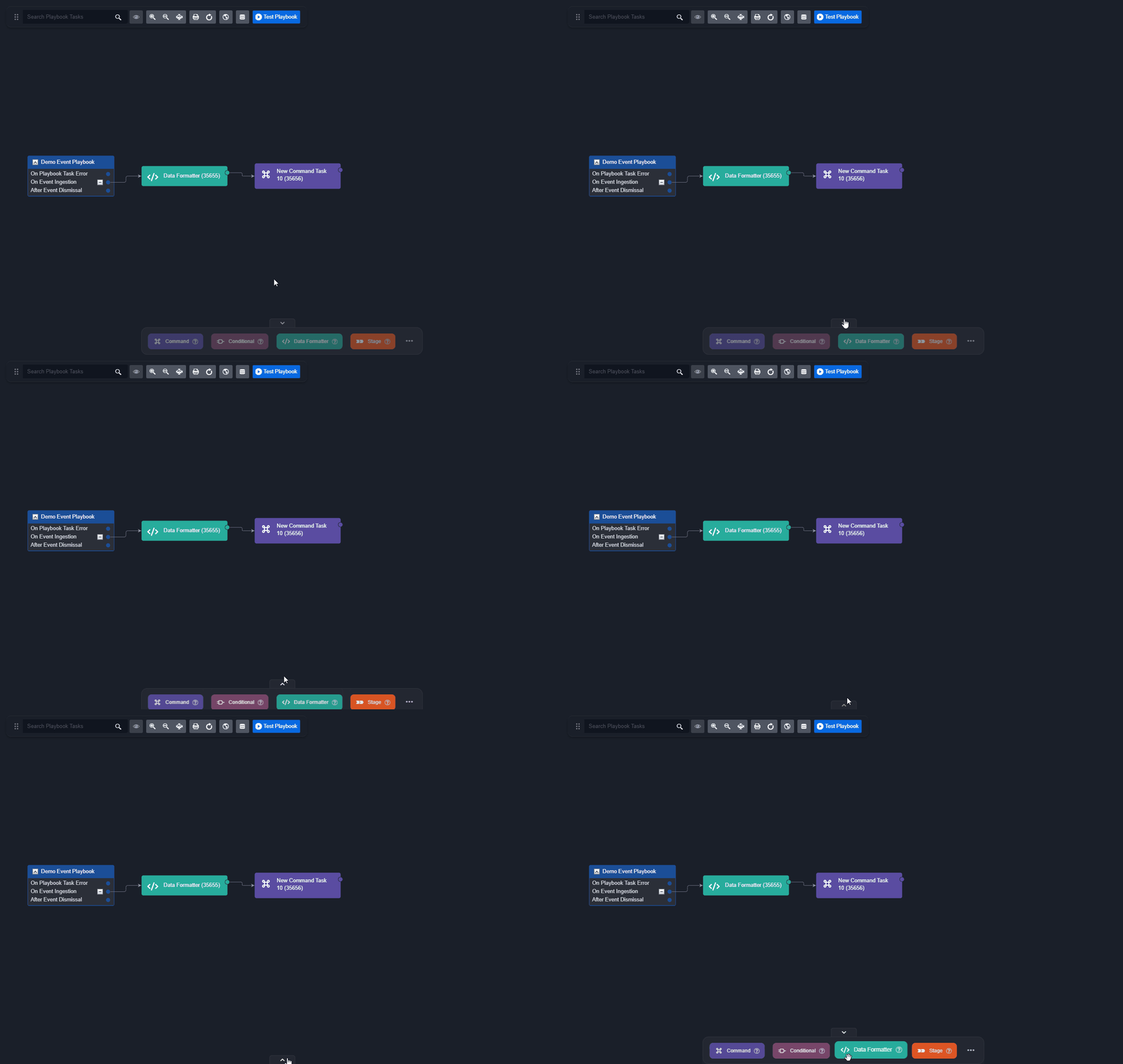
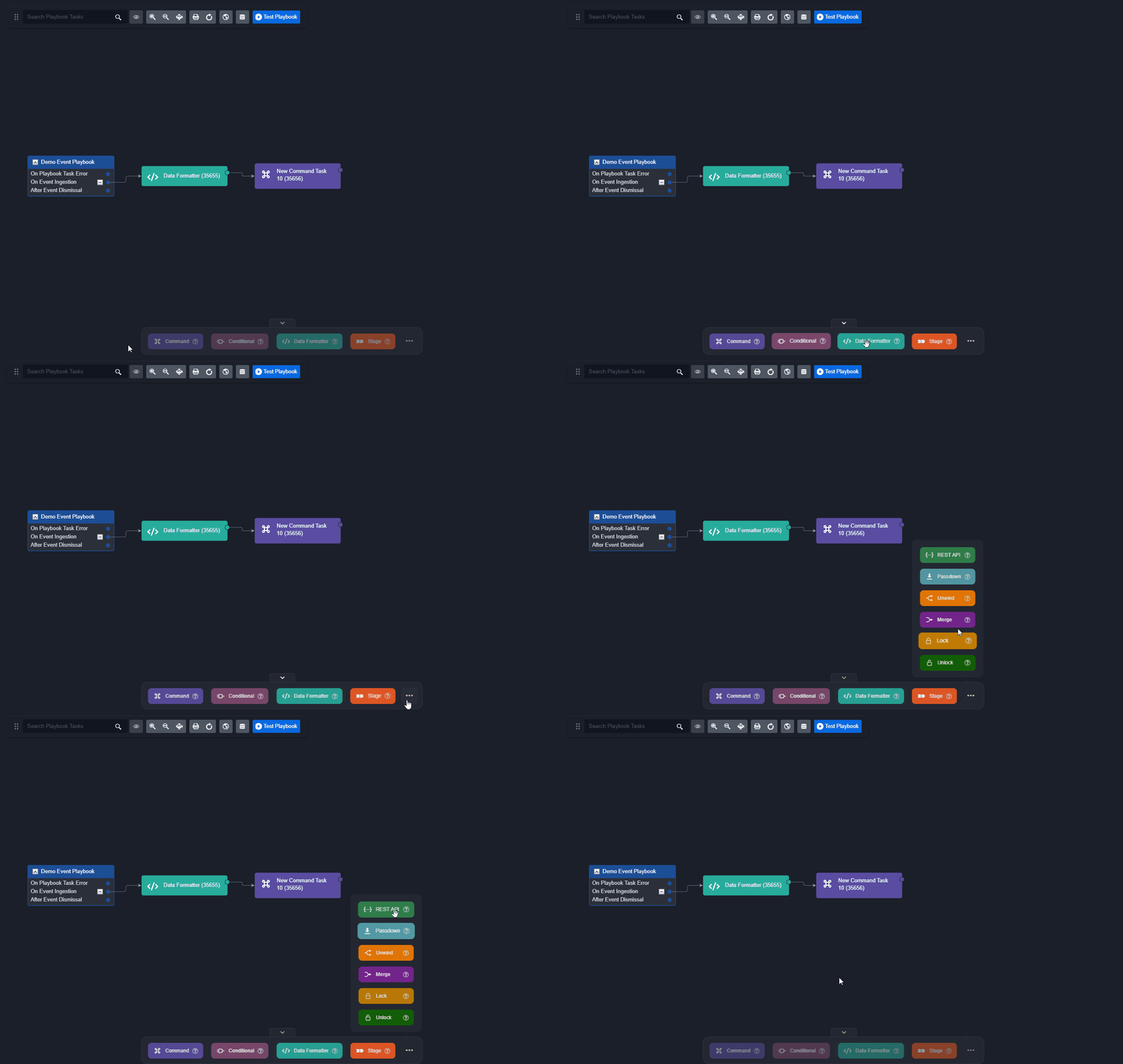
Hover over a task in the bottom task menu to preview its name and description.
-
Click the three-dot icon to view additional tasks that are not immediately visible.
Managing the Task Menu
-
To hide the task menu, click on the arrow button at the bottom.
-
To unhide the task menu, click on the arrow button again.