
Last Updated: October 23, 2026
Global list site mapping is a feature that ensures that events are automatically created in the correct client site based on a unique identifier within the incoming raw ingestion data. This ensures proper site-level segregation, making events accessible only within their assigned site.
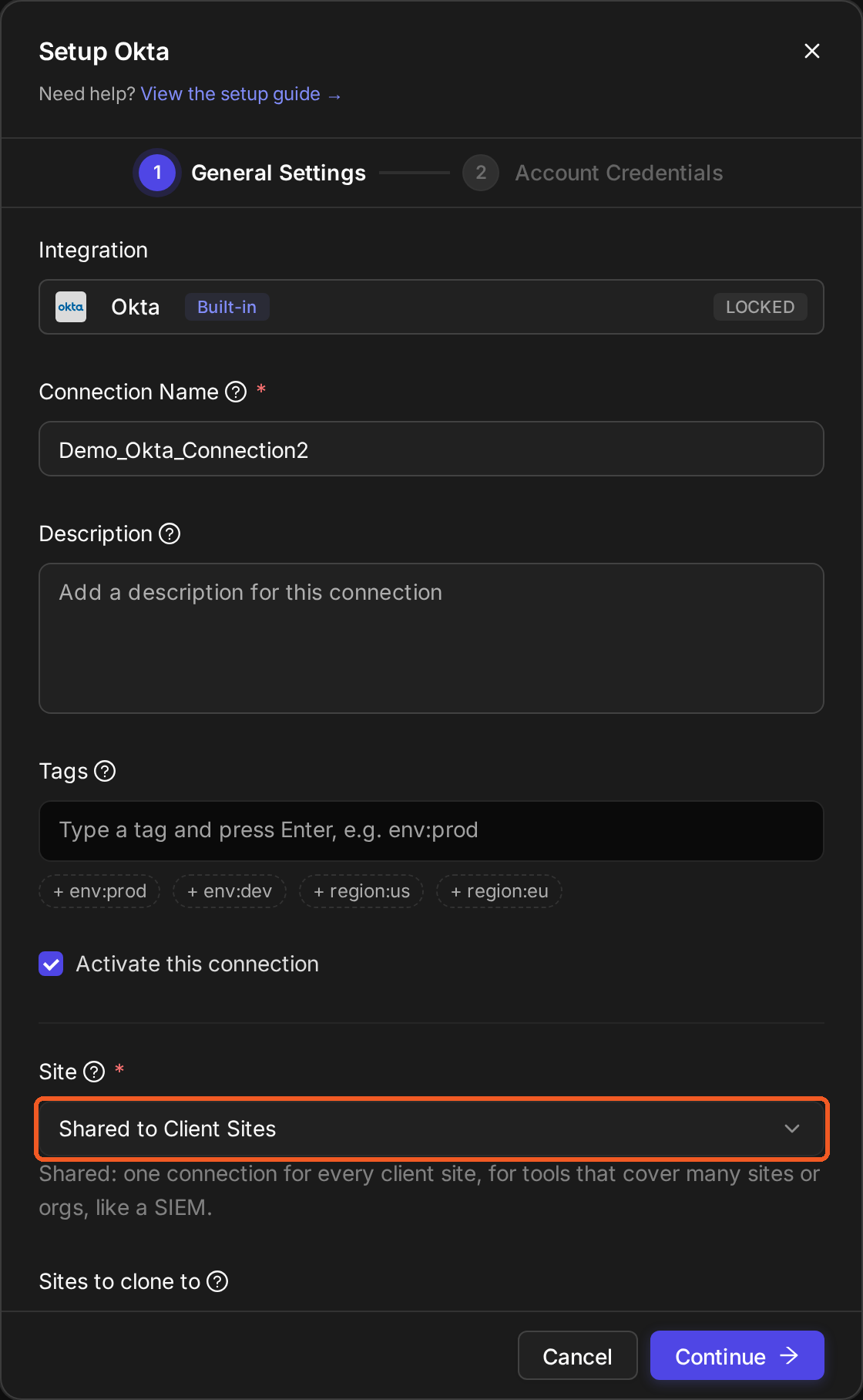
To enable this mapping, the integration connection must be configured with the Site field set to Shared to Client Sites.
Impact of Connection Site Configuration on Global List Site Mapping
Before setting up global list site mapping, MSSPs must coordinate with their clients to identify the field in the incoming ingestion data that will provide the unique identifier for site mapping. Consider the following as the expected incoming ingestion data:
sample data
{
    "demoField1": "value1",
    "demoField2": "value2",
    "demoField3": {
        "demoField3A": "value3A",
        "demoField3B": {
            "keyToTheUniqueIdentifier": "uniqueIdentifier"
        }
    },
    "demoField4": [
        "value4A",
        "value4B",
        "value4C"
    ],
    "demoField5": "value5"
}
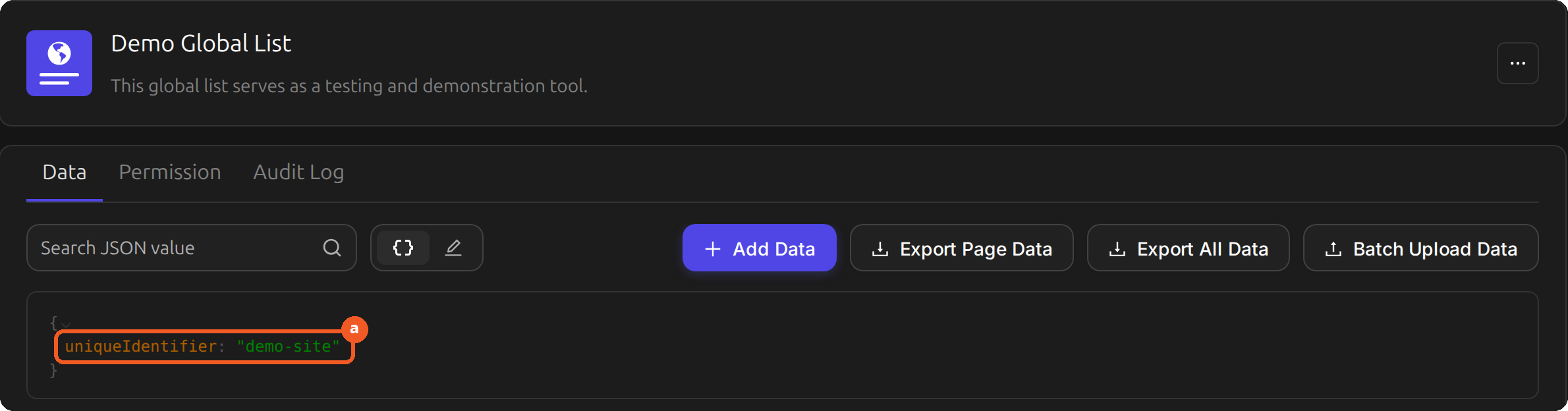
The D3 system will extract the (line 7) value of keyToTheUniqueIdentifier (uniqueIdentifier) and match it against a key in a selected global list to determine the correct client site for event creation.
-
If a match is found (i.e.,
uniqueIdentifier), the corresponding value (demo-site) will be used to determine the site where the event will be stored. -
If no match is found, the event will be assigned to the Unknown Client Site.
Ensuring Correct Site Mapping in Global List
NOTICE
D3 currently does not support moving events between sites once they have been created. Users are advised to double-check that the unique identifier extracted from the incoming data has a corresponding key in the global list and that it maps to an existing client site.
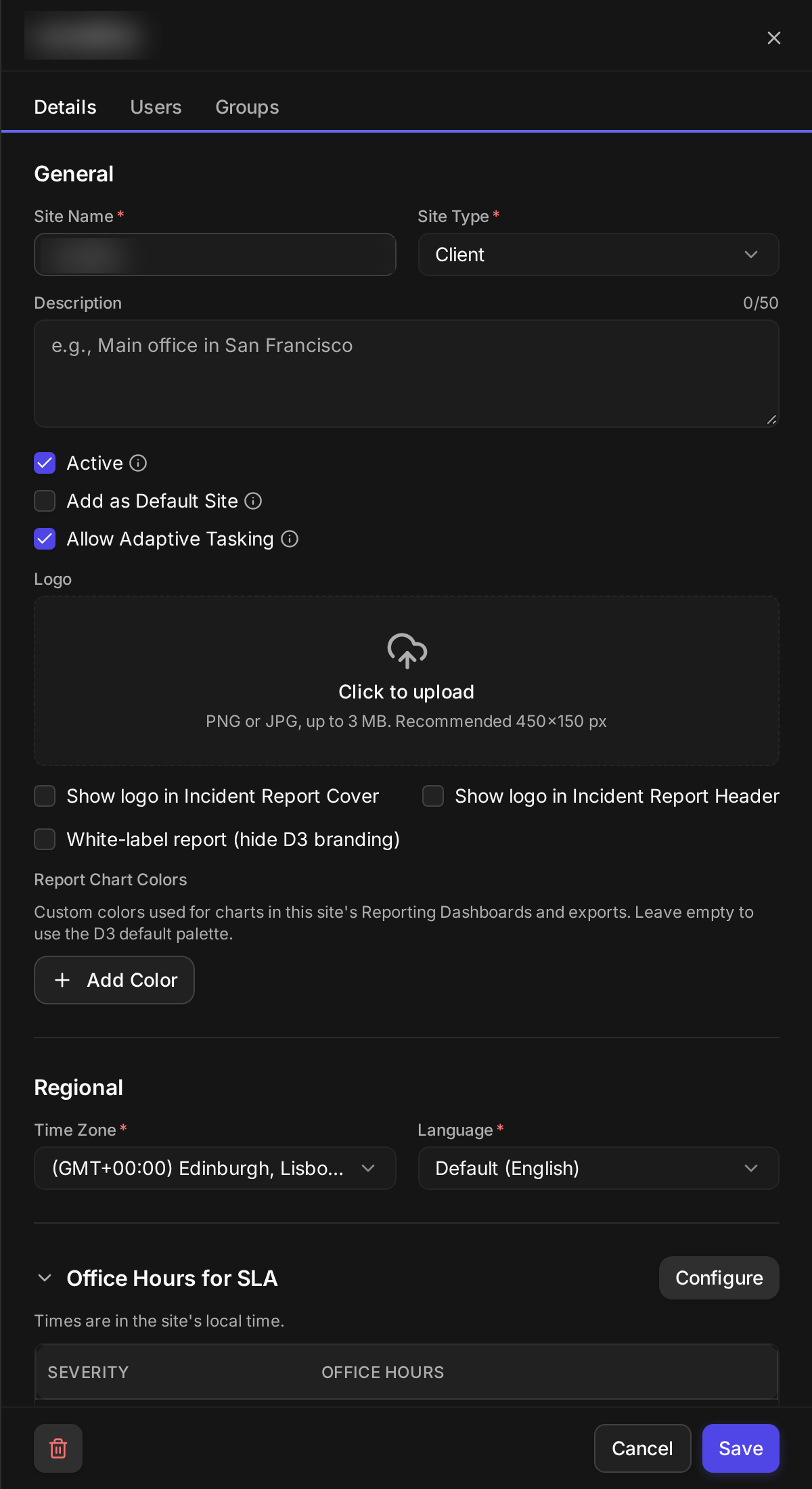
Once the unique identifier has been defined and communicated to clients, and a corresponding global list has been established, users can proceed with configuring data ingestion. Two pieces of information are needed before completing ingestion setup:
-
The JSON path to locate the unique identifier key (
$.demoField3.demoField3B.keyToTheUniqueIdentifierfor the sample data above ) -
The name of the global list storing the site mappings (Demo Global List)
Ingestions and Results
Webhook Push
-
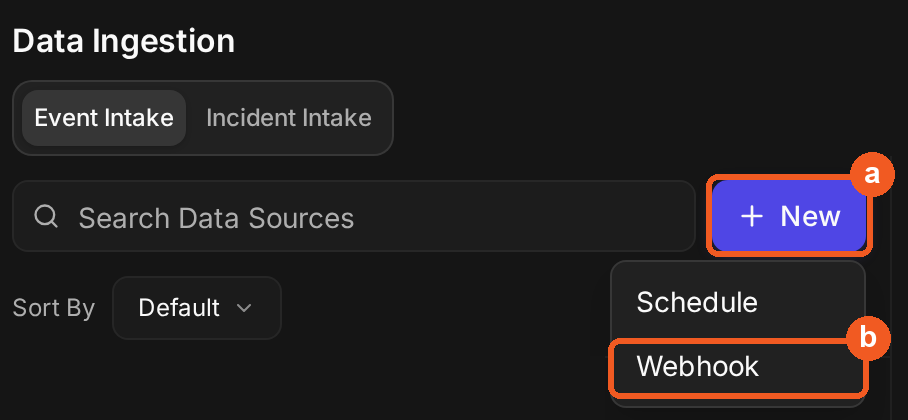
Select Configuration > Data Ingestion.
-
Select New > Webhook.
-
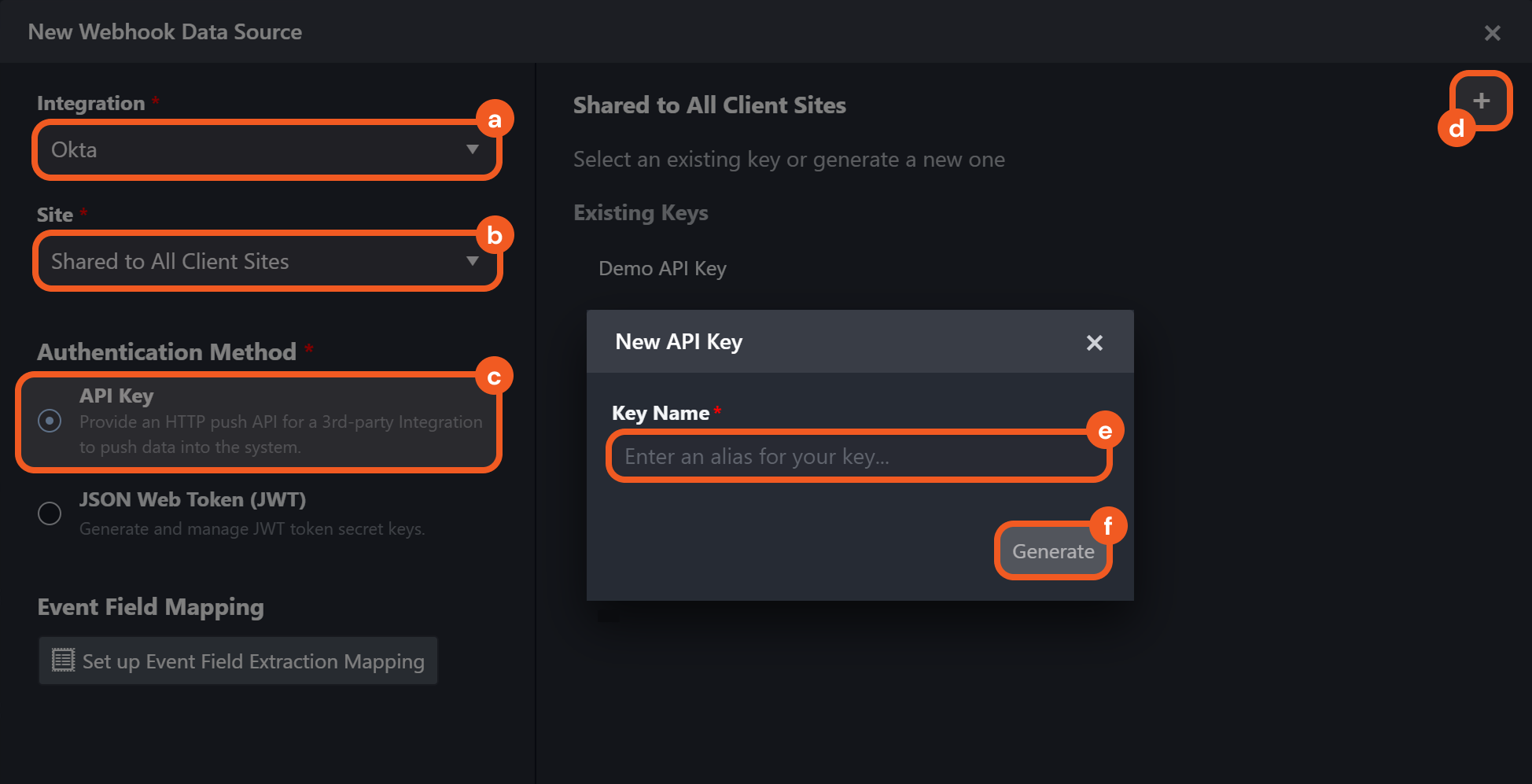
In the New Webhook Data Source window, choose the Integration with the pre-configured Shared to Client Sites connection, then set up its API Keys for Shared to All Client Sites (API Key authentication for this demonstration), generating an API key if one does not already exist.
-
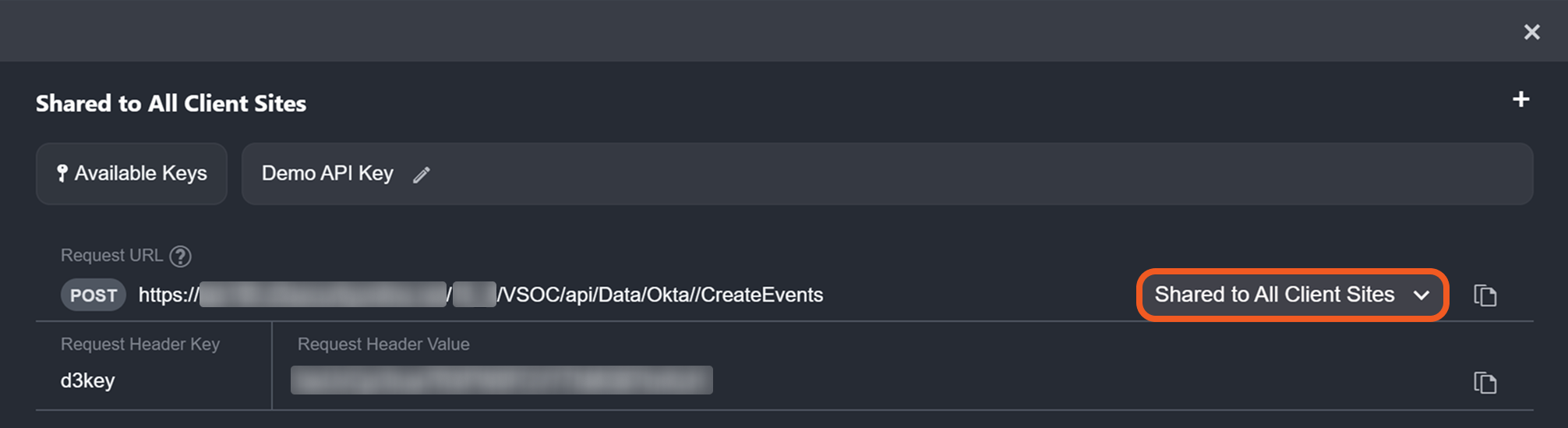
Select Shared to All Client Sites from the dropdown.
-
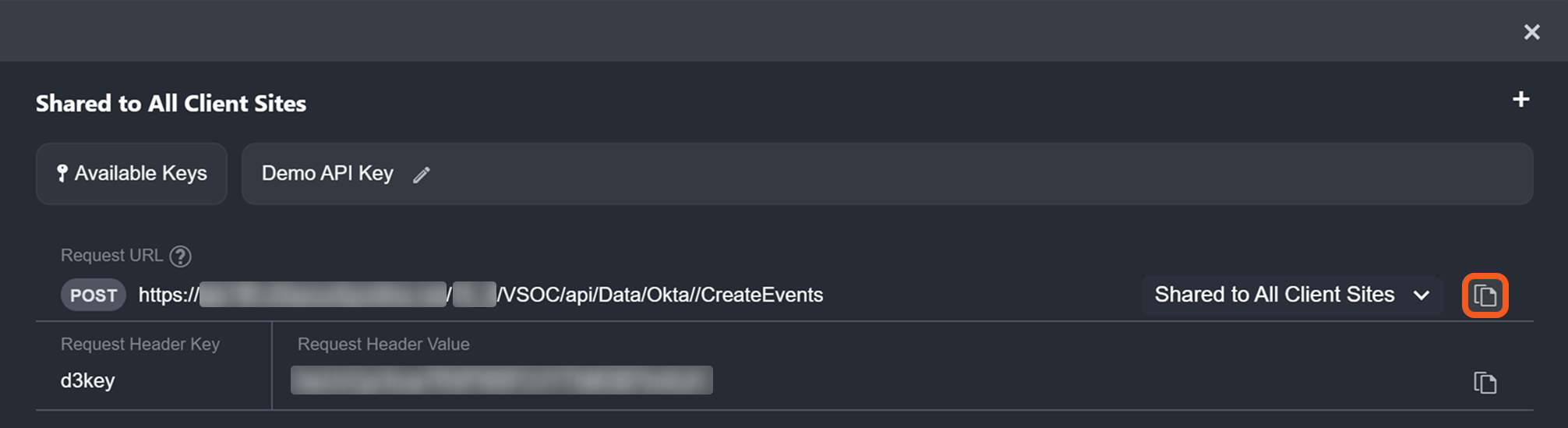
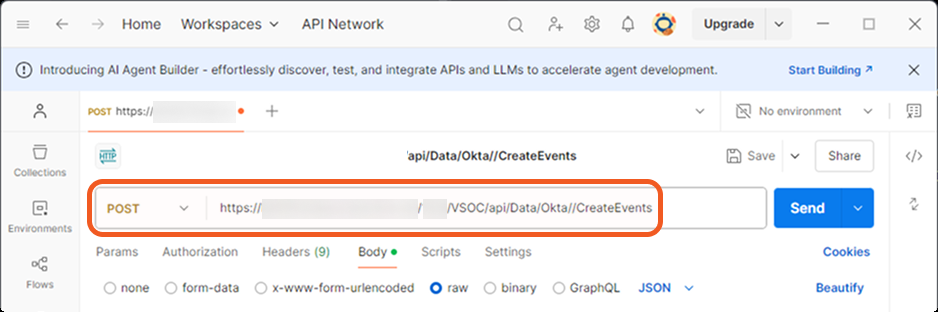
Copy the Request URL (POST) from D3 and paste it into Postman.
-
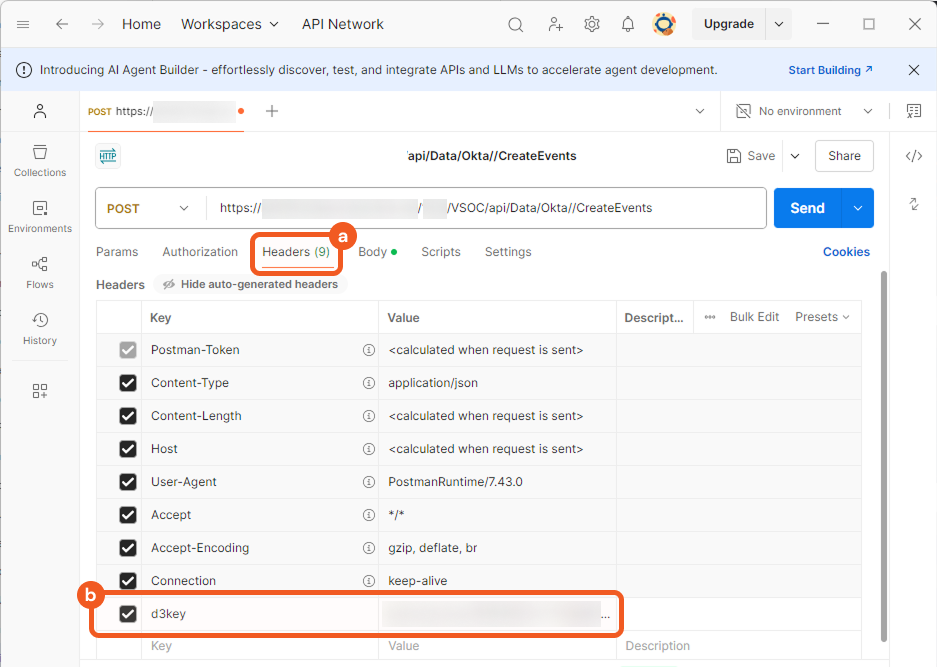
Copy the Request Header Key and Request Header Value from D3 and paste them into Postman.
-
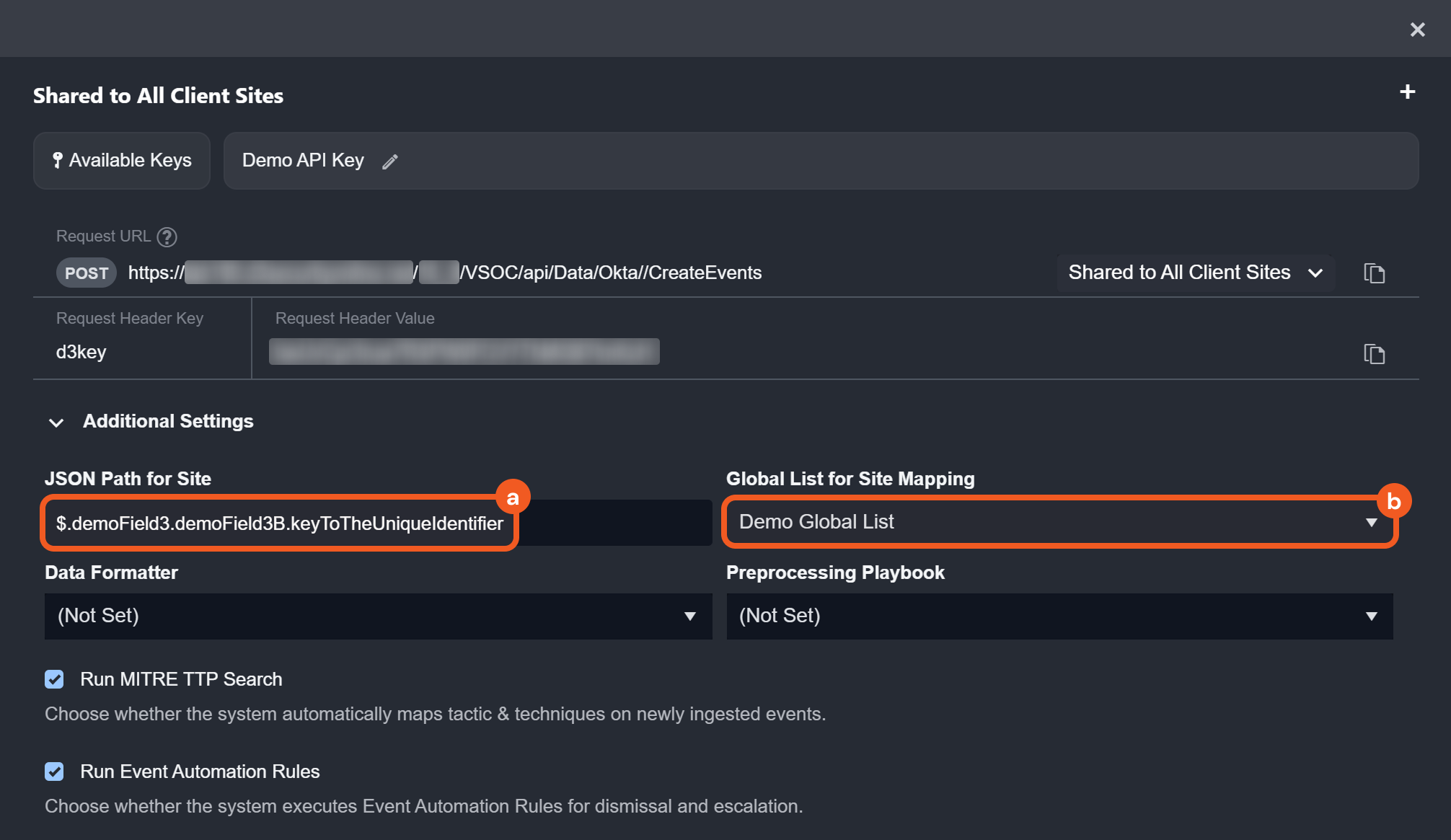
Under Additional Settings, enter the JSON Path for Site to locate the unique identifier key, then select the Global List for Site Mapping.
-
JSON path:
$.demoField3.demoField3B.keyToTheUniqueIdentifier -
Global list:
Demo Global List
-
-
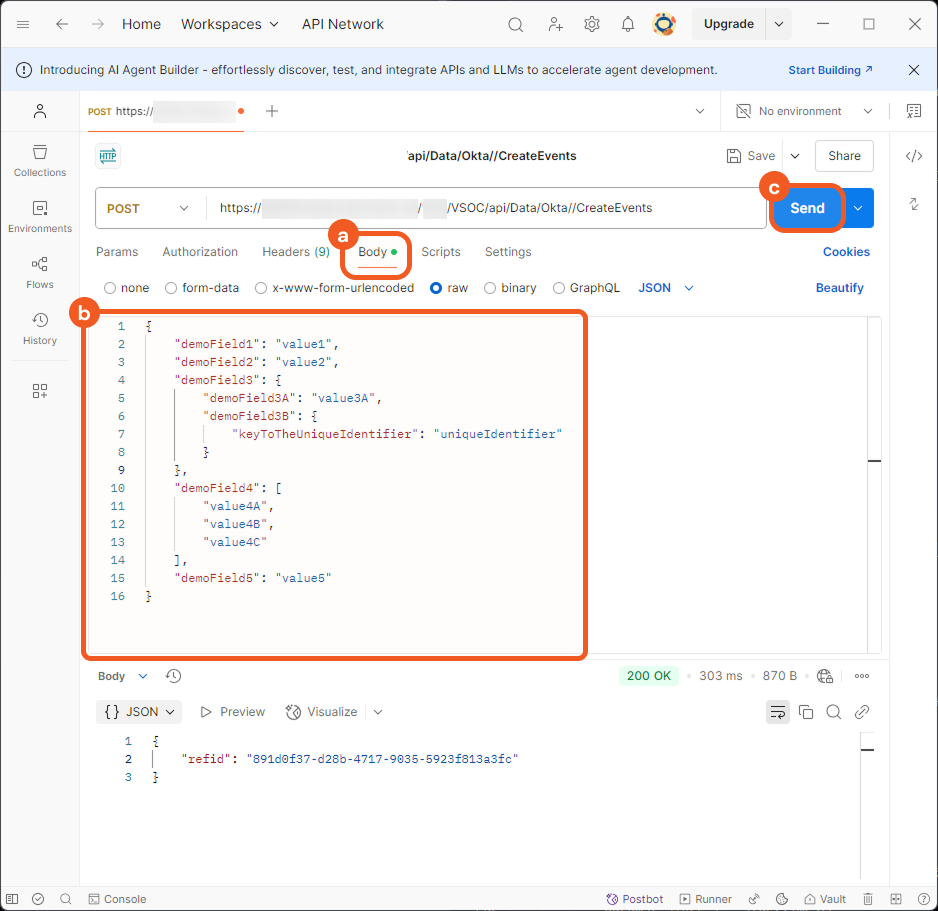
Copy and paste the following code into Postman, then click on the Send button.
{
    "demoField1": "value1",
    "demoField2": "value2",
    "demoField3": {
        "demoField3A": "value3A",
        "demoField3B": {
            "keyToTheUniqueIdentifier": "uniqueIdentifier"
        }
    },
    "demoField4": [
        "value4A",
        "value4B",
        "value4C"
    ],
    "demoField5": "value5"
}
-
Go back to the Data Ingestion page, verify event creation and note the
eventId.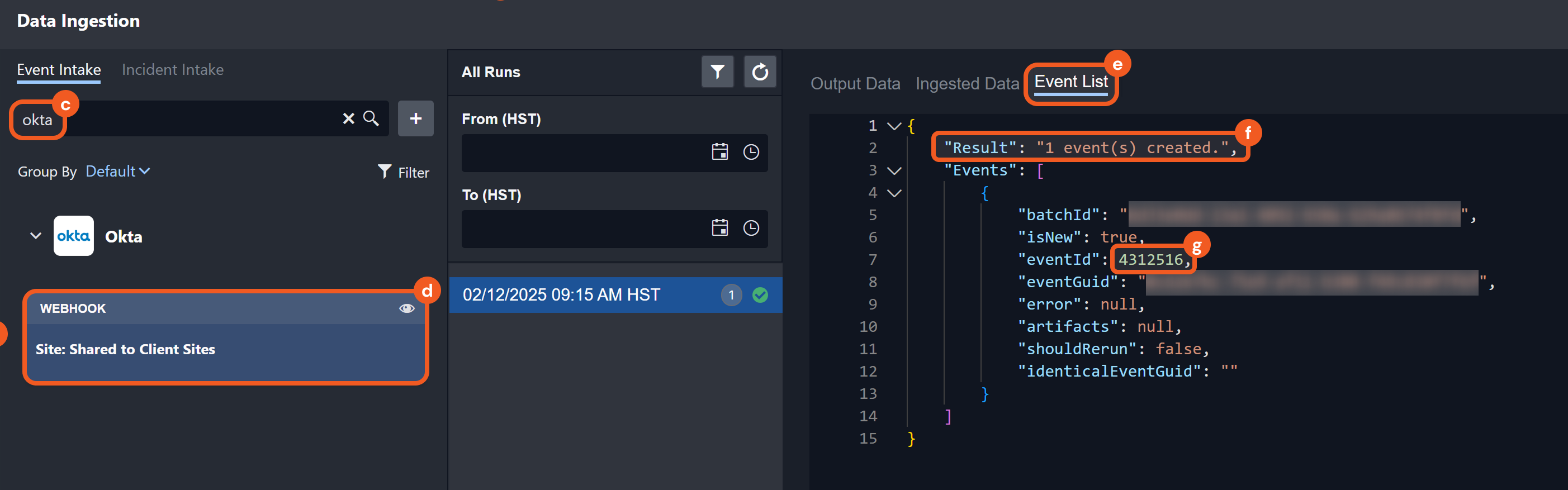
Event 4312516 Created -
In the sidebar, select Events to find the event.
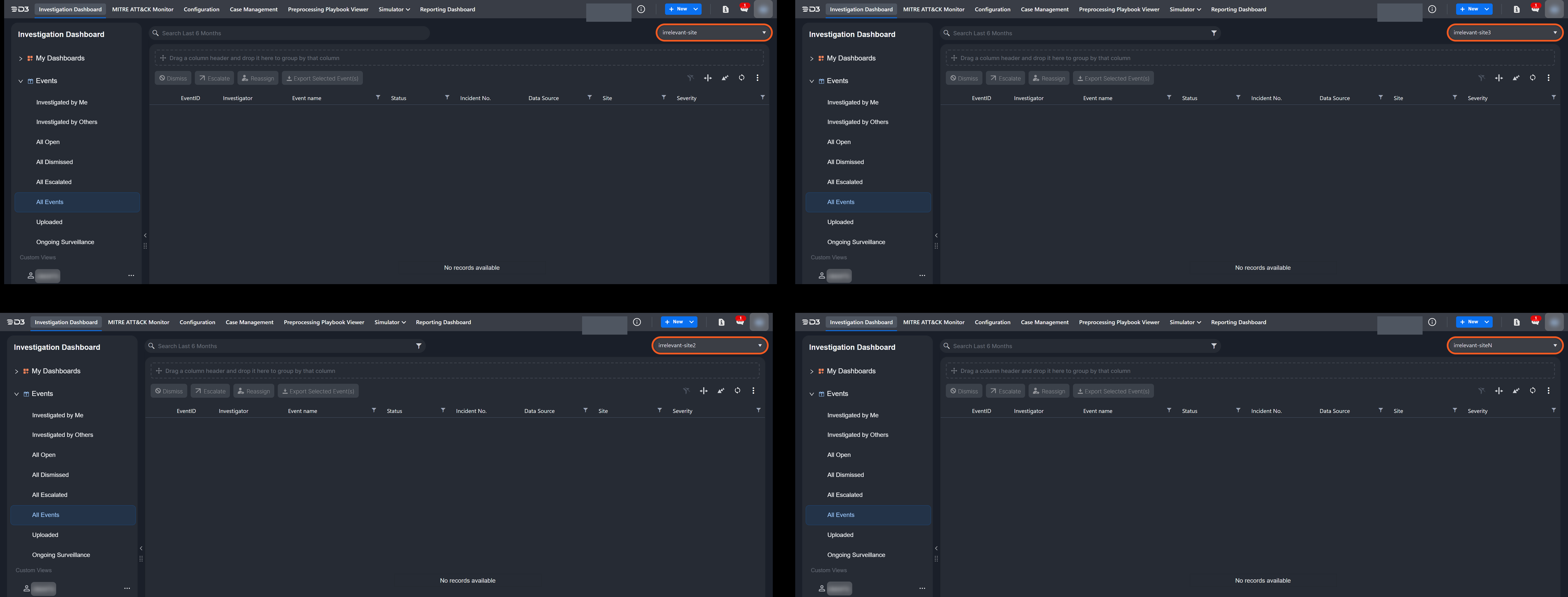
Unmatching Sites from Demo Global List Will Not Have Access to Event 4312516 
Only demo-site Will Contain Event 4312516
Scheduled Pull
-
Copy and paste the following Python code into a custom Fetch Event command:
Pythondef fetchEvent(startTime, endTime, TopN, SearchCon): eventData = { "id": str(uuid.uuid4()), # Generate a unique ID for the event "demoField1": "value1", "demoField2": "value2", "demoField3": { "demoField3A": "value3A", "demoField3B": { "keyToTheUniqueIdentifier": "uniqueIdentifier" } }, "demoField4": [ "value4A", "value4B", "value4C" ], "demoField5": "value5" } return pb.returnOutputModel(eventData, eventData, None, eventData, eventData, None)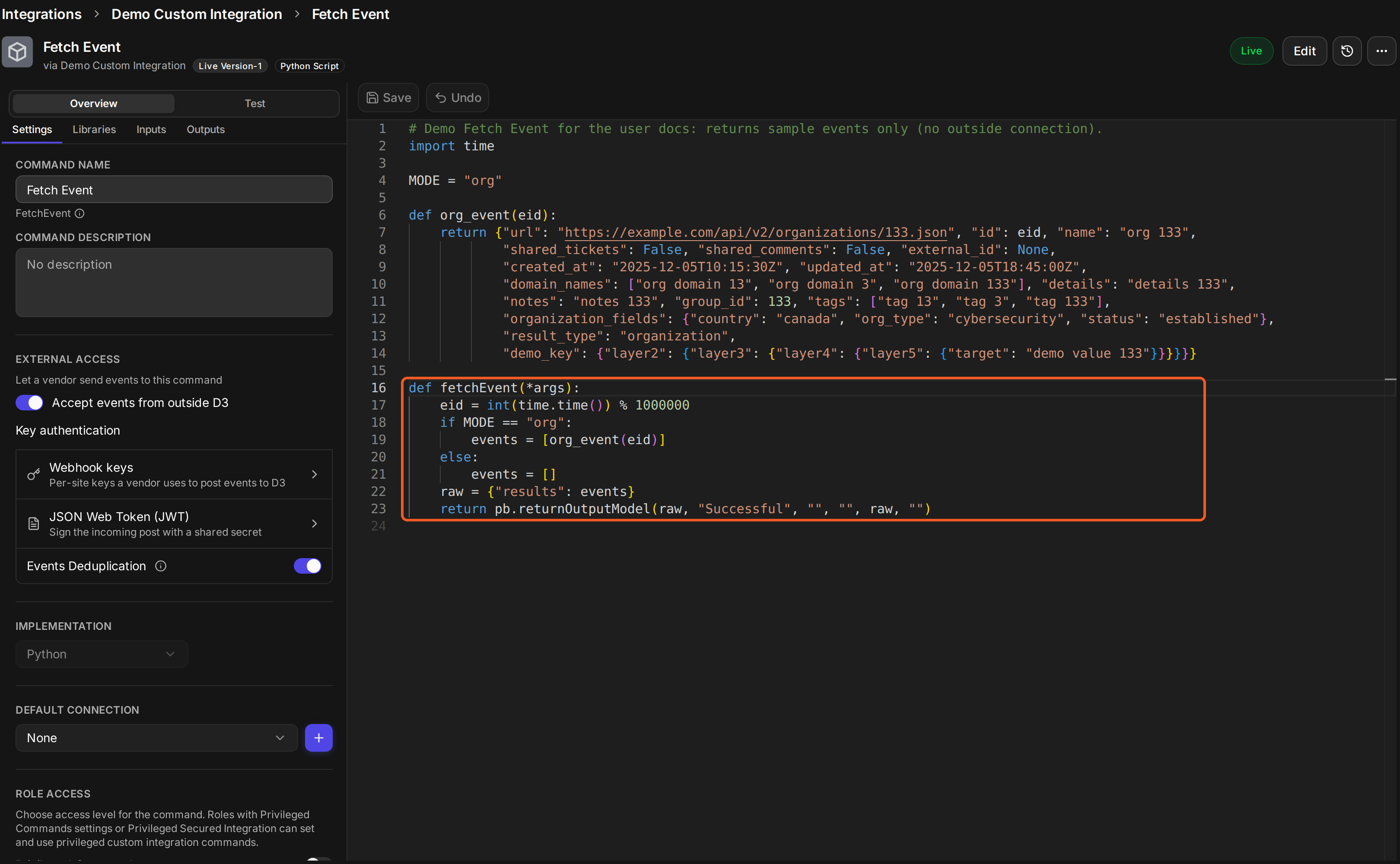
-
Add a connection with the Site field set to Shared to Client Sites.
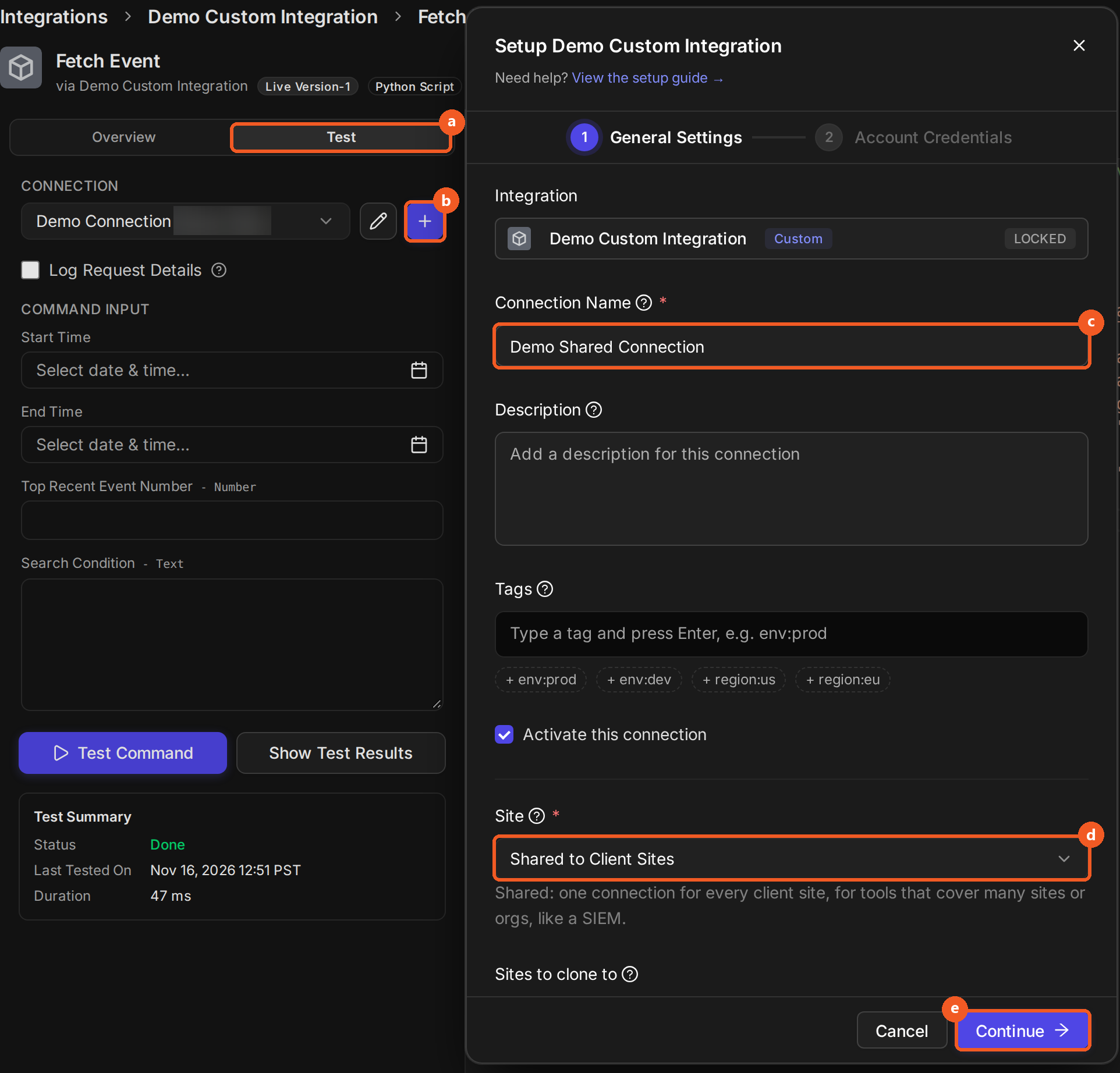
-
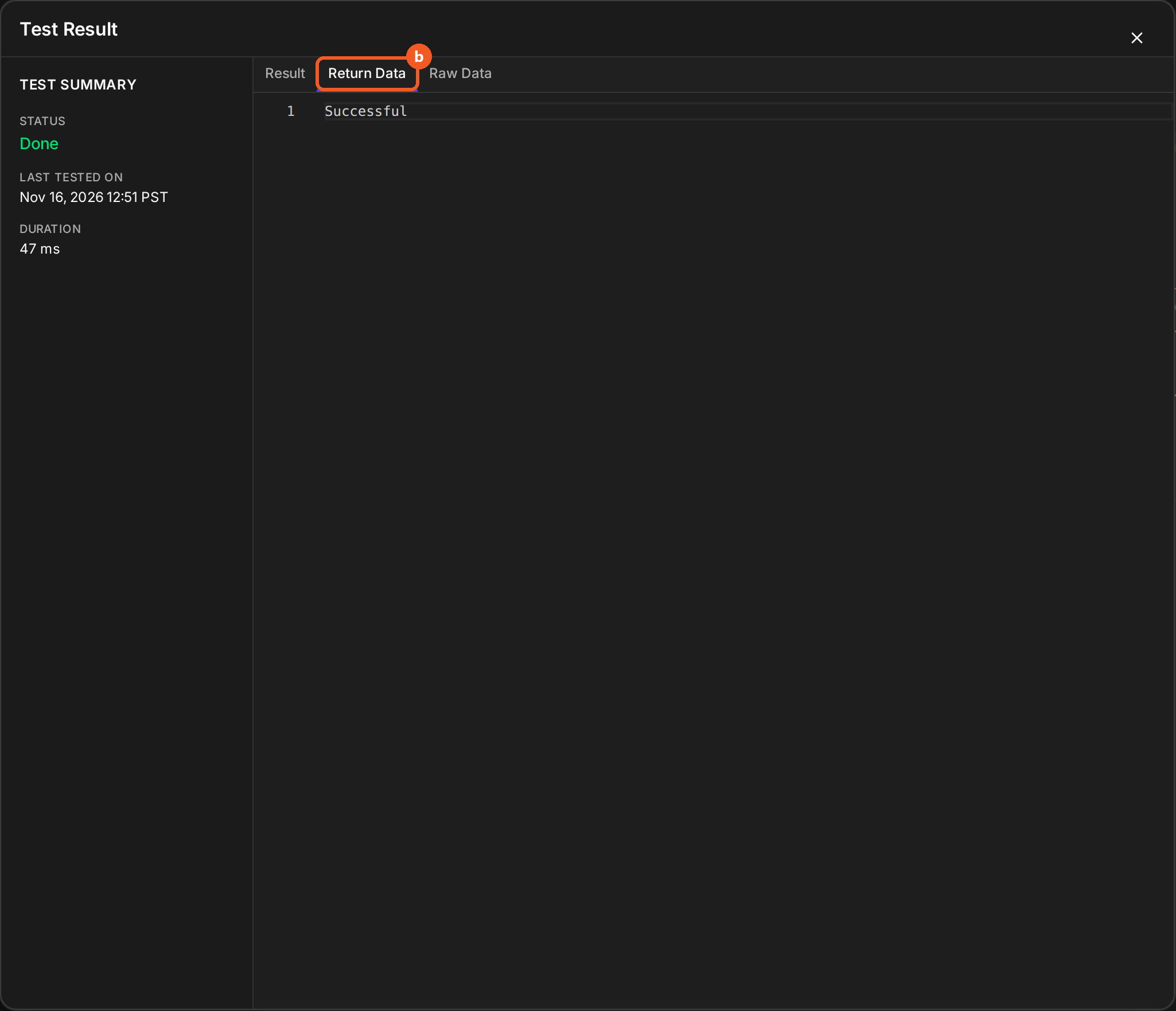
Test the command and verify that the output contains the intended structure.
-
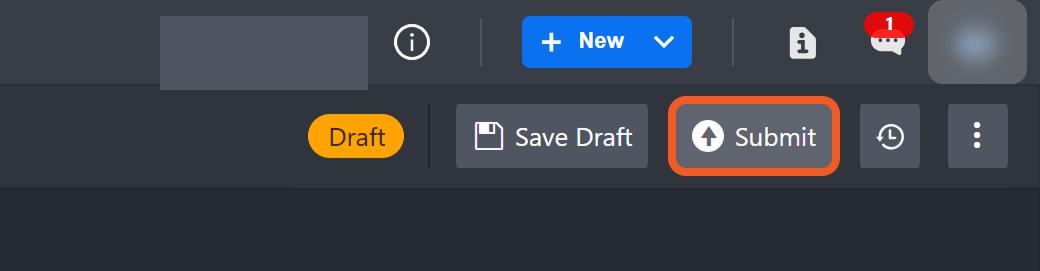
Submit the command.
-
Set up a new schedule (see Data Ingestion).
-
On the Data Ingestion page, select New > Schedule.
-
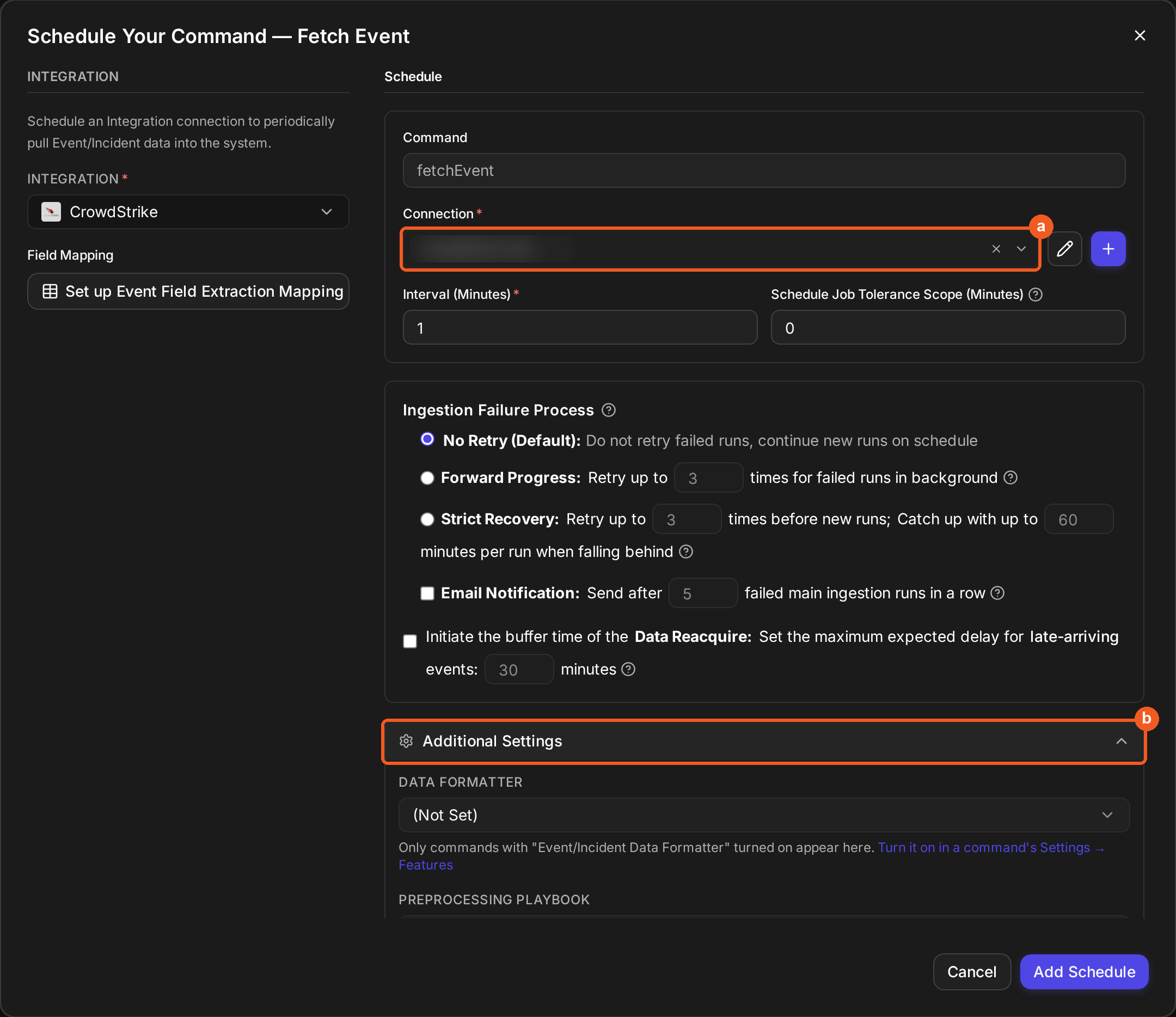
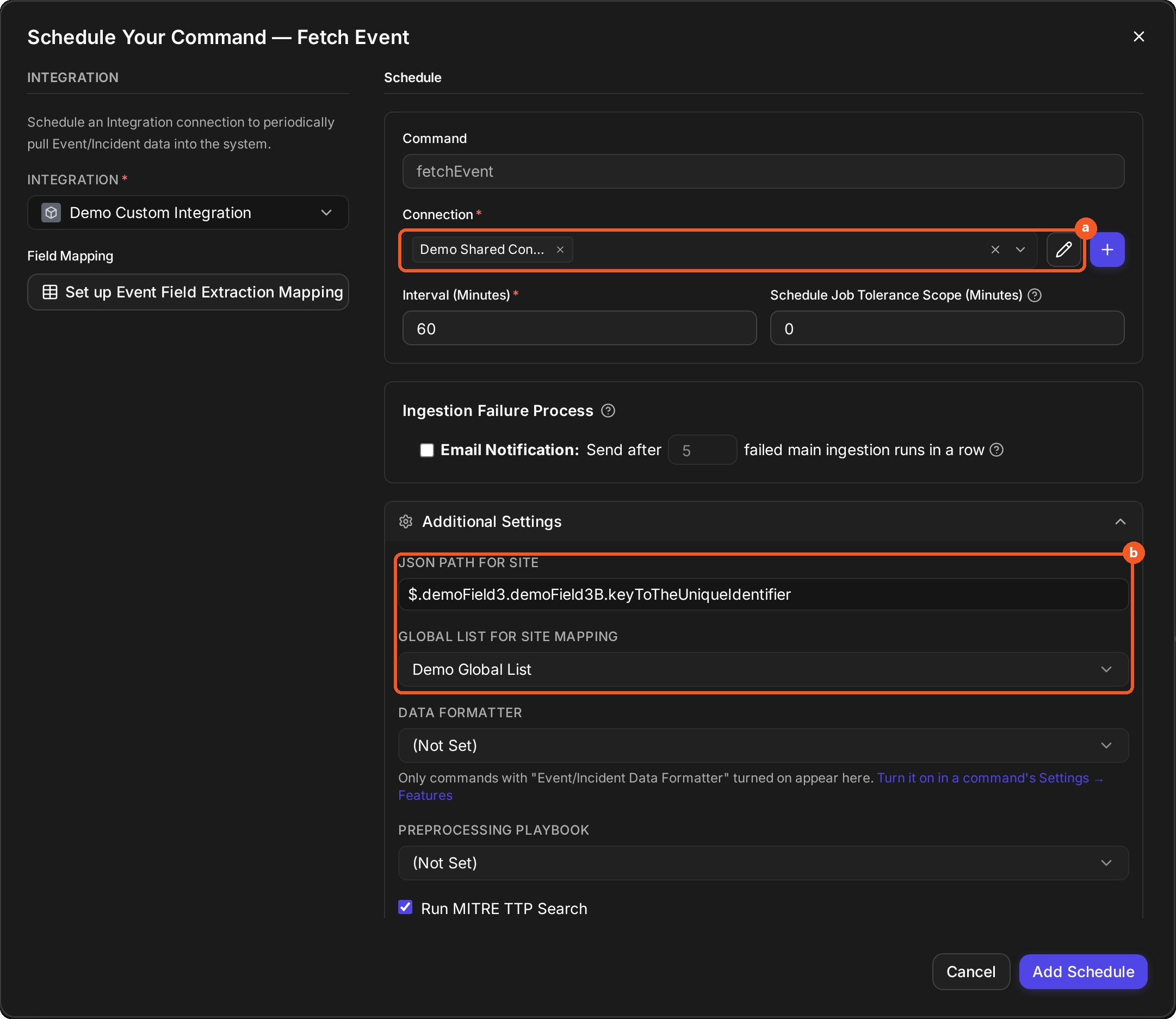
In the Schedule Your Command window, choose the INTEGRATION and the Connection added above.
-
Expand Additional Settings. The two site-mapping fields appear only when the connection is shared to client sites.
-
Set the JSON Path for Site to
$.demoField3.demoField3B.keyToTheUniqueIdentifier. -
Set the Global List for Site Mapping to
Demo Global List.
-
-
Go to the Data Ingestion page, verify event creation and note the
eventId.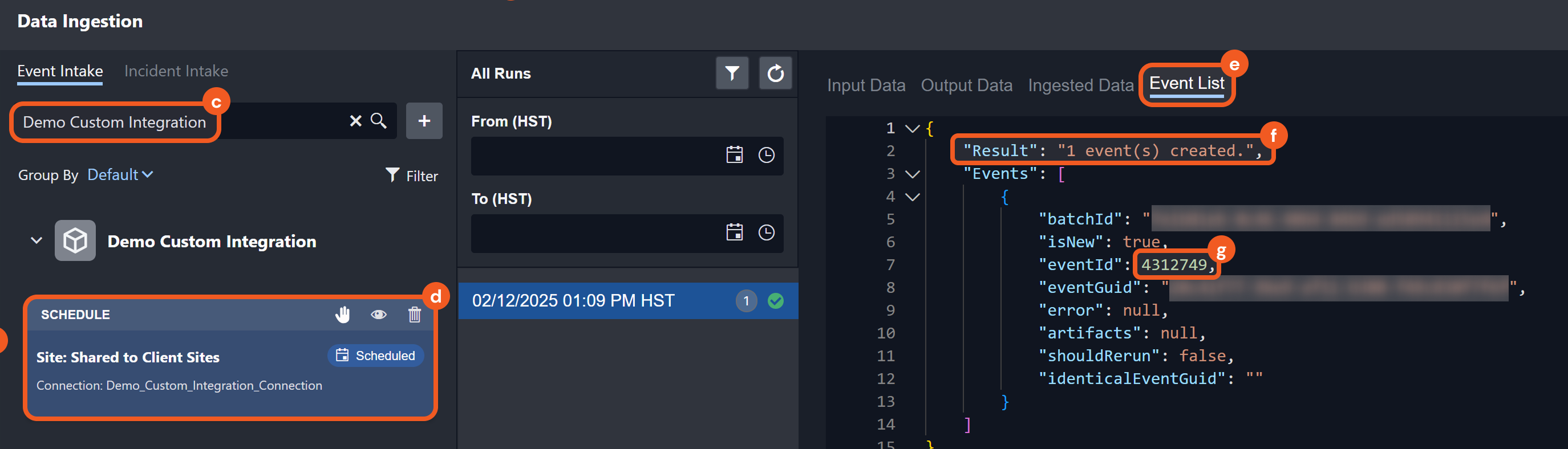
Event 4312749 Created -
In the sidebar, select Events to find the event.
Unmatching Sites from Demo Global List Will Not Have Access to Event 4312749 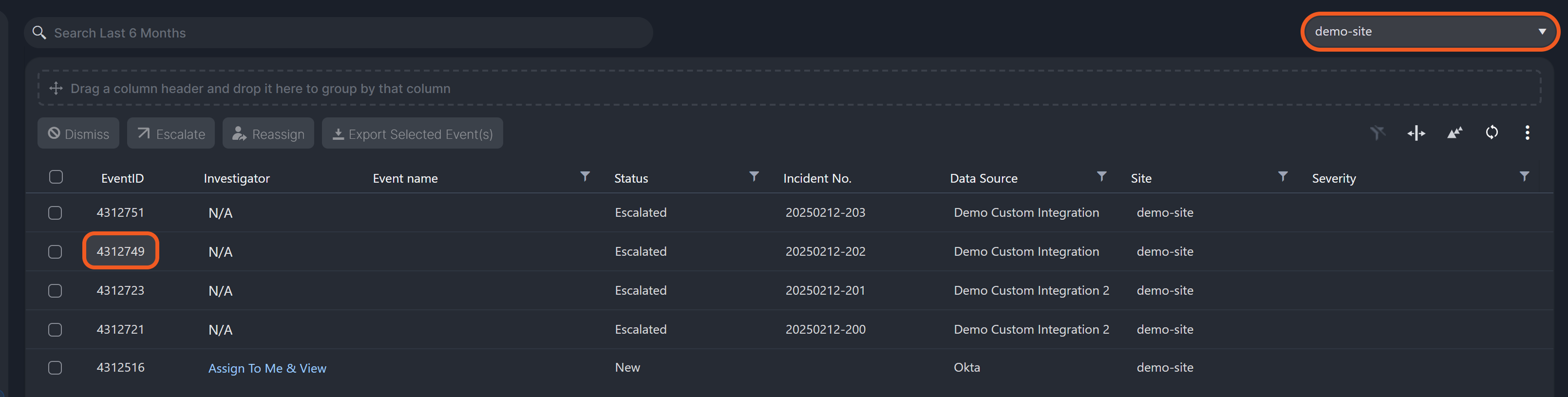
Only demo-site Will Contain Event 4312749
READER NOTE
If the value of keyToTheUniqueIdentifier does not match any key in the selected global list (webhook push step 7b or scheduled pull step 5e), the system performs a case-insensitive name search across all sites of Client type. If a matching site is found, that site is used. Otherwise, the ingested event is routed to the (Unknown Client Site) site.