
Last Updated: November 23, 2026
Overview
When D3 fetches incidents from an integration, it has to decide for each one whether it is new or one it already has. Two fields in the integration's Incident Field Mapping answer that question: Unique Key and Origin ID. Each one points at a field in the incident data that the vendor sends.
Choose them well and every incident arrives once, and changes made in the vendor's console reach the D3 incident. Choose them badly and the same incident arrives again and again, or new incidents stop arriving. This article explains what the two fields do, how to choose them, and how to fix a mapping that has gone wrong.
In Short
|
Field |
What D3 uses it for |
When an incoming incident matches |
What to point it at |
|---|---|---|---|
|
Origin ID |
Recognizing an incident it already has, so the existing incident is updated |
The existing incident's fields are updated from the new data. No new incident is created. |
The vendor's own incident ID |
|
Unique Key |
Recognizing an incident it already has, so no duplicate is created |
The existing incident's raw data is updated, without running playbooks. No new incident is created. |
The vendor's own incident ID |
In one line: Unique Key stops duplicates; Origin ID keeps the incident up to date. For most integrations, point both fields at the same value: the vendor's incident ID.
How D3 Decides Whether an Incident Is New
For each incident it fetches, D3 checks in this order:
-
Origin ID. If the incident's Origin ID matches an incident D3 already has, that incident is updated, except for Severity, Incident Creator, Incident Owner, Due In Date and Incident Type. Changes are recorded in the incident's activity as made by the system during data ingestion.
-
Unique Key. Otherwise, if the incident's Unique Key matches an incident D3 already has, that incident's raw data is replaced with the new data and no playbook runs.
-
The whole incident. Otherwise, if the incident data is exactly the same as the raw data D3 holds for an incident, nothing new is created.
-
If none of these match, a new incident is created.
Two things about the comparison matter when you choose a field:
-
It is per site and per integration. The same ID from two different integrations, or on two different sites, does not match.
-
It has no time limit. A value is remembered for as long as the incident exists, so a value that repeats months later still matches the old incident.
D3 sees an incident again only when a fetch returns it again. Whether a changed incident comes back depends on the schedule: a fetch that queries by created time returns each incident once, while a fetch that queries by last-updated time returns it again each time it changes. Microsoft Defender XDR's Fetch Incident, for example, queries by created time unless Query Time Type is set to Last Update Time.
When Unique Key is empty, or its path finds nothing, D3 uses the whole incident as the key. Any change to the incident in the vendor's console, such as a new alert, a status change or a new last-updated time, then makes it look like a new incident, and it is created again each time a fetch returns it. A path whose letter case does not match the data, such as $.IncidentId for a field named incidentId, finds nothing.
When Unique Key or Origin ID points at a value many incidents share, such as a status, a description or a fixed text, every incident after the first matches the first one and is not created. No error is shown: the run reports success, and its incident count includes the incidents that were not created. The first incident is also overwritten by each later one: its raw data with a shared Unique Key, its fields with a shared Origin ID.
Choosing the Unique Key
A good Unique Key passes all of these checks:
-
Every incident has it. If some incidents lack the field, those incidents fall back to the whole-incident key described above.
-
It is different for every incident. Two separate incidents must never share the value. If they do, the later ones are not created, and no error tells you so.
-
It never changes. The value must stay the same for the life of the incident, whatever happens to it in the vendor's console.
-
It is a single value, not a list. A path that returns a list is joined into one text value, so the key changes whenever the list changes.
-
The path matches the field name exactly, including letter case.
$.incidentIdand$.IncidentIdare different paths.
In practice this is almost always the vendor's own incident ID. Do not use:
-
a title, name or description, which can be edited and can repeat
-
a status, severity, classification or owner, which changes as the incident is worked
-
a created, updated or last-activity time, which changes or repeats
-
a host name, user name or rule name, which repeats across separate incidents
-
anything inside the incident's list of alerts, which grows as alerts are added
Choosing the Origin ID
Use the same vendor incident ID. With Origin ID set, an incident that changes in the vendor's console updates the D3 incident instead of only its raw data, so analysts see the new title, description and mapped fields. If you want changes in the vendor's console to reach D3 incident fields or start incident-change playbooks, set Origin ID; Unique Key alone does not do that. The schedule must also fetch changed incidents again, for example by querying by last-updated time.
Leave Origin ID empty only when you never want ingestion to change an incident after it is created. Unique Key alone still stops duplicates.
An update through Origin ID does not change the incident's investigation playbook. A playbook you change in the mapping, or a newer version of the playbook, applies to new incidents only.
What Goes Wrong with a Bad Key
|
What you see |
The likely cause |
What to do |
|---|---|---|
|
The same incident keeps arriving as new incidents, often after it changes in the vendor's console |
Unique Key is empty, its path finds nothing on some incidents (often because the letter case does not match), or it points at a value that changes |
Point Unique Key at the vendor's incident ID, copying the field name exactly. Check the path against a real incident (see Finding the Field in a Real Incident). |
|
New incidents stop appearing, although the vendor has new ones and the integration's runs show no error and a normal incident count |
Unique Key or Origin ID points at a value many incidents share, such as a status, a description or a fixed text, so every new incident matches the first one |
Point both fields at the vendor's incident ID. Check that two different incidents give two different values. |
|
Changes in the vendor's console do not reach the D3 incident |
Origin ID is empty or points at a different value from one fetch to the next, or the schedule does not fetch changed incidents again |
Point Origin ID at the vendor's incident ID, and check the schedule's query time setting. |
|
Unrelated incidents are merged into one old incident |
The key repeats across separate incidents, for example a host or rule name |
Point both fields at the vendor's incident ID. |
Recovering After You Fix the Key
D3 stores an incident's key when it creates the incident and does not update it when you change the mapping. After you fix the key:
-
Incidents created under the old key do not match the new key. If a later fetch returns one of them, D3 still recognizes it when its data is exactly what D3 holds for that incident; otherwise it is created once more under the new key, and from then on it matches. After a shared key, the data D3 holds for the first incident is usually another incident's, so expect that incident to be created once more. Close those copies, and the duplicates created before the fix, as you would any duplicate incident.
-
Incidents that were never created while the key was wrong are not fetched again on their own, because a schedule moves forward from its last run. To bring them in, create a schedule on the same connection with its Start Time at the beginning of the missed period: its first run fetches everything from its Start Time up to now. Incidents D3 already has are matched and not created again. Stop the extra schedule once it has run, so that only one schedule fetches from the connection.
Finding the Field in a Real Incident
The paths in the mapping are JSON paths into one incident, as the integration returns it. Main JSON Path, at the top of the window, says where the list of incidents starts in the data the command fetches. Leave it as $ unless the integration wraps its incidents in another object.
-
Get one real incident from the integration:
-
Go to Configuration > Integrations, open the integration, select the Fetch Incident command and open its Test tab.
-
Choose a connection and a time range that has incidents, select Test Command, then open the raw data in Show Test Results. Testing a command does not create incidents.
-
-
In one incident, find the vendor's incident ID. It is usually near the top, with a name such as
incidentId,idorIncidentNumber. -
Write its path starting at the incident, for example
$.incidentId. A field inside an object is written with a dot, for example$.properties.incidentNumber. Copy the field name exactly as it appears in the data: paths are case-sensitive, so$.IncidentIddoes not findincidentId. -
Check a second incident: the field must be there, and its value must be different.
-
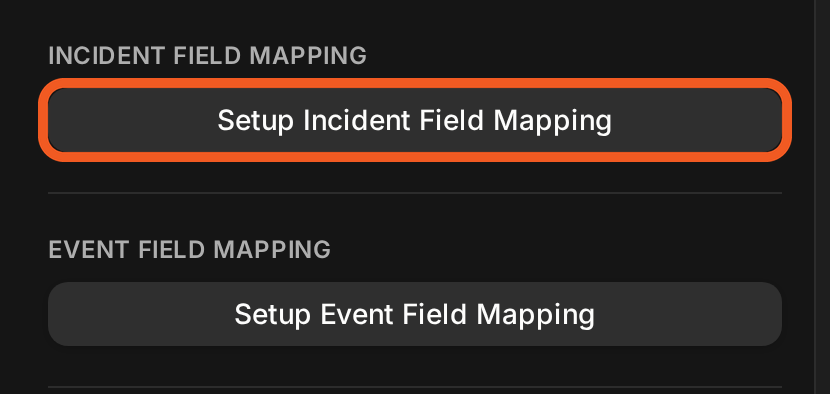
On the Fetch Incident command, select Setup Incident Field Mapping.
-
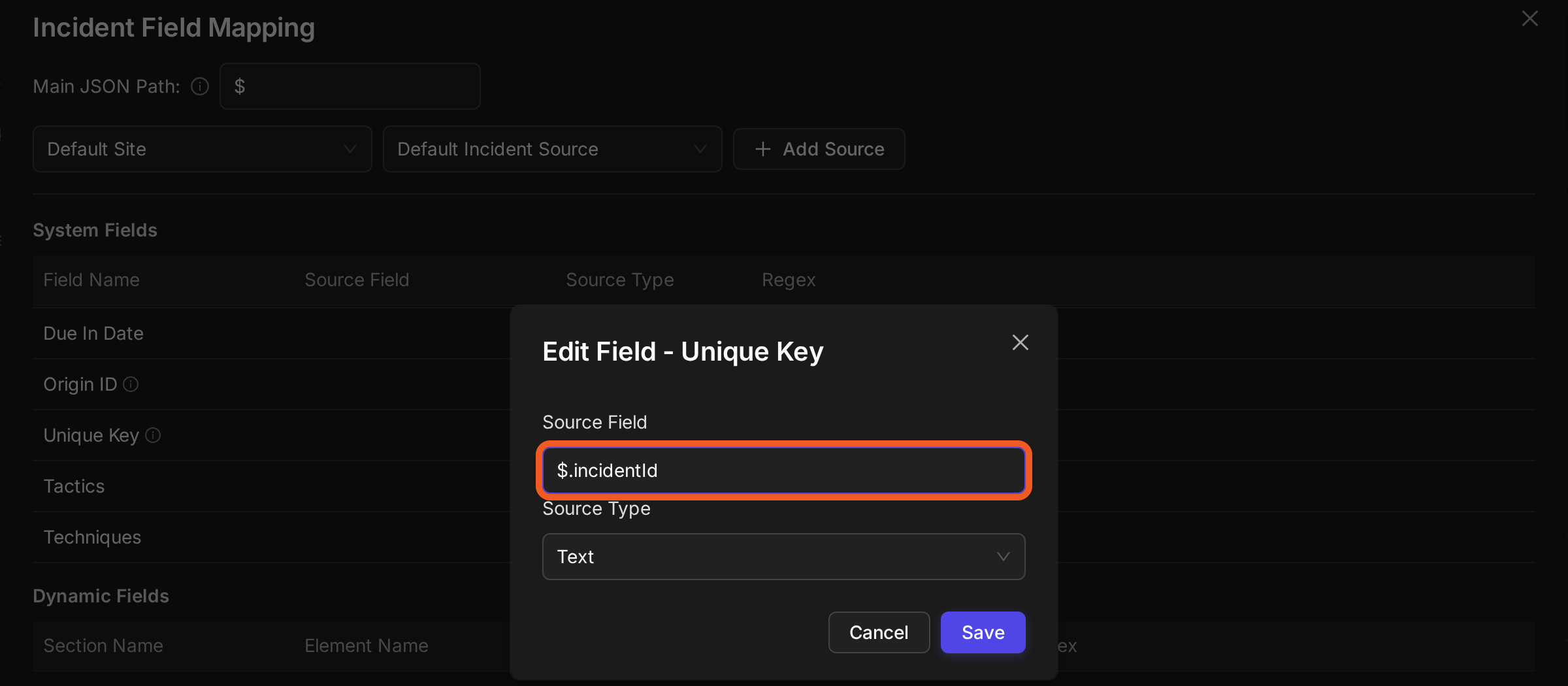
Select the Unique Key row. In Edit Field - Unique Key, enter the path in Source Field, keep Source Type as Text, and select Save. The mapping table shows the path without its leading
$; reopen the row to see the full path.
-
Do the same for the Origin ID row.
The mapping applies to the site selected at the top of the window. Default Site is used for every site that has no mapping of its own.
Recommended Values
|
Integration |
Main JSON Path |
Unique Key |
Origin ID |
Notes |
|---|---|---|---|---|
|
Microsoft Defender XDR |
|
|
|
Each incident also carries a list of alerts, and every alert repeats |
Custom Connectors
A custom integration's Fetch Incident command follows the same rules. The difference is that you decide what the command returns, so:
-
Return the list of incidents as the command's return data: the second value of
pb.returnOutputModel. A scheduled fetch creates incidents from the return data, not from the raw data. If the return data is a status text such as "Successful", the schedule creates a single incident from that text. -
Make sure each incident your command returns includes the vendor's incident ID as a single value.
-
If the vendor has no incident ID, build one in your command from values that identify the incident and never change, and return it as its own field. Do not use the current time or a counter that restarts.
-
Run the command's Test tab and follow Finding the Field in a Real Incident with its output.
Checking Your Mapping
After you save the mapping, let the schedule run at least twice, then check the integration's new incidents:
-
Each vendor incident appears once.
-
If your schedule fetches changed incidents, an incident you change in the vendor's console, for example by adding a comment or changing its status, is updated in D3 and not created again.
-
Two different vendor incidents are two different D3 incidents, and the number of new D3 incidents matches the number of new incidents in the vendor's console. A successful run and its incident count do not prove the key is right: the count includes incidents that matched an existing one.
FAQ
Should Unique Key and Origin ID be the same? Usually, yes. Both should identify one incident for its whole life, and the vendor's incident ID does that. Set them differently only when the vendor offers two IDs and you know why each one is needed.
I set Unique Key. Why does the incident not update when it changes in the vendor's console? A Unique Key match updates only the incident's raw data. Set Origin ID as well to update the incident's fields, and make sure the schedule fetches changed incidents again.
Why did fixing the key create one more copy of some incidents? Those incidents were created under the old key, so the new key does not match them, and their data no longer matched what D3 held. This happens once per incident; see Recovering After You Fix the Key.
Does the path have to start with $.? Starting with $. is the standard form and is what this article uses, but .incidentId and incidentId select the same field. What matters is that the field name and its letter case match the data.
The same vendor incident arrived on two sites. Is that a duplicate? No. The comparison is per site, so each site gets its own incident.
Does an incident's severity follow the vendor when it changes? No. An update through Origin ID does not change Severity, Incident Creator, Incident Owner, Due In Date or Incident Type.