Last Updated: October 26, 2026
Overview
An incident can be kept in step with the tool it came from, such as Microsoft Sentinel or Jira, through that tool's integration. Each direction is its own command: one brings incidents (and their updates) into D3, and others send changes from D3 back to the tool. Which commands exist, and what each one changes, depends on the integration, so check its page under Integration Docs.
Integrations and their commands are under Configuration > CONNECTIVITY > Integrations. See Integrations.
Microsoft Sentinel
Bringing Incidents into D3
Incidents arrive through Data Ingestion. On Configuration > Data Ingestion > Incident Intake, each source lists its ingestion methods, such as a Schedule or a Webhook. See Data Ingestion.
Incident Intake
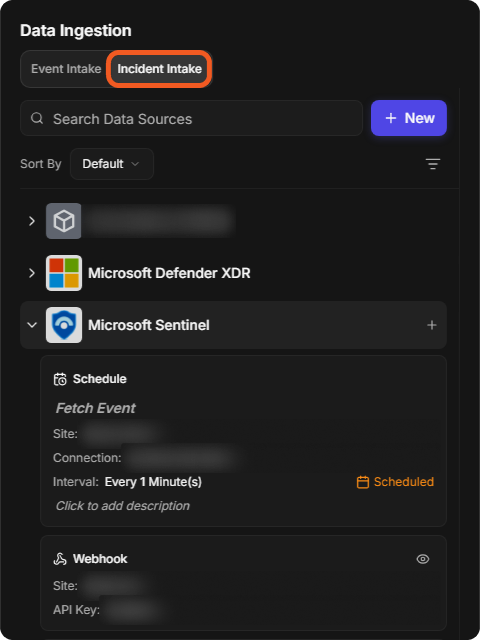
On the Microsoft Sentinel integration, the Fetch Incidents card reads "Ingest incident data from this integration into D3". The command behind it is Fetch Incident.
Fetch Incidents on Microsoft Sentinel

Two of its inputs decide what it brings in:
-
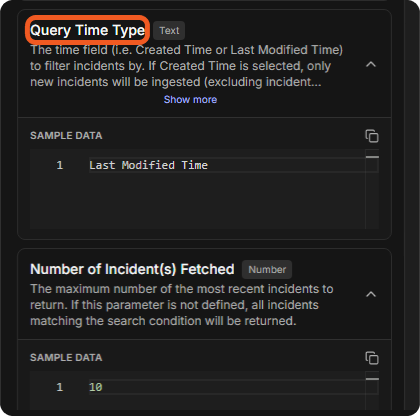
Query Time Type: "If Created Time is selected, only new incidents will be ingested (excluding incident updates). If Last Modified Time is selected, both new and updated incidents will be ingested. If this parameter is not defined, Created Time will be the default value." To bring in updates as well as new incidents, use Last Modified Time.
-
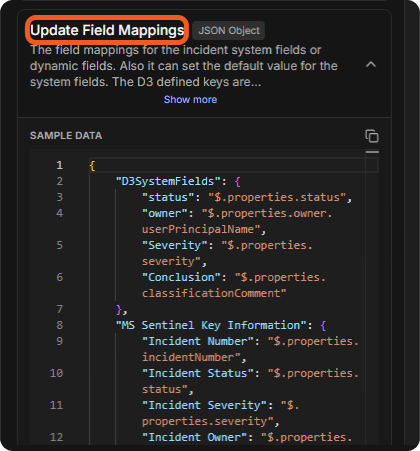
Update Field Mappings: "The field mappings for the incident system fields or dynamic fields." Its sample data maps D3SystemFields (such as status, owner and Severity) and a section of dynamic fields to JSON paths in the Sentinel incident.
Query Time Type
Update Field Mappings
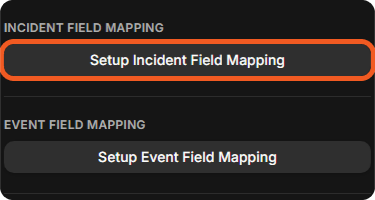
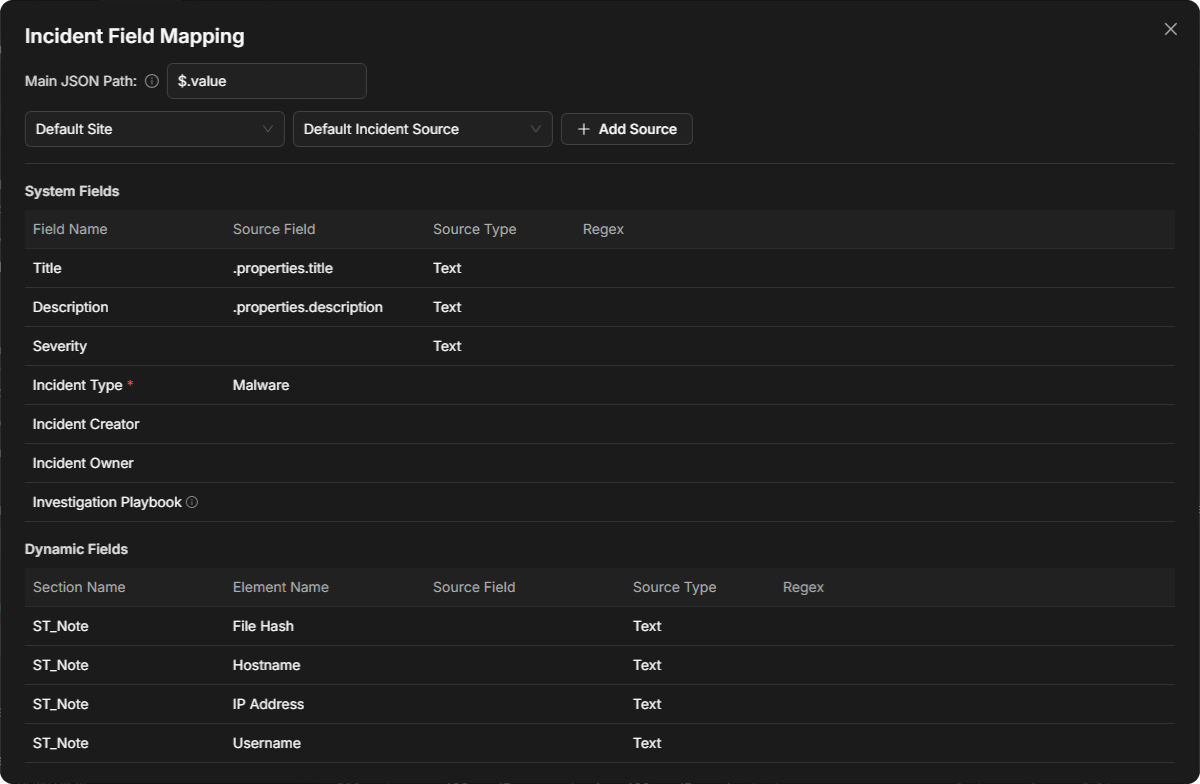
On the command's Overview, Setup Incident Field Mapping opens the Incident Field Mapping window: the Main JSON Path, Default Site and Default Incident Source, System Fields such as Title, Description, Severity and Incident Type, each mapped to a source field, and Dynamic Fields. See Field Mappings.
Setup Incident Field Mapping
The Incident Field Mapping window
The Microsoft Sentinel integration doc explains how to find "the JSON paths corresponding to the fields that need to be synchronized in both D3 and Microsoft Sentinel" by running Fetch Incident on its Test tab.
Sending Changes Back
These commands of the Microsoft Sentinel integration change the incident in Sentinel:
|
Command |
What it does (from the integration doc) |
|---|---|
|
Update Incident Status |
"Updates the status of the specified incidents in Microsoft Sentinel." |
|
Update Incident Comments |
"Updates the comments of specified incidents in Microsoft Sentinel." Only the user who created a comment can edit it. |
|
Delete Incident Comments |
"Deletes the comments for the specified incidents in Microsoft Sentinel." |
|
Update Incident Properties |
Listed with the integration's commands. See the integration doc for its inputs. |
Microsoft Sentinel incident commands
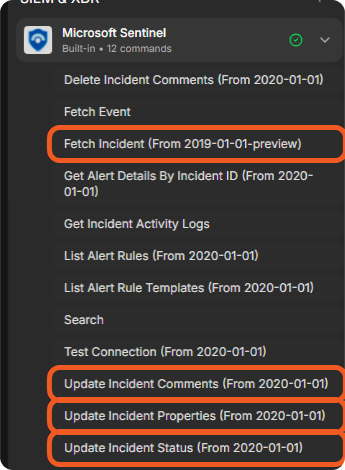
Run them from an investigation playbook with a command task. See Command Tasks and Investigation Playbooks.
Jira
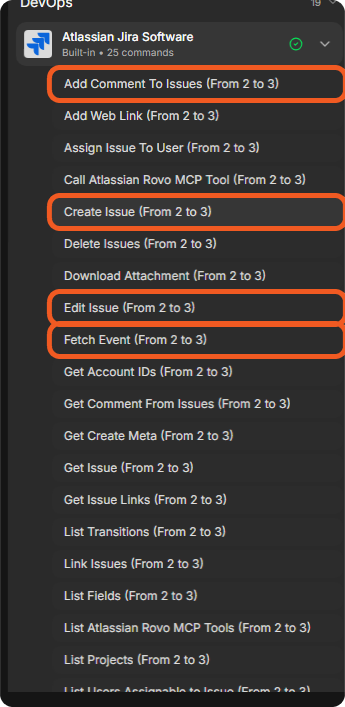
On Atlassian Jira Software, Fetch Incidents is "Unavailable for this integration". Jira issues can come into D3 as events through Fetch Event ("Returns issues based on the specified search conditions").
Fetch Incidents on Jira

To change Jira from D3, use the integration's issue commands in a playbook, for example Create Issue ("Creates an issue or subtasks (if enabled) in Jira."), Edit Issue ("Edits an issue in Jira."), Add Comment To Issues ("Adds a comment to issues in Jira.") and Transition Issues. Get Issue and Get Comment From Issues read an issue back. See the Atlassian Jira Software integration doc.
Atlassian Jira Software commands