
Last Updated: October 26, 2026
Overview
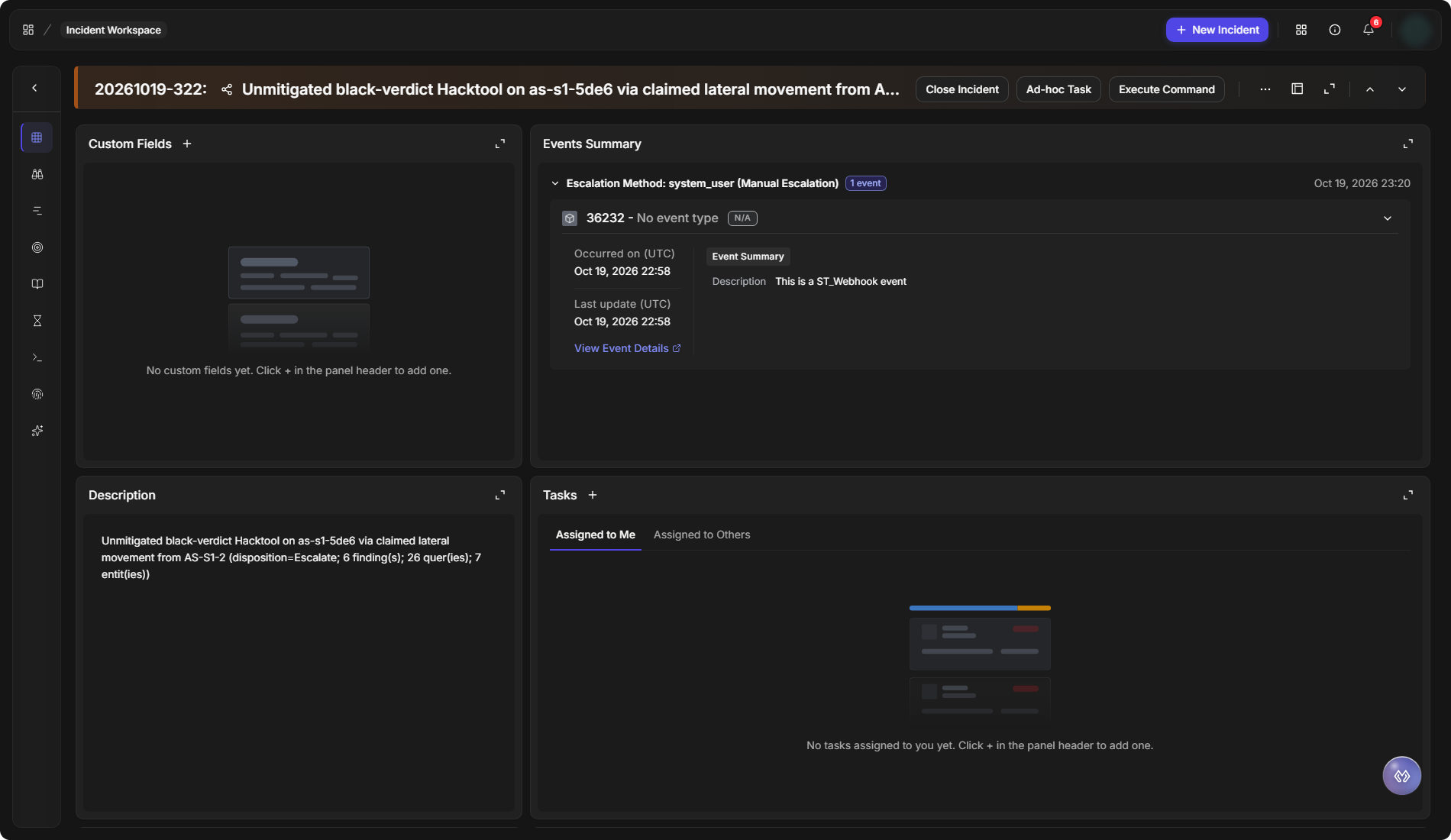
The Incident Workspace is where one incident is worked from start to finish: its key details, the events behind it, the investigation's findings, the artifacts involved, the playbooks and tasks running on it, and the record of everything done. Each part has its own view, so an analyst moves between them without leaving the incident.
Open an incident from Incidents to reach its workspace. It opens in a new browser tab, so the incident list stays where you left it.
The Incident Workspace
In short
|
To |
Go to |
|---|---|
|
See the incident's key details and summary panels |
Overview |
|
Read the findings and recommendations |
Investigation |
|
See what happened, in order |
Timeline |
|
Review the source events |
Events |
|
Run or follow the incident's playbooks |
Playbooks |
|
Work the tasks waiting on you |
Pending Tasks |
|
See every action, result and message |
Command Centre |
|
Review the artifacts involved |
Artifacts |
|
See what matters most at a glance |
Key Findings |
The Incident Header
The bar across the top identifies the incident and holds the actions that apply to it as a whole:
-
The incident number and title.
-
Close Incident closes the incident when the investigation is done.
-
Ad-hoc Task adds a one-off task to the incident, outside any playbook.
-
Execute Command runs a command for this incident.
-
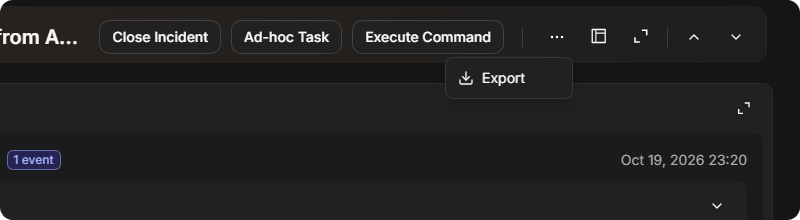
More options (⋯) holds Export. It opens Export Incident Report: tick the sections to include, such as Morpheus AI Investigation Summary, Attack Timeline, Artifacts, Event Summary, Notes & Files and Conclusion, or Select All. Turn on Only export non-empty sections to leave out empty ones, then select Export. See Exporting Incidents.
-
Workspace layout switcher lists the layouts available for the incident, such as System Default, and marks the one in use as Active. Select Select beside a layout to use it.
-
Expand/collapse hides the navigation sidebar so the workspace fills the window. Select it again to bring the sidebar back.
-
Page Up and Page Down open the previous and next incident in the list the workspace was opened from. Page Up is unavailable on the first incident.
The More menu
Moving Between Views
The rail down the left side switches between the workspace's views. Hover over it to see each view's name, and select one to open it.
The view rail
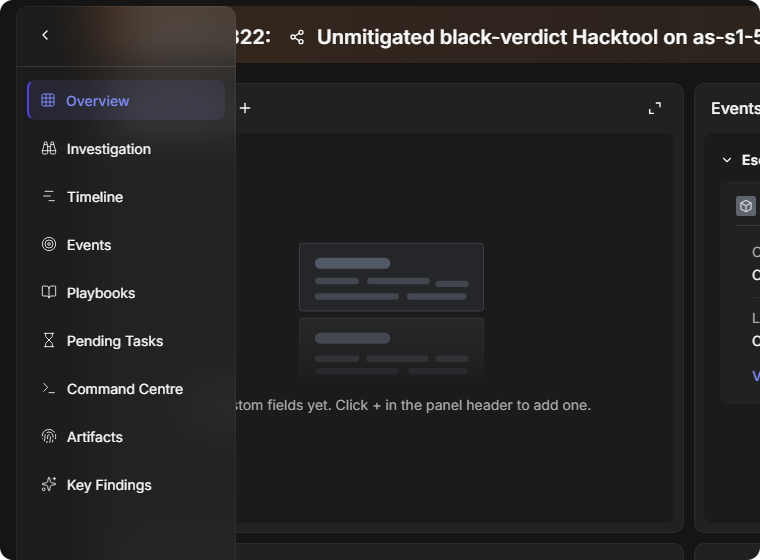
Overview
Overview is the incident at a glance: the key fields (Site, Incident Type, Status, Severity, Disposition, Owner, Assignment group and others) and a set of panels. The panels include Events Summary, Description, Tasks, Custom Fields, Conclusion, Adversary Lifecycle, Notes and Playbook Automation. Some incidents also show Morpheus AI Summary and Linked Artifacts.
Each panel can be opened full size with its expand icon. A panel with a + beside its title takes new entries: a custom field, a task, a tactic or technique, a note, or a playbook. An empty panel says so, for example No custom fields yet. Click + in the panel header to add one.
Which panels appear, and in what order, depends on the workspace layout. Layouts are designed for each incident type at Configuration > Incident Type Manager > [incident type] > Incident Workspace, where each layout can be assigned to groups, roles or users. Switch between the layouts available to you with the Workspace layout switcher.
Investigation
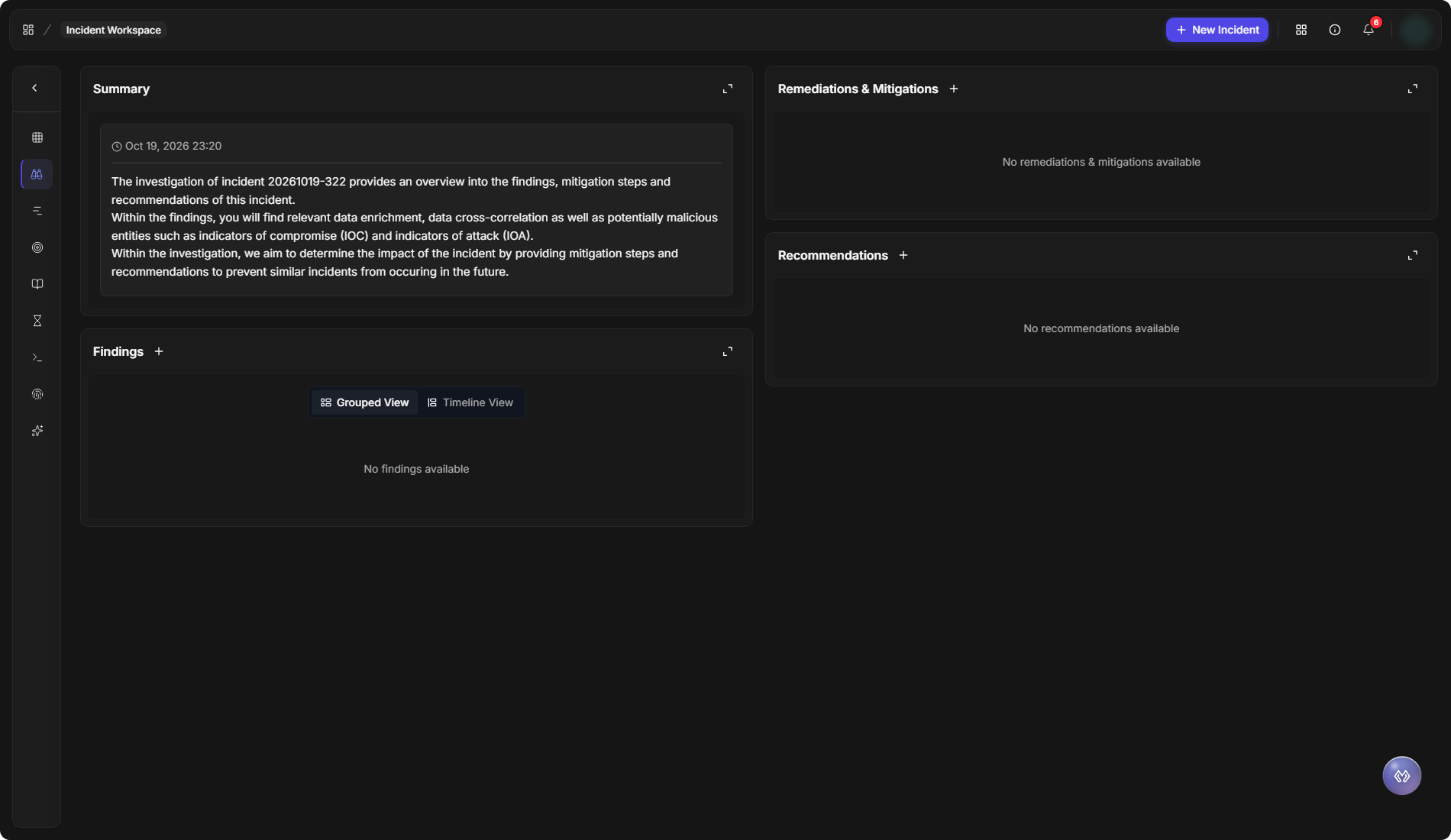
Investigation holds the written outcome of the investigation, in four sections:
|
Section |
What it holds |
|---|---|
|
Summary |
An overview of the incident and the investigation. |
|
Findings |
What the investigation found. Switch between Grouped View and Timeline View. |
|
Remediations & Mitigations |
The steps taken or recommended to contain and fix the issue. |
|
Recommendations |
What to do to prevent a similar incident. |
The Investigation view
Timeline
Timeline lists the investigation's items in time order (in UTC), so the sequence of what happened is easy to follow. Search it by note, summary or author, and select + Add Note to add an entry by hand.
Events
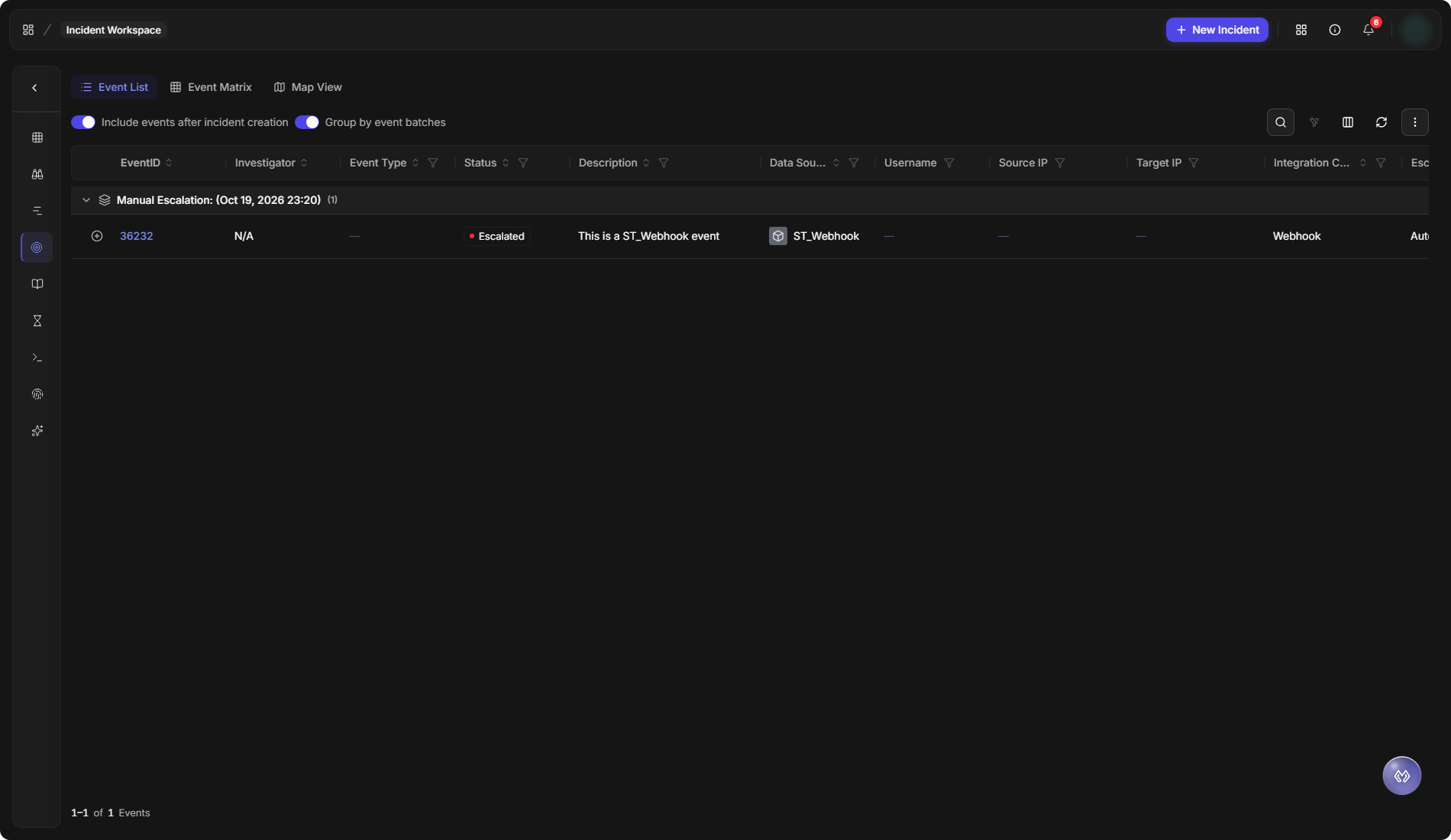
Events lists the events behind the incident, grouped by how they were escalated. Switch between Event List, Event Matrix and Map View.
-
Include events after incident creation adds events that arrived after the incident was opened.
-
Group by event batches groups the events by the batch they arrived in.
The Events view
Playbooks
Playbooks shows the playbooks running on the incident under Playbook Automation, with their tasks and progress. Select + to add a playbook to the incident.
Pending Tasks
Pending Tasks lists the incident's tasks that still need someone, with tabs for Assigned to me and Assigned to others. Each task shows its playbook or ad hoc task creator, Task ID, Task Name, task type, Assignee, Assign Date and Due Date.
Command Centre
Command Centre is the incident's running record: the playbook tasks, ad hoc tasks, command results, field changes, messages and notes, in the order they happened. Use Filter and the search box to find an entry.
Artifacts
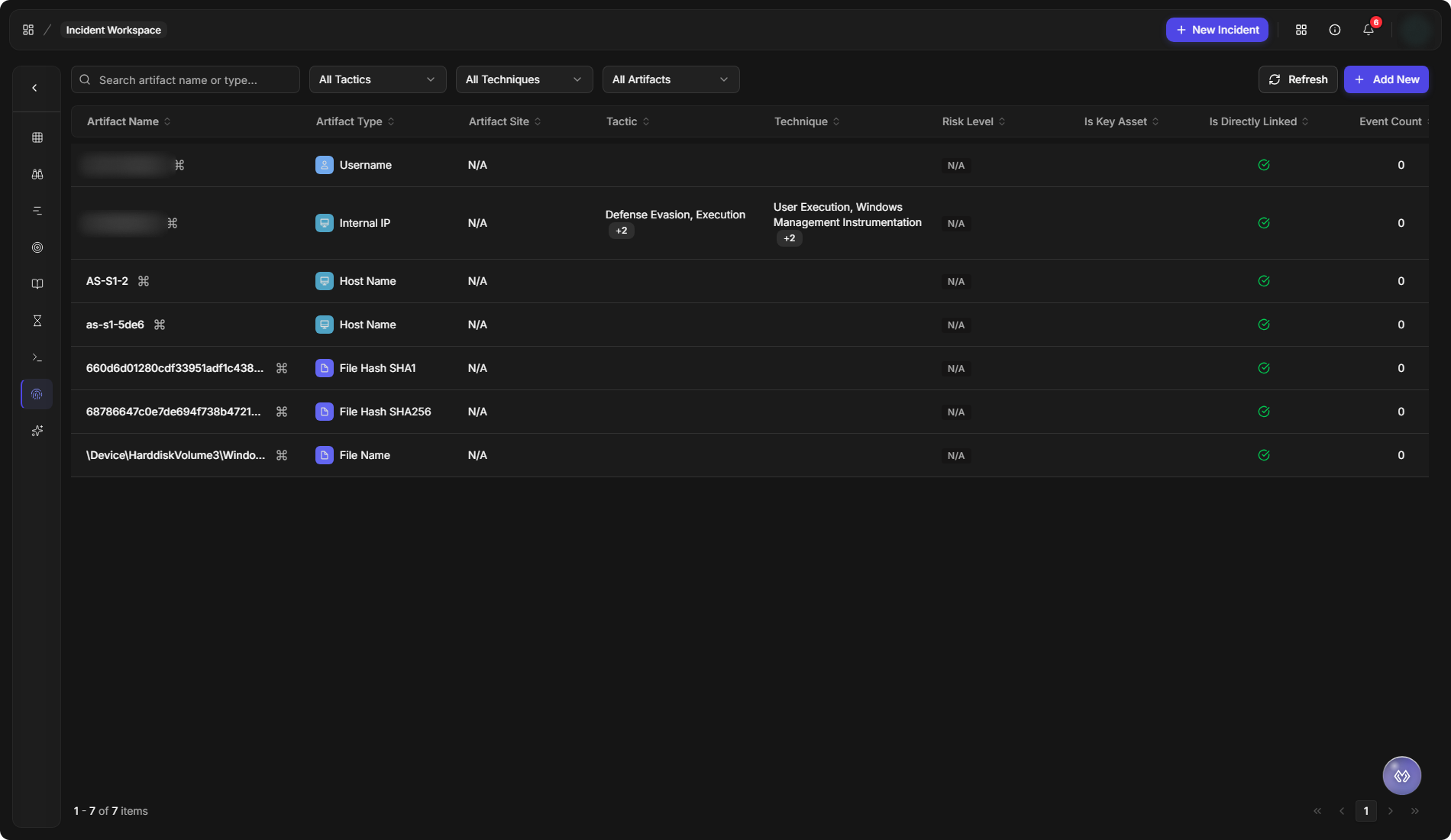
Artifacts lists every artifact involved in the incident: hosts, accounts, IP addresses, file hashes and more. Each row shows its Artifact Type, Artifact Site, Tactic, Technique, Risk Level, whether it is a key asset, whether it is directly linked to the incident, and its Event Count.
Filter by tactic, technique or artifact with the lists above the table, select Refresh to reload, and select + Add New to add an artifact. Refer to Linked Artifacts.
The Artifacts view
Key Findings
Key Findings pulls out what matters most, in four tabs: Artifacts with Bad Reputation, Technique Patterns, Tactics & Techniques and Key Playbook Tasks.
Customizing the Workspace
What a workspace shows is set for each incident type in its workspace layouts, so a team can put the widgets it needs in front of its analysts. See Configuring an Incident Type: Incident Workspace, and:
-
Customizing the Incident Workspace: Markdown and HTML widgets that your own playbooks fill.
-
Email and SLA Widgets: the incident's emails and its SLAs.
-
AI Summary and APD Widgets: what Morpheus AI found while investigating the incident.
-
Incident Workspace Widgets: every widget, one by one.
Working with Others and Other Tools
-
Mentioning Teammates in Notes: type @ in a note to mention a teammate.
-
Exporting Incidents: export the incident as a PDF report.
-
Syncing Incidents with External Tools: keep an incident in step with the tool it came from, such as Microsoft Sentinel or Jira.
Morpheus AI in the Workspace
Click Open AI Assistant (the Morpheus icon at the bottom right of the workspace) to work the incident with Morpheus Adaptive Tasking, and see what Morpheus found while investigating on the Morpheus AI Graph card.
RELATED ARTICLES
-
Linked Artifacts
-
Incident Form Editor
-
Morpheus Adaptive Tasking