
Last Updated: October 26, 2026
Overview
Export an incident as a PDF report from its workspace, to share or keep a record of the investigation. You choose which sections go into the report.
Exporting an Incident
-
Open the incident from Incidents. See Incident Workspace.
-
In the incident header, select More options (⋯), then Export.
Export in the More menu

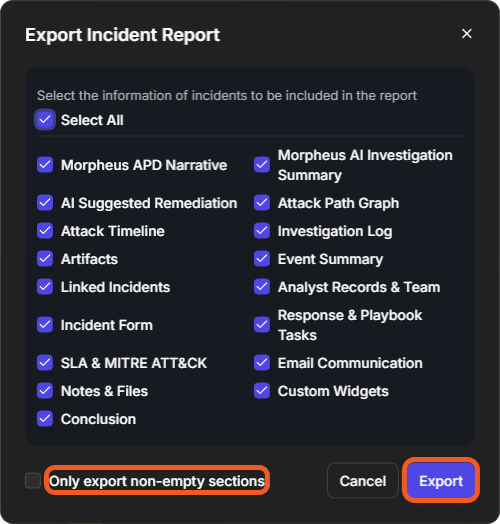
The Export Incident Report window opens: "Select the information of incidents to be included in the report". Every section is ticked when it opens.
-
Untick the sections to leave out, or use Select All. The sections are Morpheus APD Narrative, Morpheus AI Investigation Summary, AI Suggested Remediation, Attack Path Graph, Attack Timeline, Investigation Log, Artifacts, Event Summary, Linked Incidents, Analyst Records & Team, Incident Form, Response & Playbook Tasks, SLA & MITRE ATT&CK, Email Communication, Notes & Files, Custom Widgets and Conclusion.
-
To leave out the sections that have no data, turn on Only export non-empty sections.
-
Select Export.
The Export Incident Report window
Result: Your browser downloads the report as a PDF file named Export_Incident_Report_, the incident number and a number, for example Export_Incident_Report_20261009-53_1793059657491.pdf.
The Exported Report
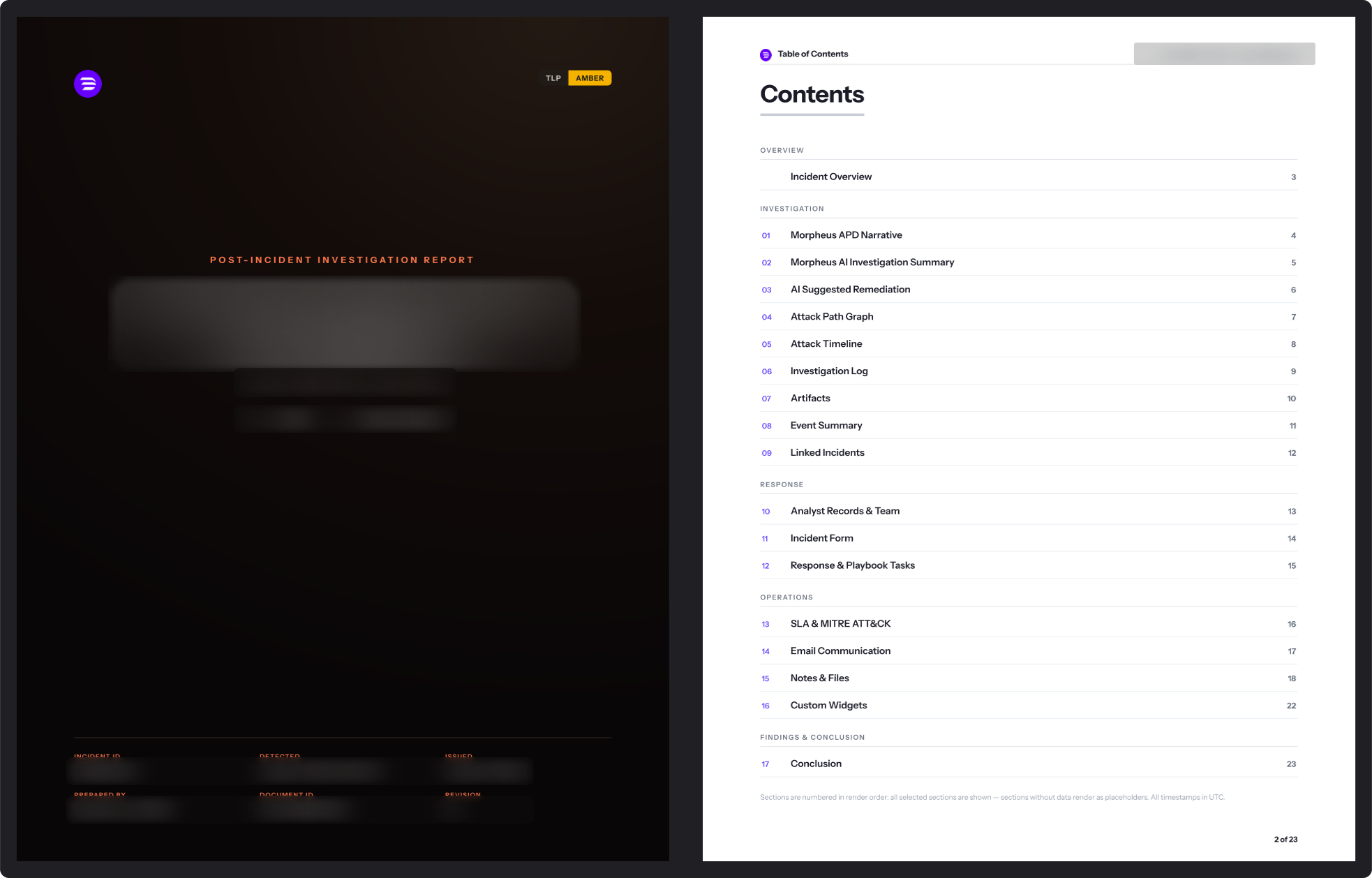
The report opens with a cover page, POST-INCIDENT INVESTIGATION REPORT, marked TLP AMBER. It names the incident type, number, severity and source, and lists INCIDENT ID, DETECTED, ISSUED, PREPARED BY, DOCUMENT ID and REVISION.
A Table of Contents follows, with the sections grouped under OVERVIEW (Incident Overview), INVESTIGATION, RESPONSE, OPERATIONS and FINDINGS & CONCLUSION, each with its page number. As its footnote says: "Sections are numbered in render order; all selected sections are shown — sections without data render as placeholders. All timestamps in UTC."
The exported report
The report holds the incident's data. Share it only with people allowed to see the incident.