
Last Updated: October 27, 2026
Overview
Two widgets keep an incident's communication and timing in view in its workspace: Emails ("Support bidirectional communication for both internally and externally") and SLA ("Incident SLA Indicator"). Add them to a workspace in the builder like any other widget. See Customizing the Incident Workspace and Configuring an Incident Type: Incident Workspace.
Emails Widget
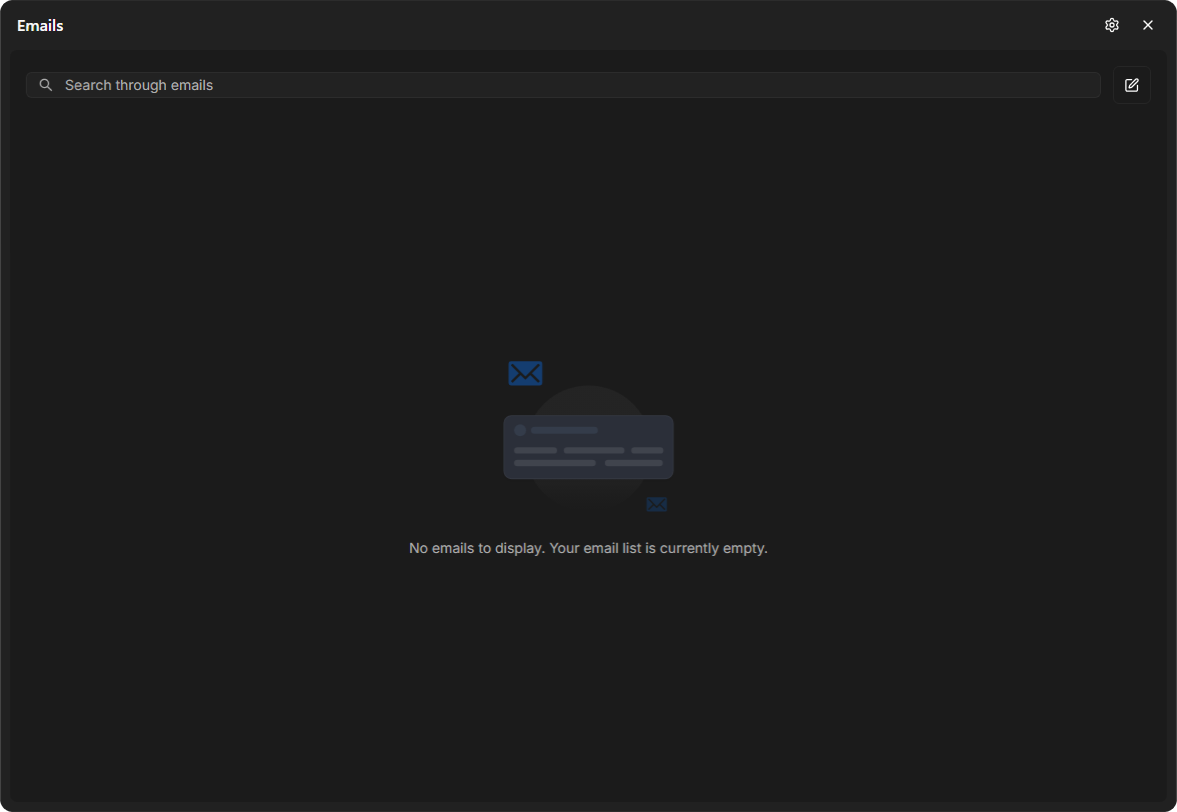
The Emails widget lists the incident's emails, with Search through emails to find one. When the incident has none, it reads "No emails to display. Your email list is currently empty."
The Emails widget
An exported incident report has an Email Communication section. See Exporting Incidents.
SLA Widget
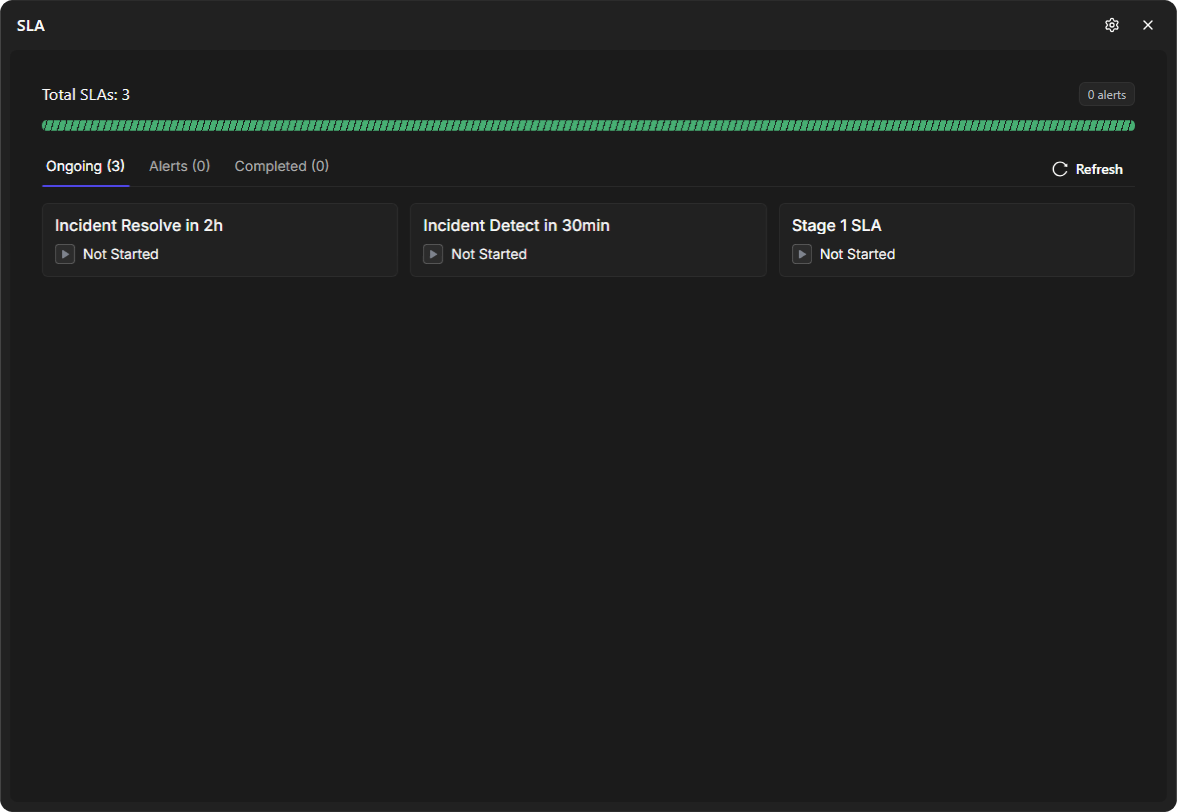
The SLA widget shows the incident's SLAs and how they stand:
-
Total SLAs and the number of alerts, with a bar beneath.
-
The tabs Ongoing, Alerts and Completed, each with its count.
-
One card for each SLA, with its name and status, such as Not Started.
-
Refresh reloads the widget.
The SLA widget
When the incident has no SLAs, the widget reads Total SLAs: 0 and No Ongoing.
SLA rules are set up on the SLA page (Configuration > AUTOMATION > SLA). See SLA Rules for setting up rules and how a breached SLA shows, SLA Rule Pause Conditions and Office Hours for SLA. For SLA charts on reporting dashboards, see SLA and ROI Widgets.
The pictures show the sample content the workspace builder displays.