Last updated: mar 21, 2025
Command tasks refer to integration or utility commands, which can be D3-built or user-built (custom). Built-in and custom commands may be implemented through Python scripts or codeless playbooks.

Integration Commands
These commands execute actions related to external systems or services, such as retrieving threat intelligence, managing cloud resources, or automating tasks in areas like analytics, SIEM/XDR operations, and identity management.
Access Locations - Integration Commands
Playbook Task Menu
-
Hover over the command task.
-20250125-000750.png?cb=993b467f02ab8db44eb5bf96898673b3)
-
Ensure that the In
Integration Commands tab is selected.
-20250124-232023.png?cb=15f3ffbbec52d67428b21ac2797ad82a)
Integration Commands Tab
Task Configuration Popover
-
Connect a command task to the root playbook node.
-20250125-001407.png?cb=d21a78fcc3e5e2b68db3543f9451f009)
-
Name the command task.
-20250125-001641.png?cb=5f490f90329526f90319e80ede3c80fd)
-
Click on the

-20250125-001906.png?cb=160f39394d15d8b2c2d2268436baee3b)
-
Select All Integration from the Category dropdown menu.
-20250125-002116.png?cb=70e2551d98f716832bd10e73e89ed194)
Integrations Module
Users can access the Integrations module to explore all available commands for an integration and execute them outside of a playbook with the Test Command function.
-
Search and click into a specific integration to view its commands.
-20250125-003627.png?cb=dd07afa59496fa08d449cc10f5f57dc2)
-
Select a command to execute.
.png?cb=1a690def958e95e0236386b070ec3f31)
-
Execute the command.
.png?cb=cb942eb3362434905bcd567215f7ec15)
-
Navigate to the Test tab.
-
Select an existing connection or create a new one.
-
Enter input parameters as necessary.
-
Click on the Test Command button.
-
READER NOTE
On the incident-level, commands can be executed on-the-fly using the Execute Command button in the general information header panel.
Utility commands
These commands primarily support internal operations, including data manipulation, updating incident details, and generating reports, with occasional exceptions like facilitating email communications.
Access Locations - Utility Commands
Playbook Task Menu
-
Hover over the command task.
-
Click on the Utility Commands tab.
%201-20250124-232038.png?cb=b49efdf61d4998401ea07c6bd469e0e5)
Utility Commands Tab
Task Configuration Popover
-
Connect a command task to the root playbook node.
-
Name the command task.
-
Click on the Anno ellipses.png icon.
-
Select All Utilities from the Category dropdown menu.
-20250125-002227.png?cb=d1577f1c3367c1fb93ef0c0517ad6fe9)
Utility Commands Module
Users can access the Utility Commands module to explore all utility commands and execute them outside of a playbook with the Test Command function.
-
Navigate to the Utility Commands module.
-20250125-004034.png?cb=eb1657667be3a5441576a6efe38cd1b8)
-
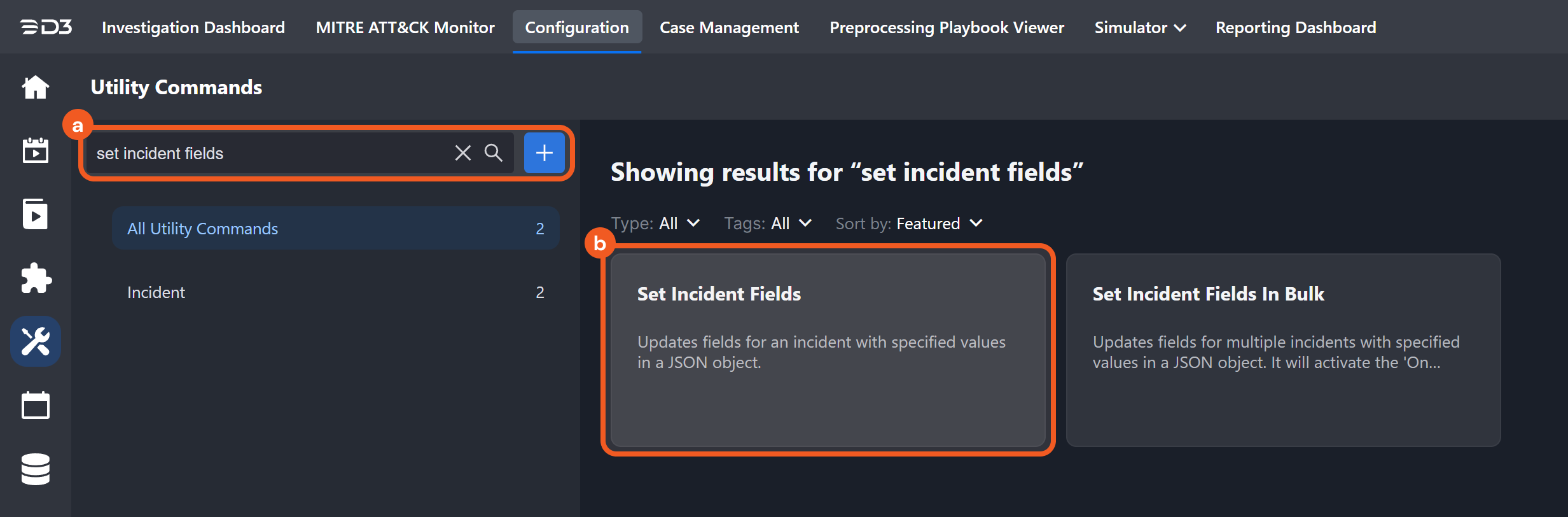
Search and select a command to execute.
-
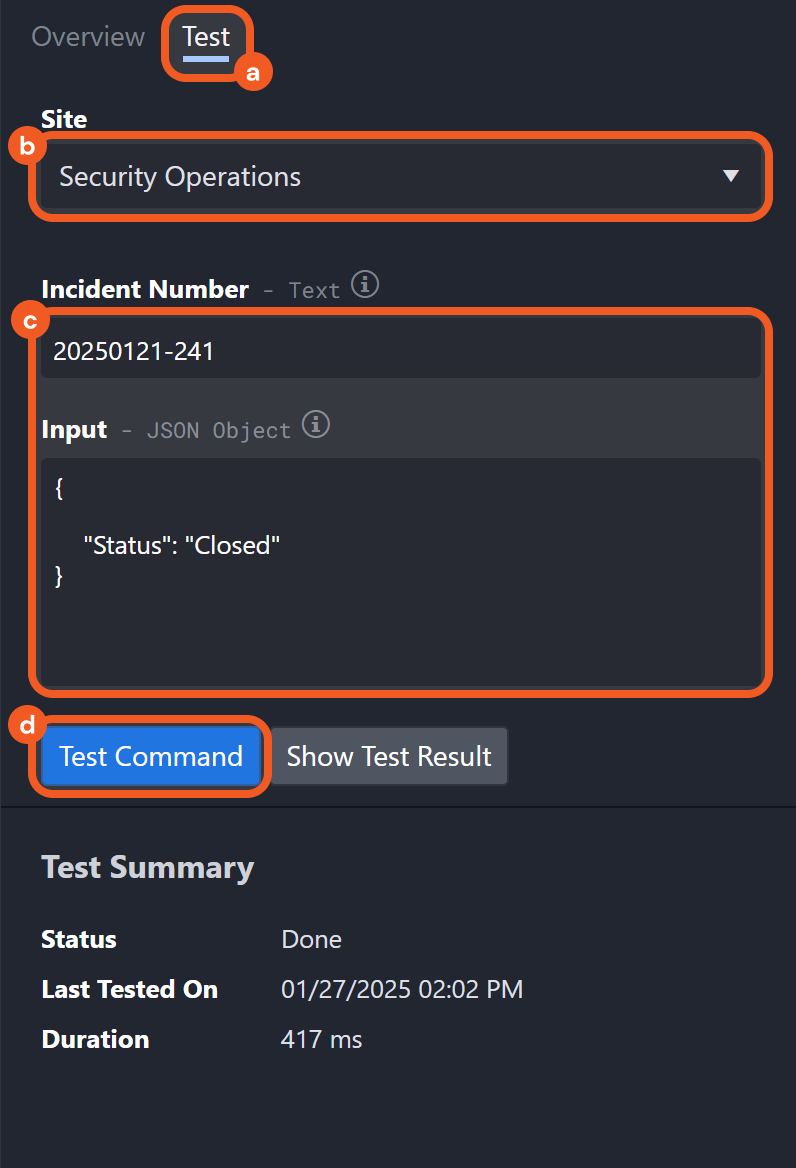
Execute the command.
-
Navigate to the Test tab.
-
Select a site.
-
Enter input parameters as necessary.
-
Click on the Test Command button.
-
READER NOTE
On the incident-level, commands can be executed on-the-fly using the Execute Command button in the general information header panel.
Integration Command Examples
Checking the Reputation of a URL
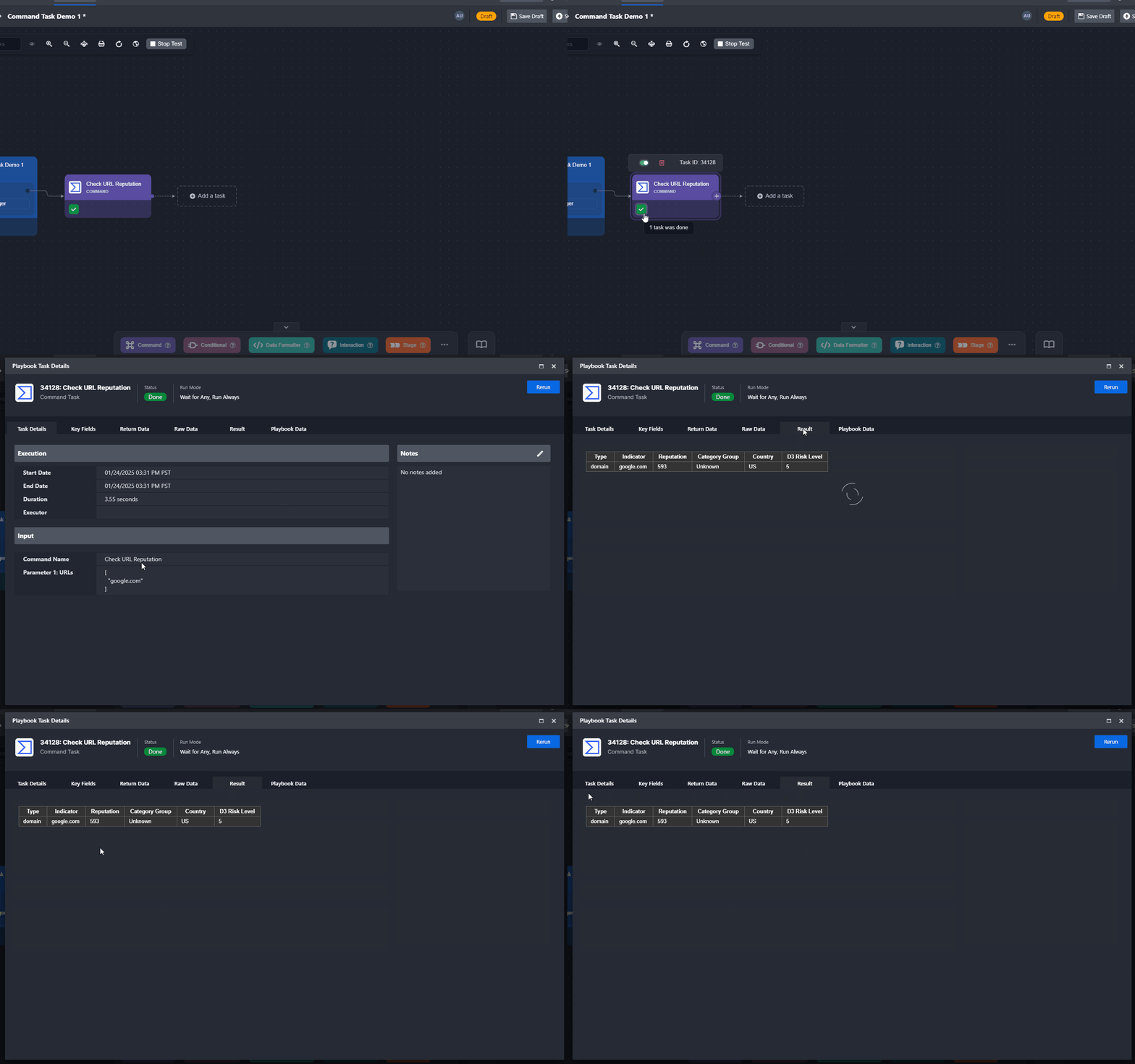
Objective Set up and run a command task that checks the reputation of a URL.
-
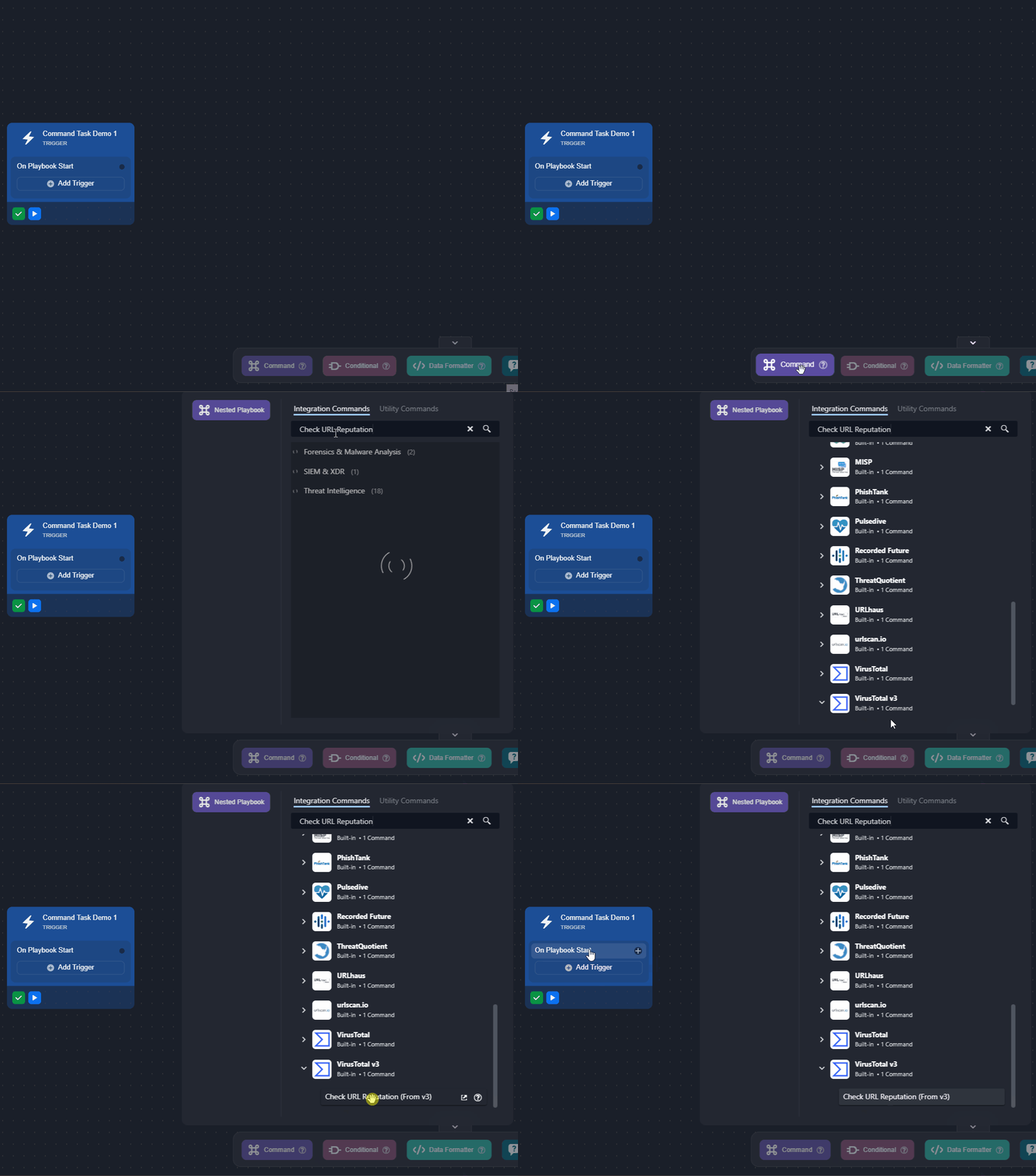
Search for and drag the Check URL Reputation command task from VirusTotal v3 to the On Playbook Start trigger.
-
Name the task, ensure that the Testable option is selected, then click on the Next button.
.png?cb=5703275d00e504dea2122649ea0572f1)
-
Configure the task details, then save the task.
.png?cb=6b60d85cd5ea9782e15deab7a69eeb24)
-
Enter a URL in text array format.
For the demo, the data is hardcoded, but it should almost always be dynamically retrieved from a data source (e.g., an event or incident) using the Format Builder function. -
Select an existing connection to use or create a new one.
-
Select the Auto Run checkbox.
-
Click on the

-
-
Click on the Test Playbook button, then click on the the Run Test button in the popover.
.png?cb=f23b58fb79ce1d86bce9a51242bc6b18)
RESULT
The Check URL Reputation command provides reputation data for a URL, enabling analysts to assess its safety and determine if blocking is necessary.
-20250127-220208.png?cb=f83e7968acfe58347bd5a208701f2bbe)
Interacting with Slack Interactivity Elements
-20250127-195833.png?cb=c18441b81d3360a8208329c18c972f10)
Utility Command Examples
Sending an Email with Attachments
.png?cb=a5af0731910303a504a3904361d9b7dc)
Objective Send an email from the vSOC platform, including any files attached to the incident as email attachments.
-
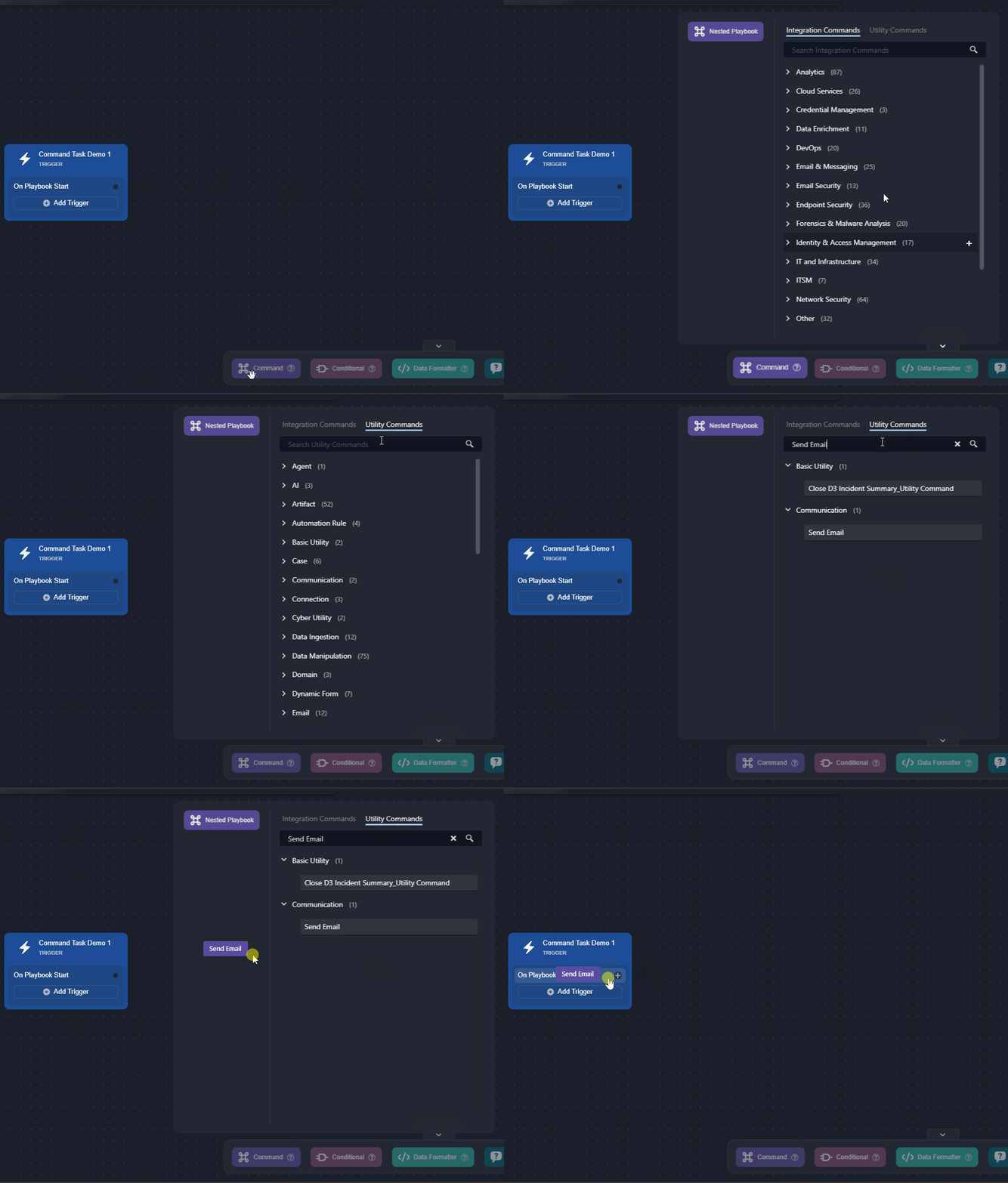
Search for and drag the Send Email utility command task to the On Playbook Start trigger.
-
Name the task, ensure that the Testable option is selected, then click on the Next button.
.png?cb=7f286fae9e0e805c8147472d2384cd14)
-
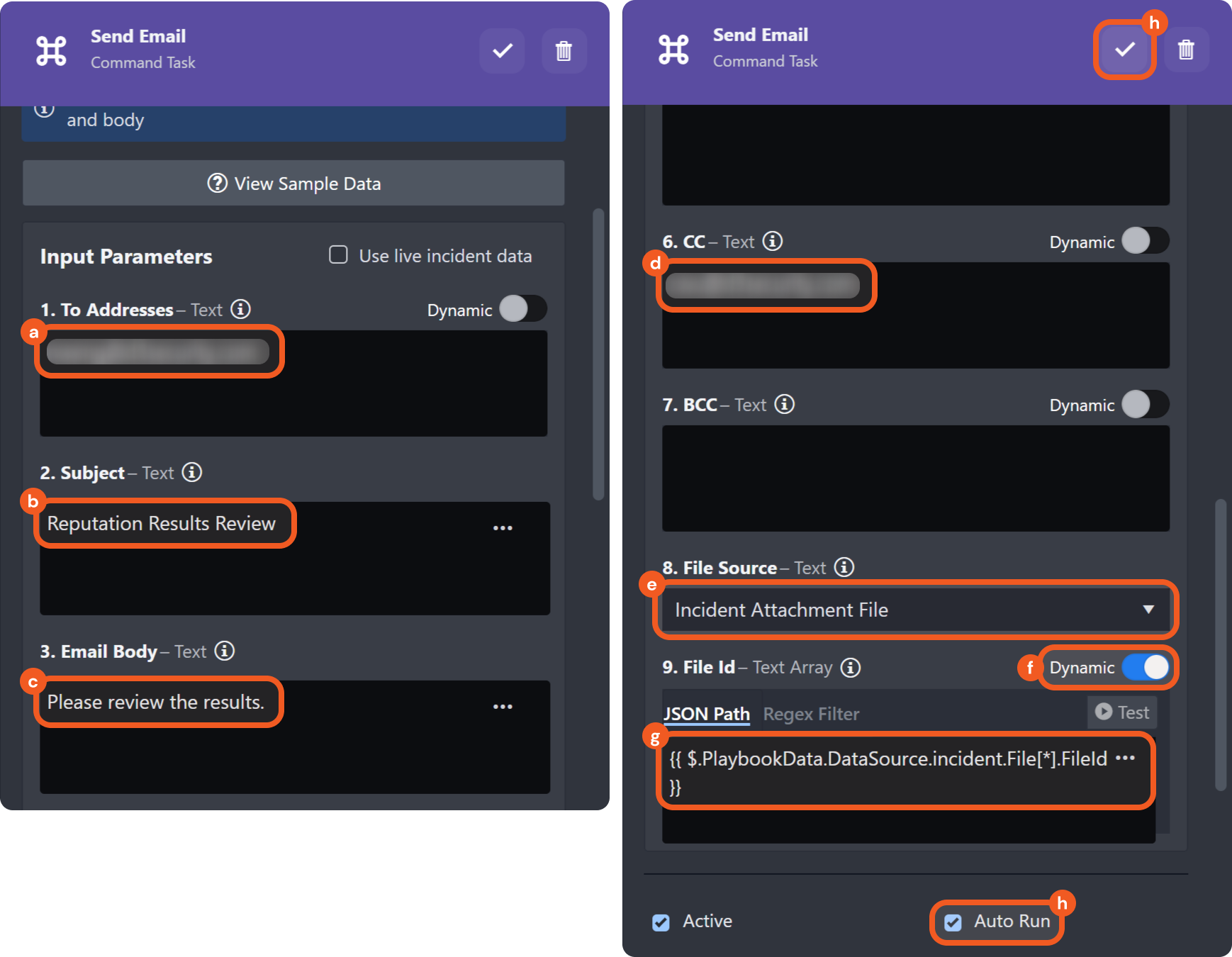
Configure the task details, then save the task.
-
Enter the recipient's email address.
-
Enter the email subject.
-
Enter the email body.
-
Enter the CC recipient.
-
Choose Incident Attachment File as the file source.
-
Select the Dynamic toggle.
-
Dynamically retrieve the value for the File ID. Refer to Dynamically Selecting Data for more information.
{{ $.PlaybookData.DataSource.incident.File[*].FileId }} -
Select the Auto Run checkbox.
For information about the Reply Mode and Reply Due Time parameters, refer to this documentation. -
Click on the
-
-
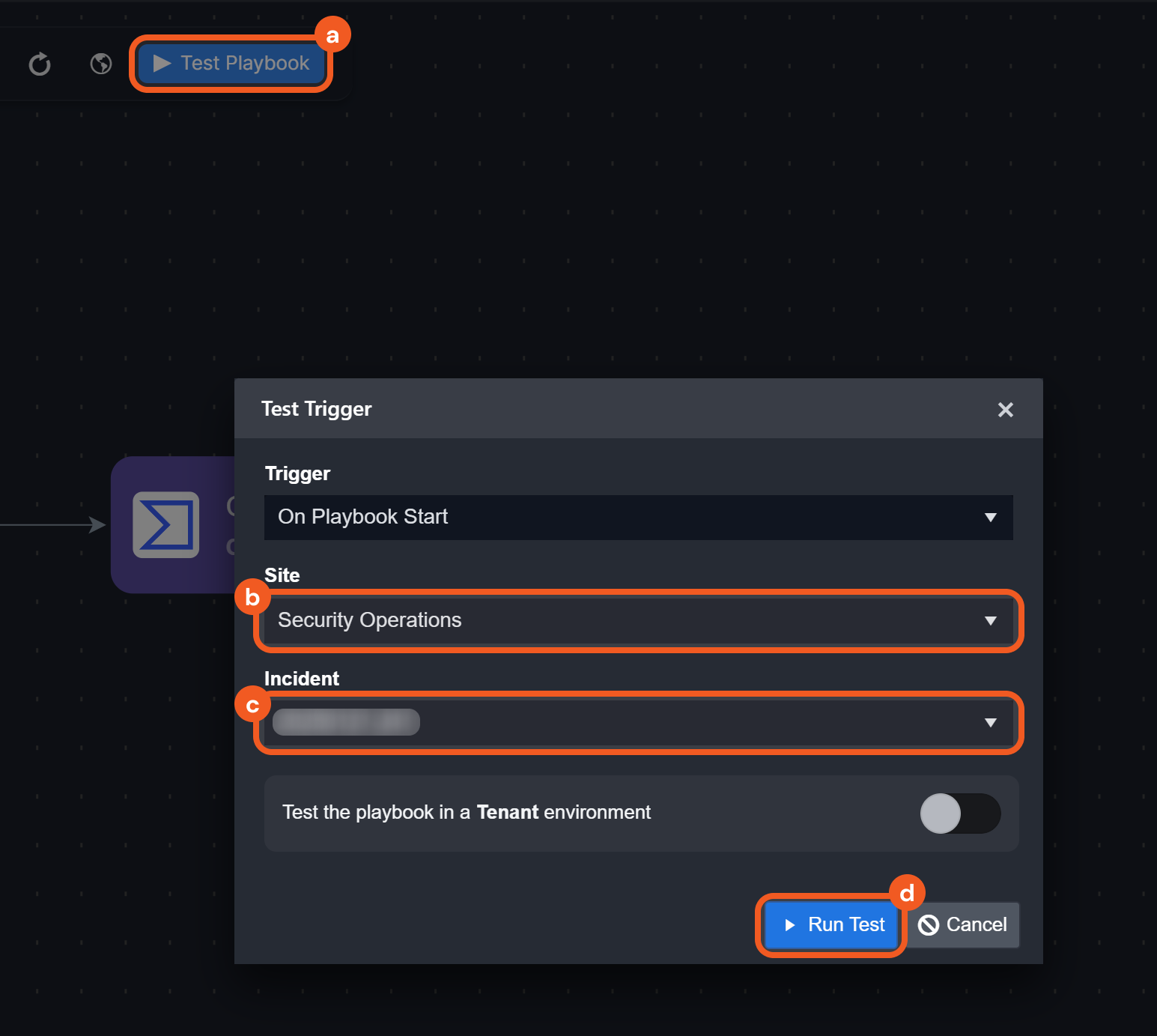
Test the playbook.
-
Click on the Test Playbook button.
-
Select a site.
-
Select an incident.
Testing the playbook on an incident will impact the incident. To avoid unintended effects, perform all testing involving the Test Playbook functionality in a demo instance of vSOC. -
Click on the Run Test button.
-
RESULT
The Send Email command task sends an email based on the specified task configurations, delivering it to the primary recipient and any CC or BCC recipients defined. Any files uploaded to the incident workspace are included as an attachment.
Retrieving Global List Metadata
-20250127-201347.png?cb=fcc107285da8014530303e9ca1e5cbc3)
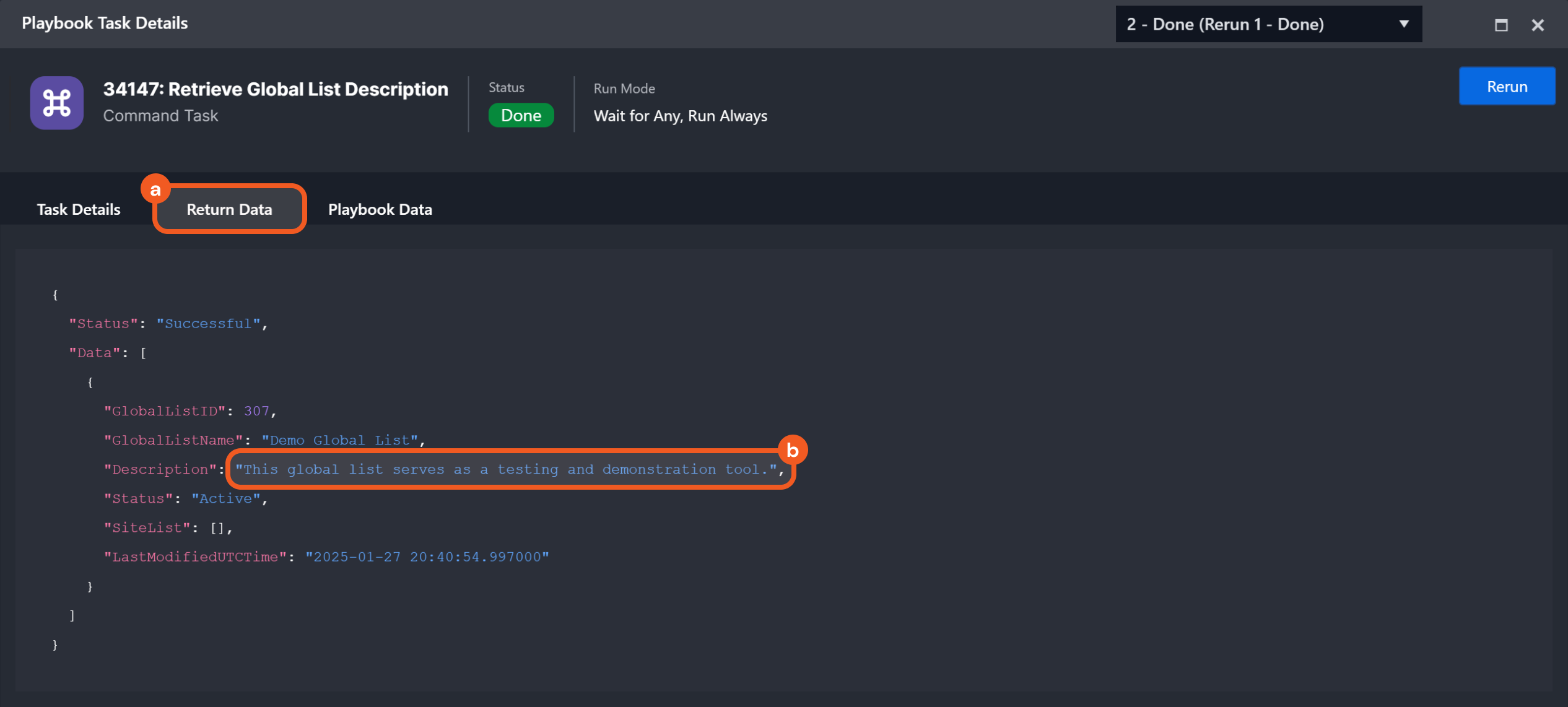
Objective Extract the description of a global list titled Demo Global List.
-
Ensure Demo Global List is available for use in select sites.
-20250127-205228.png?cb=1f9d062f5d5c843abb12df5352c79138)
-
Connect a command task to the On Playbook Start trigger.
-20250127-201909.png?cb=6c17a7046d24c7d365a4547ade1663fe)
-
Name the command task, then click on the Next button.
-20250127-202132.png?cb=1aa330efbb0310b274b502148317fda9)
-
Select the Auto Run checkbox, then click on the Anno ellipses.png icon.
-20250127-202409.png?cb=254de546349e4e66bdd266cb2d1a1902)
-
Select the Get Global List MetaData utility command.
-20250127-203126.png?cb=2f77c26759a7eb69e29d64153e88a959)
-
Specify the search type and global list name, then save the task.
-20250127-205712.png?cb=2b907af8515410c8e5f26507c34c3b45)
-
Click on the Test Playbook button, then click on the the Run Test button in the popover.
-
Click on the command's Frame 3.png task icon.
-20250127-210203.png?cb=9e5758f0281554e04c2ca4f0a5371b15)
-
Click on the Return Data tab to view the extracted description.

Mixed Command Use Example
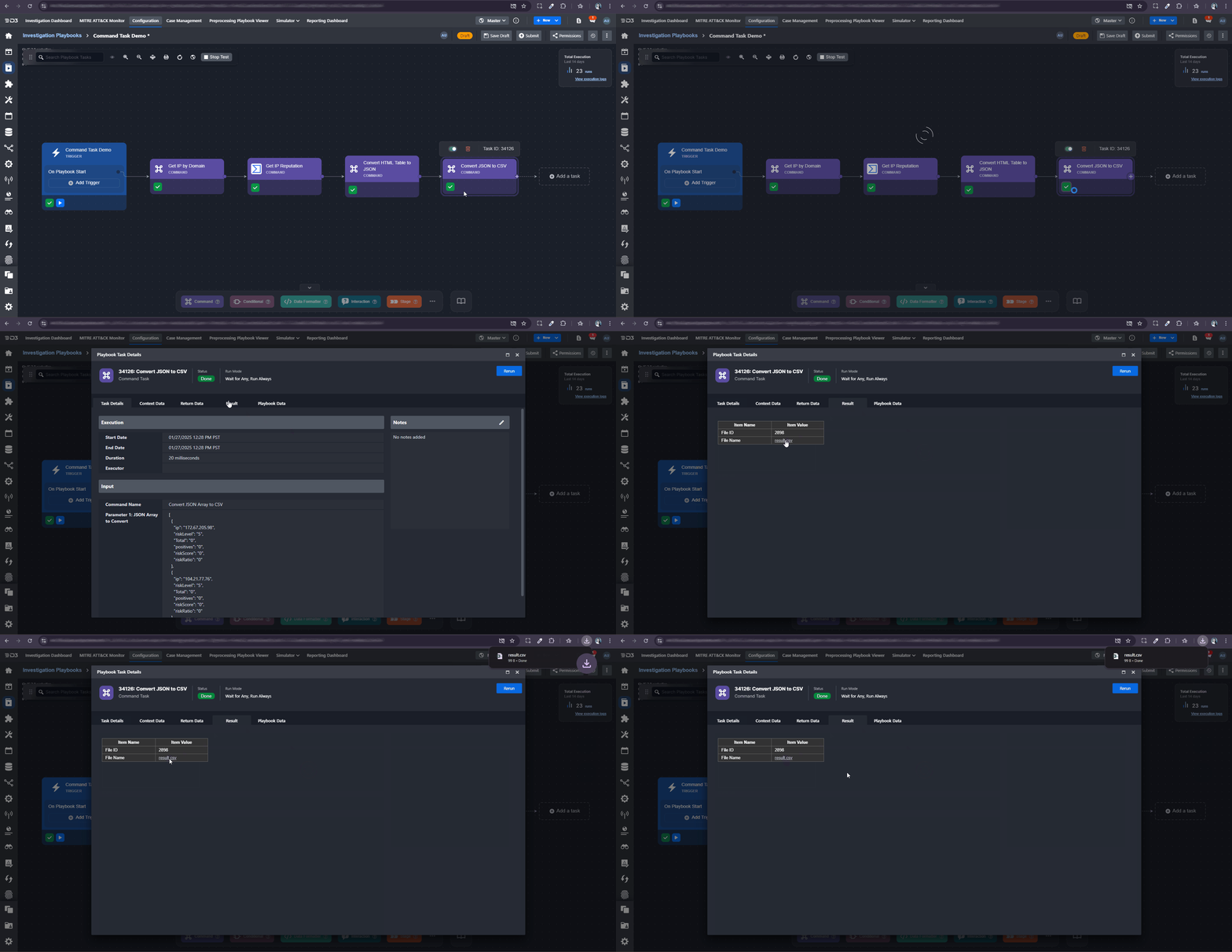
Mixed Command Use Example - Generating a CSV File Using Domain IP Reputation Results
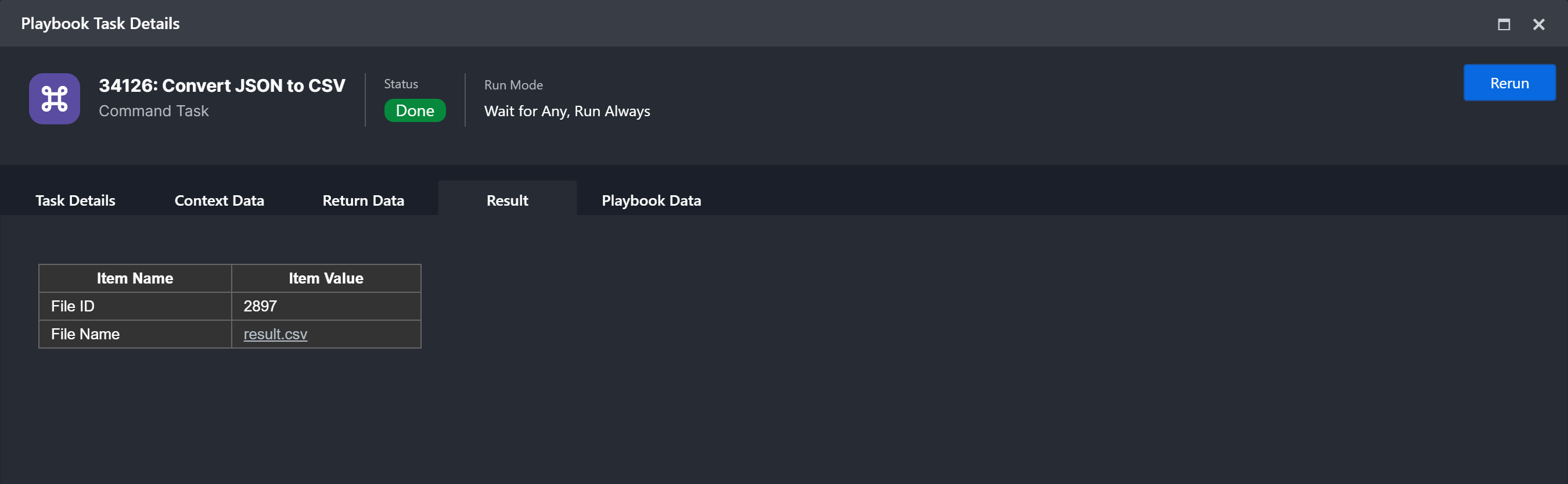
Objective Create a CSV file that includes information about the IP reputation linked to domain names.
-
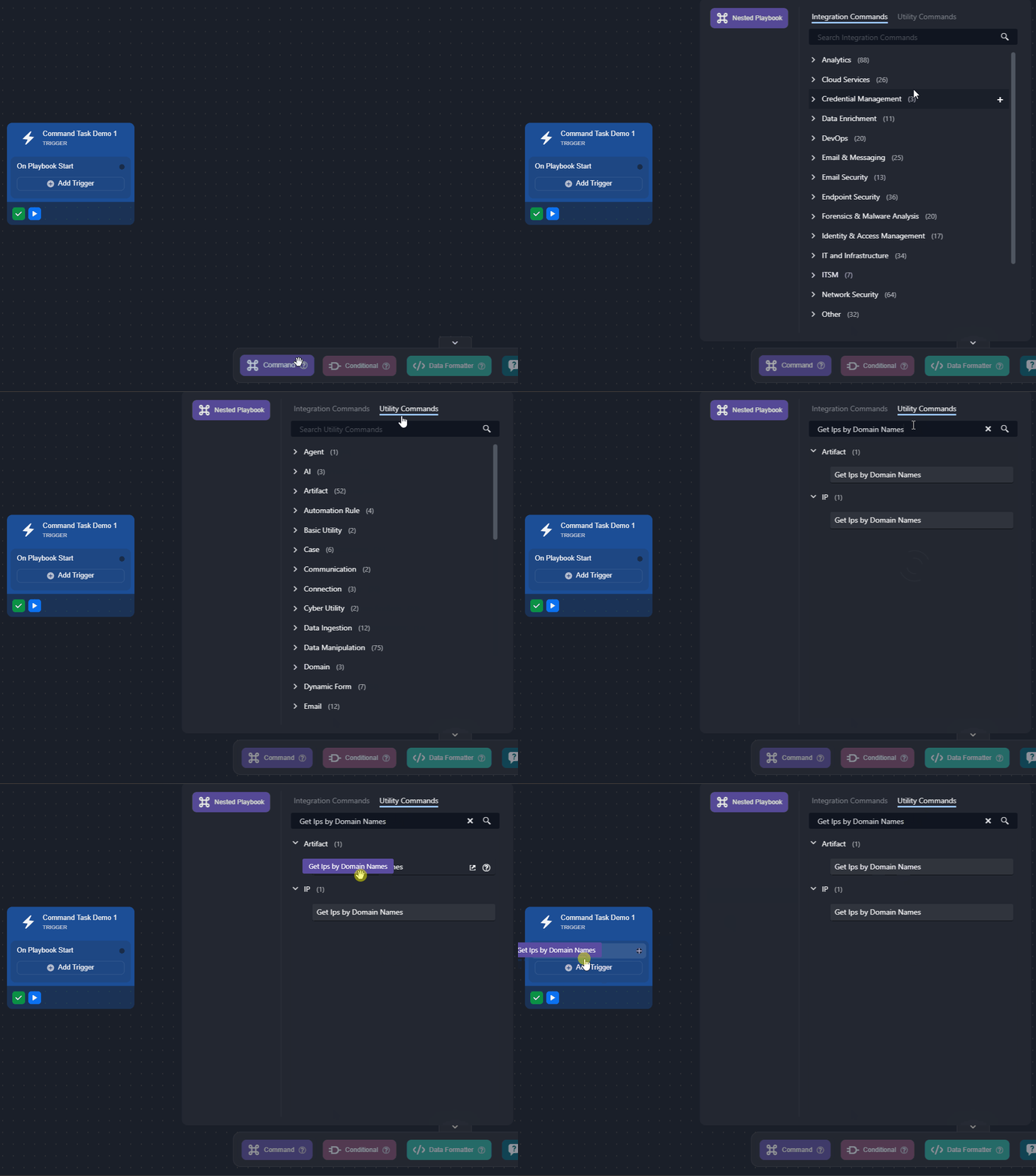
Search for and drag the Get Ips by Domain Names utility command task to the On Playbook Start trigger.
-
Name the task, ensure that the Testable option is selected, then click on the Next button.
.png?cb=2e4264ae01ad69964fc1c9668e21f69e)
-
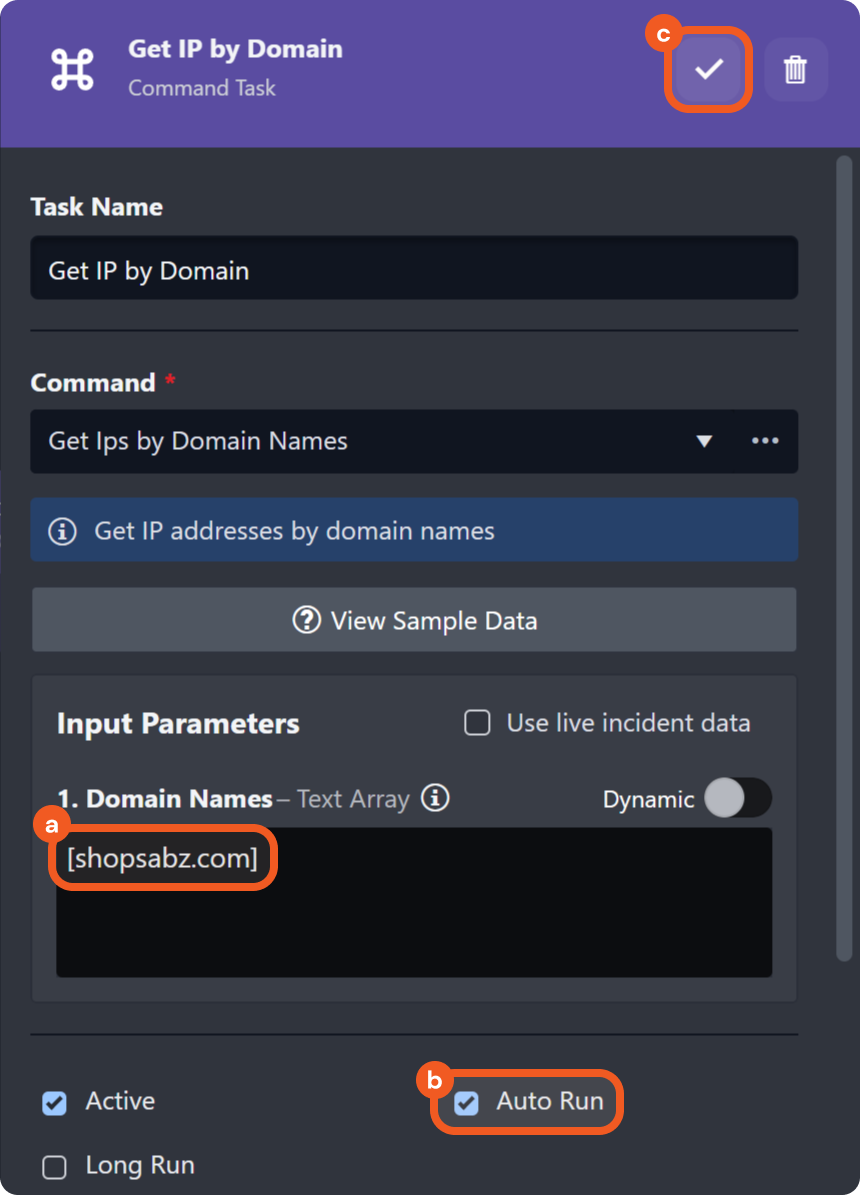
Configure the task details, then save the task.
-
Enter the domain names whose IPs will be retrieved, such as this compromised domain listed by Zone Files:
[shopsabz.com]For the demo, the data is hardcoded, but it should almost always be dynamically retrieved from a data source (e.g., an event or incident) using the Format Builder function.
-
Select the Auto Run checkbox.
-
Click on the
-
-
Repeat steps 1 and 2 to add the Get IP Reputation command task from the VirusTotal V3 integration to the previous task.
.png?cb=1a0f2f54f2ad74408d6bf5c72da8674c)
-
Configure the task details, then save the task.
.png?cb=786521d3c095cb3b73c3920fca7c3bf4)
-
Dynamically retrieve the value for the IPs, the output data of the previous task.
{{PlaybookData | jsonpath('$.["Get IP by Domain"].outputData.IPAddresses')}} -
Select an existing connection to use or create a new one.
-
Select the Auto Run checkbox.
-
Click on the
-
-
Repeat steps 1 and 2 to add the Convert HTML to JSON utility command task to the previous task.
.png?cb=f8711d755600299ce2cdae7d0971a54f)
-
Configure the task details, then save the task.
.png?cb=dc447e20774512a0f897675258fe1a4f)
-
Click on the Dynamic toggle.
-
Dynamically retrieve the value for the HTML Text, the result of the previous task.
{{ $.PlaybookData.["Get IP Reputation"].result }} -
Select the True option.
-
Select the Auto Run checkbox.
-
Click on the
-
-
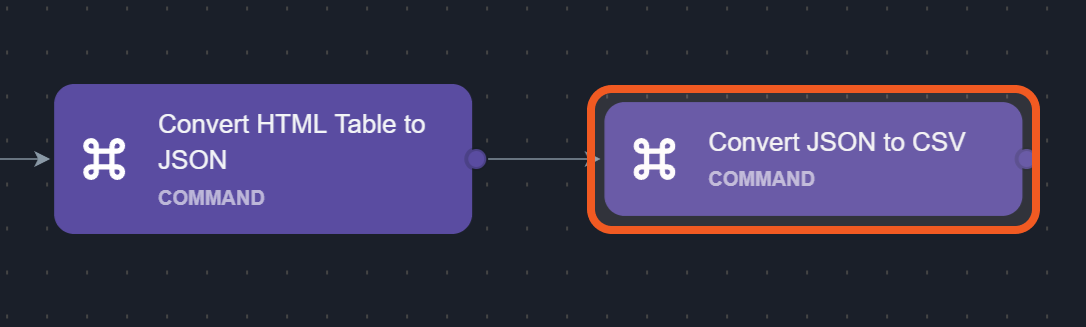
Repeat steps 1 and 2 to add the Convert JSON Array to CSV utility command task to the previous task.
-
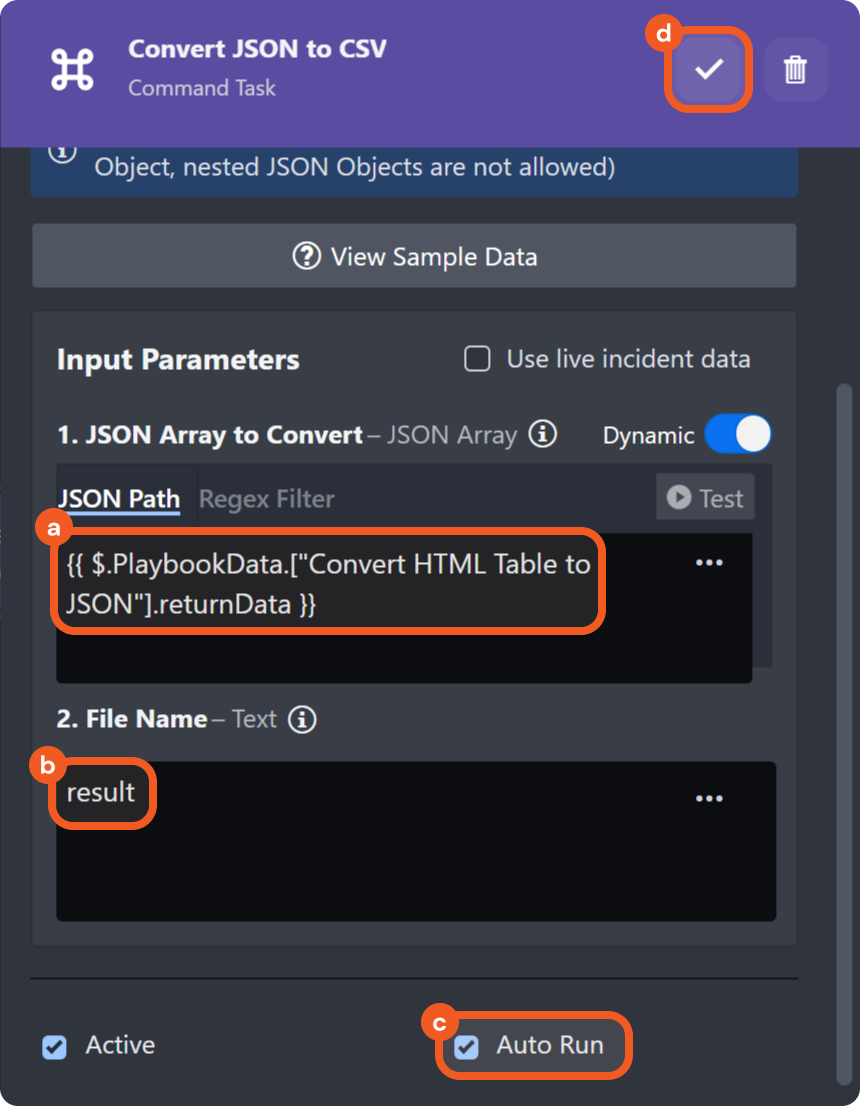
Configure the task details, then save the task.
-
Dynamically retrieve the value for the JSON Array to Convert the return data of the previous task.
{{ $.PlaybookData.["Convert HTML Table to JSON"].returnData }} -
(Optional) Rename the file.
-
Select the Auto Run checkbox.
-
Click on the
-
-
Click on the Test Playbook button, then click on the the Run Test button in the popover.
RESULT
Users will be able to download the "result" CSV file by navigating to the playbook task details > Result tab, then clicking on the result.csv file.