last updated: December 31, 2025
The data formatter task, as a Jinja code editor, provide a dedicated space for data extraction, manipulation, organization, and testing. They typically serve as holders of preparatory data for subsequent workflows, and are commonly referenced by command, conditional, or other data formatter tasks.

Examples
Example 1 - Date-Time Parsing and Splitting
-
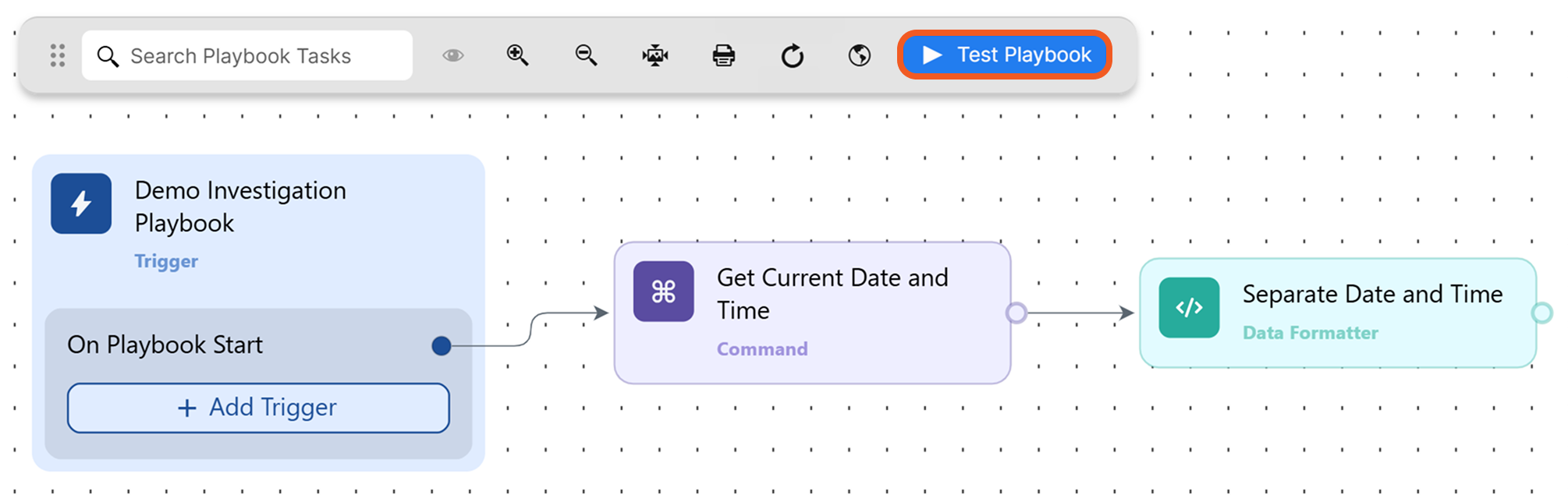
Build and test the following playbook using the Get Current UTC Time command, ensuring that all tasks auto-run.
-
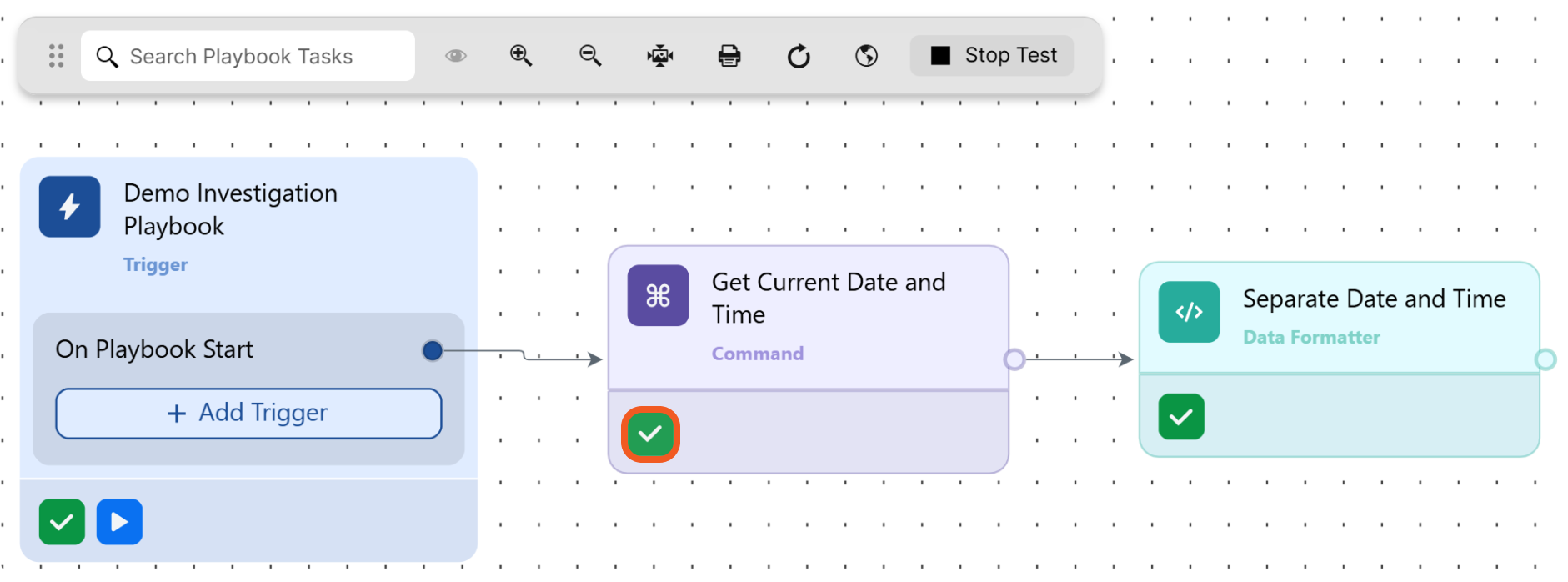
Click on the

-
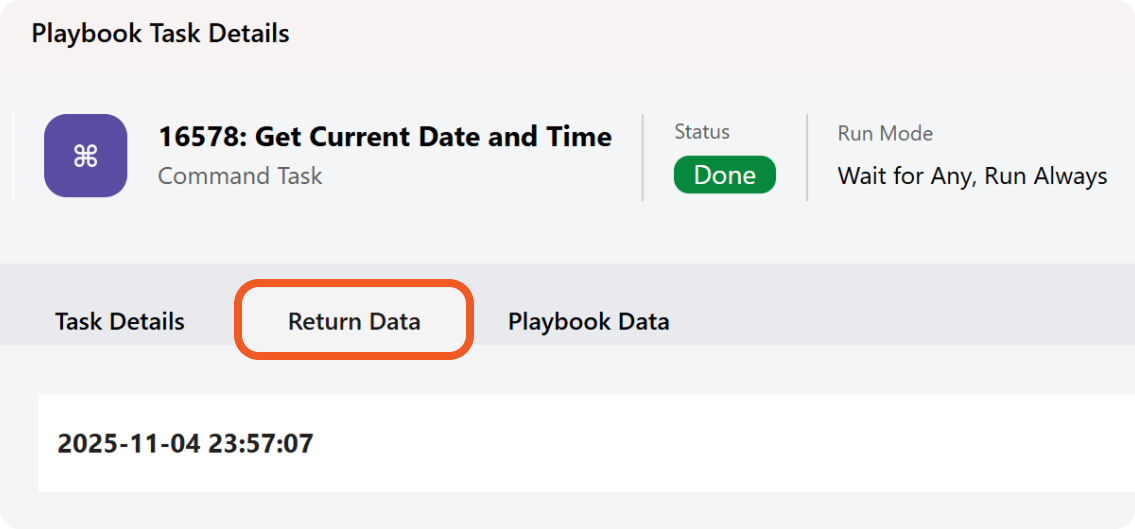
Navigate to the Return Data tab, then note the date time format.
-
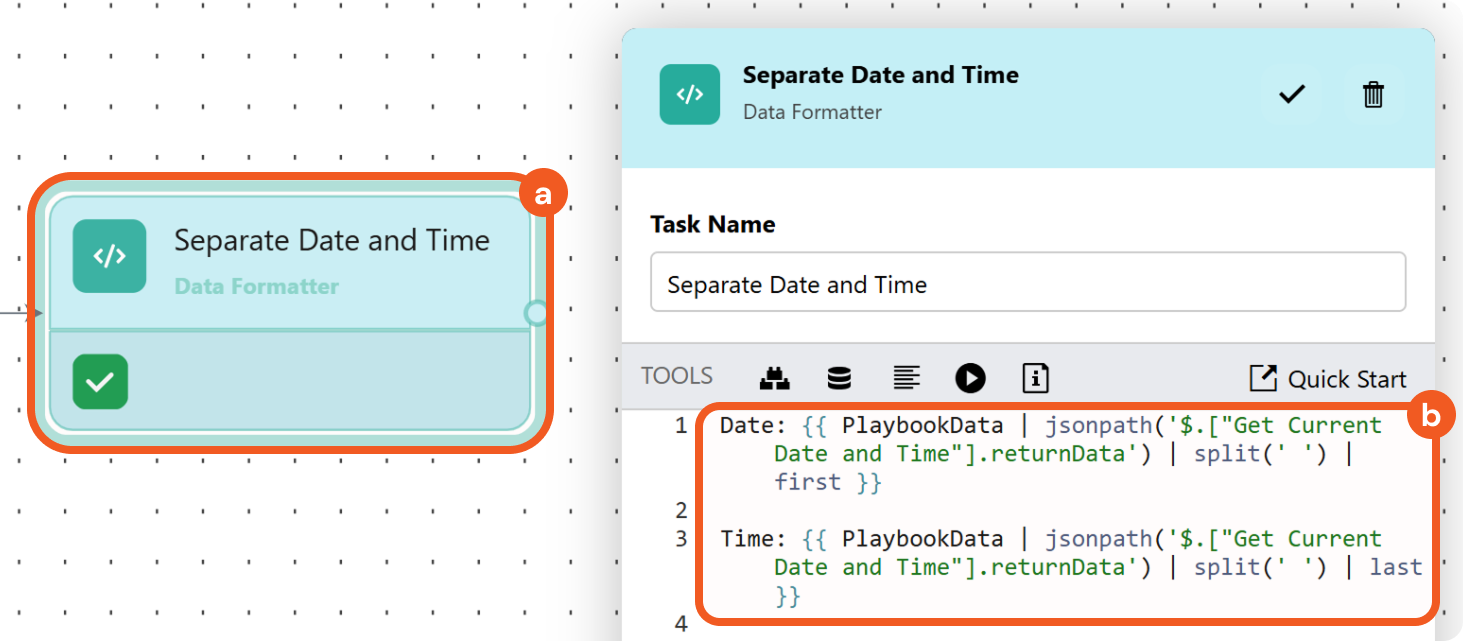
Insert the following Jinja code into the data formatter task editor.
Date: {{ PlaybookData | jsonpath('$.["Get Current Date and Time"].returnData') | split(' ') | first }}

Time: {{
    PlaybookData | jsonpath('$.["Get Current Date and Time"].returnData') | split(' ') | last
    }}
See jsonpath, split, and first.
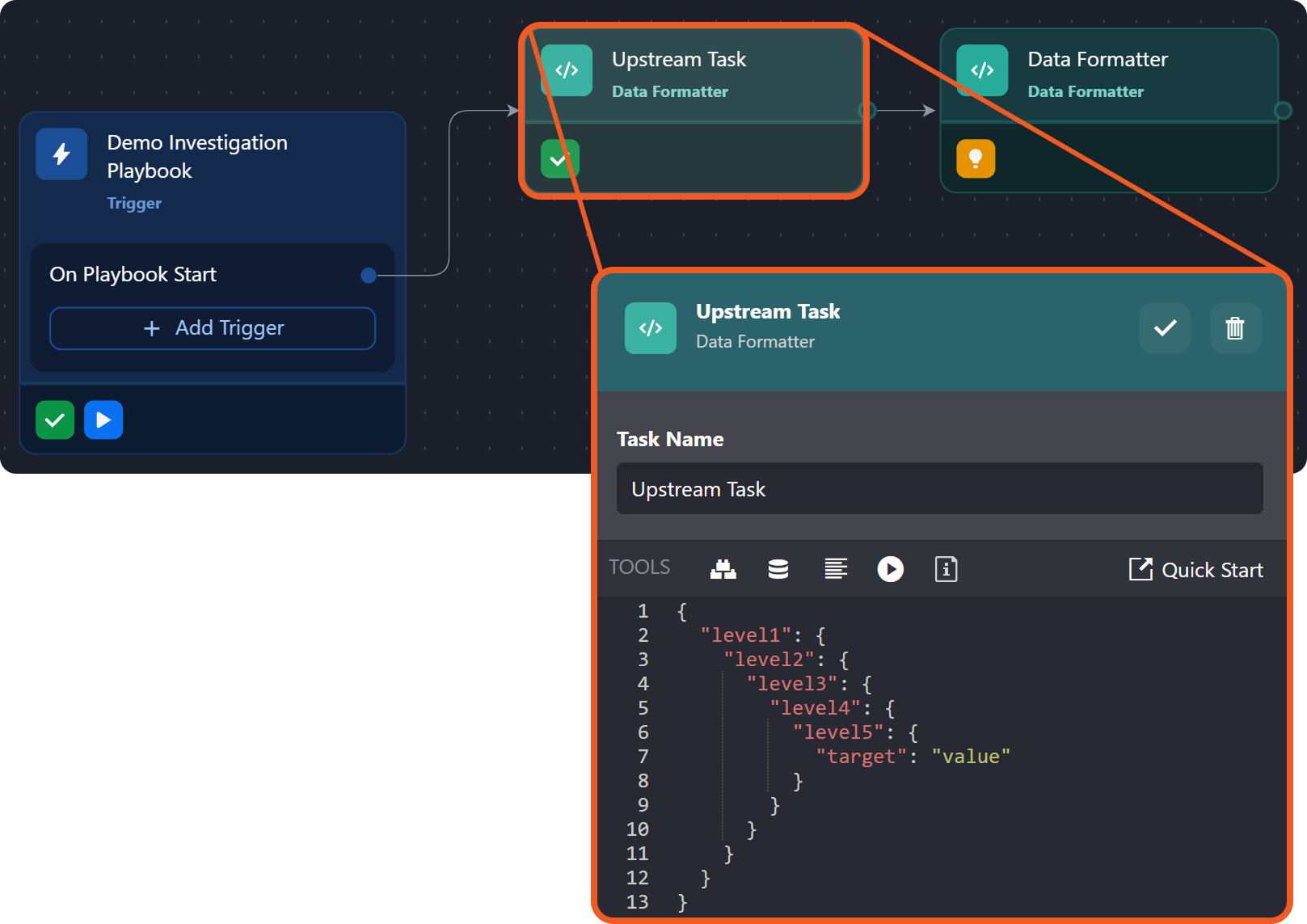
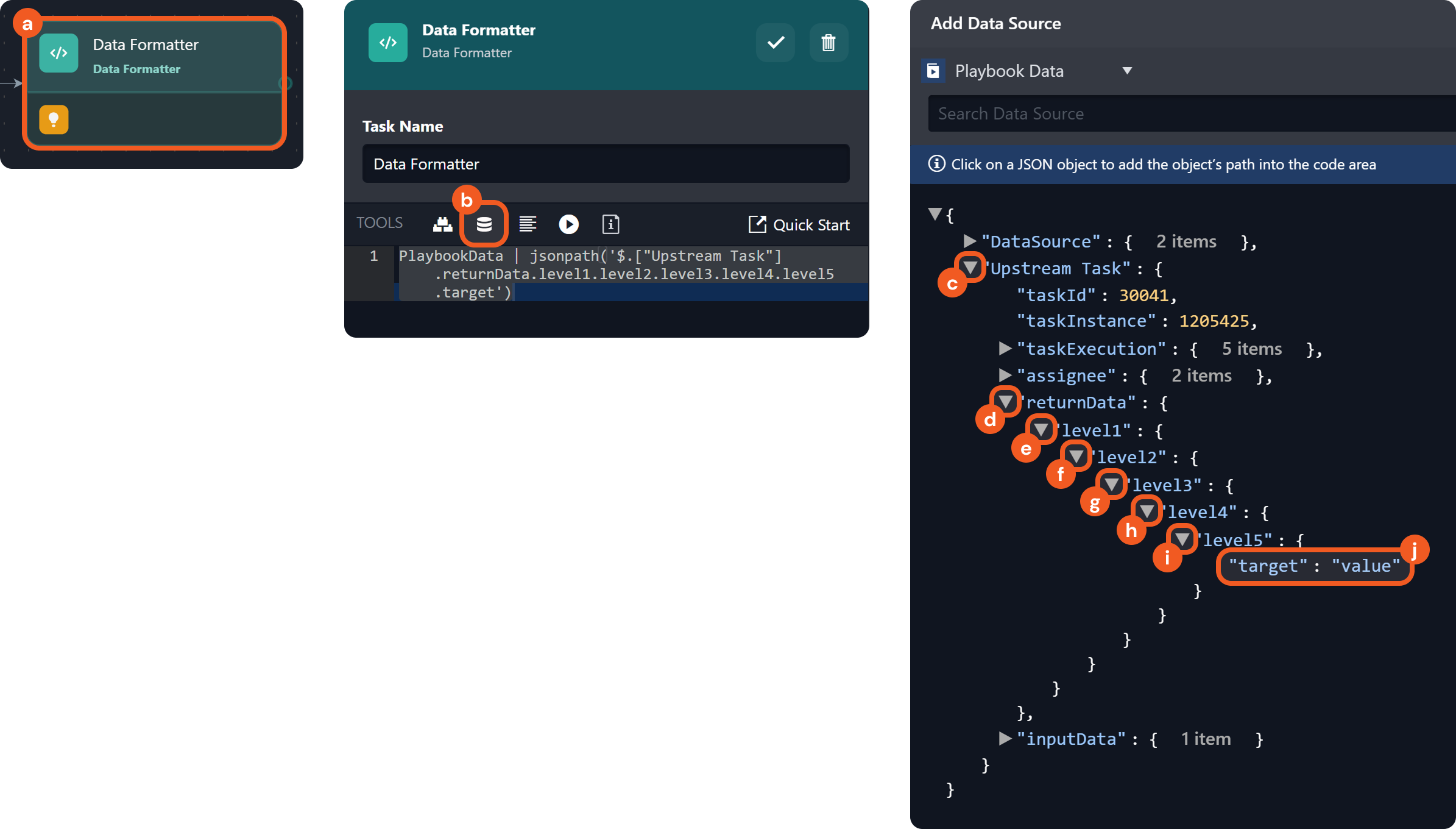
See FAQ 1 for guidance on accessing output data from an upstream command.
-
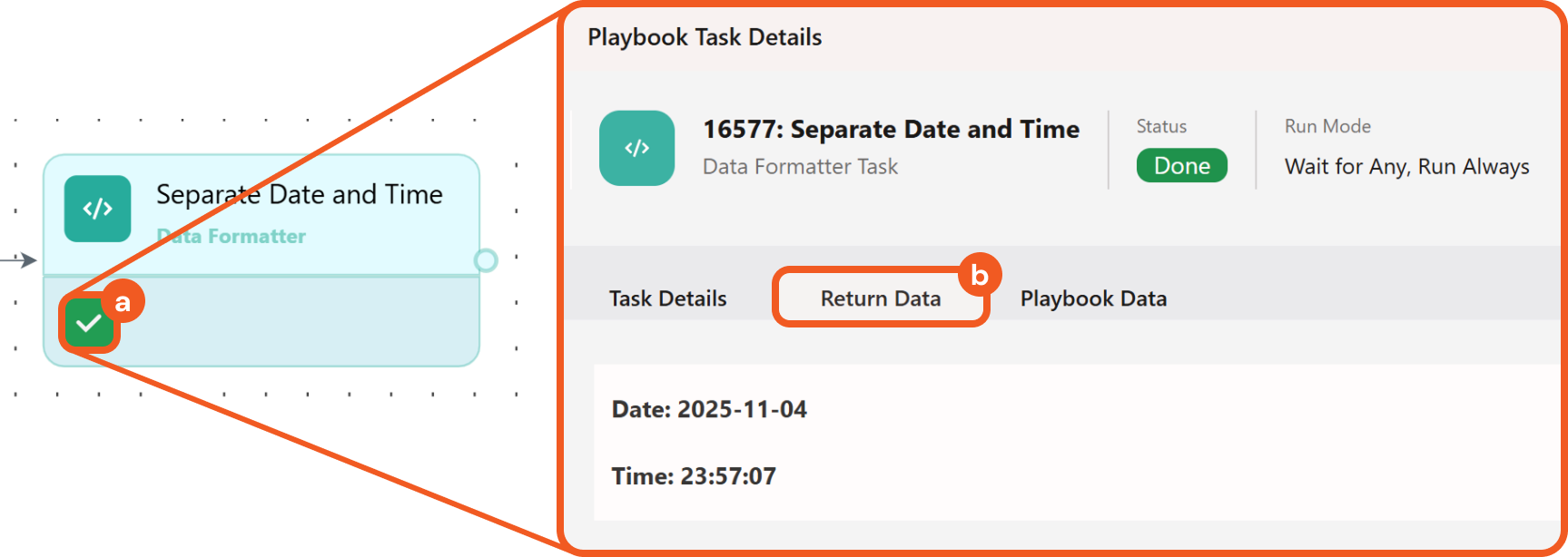
Re-test the playbook.

-
Click on the
Example 2 - Branch-Specific Data Preparation
-
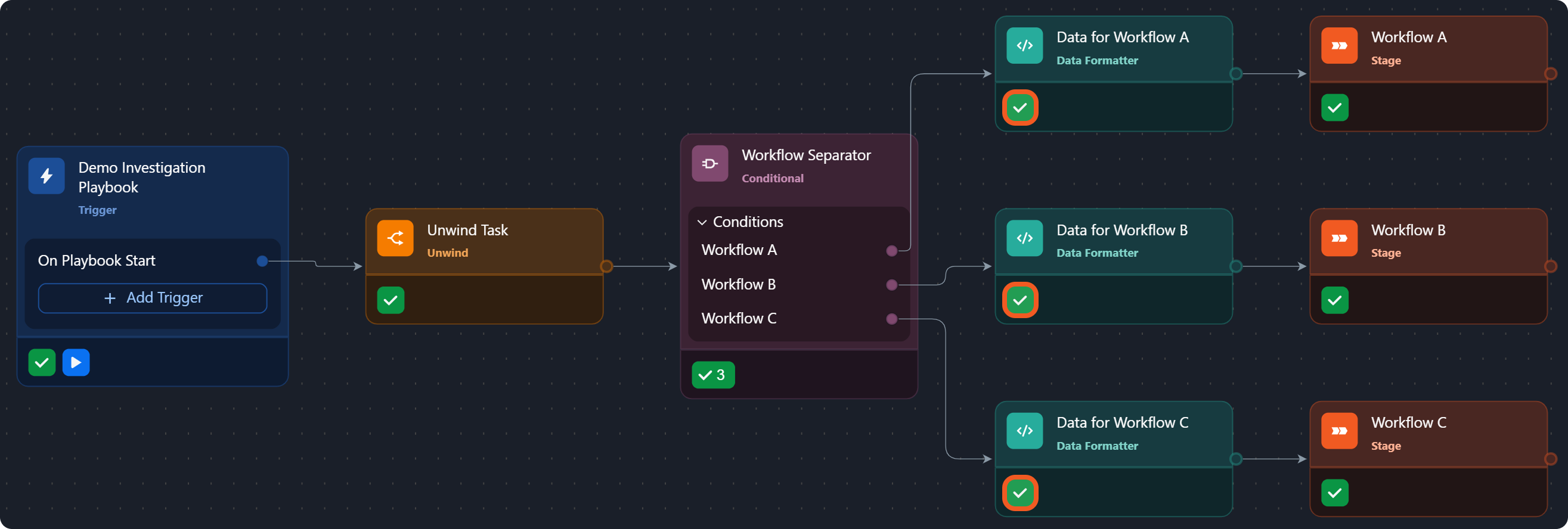
Build the following playbook, ensuring that all tasks auto-run:
%201.png?cb=15061d3b57be82bd13003e0ad065bc27)
-
Configure Unwind Task with the following JSON Data parameter:
JSON[ { "demoKeyA1": "valueA1", "demoKeyA2": "valueA2" }, { "demoKeyB1": "valueB1", "demoKeyB2": "valueB2" }, { "demoKeyC1": "valueC1", "demoKeyC2": "valueC2" } ]%201.png?cb=4ab7bdefa5fc3d158750cec60e1481b6)
-
Configure Workflow Separator with the following conditional logic:
{% set data = PlaybookData | jsonpath('$.["Unwind Task"].contextData.data') %}

{% if data | contains_key('demoKeyA1') or data | contains_key('demoKeyA2') %}
    Workflow A
{% elif data | contains_key('demoKeyB1') or data | contains_key('demoKeyB2') %}
    Workflow B
{% elif data | contains_key('demoKeyC1') or data | contains_key('demoKeyC2') %}
    Workflow C
{% else %}
    Next
{% endif %}
See jsonpath, and contains_key.
%201.png?cb=75e2525e1c76ad7eeac964f402c280fb)
-
Configure all data formatters with the following Jinja code:
{{ PlaybookData | jsonpath('$.["Unwind Task"].contextData.data') }}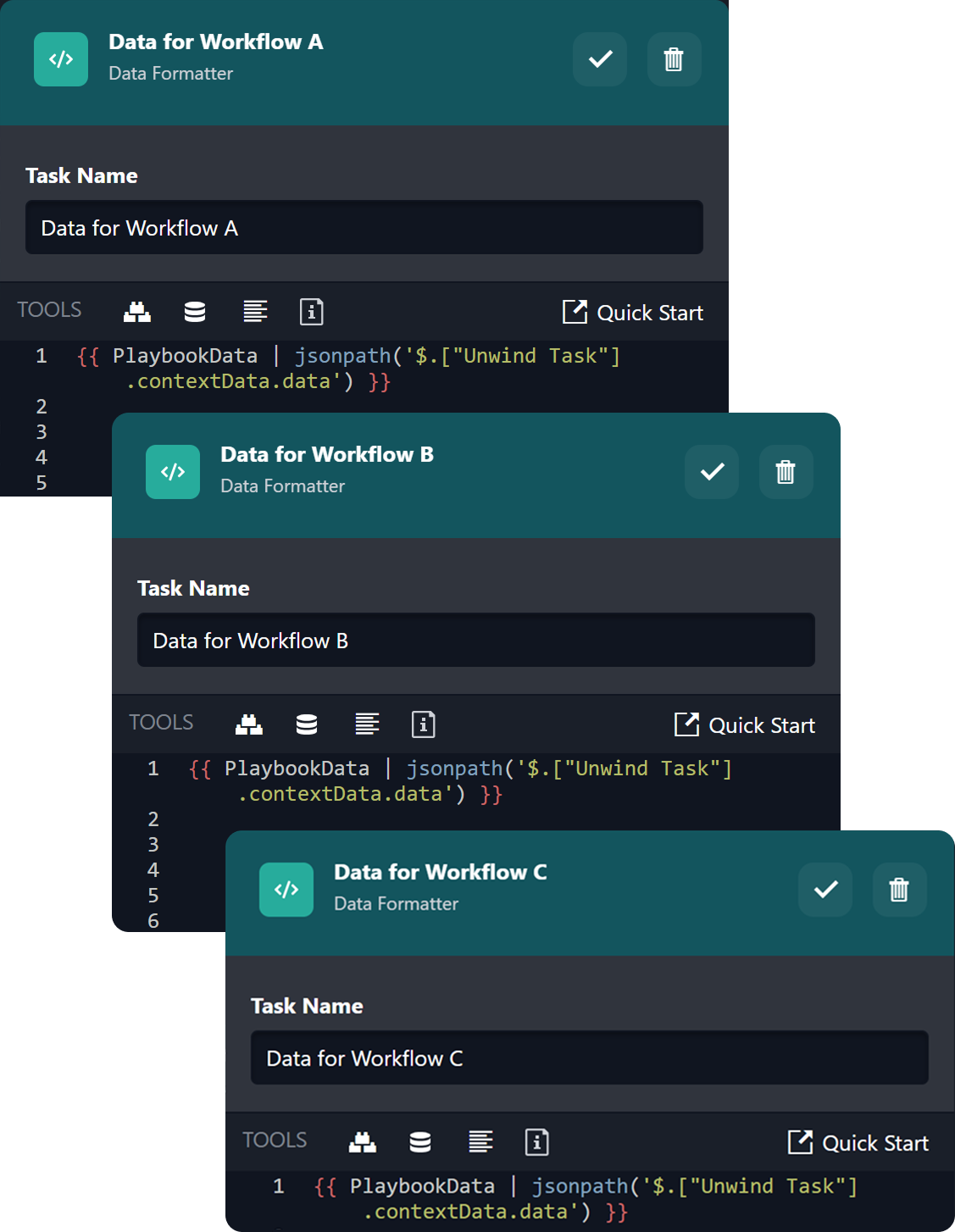
-
Test run the playbook.

-
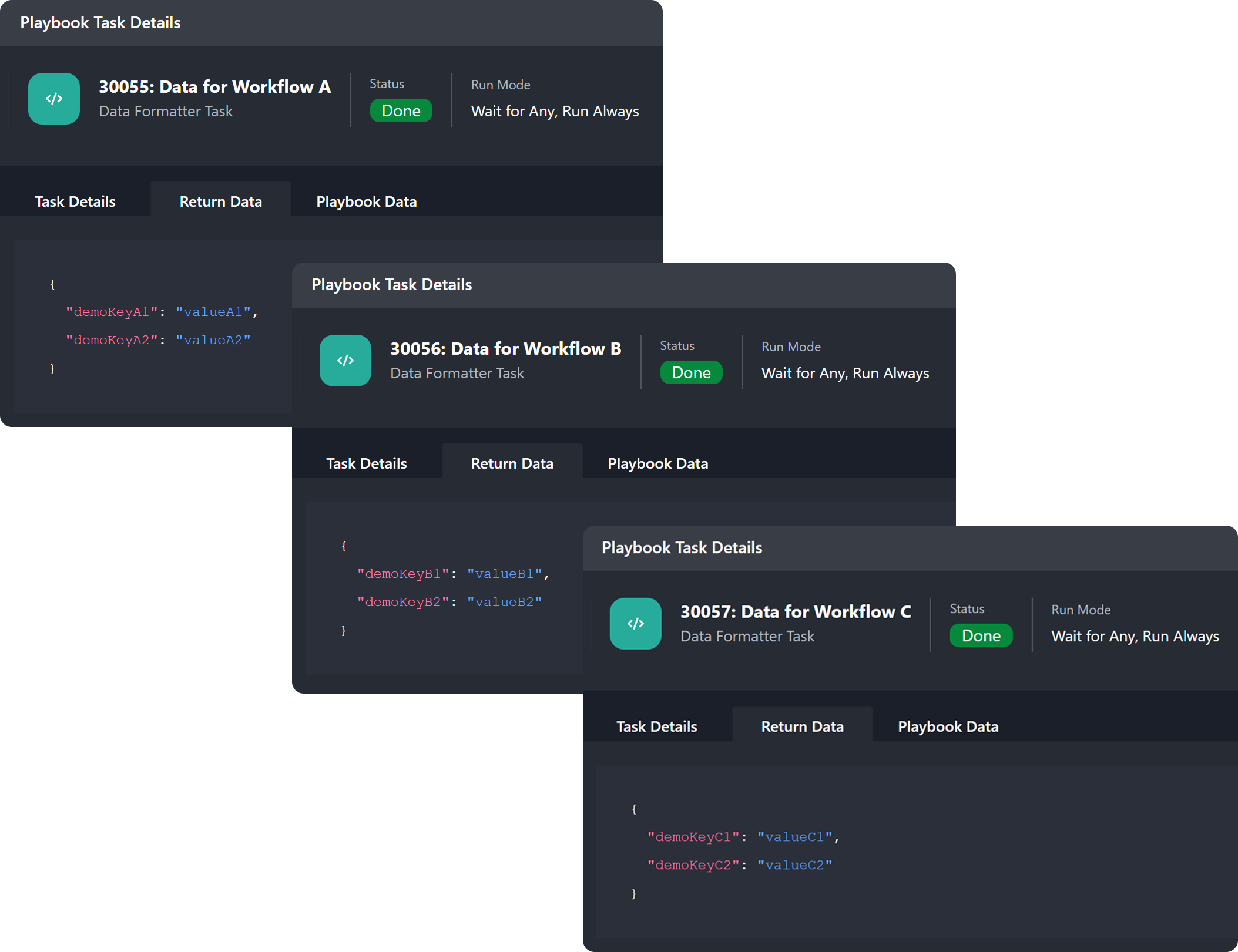
Open the Playbook Task Details popover for each of the data formatters.
-
Verify that the data has been successfully separated and prepared for each corresponding downstream workflow.
Example 3 - Event Context Extraction
-
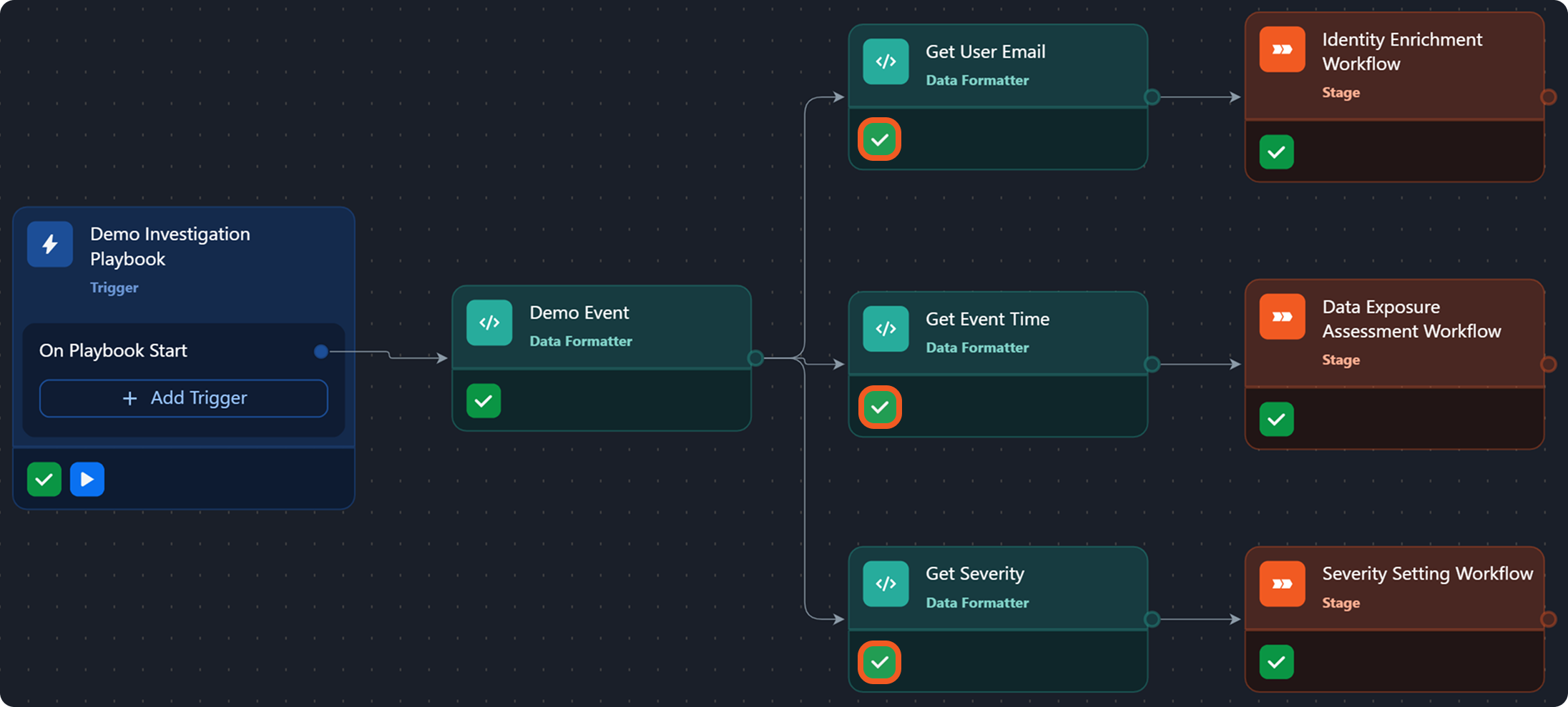
Build the following playbook, ensuring that all tasks auto-run:
%201.png?cb=a6fc8a3b624a419ab8bb5c9804dd50c6)
-
Configure Demo Event with the following JSON data:
JSON{ "eventId": "edr-98765", "user": { "email": "analyst@securitylab.io", "username": "analyst", "role": "security_engineer" }, "eventTime": "2025-11-05T14:22:33Z", "severity": "high", "alertType": "suspicious_login", "host": { "hostname": "WIN-10LAB01", "ip": "10.0.1.15" } }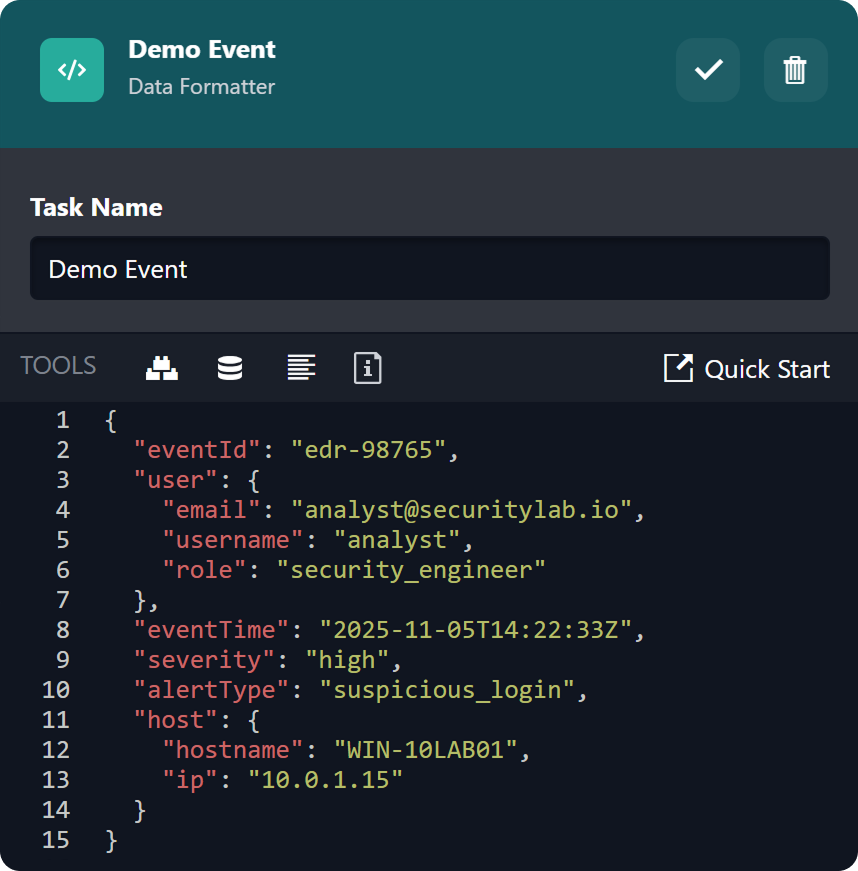
-
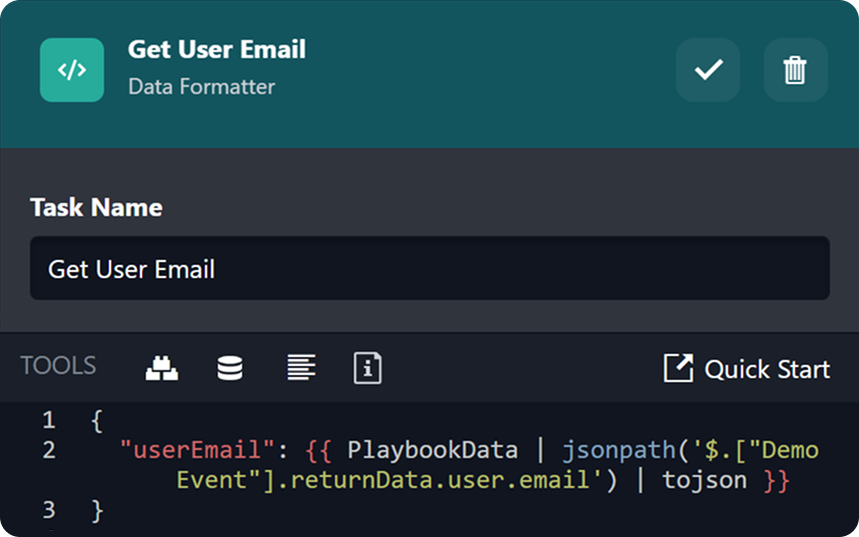
Configure Get User Email with the following Jinja logic:
{
  "userEmail": {{ PlaybookData | jsonpath('$.["Demo Event"].returnData.user.email') | tojson }}
}
-
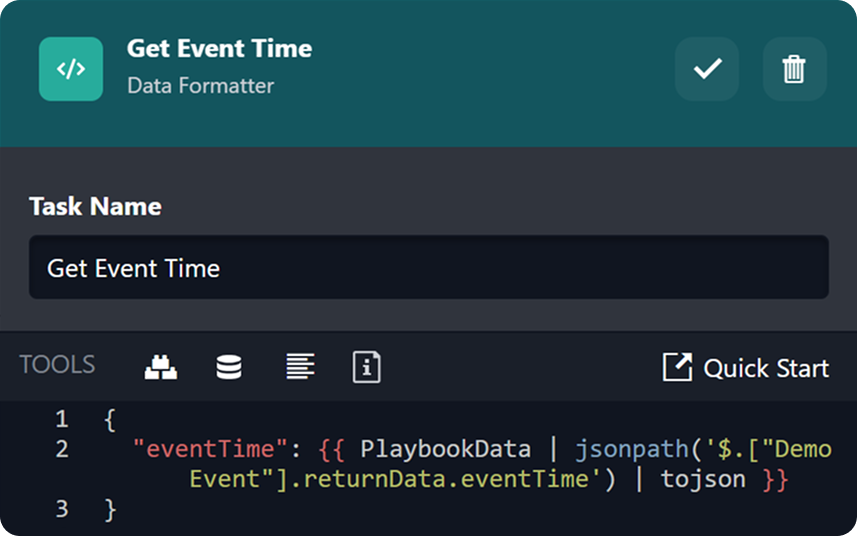
Configure Get Event Time with the following Jinja logic:
{
  "eventTime": {{ PlaybookData | jsonpath('$.["Demo Event"].returnData.eventTime') | tojson }}
}
-
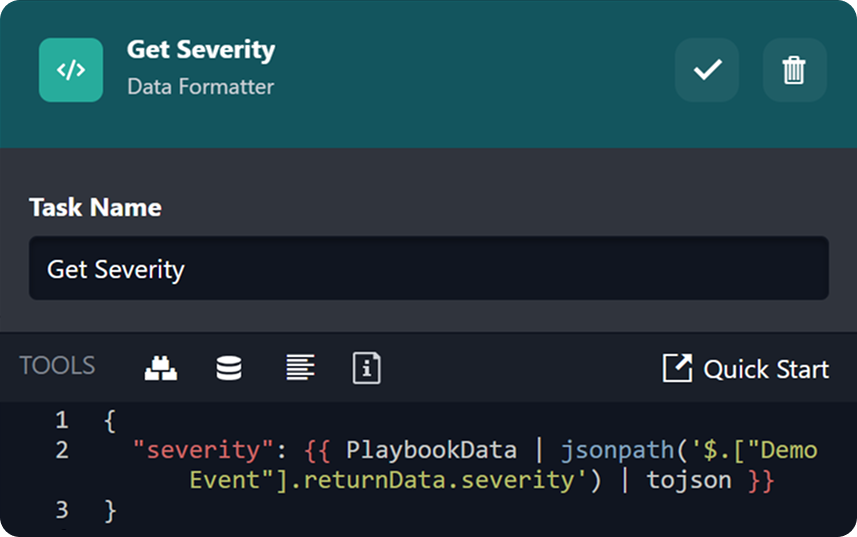
Configure Get Severity with the following Jinja logic:
{
  "severity": {{ PlaybookData | jsonpath('$.["Demo Event"].returnData.severity') | tojson }}
}
See jsonpath.
-
Test run the playbook.

-
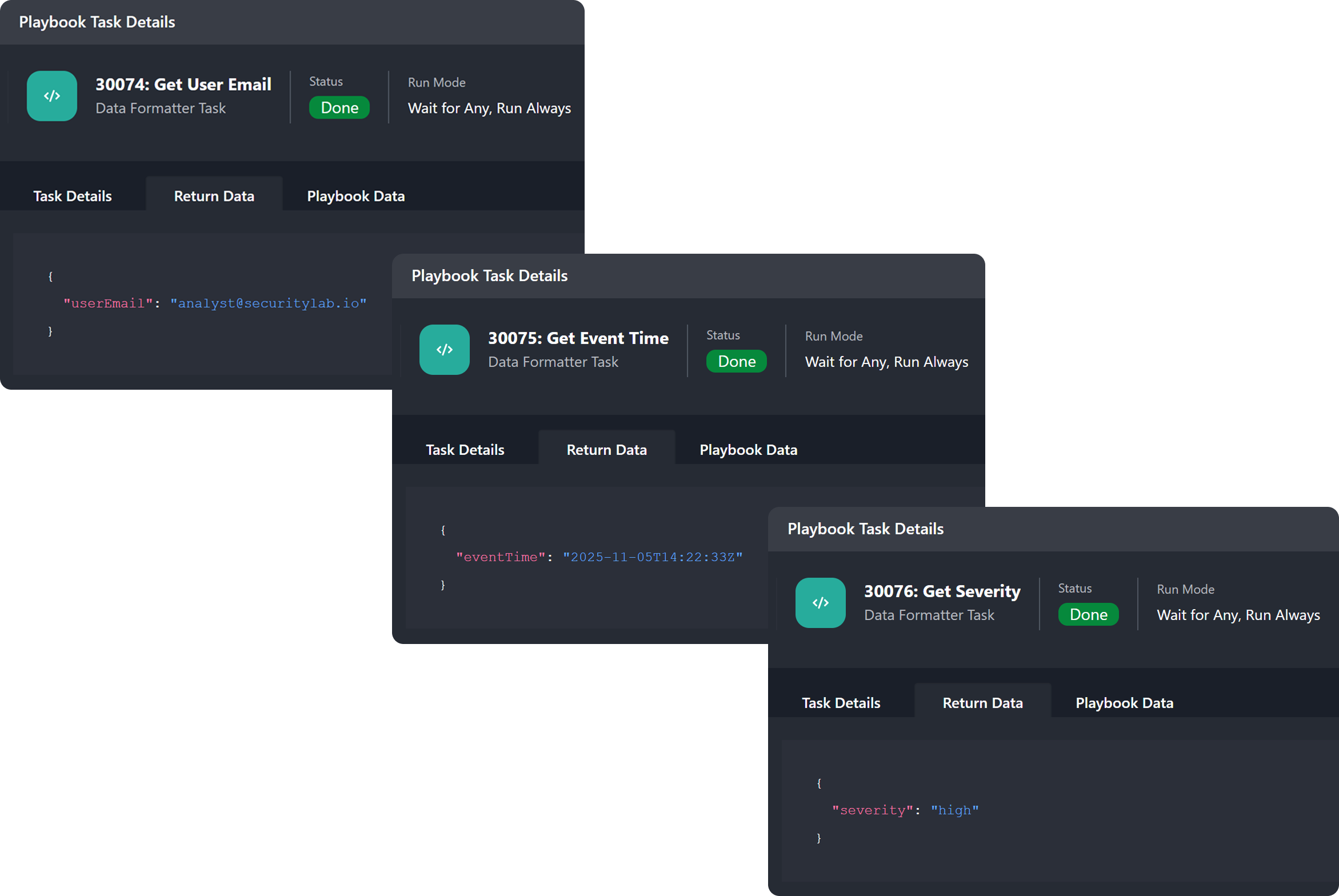
Open the Playbook Task Details popover for each of the "Get" data formatters.
-
Verify that the data has been successfully extracted and ready for each corresponding downstream workflow.
FAQs
How can a data formatter access the output data of an upstream command?
Commonly used output data fields:
|
Output Data Fields |
Object Reference Key |
|---|---|
|
Raw Data |
rawData |
|
Context Data |
contextData |
|
Return Data |
returnData |
|
Result |
result |
Reference structure:
{{ PlaybookData | jsonpath('$.["<Task Name>"].<Parent Key>.<Child Key>') }}
-
PlaybookData: The root object containing all task data within the playbook execution. -
jsonpath(): A Jinja filter that extracts data using a JSONPath expression. -
<Task Name>: The exact name of the upstream task being referenced (case-sensitive). -
<Parent Key>: An object (e.g., returnData) that holds one or more key-value pairs, where each value can be a primitive, an array or another object. -
<Child Key>: A subordinate key within the parent object that provides access to a specific data element or deeper nested structure.
READER NOTE
The Format Builder and Data Source features can help speed up the construction of the reference structure.