
Last Updated: October 23, 2026
Overview
A dashboard puts several widgets on one page, so a team can watch them together. Widgets must exist before they can be added to a dashboard. See RD Widgets.
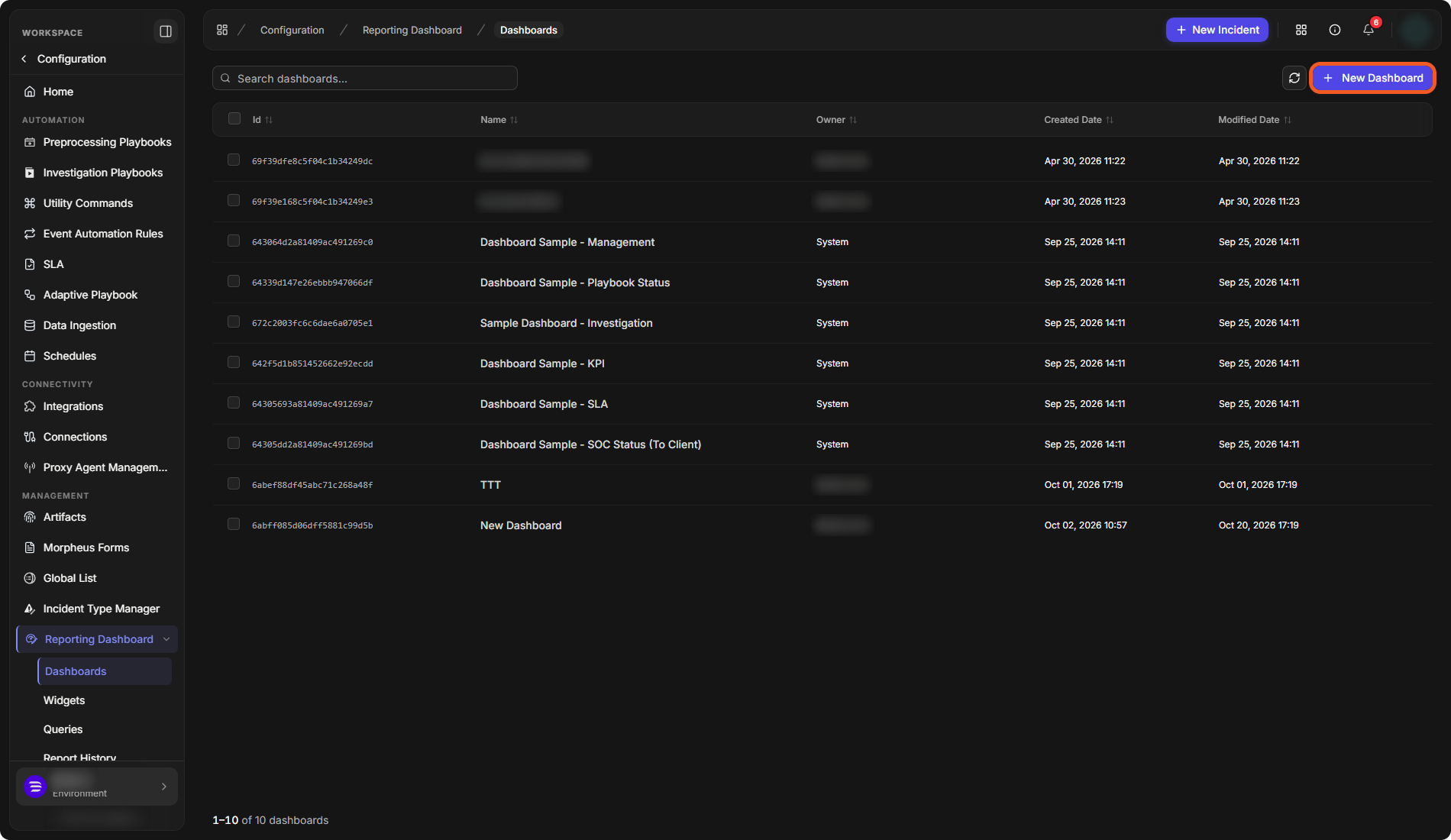
Dashboards are under Configuration › Reporting Dashboard › Dashboards. The list shows each dashboard's Id, Name, Owner, Created Date and Modified Date, with a search box and a refresh button.
The Dashboards list
Viewing a Dashboard
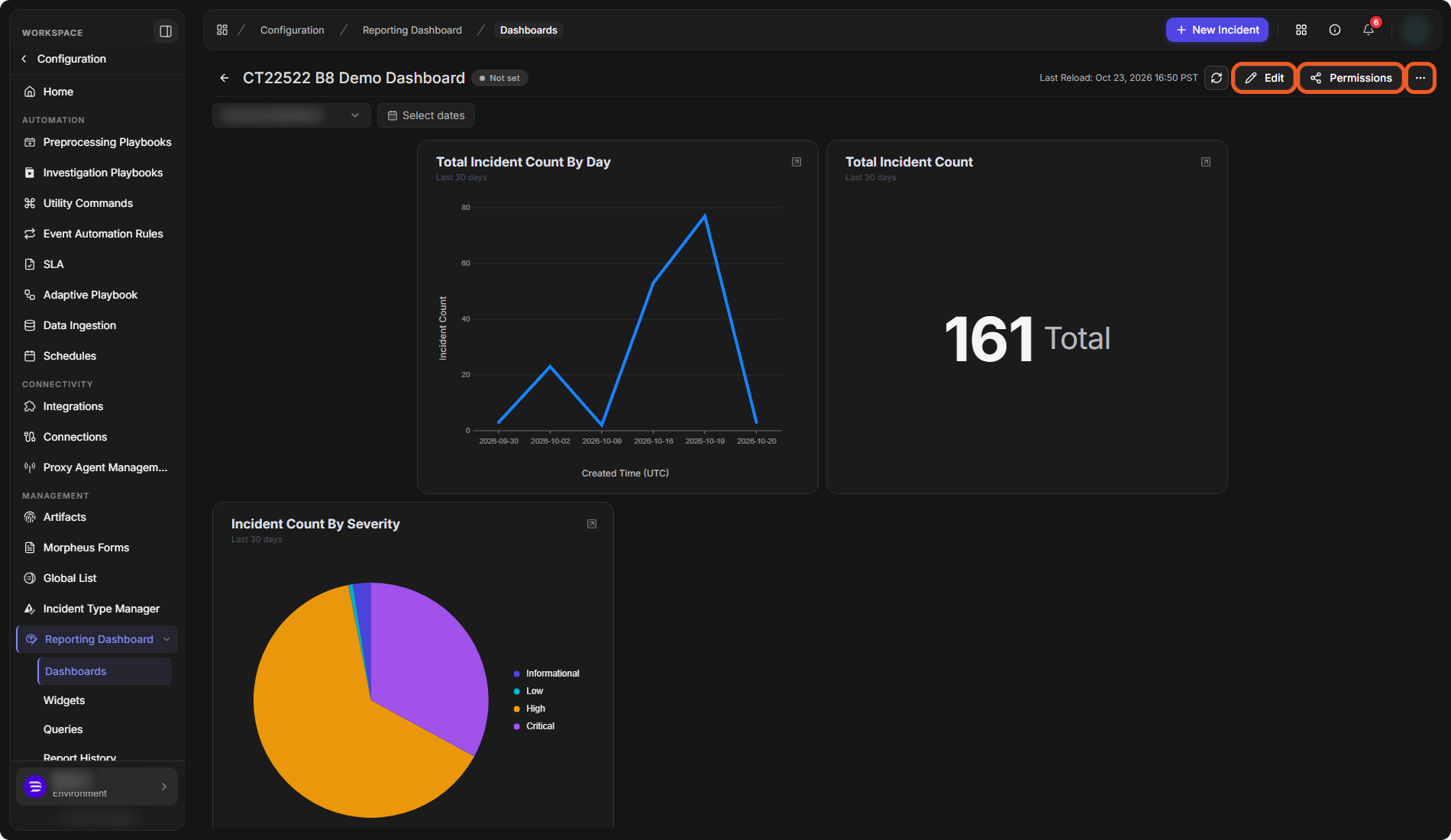
Select a dashboard in the list to open it. At the top of the dashboard:
-
the site filter, for example All Internal Sites, All Client Sites or a single site, sets which site's data the widgets show;
-
Select dates sets the date range;
-
the refresh button reloads the data, and Last Reload shows when it was last reloaded.
On a dashboard you own, Edit, Permissions and the More actions (...) menu are at the top right.
A dashboard
Viewing a Widget's Data
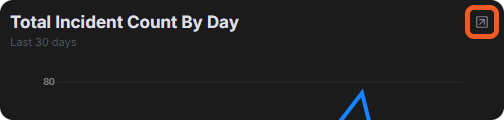
To see the records behind a widget, select the icon at the top right of the widget.
The widget data icon
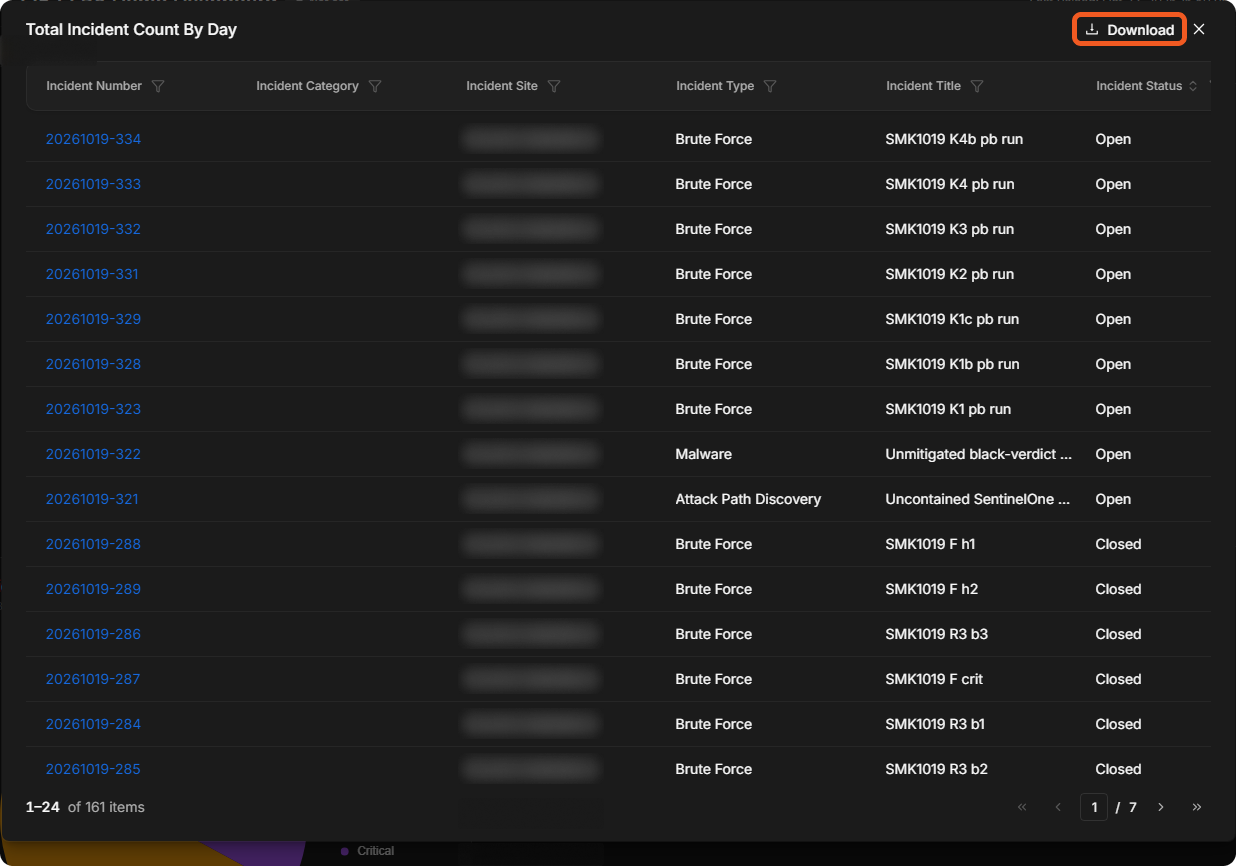
A window lists the records, with a filter on each column, paging at the bottom and Download at the top right.
A widget's data
Creating a Dashboard
-
Go to Configuration › Reporting Dashboard › Dashboards, then select New Dashboard.
-
Enter a name in the Dashboard name box at the top.
-
Select the site to take the data from, and optionally set the dates with Select dates.
-
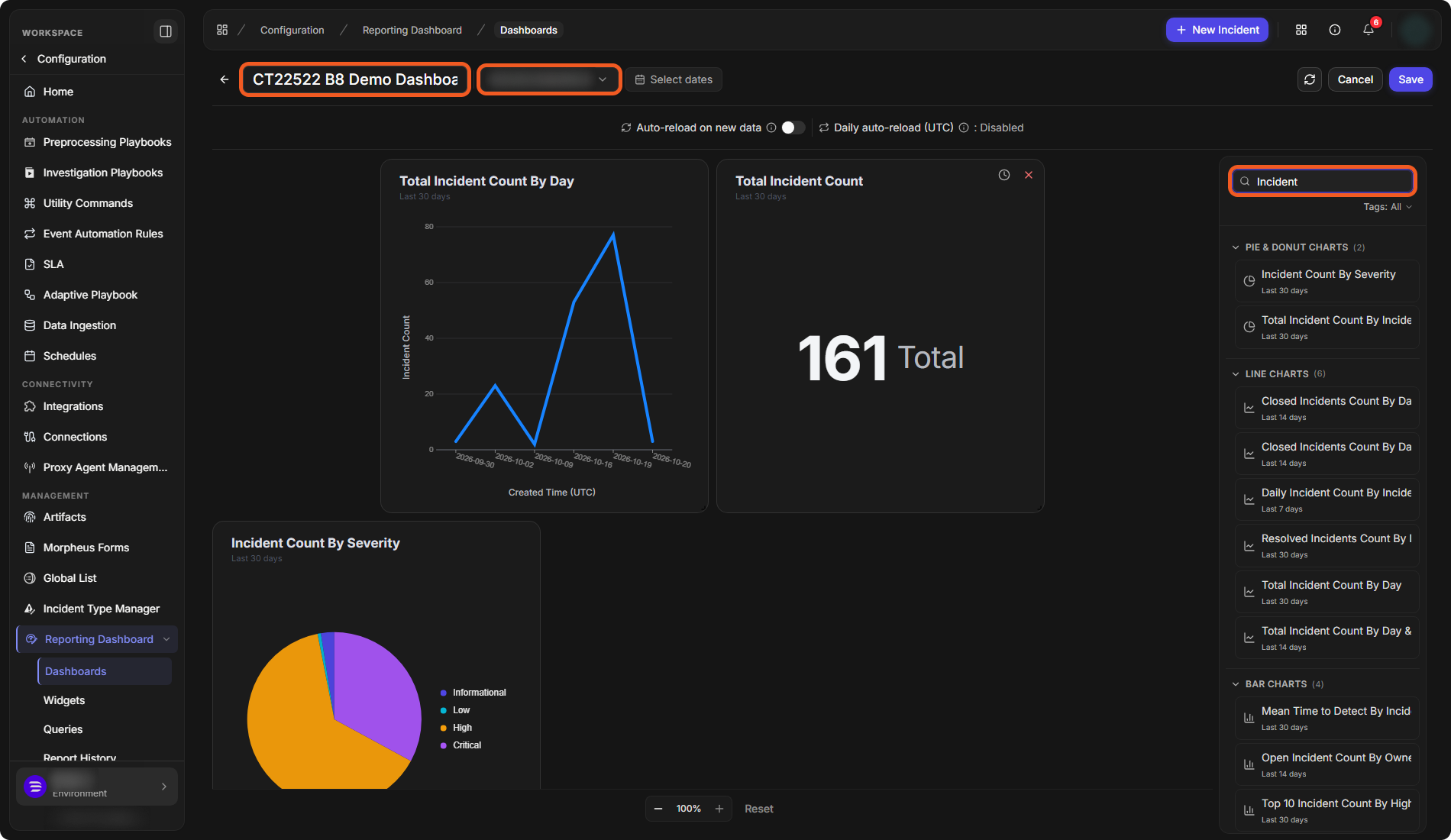
In the widget panel on the right, find a widget. Search by name, filter with Tags, or expand a category, for example PIE & DONUT CHARTS or NUMBER WIDGETS.
-
Drag the widget onto the page. Repeat for each widget you want.
-
Optionally, turn on Auto-reload on new data, or set Daily auto-reload (UTC) (see below).
-
Select Save.
The dashboard editor
The dashboard is saved and opens in the viewer.
To leave the editor without saving, select Cancel, then Yes to confirm.
Daily Auto-reload
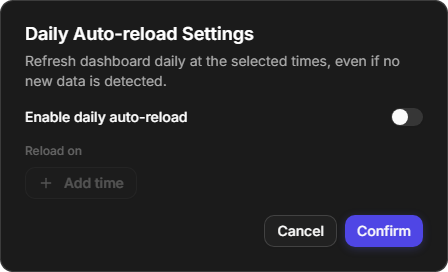
Select Daily auto-reload (UTC) to open Daily Auto-reload Settings. It refreshes the dashboard daily at the times you choose, even if no new data is detected. Turn on Enable daily auto-reload, select Add time to add times under Reload on, then select Confirm.
Daily Auto-reload Settings
Widget Time Range
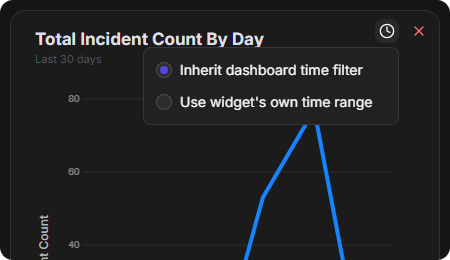
In the editor, each widget has a clock button and a remove button (x) at its top right. The clock button chooses Inherit dashboard time filter or Use widget's own time range.
Widget time range
Dashboard Permissions
Select Permissions on a dashboard you own.
-
On Add Site(s), tick sites. All Internal Sites and All Client Sites apply to every site in that category; individual sites are listed below them. On Add User(s), tick users.
-
Select Add.
-
Set the access levels on the next step. By Site lists each added site with its access level (Viewer for a newly added site), and its groups and roles under Group and Role (Not Set by default). By User lists the added users.
The permissions window lists the names of your sites, users and groups, so it is not pictured here.
The More Actions Menu
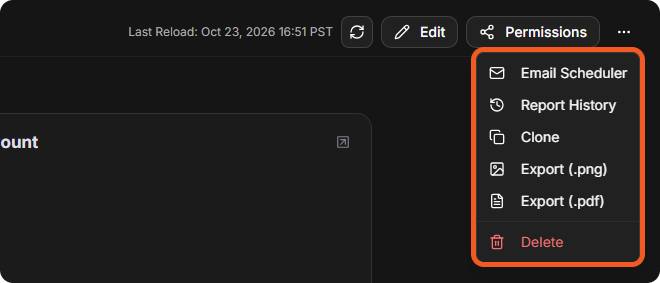
On a dashboard you own, More actions (...) holds Email Scheduler, Report History, Clone, Export (.png), Export (.pdf) and Delete.
More actions
On a dashboard that you do not own, Export and Clone are buttons at the top right instead.
Export and Clone on a shared dashboard

Exporting a Dashboard
-
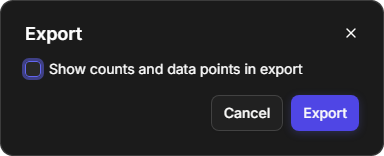
Export (.png): a window offers Show counts and data points in export. Select Export, and a PNG image of the dashboard is downloaded.
-
Export (.pdf): the Export Report window shows a PDF Preview with the dashboard name, reporting period, site and date. Select Export, and a PDF file is downloaded.
The PNG export window
Email Scheduler
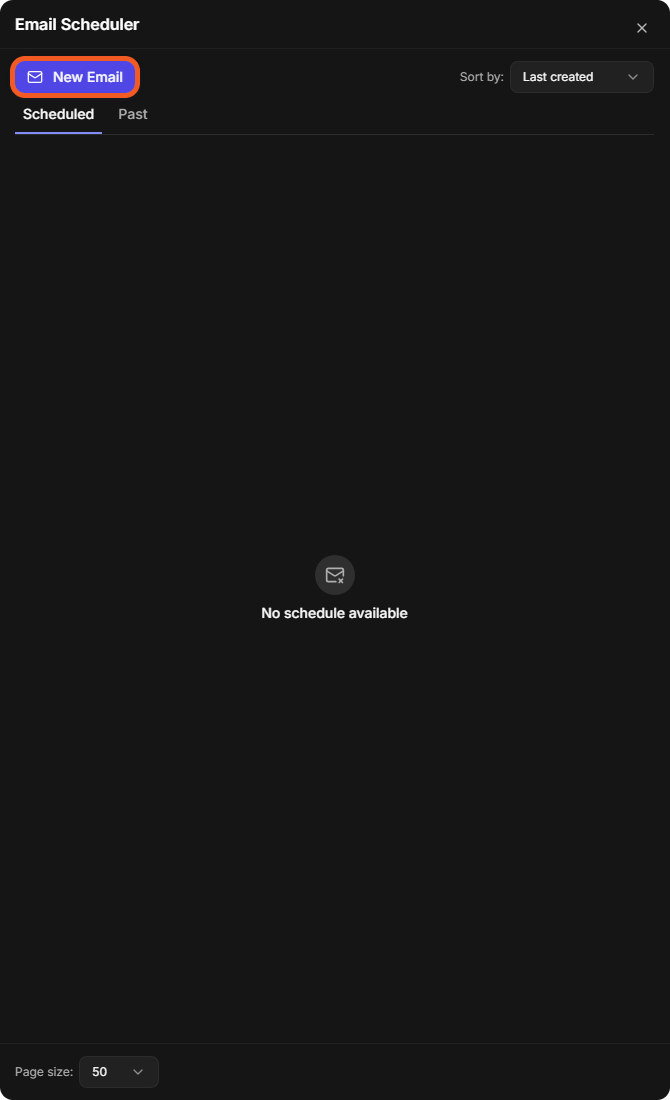
The Email Scheduler sends a dashboard to recipients as a viewable link, once or on a schedule. Select More actions › Email Scheduler. Schedules are listed under Scheduled and Past, sorted by Last created.
Email Scheduler
Creating an Email Schedule
-
In the Email Scheduler, select New Email.
-
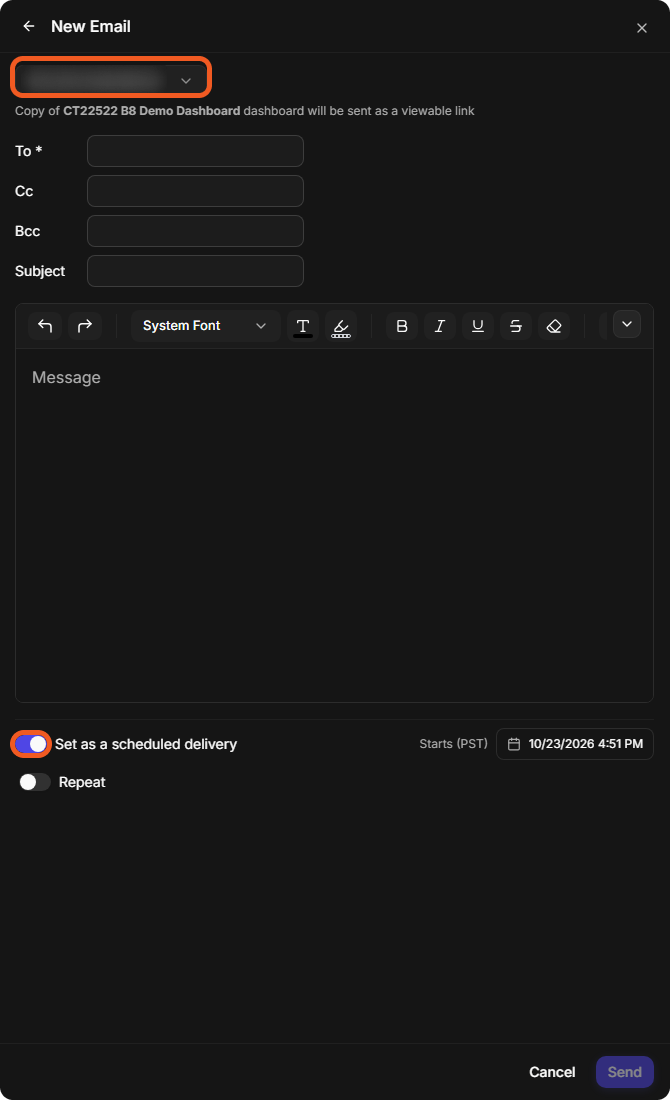
Select the site. The panel confirms that a copy of the dashboard will be sent as a viewable link.
-
Enter the recipients in To, and optionally Cc, Bcc, Subject and a message.
-
Optionally, turn on Set as a scheduled delivery and choose when it Starts. To send it again and again, also turn on Repeat.
-
Select Send.
A new email
Report History
More actions › Report History lists the report links sent for this dashboard, with Recipients, Sent At, Site, Status and Actions, and a status filter (Active). Configuration › Reporting Dashboard › Report History has the same list for all dashboards. See Reporting Dashboard.
Cloning a Dashboard
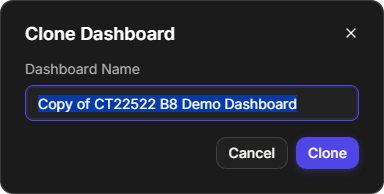
Select More actions › Clone (or Clone on a dashboard you do not own). Enter the Dashboard Name of the copy, which starts as "Copy of" and the original name, then select Clone.
Clone Dashboard
Deleting a Dashboard
Select More actions › Delete, then Delete in the confirmation. Deleting cannot be undone.