Last updated: mar 26, 2025
Overview
The Organization Management module cs the pages to configure the Users, Roles, Groups and Sites of D3. These are essential components to the security management and user experience of D3. In addition, data segregation and organization can be easily established with this tool. This module is only available to users with administrator privileges.
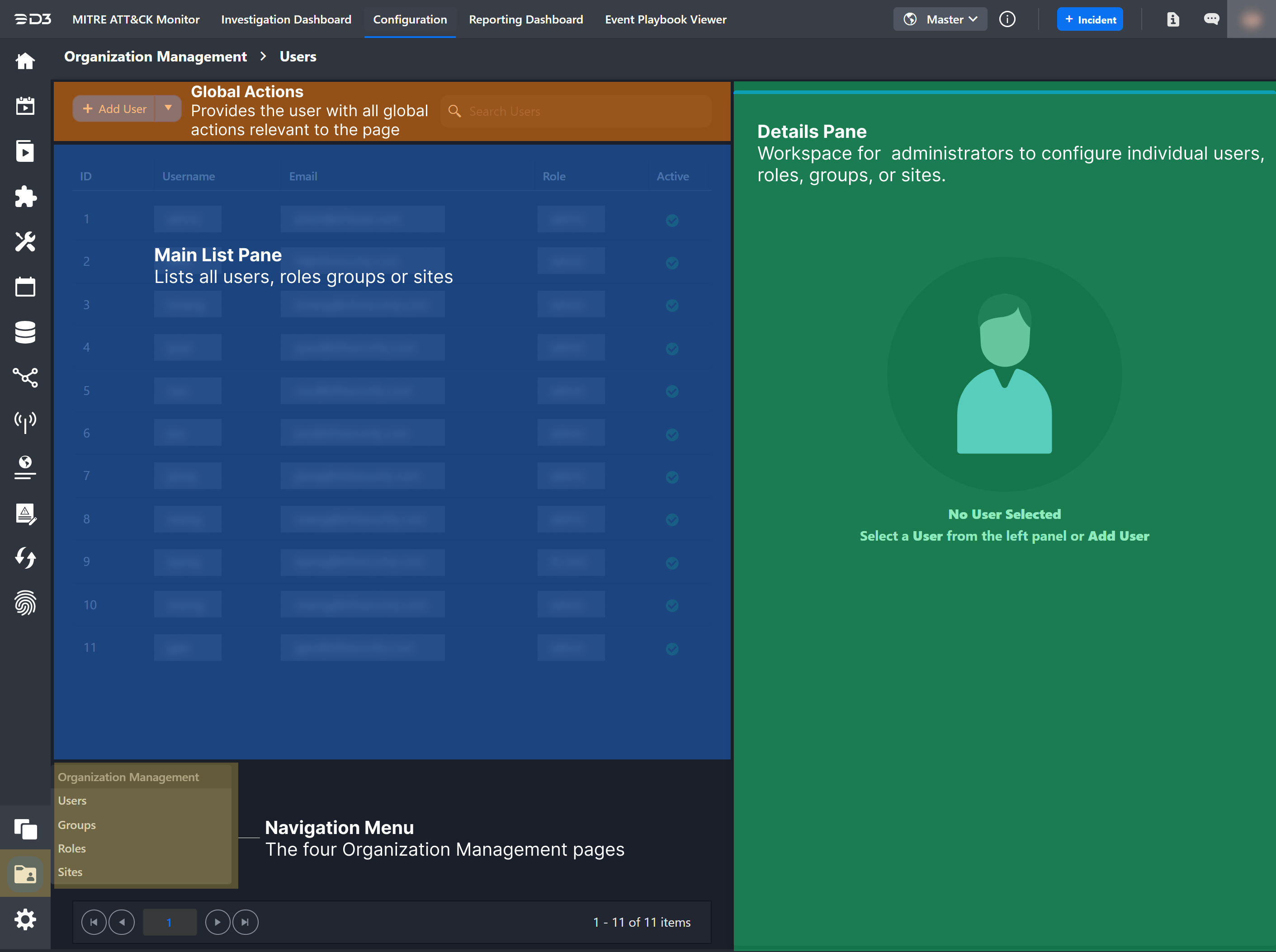
Pages under the Organization Management module have a layout pattern with the following panes:
|
Navigation Dropdown |
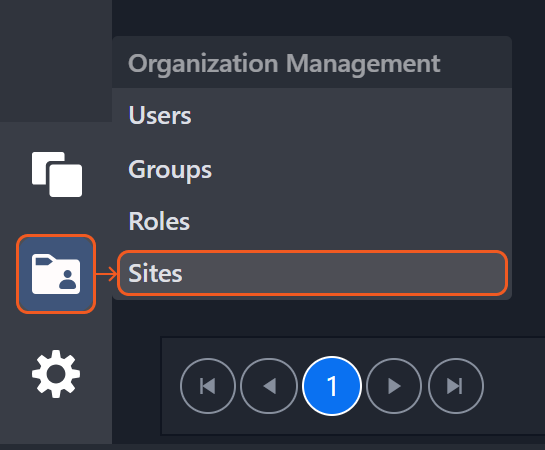
Navigation menu to access Users, Groups, Roles, Sites |
|---|---|
|
Global Actions |
Actions bar for common actions such as adding new items, searching for existing items, filtering... |
|
Main List Pane |
Displays a table of information for the selected page. For example, the Roles page lists role IDs, names, descriptions, and the number of assigned users. Users can click column headers to sort items alphabetically. |
|
Details Pane |
Editor for viewing and editing more granular information of an individually selected User, Group, Role or Site (by clicking on a row from the Main List Pane) |
Users
Each user within the D3 platform requires a unique account, consisting of a login, password, and personal contact information. Once created, the user's privileges are regulated by their membership to a single Role within one or more Groups, and Sites.
The Users page displays all user accounts created in the D3 platform. On this page, users can perform the following tasks.
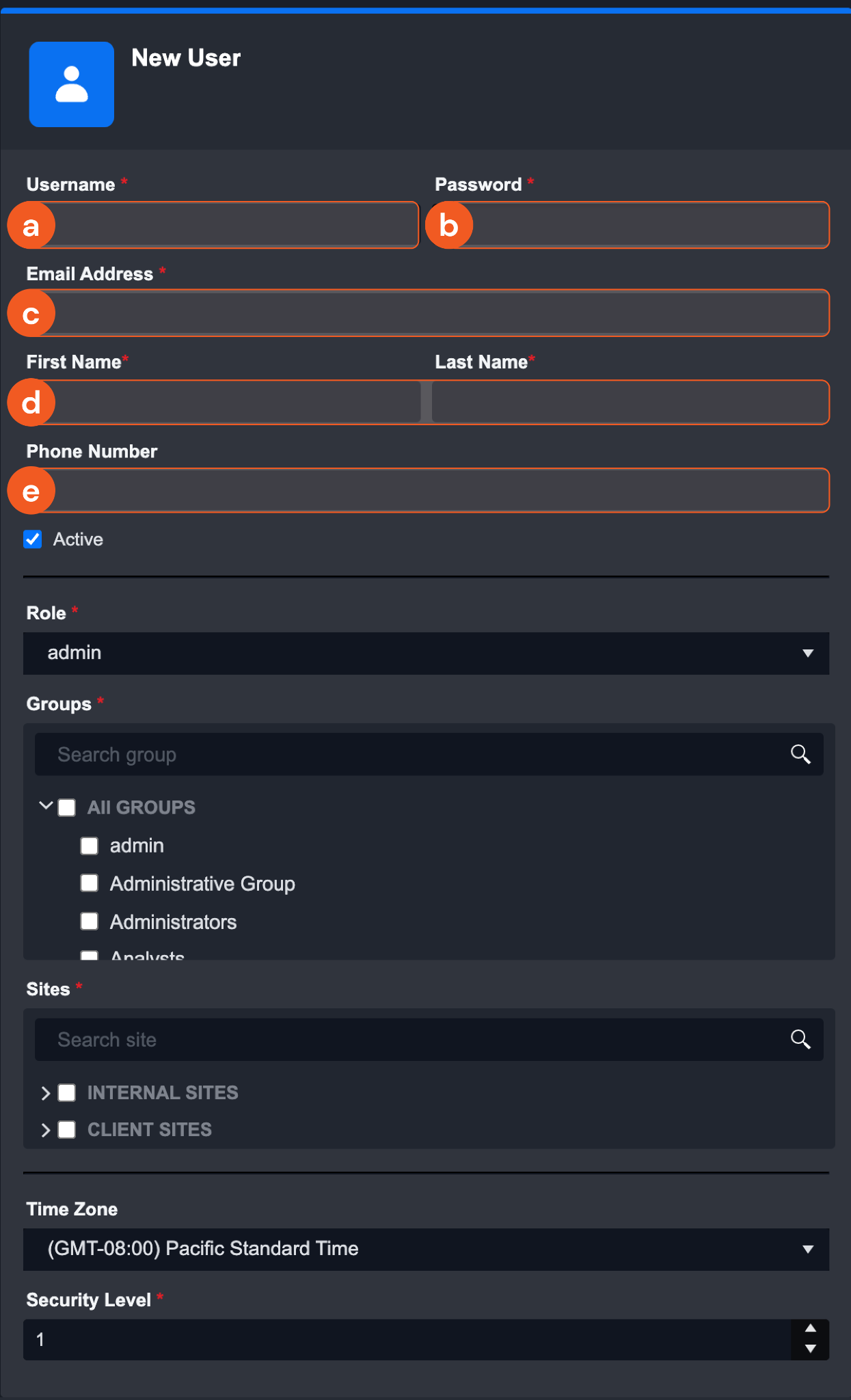
Add a New User Account
-
Click + Add User.
-
Enter details in the following fields:
-
Username
-
Password
-
Email Address (the domain of the email address must be whitelisted to add that user. This can be configured in Application Settings.)
-
First and Last Name
-
Phone Number (Optional)
-
-
Select a Role from the dropdown list.
-
Select one or more Group(s) the user belongs to.
-
Select one or more Site(s) the user has access to.
-
Select a Time Zone. The default Time Zone is set to GMT.
-
Select a Security Level. This option is available only when the D3 environment includes the Case Management module.
For more information, refer to the Group Security Level section. -
Click on Save to add this new user.
View and Update User Details
-
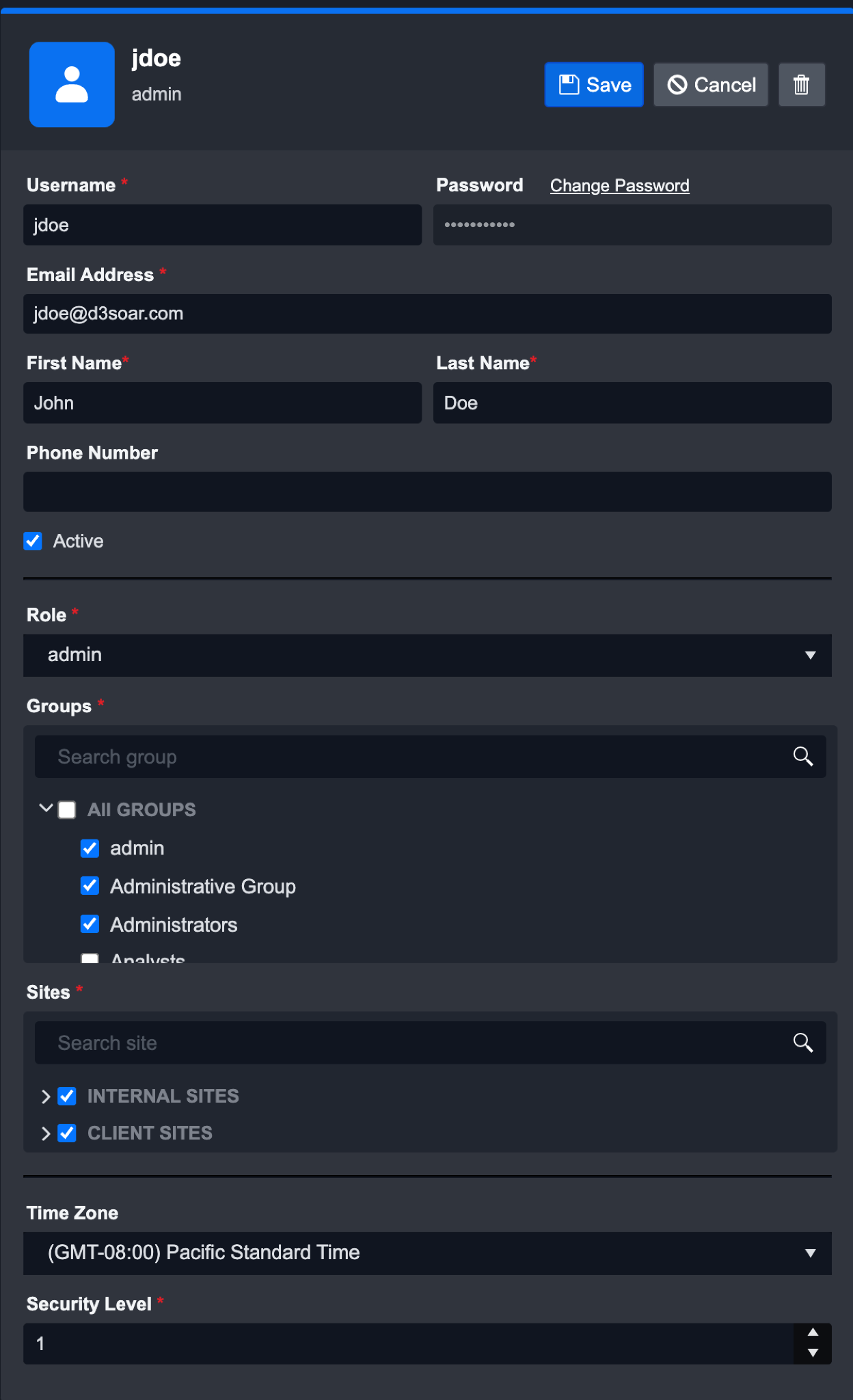
Click on a user from the User List Pane. The selected user details will appear in the Details Pane.
-
Update the user details as needed. The Save and Cancel buttons will appear on the top right corner once changes have been made.
-
Click on Save.
Deactivate a User Account
-
Click on a user from the Users List. The selected user’s details will appear in the Details Pane.
-
Deselect the Active checkbox.
-
Click on Save.
Delete a User Account
-
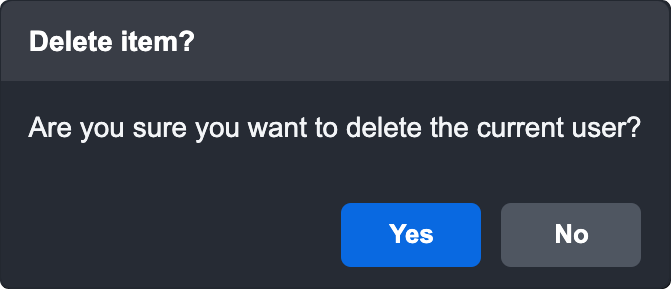
Click on the trash bin icon on the top right corner of the Details Pane. A pop-up will appear to re-confirm the deletion of this user entry.
-
Click Yes.
Manage User Passwords
-
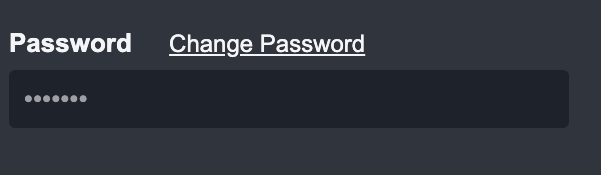
Click on the Change Password link beside the Password label, when the input field becomes enabled, enter a new password.
-
Enter a new password.
-
Click on Save.
Unlock a User Account
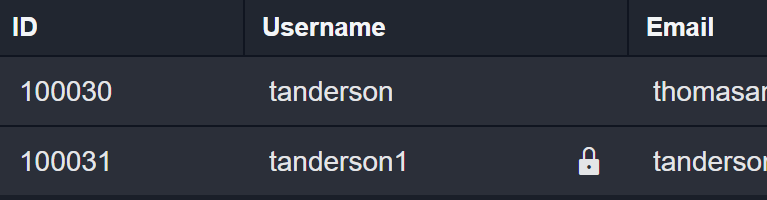
When a user has reached the maximum number of failed login attempts, their account will be suspended.
You can directly unlock the suspended account in the Users page.
-
Click on the user with a lock icon next to their username in the Users List.
-
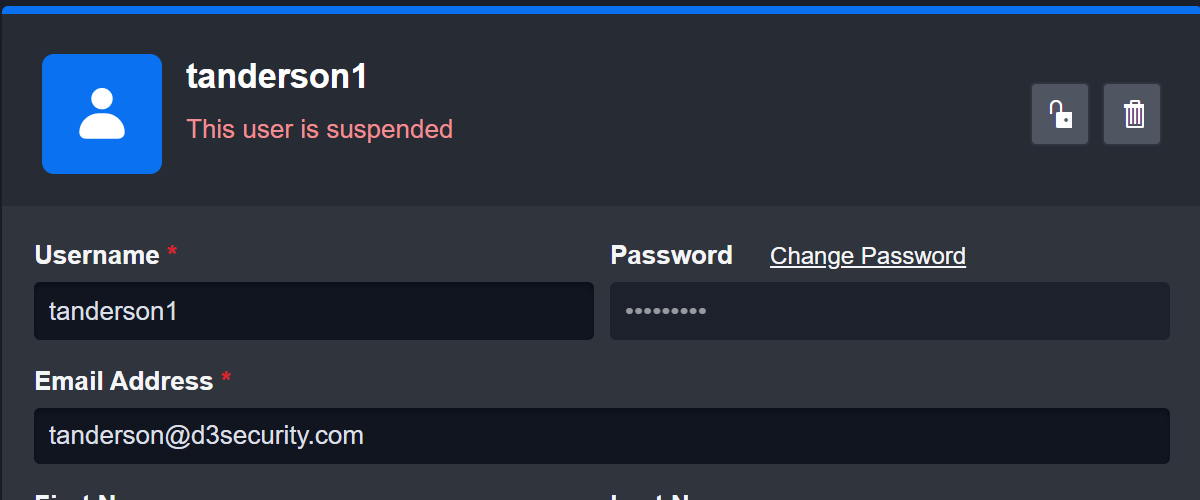
From the Details Pane, click on the unlock icon to unlock the suspended user account.
Bulk-Adding User Accounts with File Import
There may be instances where you would need to add a large volume of users into D3 (e.g. migrating existing users from another platform). You can easily bulk-add these users into D3 via the Import Users feature, without having to manually add users one at a time.
-
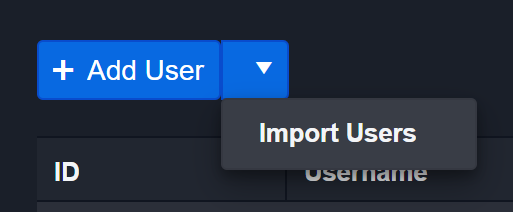
Click on the dropdown arrow icon next to the + Add User button.
-
Select Import Users. The Details Pane to import users will appear on the right.
-
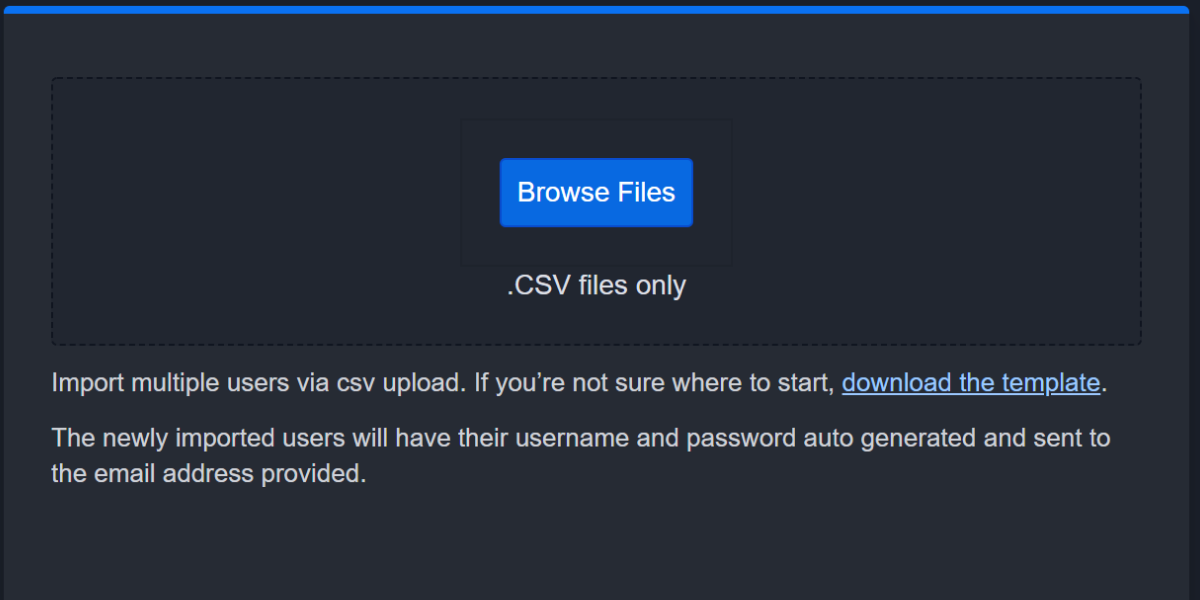
Click on the download the template link to download a template CSV file.
-
Fill in the following information based on the template in the CSV file: Username, Email Address, First Name, Last Name, Role, Groups and Sites.
READER NOTE *
Phone Number is an optional field.
-
Save the CSV file on your computer.
-
Click Browse Files and select the CSV file to import into D3.
-
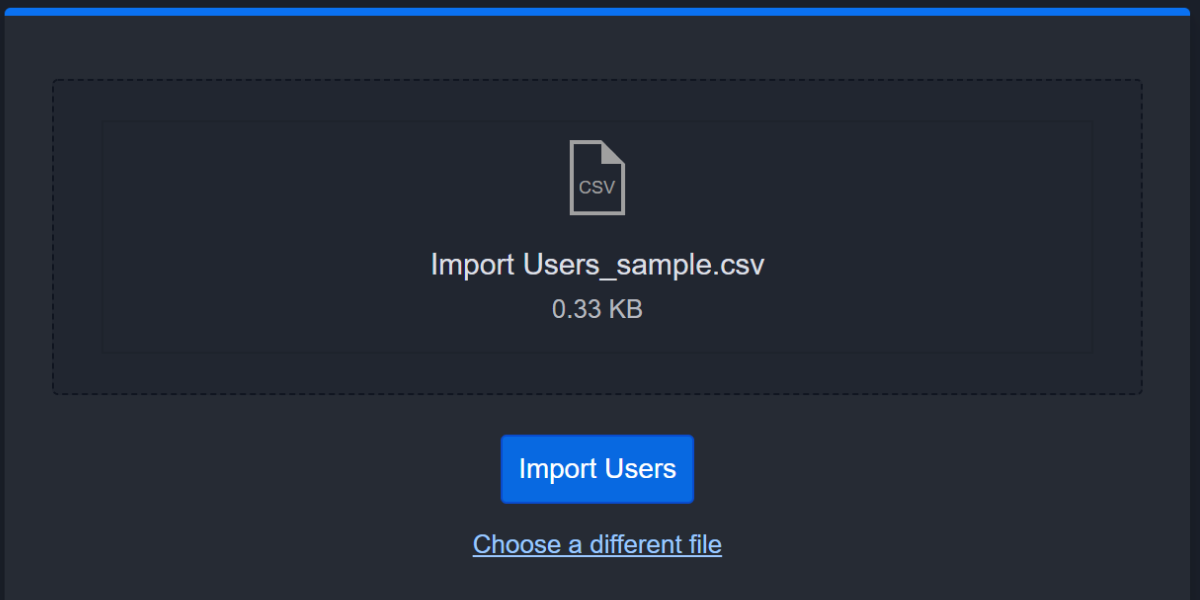
Click on the Import Users button. A confirmation modal will display showing the number of successful and failed imports.
RESULT
The newly imported users will appear in the Users List.
Groups
A Group is a collection of Users in D3. A Group may contain many Users and Roles. Groups also help organizations constrain what data can be viewed or acted upon in the application; they are integral to an organization's access control policy.
For example, you can specify entire form types, sections, elements, or options for granting or denying access at the Group level.
Adding a New Group
-
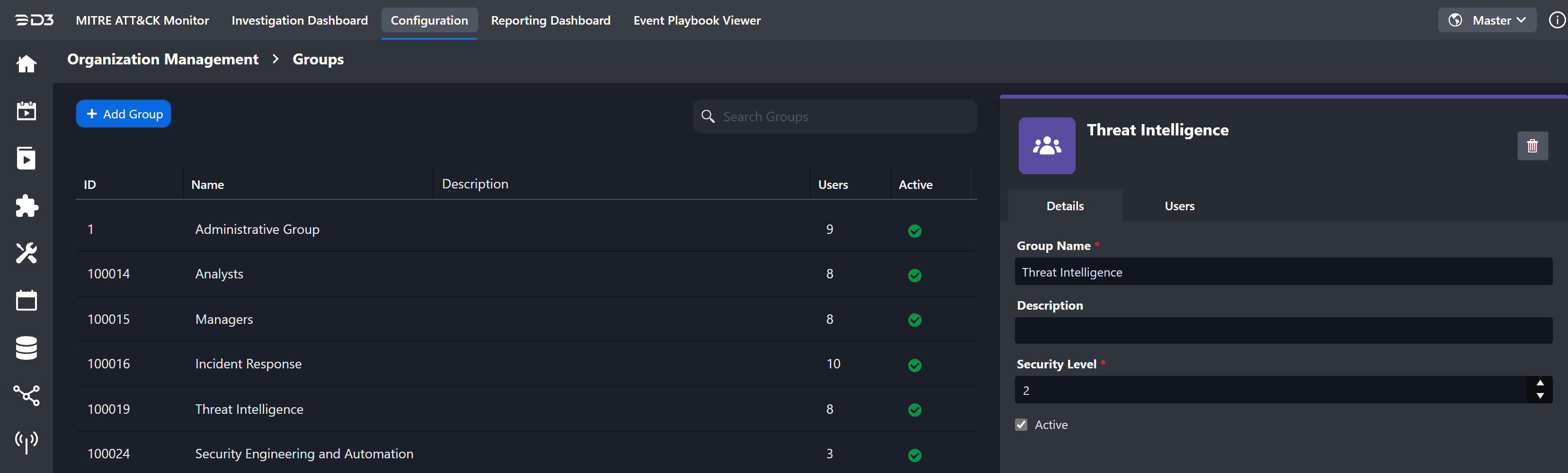
Click the + Add Group button from the Global Actions bar.
-
Enter Group Name.
Example - North America Group -
Enter Description for the new Group.
Example - Access limited to Northern Region -
Select a Security Level for the Group. For more information, refer to the Group Security Levels section below.
-
Example - 1
-
Click on Save.
Managing Group Details
Viewing and Updating a Group
-
Click on a Group from the Groups List. The Group Details will open on the right.
-
Update the Group Details as needed.
Unchecking the Active checkbox will deactivate the group. -
Click on Save button on the top right corner.
Deleting a Group
-
Click on the

-
Click on the Yes button in the confirmation popup.
-20240930-170547.png?cb=6fd3de8045a24faee3f018ca716745ae)
Group Security Levels
READER NOTE
Group security levels are available only when the D3 environment includes the Case Management module.
This ranking mechanism helps prevent unauthorized access or browsing of sensitive information within the Case Management module.
The highest security level that can be assigned to a Group is 1 and the lowest security level is 10. If all else is equal in access control policy between two Users:
-
Users with a lower group security level cannot view content and forms generated by users with a higher Group security level.
-
Users can only view content created by other users of equal or lower ranking security levels.
To resolve conflicting security levels created from multiple group memberships, the system will take the higher security level value from those memberships.
Example - User A is a member of Group X (security level of 5) and Group Y (security level of 8). The system will interpret their effective security level as 5.

Managing Group Membership
Users can belong to multiple groups and can be assigned to multiple groups in bulk.
-
Select a Group from the Groups List.
-
Navigate to the Users tab beside the Details tab.
-
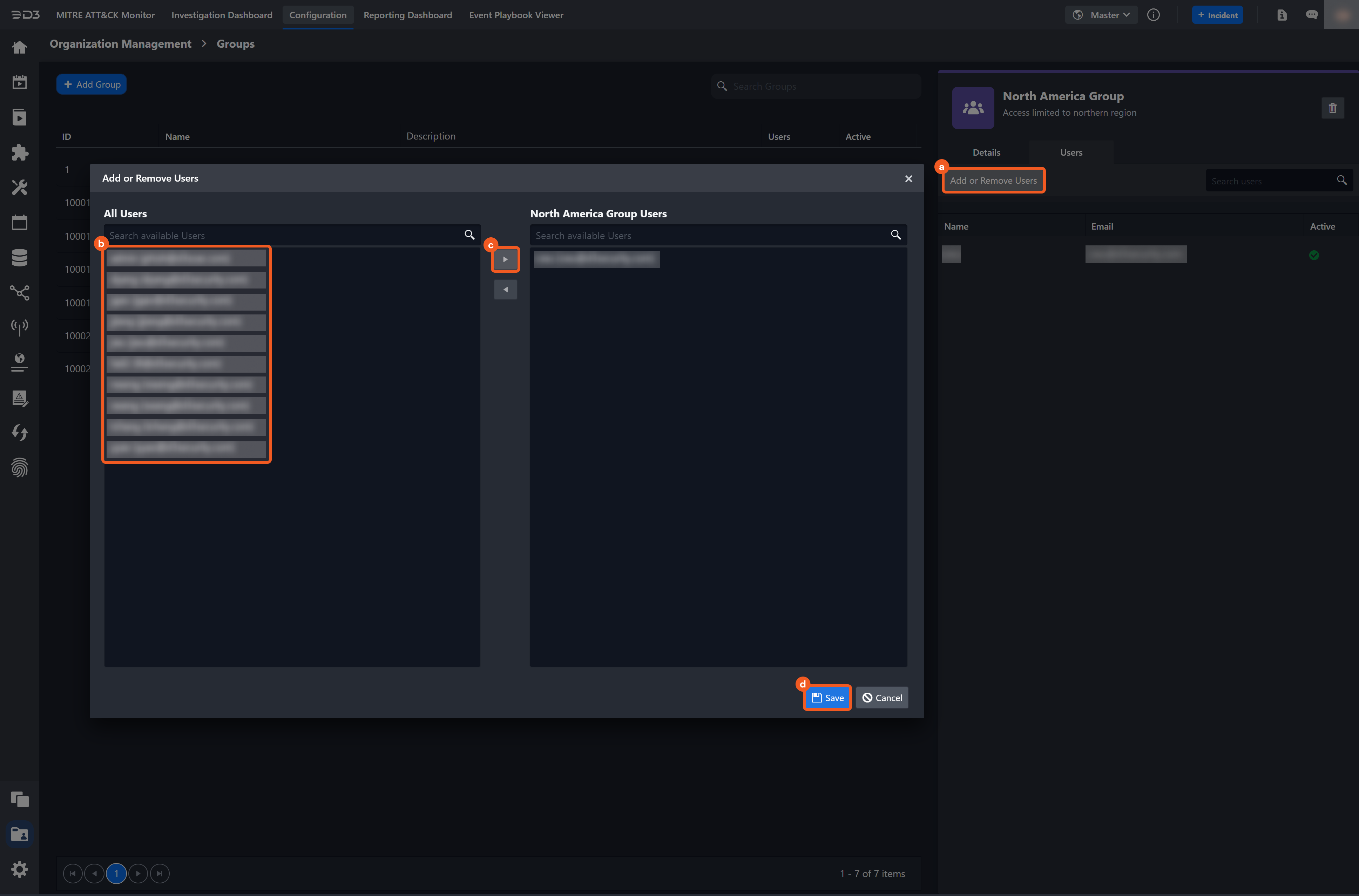
Open the Add or Remove Users popup.
-
Click on the Add or Remove Users button.
-
Select the users to add to the group.
-
Use the center-right and center-left arrow buttons to add or remove users from the group. The left panel displays users not assigned to the selected group, while the right panel lists users currently assigned to it.
-
Click on the Save button.
-
READER NOTE
Press and hold the CTRL key while clicking, or drag the mouse to quickly select multiple users.
Roles
Each user in the D3 platform must be assigned a single role that defines access permissions across the platform. Users can create and manage custom roles and privileges to align with the organization's SOC structure and access control requirements.
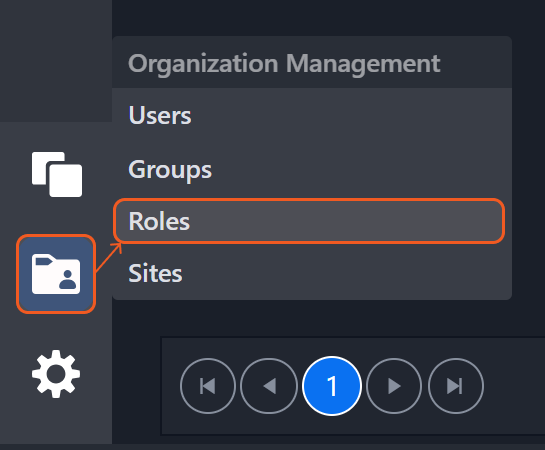
Adding a New Role
-
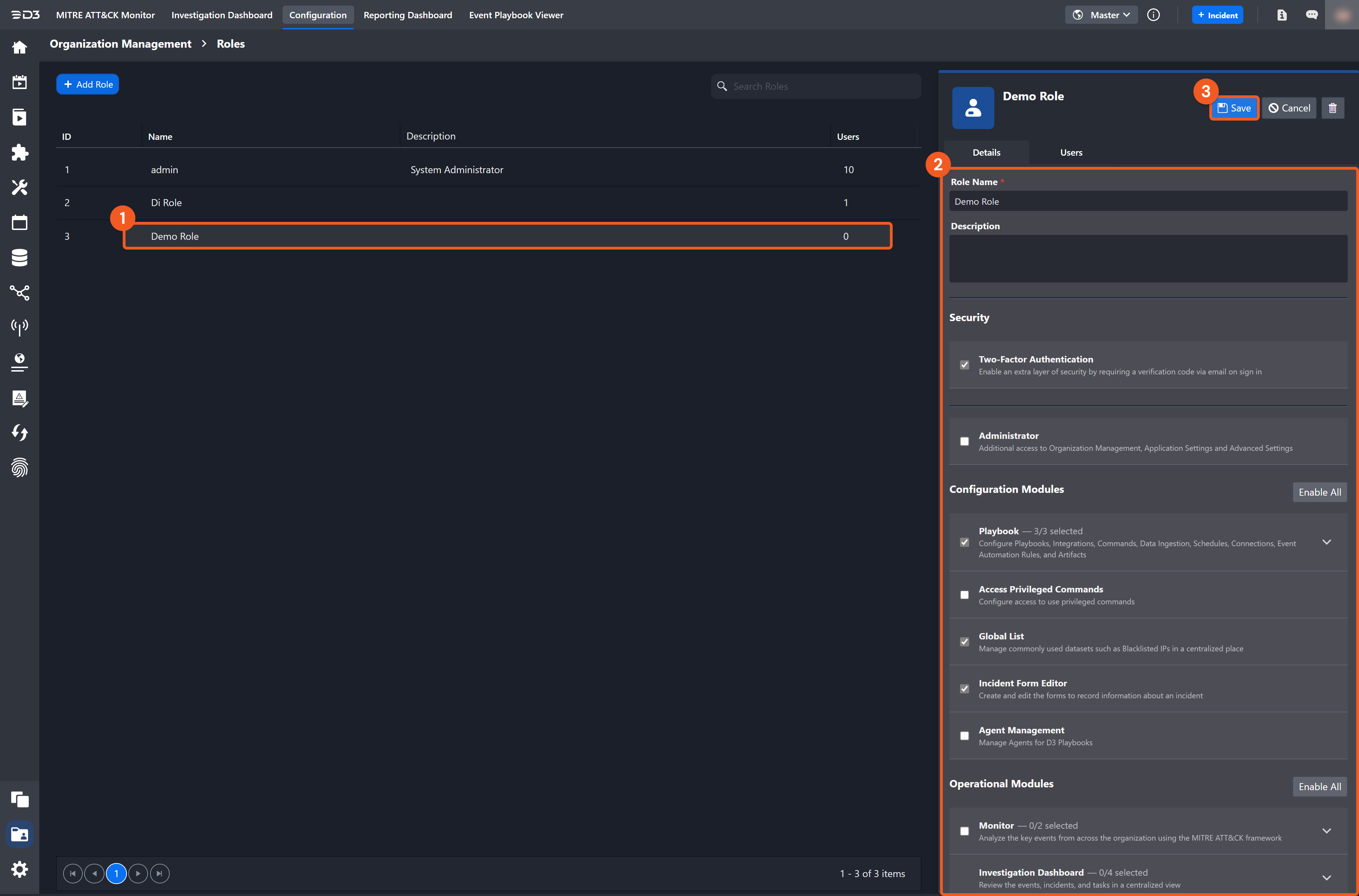
Click on the + Add Role button.
-
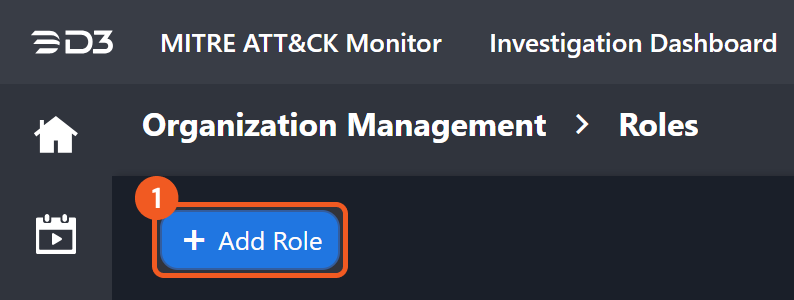
Enter a role name.
E.g. - Compliance Officer -
Enter a description for the new role.
E.g. - Handles office compliances -
Select the role privileges. Refer to the Role Privileges section for more information.
-
Selecting a parent checkbox automatically enables all nested options. Expand the parent option to deselect specific nested options and customize role functions.
-
Clicking Enable All will enable all permissions for a module.
-
-
Click on the Save button.
Managing Role Details
Viewing and Updating a Group
-
Select a role from the roles list to open its details pane on the right.
-
Update the role details as needed. The Save and Cancel buttons will appear in the upper-right corner.
-
Click on the Save button to confirm changes.
Deleting a Role
-
Click on the
-
Click on the Yes button in the confirmation popup.
READER NOTE
All users must be removed from a role before the role can be deleted.
Role Access Types
READER NOTE
This feature will be available to clients holding the MSSP Client Portal license.
When creating a role, users can select from two access types:
-
General: Allows configuration of administrator access to Organization Management and Application Settings. More granular permissions for other modules can also be customized with this access type.
-
Clients: Offers limited access to the application specifically designed for provisioning client access portals for MSSPs (Managed Security Service Providers). For this access type, only two-factor authentication can be configured. With the client access type, the associated users only have limited access to the Investigation Dashboard and Reporting Dashboard modules in the application.
The following two sections pertain only to the General access type, as the Clients access type only allows for two-factor authentication configuration.
Role Privileges
In the system, roles are utilized to grant or deny access to specific functions. To effectively implement a role, its access privileges must be carefully defined and should reflect the corresponding job function.
One can micromanage the role privileges for specific workflows and features within each module (e.g., exporting incident reports, viewing closed cases, configuring playbooks, etc.).
The access privileges of a role in the Role Details cover the three main workspaces of D3:
-
General: This includes access privileges for administrator permissions and two-factor authentication.
-
Configuration Modules: This pertains to access privileges for configuration modules, such as the Playbook Editor and Integrations.
-
Operational Modules: This relates to access privileges for operational modules, including Monitor and Incident Workspace.
Users assigned roles with access privileges can perform the following actions:
|
Security |
Description |
|---|---|
|
Administrator |
Have access to the Guided Setup, Organization Management, and Application Settings. |
|
Two-Factor Authentication |
Have an extra layer of security by being required to provide a verification code via email on sign in. |
|
Configuration Modules |
Description |
|---|---|
|
Playbook |
Create and edit Playbooks. |
|
Global List |
Manage commonly used datasets (e.g. Blacklisted IPs) in a centralized place. |
|
Incident Form Editor |
Create and edit Forms to record information about an Incident. |
|
Agent Management |
Manage Agents for D3 Playbooks |
|
Operational Modules |
Description |
|---|---|
|
Monitor |
Analyze key events from across the organization using the MITRE ATT&CK framework. |
|
Investigation Dashboard |
The Investigation Dashboard provides a centralized view of events, incidents, and tasks. Within the Investigation Dashboard module, users can configure access control for viewing and editing capabilities by enabling or disabling the following options:
The Investigation Dashboard remains enabled by default. |
|
Incident |
View, edit, and create Incidents to respond to security threats in the organization. Within the Incident module, users can also configure the scope of viewing and editing permissions. For Scope of Viewable Records: View All Records: view/access all information within the system regardless of its ownership. View Group Records: view/access records belonging to users in their group(s). View One's Own Records Only: view/access user’s own records. For Scope of Editable Records: Same as Scope of Viewable Records: access control logic from the option selected in Scope of Viewable Records applies to record editing. Edit One's Own and Accessible Records: only able to edit records of the user's own creation or that are assigned to them. Edit Only Group and Accessible Records: only able to edit records belonging to users in their group(s). Edit All Accessible Records: able to edit all records within the system regardless of its ownership. ALERT The Edit All Accessible Records permission is recommended only for ownership recovery situations (e.g., when an ex-employee was the owner of an incident). It is not recommended to enable this for regular operations as it could pose security and data integrity risks. Understand its implications fully before enabling. |
|
Event Playbook Viewer |
View Event Playbooks |
|
Reporting & Analytics |
View, create, and share metrics and KPIs of the organization. |
|
Messaging |
Send messages with other users on the platform. |
Managing Role Membership
Users can be assigned to only one role. Users can view existing role memberships and assign a role to multiple users in bulk. To perform this action:
-
Select a Role from the Roles List.
-
Navigate to the Users tab in the details pane.
-
Click on the Add Users button.
-
Select the users to assign or unassign this role.
-
Use the center-right and center-left arrow buttons to assign or unassign users to this role. The left panel displays users not assigned to the selected role, while the right panel lists users currently assigned to it.
-
Click on the Save button.
-20240930-185201.png?cb=1ab8433bbdc45b23f59233bf637cb622)
READER NOTE
Press and hold the CTRL key while clicking, or drag the mouse to quickly select multiple users.
READER NOTE
If a user is already assigned to another role, the new role will replace the existing one.
-20240930-191709.png?cb=fc49db2230c41380eb3659ac15772a6b)
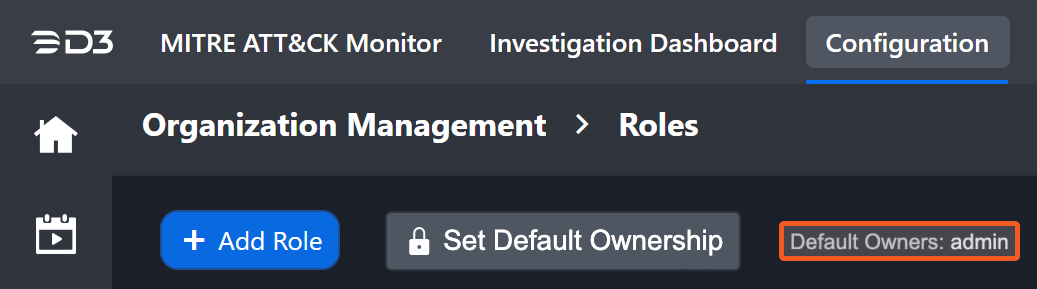
The Set Default Ownership setting assigns a preconfigured role with super admin privileges as the default owner for all existing playbooks and connections. Users assigned to this role receive full permissions to edit, delete, and publish these configurations.
READER NOTE
This setting becomes visible only when a backend configuration key is enabled. To enable it, please reach out to D3's support team.
This feature helps recover ownership when a former employee owned specific playbooks or connections. Assigning default ownership to a role restores access and management permissions for those configurations.
Configuration Steps
-
Log in with an admin user account, then click Set Default Ownership.
-
Select the desired role from the drop-down menu. The role must already be configured to support default ownership.
-
After picking the role, click Save.
Once configured, the selected role will be displayed next to the Default Ownership button.
Sites
Sites represent departments, jurisdictions, or subsidiaries within the organization. A site can contain multiple groups and users with different roles. Access control settings determine what site members can access within the D3 platform.
Adding a New Site
-
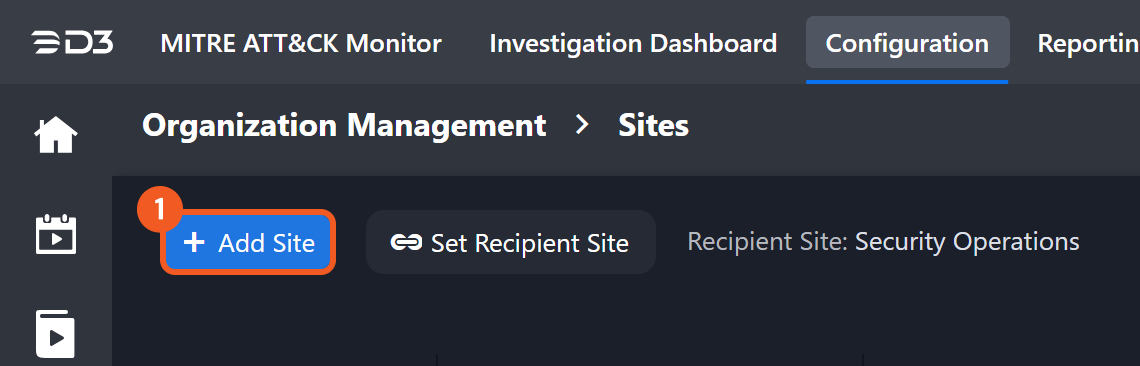
Click on the + Add Site button.
-
Enter a site name.
-
(Optional) Enter a description and logo for the new site.
-
Select the type of site.
See the Internal Site vs. Client Site section for details. -
Select the "Recipient site for events from connections Shared to Internal Sites" checkbox to assign the Site as the Shared Connection Site.
Note: For more information, refer to the Shared Connection section. -
Select a time zone from the drop-down list.
-
Select a language for the site.
-
Click on the Save button.
%201-20240930-192603.png?cb=dd6adfe4ae8dbdab9ddebabaa4aa635c)
Managing Site Details
Viewing and Updating Site Details
-
Click on a site from the sites list.
-
Update the site details as needed.
-
Click on the Save button.
Deactivating a Site
-
Click on a site from the sites list.
-
Uncheck the Active checkbox.
-
Click on the Save button.
Deleting a Site
-
Click on the
-
Click on the Yes button.
Internal Site vs Client Site
D3 D3 incorporates a multi-tenancy architecture that is designed to support two key business cases: managed security service providers (MSSP) and large organizations.
|
Client Sites |
Internal Sites |
|---|---|
|
Each client has a separate Client Site, all coexisting on one D3 platform. These Client Sites are all separated, and have no data sharing with one another to maintain the privacy of their data and work operations. |
Internal Sites are utilized by large organizations and centralized SOC teams that manage multiple Internal Sites based on the different jurisdictions and subsidiaries. Users that are members of these Internal Sites can conduct cross-site data sharing between these Sites. |
READER NOTE
Newly added Sites will by default be categorized as an Internal Site unless it is changed to a Client Site from the dropdown within the Details Pane.
Recipient site for events from connections Shared to Internal Sites
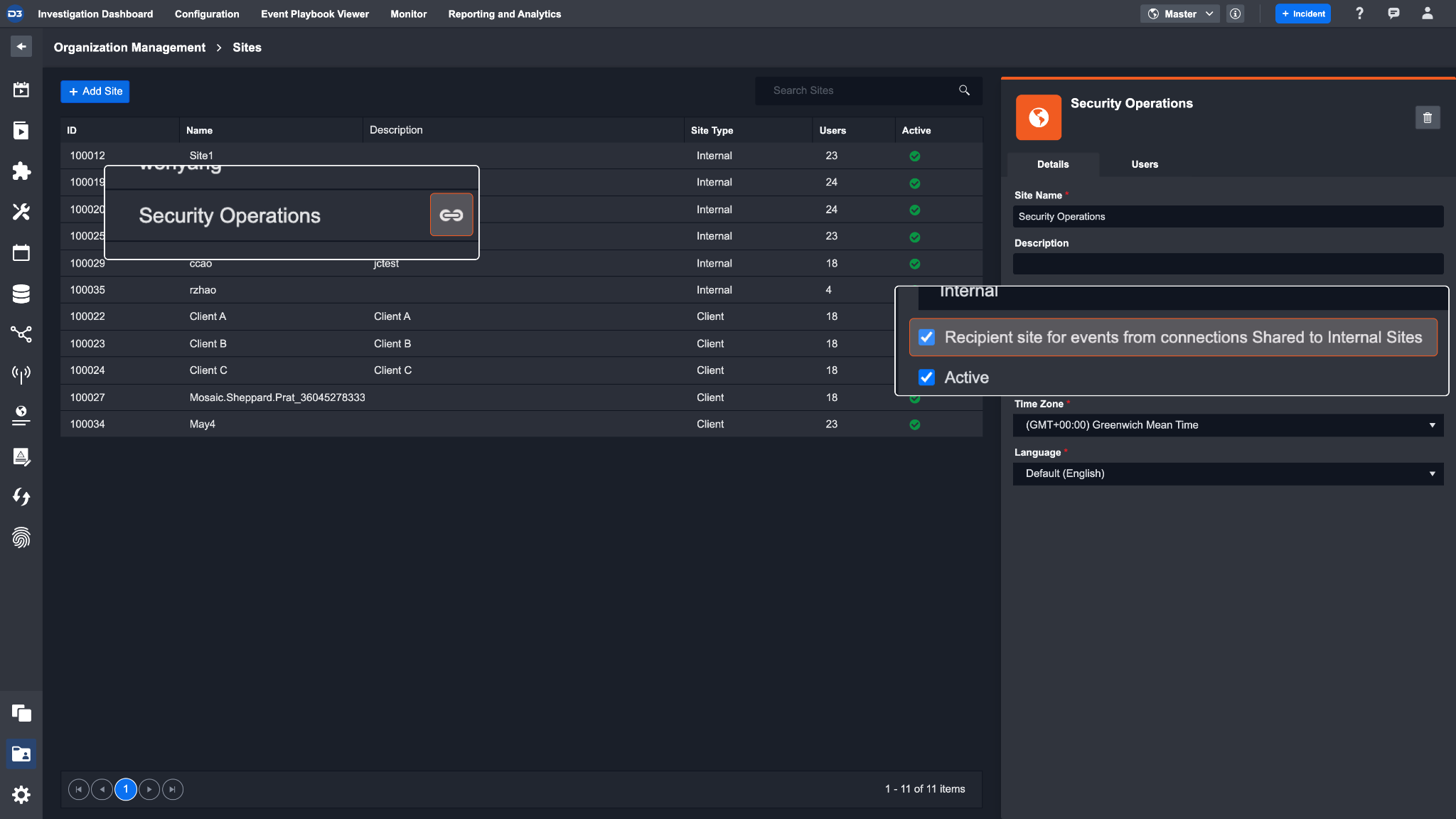
When using a connection that is Shared to internal sites to fetch an event, you will need to enable the Recipient site for events from connections Shared to Internal Sites checkbox in one of your sites. This is to specify which site the fetched event should belong in. In simpler terms, this checkbox allows you to choose a specific site to capture all the events that come through a connection that is shared to internal sites. The site with this checkbox enabled is marked with the link icon.
Only one site can have this checkbox enabled at any given time.
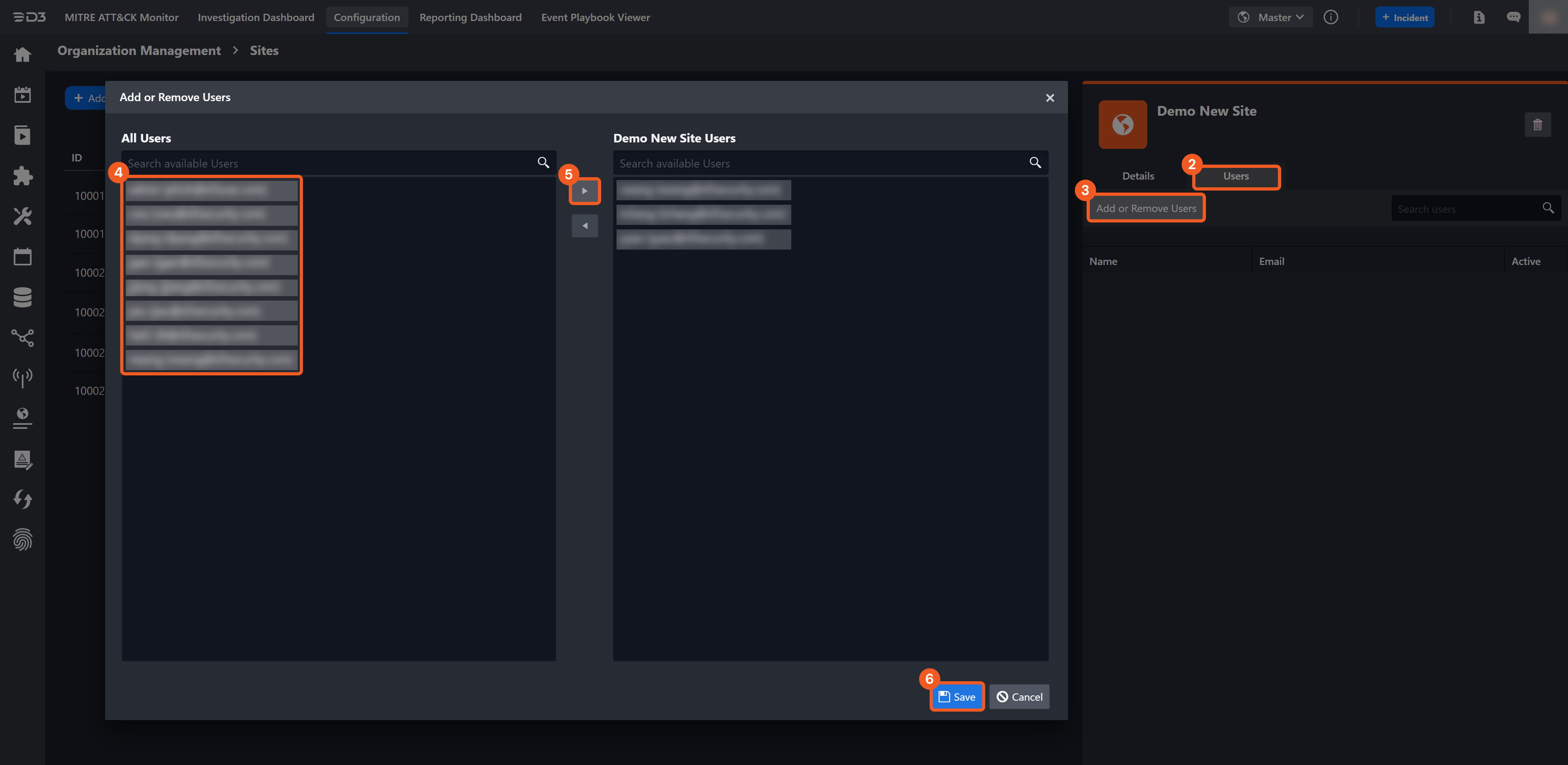
Managing Site Membership
Sites play an important role in regulating access to information in larger deployments of the D3 platform. Each User must be a member of at least one Site in order to access the application. Similarly, each record (e.g. Incident Report) is permanently associated with the active Site upon creation.
-
Select a Site from the sites list.
-
Navigate to the Users tab in the details pane.
-
Click on the Add or Remove Users button.
-
Select the users for assignment to or removal from this site.
-
Use the center-right and center-left arrow buttons to assign to or remove users from this site. The left panel displays users who are not assigned to the selected site, while the right panel showcases those who are currently assigned.
-
Click on the Save button.