Last Updated: mar 26, 2025
Global Lists are collections of reusable data stored in JSON format that facilitate efficient data management across the system. They enable playbook tasks to perform a range of operations via utility commands, such as adding new data, verifying the presence of specific values, and clearing the contents of a list.
-20241015-222350.png?cb=13af3d6cb9031552c449d308daf5c460)
Adding and Configuring a Global List
In the Global List page, you can add in arrays of data, which can be used by Playbooks.
-
Click on + Add Global List button.
-
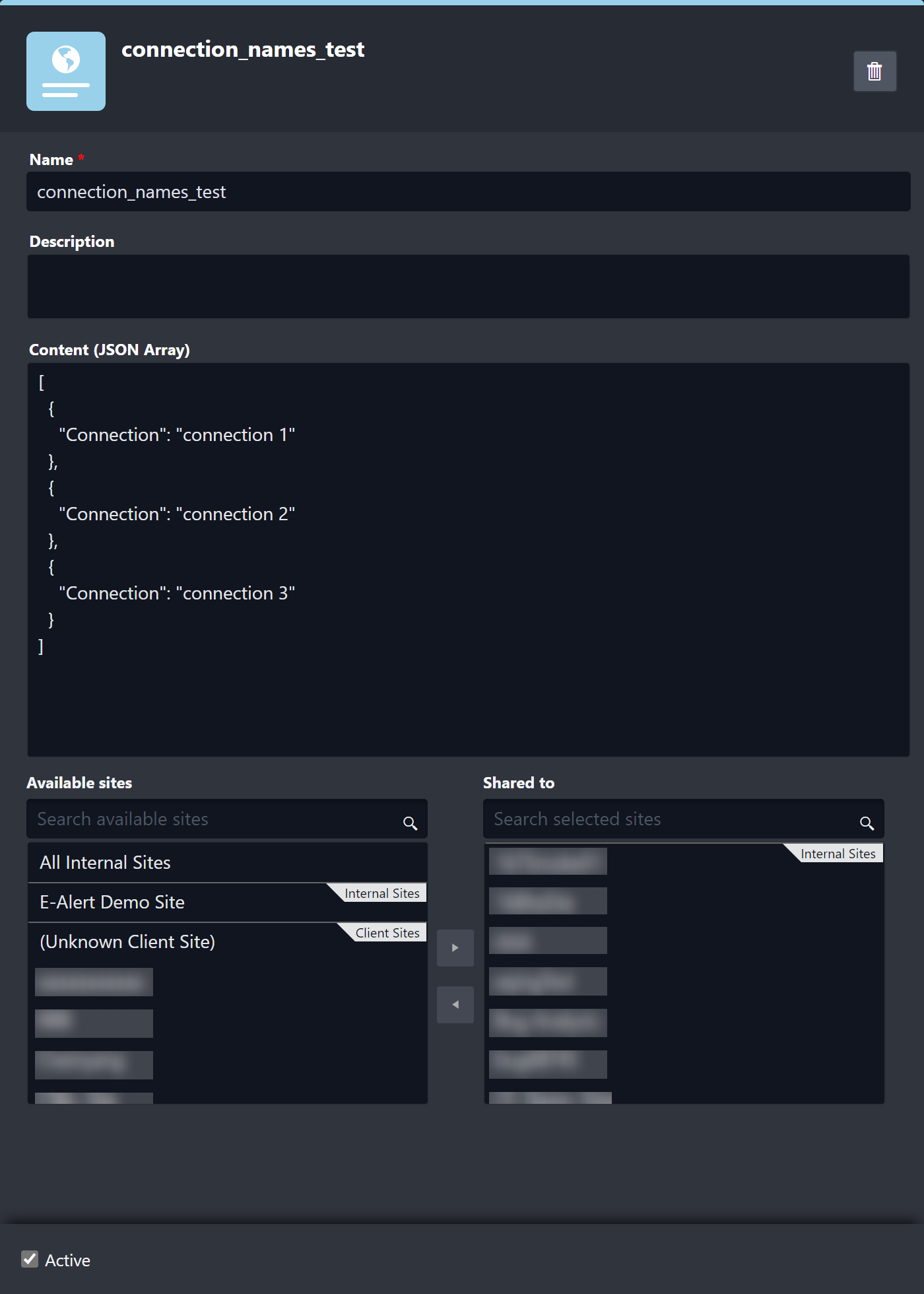
Make necessary edits to the form fields: Name, Description and Content (JSON Array). Ensure that the content size is no more than 20 MB.
-
Select the sites where the global list will be available.
-
Ensure the Active checkbox is selected to render it visible and available for use across the system.
-
Click on the Save button.
Using a Global List
Once a Global List has been saved into the system, you can use it in any area that allows for a dynamic input. For example, you can select it to be used as an input of a command. The following example shows the steps to use a global list item in a dynamic input:
-
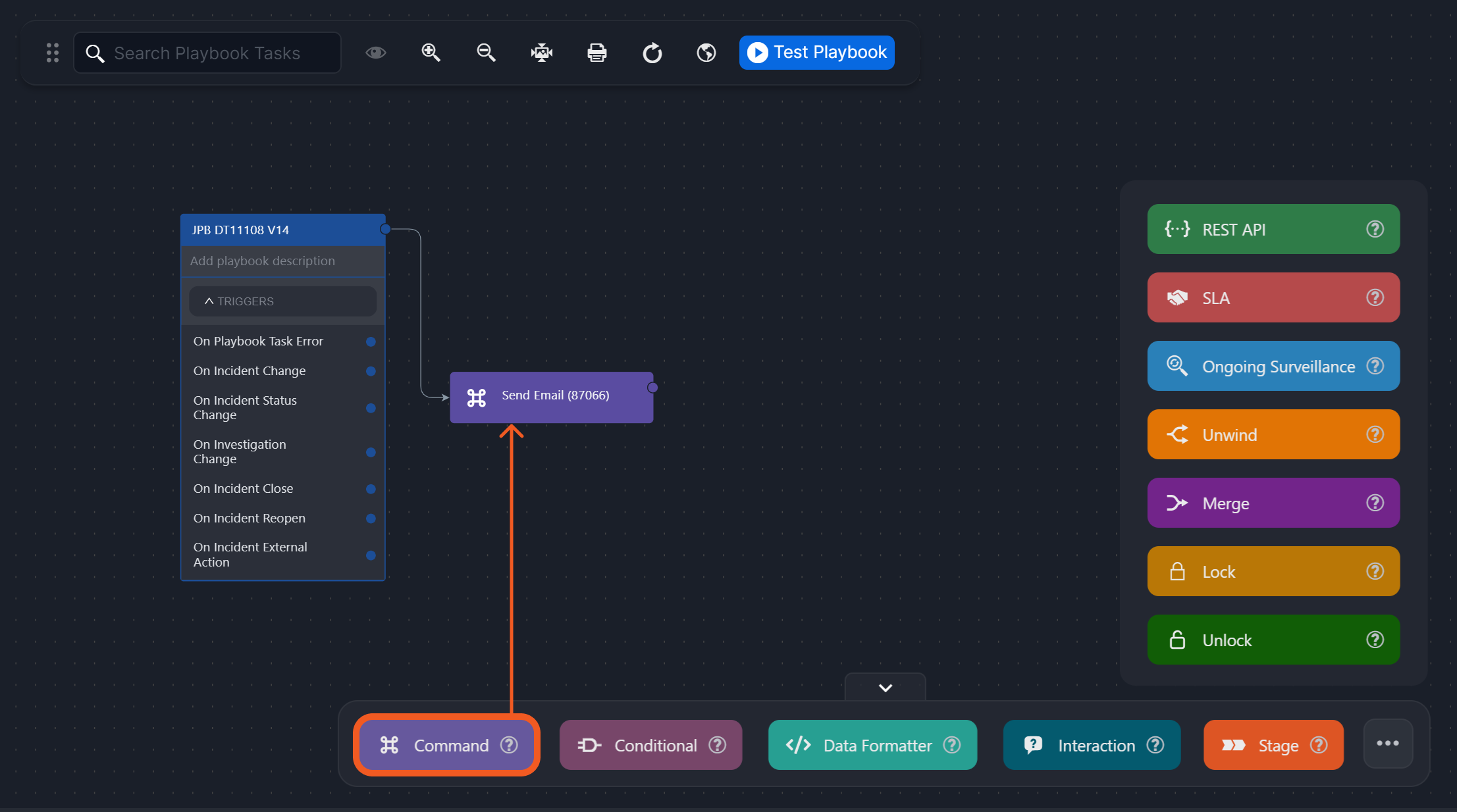
Select any incident playbook
-
Drag a Command Task onto the Playbook editor.
-
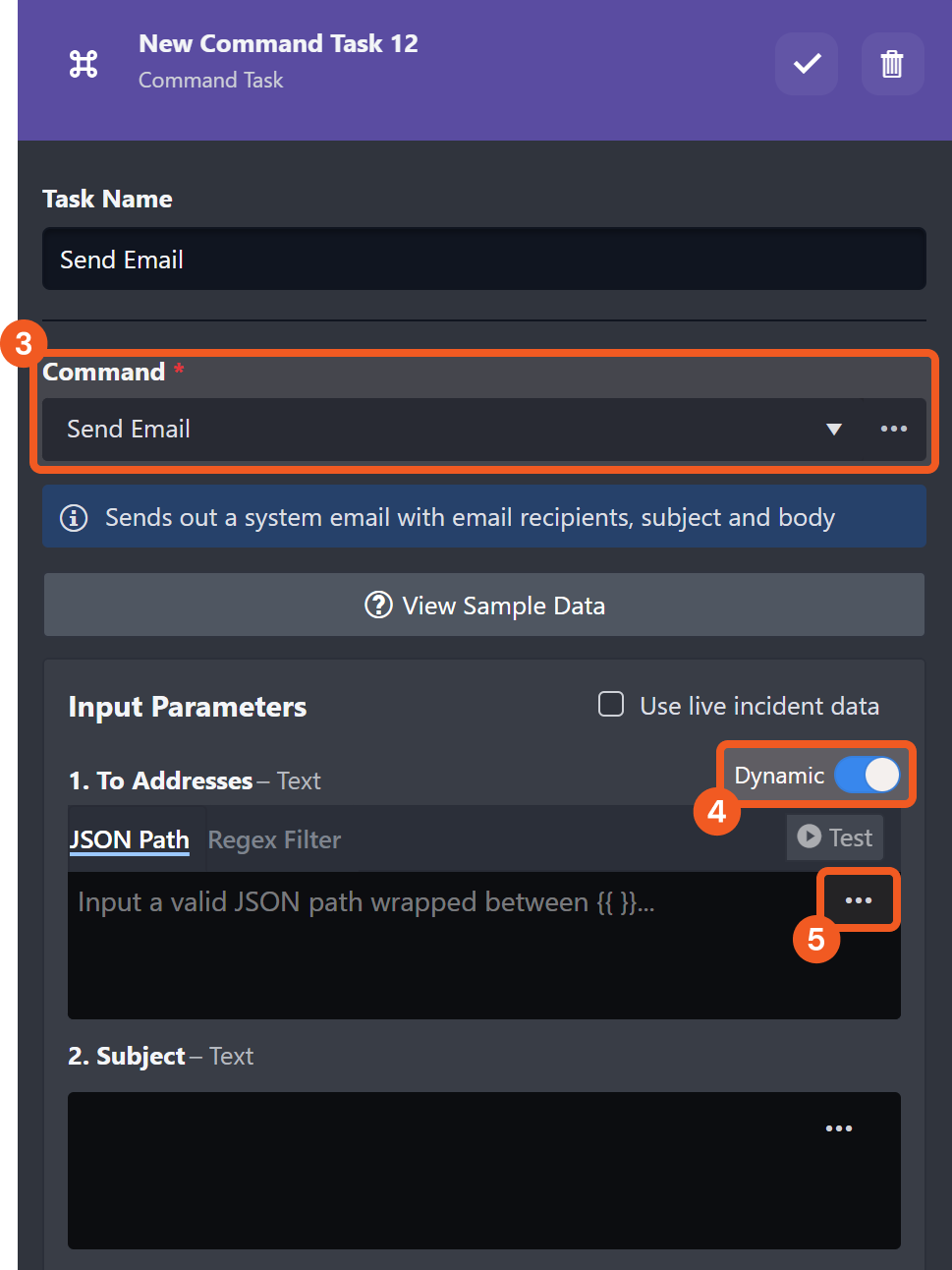
Select any Command that takes dynamic inputs. Let us use the Send Email system utility command for this example.
-
Enable the Dynamic toggle, if applicable.
-
Click on the ellipsis button.
-
Select the Global List data source option at the top left corner of the modal component.
-20241015-230327.png?cb=24ff250e6ec6df0e91c33b608409fc81)
-
Select a global list.
-
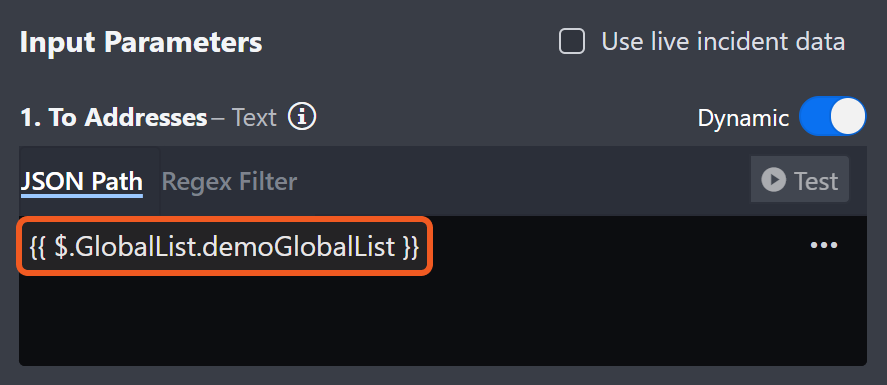
Click on the Save button.
-20241015-231314.png?cb=8c6bccf1f5e8f176acb876ff585c24d3)
RESULT
The select JSON object within the Global List data source will be used as the input parameter.