Last Updated: October 26, 2026
Overview
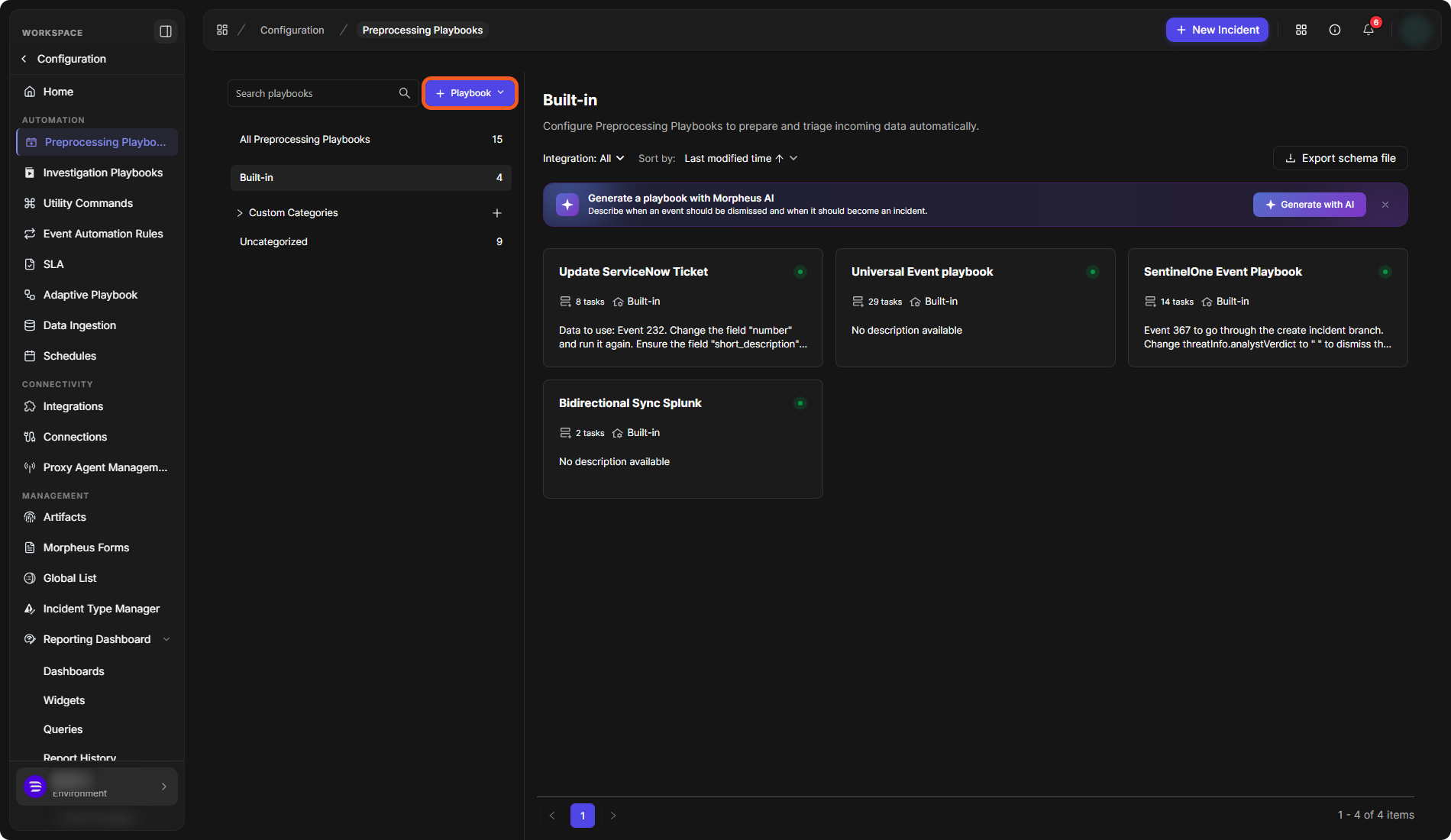
Preprocessing playbooks process newly ingested event data before it becomes an event, as the page itself puts it: "Configure Preprocessing Playbooks to prepare and triage incoming data automatically." You build them in D3's codeless playbook editor from tasks such as Command, Conditional, Data Formatter, Escalate and Dismiss.
Preprocessing playbooks are under Configuration > Preprocessing Playbooks.
The Preprocessing Playbooks Page
-
Search playbooks finds a playbook by name.
-
+ Playbook creates a playbook (see below).
-
The list on the left groups the playbooks: All Preprocessing Playbooks, Built-in, Custom Categories (the + button adds a category) and Uncategorized, each with its count.
-
Integration filters the playbooks by integration, and Sort by orders them (for example by Last modified time).
-
Export schema file is at the top right of the list.
-
The Generate a playbook with Morpheus AI banner and its Generate with AI button create a playbook from a description.
The Preprocessing Playbooks page
Playbook Cards
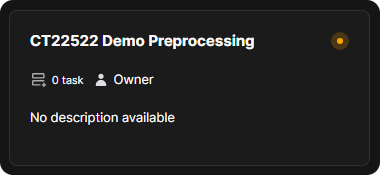
Each playbook is a card with its name, its number of tasks, your access to it (for example Owner or Editor (Site), or Built-in for a built-in playbook) and its description. Select a card to open the playbook in the editor.
A playbook card
Creating a Preprocessing Playbook
You can generate a preprocessing playbook with AI, or build it yourself from a blank playbook.
Generating with AI
Morpheus, D3's AI assistant, can draft a preprocessing playbook for you. Describe when an event should be dismissed and when it should become an incident, or let Morpheus infer it from an event, and it composes the tasks for you to review.
-
Select + Playbook, then Generate with AI ("Describe it — Morpheus composes the steps"). The Generate with AI button on the Generate a playbook with Morpheus AI banner opens the same window.
-
Choose how Morpheus starts:
-
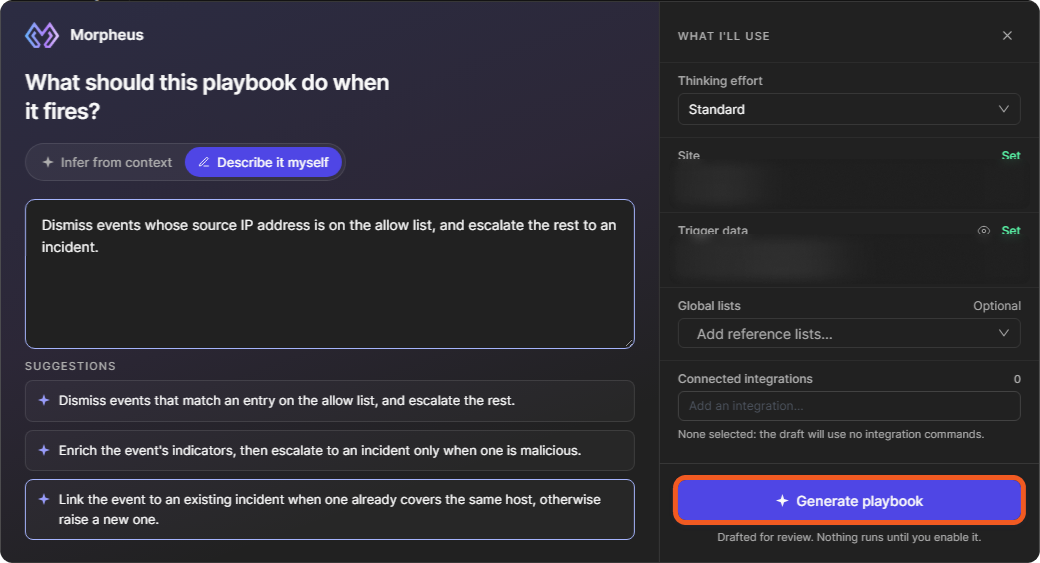
Infer from context: Morpheus infers the playbook from the trigger data you choose ("Set the scope and I'll infer the playbook").
-
Describe it myself: type what the playbook should do when it fires. The window also lists SUGGESTIONS to start from.
-
-
Under WHAT I'LL USE, choose the Site (required) and the Trigger data (required): an event from that site. Optionally, set the Thinking effort (Standard or Deep), add Global lists as reference lists, and add Connected integrations. With no integration selected, the draft uses no integration commands.
-
Select Generate playbook.
Generating a preprocessing playbook
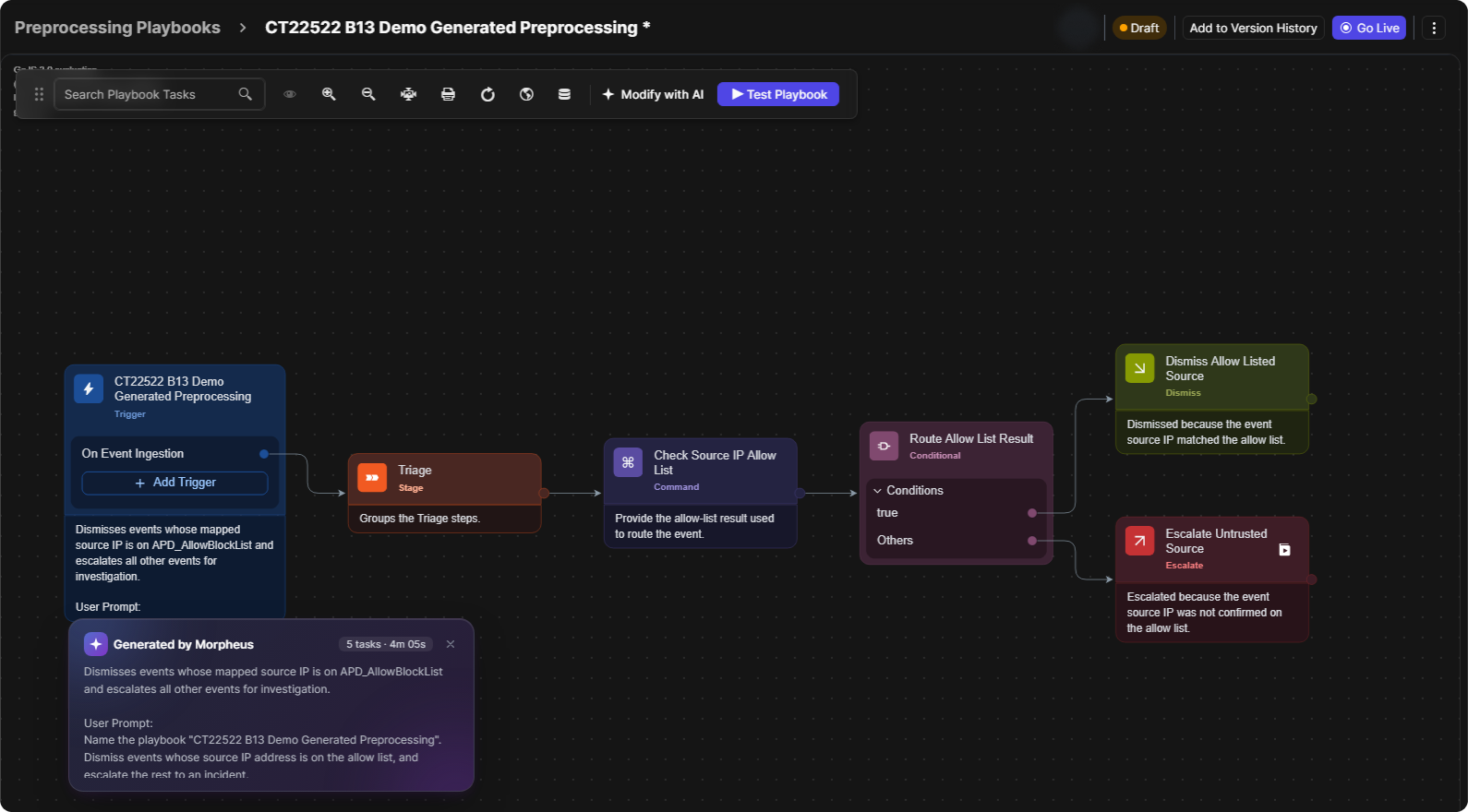
The Generating playbook window shows each step Morpheus works through and the time elapsed. It notes that this usually takes 10–20 minutes, and Cancel stops it. When it finishes, the playbook opens in the editor as a Draft. A Generated by Morpheus note sums up what the playbook does, with its number of tasks and your prompt.
A generated preprocessing playbook
REVIEW BEFORE USE
Morpheus never runs actions on its own, and nothing runs until you enable the playbook. Check every task and test the playbook before you select Go Live. To change the draft, select Modify with AI in the toolbar: Morpheus can review the whole playbook and propose changes that you approve one by one, or you can describe the change yourself. You can also edit the tasks by hand.
Building It Manually
To build the playbook yourself instead, start from a blank playbook:
-
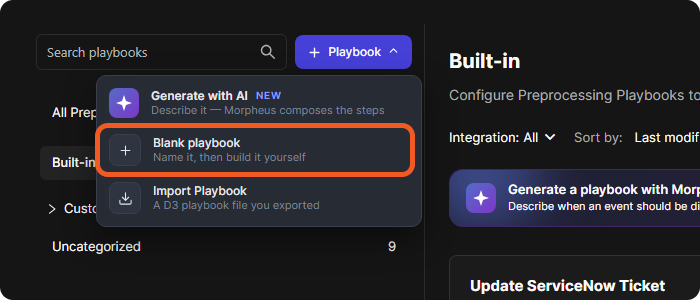
Select + Playbook. The menu offers:
-
Generate with AI (NEW): "Describe it — Morpheus composes the steps".
-
Blank playbook: "Name it, then build it yourself".
-
Import Playbook: "A D3 playbook file you exported".
-
The + Playbook menu
-
Choose Blank playbook.
-
In the New Playbook window, enter the Playbook Name, choose the Playbook Folder (for example Uncategorized) and select OK.
The New Playbook window
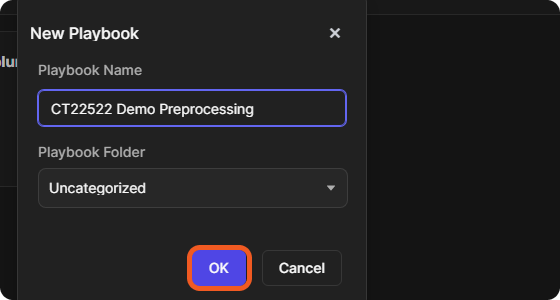
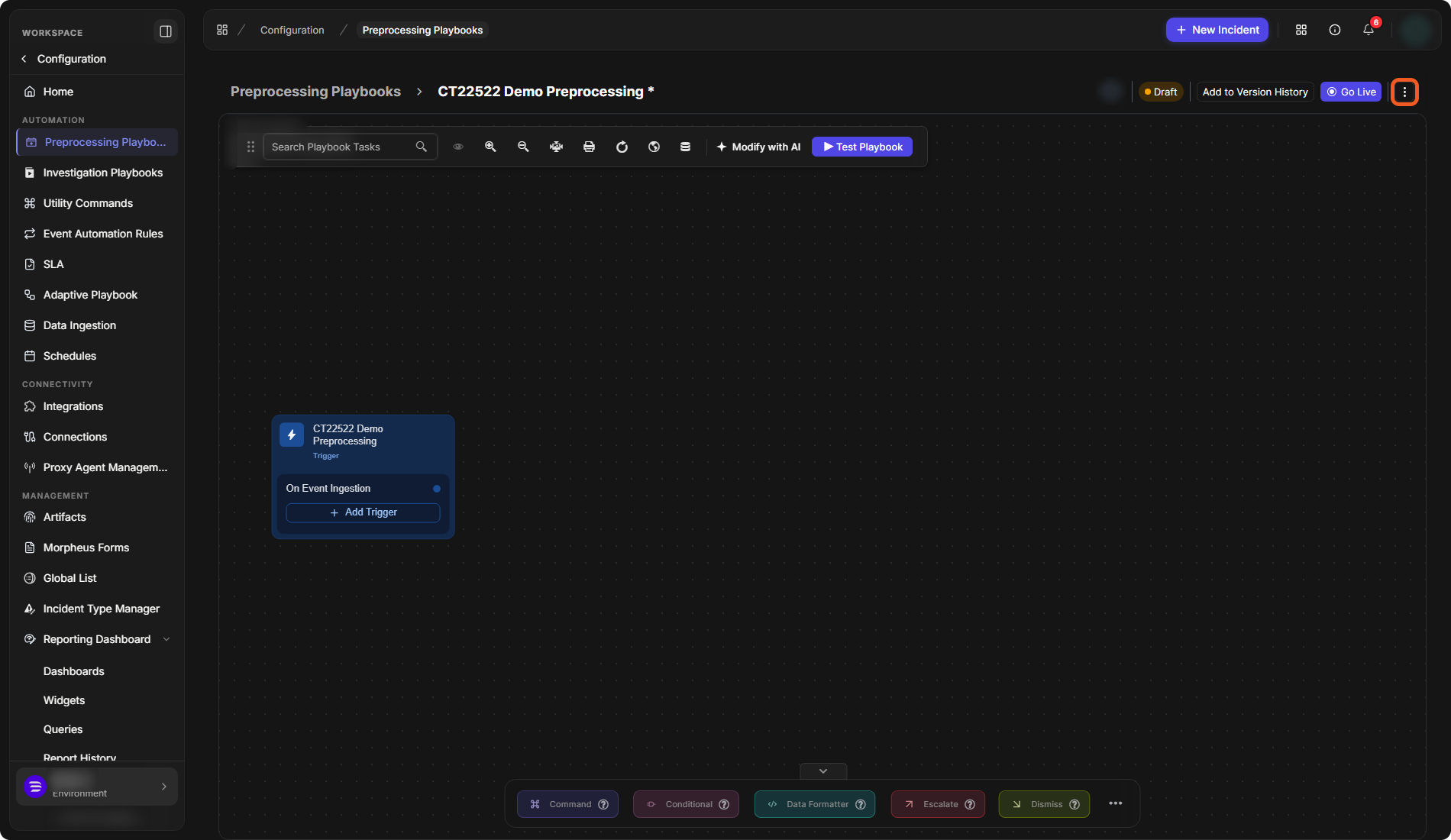
The playbook opens in the editor as a Draft, with one trigger task named after the playbook and its On Event Ingestion trigger.
The Playbook Editor
A new preprocessing playbook in the editor
Header and Actions
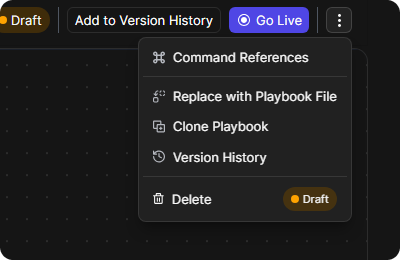
The header shows the playbook's name, an avatar for each user on the playbook, its status (Draft), Add to Version History and Go Live. The More button (⋮) opens:
-
Command References
-
Replace with Playbook File
-
Clone Playbook
-
Version History
-
Delete
The More menu
Version History opens the Version History panel on the right.
Toolbar
The toolbar above the canvas has Search Playbook Tasks, the view buttons (Show Overview, Zoom In, Zoom Out, Zoom to Fit, Export, Refresh), Show Local Shared Data, Trigger Output Data, Modify with AI and Test Playbook.
Triggers
Every task chain starts from a trigger. A new preprocessing playbook starts with On Event Ingestion; Add Trigger adds another. For the triggers and when each runs, see Preprocessing Playbook Triggers.
Adding Tasks
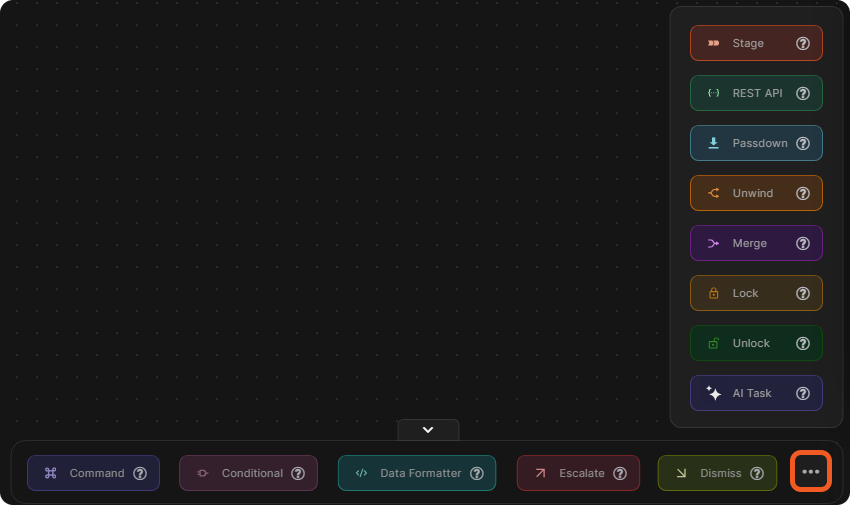
Drag a task from the task bar at the bottom of the canvas and drop it into the editor. The bar shows Command, Conditional, Data Formatter, Escalate and Dismiss; the ⋯ button adds Stage, REST API, Passdown, Unwind, Merge, Lock, Unlock and AI Task. Connect each task chain to a trigger.
More task types
For each task type, its settings and its options, see Playbook Tasks. For sequencing, branching and loops, see Playbook Control Flow.
Local Shared Data
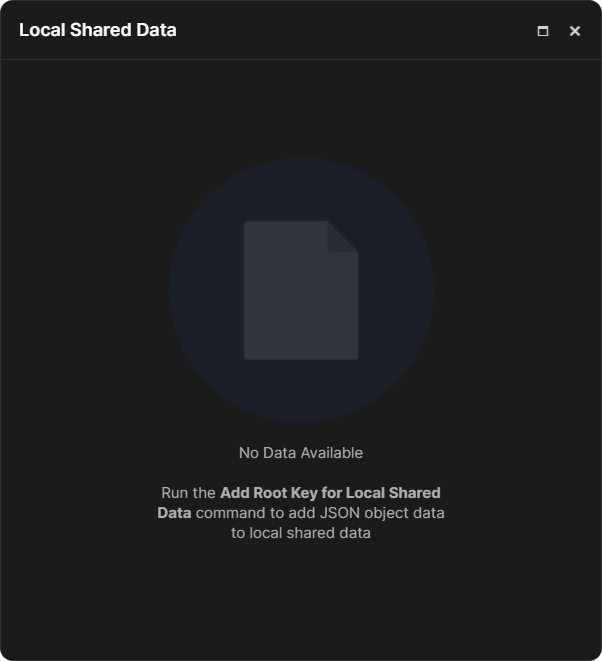
Show Local Shared Data opens the Local Shared Data window, which shows the JSON data stored for this playbook. When it is empty, it says to run the Add Root Key for Local Shared Data command to add JSON object data.
The Local Shared Data window
Trigger Output Data
Trigger Output Data opens the Trigger Output Data window. It shows No Trigger Data Available until the playbook has data.
Testing a Preprocessing Playbook
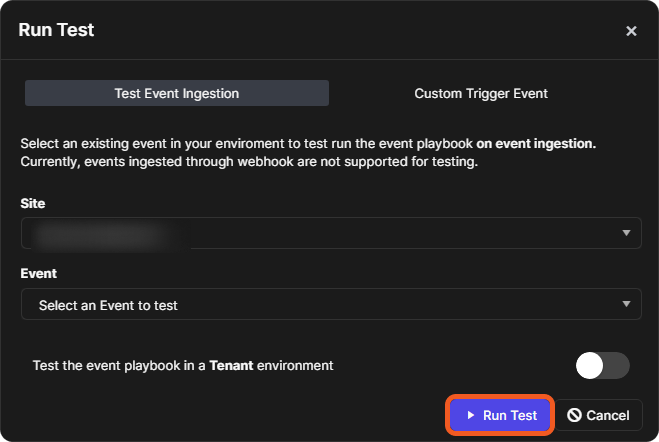
Select Test Playbook. The Run Test window has two tabs:
-
Test Event Ingestion: test the playbook on event ingestion with an existing event. Choose the Site and the Event. As the window notes, events ingested through a webhook are not supported for testing.
-
Custom Trigger Event.
Test the event playbook in a Tenant environment switches the test to a tenant. Select Run Test, or Cancel.
The Run Test window
For testing in detail and re-running task nodes, see Playbook Testing and Task Node Re-runs.
Deleting a Preprocessing Playbook
-
Open the playbook and select More (⋮) > Delete.
-
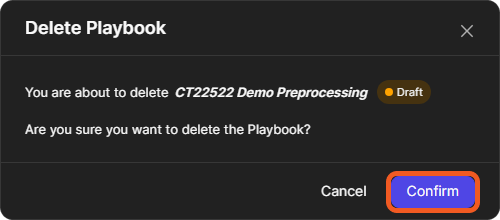
In the Delete Playbook window, select Confirm.
The Delete Playbook window