
Last Updated: October 23, 2026
Overview
Tasks are the steps of a playbook. Each task does one job, such as running a command, checking a condition, formatting data or asking a person for input. Tasks are connected to the playbook's trigger node and to each other, and they run in that order. A task that is not connected to a trigger does not run.
The same task editor is used in preprocessing playbooks, investigation playbooks and codeless utility commands. For the triggers, see Playbook Triggers.
Task Types
The most common task types are on the bar at the bottom of the canvas. The ⋯ button at the end of the bar shows the rest.
-
Investigation playbooks: Command, Conditional, Data Formatter, Interaction and Stage on the bar; REST API, Ongoing Surveillance, Unwind, Merge, Lock, Unlock, Attack Path Discovery and AI Task under ⋯.
-
Preprocessing playbooks: Command, Conditional, Data Formatter, Escalate and Dismiss on the bar.
More task types in an investigation playbook
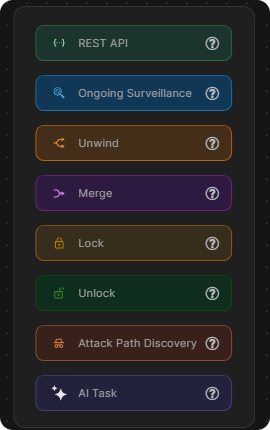
Each task type has its own article:
-
Command Tasks
-
Conditional Tasks
-
Data Formatter Tasks
-
Interaction Tasks
-
Stage Tasks
-
Unwind Tasks
-
Merge Tasks
-
AI Tasks
Adding a Task
-
Point to the node the new task should follow (the trigger node or a task), and select the + button on its right edge.
-
Select the kind of task, for example New Command Task.
The new task menu
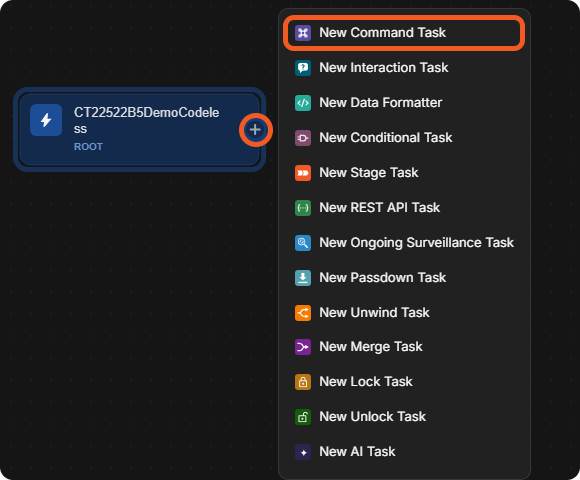
The task is added to the right of the node, connected to it with an arrow, and its settings open on the right.
Task Settings
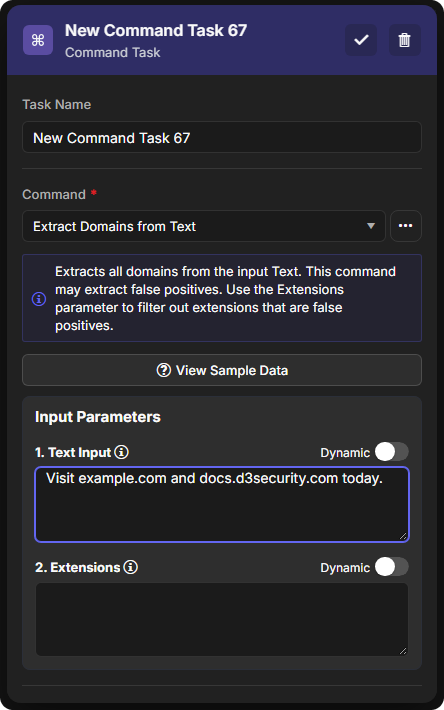
The settings depend on the task type. A command task, for example, has:
-
Task Name.
-
Command: the command the task runs, with its description. View Sample Data shows an example of what the command takes and returns.
-
Input Parameters: one field per command input. Switch on Dynamic to fill a field from data that earlier tasks produced instead of a fixed value. See Dynamically Selecting Data.
-
Run options such as Active and Auto Run, and the Run Mode. See Playbook Control Flow.
-
Description.
-
Error Handling Options, such as Stop on Error. See Stop on Error.
Select the check mark at the top of the settings to keep your changes, or the trash button to delete the task.
A command task's settings
Task Results
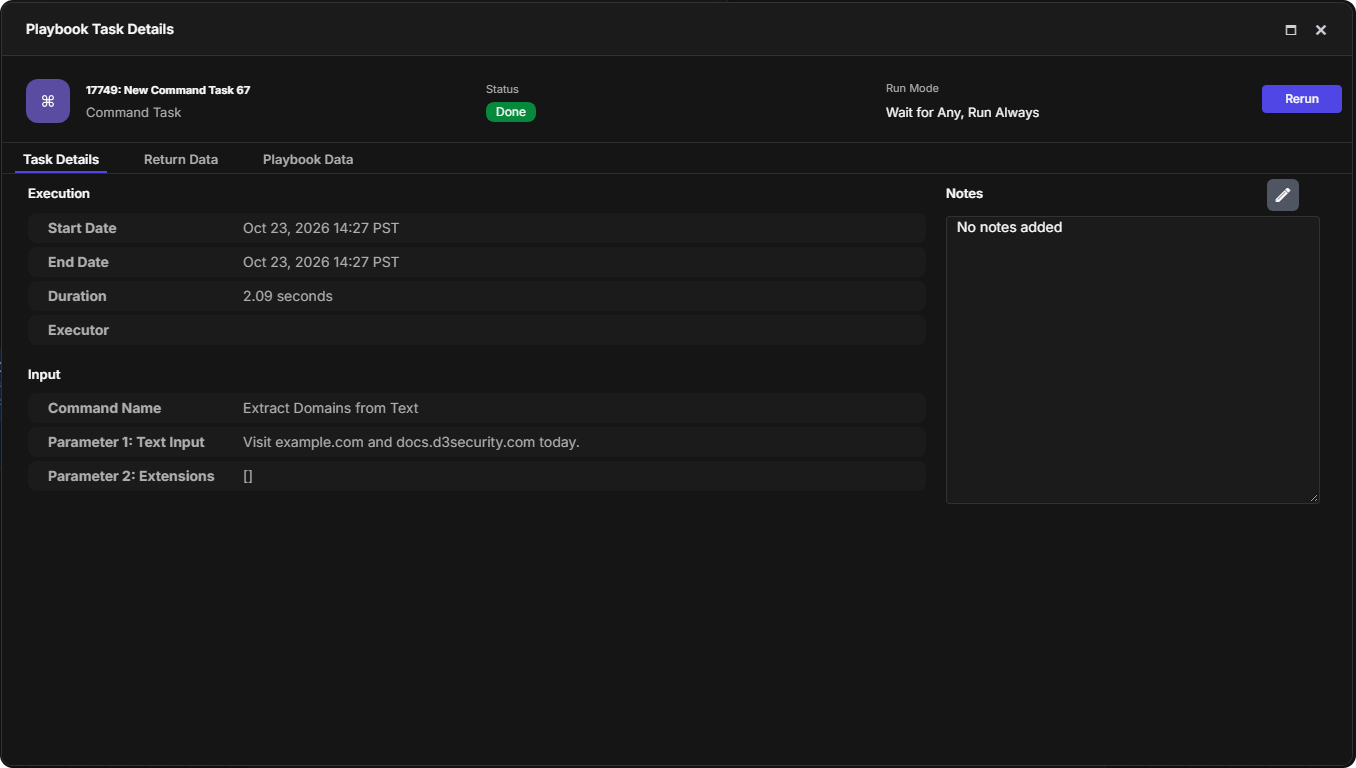
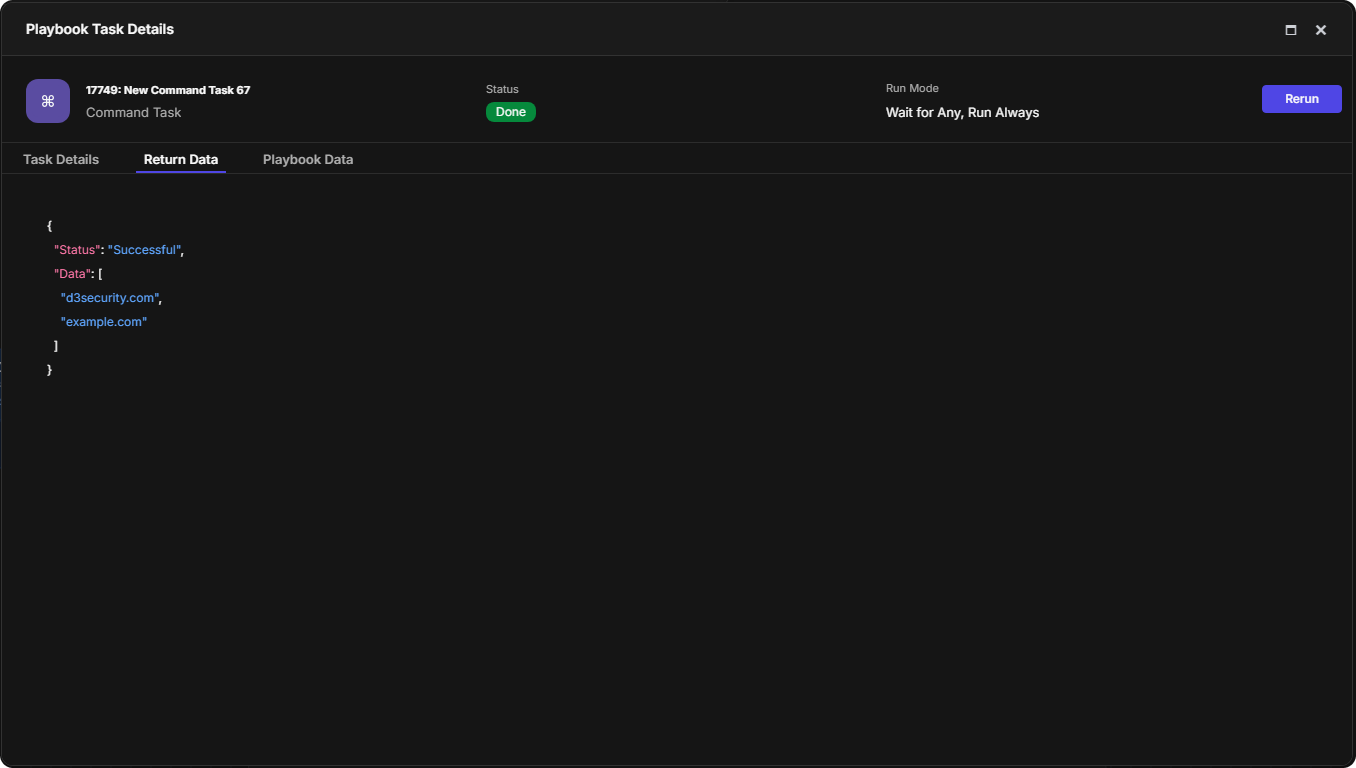
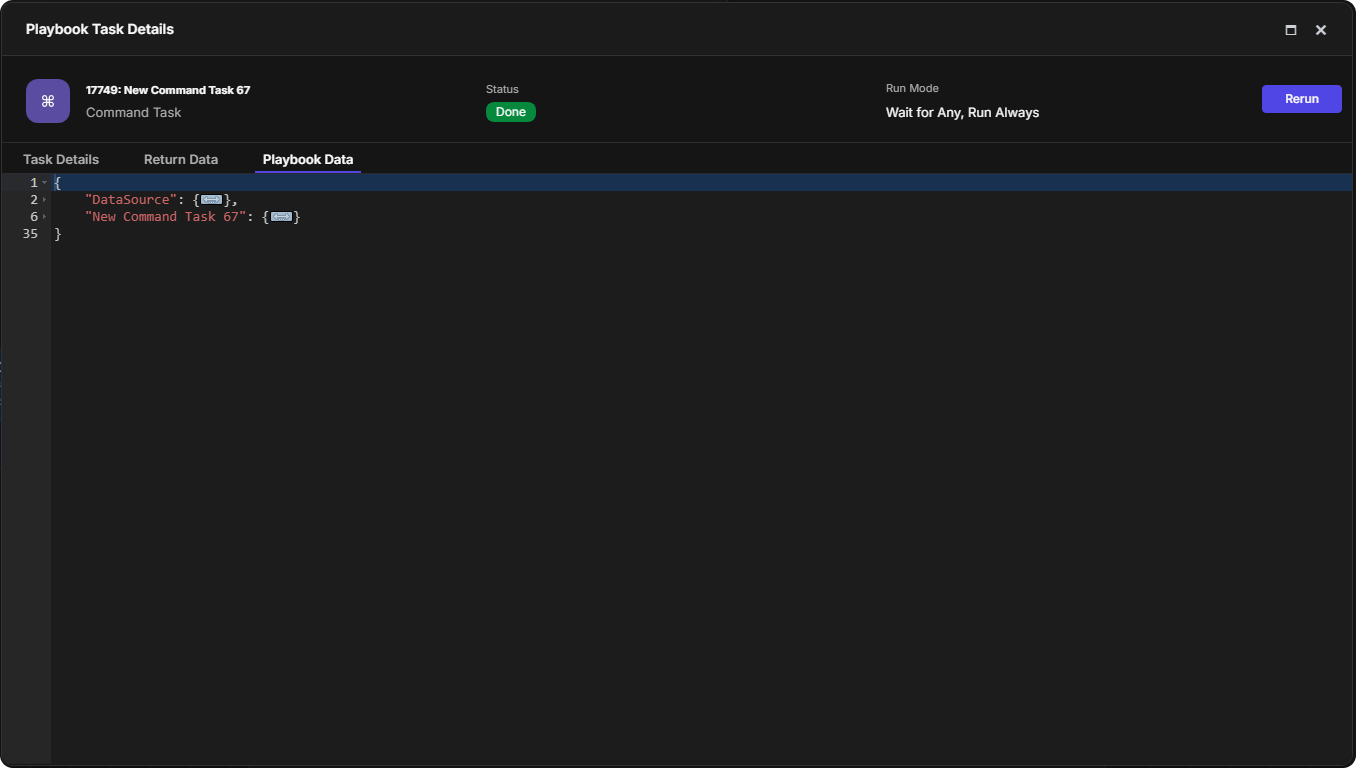
After a task runs, a status icon appears on its node. Select the icon to open Playbook Task Details. The header shows the task, its Status (for example Done) and its Run Mode.
-
Task Details: the Execution (Start Date, End Date, Duration) and the Input the task ran with. Notes holds comments about the task.
-
Return Data: what the task returned.
-
Playbook Data: the data collected by the playbook so far, by task.
Task Details
Return Data
Playbook Data
To run a task again, see Playbook Testing and Task Node Re-runs.