Last Updated: October 24, 2026
Overview
A playbook task can take its input from data that is only known when the playbook runs, such as the output of an earlier task. To do this, turn on Dynamic for an input parameter of a command task. The input then holds a JSON path wrapped in {{ }}, which is resolved when the task runs.
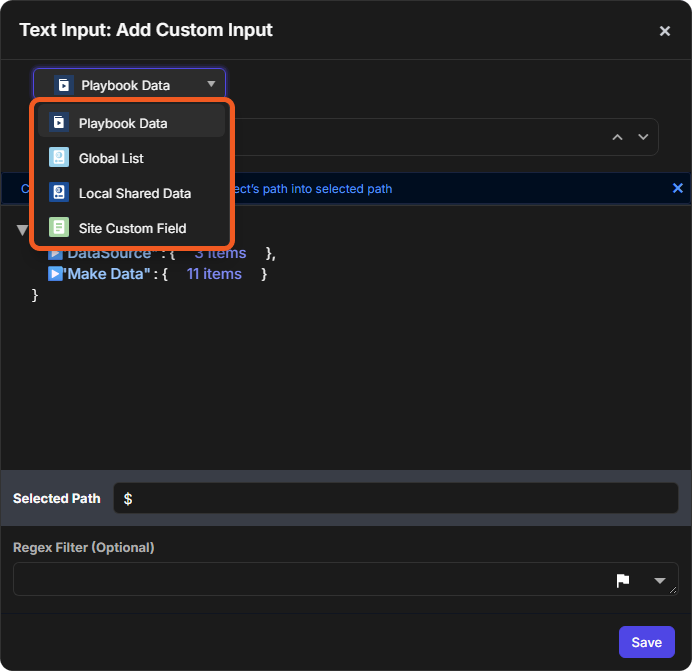
Select the ... button in the input box to open the format builder. Its source list offers these data sources:
-
Playbook Data: the data of the playbook run so far, including the output of the tasks before the current one.
-
Global List
-
Local Shared Data: data that the tasks of one playbook run share.
-
Site Custom Field
The data sources of the format builder
The examples below use a codeless utility command, which can be tested on its own. The same task settings are used in Preprocessing Playbooks and Investigation Playbooks. For more on playbook expressions, see Jinja Basics.
Playbook Data Example
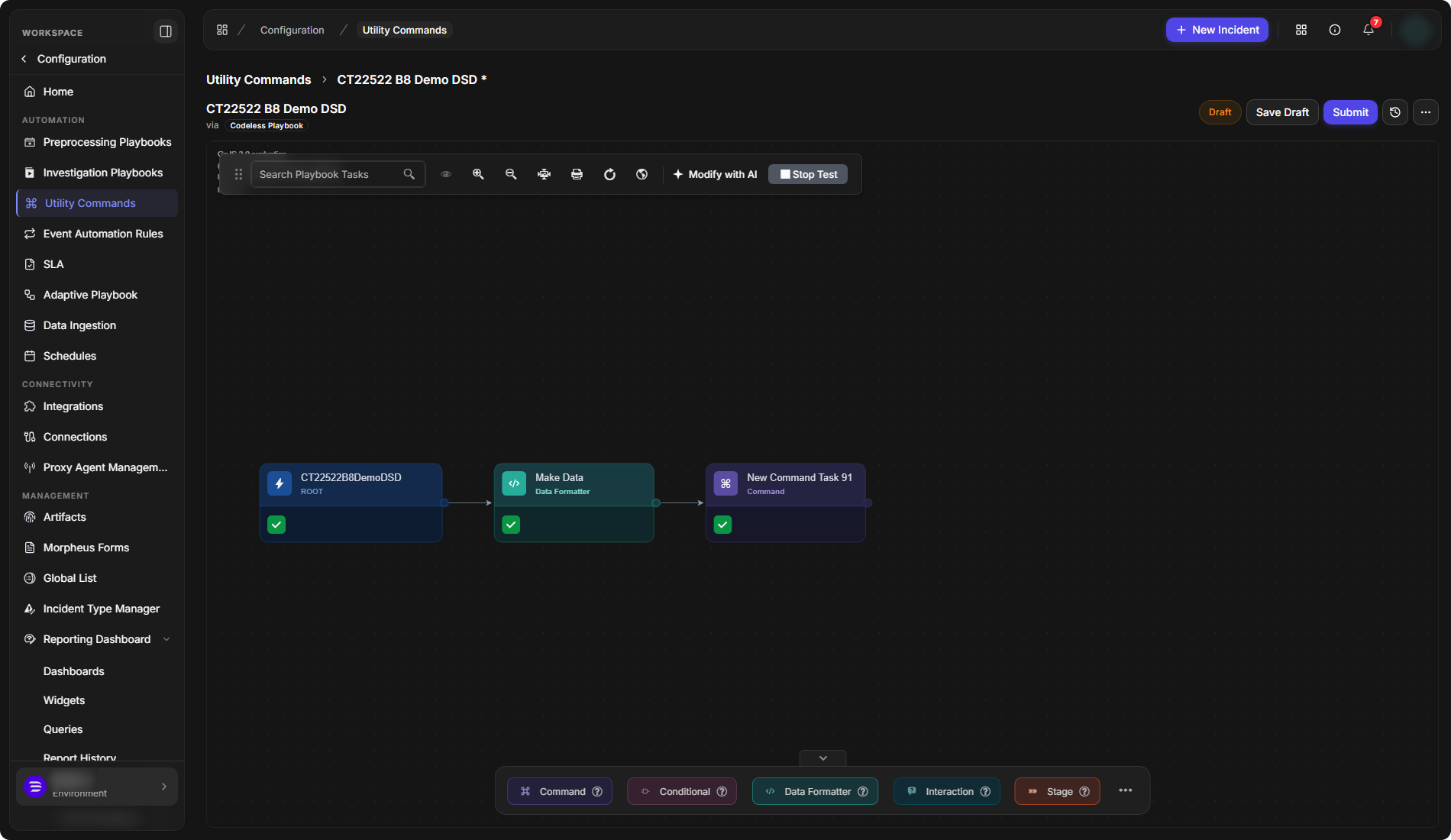
This playbook has a Data Formatter task, Make Data, that returns a line of text, followed by a command task that runs Extract Domains from Text. The command task takes its Text Input from the output of Make Data.
The example playbook after a test run
-
Select the command task. Under Input Parameters, turn on Dynamic for Text Input.
-
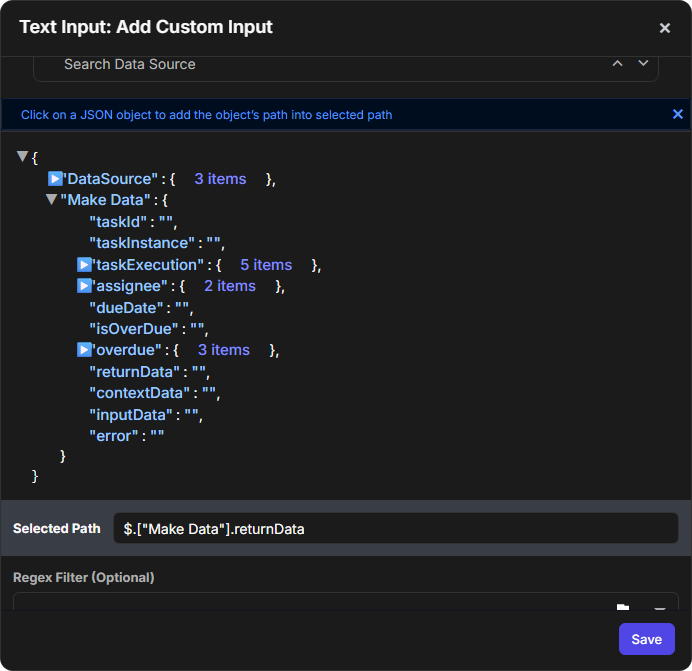
Select the ... button in the JSON Path box to open the format builder. Playbook Data is selected as the source. It lists DataSource and the tasks that run before this task, here Make Data.
-
Expand Make Data, then select returnData. The Selected Path shows
$.["Make Data"].returnData. -
Select Save.
Selecting the path
The JSON Path box shows {{ $.PlaybookData.["Make Data"].returnData }}.
The dynamic input
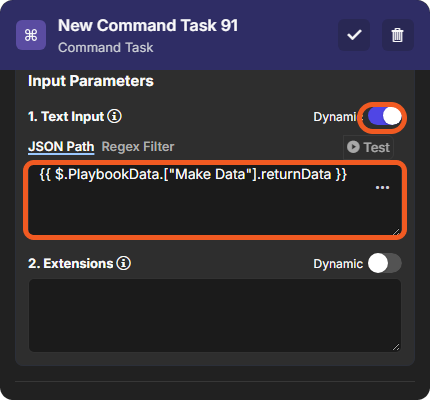
How the expression reads:
-
{{ ... }}: the content is an expression that is resolved when the task runs. -
$.PlaybookData: the root of the playbook data. -
["Make Data"]: the task named Make Data. -
.returnData: that task's return data.
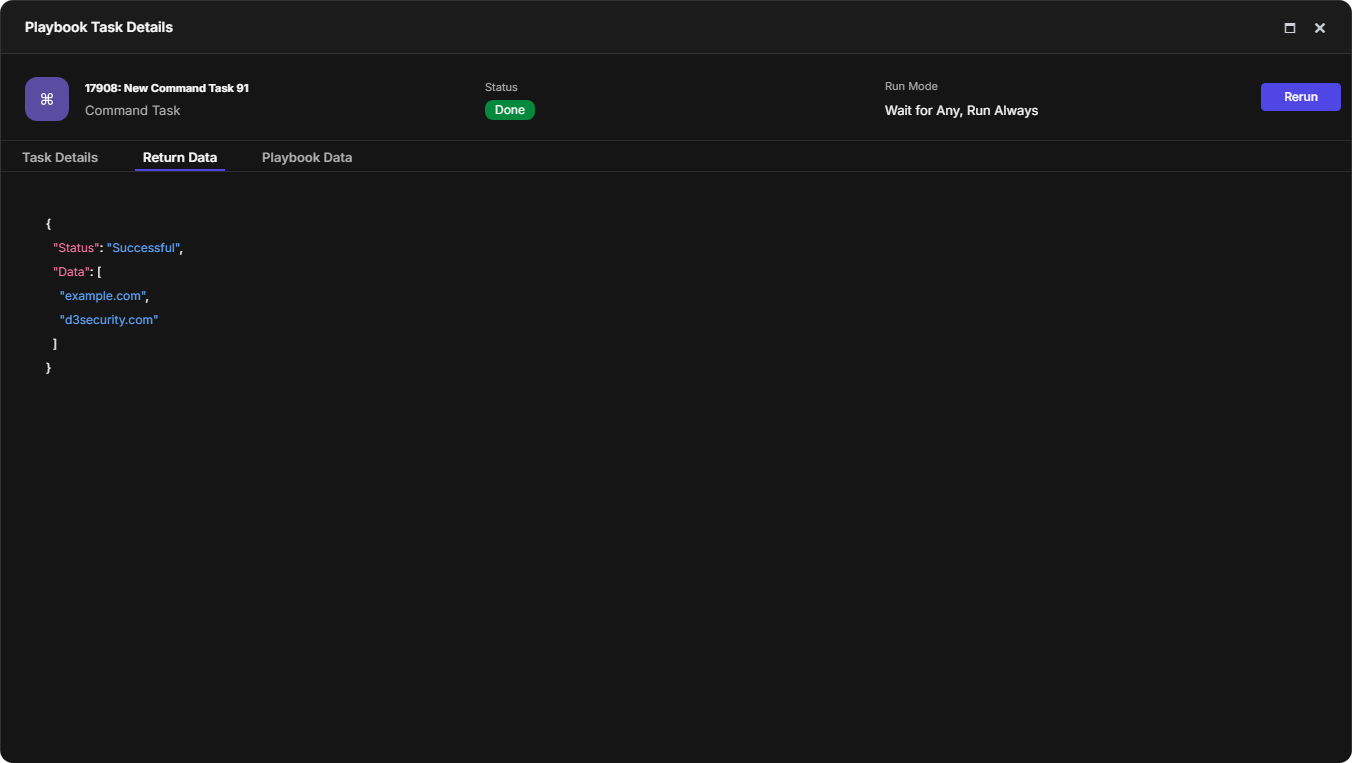
To check the result, select Test Playbook, then open the command task's details and select Return Data. See Playbook Testing and Task Node Re-runs.
The command task found the domains in the text that Make Data returned.
The command task's return data
Local Shared Data Example
Local shared data is written by a task and read by later tasks of the same playbook run.
-
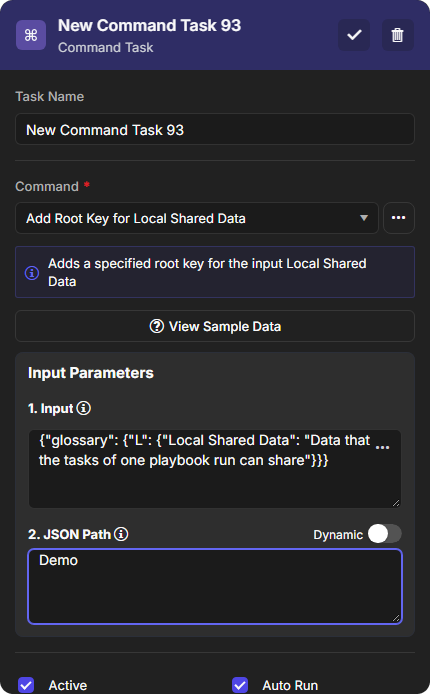
Add a command task that runs the utility command Add Root Key for Local Shared Data, with Auto Run on.
-
Input:
{"glossary": {"L": {"Local Shared Data": "Data that the tasks of one playbook run can share"}}} -
JSON Path:
Demo(the root key to add)
-
-
Connect a Data Formatter task after it, with this expression:
{{ SharedContextData | jsonpath('$.Demo.glossary.L["Local Shared Data"]') }} -
Select Test Playbook, then open the Data Formatter task's details and select Return Data.
The Add Root Key for Local Shared Data task
The Data Formatter task
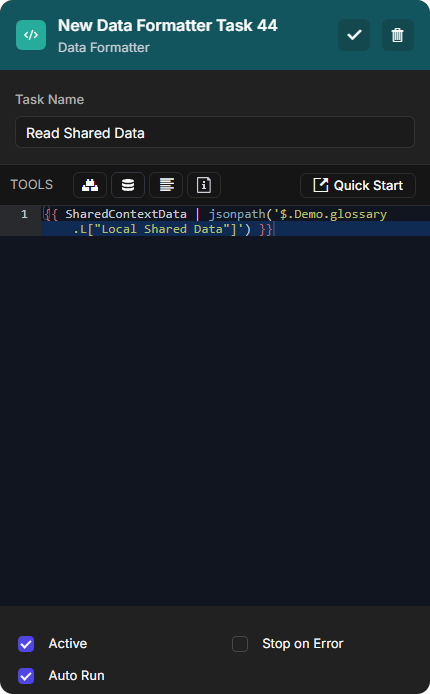
How the expression reads:
-
SharedContextData: the local shared data of this playbook run, passed to the filter after the pipe (|). -
jsonpath('$.Demo.glossary.L["Local Shared Data"]'): the path under the root key Demo that was added in step 1.
The Data Formatter task returns the definition stored under the Demo root key.
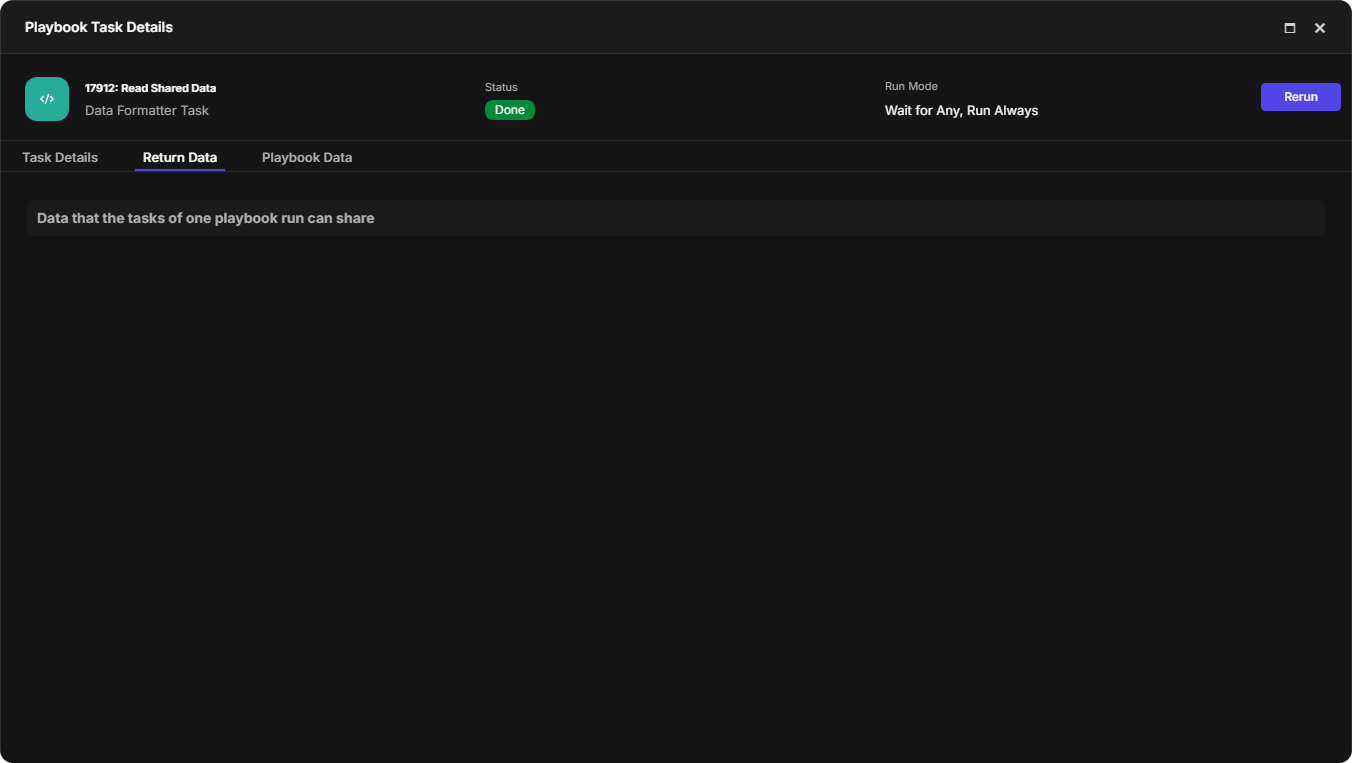
The Data Formatter task's return data