
Last Updated: October 23, 2026
Overview
Morpheus Forms lets you build web forms that collect information from people and turn each submission into an incident, so requests and reports reach your SOC in a consistent, structured shape instead of arriving as free-form emails. You build a form from fields such as text, dates, dropdowns and checkboxes, publish it to one or more sites with the playbook and incident type it should use, and decide which answers fill which incident fields. Signed-in users can find the forms you share with them in the Portal.
To open it, go to Configuration > Morpheus Forms, in the MANAGEMENT group of the sidebar. The page has three tabs:
|
Tab |
What it is for |
|---|---|
|
Forms |
The list of forms. Create, edit, duplicate and delete forms here. |
|
Portal |
The self-service page where signed-in users browse the forms shared with them and see the forms they have completed. |
|
Portal settings |
The title, help text, support contact and logo each portal shows, and the portal's link. |
In Short
|
Stage |
Where it happens |
|---|---|
|
Create the form, from a template or blank |
Forms tab > New Form |
|
Add fields, set their rules and conditions |
The form builder |
|
Check how the form looks and behaves |
The builder > Show Preview |
|
Choose the sites, playbook, incident type and access |
The builder > Publish |
|
Decide which answers fill incident fields |
The builder > Mapping |
|
Share the form with signed-in users |
The Show in Portal option on the link, then the Portal tab |
The Forms List
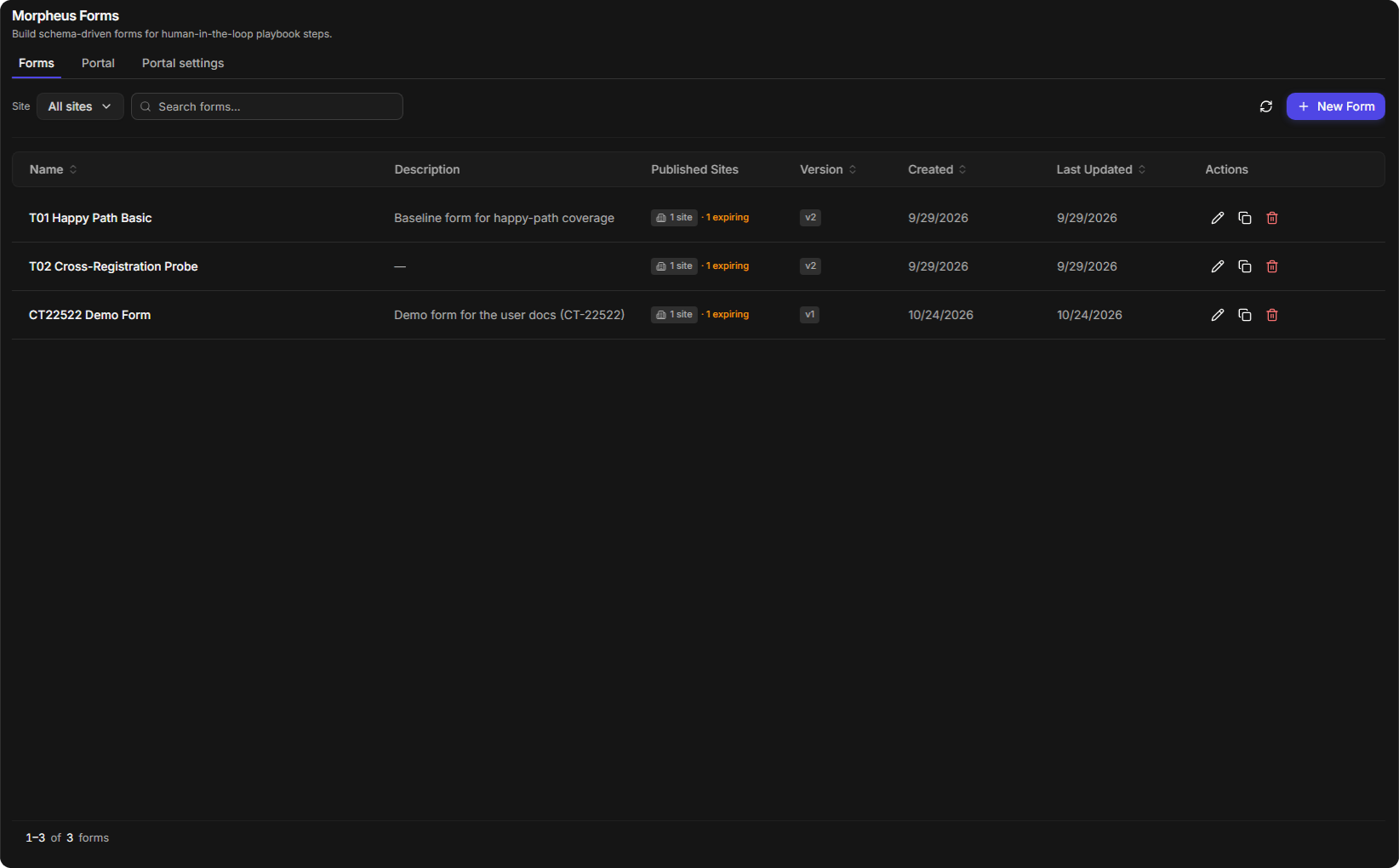
The Forms tab lists every form you can manage, so you can see at a glance which forms are live, on how many sites, and which version is published.
The Forms list
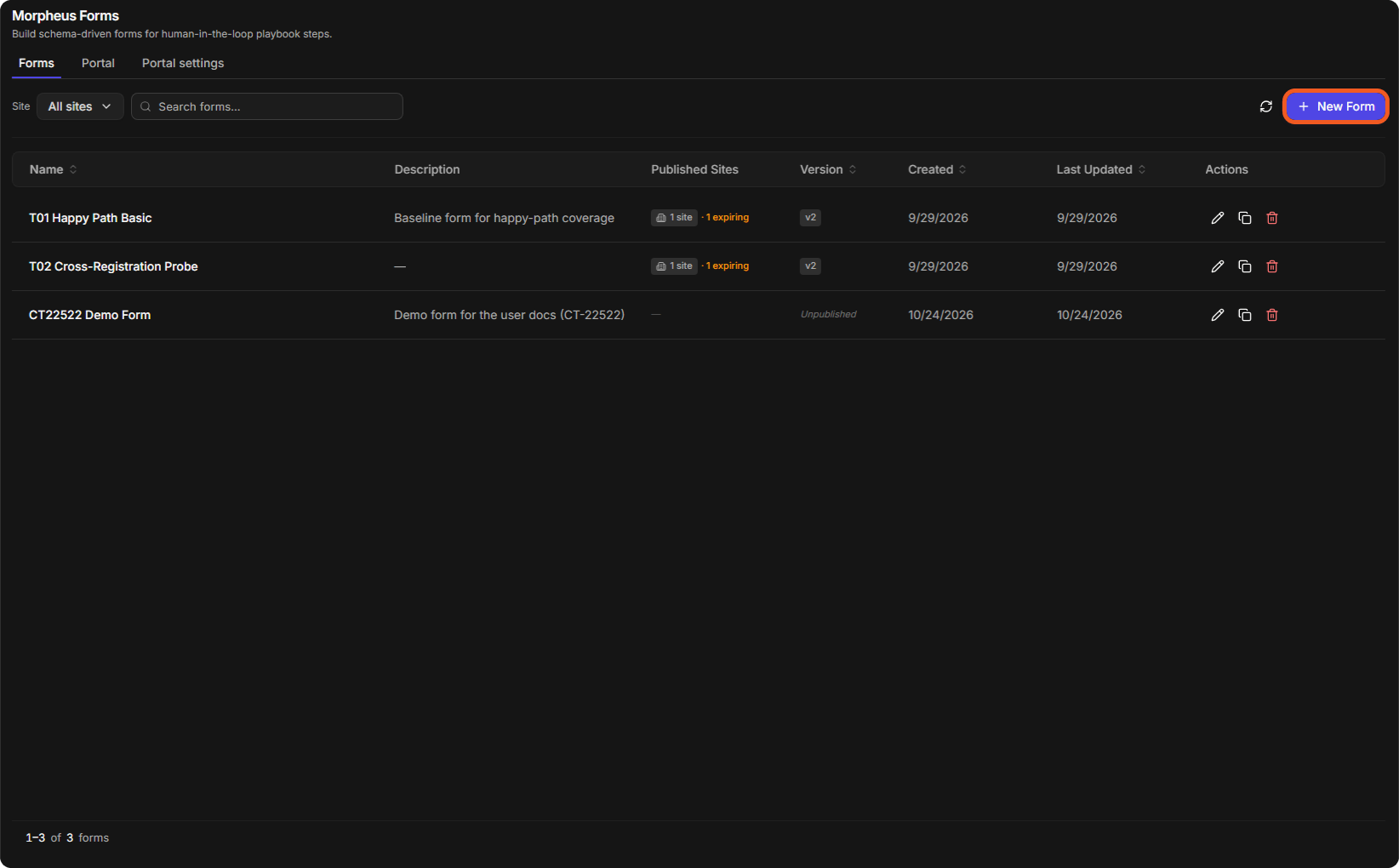
|
Column |
What it shows |
|---|---|
|
Name |
The form's name. Select it to open the form in the builder. |
|
Description |
The description entered when the form was created. |
|
Published Sites |
How many sites the form is published to, and how many of those links expire. Empty for a form that has never been published. |
|
Version |
The published version, such as v1, or Unpublished. |
|
Created and Last Updated |
The dates the form was created and last changed. |
|
Actions |
Edit (opens the builder), Duplicate and Delete. |
Use Site to show only the forms of one site, and Search forms… to find a form by name. When nothing matches, the list says so and suggests clearing the search. The refresh button next to New Form reloads the list.
Creating a Form
A new form can start from a template that already holds suitable questions, or from a blank form. Either way you can change everything afterwards in the builder.
-
On the Forms tab, select New Form.
-
In the New form window, pick a starting point:
-
New blank form;
-
Approval: approve or reject a request with optional notes;
-
Phishing Report: collect details about a suspected phishing email;
-
Incident Triage: initial severity assessment and scope of impact;
-
Access Request: request access to a resource with justification;
-
IOC Submission: submit an indicator of compromise for investigation.
-
-
Enter a Name and choose the Site the form belongs to. Both are required. A Description is optional.
-
Select Create.
The New form window
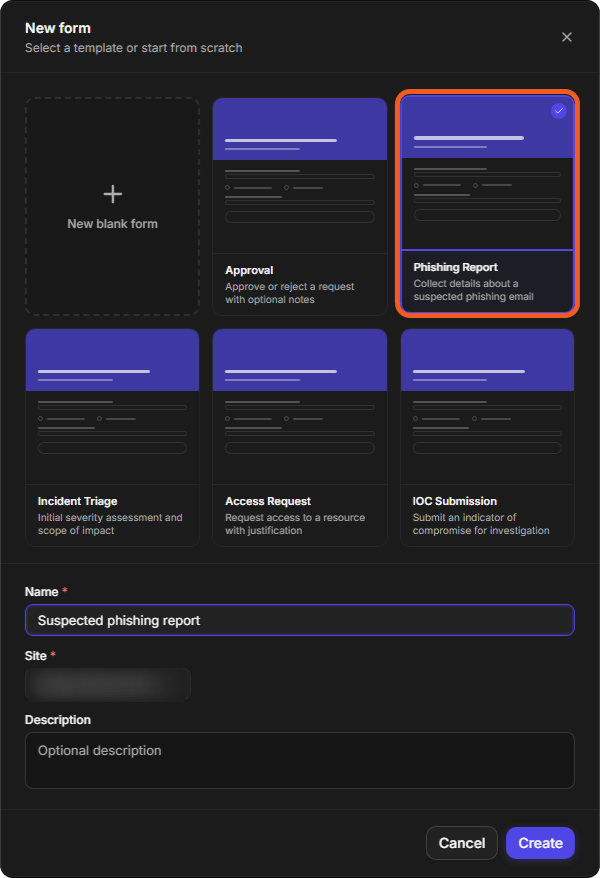
The form opens in the builder as a Draft, with the template's questions already in place.
Building a Form
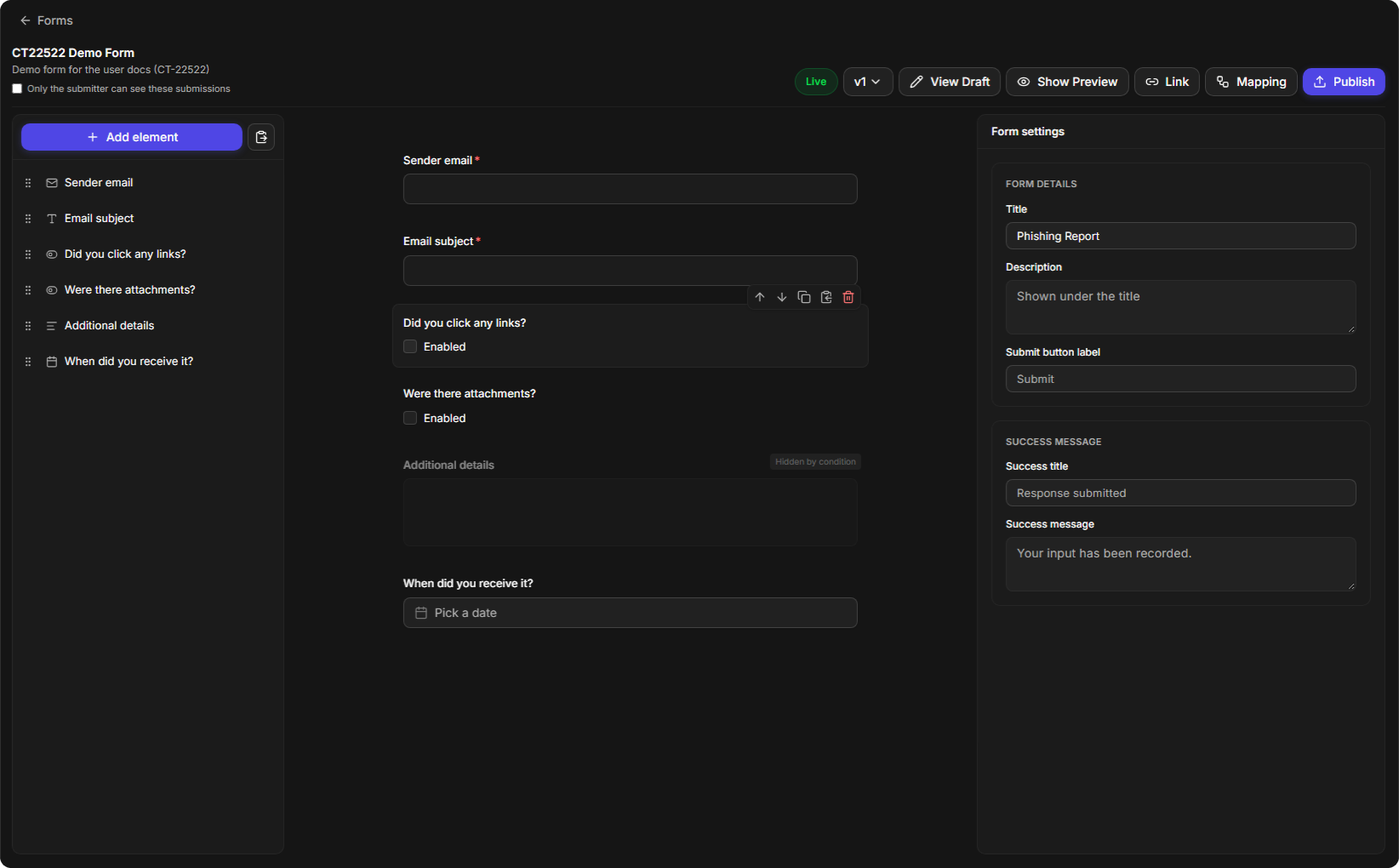
The builder is where you add the questions, set the rules for each one, and choose what the person filling in the form sees before and after they submit. It has three columns: the list of elements on the left, the form itself in the centre, and the settings of whatever you have selected on the right.
Building a form, step by step
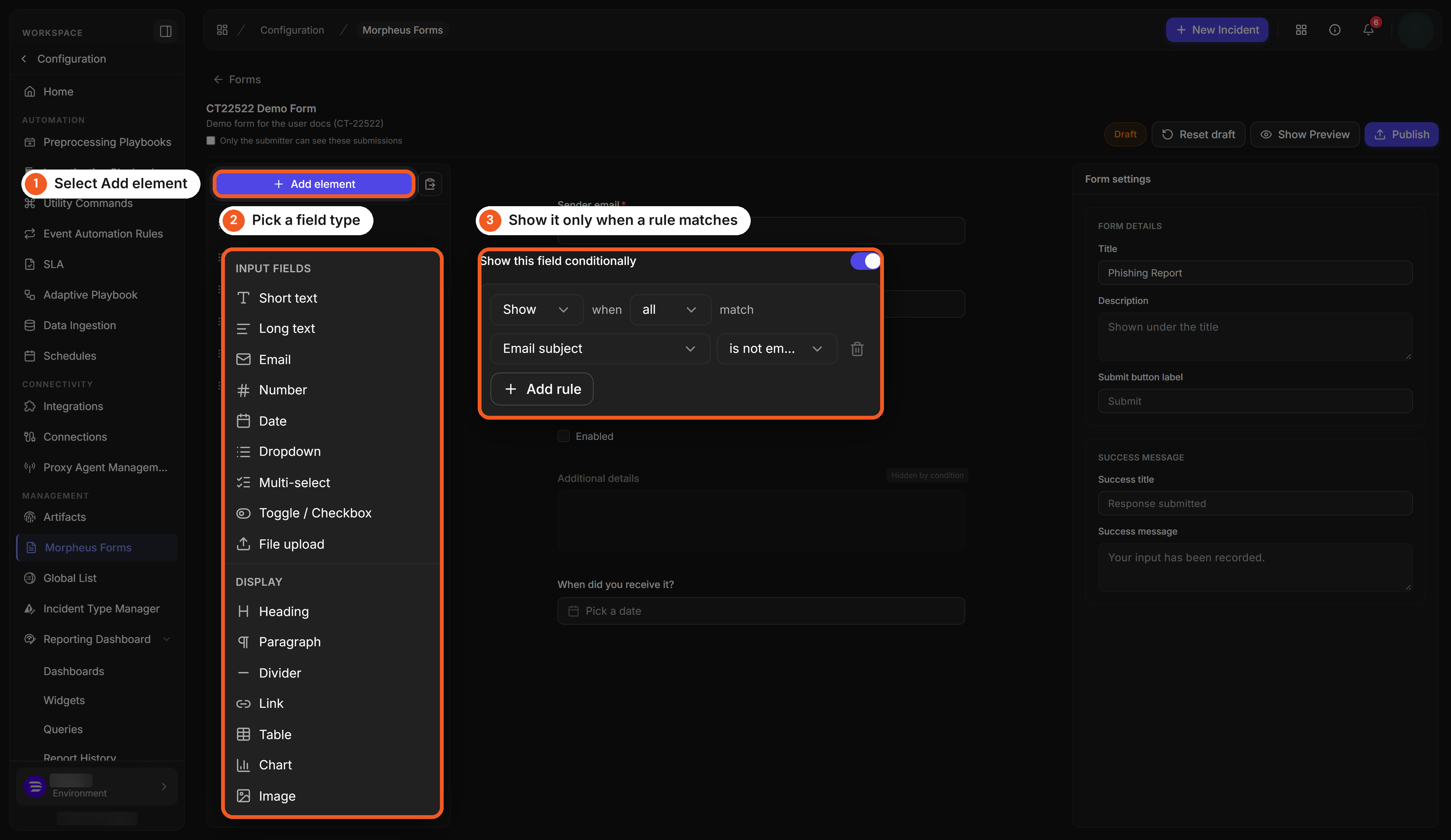
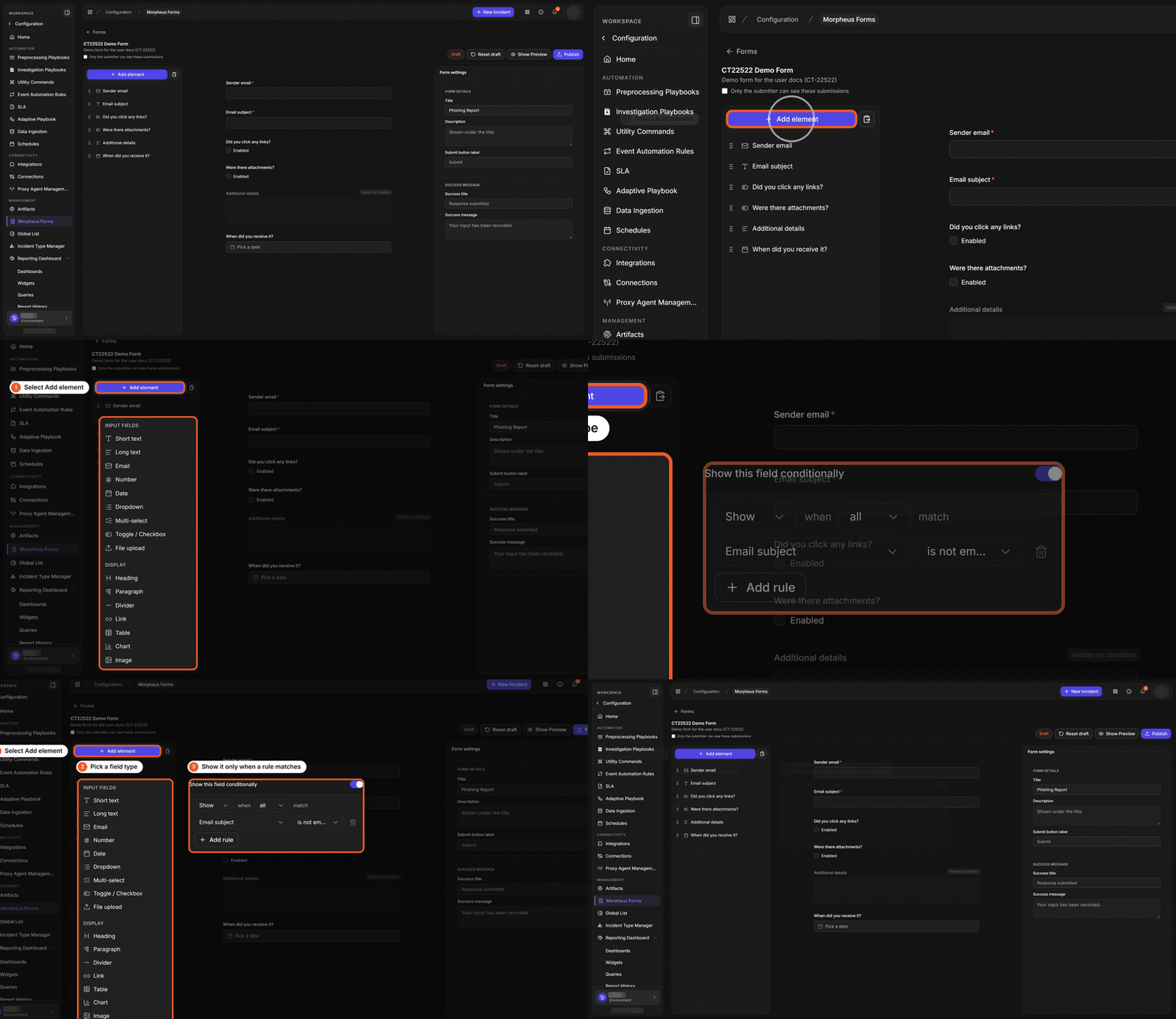
The form builder
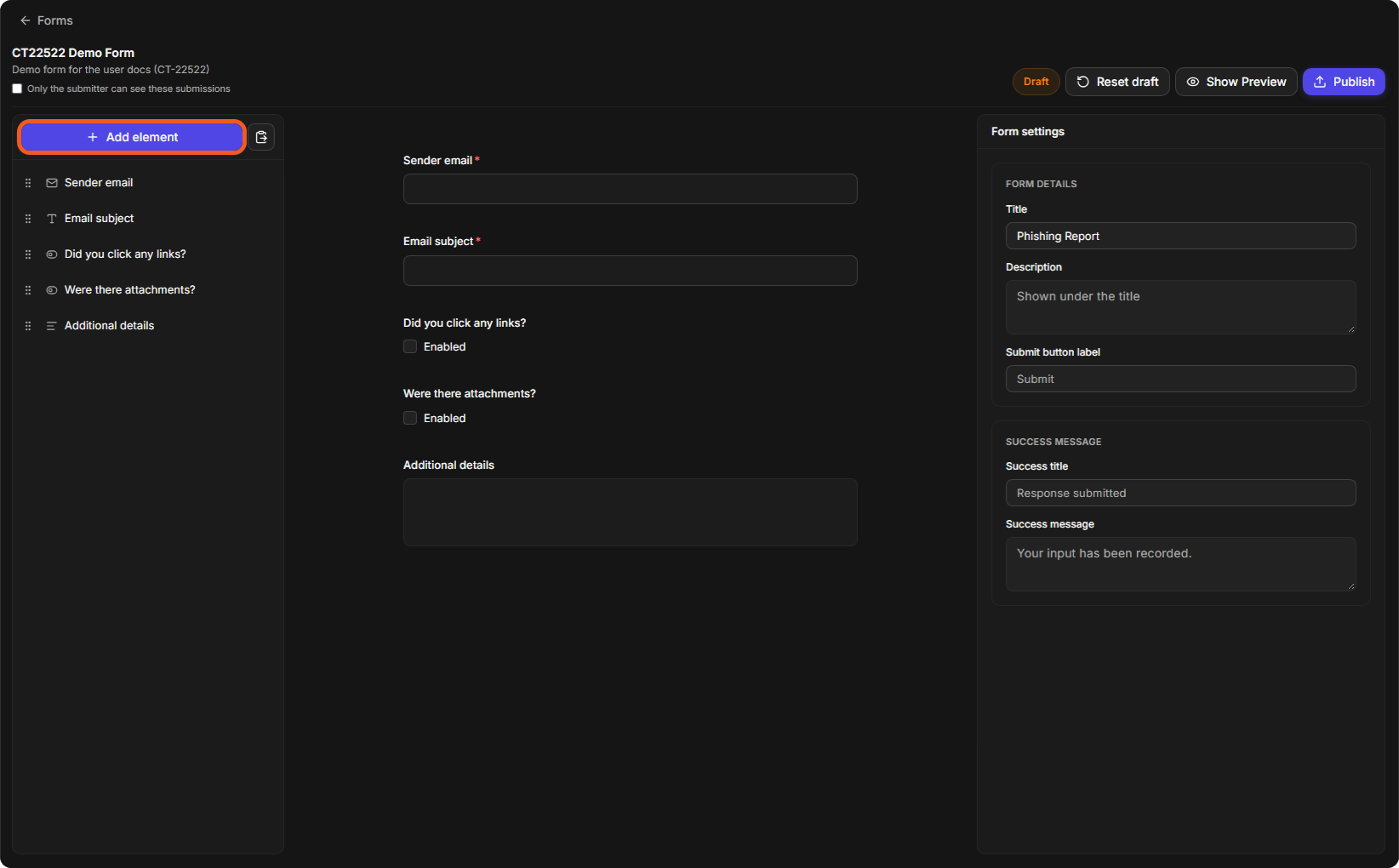
The top of the builder shows the form's name and description and these controls:
|
Control |
What it does |
|---|---|
|
Only the submitter can see these submissions |
When ticked, each person sees only their own submissions of this form. |
|
Draft or Live |
Whether you are looking at your unpublished changes or at the published version. A published form also shows its version, such as v1. |
|
View Draft / View Live |
Switches between the published version and your unpublished changes. |
|
Reset draft |
Discards your draft changes. |
|
Show Preview |
Opens the form as the person filling it in will see it. |
|
Link and Mapping |
Shown once the form is published. See Changing the Link Settings and Mapping Answers to Incident Fields below. |
|
Publish |
Publishes the current draft. |
Your changes are saved to the draft as you work: a Draft saved note appears next to the status. Nothing reaches the people who use the form until you publish.
Adding Elements
Select Add element to add a question or a piece of content, then pick the element from the menu.
The Add element menu
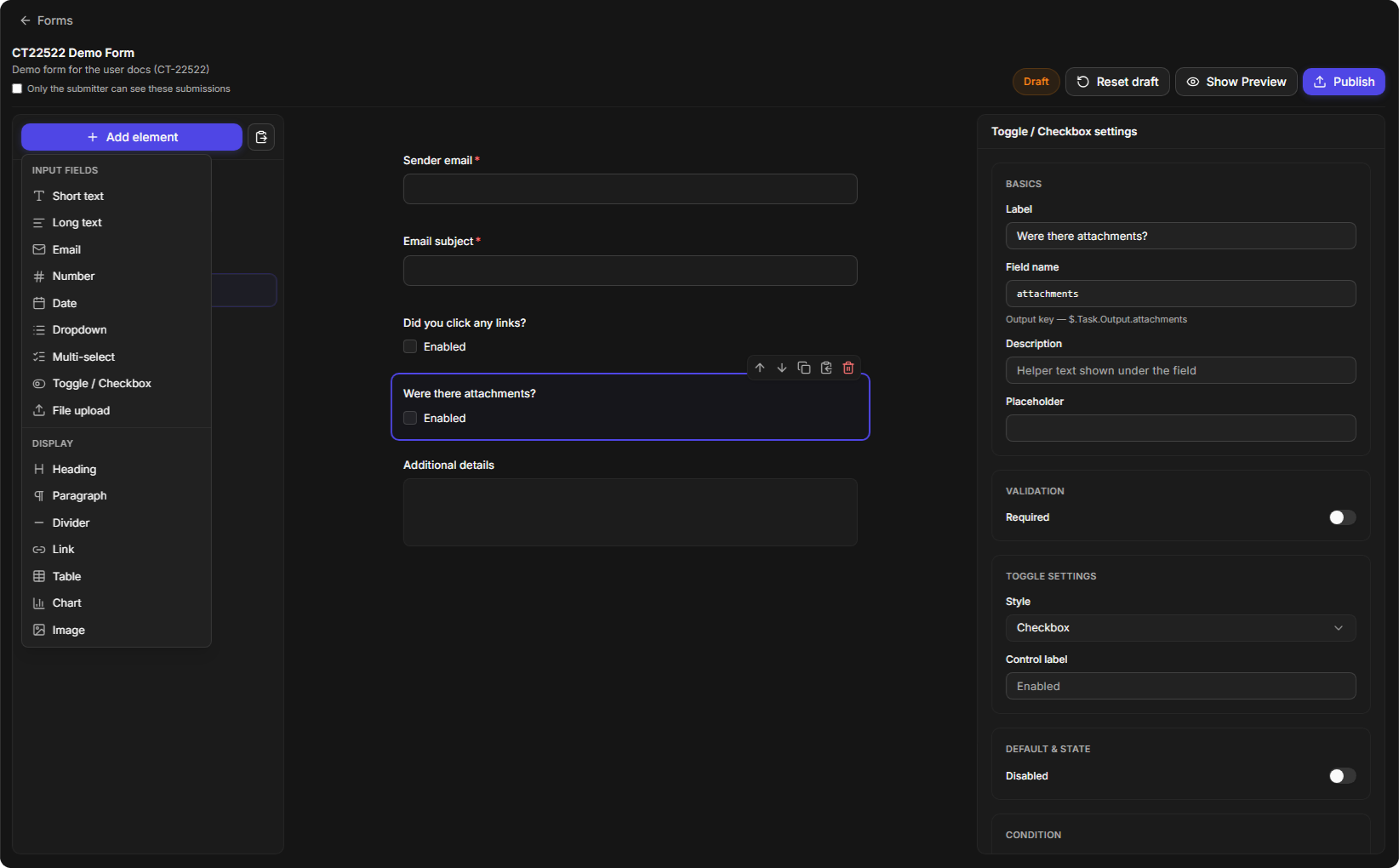
|
Group |
Elements |
|---|---|
|
INPUT FIELDS (questions the person answers) |
Short text, Long text, Email, Number, Date, Dropdown, Multi-select, Toggle / Checkbox, File upload |
|
DISPLAY (content the person reads) |
Heading, Paragraph, Divider, Link, Table, Chart, Image |
To arrange the form:
-
drag an element in the left-hand list by its handle to change its place;
-
on a selected element, use Move up, Move down, Duplicate, Copy element or Delete;
-
Paste element, next to Add element, pastes an element you copied.
Setting Up a Field
Select an element to show its settings on the right. Most input fields have these groups:
The settings of a Date field
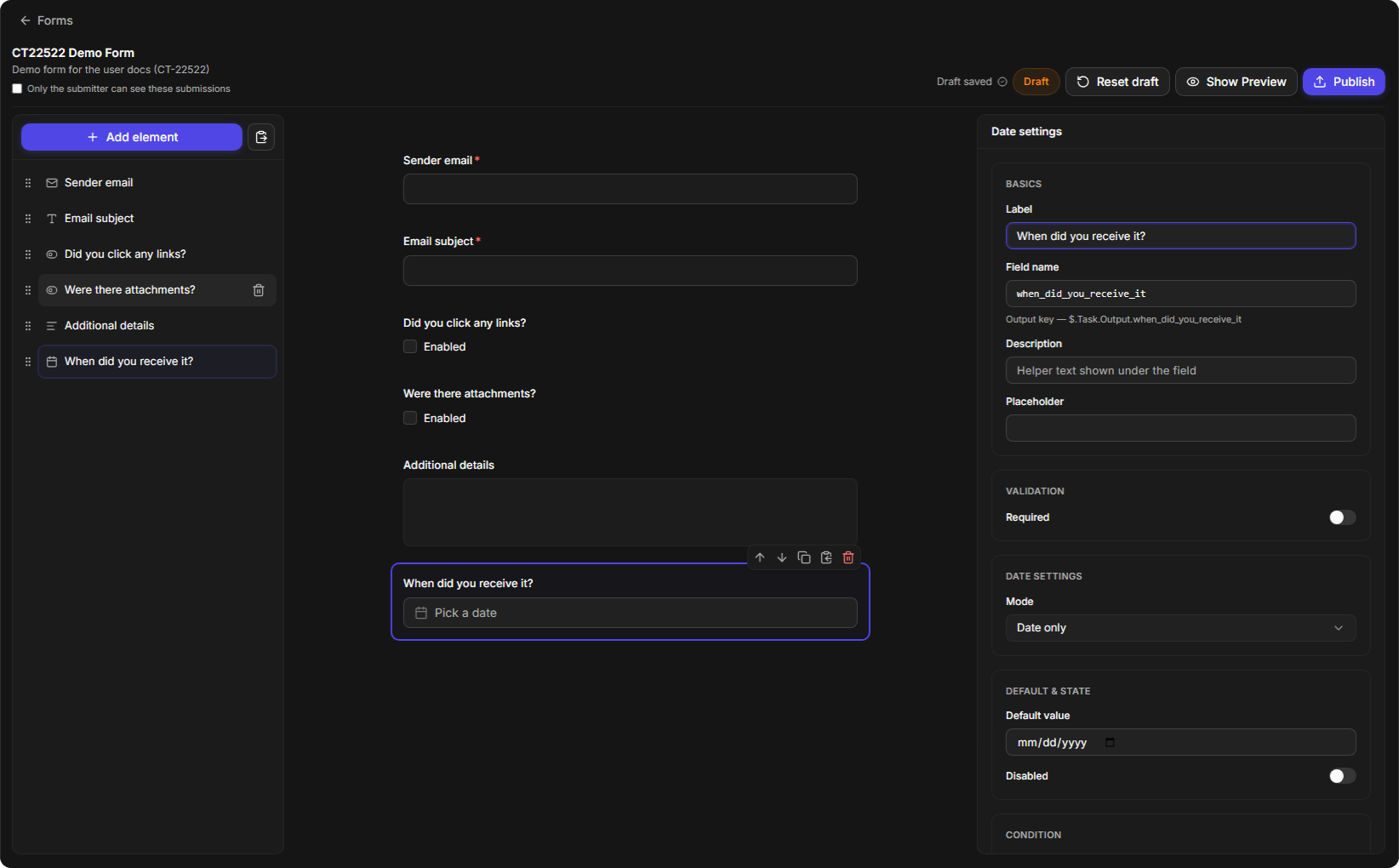
|
Group |
Settings |
|---|---|
|
BASICS |
Label (the question), Field name (the name the answer is stored under; the Output key below it shows where a playbook finds the answer), Description (help text shown under the field) and Placeholder. |
|
VALIDATION |
Required, and for text fields Pattern (regex) and Pattern message, the message shown when an answer does not match the pattern. |
|
Type settings |
Settings for that type of field, for example Mode for a Date field, or Style and Control label for a Toggle / Checkbox. |
|
DEFAULT & STATE |
Default value, and Disabled to show the field without letting anyone change it. |
|
CONDITION |
Show this field conditionally. See the next section. |
Showing a Field Only When It Is Needed
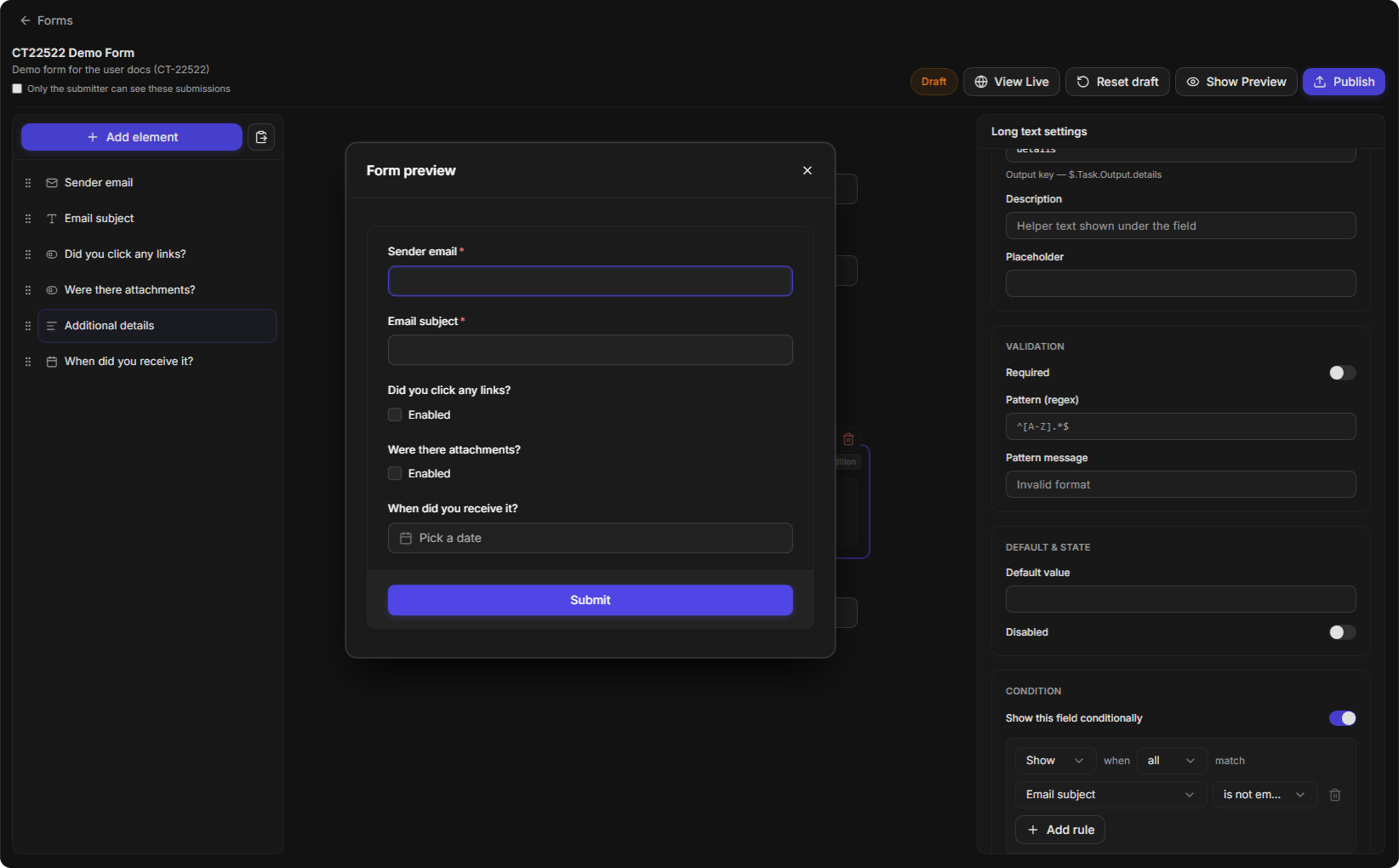
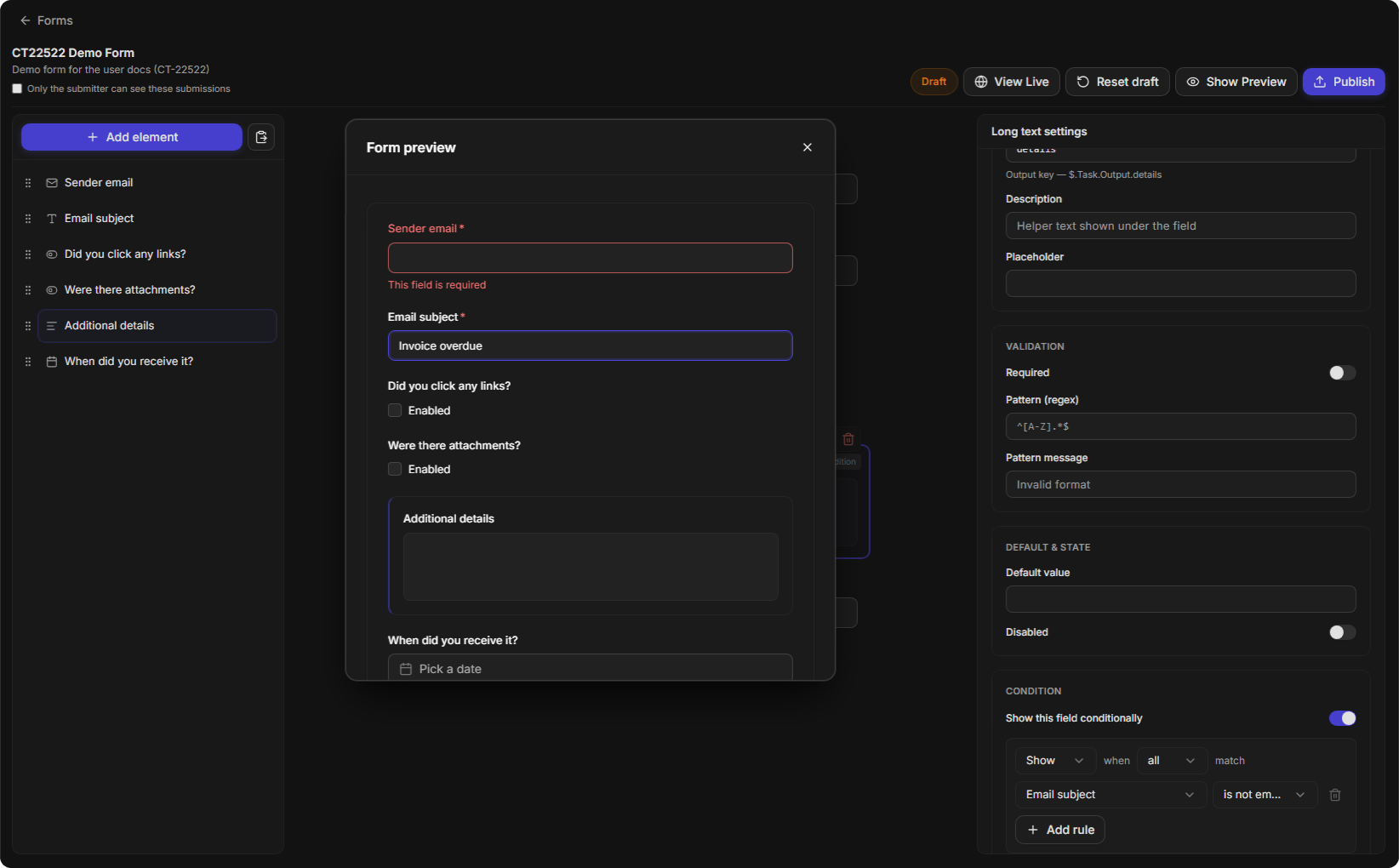
A condition keeps a form short: a field appears only when earlier answers make it relevant. For example, the Additional details box can stay hidden until the person has entered an email subject.
-
Select the field that should appear conditionally.
-
In CONDITION, turn on Show this field conditionally.
-
Set the rule: choose the earlier question, then an operator (equals, does not equal, contains, is empty or is not empty) and, where the operator needs one, a value.
-
To combine rules, select Add rule. The line above the rules decides whether all of them must match. The bin icon removes a rule.
A condition on the Additional details field
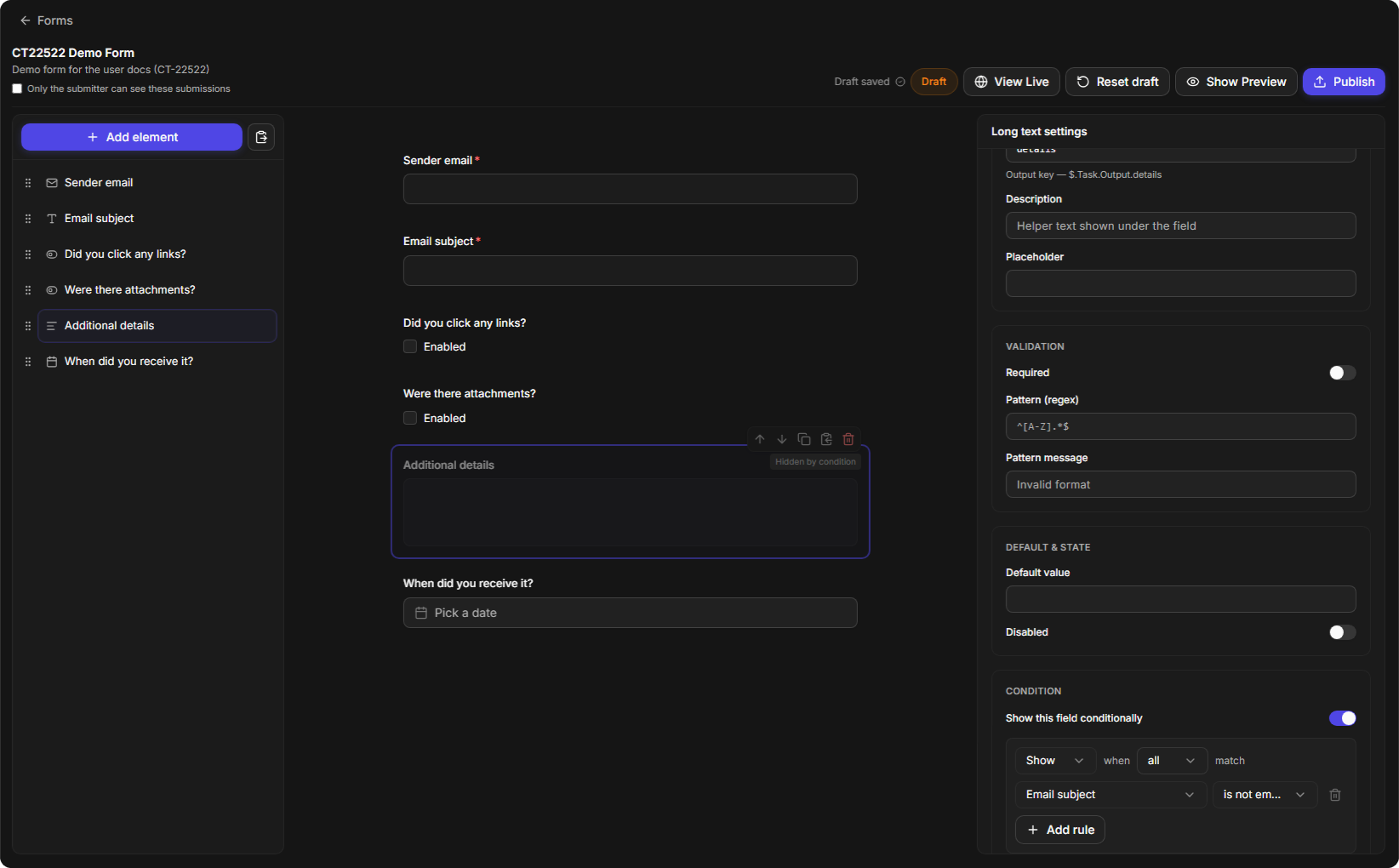
In the builder the field is marked Hidden by condition. In the preview and on the live form it appears as soon as the rule matches.
Form Settings
When no element is selected, for example when you first open a form, the right-hand column shows Form settings:
-
FORM DETAILS: the Title and Description shown at the top of the form, and the Submit button label;
-
SUCCESS MESSAGE: the Success title and Success message shown after someone submits.
A template fills these in for you. For example, the Phishing Report template uses the title Phishing Report and the success title Response submitted.
Previewing a Form
Select Show Preview to try the form the way the person filling it in will: required fields, patterns and conditions all behave as they will on the live form. Close the preview with the × button. A preview is never submitted, so you can try it as often as you like.
The preview before the rule matches
The preview after the rule matches
Publishing a Form
Publishing makes the form available and decides what happens with each submission: which sites the form serves, which classic playbook runs, which incident type is created, and who may open the form.
-
In the builder, select Publish.
-
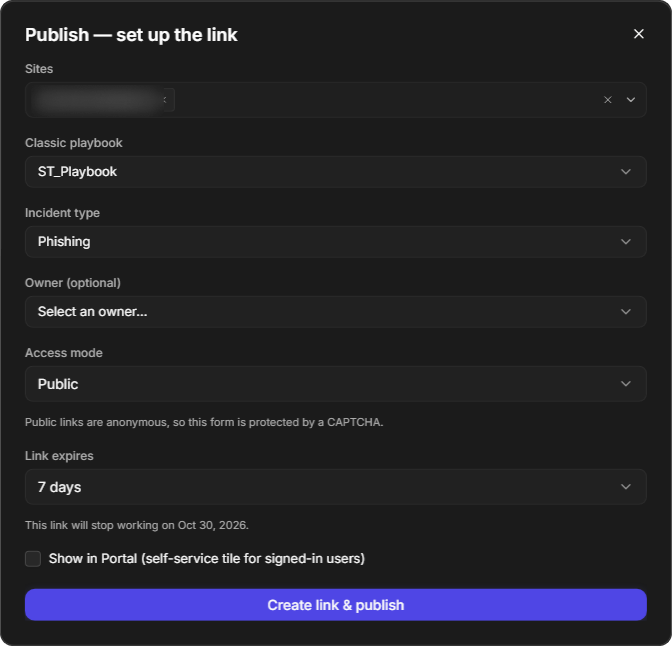
In Publish — set up the link, choose the Sites the form is published to. You can select several sites, or Select All.
-
Choose the Classic playbook that runs for each submission and the Incident type of the incident it creates. These lists show what is available on the selected site, so choose the site first. Owner is optional.
-
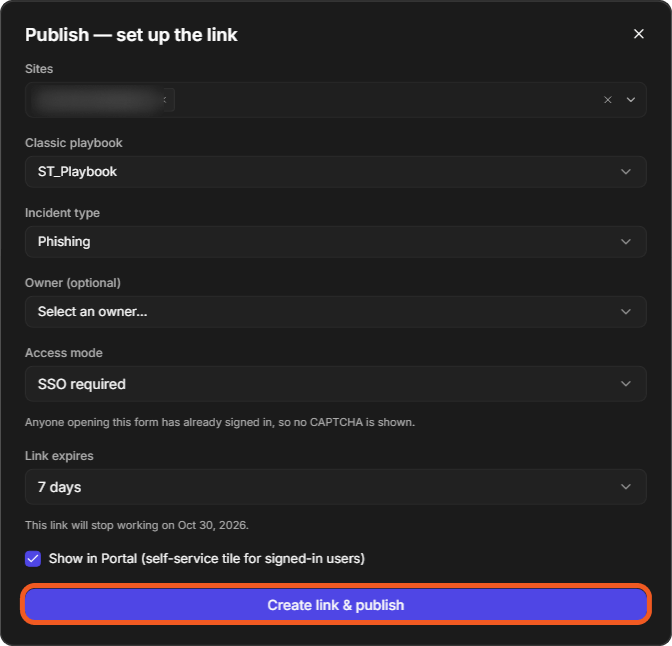
Choose the Access mode (see the table below).
-
Choose when the link expires: 24 hours, 7 days, 30 days, 90 days or Never expires. The window shows the date the link will stop working.
-
Tick Show in Portal to add a tile for the form to the Portal, where signed-in users can open it.
-
Select Create link & publish.
Publishing with a public link
|
Access mode |
Who can open the form |
|---|---|
|
Public |
Anyone with the link, without signing in. Because public links are anonymous, the form is protected by a CAPTCHA. |
|
SSO required |
Only people who have signed in. No CAPTCHA is shown. Choose this for forms that collect sensitive information. |
Publishing with SSO required and a Portal tile
The form is published. In the builder its status changes to Live with its version, and the Link and Mapping buttons appear. On the Forms tab, Published Sites shows the number of sites and Version shows the published version.
A published form in the builder
The published form in the Forms list
To publish a change you make later, edit the draft and select Publish again. Each site keeps the same link when you publish a new version.
Changing the Link Settings
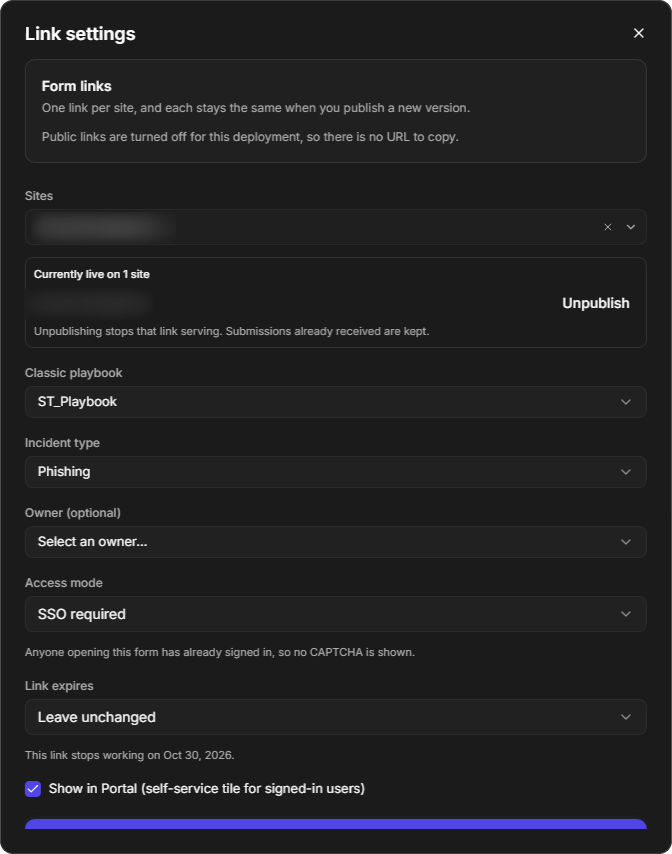
Select Link in the builder of a published form to see and change how it is published. Form links lists one link per site; each link stays the same when you publish a new version.
The Link settings window
-
Sites shows where the form is Currently live. Select Unpublish next to a site to stop that link serving. Submissions already received are kept.
-
Classic playbook, Incident type, Owner, Access mode and Show in Portal work as they do when publishing. Link expires is Leave unchanged unless you pick a new period.
-
Select Save link settings to apply your changes, or close the window to leave them as they are.
Mapping Answers to Incident Fields
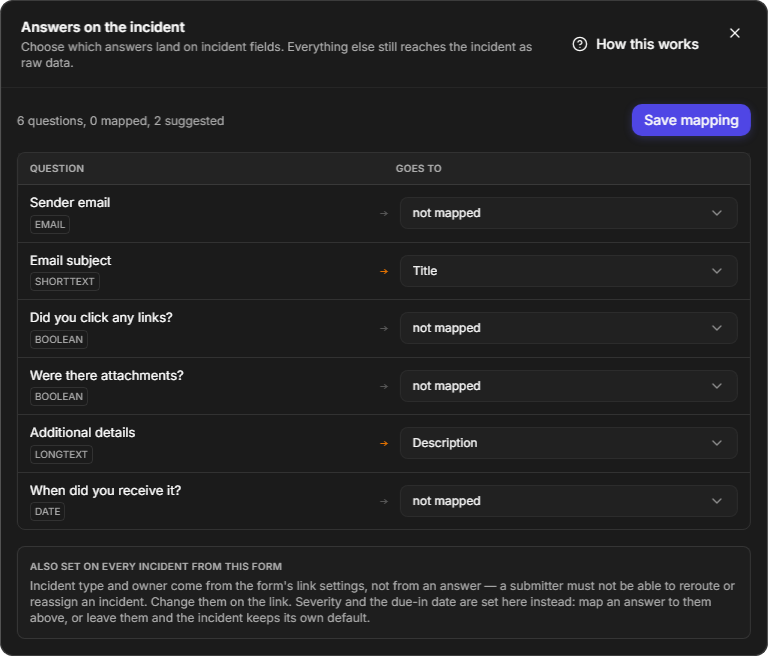
Each submission creates an incident. Mapping decides which answers land on which incident fields, so the incident is ready to work on without anyone copying answers across. Answers you do not map still reach the incident as raw data.
Select Mapping in the builder of a published form to open Answers on the incident.
The Answers on the incident window
-
Each row is one question, with its type (for example EMAIL, SHORTTEXT, BOOLEAN, LONGTEXT or DATE). Under GOES TO, choose the incident field it fills, or leave it not mapped.
-
The summary line counts the questions, how many are mapped, and how many have a suggestion, such as Email subject → Title and Additional details → Description.
-
Select Save mapping to keep your choices. How this works opens the rules in full.
What each incident field accepts:
|
Incident field |
Which questions can feed it |
|---|---|
|
Title, Description and your own incident fields |
Any answer. Values are converted to text, so a date, a number or a multi-select all work. Your own fields are listed by the incident type each link creates. |
|
Severity |
Dropdown questions only, because you decide what each answer means. An answer you have not given a severity leaves the incident at its default. |
|
Tactics and Techniques |
Text, dropdown and multi-select questions whose answers name real MITRE ATT&CK entries, such as "Initial Access, Execution". Anything not recognised is skipped, and the incident records why. |
The incident type and the owner always come from the link settings, never from an answer, so someone filling in the form cannot reroute or reassign the incident. Uploaded files need no mapping: they are attached to the incident automatically.
A mapping follows the question, not its label. If you rename a question, set its mapping again. Publishing a new version of the form marks an existing mapping as needing review.
The Portal
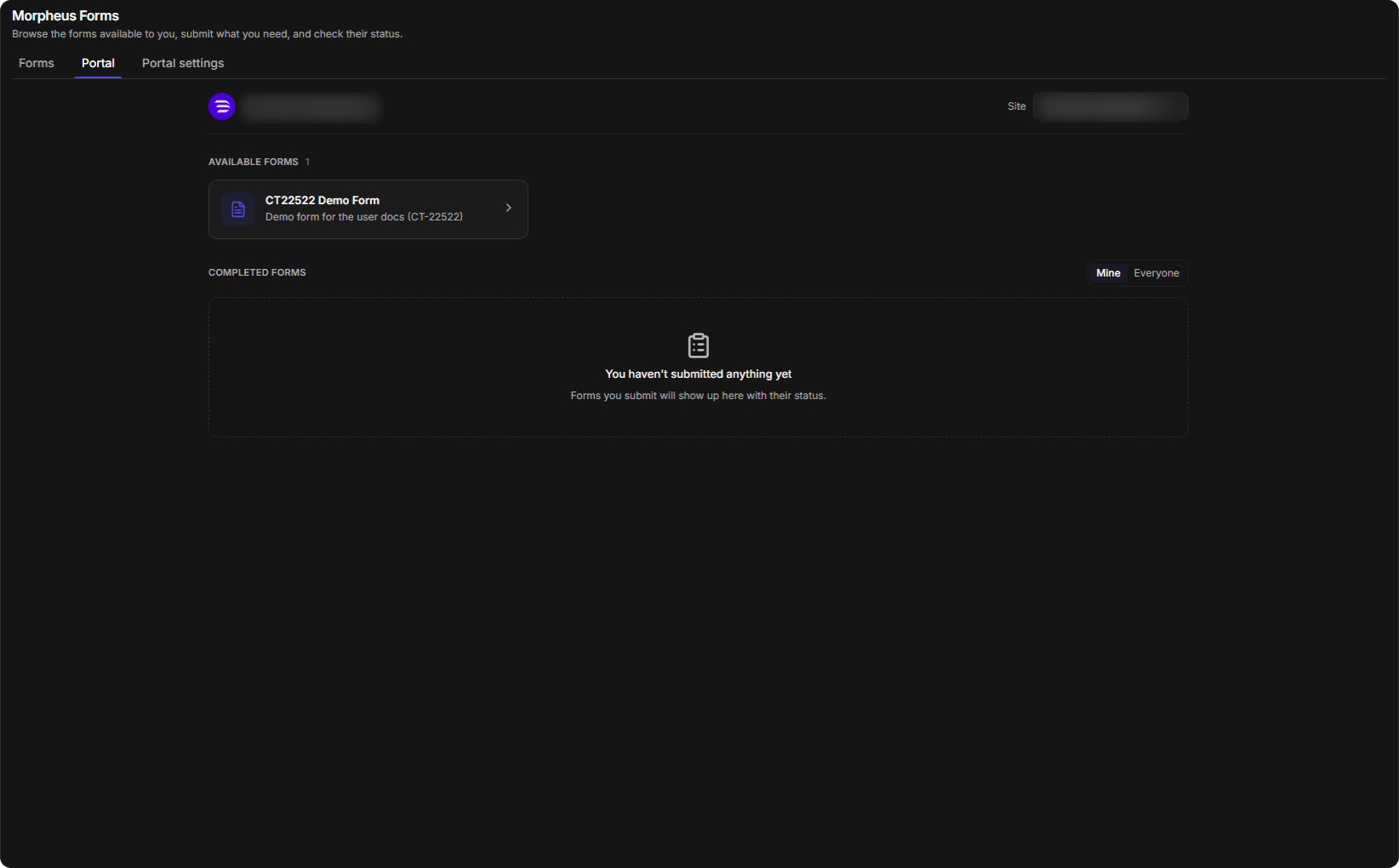
The Portal is a self-service page where signed-in users find the forms shared with them and keep track of what they have submitted, without needing a link for each form.
The Portal
-
Site chooses which site's portal you are looking at.
-
AVAILABLE FORMS shows a tile for every form published to that site with Show in Portal ticked. When there are none, the Portal says No forms available yet.
-
COMPLETED FORMS lists submitted forms with their status. Mine shows your own submissions; Everyone shows submissions from anyone on this portal.
Portal Settings
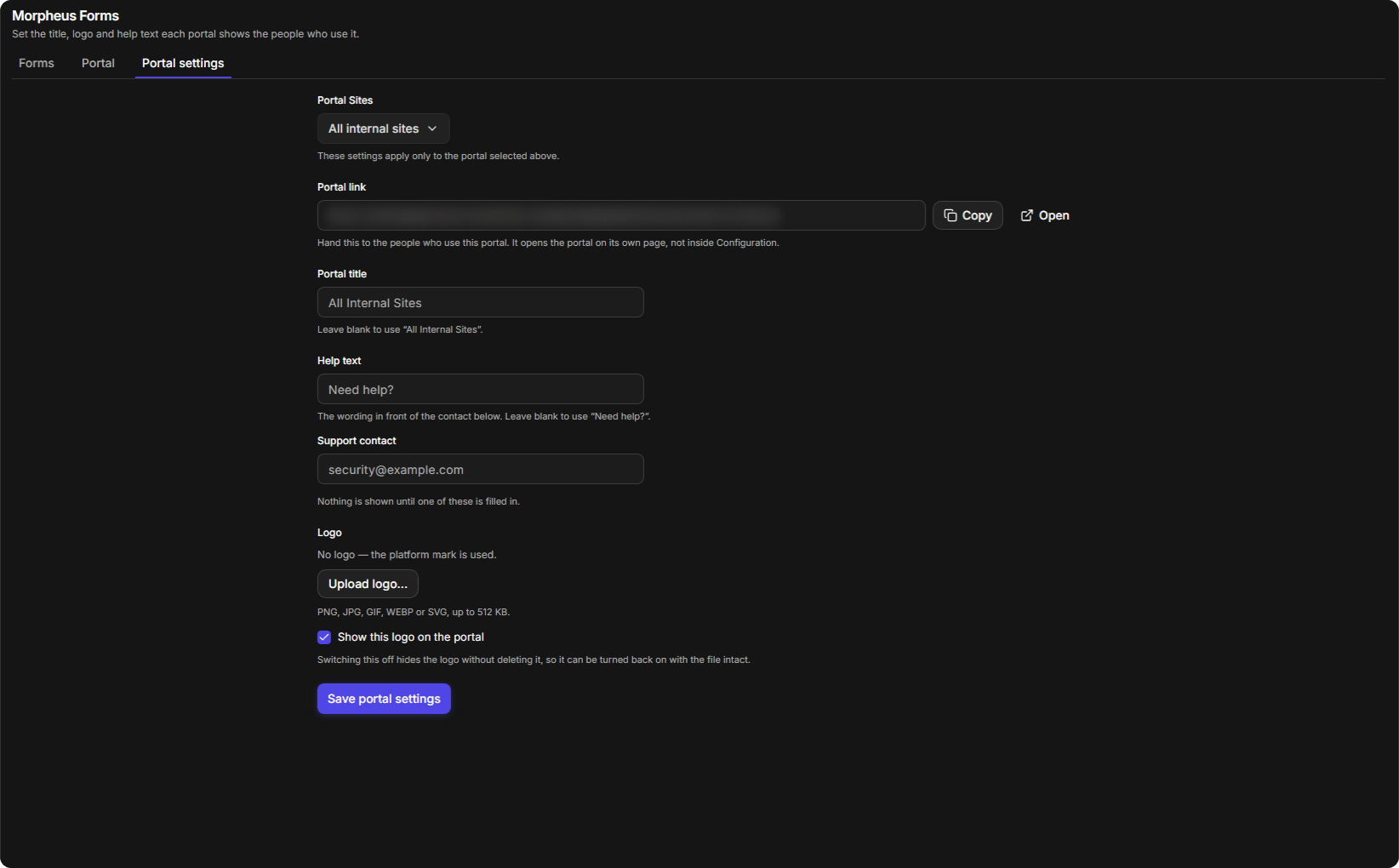
The Portal settings tab sets what each portal shows the people who use it, and gives you its link.
The Portal settings tab
|
Setting |
What it does |
|---|---|
|
Portal Sites |
The portal these settings apply to, for example All internal sites. |
|
Portal link |
The link to hand to the people who use this portal. It opens the portal on its own page, not inside Configuration. Copy copies it and Open opens it. |
|
Portal title |
The portal's title. Leave it blank to use the default shown. |
|
Help text |
The wording in front of the support contact. Leave it blank to use "Need help?". |
|
Support contact |
The contact shown to people using the portal. Nothing is shown until it is filled in. |
|
Logo |
Upload logo… accepts PNG, JPG, GIF, WEBP or SVG files up to 512 KB. Without a logo, the platform mark is used. Clear Show this logo on the portal to hide the logo without deleting it. |
Select Save portal settings to apply your changes.
Deleting a Form
Delete a form you no longer need to remove it from the list and the Portal.
-
On the Forms tab, find the form and select the Delete icon in Actions.
-
In Delete form, select Delete.
The Delete form window
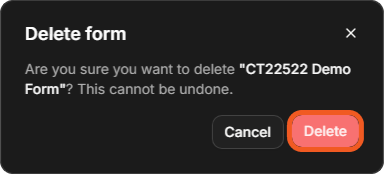
Deleting a form cannot be undone.
The form is removed from the Forms list and its tile from the Portal.