18.6 18.5
18.6 18.5

Morpheus Adaptive Tasking

Last Updated: October 26, 2026

Overview

Morpheus Adaptive Tasking is the AI assistant in the incident workspace. It builds investigation plans from the incident, runs integration commands, summarizes incidents, and applies your team's standard operating procedures (SOPs) and rules. This article covers how to open it, its quick actions, the kinds of requests it handles, how it asks for approval before it acts, and common scenarios.

To open it, open an incident and click Open AI Assistant (the Morpheus icon at the bottom right of the incident workspace).
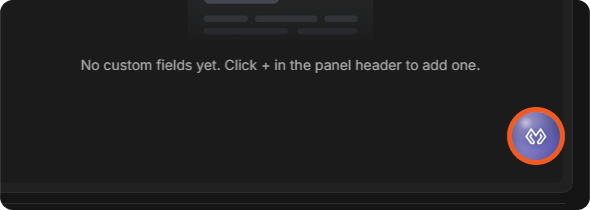
The Open AI Assistant button (Morpheus icon) at the bottom right of the incident workspace

The Morpheus Adaptive Tasking panel opens beside the incident. Type a request in the chat input (Type / for quick actions, or ask anything…). The panel header has New session, Conversation history and Close sidebar buttons.

Adaptive Tasking and Traditional Playbooks

Adaptive Tasking complements traditional pre-authored SOAR playbooks. The former generates investigation plans from the current incident context for novel or variable cases, where no matching playbook exists. The latter is well-suited for high-volume, regulated incident types where consistency matters most.

Quick Actions

Type / in the chat input to open the Quick Actions menu. Click a command, or keep typing to filter the list. To close the menu without running anything, press Esc and clear the input.
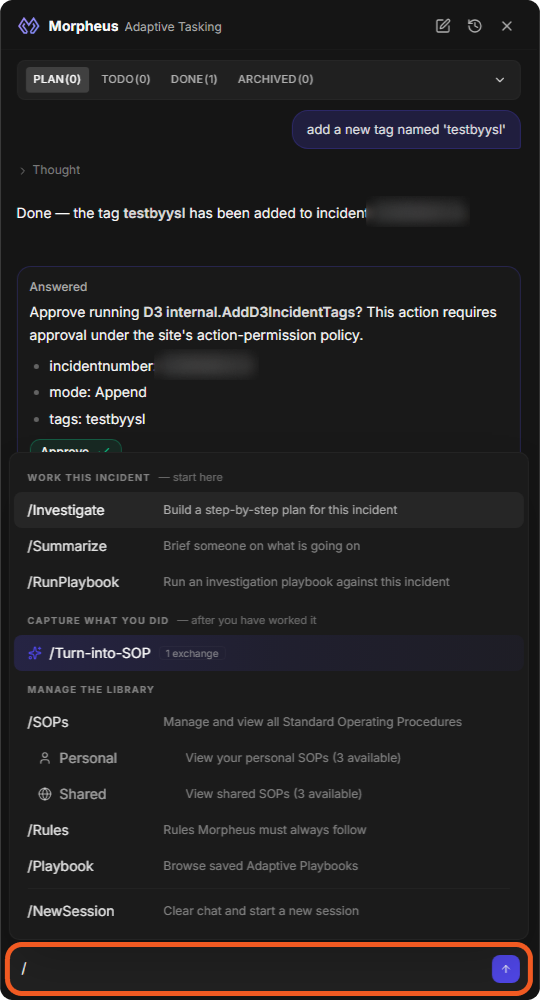
at-03-quick-actions.png

Group

Command

What it does

Work this incident

/Investigate

Build a step-by-step plan for this incident.


/Summarize

Brief someone on what is going on.


/RunPlaybook

Run an investigation playbook against this incident. Opens the playbook panel, where you pick the playbook to run.

Capture what you did

/Turn-into-SOP

Draft a reusable SOP skill from this conversation. The row shows how many exchanges there are to draft from.

Manage the library

/SOPs

Manage and view all Standard Operating Procedures. Personal and Shared below it list your personal SOPs and the shared SOPs.


/Rules

Rules Morpheus must always follow. Opens the Rule Management panel.


/Playbook

Browse saved Adaptive Playbooks.


/NewSession

Clear chat and start a new session.

/Investigate

When you run /Investigate, Morpheus:

  1. Reads the incident, including any earlier findings and runs on it.

  2. Searches your SOPs and uses one that fits the incident (see /SOPs).

  3. Builds a plan of up to eight steps. Each step names the integration and command that carries it out.

You can then run the plan's tasks, or ask Morpheus to regenerate the plan. A task that depends on another task waits until that task is done.

/Summarize

Generates a summary of the incident and the work done on it, including:

  • A headline and the verdict.

  • What happened, what was done and what is still pending.

  • An assessment and the key findings.

  • Recommended next steps.

A summary of the whole incident replaces the incident's AI summary, and it is saved as memory for the incident. Later investigations of similar incidents can find it. See Memory and Rules.

/RunPlaybook

Opens the playbook panel, where you pick an investigation playbook to run against the incident.

/Turn-into-SOP

Drafts an SOP skill from the current conversation. It needs at least one exchange with Morpheus on the incident; the menu row shows the count (for example, 1 exchange).

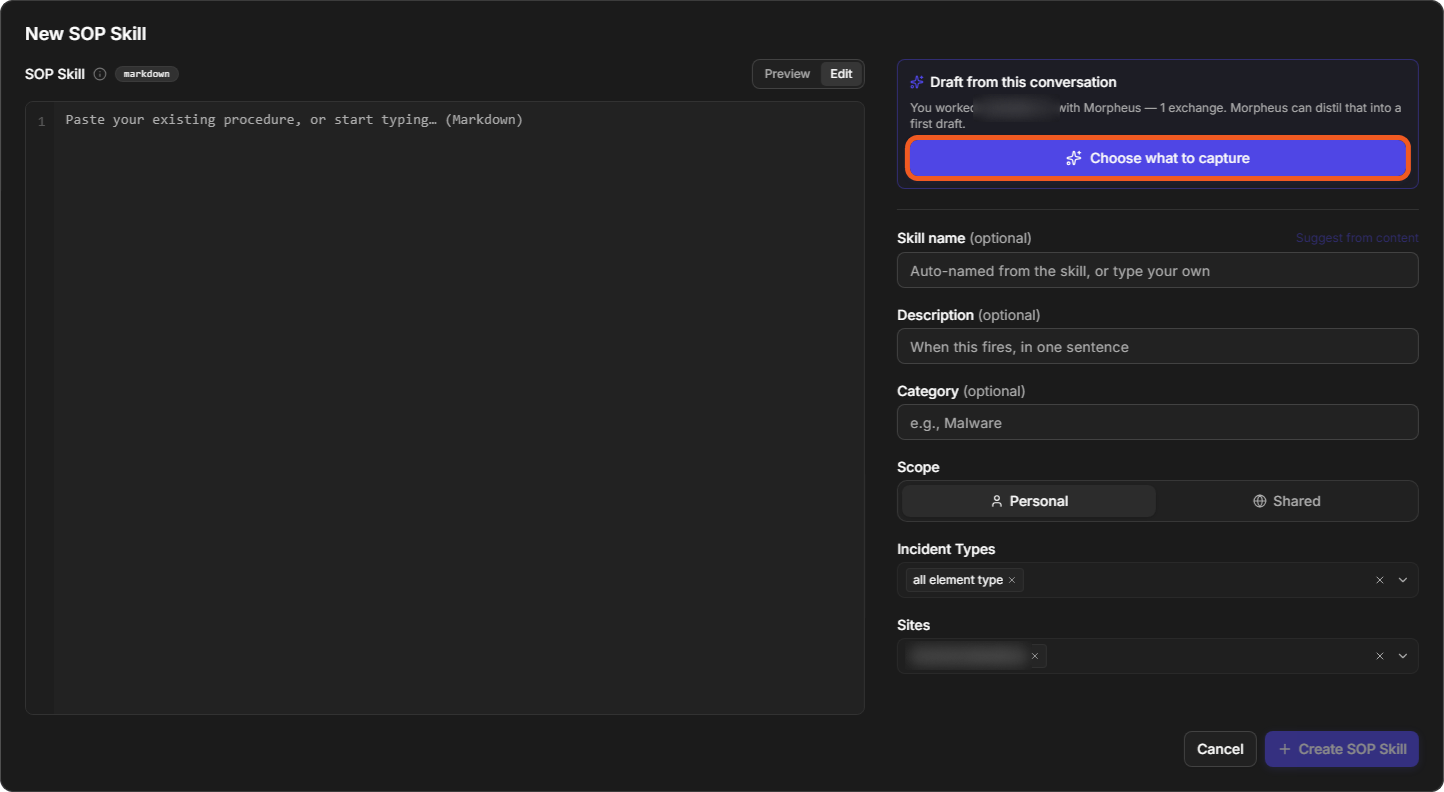
The draft opens in the New SOP Skill window under Draft from this conversation. Click Choose what to capture to pick what goes into the draft. You can also open this window from New SOP Skill in SOP Management (see Method 2).

/SOPs

What is an SOP?

An SOP (standard operating procedure) is a written investigation procedure: the steps to take, and in which order, for a kind of incident. In 18.6 the panel calls them SOP skills.

Example phishing sop

  • Check sender domain reputation

  • Extract URLs and hashes

  • Query VirusTotal

  • Search SIEM for affected users

  • Check user interaction

  • Block sender if malicious

When Morpheus builds an investigation plan, it searches the active SOPs and follows one that fits the incident, combined with the incident's own data.

SOP Types

Scope

Created by

Visible to

Personal

Any user

Its creator

Shared

Administrators

All users (limited to the SOP's sites)

SOP Management

Choose /SOPs to open SOP Management. It lists the SOP skills for the current incident type, grouped as PERSONAL and SHARED, with a search box (Search procedures...) and a status filter.
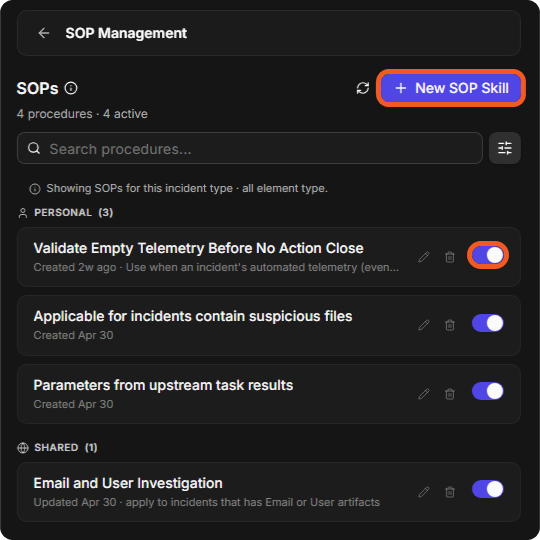
at-04-sop-management.png

How to Create SOPs

  • Method 1: Manual Creation

    1. Choose /SOPs, then click + New SOP Skill.

    2. In the New SOP Skill window, enter the procedure in SOP Skill (Markdown; use Preview to check it). Then set:

      • Skill name (optional): if left empty, a name is made from the skill.

      • Description (optional): when the skill applies, in one sentence.

      • Category (optional).

      • Scope: Personal or Shared.

      • Incident Types: the incident types the skill applies to.

      • Sites: the sites the skill applies to.

    3. Click Create SOP Skill.

  • Method 2: Draft from an Investigation

    1. Work the incident with Morpheus (at least one exchange).

    2. Choose /Turn-into-SOP, or click + New SOP Skill and use Draft from this conversation > Choose what to capture.

    3. Review the draft, then click Create SOP Skill.

at-05-new-sop-skill.png

How to Apply SOPs

Morpheus looks for a fitting SOP on its own when it builds a plan. To apply a specific SOP, click the SOP in SOP Management to open its details, then click Apply SOP Skill.
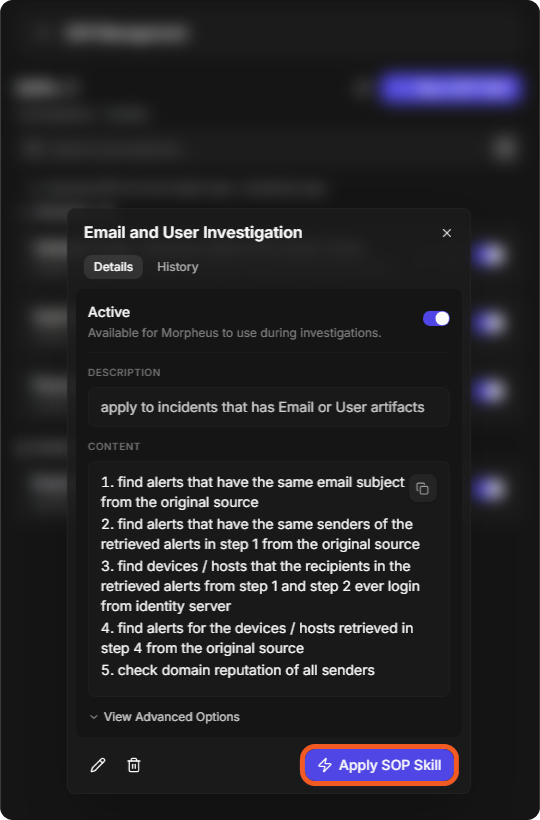
An SOP skill's Details tab with the Active switch, Description, Content and Apply SOP Skill

SOP Management Operations

Operation

Description

Edit (pencil)

Changes the SOP skill.

Enable / Disable (switch)

Turns the SOP skill on or off. A disabled SOP is not used when Morpheus looks for a fitting SOP.

Delete (trash)

Deletes the SOP skill. This cannot be undone.

History (in the details)

Lists the SOP skill's earlier versions.

/Rules

Opens Rule Management, where you add, view, turn on or off, and delete the rules Morpheus must always follow. See Memory and Rules.

/Playbook

Opens the playbook panel to browse the saved Adaptive Playbooks.

/NewSession

Clears the chat and starts a new session. Use it to start a new investigation or change direction. Earlier sessions stay under Conversation history in the panel header.

Outside the quick actions, you write requests in plain language. Morpheus reads each request and decides how to handle it: answer it, run a command, build or change a plan, summarize, search the web, or work with SOPs. These are the kinds of requests it handles, with example phrasings.

Type 1 - Ad-hoc Command Execution

Runs integration commands on request.

Example Use Cases

  • Checking IP, domain, or hash reputation

  • Searching for SIEM alerts

  • Blocking hosts

Example Phrasings

Goal

Example Phrasing

Checking IP reputation

"Check reputation for 8.8.8.8 using AbuseIPDB"

Searching SIEM alerts

"Search MS Sentinel for alerts related to lab1-pc1 in last 7 days"

Blocking a domain

"Block domain evil.com using Palo Alto"

Isolating an endpoint

"Quarantine endpoint DESKTOP-01 via CrowdStrike"

Performing a WHOIS lookup

"WHOIS lookup for suspicious-domain.com"

Executing multi-step operations

"First check IP 1.2.3.4 on VirusTotal, if malicious then block it on Fortinet"

Morpheus finds the command among your integrations and fills in its parameters. Read-only commands run straight away; commands that change something ask for approval first (see Action Approvals and Safety Guardrails). Naming the integration and the target helps it pick the right command.

Type 2 - Investigation Plan

Builds a structured investigation plan. Use /Investigate, or ask in plain language.

Example Phrasings

Goal

Example Phrasing

Generating a new plan

"Investigate this incident"

Regenerating a plan

"Regenerate the investigation plan"

Type 3 - Summary and Analysis

Analyzes the incident and the work done on it. /Summarize always produces the structured summary described in /Summarize.

Example Phrasings

Goal

Example Phrasing

Summarizing

"Summarize" or "Summarize this incident"

Analyzing

"Analyze the investigation results"

Type 4 - Web Search

Searches the internet for security information.

Example Use Cases

  • Looking up CVE details

  • Retrieving malware analysis reports

  • Retrieving attack technique descriptions

  • Accessing other relevant public information

Example Phrasings

Goal

Example Phrasing

Looking up CVE details

"Search the web for CVE-2024-1234"

Retrieving malware information

"Search for information about QakBot malware"

Retrieving attack technique details

"Look up MITRE T1059 on the web"

Say "on the web" when you want a web search. "Search Sentinel for alerts" is a request to run a command, not a web search.

Type 5 - SOP Management

Finds, applies or creates SOPs. Use /SOPs or /Turn-into-SOP, or ask in plain language.

Example Phrasings

Goal

Example Phrasing

Applying an SOP

Choose /SOPs, open an SOP, then click Apply SOP Skill.

Creating an SOP from an investigation

"Create an SOP from this investigation"

Searching for SOPs

"Do we have an SOP for ransomware incidents?"

Type 6 - Task Execution

Runs tasks from the investigation plan.

Example Phrasings

Goal

Example Phrasing

Running the next task

"Run the next task"

Continuing execution

"Continue" or "Go ahead"

Type 7 - Security Knowledge Q&A

Answers questions on security topics without running anything.

Example Use Cases

  • Asking about security concepts

  • Asking about attack techniques

  • Asking about SOC best practices

  • Asking about how to use the D3 platform

Example Phrasings

Goal

Example Phrasing

Accessing ATT&CK knowledge

"What is MITRE T1059?"

Exploring ATT&CK techniques

"How does PsExec lateral movement work?"

Reviewing best practices

"What's the best practice for investigating phishing?"

Understanding platform usage

"What integrations do we have available?"

Morpheus can also draw on memory, such as summaries of similar incidents, and on your SOPs. See Memory and Rules.

Action Approvals and Safety Guardrails

What happens when Morpheus wants to run a command depends on what the command does and on the site's action-permission policy:

  • Read-only commands (searches, lookups, reputation checks) run without asking.

  • Commands that change something (for example, adding a tag, blocking, quarantining or closing) stop at an approval card. The card names the command and lists its parameters. Click Approve to run it, or Reject to cancel it.

  • A command the policy blocks does not run.

After the command runs, a Direct Action card shows the result: the command, its status (for example COMPLETED), what it did, and View Details and Evidence.
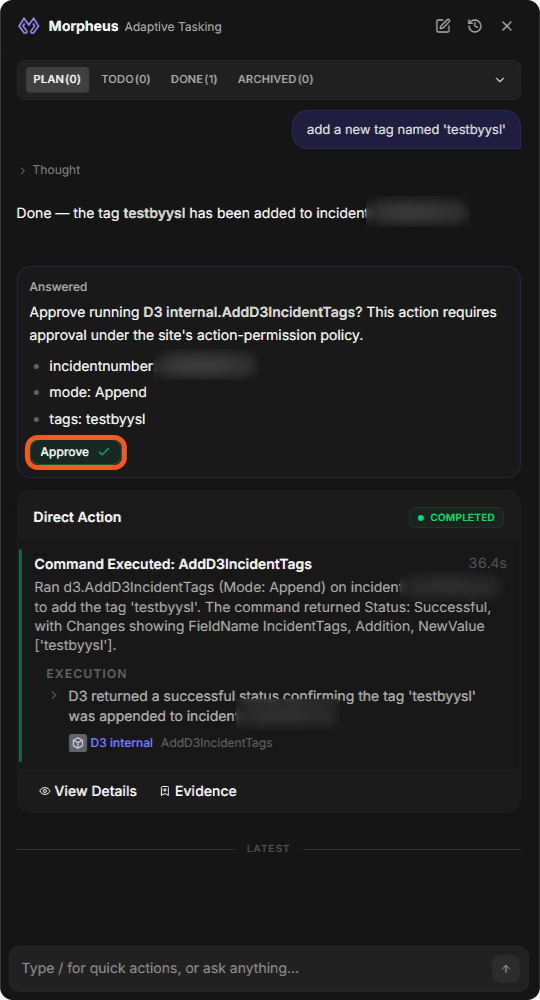
The Morpheus Adaptive Tasking panel with an answered approval card (Approve) and the Direct Action result card

In this example the request "add a new tag named 'testbyysl'" needed approval: Approve running D3 internal.AddD3IncidentTags? This action requires approval under the site's action-permission policy. After Approve, the Direct Action card shows the command completed.

Common Scenario Walkthroughs

Scenario 1 - New Incident

User initiates a full incident investigation. The system generates a multi-step plan, executes tasks, and produces a summary report, with an option to save the workflow as an SOP.

  1. Enter /Investigate in the chat.

  2. Review the generated plan.

  3. Run the plan's tasks.

  4. Enter /Summarize in the chat to generate a report.

  5. (Optional) Choose /Turn-into-SOP to save the investigation as an SOP skill.

Scenario 2 - Quick IOC Check

User requests an IOC reputation check. The system finds the command, runs it, and returns results.

Example flow

User: Check reputation for hash 44d88612fea8a8f36de82e1278abb02f using VirusTotal.

Adaptive Tasking: Runs the read-only command → Returns VT analysis results

Scenario 3 - SIEM Alert Search

User requests alert search in MS Sentinel. The system runs the query and returns matching alerts.

User: Search MS Sentinel for alerts related to 192.168.1.100 in the last 24 hours

Adaptive Tasking: Runs the read-only search → Returns alert list

Scenario 4 - Security Knowledge Question

User asks about a MITRE ATT&CK technique. The system provides a direct answer without executing actions.

Example flow

User: What is MITRE ATT&CK technique T1059?

Adaptive Tasking: Provides a direct explanation without executing any actions

Scenario 5 - D3 Platform Operation

User requests an incident update. The system identifies the operation, asks for approval, and applies the change.

Example flow

User: Change the severity of this incident to Critical

Adaptive Tasking: Identifies as D3 incident operation → Approval card (Approve) → Updates severity

Scenario 6 - New Incident Type Without SOP

An ad-hoc investigation plan generated from incident context.

Example

Situation: A PowerShell execution alert occurs on host FIN-WS-04 by user john.doe, with no matching SOP.

Execution:

  • User enters /Investigate.

  • The system finds no fitting SOP and generates a plan using available integrations and context.

  • Example plan:

    1. Enrich the user via Active Directory.

    2. Retrieve the PowerShell command from EDR.

    3. Extract IOCs from the command.

    4. Check IOC reputation.

    5. Search related SIEM activity.

TAKEAWAYS

  • No SOP required

  • Steps align with available integrations

  • Intermediate data processing is inserted automatically

  • Contextual fields are pre-populated

After execution, the investigation can be saved as an SOP skill with /Turn-into-SOP.

Scenario 7 - Novel Incident Without a Playbook

An ad-hoc investigation plan generated for an unfamiliar technique.

Example

Situation: An alert mapped to MITRE T1528 (Steal Application Access Token) with no existing SOP or playbook.

Execution:

  • User enters /Investigate.

  • The system builds a plan using MITRE mapping and available incident data (user, application, scopes, source IP).

  • Example plan:

    1. Retrieve OAuth app grants for the target user (last 30 days).

    2. Analyze granted scopes and identify high-privilege permissions.

    3. Enrich the source IP using a reputation service.

    4. Search for related sign-in activity from the IP across all users.

    5. Review mailbox rules and forwarding settings for persistence.

TAKEAWAYS

  • No existing SOP or playbook required

  • Steps align with available integrations

  • Data transformation steps are added automatically

  • Relevant context fields are auto-filled