
Last Updated: October 29, 2026
Overview
Attack Path Discovery (APD) is the AI that investigates each event an intake brings in, reconstructs the attack path, and decides whether to dismiss the event or escalate it to an incident. Configuring APD means choosing which event intakes use it and writing, in plain language, the rules it follows. On an intake that uses APD, it replaces Event Automation Rules: instead of maintaining hand-written automation rules, you describe when an event should be dismissed, when it should be escalated, and how it should be investigated, so each event gets a reasoned decision.
The APD Policy editor
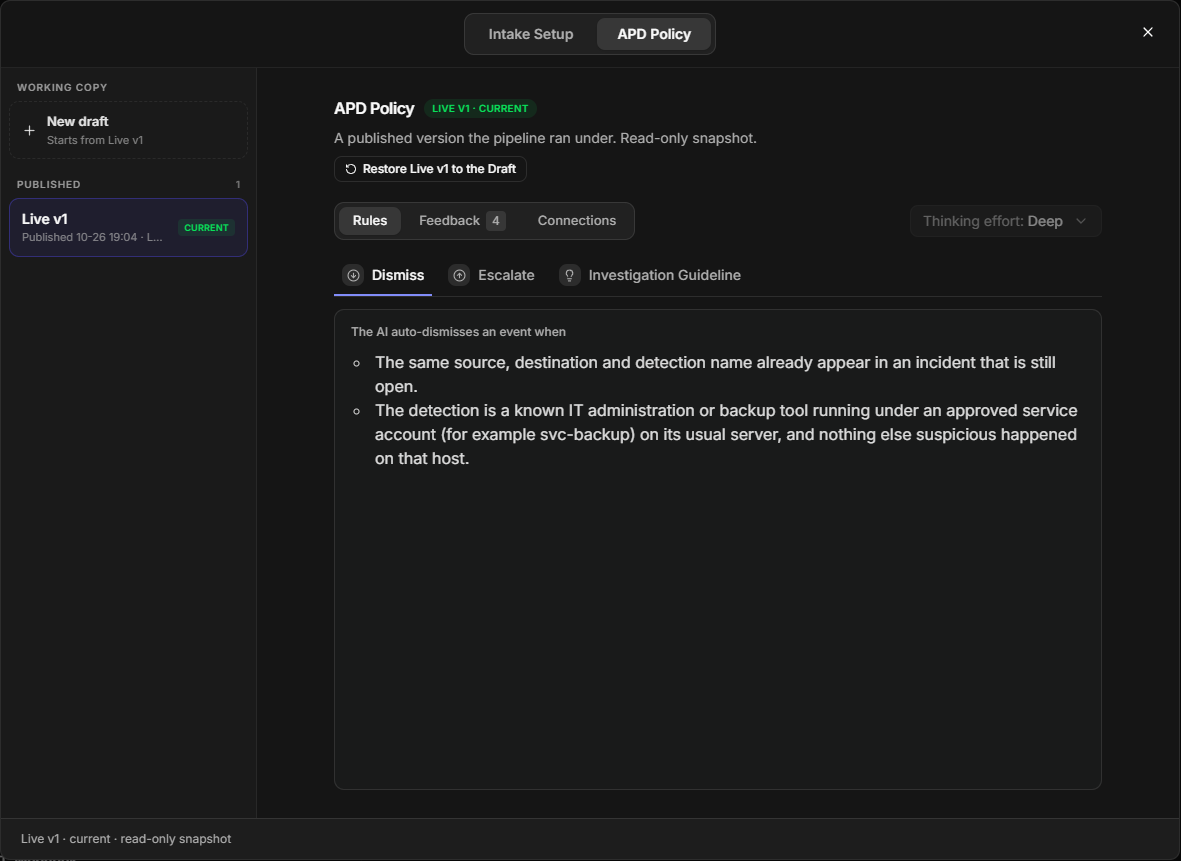
APD is set up under Configuration > Data Ingestion, on each event intake. On the Configuration home page, the Data Ingestion card leads to the same place. The rules for one intake are called its APD Policy.
In short
|
# |
Stage |
Where it happens |
|---|---|---|
|
1 |
Turn on APD for an event intake |
The intake's Attack Path Discovery (APD) section, under Configuration > Data Ingestion > Event Intake |
|
2 |
Write the Dismiss, Escalate and Investigation Guideline rules |
The APD Policy tab of the APD Policy editor |
|
3 |
Choose which connections and Global Lists APD may use |
The Connections and Global Lists tabs of the editor |
|
4 |
Publish the rules so APD starts investigating |
Publish in the editor footer |
|
5 |
Improve the rules from the AI's own notes |
The Feedback tab of a published version |
|
6 |
Keep an eye on run limits |
The paused banner on the events list, and APD Usage (administrators) |
This article describes 18.6. In 18.5, the editor is named AI Disposition Rules (with the tabs Intake Setup and Disposition Rules), APD is switched off on new installs until D3 turns it on, and the following are not available: run limits and APD Usage, SOP guidance, Global Lists, Restore, Insert sample and escalation routes.
Before You Start
APD configuration needs three things in place, so that the button you look for is actually there and the rules you write can be saved.
-
Data Ingestion on your site. APD, the Data Ingestion page and the Build with AI action on its home card appear only where D3 has made AI data ingestion available. If you do not see Data Ingestion under Configuration, contact D3 Support.
-
An event intake. APD works on event intakes only, webhook or schedule. Incident intakes never offer it. On an existing intake, the Enable APD button appears once the intake has been saved; a new schedule can opt in while you add it.
-
The right privilege. Turning APD on, and saving, publishing or applying feedback to the rules, all need the role privilege Edit APD Disposition Rules, in the Morpheus AI section of role settings. On upgrade, roles that could already configure playbooks receive it automatically.
Who Can Do What
|
Task |
What it needs |
|---|---|
|
Open the APD Policy editor and read the rules |
Access to Data Ingestion |
|
Turn APD on, save a Draft, publish, apply feedback |
Edit APD Disposition Rules |
|
Bind Global Lists, or publish a Draft that binds them |
Edit APD Disposition Rules, plus the Global List privilege |
|
Save a Draft's local rules as a new SOP |
The Administrator privilege |
|
Open APD Usage |
The Administrator privilege |
Without Edit APD Disposition Rules, you can still open the editor and read every version. The Draft shows "You don't have permission to edit APD disposition rules. You can view the rules below, but editing, saving, and publishing are disabled.", and the edit, save and publish controls are disabled with a tooltip that names the privilege.
The Draft without the edit privilege
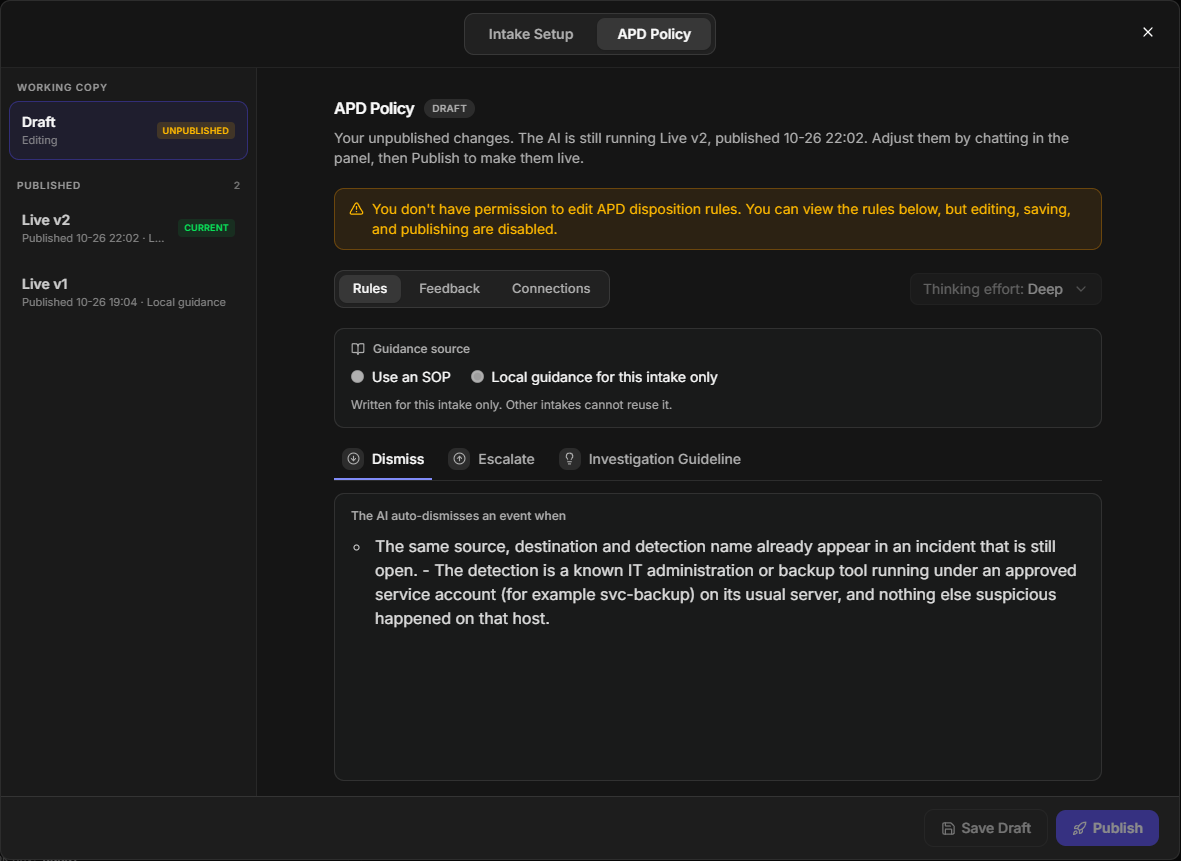
In the Add schedule and clone dialogs, a user without the privilege sees the APD switch locked, with the note "You don't have permission to enable AI disposition; the schedule will be created without it."
Turning On APD for an Intake
Turning on APD hands an intake's events to the AI investigation, so that the rules you publish decide what happens to each one.
ALERT
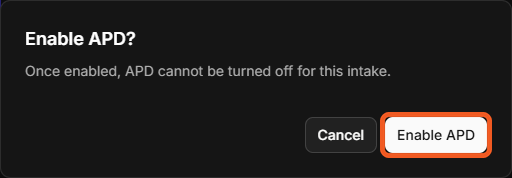
Turning on APD is permanent for that intake. The product has no way to turn it off again, and the confirmation says so: "Once enabled, APD cannot be turned off for this intake." If you need to stop APD on one intake later, the only route is to replace the intake, as described in Stopping APD on an Intake. To stop APD for your whole tenant, contact D3 Support.
Turning On APD for an Existing Intake
-
Go to Configuration > Data Ingestion and select the Event Intake tab.
-
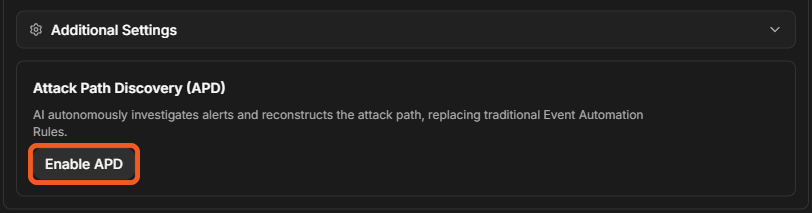
Open the event intake. The Attack Path Discovery (APD) section is a separate card next to Additional Settings.
The Attack Path Discovery section of an event intake
-
Select Enable APD.
-
Read the confirmation, then select Enable APD in the Enable APD? dialog.
The Enable APD confirmation
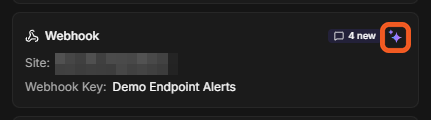
APD is on for the intake. On the Event Intake list, the intake's card now shows a sparkle button with the tooltip APD Policy in place of View. In the intake's Additional Settings, Run Event Automation Rules is greyed out with the note "Not supported under APD Mode"; the other Additional Settings stay editable.
An APD intake on the Event Intake list
Event Automation Rules under APD
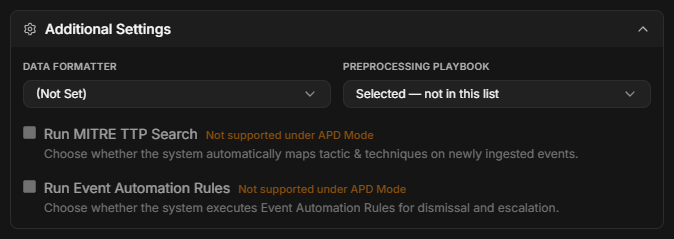
Turning on APD does not start investigations by itself. The intake starts with an empty APD Policy, and APD starts investigating once you publish a version of the rules (see Saving and Publishing). Until then, the intake's events are handled as they were before.
If enabling fails, the message is "Could not enable APD". Check that your role has Edit APD Disposition Rules.
Turning On APD While Adding a Schedule
A new schedule can use APD from the moment it is created, so it never runs without it.
-
In the Add schedule dialog, switch on Enable APD when this schedule is created in the APD card.
-
Save the schedule.
-
Read the Create schedule with APD? confirmation, which notes "APD can't be turned off after the schedule is created." and "APD won't start investigating alerts until you publish a Disposition Rule for this schedule."
-
Select Create & Set Up Disposition Rules.
Creating a schedule with APD
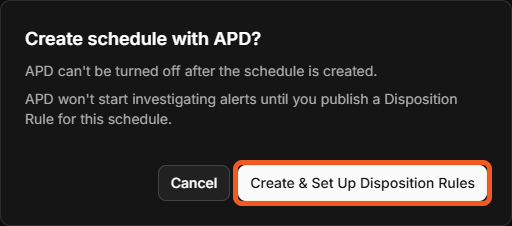
The schedule is created with APD on, and the APD Policy editor opens straight away so you can write its first rules.
Cloning or Adding Several Schedules
Cloning and batch creation let you set up APD on many schedules without repeating the same rules for each.
-
Cloning a schedule that has APD. Select Copy the AI disposition rules to the clone to give the clone a copy of the source's published rules, so APD starts investigating on the clone straight away. If the source has no published rules, the option reads Enable APD with an empty rule set (the source has no published rules). If the source's rules cannot be checked, the clone is created without APD, and you can select Retry to copy the rules.
-
Adding several schedules at once. Select Enable APD for all {n} schedules, then choose how the new schedules start:
|
Option |
What each new schedule gets |
|---|---|
|
Start with an empty rule set |
APD on, with no rules until you write and publish them |
|
Use an SOP: |
Rules that follow the SOP you pick |
|
Copy rules from: |
A copy of the rules of an existing schedule you pick |
The batch confirmation, Create {n} schedules?, states how many of them will have APD, and repeats that APD cannot be turned off after creation.
Using the AI Ingest Assistant
The AI Ingest assistant sets up a new intake and its APD rules through a chat, which is quicker when you are starting from nothing. Open it from the floating button on Data Ingestion, or from Build with AI on the Data Ingestion card of the Configuration home page. Describe what you want to ingest, review the result with View detail, and select Publish.
Stopping APD on an Intake
There is no supported way to turn APD off for an intake. If an intake must stop using APD, replace it with a new intake that does not use it.
-
Delete the APD intake.
-
Create a new event intake for the same source, and do not turn on APD. Create it from scratch; do not clone the old intake, because a clone copies APD.
-
Point the source at the new intake. A webhook intake gets a new key and request URL, so the sending system must be updated.
Replacing the intake has side effects:
-
The webhook key and request URL change, so the sending system must use the new ones.
-
Events already being investigated when you delete the intake finish their investigation and act on the result.
-
Rerun investigation still works on events the old intake already brought in.
-
The old intake's published APD Policy versions are not used by any new event.
To stop APD for every intake on your tenant, contact D3 Support. This hides the Data Ingestion page and the APD results on all events, including earlier ones.
The APD Policy Editor
The APD Policy editor is where you write and publish the rules APD follows for one intake, with every published version kept so you can see what APD ran under and go back to it.
Open it in either of two ways:
-
On Configuration > Data Ingestion > Event Intake, select the sparkle button on the intake's card (tooltip APD Policy). When the AI has left feedback you have not read, a chip such as 3 new sits beside the button.
-
On the Configuration home page, use the Data Ingestion card under Intake and scheduling. View intakes opens the intake list, Add intake opens a new intake schedule, and Build with AI opens the AI Ingest assistant, which sets up an intake and its APD rules.
The Data Ingestion card on the Configuration home page

The editor has two top tabs: Intake Setup and APD Policy.
The Intake Setup Tab
Intake Setup holds the intake's own settings, such as its integration, site, authentication and field mapping, so you can check the source without leaving the rules. Changes on this tab save as you make them; the footer reads Changes save automatically, then Saving… and Saved. Once the intake is live, its integration and site are fixed. A live schedule-bound intake is read-only here, and changing it means creating a new rule.
The tab lists the intake's integration and site, its authentication and its field mapping. For a webhook intake it also shows the request URL and the key value the source sends with each event.
The Intake Setup tab of a webhook intake shows the key value and the request URL in clear text. Anyone who can see your screen, or a screenshot of it, can send events to the intake. Mask them before sharing.
Versions
The APD Policy is kept as versions, so that changing the rules never touches what APD is running until you decide it should. The left rail of the APD Policy tab lists them, newest first:
|
Entry |
What it is |
|---|---|
|
Working copy (Draft) |
The version you edit. It shows {n} unpublished change(s) and an unpublished badge when it differs from the live version. A new Draft Starts from Live v{n}, or Starts empty when nothing has been published. |
|
Published: Live v1, v2, … |
Each version that has been published, with its publish time and its source, for example Published {time} · Local guidance or · SOP {title} v{n}. A published version is a read-only snapshot. |
|
current badge |
The published version APD is running now |
The Draft's description tells you which version APD is running, for example "Your unpublished changes. The AI is still running Live v{n}, published {time}." Before the first publish, the rail reads "No published versions yet. Publish to make these rules live and start version history."
Writing the Rules
The rules tell APD, in your own words, which events to dismiss, which to escalate, and what to check on the way, so its decisions follow your SOC's judgment rather than a generic one.
|
Rule |
What it decides |
How it reads in the editor |
|---|---|---|
|
Dismiss |
When the AI dismisses an event on its own |
"The AI auto-dismisses an event when" |
|
Escalate |
When the AI escalates an event to an incident |
"The AI escalates an event to an incident when" |
|
Investigation Guideline |
How the AI investigates |
"When investigating, the AI follows this guideline:" |
Each rule is optional free text with Markdown, but a publish needs at least one. An empty rule reads "Not set — double-click or use the pencil to edit, or describe it in the chat."
To write a rule on the Draft:
-
Select the rule's tab: Dismiss, Escalate or Investigation Guideline.
-
Double-click the rule, or select the pencil.
-
Type the rule, or select Insert sample to add a ready-made clause.
-
Select Done.
Editing the Escalate rule
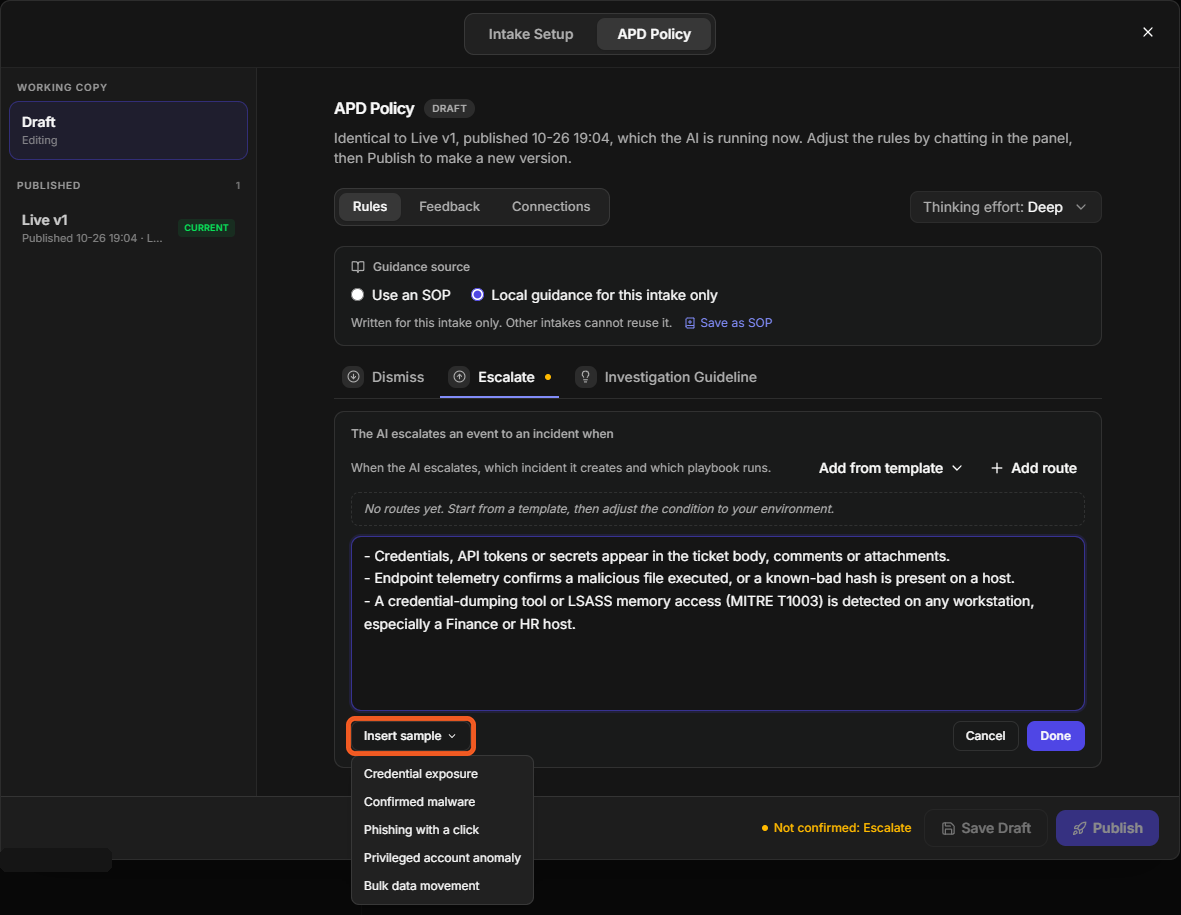
The rule is saved into the Draft as an edit, ready to save and publish. Until you select Done, the rule's tab shows a dot with the tooltip "Edited — not confirmed yet (click Done)", and Publish stays disabled.
A rule is written as plain-language conditions, for example: "the event is a duplicate of an open incident". Insert sample adds a ready-made clause you can edit.
COMMON ERROR
A Dismiss or Escalate clause that depends on APD's own score, priority or confidence never fires, because APD decides the verdict before those exist. The editor warns: "The AI decides the verdict before its own IRPS, priority score or confidence exist, so this clause can never fire." Describe the evidence instead. A score the event itself carries, such as a vendor risk score or CVSS, is fine.
Escalation Routes
Escalation routes decide what an escalation turns into: for each reason APD escalates, which incident type, severity and playbook to use. They sit under the Escalate rule, introduced by "When the AI escalates, which incident it creates and which playbook runs."
Escalation routes
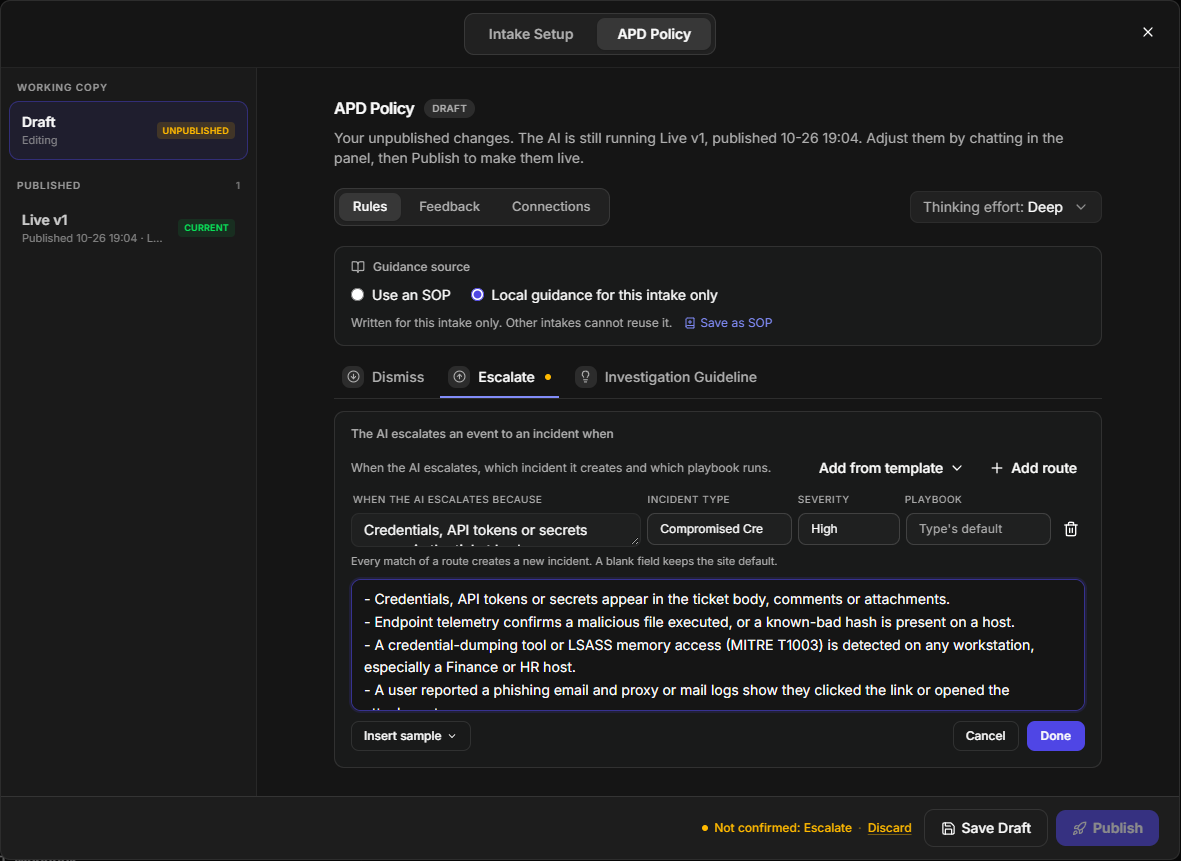
|
Column |
What you enter |
|---|---|
|
When the AI escalates because |
The reason, in plain words, for example "credentials appear in the ticket body" |
|
Incident type |
The incident type to create; blank keeps Default type |
|
Severity |
The severity to set; blank keeps Default |
|
Playbook |
The playbook to run; blank keeps Type's default |
Select Add route for an empty row, or Add from template to start from a shipped one. A blank field keeps the site default.
Every match of a route creates a new incident.
Thinking Effort
Thinking effort sets how deeply APD investigates each event. The tiers are set by D3; the shipped tiers are Deep (the default), Standard and Light. Deep is the most thorough; Standard and Light trade some of that depth for speed. A tier D3 has retired shows (deprecated).
Effort is saved with each version, so you change it on the Draft and it takes effect when you publish.
Guidance Source
The Guidance source decides where the rules come from: written for this intake alone, or taken from an SOP your team maintains once in Morpheus Guidance and reuses across intakes.
|
Choice |
What it means |
|---|---|
|
Local guidance for this intake only |
You write the rules here. "Written for this intake only. Other intakes cannot reuse it." |
|
Use an SOP |
The rules come from an SOP. Choose it in Select an SOP…, then choose Follow latest (each new SOP version publishes a new version of this policy) or Pin to a single SOP version. |
The Guidance source choice
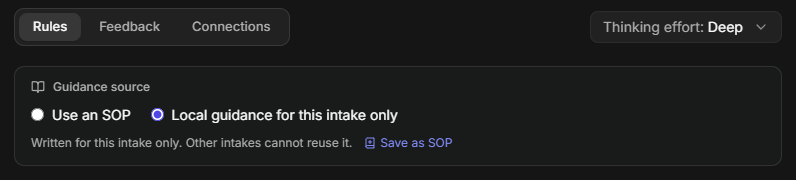
With an SOP selected, the Dismiss, Escalate and Investigation Guideline tabs are read-only, and they are filled in from the SOP's sections when you publish. To change them, edit the SOP in Morpheus Guidance or switch back to local guidance. A pinned policy tells you when a newer version exists, for example "SOP v{n} is available. This policy stays on v{n} until you update it.", with Update to v{n}. If an SOP is not offered, turn on APD for that SOP in Morpheus Guidance first.
Administrators can select Save as SOP to turn a Draft's local rules into a new SOP that other intakes can follow.
Choosing What APD Can Use
These two tabs let you narrow what APD may touch during an investigation, so it uses the tools and data you intend and nothing else.
Connections
The Connections tab decides which of your site's connections APD may use while it investigates, so it queries only the systems you intend. By default, APD uses every connection available to the intake's site: "Automatically uses all connections available to this Site." Selecting connections restricts the policy to them.
Restricting connections
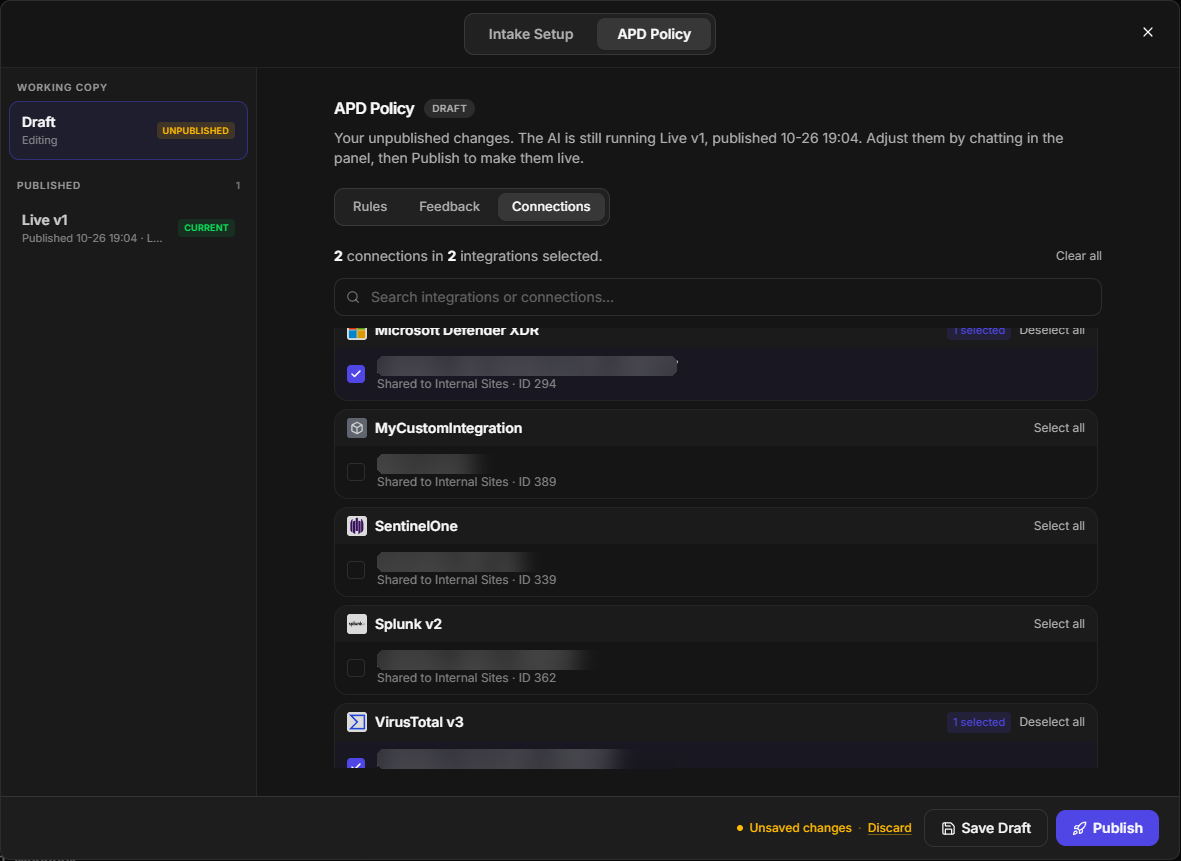
-
On the Draft, select the Connections tab.
-
Select the connections APD may use, or use Select all / Deselect all.
The tab shows the count, for example "{n} connection(s) in {m} integration(s) selected.", and the restriction takes effect when you publish.
A connection selected earlier but no longer available on the site is listed under "Previously selected — no longer available on this Site". On a published version the tab is read-only; select Edit connections in draft to change it.
Global Lists (If Enabled for the Site)
Global Lists let APD look up your own reference data, such as approved hosts or known accounts, while it investigates. The Global Lists tab is hidden unless D3 has made it available for your site, or a list is already bound.
Binding Global Lists
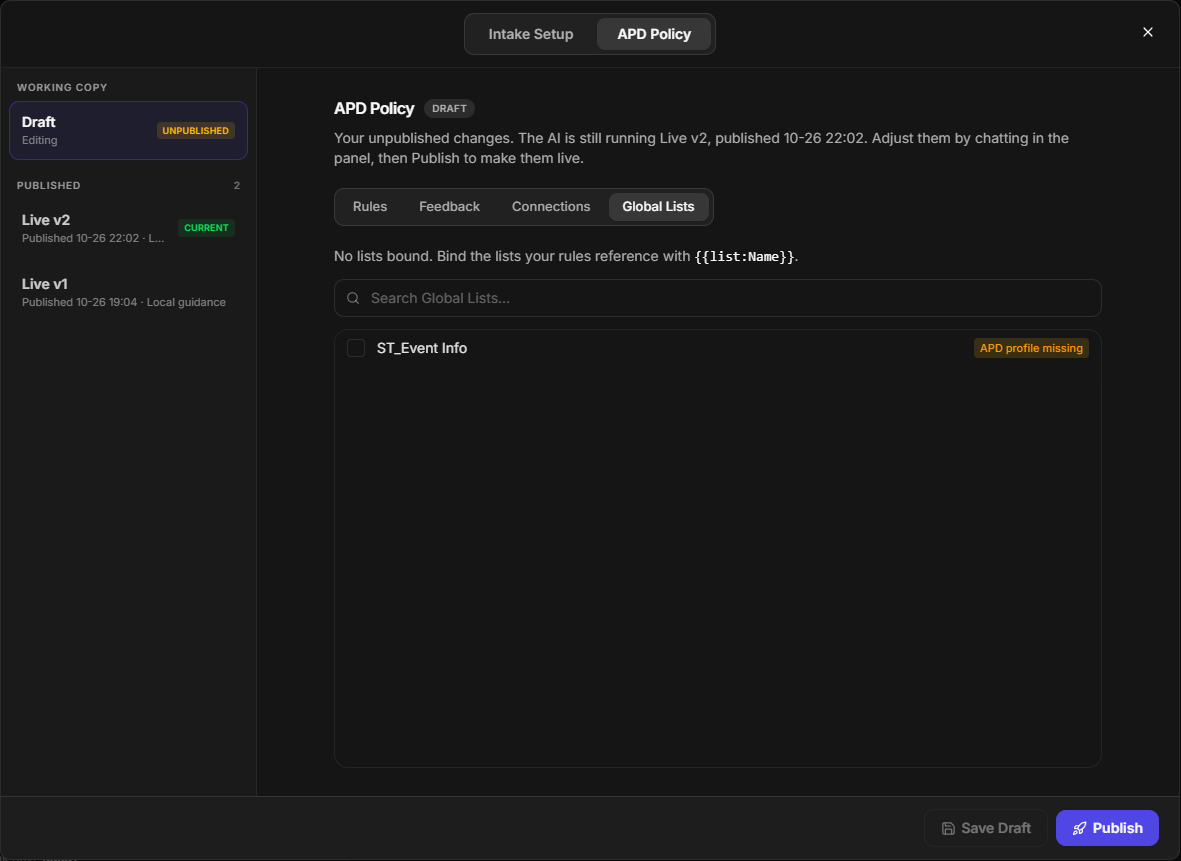
-
Bind up to 10 Global Lists. The tab reads, for example, "2 of 10 lists bound. APD reads matching rows on demand, never the whole list."
-
Refer to a list in a rule as
{{list:Name}}. -
A list marked APD profile missing or Unavailable cannot be looked up. Problems with list references are counted as "{n} Global List issue(s) will block publish", and each such issue ends in " · blocks publish".
Binding lists, and publishing a Draft that binds them, also needs the Global List privilege.
Saving and Publishing
Saving keeps your work without changing what APD does; publishing makes the Draft the version APD runs from that moment on.
-
Save Draft keeps your changes without making them live. The footer confirms "Disposition rules saved to draft".
-
Discard reverts unsaved edits to the last saved Draft, after the confirmation "Discard {rules} changes?" (select Keep to stay).
Publish stays disabled while the Draft is identical to the live version ("Nothing to publish — identical to Live v{n}"), while it has no rule at all ("Nothing to publish yet — add a rule to create the first version."), and while a rule edit is not yet confirmed with Done.
To publish:
-
Select Publish. The button reads Validating… while it checks the Draft.
A newly published version
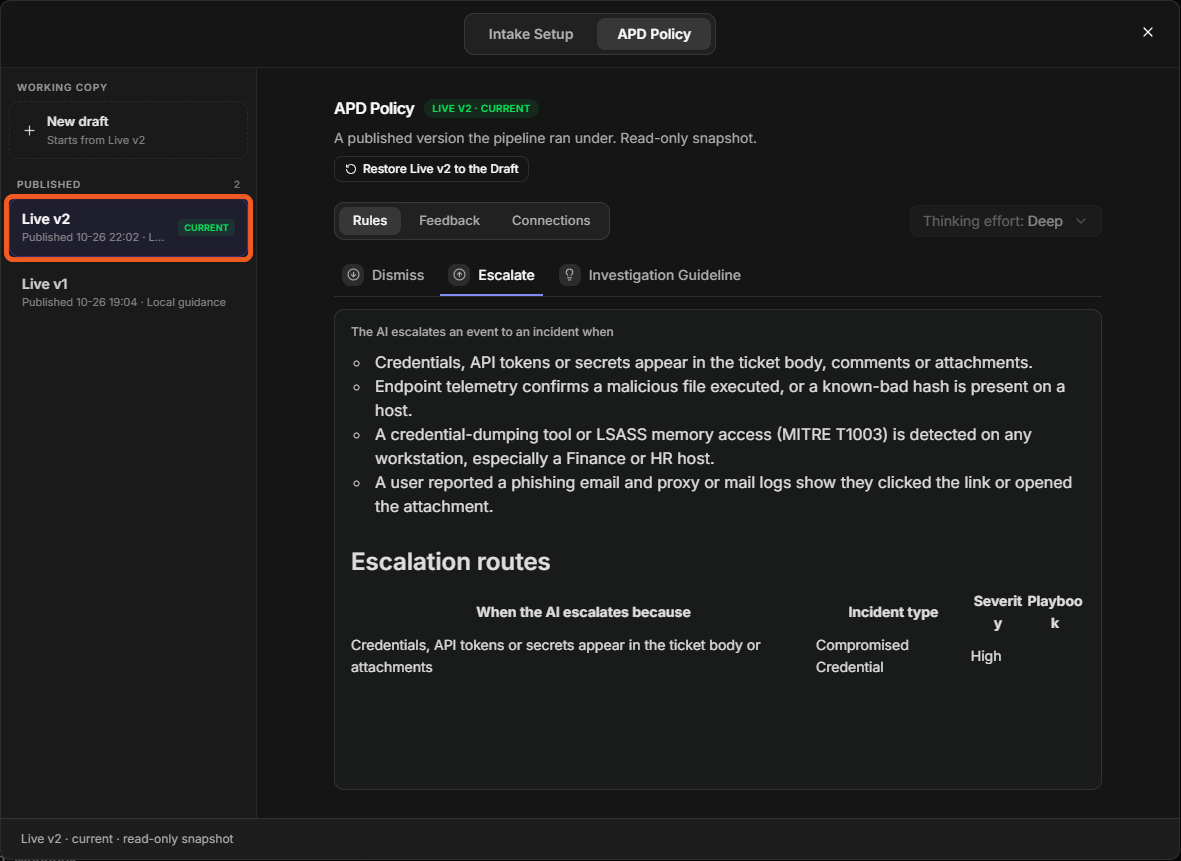
The footer reads "Published as a new Live version". The new version appears in the rail as Live v{n} with the current badge, and APD uses it for new events from now on.
Restore copies a published version back into the Draft, so you can return to rules that worked. Select Restore Live v{n} to the Draft, then Restore.
Restore replaces the Draft: "Replace the Draft with Live v{n}? Its saved and unsaved changes are replaced; nothing is live until you publish." Select Keep the Draft if you are not sure.
COMMON ERROR
|
Message |
What to do |
|---|---|
|
"Add at least one rule before publishing." |
Write at least one of the three rules. |
|
"Pick an SOP, or switch to local guidance." |
Choose an SOP under Guidance source, or select local guidance. |
|
"No changes to publish — these rules are already the current live version." |
Nothing to do; APD already runs these rules. |
|
"Could not save your changes — publish aborted so a stale version is not committed. Try again." |
Publish again. |
|
"Publish failed. Try again." |
Publish again. |
|
"Cannot publish: this rule has no backing config yet. Reopen it from the chat or a data-source card." |
Reopen the editor from the intake's card on Data Ingestion, or from the AI Ingest assistant. |
Each published version is kept in the rail with its publish time and source. The editor does not show who published a version.
Improving the Rules from AI Feedback
APD notes where your rules did not fit the events it saw, so you can tighten the rules from real cases instead of guessing. Notes appear on the Feedback tab of a published version after events run under it, and the {n} new chip on the intake's card tells you when there are unread ones.
-
Select a published version in the rail, then the Feedback tab.
-
Select the notes you want to act on.
-
Select Apply to rules. The button reads Refining… while the AI drafts the change.
-
In Review refined rules, read the word-level before and after of all three rules.
-
Select Accept changes, or Reject.
Turning feedback into rule changes
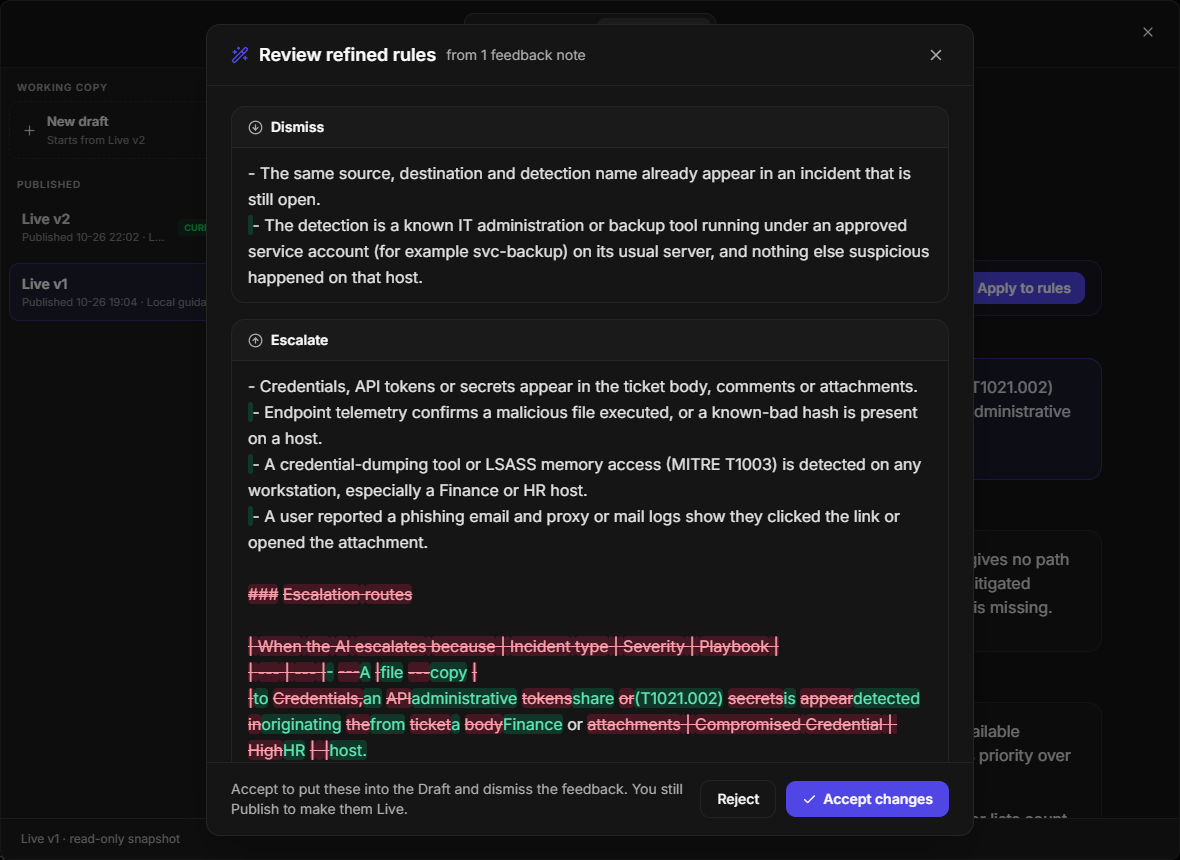
The changes are written into the Draft, and the notes you used are dismissed. The rules are not live yet: publish the Draft to make them live.
To clear notes without changing the rules, select them and select Dismiss. A version that has not run yet shows "No feedback yet for this version — the AI reports drift as events are processed under it." A policy that follows an SOP cannot take feedback until you switch it to local guidance.
Run Limits
Run limits keep AI investigations within the volume your plan allows, while making sure no event is silently left behind. Each limit counts the AI investigations started for an APD path over an hourly, daily, weekly, monthly or yearly window, and an All paths total can cap them together. When a limit is reached, each new event is either paused, so it is investigated automatically once the limit resets, or skipped, so an analyst can decide whether to run it. Either way, the event says what happened and when it can run, and the events list tells you how many are waiting.
Run limits in short
|
# |
Stage |
Where it happens |
|---|---|---|
|
1 |
A limit is reached, and new events are paused or skipped |
Automatic; D3 sets which one for your site |
|
2 |
See that investigations are paused, and when the next one starts |
The AI investigations paused banner above Workspace > Events |
|
3 |
See why one event was not investigated |
The event's APD panel: Paused — usage limit or Skipped — usage limit |
|
4 |
Investigate an event now |
Rerun investigation on the event's APD panel |
|
5 |
Check how much of each limit is used (administrators) |
Global Settings > Application Settings > Feature Settings > APD Usage |
Run limits, the paused banner and APD Usage are not available in 18.5.
When a Limit Is Reached
What happens to an event that arrives after a limit is reached is set for your site by D3, and applies to every APD path:
|
Setting |
What happens to the event |
When it is investigated |
|---|---|---|
|
Wait |
It is paused and queued. |
Automatically, after the limit resets, oldest first. |
|
Skip (the default) |
It is marked as skipped and not investigated. |
Only if someone selects Rerun investigation. |
A paused event does not wait forever. An event still paused after 24 hours is skipped instead, and so are events beyond 2,000 paused at once; D3 can change both numbers. An event whose path has a limit of 0 can never fit, so it is skipped too. A skipped event can still be investigated with Rerun investigation.
Events that a playbook's APD task investigates are never paused, and Rerun investigation is refused for them with "This event was investigated by a playbook APD task and can't be rerun here."
Paused and Skipped Events
An event held by a run limit shows its state in place of an investigation result: on the event's APD panel, in the event quick view, in the event detail, and in the classic event window.
|
Label |
What it means |
The line beneath it |
|---|---|---|
|
Paused — usage limit |
The event is queued and will be investigated automatically. |
"Will run automatically after the limit resets (≈ 14:00 UTC)", or "Will run automatically shortly" once that time has passed |
|
Skipped — usage limit |
The event was not investigated. |
The limit that was reached, for example "The daily limit on AI investigations was reached, so no investigation ran." |
When the reset time is known, the label carries it, for example Skipped — usage limit, resets 16 Jan 00:00 UTC. Times are shown in UTC, with the date added when the reset is not today.
The AI Investigations Paused Banner
The paused banner tells everyone working the events list that investigations are on hold and when they resume, so nobody mistakes a quiet queue for a finished one. It appears above the events list in Workspace > Events, and above the events grid in the classic view, whenever at least one event is paused:
"AI investigations paused — usage limit reached. 3 events waiting; next automatic run ≈ 14:00 UTC."
When the next run is already due, the end reads "next automatic run due now". The banner disappears when no event is paused.
Rerunning an Event
Rerun investigation starts the investigation of a paused or skipped event straight away, so an urgent event never has to wait for a limit to reset. Anyone who can open the event can use it when the event offers it.
-
Open the event and go to its APD panel.
-
Select Rerun investigation.
-
In Rerun investigation?, select Overwrite existing incident widgets if the event is linked to an incident and you want the new result to replace the AI content there.
-
Select Rerun investigation in the dialog to confirm.
The investigation starts. It replaces the current disposition and report, takes a few minutes, and leaves the event read-only while it runs. A message confirms which allowance it used:
|
Message |
What it means |
|---|---|
|
"Manual runs left: 19 / 20 — resets 00:00 UTC" |
The run used your site's daily manual allowance; 19 of 20 manual runs are left today. It can also appear as "0 / 20" when the automatic limits paid for the run. |
|
"Rerun started — the investigation will update shortly." |
The site has no separate manual allowance, and the run used what is left of the automatic limits. |
|
"Manual run limit reached — try again after 14:00 UTC" |
No allowance is left. The event is not investigated, and a paused event stays paused with its updated resume time. |
|
"Not run — APD is suspended for this path (limit 0)." |
The path's limit is 0, so nothing can run on it until D3 changes the limit. |
|
"Not run — the run limit for this path is reached." |
The path's limit is used up and its reset time could not be read. Try again later. |
Manual runs come from a daily allowance that resets at 00:00 UTC. A rerun uses that allowance first, and only when it is used up does it count against the automatic limits. When a site has no separate allowance (the default), every rerun counts against the automatic limits.
COMMON ERROR
|
Message |
What it means |
|---|---|
|
"APD is still processing this event; rerun is not available." |
Wait for the current run to finish. |
|
"APD is not enabled for this event's configuration." |
The event's intake does not use APD. |
|
"This event has no APD run to rerun." |
APD never ran on this event. |
|
"The APD configuration could not be read. Try again shortly." |
Try again in a few minutes. |
|
"Failed to dispatch the rerun." / "The rerun could not be started because of an internal error." |
Try again; if it persists, contact D3 Support. |
Checking APD Usage
APD Usage shows administrators how much of each run limit is used, so you can see a limit coming before events start to pause. It is read-only.
-
Go to Global Settings > Application Settings.
-
Under Feature Settings, select APD Usage.
The panel opens under the heading "APD run limits — used / limit (remaining)". It lists each Path, plus a (total) row for all paths, with one column per limited window (Hourly, Daily, Weekly, Monthly, Yearly). Each cell reads used/limit with what is left in brackets, for example 12/20 (8); a window with no limit reads No limit. A cell turns amber at 80% and red when the limit is reached. Select Refresh for current numbers. Beneath the table:
-
when each window resets, for example "Hourly resets 11:00 UTC · Daily resets 00:00 UTC · Monthly resets 1 Nov";
-
the manual allowance, for example "Manual reruns: 3 / 20 used today — resets 00:00 UTC", or "Manual reruns: no separate allowance (uses automatic leftovers)";
-
the paused-events line from the banner, when any event is paused;
-
the reminder "Limits are set by D3. Contact support to change them."
|
Notice |
What it means |
|---|---|
|
"No APD run limits are set for this tenant." |
No limit applies; investigations are never paused or skipped for volume. |
|
"APD run limits are not active for this tenant." |
Limits are turned off for your site. |
|
"Limits are being measured, not enforced. Usage may exceed a limit; no run is refused." |
Usage is counted, but no event is paused or skipped. |
|
"Usage is temporarily unavailable" |
The numbers could not be read; try again in a few minutes. |
|
"APD usage could not be loaded. Try again shortly." |
The panel could not load; try again shortly. |
APD Usage is off by default. To have it turned on, contact D3 Support. Only users with the Administrator privilege can open it.
Who Sets the Limits
D3 sets the run limits and the related settings for your site, so they match your plan; they are not edited in D3 Morpheus. To change any of them, contact D3 Support.
|
Setting |
What it controls |
Default |
|---|---|---|
|
Run limits |
The number of AI investigations per APD path in each hourly, daily, weekly, monthly or yearly window, plus an optional total for all paths |
Set by your plan |
|
On limit |
Wait or Skip (see When a Limit Is Reached) |
Skip |
|
Manual runs per day |
Reruns allowed per UTC day on top of the automatic limits; 0 means reruns use what is left of the automatic limits |
0 |
|
Longest wait |
How long an event can stay paused before it is skipped |
24 hours |
|
Most paused events |
The most events that can be paused at once; further events are skipped |
2,000 |
RELATED ARTICLES
-
(18.6) Attack Path Discovery Results
-
(18.6) Morpheus Adaptive Tasking