
LAST UPDATED: Apr 11, 2025
Overview
Trend Micro Deep Security automatically protects new and existing workloads against known and unknown threats using techniques such as machine learning and virtual patching. It offers a full range of security capabilities through a single smart agent, including protection against vulnerabilities and end-of-life systems.
D3 SOAR is providing REST operations to function with Trend Micro Deep Security Manager.
Trend Micro Deep Security Manager is available for use in:
|
D3 SOAR |
V12.7.0+ |
|
Category |
Endpoint Protection |
|
Deployment Options |
Known Limitations
The rate limits applied to Deep Security Manager instances depend on the available resources of the manager computer and the API traffic received. The following rate limits are set by default:
-
User: 500
-
Tenant: 1000
-
Node: 5000
Refer to Determine suitable rate limits | Trend Micro Deep Security Manager for detailed information.
Connection
To connect to Trend Micro Deep Security Manager from D3 SOAR, follow this part to collect the required information below:
|
Parameter |
Description |
Example |
|
Server URL |
The URL of the Trend Micro Deep Security Manager server. |
https://app.deepsecurity.trendmicro.com |
|
API Key |
The API key for authentication. |
***** |
|
API Version |
The API version. |
v1 |
Permission Requirements
Each endpoint in the Trend Micro Deep Security Manager API requires certain permissions. Assigning users to built-in roles or creating custom roles with predefined scopes ensures appropriate access control. The following are the required permissions for the commands in this integration:
|
Commands |
Required Permissions |
|
|
Built-in Roles |
Scopes for Custom Roles |
|
|
Add Firewall Rule IDs |
Deep Security Migration |
Computer Rights -> Edit -> All Computers |
|
Assign Intrusion Prevention Rules |
Deep Security Migration |
All of:
|
|
Create Firewall Rule |
Full Access |
Common Object Rights -> Firewall Rules -> Custom -> Can Create New Firewall Rules |
|
Create Intrusion Rule |
Full Access |
Common Object Rights -> Intrusion Prevention Rules -> Custom -> Can Create New Intrusion Prevention Rules |
|
Deactivate Computer |
Workload Security Read Only |
All of:
|
|
Delete Firewall Rules |
Full Access |
Common Object Rights -> Firewall Rules -> Custom -> Can Delete Firewall Rules |
|
Delete Intrusion Rules |
Full Access |
Common Object Rights -> Intrusion Prevention Rules -> Custom -> Can Delete Intrusion Prevention Rules |
|
Get Firewall Rule IDs By Computer |
Workload Security Read Only |
Computer Rights -> View All Computers |
|
Get Host List |
Workload Security Read Only |
Computer Rights -> View All Computers |
|
List Application Types |
Workload Security Read Only |
Other Rights -> Application Types -> View-Only |
|
List Firewall Rules |
Workload Security Read Only |
Common Object Rights -> Firewall Rules -> View-Only |
|
List Intrusion Rules |
Workload Security Read Only |
Common Object Rights -> Intrusion Prevention Rules -> View-Only |
|
List Policies |
Workload Security Read Only |
Policy Rights -> View -> All Policies |
|
Modify Intrusion Rule |
Full Access |
Common Object Rights -> Intrusion Prevention Rules -> Custom -> Can Edit Intrusion Prevention Rule Properties |
|
Remove Firewall Rule IDs |
Deep Security Migration |
Computer Rights -> Edit -> All Computers |
|
Schedule Daily Scan |
Full Access |
Other Rights -> Tasks -> Custom -> Can Add New Tasks, Can View Tasks, Can Edit Tasks |
|
Schedule Hourly Scan |
Full Access |
Other Rights -> Tasks -> Custom -> Can Add New Tasks, Can View Tasks, Can Edit Tasks |
|
Schedule Monthly Scan |
Full Access |
Other Rights -> Tasks -> Custom -> Can Add New Tasks, Can View Tasks, Can Edit Tasks |
|
Schedule Once Only Scan |
Full Access |
Other Rights -> Tasks -> Custom -> Can Add New Tasks, Can View Tasks, Can Edit Tasks |
|
Schedule Weekly Scan |
Full Access |
Other Rights -> Tasks -> Custom -> Can Add New Tasks, Can View Tasks, Can Edit Tasks |
|
Unassign Intrusion Prevention Rules |
Deep Security Migration |
All of:
|
|
Test Connection |
Workload Security Read Only |
Computer Rights -> View -> All Computers |
As Trend Micro Deep Security Manager is using role-based access control (RBAC), the API Key is generated based on a specific user account and the application. Therefore, the command permissions are inherited from the user account’s role. Users need to configure their user profile from the Trend Micro Deep Security Manager console for each command in this integration.
READER NOTE
Refer to Define roles for users | Trend Micro Deep Security Manager for details on configuring user profiles.
Configuring Trend Micro Deep Security Manager to Work with D3 SOAR
-
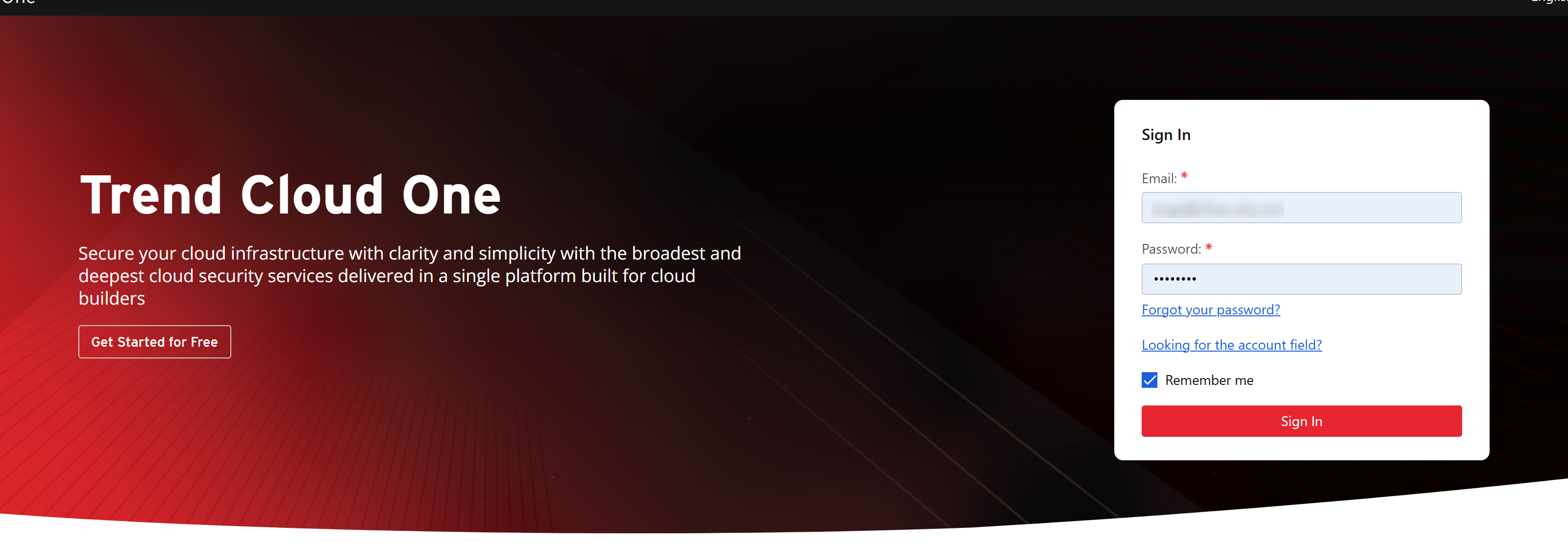
Log into the Trend Cloud One console.
-
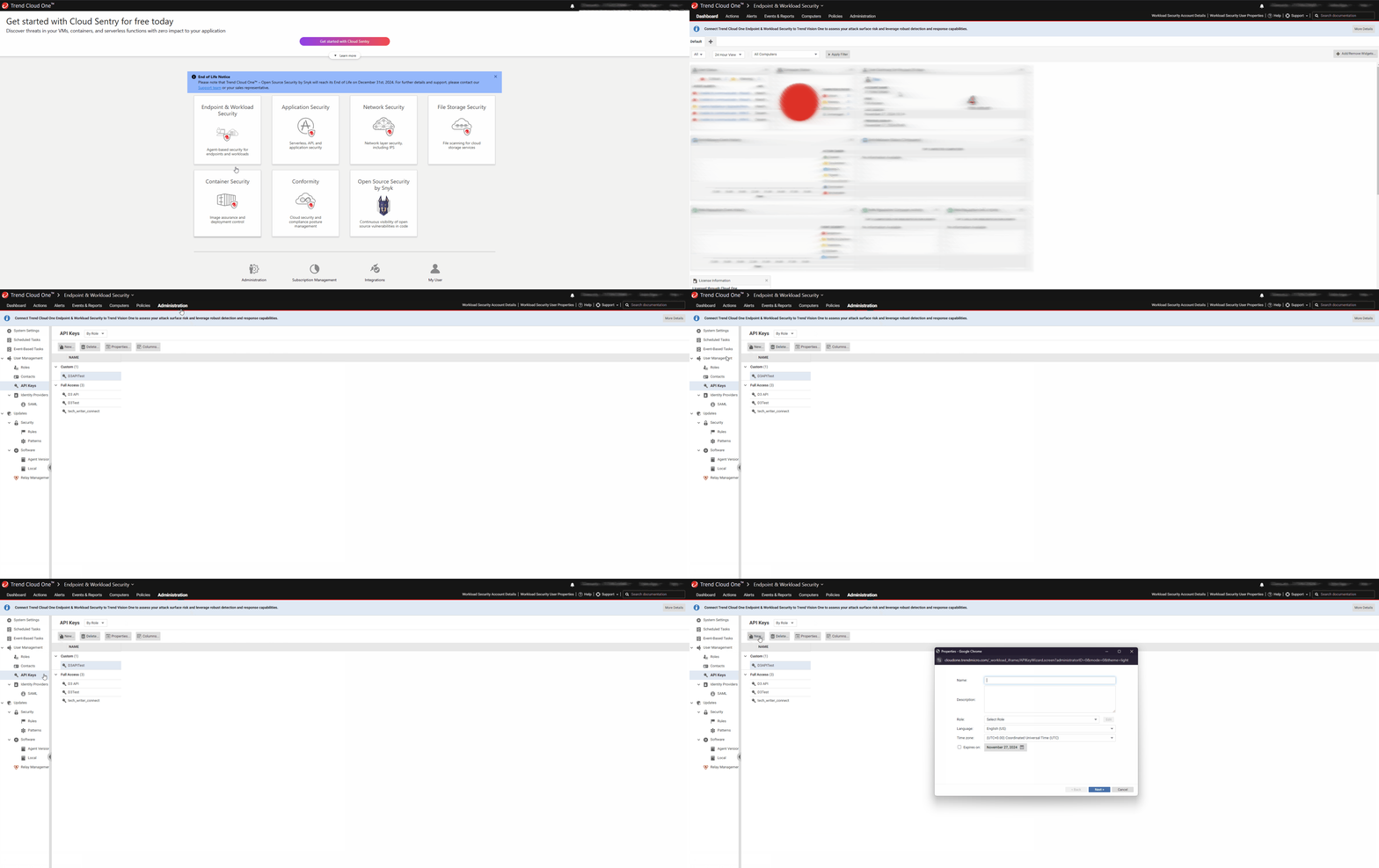
Navigate to the API Key management section.
-
Select the Endpoint & Workload Security card.
-
Open the Administration tab.
-
Go to User Management > API Keys.
-
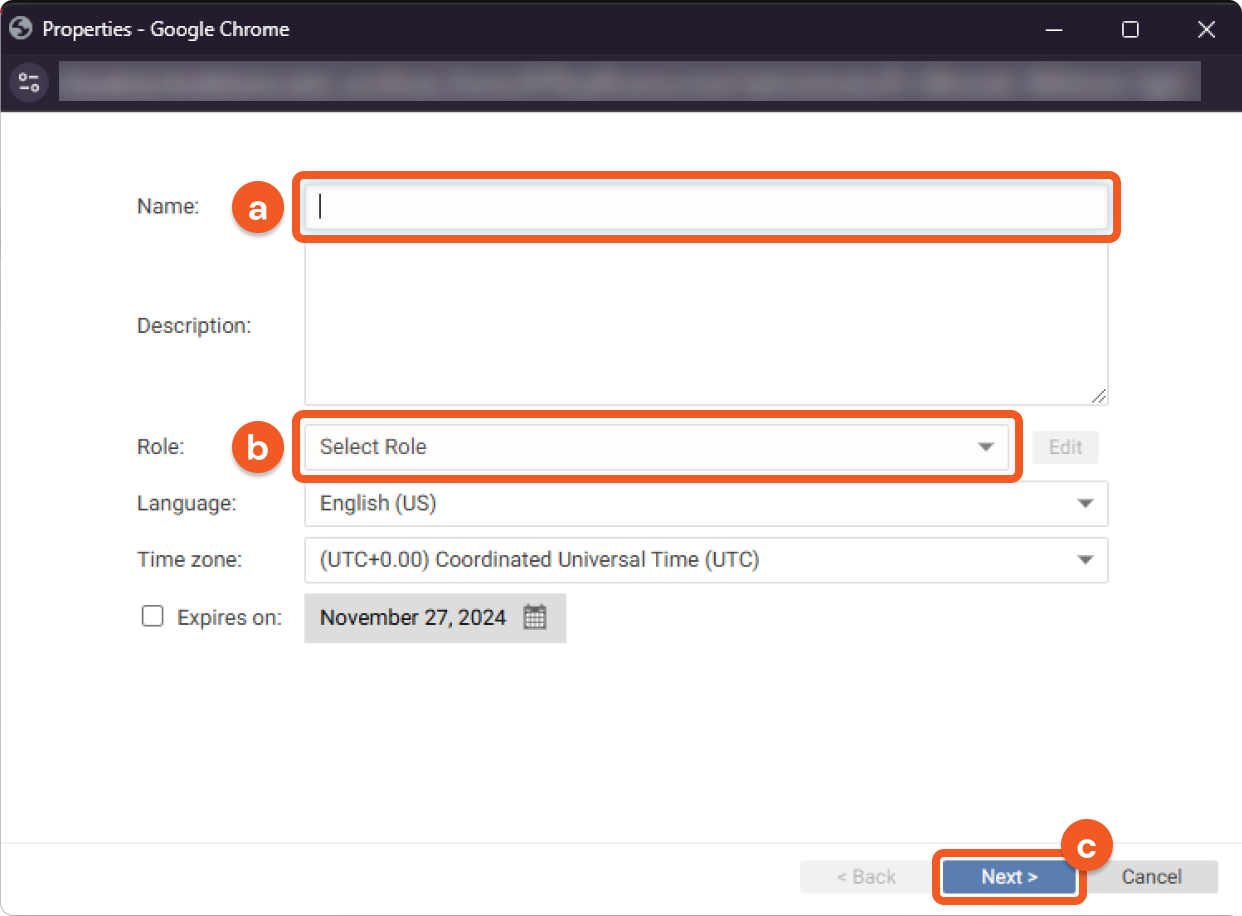
Click on the New… button to open the Properties pop-up window.
-
-
Configure the API key.
-
Provide a name for the API key.
-
Select a role using the dropdown.
-
Click on the Next > button.
-
-
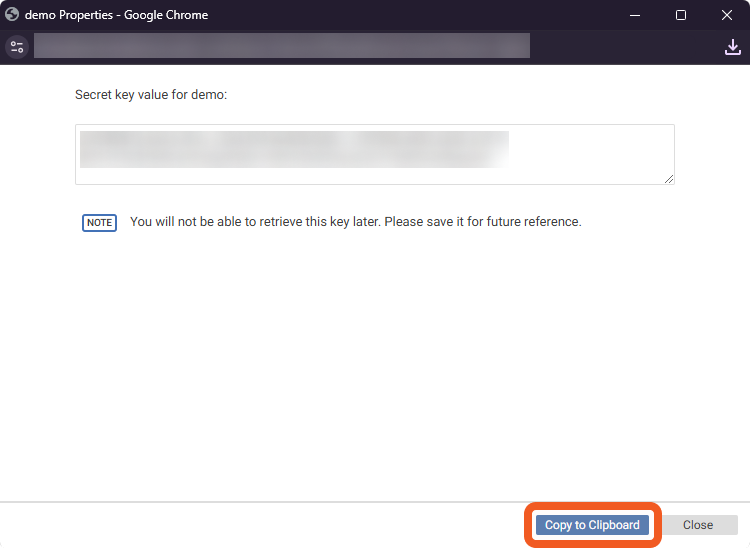
Copy the API Key and store it in a secure location. The API Key will not be visible again after this window is closed. Refer to step 3i sub-step 2 in Configuring D3 SOAR to Work with Trend Micro Deep Security Manager.
Creating and Configuring Custom Roles
-
Navigate to Administration > User Management > Roles within Endpoint & Workload Security and click on the New… button.
.png?cb=14b350afeb566065da25be8a8927aa66)
-
Name the role.
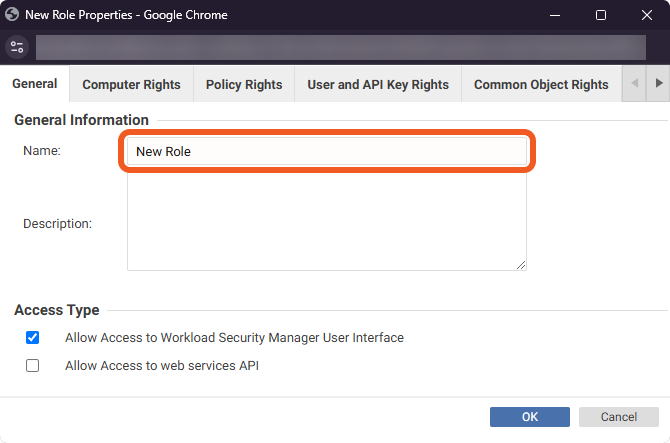
-
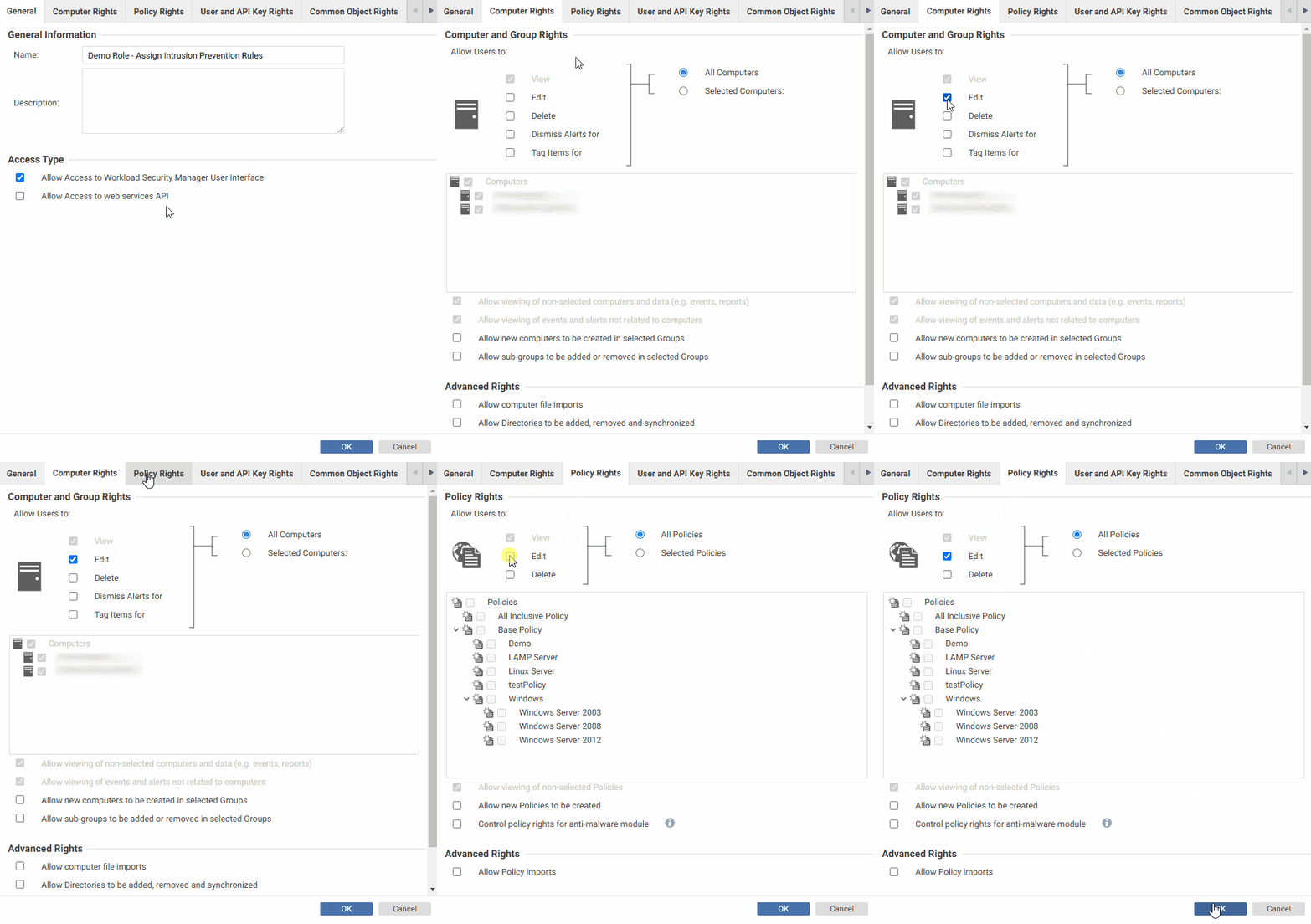
Navigate through the tabs at the top to configure the permission scopes for the role. This example demonstrates the configuration of the scopes required for a custom role to execute the Assign Intrusion Prevention Rules and Unassign Intrusion Prevention Rules commands.
READER NOTE
Refer to the Permission Requirements section to identify the necessary scopes for each command.
-
Save the role and confirm that it has been set up.
.png?cb=7bfdf1bd6a9985ad160a2d50546e705a)
The API Key for custom roles can be created by following the same steps detailed in Configuring Trend Micro Deep Security Manager to Work with D3 SOAR.
Configuring D3 SOAR to Work with Trend Micro Deep Security Manager
-
Log in to D3 SOAR.
-
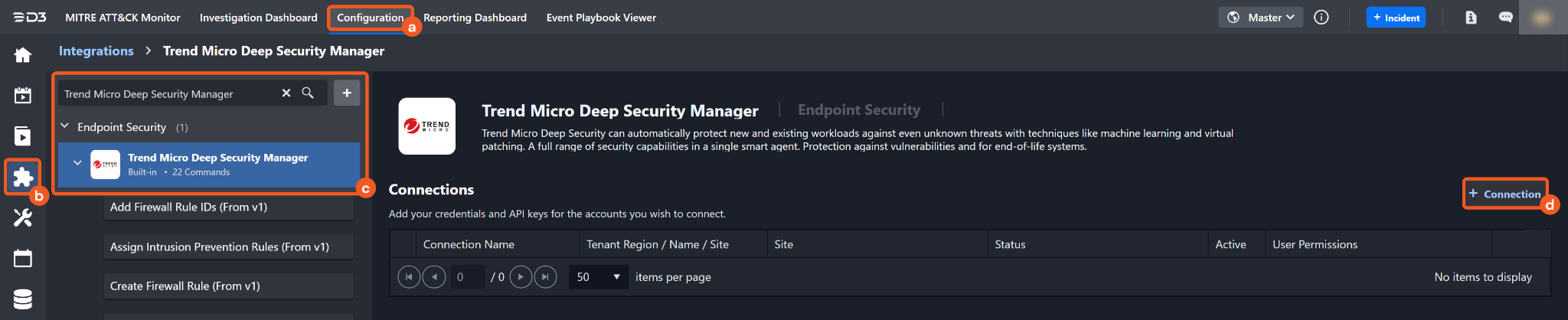
Find the Trend Micro Deep Security Manager integration.
-
Navigate to Configuration on the top header menu.
-
Click on the Integration icon on the left sidebar.
-
Type Trend Micro Deep Security Manager in the search box to find the integration, then click it to select it.
-
Click on the + Connection button on the right side of the Connections section. A new connection window will appear.
-
-
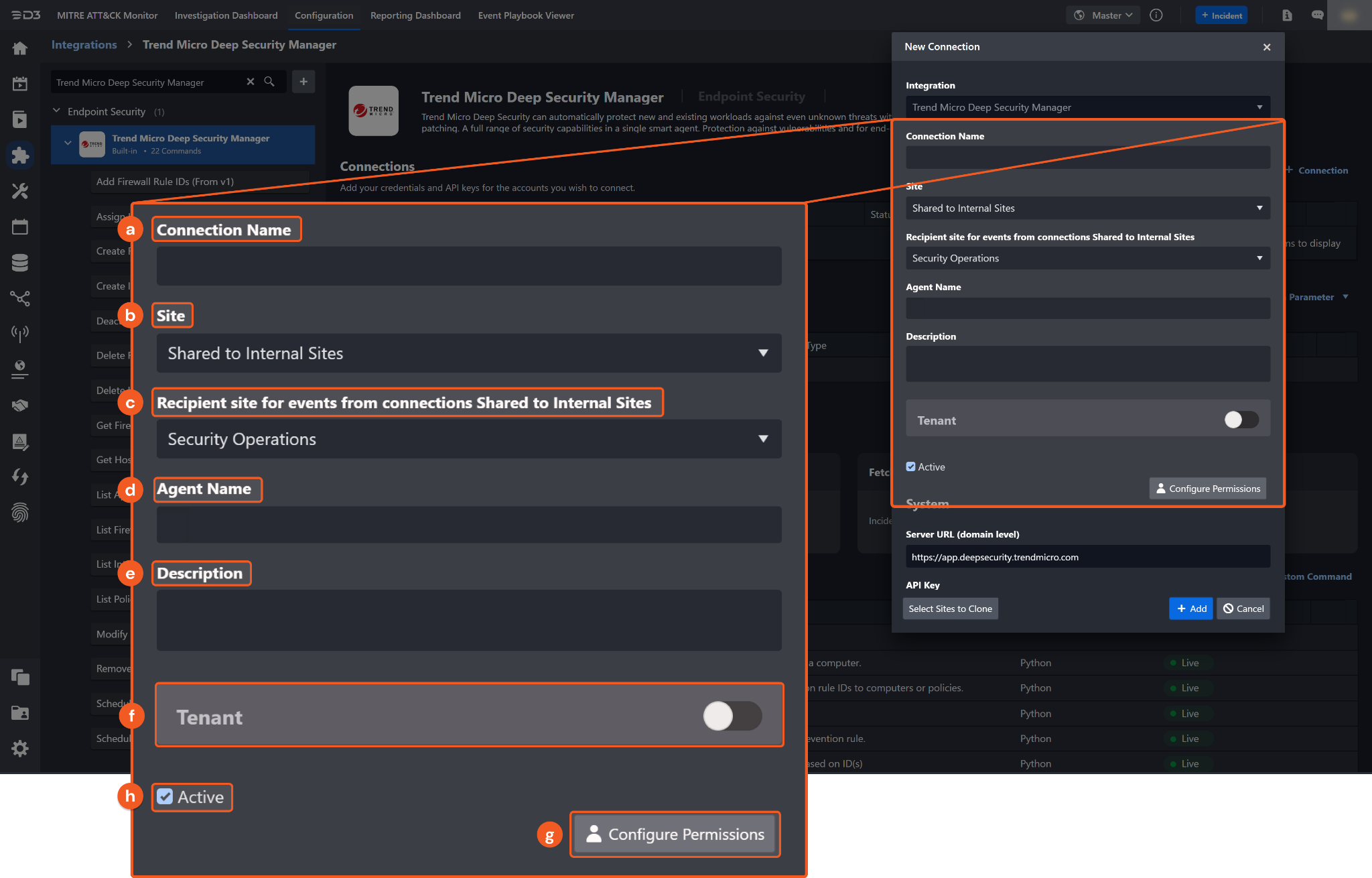
Configure the following fields to create a connection to Trend Micro Deep Security Manager.
-
Connection Name: The desired name for the connection.
-
Site: Specifies the site to use the integration connection. Use the drop-down menu to select the site. The Share to Internal Sites option enables all sites defined as internal sites to use the connection. Selecting a specific site will only enable that site to use the connection.
-
Recipient site for events from connections Shared to Internal Sites: This field appears if you selected Share to Internal Sites for Site to let you select the internal site to deploy the integration connection.
-
Agent Name (Optional): Specifies the proxy agent required to build the connection. Use the dropdown menu to select the proxy agent from a list of previously configured proxy agents.
-
Description (Optional): Add your desired description for the connection.
-
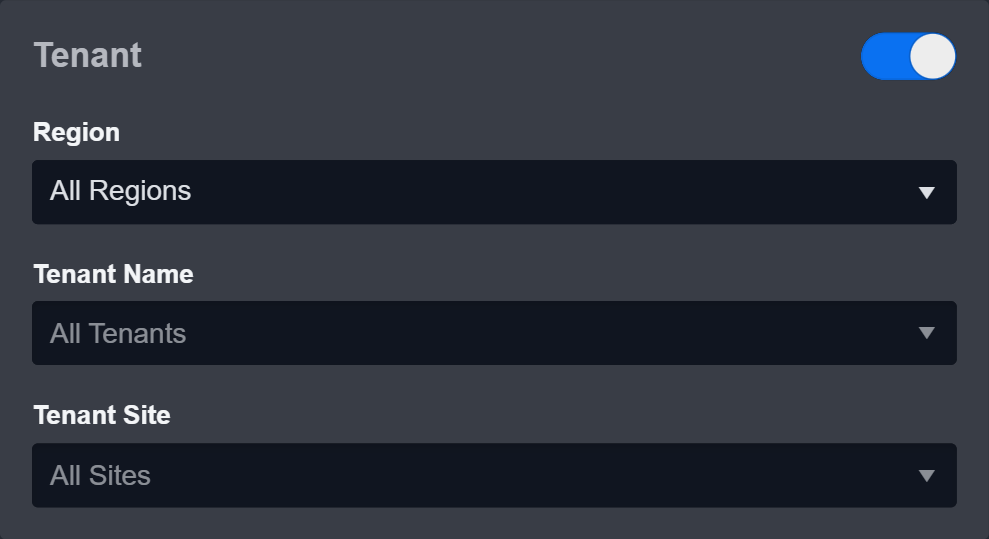
Tenant (Optional): When configuring the connection from a master tenant site, you have the option to choose the specific tenant sites you want to share the connection with. Once you enable this setting, you can filter and select the desired tenant sites from the dropdowns to share the connection.
-
Configure User Permissions: Defines which users have access to the connection.
-
Active: Check the checkbox to ensure the connection is available for use.
-
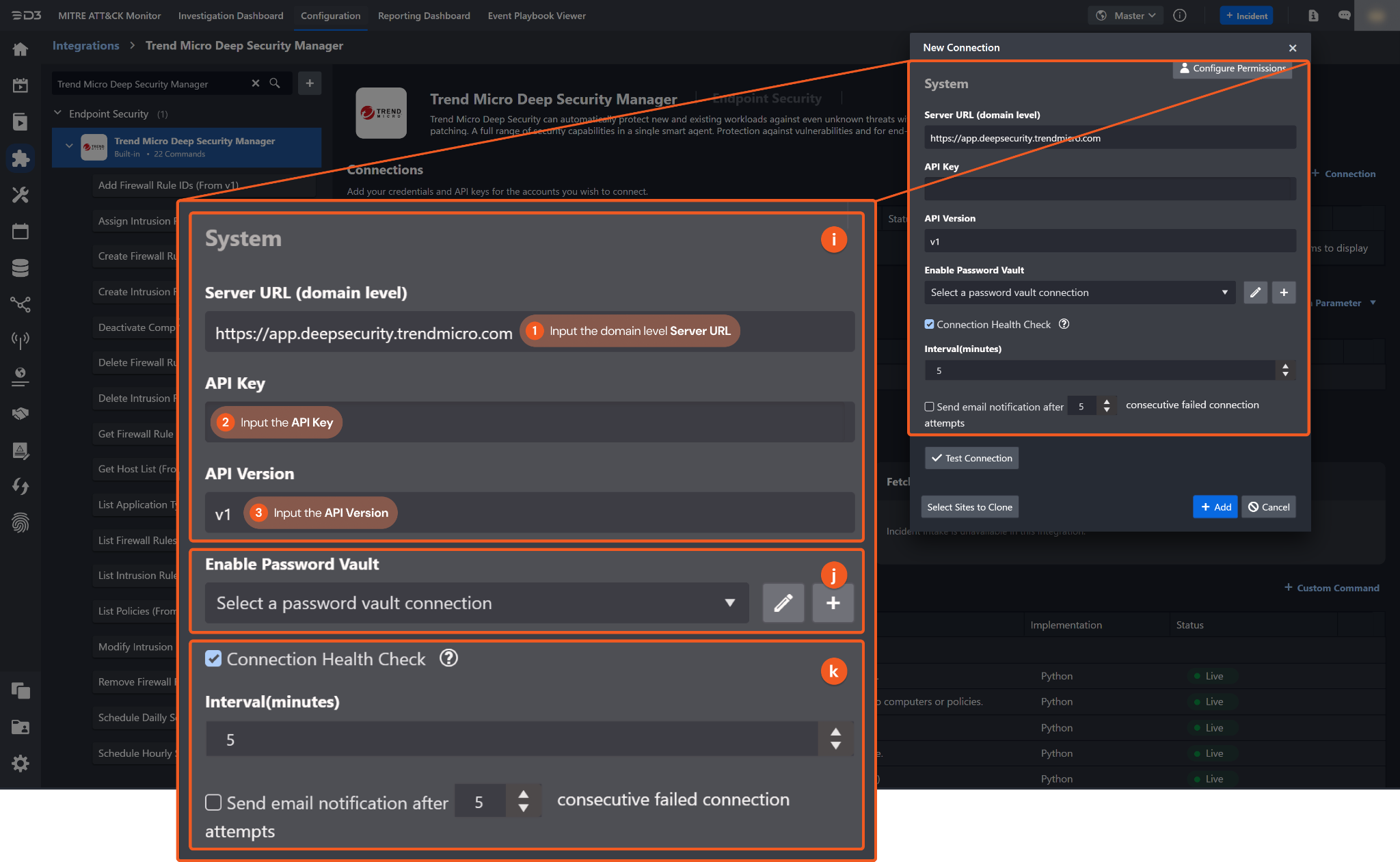
System: This section contains the parameters defined specifically for the integration. These parameters must be configured to create the integration connection.
1. Input the Server URL. The default value is https://app.deepsecurity.trendmicro.com.
2. Copy the API Key from the Trend Micro Deep Security Manager platform. Refer to step 4 of Configuring Trend Micro Deep Security Manager to Work with D3 SOAR.
3. Input the API Version. The default value is v1.
-
Enable Password Vault: An optional feature that allows users to take the stored credentials from their own password vault. Refer to the password vault connection guide if needed.
-
Connection Health Check: Updates the connection status you have created. A connection health check is done by scheduling the Test Connection command of this integration. This can only be done when the connection is active.
To set up a connection health check, check the Connection Health Check tick box. You can customize the interval (minutes) for scheduling the health check. An email notification can be set up after a specified number of failed connection attempts.
-
-
Test the connection.
-
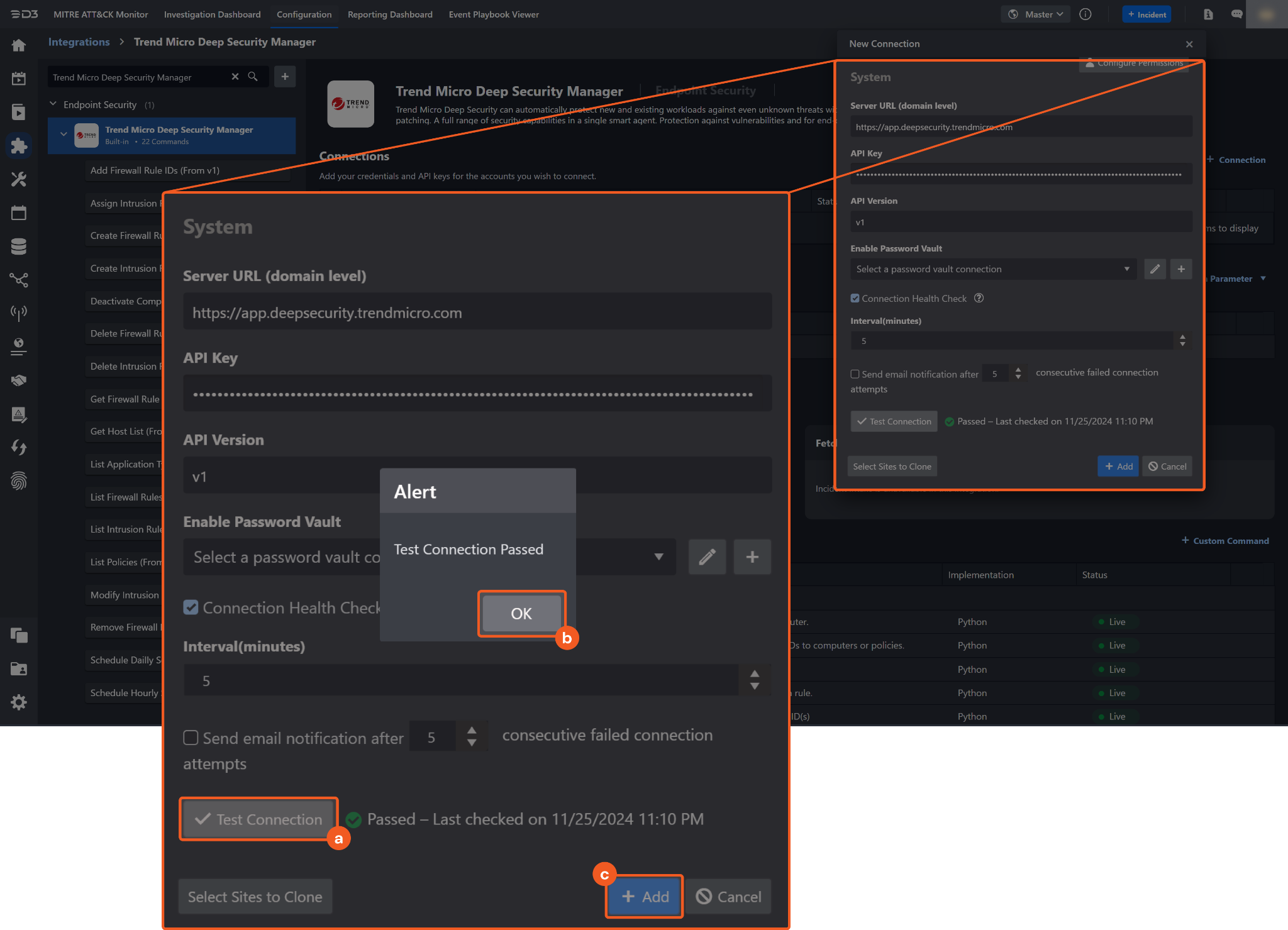
Click Test Connection to verify the account credentials and network connection. If the Test Connection Passed alert window appears, the test connection is successful. You will see Passed with a green check mark appear beside the Test Connection button. If the test connection fails, check your connection parameters and try again.
-
Click OK to close the alert window.
-
Click + Add to create and add the configured connection.
-
Commands
Trend Micro Deep Security Manager includes the following executable commands for users to set up schedules or create playbook workflows. With the Test Command, you can execute these commands independently for playbook troubleshooting.
Integration API Note
For more information about the Trend Micro Deep Security Manager API, refer to the Trend Micro Deep Security Manager API reference.
READER NOTE
Certain permissions are required for each command. Refer to the Permission Requirements and Configuring Trend Micro Deep Security Manager to Work with D3 SOAR sections for details.
Add Firewall Rule IDs
Assigns firewall rule IDs to a computer.
READER NOTE
Computer ID and Rule IDs are required parameters to run this command.
-
Run the Get Host List command to obtain the Computer ID. Computer IDs can be found in the raw data at the path $.computers[*].ID.
-
Run the List Firewall Rules or Create Firewall Rule command to obtain the Rule IDs. Rule IDs can be found in the raw data at the path $.firewallRules[*].ID for List Firewall Rules or $.ID for Create Firewall Rule.
Input
|
Input Parameter |
Required/Optional |
Description |
Example |
|
Computer ID |
Required |
The ID of the computer to which the firewall rule IDs are assigned. Computer ID can be obtained using the Get Host List command. |
***** |
|
Rule IDs |
Required |
The IDs of the firewall rules to assign. Rules IDs can be obtained using the List Firewall Rules or Create Firewall Rule command. |
JSON
|
Output
Error Handling
If the Return Data displays Failed, an Error tab will appear in the Test Result window.
The error tab contains the details responded from D3 SOAR or third-party API calls, including Failure Indicator, Status Code, and Message. This can help you locate the root cause of a command failure.
|
Parts in Error |
Description |
Example |
|
Failure Indicator |
Indicates the command failure that happened at a specific input and/or API call. |
Add Firewall Rule IDs failed. |
|
Status Code |
The response code issued by the third-party API server or the D3 SOAR system that can be used to locate the corresponding error category. For example, if the returned status code is 401, the selected connection is unauthorized to run the command. The user or system support would need to check the permission setting in the Trend Micro Deep Security Manager portal. Refer to the HTTP Status Code Registry for details. |
Status Code: 404. |
|
Message |
The raw data or captured key error message from the integration API server about the API request failure. |
Message: Not Found. |
|
Error Sample Data Add Firewall Rule IDs failed. Status Code: 404. Message: Not Found. |
Assign Intrusion Prevention Rules
Assigns intrusion prevention rules to the specified computers or policies.
READER NOTE
Intrusion Rule IDs is a required parameter to run this command.
-
Run the List Intrusion Rules command to obtain the Intrusion Rule IDs. Intrusion Rule IDs can be found in the raw data at the path $.intrusionPreventionRules[*].ID.
Computer IDs and Policy IDs are optional parameters to run this command.
-
Run the Get Host List command to obtain the Computer IDs. Computer IDs can be found in the raw data at the path $.computers[*].ID.
-
Run the List Policies command to obtain the Policy IDs. Policy IDs can be found in the raw data at the path $.policies[*].ID.
Input
|
Input Parameter |
Required/Optional |
Description |
Example |
|
Intrusion Rule IDs |
Required |
The IDs of the intrusion prevention rules to assign. Intrusion Rule IDs can be obtained using the List Intrusion Rules command. |
JSON
|
|
Computer IDs |
Optional |
The IDs of the computers to which the rules are assigned. Computer IDs can be obtained using the Get Host List command. |
JSON
|
|
Policy IDs |
Optional |
The IDs of the policies to which the rules are assigned. Policy IDs can be obtained using the List Policies command. |
JSON
|
Output
Error Handling
If the Return Data displays Partially Successful or Failed, an Error tab will appear in the Test Result window.
The error tab contains the details responded from D3 SOAR or third-party API calls, including Failure Indicator, Status Code, and Message. This can help you locate the root cause of a command failure.
|
Parts in Error |
Description |
Example |
|
Failure Indicator |
Indicates the command failure that happened at a specific input and/or API call. |
Assign Intrusion Prevention Rules failed. |
|
Status Code |
The response code issued by the third-party API server or the D3 SOAR system that can be used to locate the corresponding error category. For example, if the returned status code is 401, the selected connection is unauthorized to run the command. The user or system support would need to check the permission setting in the Trend Micro Deep Security Manager portal. Refer to the HTTP Status Code Registry for details. |
Status Code: 400. |
|
Message |
The raw data or captured key error message from the integration API server about the API request failure. |
Message: Either of Computer IDs or Policy IDs can be empty but not both empty. |
|
Error Sample Data Assign Intrusion Prevention Rules failed. Status Code: 400. Message: Either of Computer IDs or Policy IDs can be empty but not both empty. |
Create Firewall Rule
Creates a new firewall rule.
Input
|
Input Parameter |
Required/Optional |
Description |
Example |
|
Name |
Required |
The name of the firewall rule. |
Test Rule |
|
Description |
Optional |
The description of the firewall rule. |
Test for creating firewall rule |
|
Action |
Optional |
The action applied by the packet filter. Available options include:
By default, the value is Allow. |
Allow |
|
Priority |
Optional |
The priority of the packet filter. Available options are:
By default, the value is 0 - Lowest. |
0 - Lowest |
|
Direction |
Optional |
The direction of the packet. Available options are:
By default, the value is Incoming. |
Incoming |
|
Frame Type |
Required |
The type of frame supported.
By default, the value is IP. |
IP |
|
Protocol |
Optional |
The protocol of the packet. By default, the value is Any. |
TCP |
|
Source IP Value |
Optional |
The source IP address of the packet. If provided, the source IP type is set to Masked IP. |
***.***.***.*** |
|
Source IP Mask |
Optional |
The source IP mask of the packet. If provided, the source IP type is set to Masked IP. |
***.***.***.*** |
|
Source MAC Multiple |
Optional |
A list of source MAC addresses. If provided, the source MAC type is set to Multiple. |
JSON
|
|
Packet Source Multiple |
Optional |
A list of source ports. If provided, the source port type is set to Multiple.
|
JSON
|
|
Destination IP Value |
Optional |
The destination IP address of the packet. If provided, the destination IP type is set to Masked IP. |
***.***.***.*** |
|
Destination IP Mask |
Optional |
The destination IP mask of the packet. If provided, the destination IP type is set to Masked IP. |
***.***.***.*** |
|
Destination MAC Multiple |
Optional |
A list of destination MAC addresses. If provided, the destination MAC type is set to Multiple. |
JSON
|
|
Destination Port Multiple |
Optional |
A list of destination ports. If provided, the destination port type is set to Multiple. |
|
|
Additional Settings |
Optional |
Additional settings for creating a firewall rule. This is formatted as <FieldName1>=<FieldValue1> <FieldName2>=<FieldValue2>. For example, logDisabled=true TCPNot=true is a valid input. Refer to the Firewall Rules | Trend Micro Deep Security Manager for available field names and values. |
sourceIPMask=***.***.***.*** sourceIPValue=***.***.***.*** |
Output
Error Handling
If the Return Data displays Failed, an Error tab will appear in the Test Result window.
The error tab contains the details responded from D3 SOAR or third-party API calls, including Failure Indicator, Status Code, and Message. This can help you locate the root cause of a command failure.
|
Parts in Error |
Description |
Example |
|
Failure Indicator |
Indicates the command failure that happened at a specific input and/or API call. |
Create Firewall Rule failed. |
|
Status Code |
The response code issued by the third-party API server or the D3 SOAR system that can be used to locate the corresponding error category. For example, if the returned status code is 401, the selected connection is unauthorized to run the command. The user or system support would need to check the permission setting in the Trend Micro Deep Security Manager portal. Refer to the HTTP Status Code Registry for details. |
Status Code: 409. |
|
Message |
The raw data or captured key error message from the integration API server about the API request failure. |
Message: The requested firewall rule name already exists. |
|
Error Sample Data Create Firewall Rule failed. Status Code: 409. Message: The requested firewall rule name already exists. |
Create Intrusion Rule
Creates a new intrusion prevention rule.
READER NOTE
Application Type ID is a required parameter to run this command.
-
Run the List Application Types command to obtain the Application Type ID. Application Type IDs can be found in the raw data at the path $.applicationTypes[*].ID.
One of the following must be provided to create an intrusion rule:
-
Signature
-
Start Pattern, Body Patterns, and End Pattern
-
Custom XML.
If the Start Pattern is specified, the template is set to start-end-patterns. Start Pattern, Body Patterns, and End Pattern are all required to create a start-end-patterns rule.
Input
|
Input Parameter |
Required/Optional |
Description |
Example |
|
Rule Name |
Required |
The name of the intrusion prevention rule. |
test202109081 |
|
Signature |
Optional |
The signature of the rule. If provided, the template is set to signature, and the input values of Start Pattern, End Pattern, Body Patterns, and Custom XML will be ignored. |
***** |
|
Start Pattern |
Optional |
The start pattern of the rule. If provided, the template is set to start-end-patterns. |
secret |
|
Body Patterns |
Optional |
The body patterns of the rule. |
JSON
|
|
End Pattern |
Optional |
The ending pattern of the rule. |
hack |
|
Custom XML |
Optional |
The Custom XML used to define the rule. If provided, the template is set to custom. |
***** |
|
Application Type ID |
Required |
The ID of the application type associated with the rule. Application Type ID can be obtained using the List Application Types command. |
***** |
|
Severity |
Optional |
The severity level of the rule. Available options are:
By default, the value is Any. |
Critical |
|
Priority |
Optional |
The priority of the rule. Higher priority rules are applied before lower priority rules. Available options are:
|
Highest |
|
Alert Enabled |
Optional |
Whether to raise an alert when the rule logs an event. By default, the value is False. |
False |
|
Action |
Optional |
The action applied when the rule is triggered. Available options are:
|
Drop |
|
Description |
Optional |
The description of the rule. |
"Modify test Intrusion Prevention Rule" |
Output
Error Handling
If the Return Data displays Failed, an Error tab will appear in the Test Result window.
The error tab contains the details responded from D3 SOAR or third-party API calls, including Failure Indicator, Status Code, and Message. This can help you locate the root cause of a command failure.
|
Parts in Error |
Description |
Example |
|
Failure Indicator |
Indicates the command failure that happened at a specific input and/or API call. |
Create Intrusion Rule failed. |
|
Status Code |
The response code issued by the third-party API server or the D3 SOAR system that can be used to locate the corresponding error category. For example, if the returned status code is 401, the selected connection is unauthorized to run the command. The user or system support would need to check the permission setting in the Trend Micro Deep Security Manager portal. Refer to the HTTP Status Code Registry for details. |
Status Code: 400 |
|
Message |
The raw data or captured key error message from the integration API server about the API request failure. |
Message: Please input either Signature or Start-Body-End Patterns or Custom XML to create an intrusion rule. |
|
Error Sample Data Create Intrusion Rule failed. Status Code: 400 Message: Please input either Signature or Start-Body-End Patterns or Custom XML to create an intrusion rule. |
Deactivate Computer
Deactivates computers using IDs.
READER NOTE
Computer ID is a required parameter to run this command.
-
Run the Get Host List command to obtain the Computer ID. Computer IDs can be found in the raw data at the path $.computers[*].ID.
Input
|
Input Parameter |
Required/Optional |
Description |
Example |
|
Computer IDs |
Required |
The IDs of the computers to deactivate. Computer IDs can be obtained using the Get Host List command. |
JSON
|
Output
Error Handling
If the Return Data displays Partially Successful or Failed, an Error tab will appear in the Test Result window.
The error tab contains the details responded from D3 SOAR or third-party API calls, including Failure Indicator, Status Code, and Message. This can help you locate the root cause of a command failure.
|
Parts in Error |
Description |
Example |
|
Failure Indicator |
Indicates the command failure that happened at a specific input and/or API call. |
Deactivate Computer failed. |
|
Status Code |
The response code issued by the third-party API server or the D3 SOAR system that can be used to locate the corresponding error category. For example, if the returned status code is 401, the selected connection is unauthorized to run the command. The user or system support would need to check the permission setting in the Trend Micro Deep Security Manager portal. Refer to the HTTP Status Code Registry for details. |
Status Code: 404. |
|
Message |
The raw data or captured key error message from the integration API server about the API request failure. |
Message: ID ***** not found |
|
Error Sample Data Deactivate Computer failed. Status Code: 404. Message: ID ***** not found |
Delete Firewall Rules
Deletes firewall rules using the specified IDs.
READER NOTE
Rule IDs is a required parameter to run this command.
-
Run the List Firewall Rules or Create Firewall Rule command to obtain the Rule IDs. Rule IDs can be found in the raw data at the path $.firewallRules[*].ID for List Firewall Rules or $.ID for Create Firewall Rule.
Input
|
Input Parameter |
Required/Optional |
Description |
Example |
|
Rule IDs |
Required |
The IDs of the firewall rules to delete. Rules IDs can be obtained using the List Firewall Rules or Create Firewall Rule command. |
JSON
|
Output
Error Handling
If the Return Data displays Partially Successful or Failed, an Error tab will appear in the Test Result window.
The error tab contains the details responded from D3 SOAR or third-party API calls, including Failure Indicator, Status Code, and Message. This can help you locate the root cause of a command failure.
|
Parts in Error |
Description |
Example |
|
Failure Indicator |
Indicates the command failure that happened at a specific input and/or API call. |
Delete Firewall Rules failed. |
|
Status Code |
The response code issued by the third-party API server or the D3 SOAR system that can be used to locate the corresponding error category. For example, if the returned status code is 401, the selected connection is unauthorized to run the command. The user or system support would need to check the permission setting in the Trend Micro Deep Security Manager portal. Refer to the HTTP Status Code Registry for details. |
Status Code: 409. |
|
Message |
The raw data or captured key error message from the integration API server about the API request failure. |
Message: One or more firewall rules could not be deleted because it is in use by one or more computers or policies. |
|
Error Sample Data Delete Firewall Rules failed. Status Code: 409. Message: One or more firewall rules could not be deleted because it is in use by one or more computers or policies. |
Delete Intrusion Rules
Deletes intrusion prevention rules using the specified IDs.
READER NOTE
Intrusion Rule IDs is a required parameter to run this command.
-
Run the List Intrusion Rules command to obtain the Intrusion Rule IDs. Intrusion Rule IDs can be found in the raw data at the path $.intrusionPreventionRules[*].ID.
Input
|
Input Parameter |
Required/Optional |
Description |
Example |
|
Intrusion Rule IDs |
Required |
The IDs of the intrusion prevention rules to delete. Intrusion Rule IDs can be obtained using the List Intrusion Rules command. |
|
Output
Error Handling
If the Return Data displays Partially Successful or Failed, an Error tab will appear in the Test Result window.
The error tab contains the details responded from D3 SOAR or third-party API calls, including Failure Indicator, Status Code, and Message. This can help you locate the root cause of a command failure.
|
Parts in Error |
Description |
Example |
|
Failure Indicator |
Indicates the command failure that happened at a specific input and/or API call. |
Delete Intrusion Rules failed. |
|
Status Code |
The response code issued by the third-party API server or the D3 SOAR system that can be used to locate the corresponding error category. For example, if the returned status code is 401, the selected connection is unauthorized to run the command. The user or system support would need to check the permission setting in the Trend Micro Deep Security Manager portal. Refer to the HTTP Status Code Registry for details. |
Status Code: 409. |
|
Message |
The raw data or captured key error message from the integration API server about the API request failure. |
Message: One or more Intrusion Prevention Rules could not be deleted because they have been issued by Trend Micro. |
|
Error Sample Data Delete Intrusion Rules failed. Status Code: 409. Message: One or more Intrusion Prevention Rules could not be deleted because they have been issued by Trend Micro. |
Get Firewall Rule IDs By Computer
Retrieves all firewall rule IDs assigned to a computer.
READER NOTE
Computer ID is a required parameter to run this command.
-
Run the Get Host List command to obtain the Computer ID. Computer IDs can be found in the raw data at the path $.computers[*].ID.
Input
|
Input Parameter |
Required/Optional |
Description |
Example |
|
Computer ID |
Required |
The ID of the computer for which to retrieve firewall rule IDs. Computer ID can be obtained using the Get Host List command. |
***** |
Output
Error Handling
If the Return Data displays Failed, an Error tab will appear in the Test Result window.
The error tab contains the details responded from D3 SOAR or third-party API calls, including Failure Indicator, Status Code, and Message. This can help you locate the root cause of a command failure.
|
Parts in Error |
Description |
Example |
|
Failure Indicator |
Indicates the command failure that happened at a specific input and/or API call. |
Get Firewall Rule IDs By Computer failed. |
|
Status Code |
The response code issued by the third-party API server or the D3 SOAR system that can be used to locate the corresponding error category. For example, if the returned status code is 401, the selected connection is unauthorized to run the command. The user or system support would need to check the permission setting in the Trend Micro Deep Security Manager portal. Refer to the HTTP Status Code Registry for details. |
Status Code: 404. |
|
Message |
The raw data or captured key error message from the integration API server about the API request failure. |
Message: Not Found. |
|
Error Sample Data Get Firewall Rule IDs By Computer failed. Status Code: 404. Message: Not Found. |
Get Host List
Retrieves all computers.
Input
N/A
Output
Error Handling
If the Return Data displays Failed, an Error tab will appear in the Test Result window.
The error tab contains the details responded from D3 SOAR or third-party API calls, including Failure Indicator, Status Code, and Message. This can help you locate the root cause of a command failure.
|
Parts in Error |
Description |
Example |
|
Failure Indicator |
Indicates the command failure that happened at a specific input and/or API call. |
Get Host List failed. |
|
Status Code |
The response code issued by the third-party API server or the D3 SOAR system that can be used to locate the corresponding error category. For example, if the returned status code is 401, the selected connection is unauthorized to run the command. The user or system support would need to check the permission setting in the Trend Micro Deep Security Manager portal. Refer to the HTTP Status Code Registry for details. |
Status Code: 401. |
|
Message |
The raw data or captured key error message from the integration API server about the API request failure. |
Message: Invalid API Key. |
|
Error Sample Data Get Host List failed. Status Code: 401. Message: Invalid API Key. |
List Application Types
Lists all application types.
Input
N/A
Output
Error Handling
If the Return Data displays Failed, an Error tab will appear in the Test Result window.
The error tab contains the details responded from D3 SOAR or third-party API calls, including Failure Indicator, Status Code, and Message. This can help you locate the root cause of a command failure.
|
Parts in Error |
Description |
Example |
|
Failure Indicator |
Indicates the command failure that happened at a specific input and/or API call. |
List Application Types failed. |
|
Status Code |
The response code issued by the third-party API server or the D3 SOAR system that can be used to locate the corresponding error category. For example, if the returned status code is 401, the selected connection is unauthorized to run the command. The user or system support would need to check the permission setting in the Trend Micro Deep Security Manager portal. Refer to the HTTP Status Code Registry for details. |
Status Code: 403. |
|
Message |
The raw data or captured key error message from the integration API server about the API request failure. |
Message: Not authorized. Invalid Key. Check DSM events for details. |
|
Error Sample Data List Application Types failed. Status Code: 403. Message: Not authorized. Invalid Key. Check DSM events for details. |
List Firewall Rules
Lists all firewall rules.
Input
N/A
Output
Error Handling
If the Return Data displays Failed, an Error tab will appear in the Test Result window.
The error tab contains the details responded from D3 SOAR or third-party API calls, including Failure Indicator, Status Code, and Message. This can help you locate the root cause of a command failure.
|
Parts in Error |
Description |
Example |
|
Failure Indicator |
Indicates the command failure that happened at a specific input and/or API call. |
List Firewall Rules failed. |
|
Status Code |
The response code issued by the third-party API server or the D3 SOAR system that can be used to locate the corresponding error category. For example, if the returned status code is 401, the selected connection is unauthorized to run the command. The user or system support would need to check the permission setting in the Trend Micro Deep Security Manager portal. Refer to the HTTP Status Code Registry for details. |
Status Code: 401. |
|
Message |
The raw data or captured key error message from the integration API server about the API request failure. |
Message: Invalid API Key. |
|
Error Sample Data List Firewall Rules failed. Status Code: 401. Message: Invalid API Key. |
List Intrusion Rules
Lists intrusion prevention rules based on specified filters.
Input
|
Input Parameter |
Required/Optional |
Description |
Example |
|
Type |
Required |
The type of intrusion prevention rule. Available options are:
By default, the value is Custom. |
Custom |
|
Severity |
Required |
The severity level of the rule. Available options are:
By default, the value is Any. |
Critical |
|
Max Results |
Optional |
The maximum number of results returned. The maximum is 5000. By default, the value is 5000. |
5000 |
Output
Error Handling
If the Return Data displays Failed, an Error tab will appear in the Test Result window.
The error tab contains the details responded from D3 SOAR or third-party API calls, including Failure Indicator, Status Code, and Message. This can help you locate the root cause of a command failure.
|
Parts in Error |
Description |
Example |
|
Failure Indicator |
Indicates the command failure that happened at a specific input and/or API call. |
List Intrusion Rules failed. |
|
Status Code |
The response code issued by the third-party API server or the D3 SOAR system that can be used to locate the corresponding error category. For example, if the returned status code is 401, the selected connection is unauthorized to run the command. The user or system support would need to check the permission setting in the Trend Micro Deep Security Manager portal. Refer to the HTTP Status Code Registry for details. |
Status Code: 400. |
|
Message |
The raw data or captured key error message from the integration API server about the API request failure. |
Message: Type and Severity is required. |
|
Error Sample Data List Intrusion Rules failed. Status Code: 400. Message: Type and Severity is required. |
List Policies
Lists all policies.
Input
N/A
Output
Error Handling
If the Return Data displays Failed, an Error tab will appear in the Test Result window.
The error tab contains the details responded from D3 SOAR or third-party API calls, including Failure Indicator, Status Code, and Message. This can help you locate the root cause of a command failure.
|
Parts in Error |
Description |
Example |
|
Failure Indicator |
Indicates the command failure that happened at a specific input and/or API call. |
List Policies failed. |
|
Status Code |
The response code issued by the third-party API server or the D3 SOAR system that can be used to locate the corresponding error category. For example, if the returned status code is 401, the selected connection is unauthorized to run the command. The user or system support would need to check the permission setting in the Trend Micro Deep Security Manager portal. Refer to the HTTP Status Code Registry for details. |
Status Code: 401. |
|
Message |
The raw data or captured key error message from the integration API server about the API request failure. |
Message: Not authorized. Invalid Key. Check DSM events for details. |
|
Error Sample Data List Policies failed. Status Code: 401. Message: Not authorized. Invalid Key. Check DSM events for details. |
Modify Intrusion Rule
Modifies an existing intrusion prevention rule.
READER NOTE
Rule ID and Application Type ID are required parameters to run this command.
-
Run the List Intrusion Rules command to obtain the Rule ID. Rule IDs can be found in the raw data at the path $.intrusionPreventionRules[*].ID.
-
Run the List Application Types command to obtain the Application Type ID. Application Type IDs can be found in the raw data at the path $.applicationTypes[*].ID.
One of the following must be provided to create an intrusion rule:
-
Signature
-
Start Pattern, Body Patterns, and End Pattern
-
Custom XML.
If the Start Pattern is specified, the template is set to start-end-patterns. Start Pattern, Body Patterns, and End Pattern are all required to create a start-end-patterns rule.
Input
|
Input Parameter |
Required/Optional |
Description |
Example |
|
Rule ID |
Required |
The ID of the intrusion prevention rule to modify. Rule ID can be obtained using the List Intrusion Rules command. |
***** |
|
Rule Name |
Optional |
The new name for the rule. |
test202109081 |
|
Signature |
Optional |
The signature of the rule. If provided, the template is set to signature, and the input values of Start Pattern, End Pattern, Body Patterns, and Custom XML will be ignored. |
***** |
|
Start Pattern |
Optional |
The start pattern of the rule. If provided, the template is set to start-end-patterns. |
secret |
|
Body Patterns |
Optional |
The body patterns of the rule. |
JSON
|
|
End Pattern |
Optional |
The ending pattern of the rule. |
hack |
|
Custom XML |
Optional |
The Custom XML used to define the rule. If provided, the template is set to custom. |
***** |
|
Application Type ID |
Optional |
The ID of the application type associated with the rule. Application Type ID can be obtained using the List Application Types command. |
***** |
|
Severity |
Optional |
The severity level of the rule. Available options are:
By default, the value is Any. |
Critical |
|
Priority |
Optional |
The priority of the rule. Higher priority rules are applied before lower priority rules. Available options are:
|
Highest |
|
Alert Enabled |
Optional |
Whether to raise an alert when the rule logs an event. By default, the value is False. |
False |
|
Action |
Optional |
The action applied when the rule is triggered. Available options are:
|
Drop |
|
Description |
Optional |
The description of the rule. |
"Modify test Intrusion Prevention Rule" |
|
Additional Settings |
Optional |
Additional settings for modifying an intrusion prevention rule. This is formatted as <FieldName1>=<FieldValue1> <FieldName2>=<FieldValue2-1>,<FieldValue2-2>. For example, minimumAgentVersion=12 originalIssue=***** CVE=CVE-2006-0272,CVE-2006-5822 is a valid input. Refer to the Intrusion Prevention Rules | Trend Micro Deep Security Manager for available field names and values. |
minimumAgentVersion=12 originalIssue=***** CVE=CVE-2006-0272,CVE-2006-5822 |
Output
Error Handling
If the Return Data displays Failed, an Error tab will appear in the Test Result window.
The error tab contains the details responded from D3 SOAR or third-party API calls, including Failure Indicator, Status Code, and Message. This can help you locate the root cause of a command failure.
|
Parts in Error |
Description |
Example |
|
Failure Indicator |
Indicates the command failure that happened at a specific input and/or API call. |
Modify Intrusion Rule failed. |
|
Status Code |
The response code issued by the third-party API server or the D3 SOAR system that can be used to locate the corresponding error category. For example, if the returned status code is 401, the selected connection is unauthorized to run the command. The user or system support would need to check the permission setting in the Trend Micro Deep Security Manager portal. Refer to the HTTP Status Code Registry for details. |
Status Code: 404. |
|
Message |
The raw data or captured key error message from the integration API server about the API request failure. |
Message: Not Found. |
|
Error Sample Data Modify Intrusion Rule failed. Status Code: 404. Message: Not Found. |
Remove Firewall Rule IDs
Unassigns one or more firewall rule IDs from a computer.
READER NOTE
Computer ID and Rule IDs are required parameters to run this command.
-
Run the Get Host List command to obtain the Computer ID. Computer IDs can be found in the raw data at the path $.computers[*].ID.
-
Run the List Firewall Rules or Create Firewall Rule command to obtain the Rule IDs. Rule IDs can be found in the raw data at the path $.firewallRules[*].ID for List Firewall Rules or $.ID for Create Firewall Rule.
Input
|
Input Parameter |
Required/Optional |
Description |
Example |
|
Computer ID |
Required |
The ID of the computer from which the firewall rules are unassigned. Computer ID can be obtained using the Get Host List command. |
***** |
|
Firewall Rule IDs |
Required |
The IDs of the firewall rules to unassign. Rules IDs can be obtained using the List Firewall Rules or Create Firewall Rule command. |
JSON
|
Output
Error Handling
If the Return Data displays Failed, an Error tab will appear in the Test Result window.
The error tab contains the details responded from D3 SOAR or third-party API calls, including Failure Indicator, Status Code, and Message. This can help you locate the root cause of a command failure.
|
Parts in Error |
Description |
Example |
|
Failure Indicator |
Indicates the command failure that happened at a specific input and/or API call. |
Remove Firewall Rule IDs failed. |
|
Status Code |
The response code issued by the third-party API server or the D3 SOAR system that can be used to locate the corresponding error category. For example, if the returned status code is 401, the selected connection is unauthorized to run the command. The user or system support would need to check the permission setting in the Trend Micro Deep Security Manager portal. Refer to the HTTP Status Code Registry for details. |
Status Code: 404. |
|
Message |
The raw data or captured key error message from the integration API server about the API request failure. |
Message: Not Found. |
|
Error Sample Data Remove Firewall Rule IDs failed. Status Code: 404. Message: Not Found. |
Schedule Daily Scan
Schedules a daily scan.
Input
|
Input Parameter |
Required/Optional |
Description |
Example |
|
Name |
Required |
The name of the scheduled scan. |
TestScanMalwareDaily0195 |
|
Start Time |
Required |
The start time (in UTC) of the scheduled scan. |
2021-06-23 03:33:19 |
|
Filter Type |
Optional |
The filter type. |
computers-using-policy |
|
Filter Value |
Optional |
The filter value. |
Base Policy |
Output
Error Handling
If the Return Data displays Failed, an Error tab will appear in the Test Result window.
The error tab contains the details responded from D3 SOAR or third-party API calls, including Failure Indicator, Status Code, and Message. This can help you locate the root cause of a command failure.
|
Parts in Error |
Description |
Example |
|
Failure Indicator |
Indicates the command failure that happened at a specific input and/or API call. |
Schedule Daily Scan failed. |
|
Status Code |
The response code issued by the third-party API server or the D3 SOAR system that can be used to locate the corresponding error category. For example, if the returned status code is 401, the selected connection is unauthorized to run the command. The user or system support would need to check the permission setting in the Trend Micro Deep Security Manager portal. Refer to the HTTP Status Code Registry for details. |
Status Code: 401. |
|
Message |
The raw data or captured key error message from the integration API server about the API request failure. |
Message: Not authorized. Invalid Key. Check DSM events for details. |
|
Error Sample Data Schedule Daily Scan failed. Status Code: 401. Message: Not authorized. Invalid Key. Check DSM events for details. |
Schedule Hourly Scan
Schedules an hourly scan.
Input
|
Input Parameter |
Required/Optional |
Description |
Example |
|
Name |
Required |
The name of the scheduled scan. |
TestScanMalwareHourly017 |
|
Minutes Past The Hour |
Required |
After the specified number of minutes past the hour, the scheduled task will start. By default, the value is 0. |
5 |
|
Filter Type |
Optional |
The filter type. |
computer |
|
Filter Value |
Optional |
The filter value. |
***** |
Output
Error Handling
If the Return Data displays Failed, an Error tab will appear in the Test Result window.
The error tab contains the details responded from D3 SOAR or third-party API calls, including Failure Indicator, Status Code, and Message. This can help you locate the root cause of a command failure.
|
Parts in Error |
Description |
Example |
|
Failure Indicator |
Indicates the command failure that happened at a specific input and/or API call. |
Schedule Hourly Scan failed. |
|
Status Code |
The response code issued by the third-party API server or the D3 SOAR system that can be used to locate the corresponding error category. For example, if the returned status code is 401, the selected connection is unauthorized to run the command. The user or system support would need to check the permission setting in the Trend Micro Deep Security Manager portal. Refer to the HTTP Status Code Registry for details. |
Status Code: 401. |
|
Message |
The raw data or captured key error message from the integration API server about the API request failure. |
Message: Not authorized. Invalid Key. Check DSM events for details. |
|
Error Sample Data Schedule Hourly Scan failed. Status Code: 401. Message: Not authorized. Invalid Key. Check DSM events for details. |
Schedule Monthly Scan
Schedules a monthly scan.
Input
|
Input Parameter |
Required/Optional |
Description |
Example |
|
Name |
Required |
The name of the scheduled scan. |
TestMonthlyScanMonthly017 |
|
Start Time |
Required |
The start time (in UTC) of the scheduled scan. |
2021-06-23 03:33:19 |
|
Day(s) of Month |
Required |
The days of the month for the scheduled scan. Valid values range from 1 to 31. |
1 |
|
Filter Type |
Optional |
The filter type. |
computer |
|
Filter Value |
Optional |
The filter value. |
***** |
Output
Error Handling
If the Return Data displays Failed, an Error tab will appear in the Test Result window.
The error tab contains the details responded from D3 SOAR or third-party API calls, including Failure Indicator, Status Code, and Message. This can help you locate the root cause of a command failure.
|
Parts in Error |
Description |
Example |
|
Failure Indicator |
Indicates the command failure that happened at a specific input and/or API call. |
Schedule Monthly Scan failed. |
|
Status Code |
The response code issued by the third-party API server or the D3 SOAR system that can be used to locate the corresponding error category. For example, if the returned status code is 401, the selected connection is unauthorized to run the command. The user or system support would need to check the permission setting in the Trend Micro Deep Security Manager portal. Refer to the HTTP Status Code Registry for details. |
Status Code: 401. |
|
Message |
The raw data or captured key error message from the integration API server about the API request failure. |
Message: Not authorized. Invalid Key. Check DSM events for details. |
|
Error Sample Data Schedule Monthly Scan failed. Status Code: 401. Message: Not authorized. Invalid Key. Check DSM events for details. |
Schedule Once Only Scan
Schedules a scan to run only once at the specified date and time.
Input
|
Input Parameter |
Required/Optional |
Description |
Example |
|
Name |
Required |
The name of the scheduled scan. |
TestScheduledScanOnce016 |
|
StartTime |
Required |
The start time (in UTC) of the scheduled scan. |
2021-06-23 03:33:19 |
|
Filter Type |
Optional |
The filter type. |
computer |
|
Filter Value |
Optional |
The filter value. |
***** |
Output
Error Handling
If the Return Data displays Failed, an Error tab will appear in the Test Result window.
The error tab contains the details responded from D3 SOAR or third-party API calls, including Failure Indicator, Status Code, and Message. This can help you locate the root cause of a command failure.
|
Parts in Error |
Description |
Example |
|
Failure Indicator |
Indicates the command failure that happened at a specific input and/or API call. |
Schedule Once Only Scan failed. |
|
Status Code |
The response code issued by the third-party API server or the D3 SOAR system that can be used to locate the corresponding error category. For example, if the returned status code is 401, the selected connection is unauthorized to run the command. The user or system support would need to check the permission setting in the Trend Micro Deep Security Manager portal. Refer to the HTTP Status Code Registry for details. |
Status Code: 401. |
|
Message |
The raw data or captured key error message from the integration API server about the API request failure. |
Message: Not authorized. Invalid Key. Check DSM events for details. |
|
Error Sample Data Schedule Once Only Scan failed. Status Code: 401. Message: Not authorized. Invalid Key. Check DSM events for details. |
Schedule Weekly Scan
Schedules a weekly scan.
Input
|
Input Parameter |
Required/Optional |
Description |
Example |
|
Name |
Required |
The name of the scheduled scan. |
TestWeeklyScheduledScanWeekly031 |
|
Start Time |
Required |
The start time (in UTC) of the scheduled scan. |
2021-06-23 03:33:19 |
|
Day(s) of Week |
Required |
The days of the week for the scheduled scan. If multiple days are specified, use a comma as a delimiter. |
sunday,Monday |
|
Filter Type |
Optional |
The filter type. |
computer |
|
Filter Value |
Optional |
The filter value. |
***** |
Output
Error Handling
If the Return Data displays Failed, an Error tab will appear in the Test Result window.
The error tab contains the details responded from D3 SOAR or third-party API calls, including Failure Indicator, Status Code, and Message. This can help you locate the root cause of a command failure.
|
Parts in Error |
Description |
Example |
|
Failure Indicator |
Indicates the command failure that happened at a specific input and/or API call. |
Schedule Weekly Scan failed. |
|
Status Code |
The response code issued by the third-party API server or the D3 SOAR system that can be used to locate the corresponding error category. For example, if the returned status code is 401, the selected connection is unauthorized to run the command. The user or system support would need to check the permission setting in the Trend Micro Deep Security Manager portal. Refer to the HTTP Status Code Registry for details. |
Status Code: 401. |
|
Message |
The raw data or captured key error message from the integration API server about the API request failure. |
Message: Not authorized. Invalid Key. Check DSM events for details. |
|
Error Sample Data Schedule Weekly Scan failed. Status Code: 401. Message: Not authorized. Invalid Key. Check DSM events for details. |
Unassign Intrusion Prevention Rules
Unassigns intrusion prevention rules from computers or policies using the specified rule IDs.
READER NOTE
Intrusion Rule IDs is a required parameter to run this command.
-
Run the List Intrusion Rules command to obtain the Intrusion Rule IDs. Intrusion Rule IDs can be found in the raw data at the path $.intrusionPreventionRules[*].ID.
Computer IDs and Policy IDs are optional parameters to run this command.
-
Run the Get Host List command to obtain the Computer IDs. Computer IDs can be found in the raw data at the path $.computers[*].ID.
-
Run the List Policies command to obtain the Policy IDs. Policy IDs can be found in the raw data at the path $.policies[*].ID.
Input
|
Input Parameter |
Required/Optional |
Description |
Example |
|
Intrusion Rule IDs |
Required |
The IDs of the intrusion prevention rules to unassign. Intrusion Rule IDs can be obtained using the List Intrusion Rules command. |
JSON
|
|
Computer IDs |
Optional |
The IDs of the computers from which the rules are unassigned. Computer IDs can be obtained using the Get Host List command. |
JSON
|
|
Policy IDs |
Optional |
The IDs of the policies from which the rules are unassigned. Policy IDs can be obtained using the List Policies command. |
JSON
|
Output
Error Handling
If the Return Data displays Partially Successful or Failed, an Error tab will appear in the Test Result window.
The error tab contains the details responded from D3 SOAR or third-party API calls, including Failure Indicator, Status Code, and Message. This can help you locate the root cause of a command failure.
|
Parts in Error |
Description |
Example |
|
Failure Indicator |
Indicates the command failure that happened at a specific input and/or API call. |
Unassign Intrusion Prevention Rules failed. |
|
Status Code |
The response code issued by the third-party API server or the D3 SOAR system that can be used to locate the corresponding error category. For example, if the returned status code is 401, the selected connection is unauthorized to run the command. The user or system support would need to check the permission setting in the Trend Micro Deep Security Manager portal. Refer to the HTTP Status Code Registry for details. |
Status Code: 404. |
|
Message |
The raw data or captured key error message from the integration API server about the API request failure. |
Message: Not Found. |
|
Error Sample Data Unassign Intrusion Prevention Rules failed. Status Code: 404. Message: Not Found. |
Test Connection
Allows you to perform a health check on an integration connection. You can schedule a periodic health check by selecting Connection Health Check when editing an integration connection.
Input
N/A
Output
Error Handling
If the Return Data displays Failed, an Error tab will appear in the Test Result window.
The error tab contains the details responded from D3 SOAR or third-party API calls, including Failure Indicator, Status Code, and Message. This can help you locate the root cause of a command failure.
|
Parts in Error |
Description |
Example |
|
Failure Indicator |
Indicates the command failure that happened at a specific input and/or API call. |
Test Connection failed. Failed to check the connector. |
|
Status Code |
The response code issued by the third-party API server or the D3 SOAR system that can be used to locate the corresponding error category. For example, if the returned status code is 401, the selected connection is unauthorized to run the command. The user or system support would need to check the permission setting in the Trend Micro Deep Security Manager portal. Refer to the HTTP Status Code Registry for details. |
Status Code: 401. |
|
Message |
The raw data or captured key error message from the integration API server about the API request failure. |
Message: Not authorized. Invalid Key. Check DSM events for details.
|
|
Error Sample Data Test Connection failed. Failed to check the connector. Status Code: 401. Message: Not authorized. Invalid Key. Check DSM events for details. |