
last updated: February 09, 2026
Overview
Microsoft Defender XDR, part of Microsoft's XDR solution, leverages the Microsoft 365 security portfolio to automatically analyze threat data across domains, building a complete picture of each attack in a single dashboard. This integration allows organizations to fetch security incidents, update security incidents and run advanced hunting queries to inspect unusual activity, detect possible threats, and even respond to attacks.
D3 SOAR is providing REST operations for working with Microsoft Defender XDR.
Microsoft Defender XDR is available for use in:
Known Limitations
Check command reader notes for detailed API rate limits.
Connection
Gather the following information to connect D3 SOAR to Microsoft Defender XDR.
|
Parameter |
Description |
Example |
|
Tenant ID |
The Tenant ID to authenticate the connection. |
f621*****feed |
|
Client ID |
The Client ID to authenticate the connection. |
7c9a*****9f8a |
|
Client Secret |
The Client Secret to authenticate the connection. |
8lEa*****-vbh |
PREREQUISITES
Clients using this integration must already have a Microsoft Entra ID Protection account and a Microsoft 365 Office account with Security Apps enabled.
Permission Requirements
Each endpoint in the Microsoft Defender XDR API requires a certain permission scope. The following are required scopes for the commands in this integration:
|
Command |
Required API Permissions (Application Permission) |
|
Microsoft Threat Protection with Application permission: AdvancedHunting.Read.All |
|
|
Microsoft Graph with Application permission: SecurityAlert.ReadWrite.All |
|
|
Fetch Event |
|
|
|
|
|
|
Microsoft Graph with Application permission: SecurityAlert.Read.All |
|
|
Microsoft Threat Protection with Application permission: AdvancedHunting.Read.All |
|
|
Microsoft Graph with Application permission: SecurityAlert.Read.All |
|
|
Microsoft Threat Protection with Application permission: AdvancedHunting.Read.All |
|
|
Microsoft Graph with Application permission: SecurityAnalyzedMessage.ReadWrite.All |
|
|
Microsoft Graph with Application permission: ThreatSubmission.ReadWrite.All |
|
|
Update Alerts (Both Create comment for alert and Update alert are used here) |
Microsoft Graph with Application permission: SecurityAlert.ReadWrite.All |
|
Microsoft Graph with Application permission: Incident.ReadWrite.All |
|
|
Test Connection (Both List incidents API in Microsoft Defender XDR and List incidents - Microsoft Graph v1.0 are used here) |
|
Refer to Configuring Microsoft Defender XDR to Work with D3 SOAR for more information about API permission settings.
-
To access the Microsoft Defender XDR portal, the designated user will need to have certain user roles. There are two ways to manage access to Microsoft Defender XDR:
-
Global Microsoft Entra ID Protection roles. Refer to Assign Microsoft Entra roles to users for details.
-
Custom role access. Refer to Custom roles in role-based access control for Microsoft Defender XDR for more details.
-
READER NOTE
Accounts with the following Global Microsoft Entra ID Protection roles can access Microsoft Defender XDR's functionality and data:
-
Global administrator
-
Security administrator
-
Security Operator
-
Global Reader
-
Security Reader
Refer to Permission & Roles, Manage Admin Access and Manage Access to Microsoft Defender XDR for user profile and configuration details.
Configuring Microsoft Defender XDR to Work with D3 SOAR
Registering an Application
-
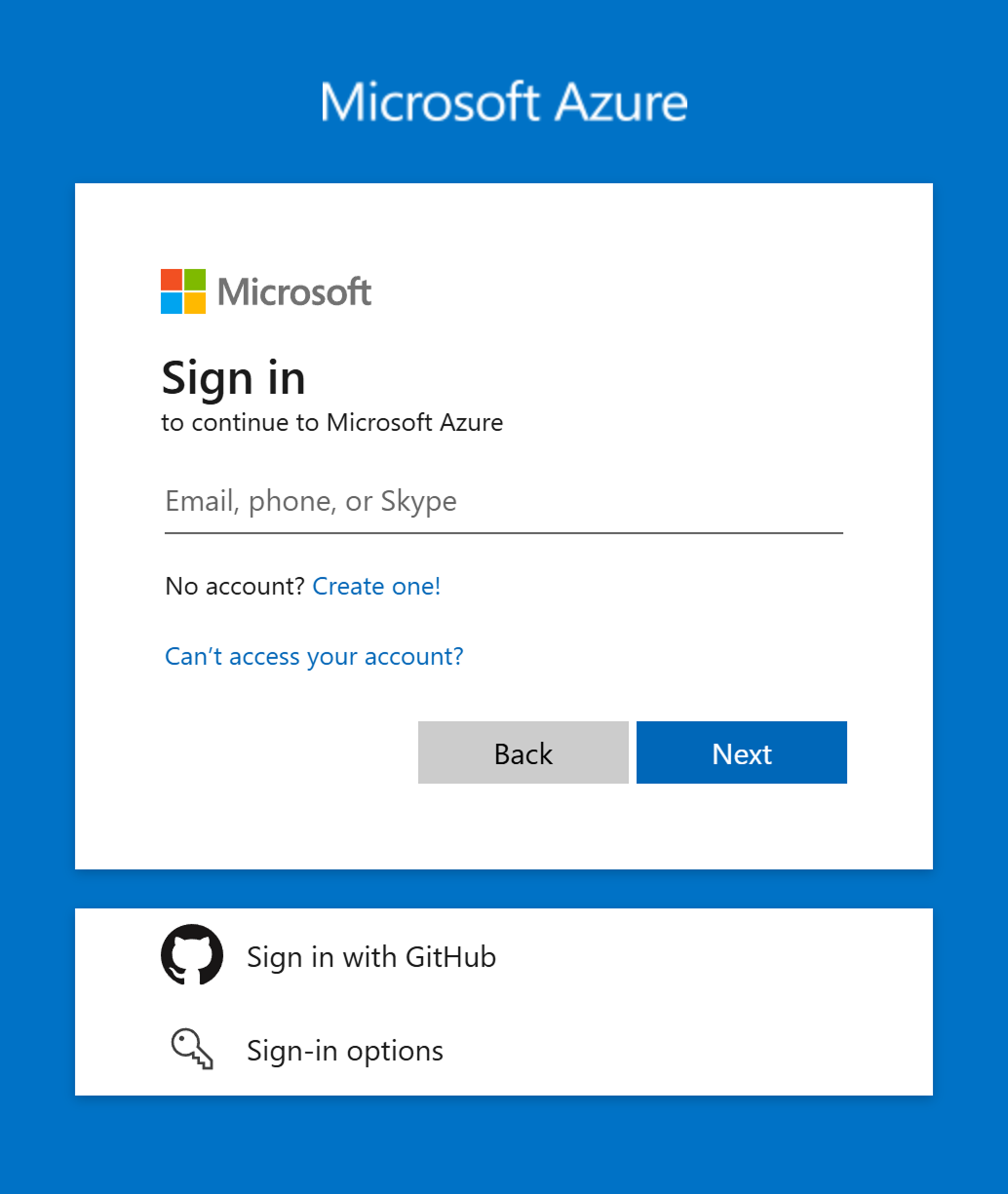
Log into Azure portal using the credentials of the user to be associated with the D3 connection.
-
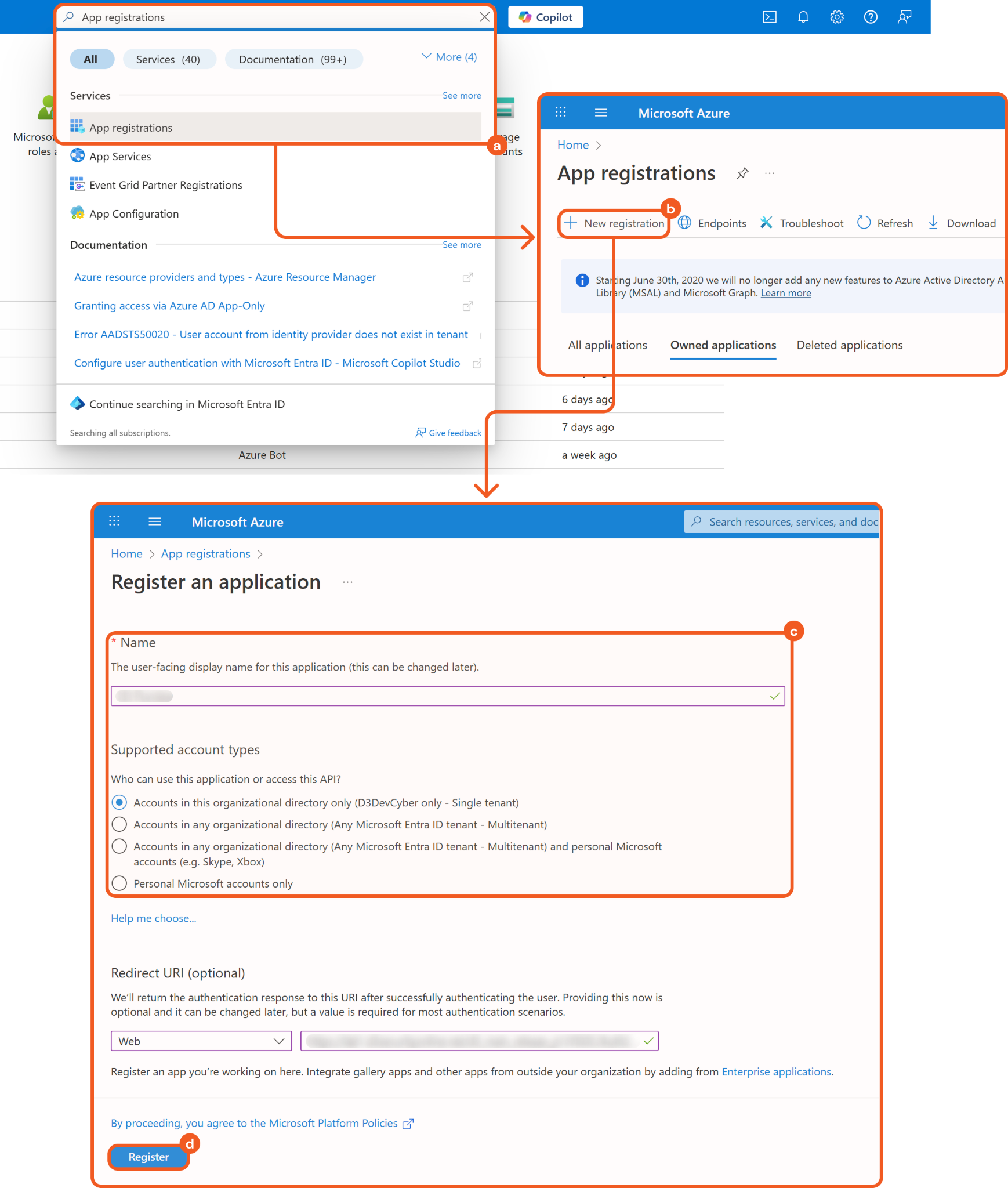
Register a new application.
-
Search for and select the App registrations option.
-
Click the + New registration button.
-
Enter a unique name and select a supported account type.
-
Click the Register button.
-
-
Copy the Tenant ID (a) and Client ID (b) on the Overview page.
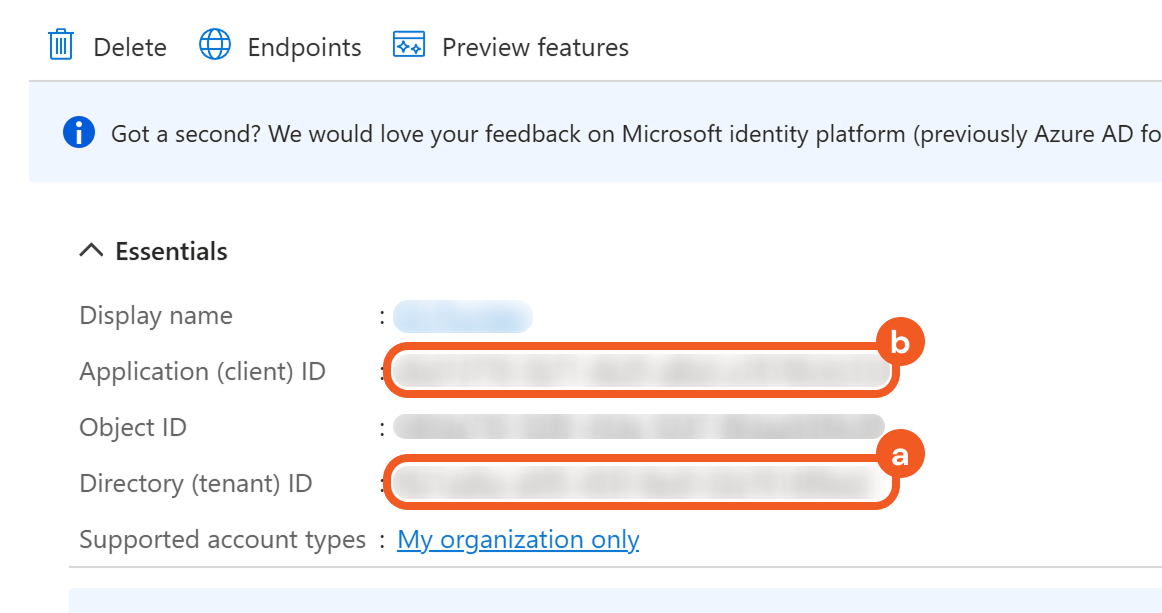
Refer to steps 3.i.1 and 3.i.2 in Configuring D3 SOAR to Work with Microsoft Defender XDR.
-
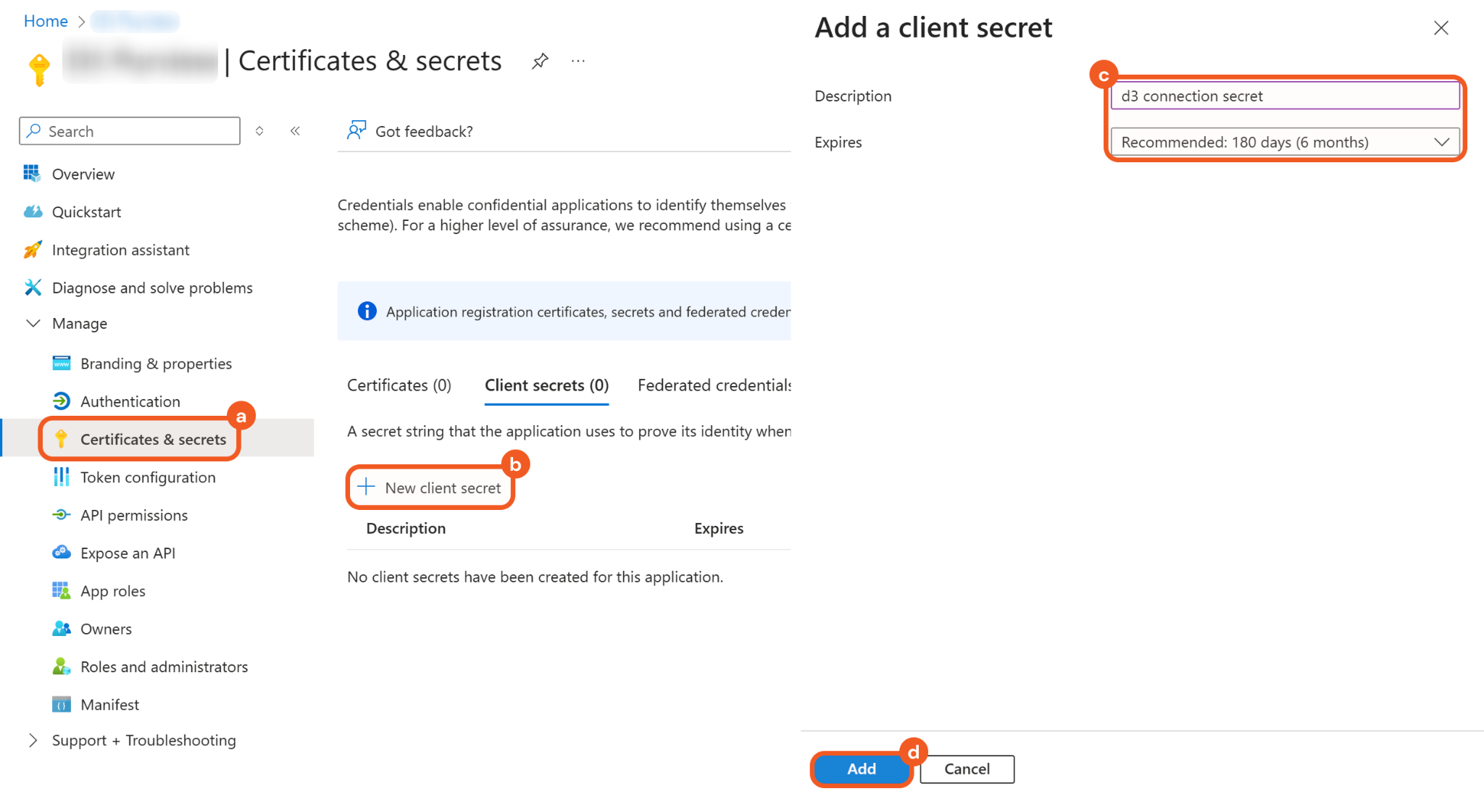
Create the client secret.
-
Navigate to the Certificates & secrets tab.
-
Click the + New client secret button.
-
Add a description and configure the expiry time.
-
Click the Add button.
-
-
Save the client secret Value in a secure location.

Refer to step 3.i.3 in Configuring D3 SOAR to Work with Microsoft Defender XDR.
Configure the API Permissions
-
Select the API permissions menu item, then click the + Add a permission button.
.png?cb=f33060685ca90bea0f6669b655342795)
-
Follow step 8 and/or step 9 to configure Microsoft Graph API permissions, Microsoft Threat Protection permissions, or both, based on the commands to use.
Refer to the Permission Requirements table for details.
-
Configure the Microsoft Graph API permissions.
.png?cb=445d45b843ff167d0ce7475613ddf4c5)
Microsoft Graph permissions required for the Test Connection command. -
Select the Microsoft Graph card.
-
Click the Application permission option.
-
Select the target permission scopes.
-
-
Configure the Microsoft Threat Protection permissions.
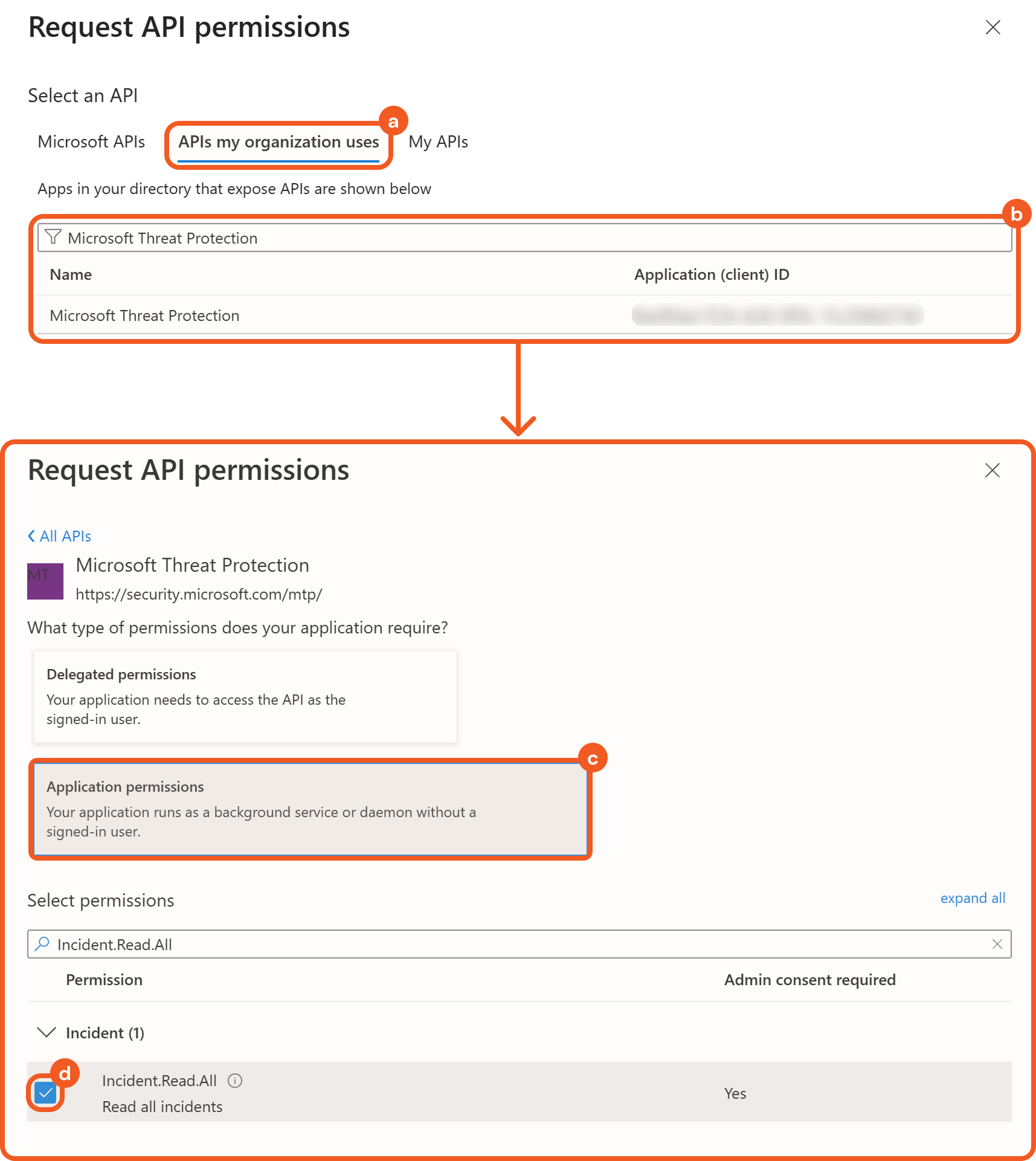
Microsoft Threat Protection permissions required for the Test Connection command. -
Select the APIs my organization uses tab.
-
Search for Microsoft Threat Protection and select the matching option.
-
Click the Application permissions option.
-
Select the target permission scopes.
-
-
Click the Add permissions once all the required permission scopes have been added.
.png?cb=d287b91642bb76d392f955a8106589c6)
-
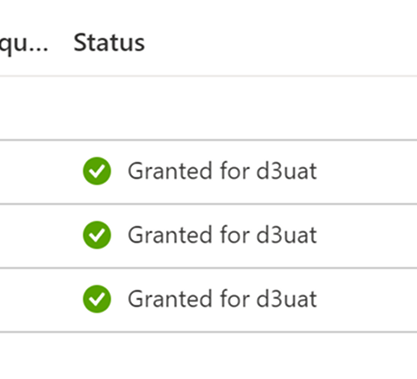
Click the Grant admin consent for <tenant> button, then select the Yes button to approve permissions that require admin consent—as indicated in the Status column.
.png?cb=a386b082e41439286b0f92efc44a4d47)
-
After admin consent has been granted, a green checkmark will appear.
READER NOTE
Contact an organization administrator if the Grant admin consent for <tenant> button is disabled, indicating insufficient privileges to perform the action.
Configuring D3 SOAR to Work with Microsoft Defender XDR
-
Log in to D3 SOAR.
-
Find the Microsoft Defender XDR integration.
.png?cb=ec765ec3f3f13ed5b4400e431cc29945)
-
Navigate to Configuration on the top header menu.
-
Click on the Integration icon on the left sidebar.
-
Type Microsoft Defender XDR in the search box to find the integration, then click it to select it.
-
Click + Connection, on the right side of the Connections section. A new connection window will appear.
-
-
Configure the following fields to create a connection to Microsoft Defender XDR.
.png?cb=58a411cd4c0c4487d4e2d7f205ce5696)
-
Connection Name: The desired name for the connection.
-
Site: The site on which to use the integration connection. Use the drop-down menu to select the site. The Share to Internal Sites option enables all internal sites to use the connection. Selecting a specific site will only enable that site to use the connection.
-
Recipient site for events from connections Shared to Internal Sites: This field is displayed when Share to Internal Sites is selected for the Site field, allowing selection of the internal site for deploying the integration connection.
-
Agent Name (Optional): The proxy agent required to build the connection. Use the dropdown menu to select the proxy agent from a list of previously configured proxy agents.
-
Description (Optional): The description for the connection.
-
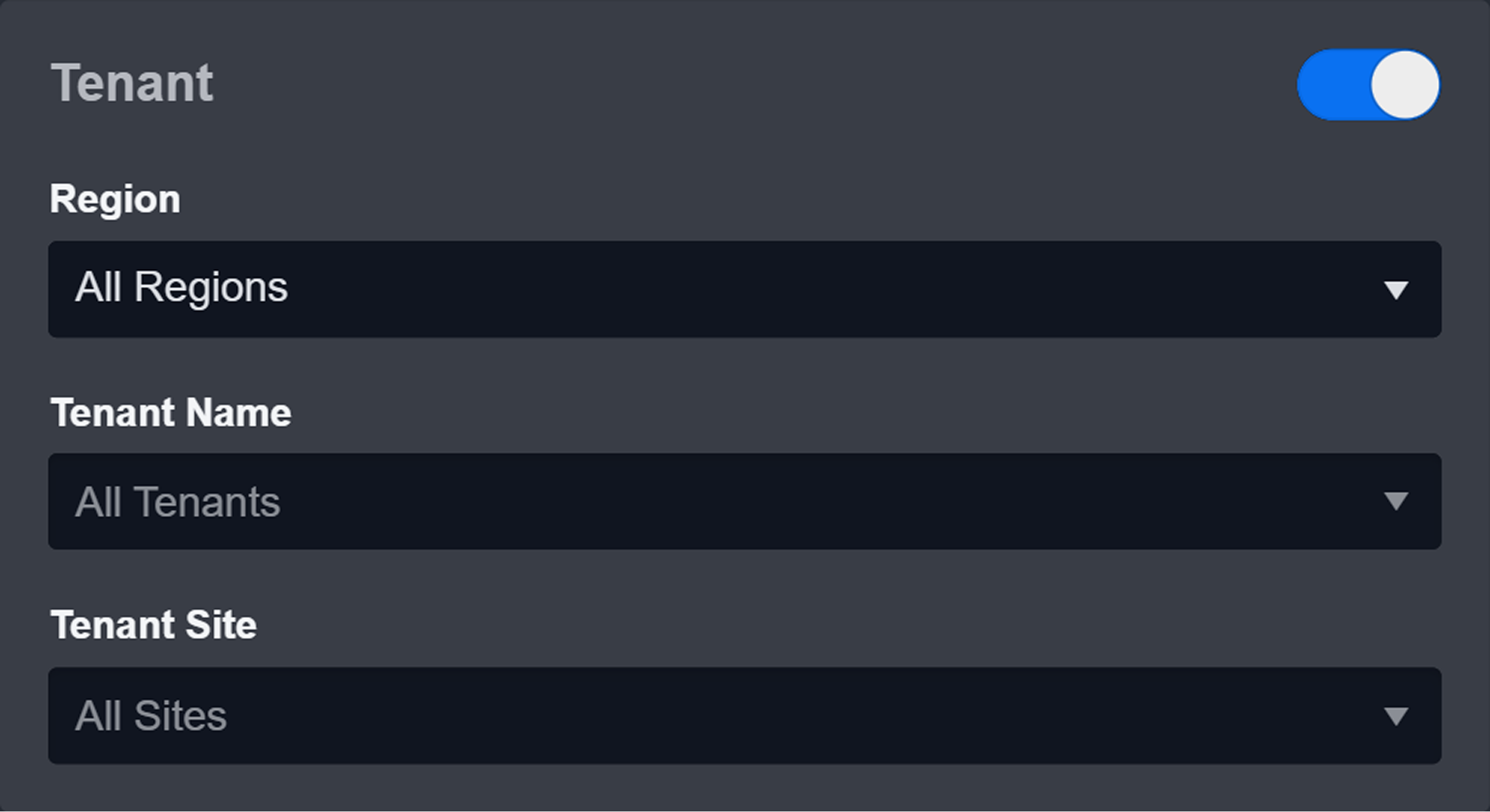
Tenant (Optional): When configuring the connection from a master tenant site, users can choose the specific tenant sites with which to share the connection. Once this setting is enabled, users can filter and select the desired tenant sites from the dropdowns to share the connection.
-
Configure User Permissions: Defines which users have access to the connection.
-
Active: The checkbox that enables the connection to be used when selected.
-
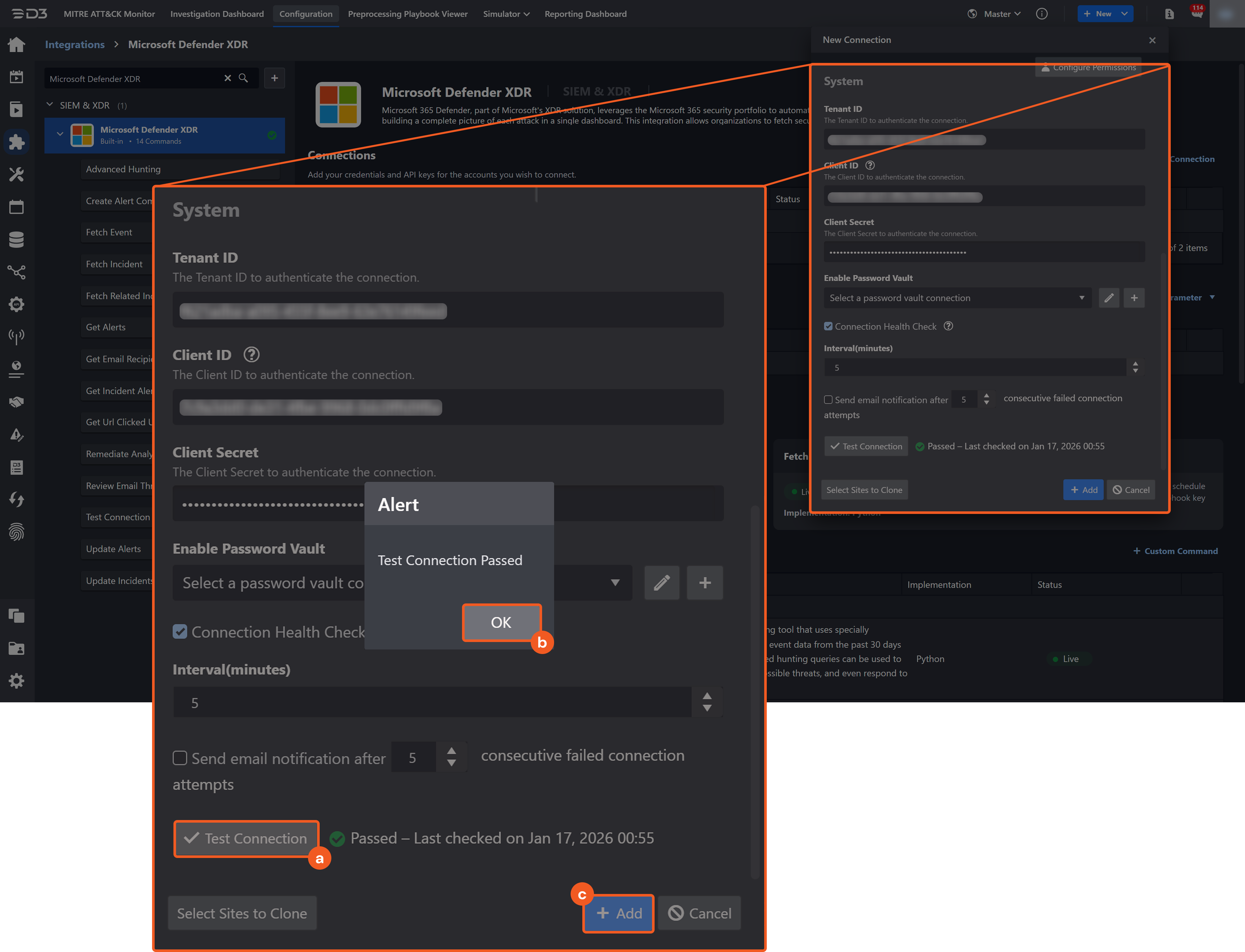
System: This section contains the parameters defined specifically for the integration. These parameters must be configured to create the integration connection.
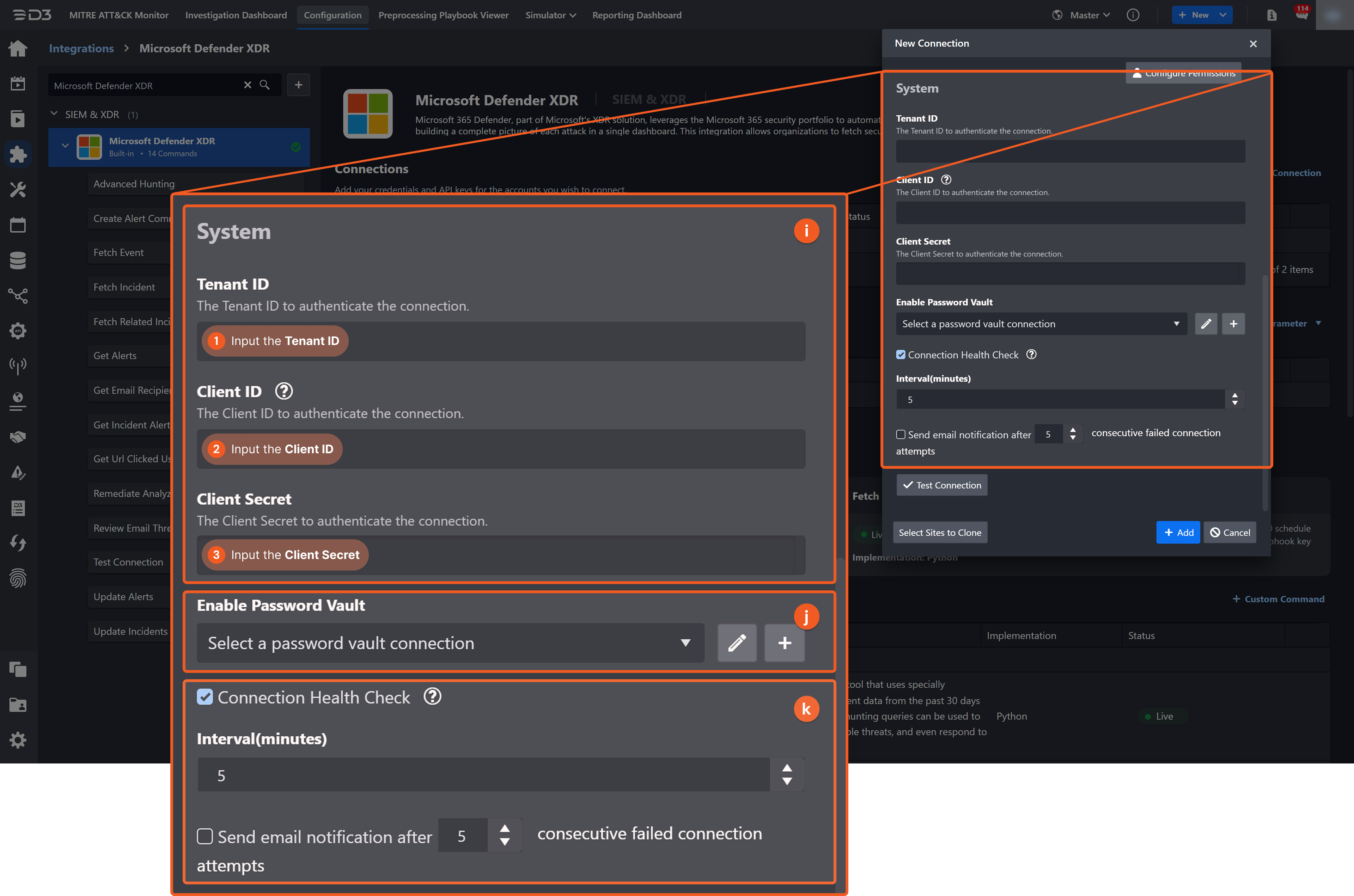
1. Input the Tenant ID. Refer to step 3 in Registering an Application.2. Input the Client ID. Refer to step 3 in Registering an Application.
3. Input the Client Secret. Refer to step 5 in Registering an Application.
-
Connection Health Check: Periodically checks the connection status by scheduling the Test Connection command at the specified interval (in minutes). Available only for active connections, this feature also allows configuring email notifications for failed attempts.
-
Enable Password Vault: An optional feature that allows users to take the stored credentials from their own password vault. Refer to the password vault connection guide if needed.
-
-
Test the connection.
-
Click on the Test Connection button to verify credentials and connectivity. A success alert displays Passed with a green checkmark. If the connection fails, review the parameters and retry.
-
Click OK to close the alert window.
-
Click + Add to create and add the configured connection.
-
Commands
Microsoft Defender XDR includes the following executable commands for users to set up schedules or create playbook workflows. With the Test Command, users can execute these commands independently for playbook troubleshooting.
Integration API Note
For more information about the Microsoft Defender XDR API, refer to the Microsoft Defender XDR API reference.
READER NOTE
Certain permissions are required for each command. Refer to the Permission Requirements and Configuring Microsoft Defender XDR to Work with D3 SOAR for detailed information.
Note for Time-related parameters
The input format of time-related parameters may vary based on user account settings, which may cause the sample data in commands to differ from what is displayed. To adjust the time format, follow these steps:
-
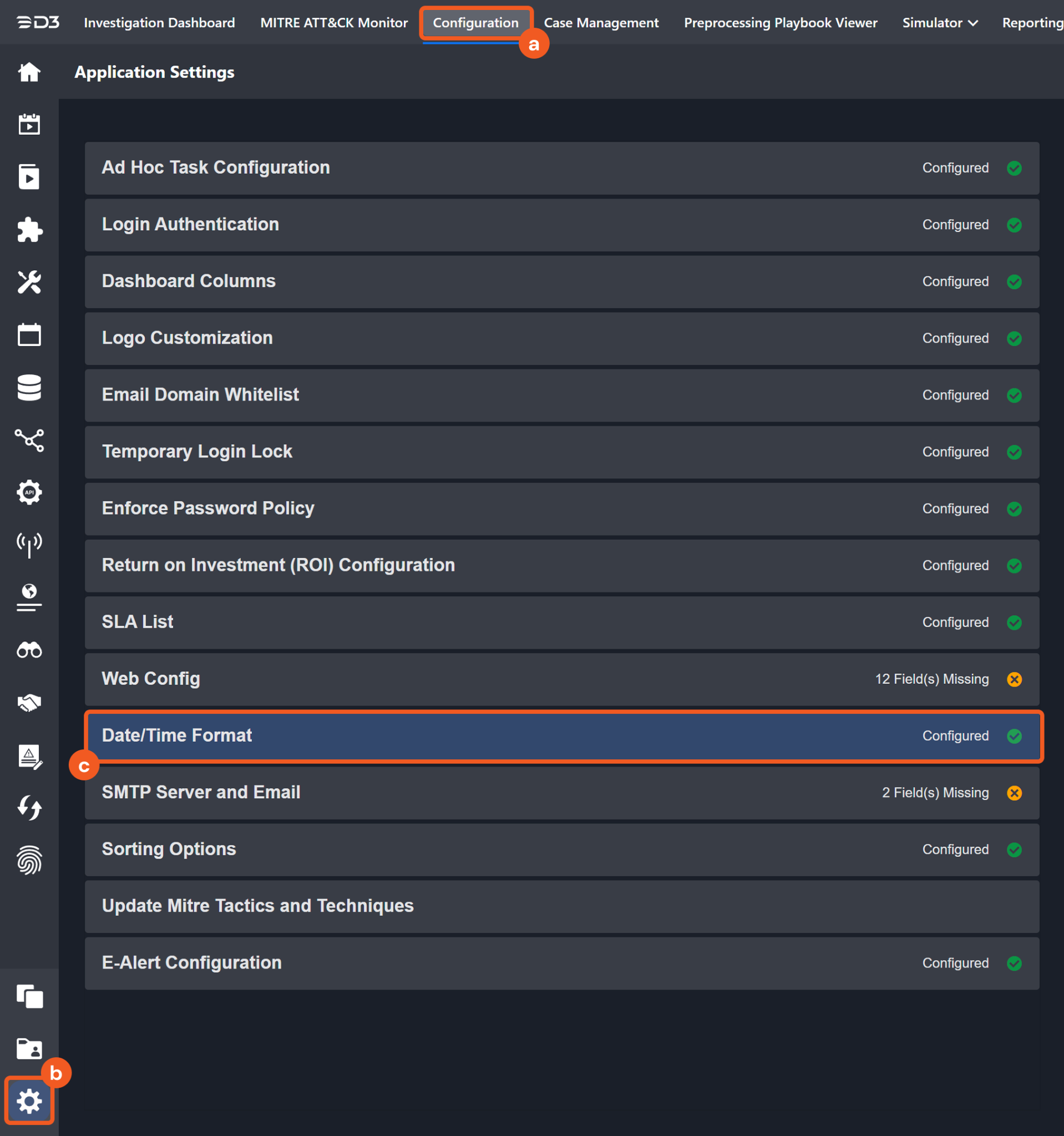
Navigate to Configuration > Application Settings. Select Date/Time Format.
-
Choose the desired date and time format, then click on the Save button.
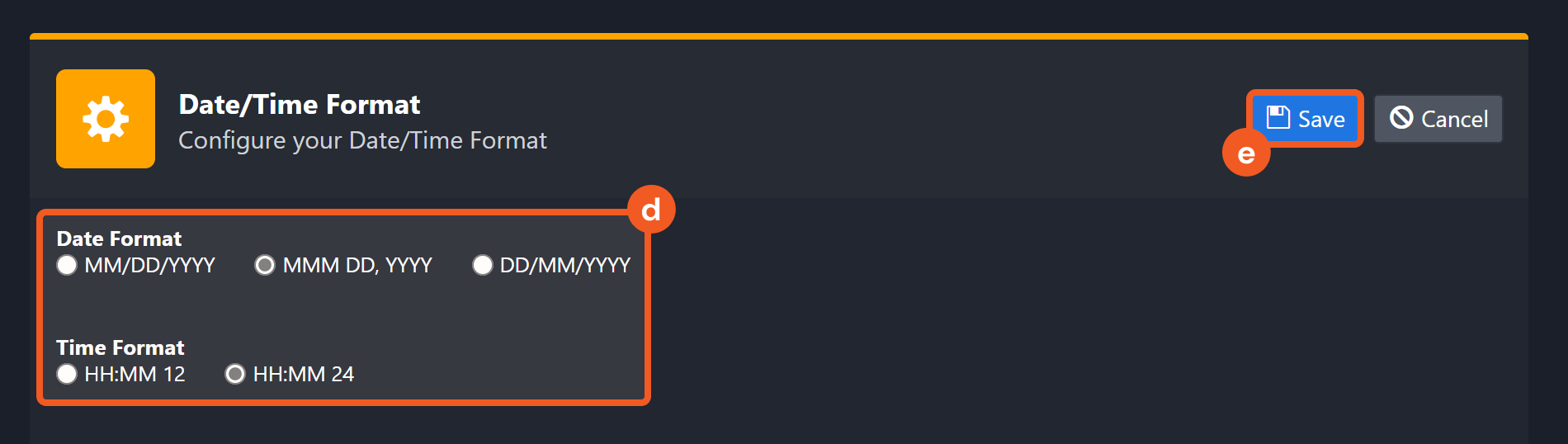
The selected time format will now be visible when configuring Date/Time command input parameters.
Advanced Hunting
Advanced hunting is a threat-hunting tool that uses specially constructed queries to examine the event data from the past 30 days. Advanced hunting queries can be used to inspect unusual activities, detect possible threats, and even respond to attacks.
READER NOTE
-
Queries run only on data from the past 30 days.
-
Results are limited to a maximum of 100,000 rows.
-
Execution limits per tenant are enforced as follows:
-
API calls: up to 45 calls per minute and up to 1,500 calls per hour.
-
Execution time: up to 10 minutes per hour and up to 3 hours per day.
-
Single-request execution time: up to 200 seconds.
-
-
An HTTP 429 response indicates a quota limit has been reached due to request volume or CPU usage. The response body identifies the specific limit.
-
The maximum size of a single query result is 124 MB. If exceeded, an HTTP 400 Bad Request error is returned with a message indicating the result size limit was exceeded.
Input
|
Input Parameter |
Required/Optional |
Description |
Example |
|
Query |
Required |
The Kusto Query Language query string that defines the search logic. KQL syntax is case-sensitive and applies to table names, column names, operators, and functions. Refer to Kusto Query Language (KQL) for more information. |
EmailEvents | where RecipientEmailAddress == "phish@d3soar.com" | project Timestamp, SenderMailFromAddress, SenderIPv4, RecipientEmailAddress, Subject, InternetMessageId | order by Timestamp desc | limit 3 |
Output
To view the sample output data for all commands, refer to this article.
Error Handling
If the Return Data is Failed, an Error tab will appear in the Test Result window.
The error tab contains the details responded from D3 SOAR or third-party API calls, including Failure Indicator, Status Code, and Message. This can help locate the root cause of a command failure.
|
Parts in Error |
Description |
Example |
|
Failure Indicator |
Indicates the command failure that happened at a specific input and/or API call. |
Advanced Hunting failed. |
|
Status Code |
The response code issued by the third-party API server or the D3 SOAR system that can be used to locate the corresponding error category. For example, if the returned status code is 401, the selected connection is unauthorized to run the command. The user or system support would need to check the permission setting in the Microsoft Defender XDR portal. Refer to the Common Microsoft Defender XDR REST API Error Codes for details. |
Status Code: 400. |
|
Message |
The raw data or captured key error message from the integration API server about the API request failure. |
Message: Invalid query. |
|
Error Sample Data Advanced Hunting failed. Status Code: 400. Message: Invalid query. |
Advanced Hunting V2
Advanced hunting is a threat-hunting tool that uses specially constructed queries to examine the event data from the past 30 days. Advanced hunting queries can be used to inspect unusual activities, detect possible threats, and even respond to attacks. This command can query advanced hunting tables across more Microsoft Defender XDR products.
READER NOTE
-
Queries run only on data from the past 30 days.
-
Results are limited to a maximum of 100,000 rows.
-
Execution limits per tenant are enforced as follows:
-
API calls: up to 45 calls per minute and up to 1,500 calls per hour.
-
Execution time: up to 10 minutes per hour and up to 3 hours per day.
-
Single-request execution time: up to 200 seconds.
-
-
An HTTP 429 response indicates a quota limit has been reached due to request volume or CPU usage. The response body identifies the specific limit.
-
The maximum size of a single query result is 124 MB. If exceeded, an HTTP 400 Bad Request error is returned with a message indicating the result size limit was exceeded.
Input
|
Input Parameter |
Required/Optional |
Description |
Example |
|
Query |
Required |
The Kusto Query Language query string that defines the search logic. KQL syntax is case-sensitive and applies to table names, column names, operators, and functions. Refer to Kusto Query Language (KQL) for more information. |
EmailEvents | where RecipientEmailAddress == "phish@d3soar.com" | project Timestamp, SenderMailFromAddress, SenderIPv4, RecipientEmailAddress, Subject, InternetMessageId | order by Timestamp desc | limit 3 |
Output
To view the sample output data for all commands, refer to this article.
Error Handling
If the Return Data is Failed, an Error tab will appear in the Test Result window.
The error tab contains the details responded from D3 SOAR or third-party API calls, including Failure Indicator, Status Code, and Message. This can help locate the root cause of a command failure.
|
Parts in Error |
Description |
Example |
|
Failure Indicator |
Indicates the command failure that happened at a specific input and/or API call. |
Advanced Hunting failed. |
|
Status Code |
The response code issued by the third-party API server or the D3 SOAR system that can be used to locate the corresponding error category. For example, if the returned status code is 401, the selected connection is unauthorized to run the command. The user or system support would need to check the permission setting in the Microsoft Defender XDR portal. Refer to the Common Microsoft Defender XDR REST API Error Codes for details. |
Status Code: 400. |
|
Message |
The raw data or captured key error message from the integration API server about the API request failure. |
Message: Invalid query. |
|
Error Sample Data Advanced Hunting failed. Status Code: 400. Message: Invalid query. |
Create Alert Comment
Creates comments for existing alerts.
READER NOTE
Alert IDs is a required parameter to run this command.
-
Run the Fetch Event command with Event Type set to Defender Alert to obtain the Alert IDs. Alert IDs can be found in the raw data at $.value[*].id.
-
The Threat Submission event type does not have alert IDs in its returned data.
Input
|
Input Parameter |
Required/Optional |
Description |
Example |
|
Alert IDs |
Required |
The IDs of the alerts that require comments. Alert IDs can be obtained using the Fetch Event command with Event Type set to Defender Alert. Only Defender Alert events include alert ID values. |
JSON
|
|
Comment |
Required |
The comment text added to the specified alerts. |
Alert comment test. 0901b |
Output
To view the sample output data for all commands, refer to this article.
Error Handling
If the Return Data is Partially Successful or Failed, an Error tab will appear in the Test Result window.
The error tab contains the details responded from D3 SOAR or third-party API calls, including Failure Indicator, Status Code, and Message. This can help locate the root cause of a command failure.
|
Parts in Error |
Description |
Example |
|
Failure Indicator |
Indicates the command failure that happened at a specific input and/or API call. |
Create Alert Comment failed. |
|
Status Code |
The response code issued by the third-party API server or the D3 SOAR system that can be used to locate the corresponding error category. For example, if the returned status code is 401, the selected connection is unauthorized to run the command. The user or system support would need to check the permission setting in the Microsoft Defender XDR portal. Refer to the Common Microsoft Defender XDR REST API Error Codes for details. |
Status Code: 404. |
|
Message |
The raw data or captured key error message from the integration API server about the API request failure. |
Message: Alert IDs Not Found. |
|
Error Sample Data Create Alert Comment failed. Status Code: 404. Message: Alert IDs Not Found. |
Fetch Event
Returns events from Microsoft Defender based on the selected event type. This API uses a beta version in Microsoft Graph and is subject to change. Use in production environments is not supported.
READER NOTE
This command uses the beta API version.
Input
|
Input Parameter |
Required/Optional |
Description |
Example |
|
Start Time |
Optional |
The start time for fetching threat submissions or defender alerts or incidents in UTC time.
For all three event types, if this parameter is not defined, the default start time is 30 days before the current time. |
2023-03-10 19:40 |
|
End Time |
Optional |
The end time for fetching threat submissions or defender alerts or incidents in UTC time.
If this parameter is not defined, the default end time is the current time. |
2023-03-10 21:40 |
|
Number of Event(s) Fetched |
Optional |
The maximum number of events to retrieve. By default, all events matching the time range and search criteria will be returned. |
10 |
|
Event Type |
Optional |
The event type to retrieve. Valid options are:
By default, the value is set to Threat Submission. |
Defender Alert |
|
Search Condition |
Optional |
The filter query applied to results. This parameter applies only to Defender Alert and Incident events. Supported filter properties include lastUpdateTime, incidentId, investigationId, status, severity, and category. Refer to OData queries with Microsoft Defender for Endpoint for more information. |
Defender Alert: serviceSource in ("microsoftDataLossPrevention") Incident: status eq 'Active' |
|
Tolerance Scope |
Optional |
The tolerance scope in minutes of the query to ingest events between start and end time to avoid the loss of events. The events will be fetched between {Start Time - Tolerance Scope, End Time}. |
10 |
Output
To view the sample output data for all commands, refer to this article.
Event Field Mapping
See Field Mappings.
The Microsoft Defender XDR system integration includes pre-configured field mappings for the default event source.
The Default Event Source is the default system-provided set of field mappings applied when the fetch event command is executed. It includes a Main Event JSON Path, which is the JSONPath expression that points to the base array of event objects. The source field path continues from this array to locate the required data.
The Main Event JSON Path can be viewed by clicking on the Edit Event Source button.
-
Main Event JSON Path: $.value
The value array contains the event objects. Within each event object, the key eventType denotes the Event Type field. As such, the full JSONPath expression to extract the Event Type is $.value.eventType.
-
Event Source for Incident
The D3 system configures the field mappings which are specific to the Incident events. If a source field in the field mapping is not found, the corresponding field mapping will be ignored. Because the eventType field in the raw data for Incident events consistently has the value incident, these events can be identified by the Search String: {eventType}="incident". Click Edit Event Source to view the Search String.

-
Threat Submission Event
The D3 system configures the field mappings which are specific to the Threat Submission events. If a source field in the field mapping is not found, the corresponding field mapping will be ignored. Because the eventType field in the raw data for Threat Submission events consistently has the value threatSubmission, these events can be identified by the {eventType}="threatSubmission". Click Edit Event Source to view the Search String.

-
Defender Alert
The D3 system configures the field mappings which are specific to the Defender Alert events. If a source field in the field mapping is not found, the corresponding field mapping will be ignored. Because the eventType field in the raw data for Defender Alert events consistently has the value defenderAlert, these events can be identified by the {eventType}="defenderAlert". Click Edit Event Source to view the Search String.

The pre-configured field mappings are detailed below:
|
Field Name |
Source Field |
|
Default |
|
|
__Investigation_State |
.investigationState |
|
AAD User ID |
.entities[?(@.entityType=='User')].aadUserId |
|
Account Name |
.entities[?(@.entityType=='User')].accountName |
|
Allow Or Block List Action |
.tenantAllowOrBlockListAction |
|
Assigned To |
.assignedTo |
|
Classification |
.classification |
|
customAssignee |
.assignedTo |
|
customClassification |
.classification |
|
customComments |
.comments |
|
customCreatedTime |
.createdTime |
|
customDetermination |
.determination |
|
customLastUpdatedTime |
.lastUpdateTime |
|
customSeverity |
.severity |
|
customStatus |
.status |
|
customTags |
.tags |
|
Detected Files |
.result.detectedFiles |
|
Detected URLs |
.result.detectedUrls |
|
Detection Source |
.detectionSource |
|
Detection Status |
.entities[*].detectionStatus |
|
Detector ID |
.detectorId |
|
Determination |
.determination |
|
Device ID |
.entities[*].deviceId |
|
Email Address |
.entities[?(@.entityType=='Mailbox')].mailboxAddress |
|
Impacted Device AAD ID |
.devices[*].aadDeviceId |
|
Impacted Device Logged On Users |
.devices[*].loggedOnUsers[*].accountName |
|
Impacted Device Name |
.devices[*].deviceDnsName |
|
Entity Verdict |
.entities[*].verdict |
|
IP Address |
.entities[?(@.entityType=='Ip')].ipAddress |
|
Incident ID |
.incidentId |
|
Original Category |
.originalCategory |
|
Process Filename |
.entities[?(@.entityType=='Process')].fileName |
|
Process Hashes SHA256 |
.entities[?(@.entityType=='Process')].sha256 |
|
Recipient Email Address |
.recipientEmailAddress |
|
Result Category |
.result.category |
|
Result Details |
.result.detail |
|
Sender IP |
.senderIP |
|
Title |
.incidentName |
|
Unique Key |
.incidentId |
|
App |
.entities[*].applicationName |
|
Event category |
.category |
|
Event code |
.alertId |
|
Unique Event Key |
.alertId |
|
Event name |
.title |
|
Event Type |
.contentType |
|
File Hash SHA1 |
.entities[?(@.entityType=='File')].sha1 |
|
File Hash SHA256 |
.entities[?(@.entityType=='File')].sha256 |
|
Filename |
.entities[?(@.entityType=='File')].fileName |
|
Filepath |
.entities[?(@.entityType=='File')].filePath |
|
Start Time |
.creationTime |
|
Description |
.description |
|
Message ID |
.entities[?(@.entityType=='MailMessage')].internetMessageId |
|
Parent process image path |
.entities[?(@.entityType=='Process')].parentProcessFilePath |
|
Parent process ID |
.entities[?(@.entityType=='Process')].parentProcessId |
|
Parent process name |
.entities[?(@.entityType=='Process')].parentProcessFileName |
|
Process command line |
.entities[?(@.entityType=='Process')].processCommandLine |
|
Process file path |
.entities[?(@.entityType=='Process')].filePath |
|
Process Hashes SHA1 |
.entities[?(@.entityType=='Process')].sha1 |
|
Process ID |
.entities[?(@.entityType=='Process')].processId |
|
Receipt time |
.receivedDateTime |
|
Recipient |
.entities[?(@.entityType=='MailMessage')].recipient |
|
Registry hive |
.entities[?(@.entityType=='Registry')].registryHive |
|
Registry key name |
.entities[?(@.entityType=='Registry')].registryKey |
|
Registry value data |
.entities[?(@.entityType=='Registry')].registryValue |
|
Sender |
.entities[?(@.entityType=='MailMessage')].sender |
|
Severity |
.severity |
|
Source vendor name |
.serviceSource |
|
Source hostname |
.entities[?(@.['@odata.type'] == '#microsoft.graph.security.deviceEvidence' @.roles[*] == 'source')].hostName |
|
Source |
.source |
|
Status |
.status |
|
Email subject |
.entities[?(@.entityType=='MailMessage')].subject |
|
Tactics |
.category |
|
Techniques |
.mitreTechniques |
|
URL |
.entities[?(@.entityType=='Url')].url |
|
Username |
.entities[?(@.entityType=='User')].userPrincipalName |
|
Event Source for Threat Submission Event (Search String: {eventType}="threatSubmission") The search string format is {jsonpath}=value. If the value of the eventType key is threatSubmission in the event object under raw data, then the Threat Submission-related events will use the field mapping below. |
|
|
Unique Event Key |
.id |
|
Start Time |
.createdDateTime |
|
Email Subject |
.subject |
|
Event Type |
.contentType |
|
Event Category |
.category |
|
Status |
.status |
|
Source |
.source |
|
Message ID |
.internetMessageId |
|
Source vendor name |
.clientSource |
|
Recipient Email Address |
.recipientEmailAddress |
|
Sender |
.sender |
|
Sender IP |
.senderIP |
|
Event Source for Defender Alert (Search String: {eventType}="defenderAlert") The search string format is {jsonpath}=value. If the value of the eventType key is defenderAlert in the event object under raw data, then the Defender Alert-related events will use the field mapping below. |
|
|
Unique Event Key |
.id |
|
Source vendor name |
.detectionSource |
|
Creation Time |
.createdDateTime |
|
Title |
.title |
|
Description |
.description |
|
Tactics |
.category |
|
Techniques |
.mitreTechniques |
|
Severity |
.severity |
|
Incident URL |
.incidentWebUrl |
|
Event Type |
.detectionSource |
|
Status |
.status |
|
Incident ID |
.incidentId |
|
Classification |
.classification |
|
Determination |
.determination |
|
First Activity Time |
.firstActivityDateTime |
|
Last Activity Time |
.lastActivityDateTime |
|
Assigned To |
.assignedTo |
|
IP Address |
.evidence[?(@.@odata.type=='#microsoft.graph.security.ipEvidence')].ipAddress |
|
Username |
.evidence[?(@.@odata.type=='#microsoft.graph.security.userEvidence')].userAccount.userPrincipalName |
|
App |
.evidence[?(@.@odata.type=='#microsoft.graph.security.cloudApplicationEvidence')].displayName |
|
URL |
.evidence[?(@.@odata.type=='#microsoft.graph.security.urlEvidence')].url |
|
Filename |
.evidence[?(@.@odata.type=='#microsoft.graph.security.fileEvidence')].fileDetails.fileName |
|
File Hash SHA1 |
.evidence[?(@.@odata.type=='#microsoft.graph.security.fileEvidence')].fileDetails.sha1 |
|
File Hash SHA256 |
.evidence[?(@.@odata.type=='#microsoft.graph.security.fileEvidence')].fileDetails.sha256 |
|
Filepath |
.evidence[?(@.@odata.type=='#microsoft.graph.security.fileEvidence')].fileDetails.filePath |
|
Parent process ID |
.evidence[?(@.@odata.type=='#microsoft.graph.security.processEvidence')].parentProcessId |
|
Process ID |
.evidence[?(@.@odata.type=='#microsoft.graph.security.processEvidence')].processId |
|
Process command line |
.evidence[?(@.@odata.type=='#microsoft.graph.security.processEvidence')].processCommandLine |
|
Email subject |
.evidence[?(@.@odata.type=='#microsoft.graph.security.analyzedMessageEvidence')].subject |
|
Sender |
.evidence[?(@.@odata.type=='#microsoft.graph.security.analyzedMessageEvidence')].p1Sender.emailAddress |
|
P2 Sender |
.evidence[?(@.@odata.type=='#microsoft.graph.security.analyzedMessageEvidence')].p2Sender.emailAddress |
|
Recipient |
.evidence[?(@.@odata.type=='#microsoft.graph.security.analyzedMessageEvidence')].recipientEmailAddress |
|
Device ID |
.evidence[?(@.@odata.type=='#microsoft.graph.security.deviceEvidence')].mdeDeviceId |
|
Email Address |
.evidence[?(@.@odata.type=='#microsoft.graph.security.mailboxEvidence')].primaryAddress |
|
Registry hive |
.evidence[?(@.@odata.type=='#microsoft.graph.security.registryValueEvidence')].registryHive |
|
Registry key name |
.evidence[?(@.@odata.type=='#microsoft.graph.security.registryValueEvidence')].registryKey |
|
Registry value data |
.evidence[?(@.@odata.type=='#microsoft.graph.security.registryValueEvidence')].registryValue |
|
Message ID |
.evidence[?(@.@odata.type=='#microsoft.graph.security.analyzedMessageEvidence')].internetMessageId |
|
Process Filename |
.evidence[?(@.@odata.type=='#microsoft.graph.security.processEvidence')].imageFile.fileName |
|
Process Hashes SHA1 |
.evidence[?(@.@odata.type=='#microsoft.graph.security.processEvidence')].imageFile.sha1 |
|
Process Hashes SHA256 |
.evidence[?(@.@odata.type=='#microsoft.graph.security.processEvidence')].imageFile.sha256 |
|
Process file path |
.evidence[?(@.@odata.type=='#microsoft.graph.security.processEvidence')].imageFile.filePath |
|
Parent process name |
.evidence[?(@.@odata.type=='#microsoft.graph.security.processEvidence')].parentProcessImageFile.fileName |
|
Parent process image path |
.evidence[?(@.@odata.type=='#microsoft.graph.security.processEvidence')].parentProcessImageFile.filePath |
Error Handling
If the Return Data is Failed, an Error tab will appear in the Test Result window.
The error tab contains the details responded from D3 SOAR or third-party API calls, including Failure Indicator, Status Code, and Message. This can help locate the root cause of a command failure.
|
Parts in Error |
Description |
Example |
|
Failure Indicator |
Indicates the command failure that happened at a specific input and/or API call. |
Fetch Event failed. |
|
Status Code |
The response code issued by the third-party API server or the D3 SOAR system that can be used to locate the corresponding error category. For example, if the returned status code is 401, the selected connection is unauthorized to run the command. The user or system support would need to check the permission setting in the Microsoft Defender XDR portal. Refer to the Common Microsoft Defender XDR REST API Error Codes for details. |
Status Code: 401. |
|
Message |
The raw data or captured key error message from the integration API server about the API request failure. |
Message: Unauthorized. |
|
Error Sample Data Fetch Event failed. Status Code: 401. Message: Unauthorized. |
Fetch Related Incident
Returns incidents and related details based on the specified time range and search criteria. Results are ordered by most recently updated incidents.
READER NOTE
-
This command requires only the Incident.Read.All permission to execute successfully. The Test Connection command also requires the SecurityAlert.Read.All permission. A failed connection test due to missing SecurityAlert.Read.All does not prevent this command from running successfully.
-
If all optional fields are empty, incidents from the past 24 hours will be returned based on Created Time.
-
Searches can use Created Time or Updated Time. Results are ordered by most recently updated incidents.
-
If an incident has not been updated, Updated Time equals Created Time.
-
API rate limits are 100 calls per minute and 1,500 calls per hour.
Input
|
Input Parameter |
Required/Optional |
Description |
Example |
|
The Hours Before |
Optional |
The number of hours prior to the current time (in UTC) used to retrieve incidents. By default, the value is 24. |
1 |
|
Top Recent Incident Count |
Optional |
The maximum number of incidents to return. By default, the value is 100. |
10 |
|
Search Condition |
Optional |
The filter applied when retrieving incidents. Supported fields include lastUpdateTime, createdTime, status, and assignedTo. Refer to OData $filter syntax in Azure Cognitive Search for more information. |
status eq 'Active' and assignedTo eq 'admin@example.com' |
|
Query Time Type |
Optional |
The option to define whether the search uses Created Time or Updated Time. By default, the value is set to Created Time. |
Last Update Time |
Output
To view the sample output data for all commands, refer to this article.
Error Handling
If the Return Data is Failed, an Error tab will appear in the Test Result window.
The error tab contains the details responded from D3 SOAR or third-party API calls, including Failure Indicator, Status Code, and Message. This can help locate the root cause of a command failure.
|
Parts in Error |
Description |
Example |
|
Failure Indicator |
Indicates the command failure that happened at a specific input and/or API call. |
Fetch Related Incident failed. |
|
Status Code |
The response code issued by the third-party API server or the D3 SOAR system that can be used to locate the corresponding error category. For example, if the returned status code is 401, the selected connection is unauthorized to run the command. The user or system support would need to check the permission setting in the Microsoft Defender XDR portal. Refer to the Common Microsoft Defender XDR REST API Error Codes for details. |
Status Code: 400. |
|
Message |
The raw data or captured key error message from the integration API server about the API request failure. |
Message: Invalid Search condition. |
|
Error Sample Data Fetch Related Incident failed. Status Code: 400. Message: Invalid search condition. |
Fetch Incident
Returns incidents and related details based on the specified search conditions.
READER NOTE
-
This command requires only the Incident.Read.All permission to execute successfully. The Test Connection command also requires the SecurityAlert.Read.All permission. A failed connection test due to missing SecurityAlert.Read.All does not prevent this command from running successfully.
-
If all optional fields are empty, all incidents will be returned.
-
Searches can use Created Time or Updated Time. Results are ordered by most recently updated incidents.
-
If an incident has not been updated, Updated Time equals Created Time.
-
API rate limits are 100 calls per minute and 1,500 calls per hour.
Input
|
Input Parameter |
Required/Optional |
Description |
Example |
|
Start Time |
Optional |
The start of the time range used to retrieve incidents (in UTC). |
2022-06-10 00:00 |
|
End Time |
Optional |
The end of the time range used to retrieve incidents (in UTC). |
2022-06-20 00:00 |
|
Number of Incident(s) Fetched |
Optional |
The maximum number of incidents to return. By default, all matching incidents will be returned. |
10 |
|
Search |
Optional |
The filter query applied to results. Query syntax follows OData filter syntax in Azure Cognitive Search. Supported properties include status and assignedTo. Refer to OData $filter syntax in Azure Cognitive Search for more information. |
status eq 'Active' and assignedTo eq '***@example.com' |
|
Query Time Type |
Optional |
The option to retrieve incidents based on Created Time or Updated Time. By default, the value is set to Created Time. |
Last Update Time |
|
Severities |
Optional |
Filters incidents by severity level. Valid options are:
By default, all incidents regardless of their severity level will be returned. |
JSON
|
|
Tolerance Scope |
Optional |
The tolerance scope (in minutes) for the query to fetch incidents between the specified start and end time to avoid incidents loss or fetch failure. The incidents will be fetched between {Start Time - Tolerance Scope, End Time}. The default value is 0. |
10 |
Incident Field Mapping
For this integration, the default incident fields in D3 SOAR are fixed with no built-in source fields. Users can specify the source fields as needed.
Event and Incident Intake Field Mapping
See Field Mappings.
Incident field mapping is required.
Incident Main JSON Path: $.value
|
Field Name |
Source Field |
|
Title |
User-defined |
|
Description |
User-defined |
|
Severity |
User-defined |
|
Incident Category |
User-defined |
|
Incident Type * |
User-defined |
|
Incident Creator |
User-defined |
|
Incident Owner |
User-defined |
|
Incident Playbook |
User-defined |
|
Due In Date |
User-defined |
|
Unique Key |
User-defined |
|
Tactics |
User-defined |
|
Techniques |
User-defined |
Event Field Mapping
Incident Event JSON Path: $.alerts
The event field mappings here are the same as that of Fetch Event.
Output
To view the sample output data for all commands, refer to this article.
Error Handling
If the Return Data is Failed, an Error tab will appear in the Test Result window.
The error tab contains the details responded from D3 SOAR or third-party API calls, including Failure Indicator, Status Code, and Message. This can help locate the root cause of a command failure.
|
Parts in Error |
Description |
Example |
|
Failure Indicator |
Indicates the command failure that happened at a specific input and/or API call. |
Fetch Incident failed. |
|
Status Code |
The response code issued by the third-party API server or the D3 SOAR system that can be used to locate the corresponding error category. For example, if the returned status code is 401, the selected connection is unauthorized to run the command. The user or system support would need to check the permission setting in the Microsoft Defender XDR portal. Refer to the Common Microsoft Defender XDR REST API Error Codes for details. |
Status Code: 400. |
|
Message |
The raw data or captured key error message from the integration API server about the API request failure. |
Message: Invalid Search Condition. |
|
Error Sample Data Fetch Incident failed. Status Code: 400. Message: Invalid Search Condition. |
Get Alerts
Retrieves properties and relationships for specified alerts in an organization based on alert IDs.
READER NOTE
Alert IDs is a required parameter to run this command.
-
Run the Fetch Event command with Event Type set to Defender Alert to obtain the Alert IDs. Alert IDs can be found in the raw data at $.value[*].id.
-
The Threat Submission event type does not have alert IDs in its returned data.
Input
|
Input Parameter |
Required/Optional |
Description |
Example |
|
Alert IDs |
Required |
The IDs of the alerts for which details are retrieved. Alert IDs can be obtained using the Fetch Event command with Event Type set to Defender Alert. Only Defender Alert events include alert ID information. |
JSON
|
Output
To view the sample output data for all commands, refer to this article.
Error Handling
If the Return Data is Partially Successful or Failed, an Error tab will appear in the Test Result window.
The error tab contains the details responded from D3 SOAR or third-party API calls, including Failure Indicator, Status Code, and Message. This can help locate the root cause of a command failure.
|
Parts in Error |
Description |
Example |
|
Failure Indicator |
Indicates the command failure that happened at a specific input and/or API call. |
Get Alerts failed. |
|
Status Code |
The response code issued by the third-party API server or the D3 SOAR system that can be used to locate the corresponding error category. For example, if the returned status code is 401, the selected connection is unauthorized to run the command. The user or system support would need to check the permission setting in the Microsoft Defender XDR portal. Refer to the Common Microsoft Defender XDR REST API Error Codes for details. |
Status Code: 404. |
|
Message |
The raw data or captured key error message from the integration API server about the API request failure. |
Message: Alert IDs Not Found. |
|
Error Sample Data Get Alerts failed. Status Code: 404. Message: Alert IDs Not Found. |
Get Email Recipients
Retrieves recipients of emails that match specified senders and subjects. Results are sorted alphabetically by email address. The date range is limited to the past 30 days.
Input
|
Input Parameter |
Required/Optional |
Description |
Example |
|
Sender Mail From Addresses |
Optional |
The email addresses of senders from the MAIL FROM header, also known as the envelope sender or Return-Path address. |
JSON
|
|
Subject |
Optional |
The email subject used to query recipients. |
suspicious email 521c |
|
Start Time |
Optional |
Email records generated after this time will be returned. By default, the value is 30 days before the End Time. |
2024-05-31T00:35:00Z |
|
End Time |
Optional |
Email records generated before this time will be returned. By default, the value is the current time. |
2024-06-01T00:00:00Z |
Output
To view the sample output data for all commands, refer to this article.
Error Handling
If the Return Data displays Failed, an Error tab will appear in the Test Result window.
The error tab contains the details responded from D3 SOAR or third-party API calls, including Failure Indicator, Status Code, and Message. This can help locate the root cause of a command failure.
|
Parts in Error |
Description |
Example |
|
Failure Indicator |
Indicates the command failure that happened at a specific input and/or API call. |
Get Email Recipients failed. |
|
Status Code |
The response code issued by the third-party API server or the D3 SOAR system that can be used to locate the corresponding error category. For example, if the returned status code is 401, the selected connection is unauthorized to run the command. The user or system support would need to check the permission setting in the Microsoft Defender XDR portal. Refer to the HTTP Status Code Registry for details. |
Status Code: 401. |
|
Message |
The raw data or captured key error message from the integration API server about the API request failure. |
Message: Unauthorized. |
|
Error Sample Data Get Email Recipients failed. Status Code: 401. Message: Unauthorized. |
Get Incident Alerts
Retrieves properties and relationships of alerts associated with a specific incident within a defined time range, based on the incident ID.
READER NOTE
Incident IDs is a required parameter to run this command.
-
Run the Fetch Incident or Fetch Related Incident command to obtain the Incident IDs. Incident ID can be found in the raw data at $.value[*].incidentId.
Input
|
Input Parameter |
Required/Optional |
Description |
Example |
|
Incident ID |
Required |
The ID of the incident for which related alerts are retrieved. Incident IDs can be obtained using the Fetch Incident or Fetch Related Incident command. |
***** |
|
Start Time |
Optional |
The start time used to filter incident alerts (in UTC). Alerts updated after this time will be returned. By default, the value is one day before the End Time. |
2023-09-01 00:00 |
|
End Time |
Optional |
The end time used to filter incident alerts (in UTC). Alerts updated before this time will be returned. By default, the value is the current time. |
2023-09-02 00:00 |
Output
To view the sample output data for all commands, refer to this article.
Error Handling
If the Return Data is Failed, an Error tab will appear in the Test Result window.
The error tab contains the details responded from D3 SOAR or third-party API calls, including Failure Indicator, Status Code, and Message. This can help locate the root cause of a command failure.
|
Parts in Error |
Description |
Example |
|
Failure Indicator |
Indicates the command failure that happened at a specific input and/or API call. |
Get Incident Alerts failed. |
|
Status Code |
The response code issued by the third-party API server or the D3 SOAR system that can be used to locate the corresponding error category. For example, if the returned status code is 401, the selected connection is unauthorized to run the command. The user or system support would need to check the permission setting in the Microsoft Defender XDR portal. Refer to the Common Microsoft Defender XDR REST API Error Codes for details. |
Status Code: 404. |
|
Message |
The raw data or captured key error message from the integration API server about the API request failure. |
Message: Incident IDs Not Found. |
Get Clicked URL Users
Retrieves users who clicked the specified URL links. Returned results are sorted alphabetically by user principal name.
Input
|
Input Parameter |
Required/Optional |
Description |
Example |
|
URLs |
Optional |
The URL links that users clicked. |
JSON
|
Output
To view the sample output data for all commands, refer to this article.
Error Handling
If the Return Data displays Failed, an Error tab will appear in the Test Result window.
The error tab contains the details responded from D3 SOAR or third-party API calls, including Failure Indicator, Status Code, and Message. This can help locate the root cause of a command failure.
|
Parts in Error |
Description |
Example |
|
Failure Indicator |
Indicates the command failure that happened at a specific input and/or API call. |
Get Clicked URL Users failed. |
|
Status Code |
The response code issued by the third-party API server or the D3 SOAR system that can be used to locate the corresponding error category. For example, if the returned status code is 401, the selected connection is unauthorized to run the command. The user or system support would need to check the permission setting in the Microsoft Defender XDR portal. Refer to the HTTP Status Code Registry for details. |
Status Code: 403. |
|
Message |
The raw data or captured key error message from the integration API server about the API request failure. |
Message: Forbidden. |
|
Error Sample Data Get Clicked URL Users failed. Status Code: 403. Message: Forbidden. |
Remediate Analyzed Emails
Triggers email purge actions, including move to junk, move to deleted items, soft delete, hard delete, or move to Inbox, for specified emails identified by network message IDs and recipient email addresses. Emails identified during analysis will be remediated. This command uses the beta API version.
READER NOTE
Network Message IDs and Recipient Email Addresses are required parameters to run this command.
-
Run the Get Email Recipients command to obtain the Network Message IDs. Network Message IDs can be found in the raw data at $.Results[*].NetworkMessageId.
-
Run the Get Email Recipients command to obtain the Recipient Email Addresses. Recipient Email Addresses can be found in the raw data at $.Results[*].RecipientEmailAddress.
This command uses the beta API version.
Input
|
Input Parameter |
Required/Optional |
Description |
Example |
|
Remediation Name |
Required |
The name of the remediation used as a reference in the Action Center. |
Clean up Phish Test email by Jon |
|
Description |
Optional |
The description of the remediation. |
Delete email |
|
Severity |
Optional |
The severity level of the remediation. Valid options are:
|
Medium |
|
Action |
Optional |
The remediation action applied to the email messages. Valid options are:
By default, the value is set to Soft Delete. |
Soft Delete |
|
Network Message IDs |
Required |
The network message IDs targeted for remediation. Network Message IDs can be obtained using the Get Email Recipients command. The option to apply additional filters is supported using the Advanced Hunting command to customize the query. When remediating multiple emails, the network message IDs list and the recipient email addresses list must be in the same order to ensure correct matching. |
JSON
|
|
Recipient Email Addresses |
Required |
The recipient email addresses targeted for remediation. Recipient email addresses can be obtained using the Get Email Recipients command. The option to apply additional filters is supported using the Advanced Hunting command to customize the query. When remediating multiple emails, the network message IDs list and the recipient email addresses list must be in the same order to ensure correct matching. |
JSON
|
Output
To view the sample output data for all commands, refer to this article.
Error Handling
If the Return Data displays Failed, an Error tab will appear in the Test Result window.
The error tab contains the details responded from D3 SOAR or third-party API calls, including Failure Indicator, Status Code, and Message. This can help locate the root cause of a command failure.
|
Parts in Error |
Description |
Example |
|
Failure Indicator |
Indicates the command failure that happened at a specific input and/or API call. |
Remediate Analyzed Emails failed. |
|
Status Code |
The response code issued by the third-party API server or the D3 SOAR system that can be used to locate the corresponding error category. For example, if the returned status code is 401, the selected connection is unauthorized to run the command. The user or system support would need to check the permission setting in the Microsoft Defender XDR portal. Refer to the HTTP Status Code Registry for details. |
Status Code: 403. |
|
Message |
The raw data or captured key error message from the integration API server about the API request failure. |
Message: Forbidden. |
|
Error Sample Data Remediate Analyzed Emails failed. Status Code: 403. Message: Forbidden. |
Review Email Threat Submissions
Reviews specified email threat submissions and classifies the emails as notSpam, junk, phishing, or malware. Review result updates may be delayed for several minutes. This command uses a beta API version.
READER NOTE
Email Threat IDs is a required parameter to run this command
-
Run the Fetch Event command with Event Type set to Threat Submission and Search Condition set to source eq 'user' to obtain the Email Threat IDs. Email Threat IDs can be found in the raw data at $.value[*].id.
This command uses the beta API version.
Input
|
Input Parameter |
Required/Optional |
Description |
Example |
|
Email Threat IDs |
Required |
The IDs of the email threat submissions to review. Email Threat IDs can be obtained using the Fetch Event command with Event Type set to Threat Submission and the Search Condition set to source eq 'user'. |
JSON
|
|
Category |
Required |
The classification applied to the specified emails. Valid options are:
|
Phishing |
Output
To view the sample output data for all commands, refer to this article.
Error Handling
If the Return Data is Partially Successful or Failed, an Error tab will appear in the Test Result window.
The errortab contains the details responded from D3 SOAR or third-party API calls, including Failure Indicator, Status Code, and Message. This can help locate the root cause of a command failure.
|
Parts in Error |
Description |
Example |
|
Failure Indicator |
Indicates the command failure that happened at a specific input and/or API call. |
Review Email Threat Submissions failed. |
|
Status Code |
The response code issued by the third-party API server or the D3 SOAR system that can be used to locate the corresponding error category. For example, if the returned status code is 401, the selected connection is unauthorized to run the command. The user or system support would need to check the permission setting in the Microsoft Defender XDR portal. Refer to the Common Microsoft Defender XDR REST API Error Codes for details. |
Status Code: 404. |
|
Message |
The raw data or captured key error message from the integration API server about the API request failure. |
Message: Email Threat IDs Not Found. |
|
Error Sample Data Review Email Threat Submissions failed. Status Code: 404. Message: Email Threat IDs Not Found. |
Update Alerts
Updates properties of specified alerts.
READER NOTE
Alert IDs is a required parameter to run this command.
-
Run the Fetch Event command with Event Type set to Defender Alert to obtain the Alert IDs. Alert IDs can be found in the raw data at $.value[*].id.
-
The Threat Submission event type does not have alert IDs in its returned data.
Note:
-
After execution, alerts are returned with updated and unchanged details. Optional fields left blank retain original values.
-
Updates to Status, Assigned To, and Classification are reflected in the output raw data. Comment input is appended alongside existing comments.
Input
|
Input Parameter |
Required/Optional |
Description |
Example |
|
Alert IDs |
Required |
The IDs of the alerts to update. Alert IDs can be obtained using the Fetch Event command with Event Type set to Defender Alert. Only Defender Alert events include alert ID information. |
JSON
|
|
Status |
Optional |
The updated status of the alerts. Valid options are:
|
In Progress |
|
Assigned To |
Optional |
The owner assigned to the alerts. |
*****@example.com |
|
Classification |
Optional |
The classification applied to the alerts. Some determinations apply only to specific classifications. |
Informational, Expected Activity - Other |
|
Comment |
Optional |
The comment added to the alert update. |
Determination Reason 901c |
Output
To view the sample output data for all commands, refer to this article.
Error Handling
If the Return Data is Partially Successful or Failed, an Error tab will appear in the Test Result window.
The error tab contains the details responded from D3 SOAR or third-party API calls, including Failure Indicator, Status Code, and Message. This can help locate the root cause of a command failure.
|
Parts in Error |
Description |
Example |
|
Failure Indicator |
Indicates the command failure that happened at a specific input and/or API call. |
Update Alerts failed. |
|
Status Code |
The response code issued by the third-party API server or the D3 SOAR system that can be used to locate the corresponding error category. For example, if the returned status code is 401, the selected connection is unauthorized to run the command. The user or system support would need to check the permission setting in the Microsoft Defender XDR portal. Refer to the Common Microsoft Defender XDR REST API Error Codes for details. |
Status Code: 404. |
|
Message |
The raw data or captured key error message from the integration API server about the API request failure. |
Message: Alert IDs Not Found. |
|
Error Sample Data Update Alerts failed. Status Code: 404. Message: Alert IDs Not Found. |
Update Incidents
Updates the properties of specified incidents.
READER NOTE
Incident IDs is a required parameter to run this command.
-
Run the Fetch Incident or Fetch Related Incident command to obtain the Incident IDs. Incident ID can be found in the returned raw data for both commands at the path $.value[*].incidentId.
Note:
-
After execution, incidents are returned with updated and unchanged details. Optional fields left blank retain original values.
-
Determinations apply only to compatible classifications. Valid classification-determination pairs are as follows:
-
Multi Staged Attack (True Positive): MultiStagedAttack
-
Malware (True Positive): Malware
-
Malicious User Activity (True Positive): MaliciousUserActivity
-
Unwanted Software (True Positive): UnwantedSoftware
-
Phishing (True Positive): Phishing
-
Compromised Account (True Positive): CompromisedAccount
-
Not Malicious (False Positive): NotMalicious
-
Not Enough Data To Validate (False Positive): NotAvailable
-
Security Testing (Informational): SecurityTesting
-
Confirmed Activity (Informational): ConfirmedActivity
-
Line Of Business Application (Informational): LineOfBusinessApplication
-
Other
-
-
The Tags field is not case-sensitive. Only the first tag is returned.
-
Tags must be provided in JSON array format. Incorrect formatting results in a single tag.
-
Updates to Status, Assigned To, and Classification are reflected in the output raw data. Comment input is appended alongside existing comments.
Input
|
Input Parameter |
Required/Optional |
Description |
Example |
|
Incident IDs |
Required |
The IDs of the incidents to update. Incident IDs can be obtained using the Fetch Incident or Fetch Related Incident commands.
|
***** |
|
Status |
Optional |
The updated status of the incident. Valid options are:
|
Resolved |
|
Assigned To |
Optional |
The owner assigned to the incident. |
***@example.com |
|
Classification |
Optional |
The classification applied to the incident. Valid options are:
|
False Positive |
|
Determination |
Optional |
The determination applied to the incident. The selected value must align with the chosen Classification. For example, select True Positive when the determination is Malware. |
Malware(True Positive) |
|
Tags |
Optional |
The list of tags associated with the incident. |
JSON
|
|
Comment |
Optional |
The comment added to the incident. |
This is a test on 616 |
Output
To view the sample output data for all commands, refer to this article.
Error Handling
If the Return Data is Partially Successful or Failed, an Error tab will appear in the Test Result window.
The error tab contains the details responded from D3 SOAR or third-party API calls, including Failure Indicator, Status Code, and Message. This can help locate the root cause of a command failure.
|
Parts in Error |
Description |
Example |
|
Failure Indicator |
Indicates the command failure that happened at a specific input and/or API call. |
Update Incidents failed. |
|
Status Code |
The response code issued by the third-party API server or the D3 SOAR system that can be used to locate the corresponding error category. For example, if the returned status code is 401, the selected connection is unauthorized to run the command. The user or system support would need to check the permission setting in the Microsoft Defender XDR portal. Refer to the Common Microsoft Defender XDR REST API Error Codes for details. |
Status Code: 404. |
|
Message |
The raw data or captured key error message from the integration API server about the API request failure. |
Message: Incident IDs Not Found. |
|
Error Sample Data Update Incidents failed. Status Code: 404. Message: Incident IDs Not Found. |
Test Connection
Allows users to perform a health check on an integration connection. Users can schedule a periodic health check by selecting Connection Health Check when editing an integration connection.
READER NOTE
-
Maximum page size:
-
100 incidents
-
-
Maximum rate of requests:
-
50 calls per minute
-
1500 calls per hour
-
Input
N/A
Output
|
Output Type |
Description |
Return Data Type |
|
Return Data |
Indicates one of the possible command execution states: Successful or Failed. The Failed state can be triggered by any of the following errors:
More details about an error can be viewed in the Error tab. |
String |
Error Handling
If the Return Data is Failed, an Error tab will appear in the Test Result window.
The error tab contains the details responded from D3 SOAR or third-party API calls, including Failure Indicator, Status Code, and Message. This can help locate the root cause of a command failure.
|
Parts in Error |
Description |
Example |
|
Failure Indicator |
Indicates the command failure that happened at a specific input and/or API call. |
Test Connection failed. Failed to check the connector. |
|
Status Code |
The response code issued by the third-party API server or the D3 SOAR system that can be used to locate the corresponding error category. For example, if the returned status code is 401, the selected connection is unauthorized to run the command. The user or system support would need to check the permission setting in the Microsoft Defender XDR portal. Refer to the Common Microsoft Defender XDR REST API Error Codes for details. |
Status Code: 403. |
|
Message |
The raw data or captured key error message from the integration API server about the API request failure. |
Message: Forbidden.
|
|
Error Sample Data Test Connection failed. Failed to check the connector. Status Code: 403. Message: Forbidden. |