
last updated: july 30, 2025
Overview
IBM QRadar is a security information and event management (SIEM) product. It collects log data from an enterprise, its network devices, host assets and operating systems, applications, vulnerabilities, and user activities and behaviors, and provides intelligent insights to respond to the incidents
D3 SOAR is providing REST operations to function with IBM QRadar.
IBM QRadar is available for use in:
|
D3 SOAR |
V14.5.109.0+ |
|
Category |
SIEM |
|
Deployment Options |
Connection
To connect IBM QRadar from D3 SOAR, please follow this part to collect the required information below:
|
Parameter |
Description |
Example |
|
Server URL |
The URL of the Qradar server to establish a connection. |
https://***.***.***.*** |
|
Token |
The token to authenticate the API connection. |
e87c831d-****-415e-****-2f7eb188f162 |
|
API Version |
The API version to use for the connection. |
9.0 |
Permission Requirement
A connector with an admin role and an admin security profile is required for all commands in this integration. As IBM QRadar requires both user role and security profile configure when creating users. The command permissions are inherited from the user account’s settings. Users need to configure their user profile from the IBM QRadar console for each command in this integration.
READER NOTE
IBM QRadar’s default user roles (sorted from the most permissions to the least) are as follows:
-
Admin
-
All
-
WinCollect
-
Disabled
IBM QRadar’s default security profile as follows:
-
Admin: includes access to all networks, log sources, and domains.
Before you add user accounts, you must select user roles and security profiles to meet the specific access requirements of your users. Only use default Admin for user roles, and default admin for Security Profiles can work for all D3 commands. For additional information about user roles and security profiles, please refer to User Roles and Security profiles.
Configuring IBM QRadar to Work with D3 SOAR
-
Log in to your IBM QRadar environment with your account credentials.
-
Navigate to the Admin Tab, then click Authorized Services under User Management.
-
Enable the Add Authorized Service at the top.
-
Enter a Service Name. Select Admin for both User Role and Security Profile. Specify the Expiry Date or check No Expiry if you want the Authorized Service token to be effective permanently. Please note if the token expires, you will be unable to access QRadar services. You will need to renew your authorized service token before the Expiry Date.
-
Copy and save the Authentication Token you created. It will be required as the SEC token required to build the integration connection in D3 SOAR.
READER NOTE
You can always go back and check the authentication token by expanding the Authentication Token column. Note: The token cannot be modified.
-
Return to the Admin page, then click Deploy Changes to deploy the newly created authorized service.
Creating New Users
-
Navigate to Admin > User Management > Users.
-
Click + Add.
-
Input a User Name, User Description, and E-mail. Create a new user password. Select Admin for both User Role and Security Profile. Finish your configurations by clicking Save.
Configuring D3 SOAR to Work with IBM QRadar
-
Log in to D3 SOAR.
-
Find the IBM QRadar integration.
.png?cb=4a7ce58bb85a2eb50d66cfe2c5a3219f)
-
Navigate to Configuration on the top header menu.
-
Click on the Integration icon on the left sidebar.
-
Type IBM QRadar in the search box to find the integration, then click it to select it.
-
Click + New Connection, on the right side of the Connections section. A new connection window will appear.
-
-
Configure the following fields to create a connection to IBM QRadar.
.png?cb=03e43081d9c2efecaa5f6b096bfd4f6d)
-
Connection Name: The desired name for the connection.
-
Site: Specifies the site to use the integration connection. Use the drop-down menu to select the site. The Share to Internal Sites option enables all sites defined as internal sites to use the connection. Selecting a specific site will only enable that site to use the connection.
-
Recipient site for events from connections Shared to Internal Sites: This field appears if you selected Share to Internal Sites for Site to let you select the internal site to deploy the integration connection.
-
Agent Name (Optional): Specifies the proxy agent required to build the connection. Use the dropdown menu to select the proxy agent from a list of previously configured proxy agents.
-
Description (Optional): Add your desired description for the connection.
-
Tenant (Optional): When configuring the connection from a master tenant site, you have the option to choose the specific tenant sites you want to share the connection with. Once you enable this setting, you can filter and select the desired tenant sites from the dropdowns to share the connection.
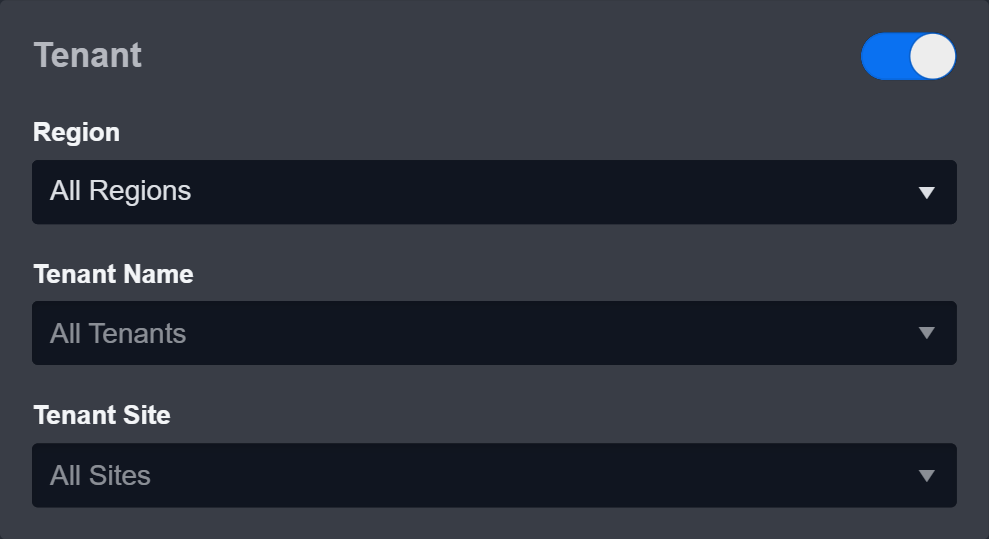
-
Configure User Permissions: Defines which users have access to the connection.
-
Active: Check the tick box to ensure the connection is available for use.
.png?cb=0db5a6ee45ccd1523ff8ddcb34aa8c3f)
-
System: This section contains the parameters defined specifically for the integration. These parameters must be configured to create the integration connection.
1. Input the domain-level Server URL from the IBM QRadar platform.
2. Input the Token you generated from step 5 of Configuring IBM QRadar to Work with D3 SOAR.
3. Input API Version. The default value is 9.0. Please always check QRadar API endpoint documentation and supported versions for the supported API Version. Input deprecated API Version might result in errors in some commands. -
Connection Health Check: Updates the connection status you have created. A connection health check is done by scheduling the Test Connection command of this integration. This can only be done when the connection is active.
To set up a connection health check, check the Connection Health Check tickbox. You can customize the interval (minutes) for scheduling the health check. An email notification can be set up after a specified number of failed connection attempts. -
Enable Password Vault: An optional feature that allows users to take the stored credentials from their own password vault. Please refer to the password vault connection guide if needed.
-
-
Test the connection.
-
Click Test Connection to verify the account credentials and network connection. If the Test Connection Passed alert window appears, the test connection is successful. You will see Passed with a green checkmark appear beside the Test Connection button. If the test connection fails, please check your connection parameters and try again.
-
Click OK to close the alert window.
-
Click + Add to create and add the configured connection.
-
Commands
IBM QRadar includes the following executable commands for users to set up schedules or create playbook workflows. With the Test Command, you can execute these commands independently for playbook troubleshooting.
Integration API Note
For more information about the IBM QRadar API, please refer to IBM QRadar API reference.
READER NOTE
Certain permissions are required for each command. Please refer to the Permission Requirement and Configuring IBM QRadar to Work with D3 SOAR for detailed information.
Note for Time-related parameters
The input format of time-related parameters may vary based on your account settings. As a result, the sample data provided in our commands is different from what you see. To set your preferred time format, follow these steps:
-
Navigate to Configuration > Application Settings. Select Date/Time Format.
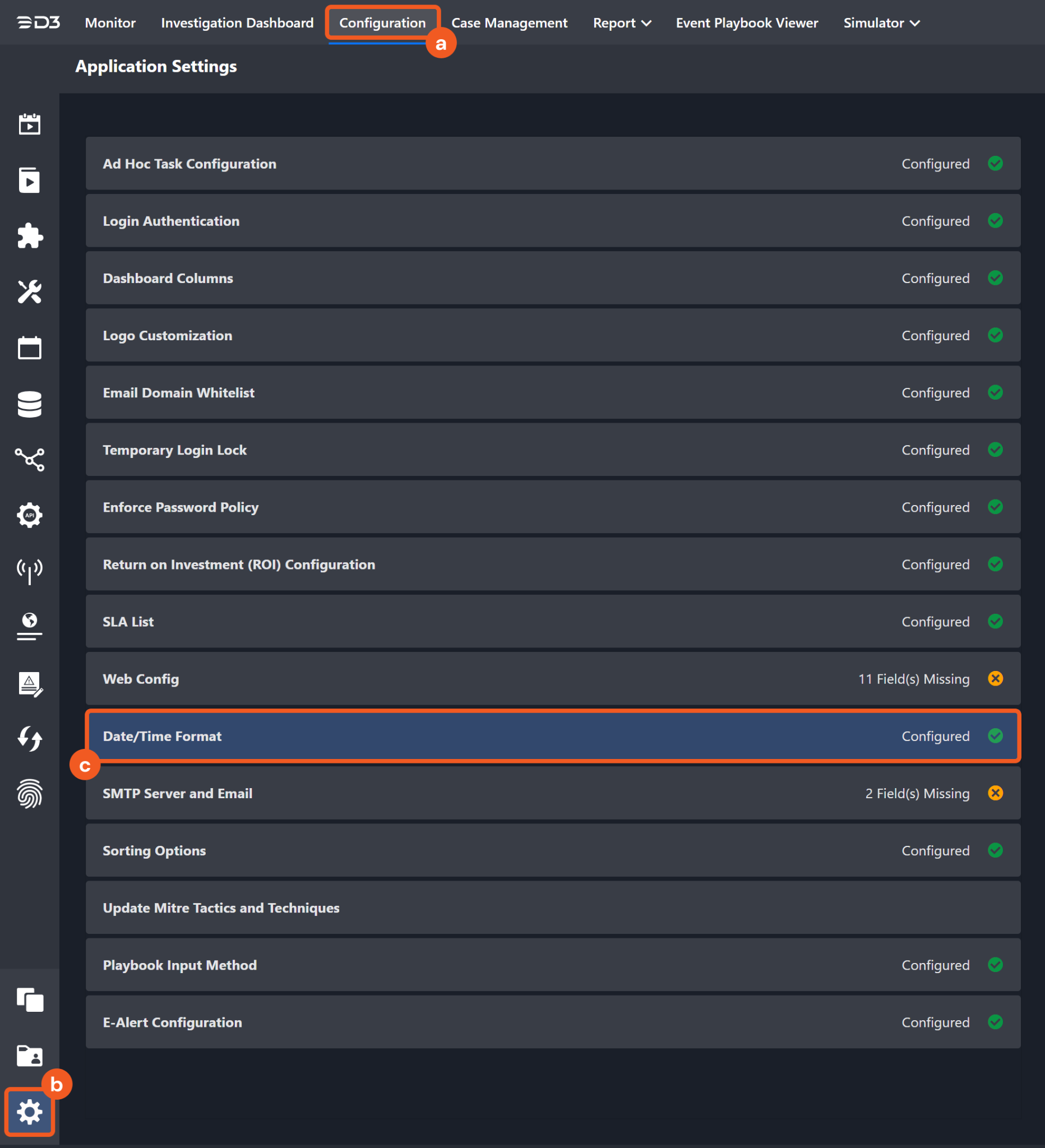
-
Choose your desired date and time format.
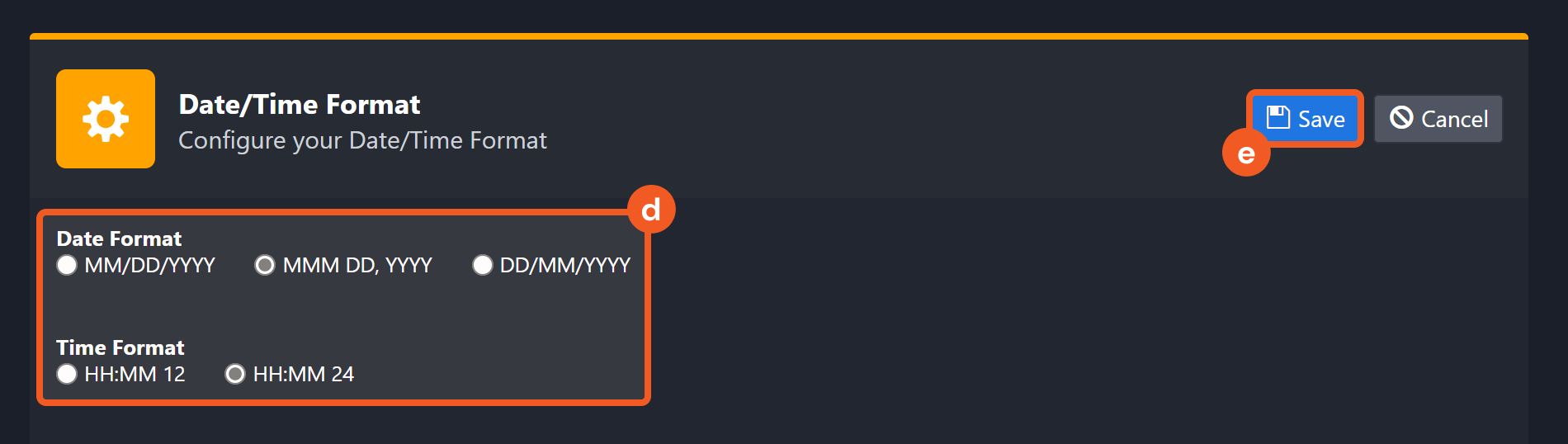
After that, you will be able to view your preferred time format when configuring the DateTime input parameters for commands.
Add Elements In Reference Set
Adds elements to a reference set.
READER NOTE
Reference Set Name is a required parameter to run this command.
-
Run the List Reference Sets command to obtain the Reference Set Name command. Reference Set Names can be found in the returned raw data at the path $.[*].name.
When creating a reference set, you can specify the Time to Live (TTL) for the added elements. To check the TTL of an existing reference set, you can use the List Reference Set command and look for the "time_to_live" key. Note: You cannot set the TTL for elements using this command.
Input
|
Input Parameter |
Required/Optional |
Description |
Example |
|
Reference Set Name |
Required |
The name of the reference set to add elements. Reference set names can be obtained using the List Reference Sets command. |
Test Reference Set |
|
Element Values |
Required |
The values of the elements to add to the specified reference set. |
[ "000.00.00.000"] |
Output
Error Handling
If the Return Data is Failed, an Error tab will appear in the Test Result window.
The error tab contains the details responded from D3 SOAR or third-party API calls, including Failure Indicator, Status Code, and Message. This can help you locate the root cause of a command failure.
|
Parts in Error |
Description |
Example |
|
Failure Indicator |
Indicates the command failure that happened at a specific input and/or API call. |
Add Elements In Reference Set failed. |
|
Status Code |
The response code issued by the third-party API server or the D3 SOAR system that can be used to locate the corresponding error category. For example, if the returned status code is 401, the selected connection is unauthorized to run the command. The user or system support would need to check the permission setting in the IBM QRadar portal. Refer to IBM QRadar Error Code List for details. |
Status Code: 404. |
|
Message |
The raw data or captured key error message from the integration API server about the API request failure. |
Message: The reference set does not exist. |
|
Error Sample Data Add Elements In Reference Set failed. Status Code: 404. Message: The reference set does not exist. |
Add Note
Creates a note about an offense.
READER NOTE
Offense ID is a required parameter to run this command.
-
You should already have your desired Offense IDs on hand to run this command. If you don’t, you may use the Fetch Incident command with defined filters to retrieve the desired Offense IDs. The Offense IDs can be found in the raw data at the path $.[*].id.
Input
|
Input Parameter |
Required/Optional |
Description |
Example |
|
Offense ID |
Required |
The ID of the offense to add the note to. Offense IDs can be obtained using the Fetch Incident command. |
129 |
|
Note Text |
Required |
The contents of the note. Note can have a maximum of 2,000 characters. |
test129001 |
|
Fields |
Optional |
The list of fields to return in the response. Fields that are not specified will be excluded. Separate fields with a comma. The valid fields are id, create_time, username, and note_text. Note: Leave this field empty to return all fields in the response. |
id |
Output
Error Handling
If the Return Data is Failed, an Error tab will appear in the Test Result window.
The error tab contains the details responded from D3 SOAR or third-party API calls, including Failure Indicator, Status Code, and Message. This can help you locate the root cause of a command failure.
|
Parts in Error |
Description |
Example |
|
Failure Indicator |
Indicates the command failure that happened at a specific input and/or API call. |
Add Note failed. |
|
Status Code |
The response code issued by the third-party API server or the D3 SOAR system that can be used to locate the corresponding error category. For example, if the returned status code is 401, the selected connection is unauthorized to run the command. The user or system support would need to check the permission setting in the IBM QRadar portal. Refer to IBM QRadar Error Code List for details. |
Status Code: 400. |
|
Message |
The raw data or captured key error message from the integration API server about the API request failure. |
Message: The value for parameter (Offense ID) is invalid. |
|
Error Sample Data Add Note failed. Status Code: 400. Message: The value for parameter (Offense ID) is invalid. |
Create Offense Closing Reason
Creates a custom reason for closing an offense. The default reasons are False-Positive, Tuned, Non-Issue, and Policy Violation.
Input
|
Input Parameter |
Required/Optional |
Description |
Example |
|
Reason |
Required |
The text field to indicate the offense closing reason. Note: A valid input must be 5 - 60 characters in length. |
[ "closeduetosomereason" ] |
|
Fields |
Optional |
The list of fields to return in the response. Fields that are not specified will be excluded. Separate fields with a comma. The valid fields are id, text, is_deleted, and is_reserved. Note: Leave this field empty to return all fields in the response. |
is_deleted,is_reserved,text,id |
Output
Error Handling
If the Return Data is Failed, an Error tab will appear in the Test Result window.
The error tab contains the details responded from D3 SOAR or third-party API calls, including Failure Indicator, Status Code, and Message. This can help you locate the root cause of a command failure.
|
Parts in Error |
Description |
Example |
|
Failure Indicator |
Indicates the command failure that happened at a specific input and/or API call. |
Create Offense Closing Reason failed. |
|
Status Code |
The response code issued by the third-party API server or the D3 SOAR system that can be used to locate the corresponding error category. For example, if the returned status code is 401, the selected connection is unauthorized to run the command. The user or system support would need to check the permission setting in the IBM QRadar portal. Refer to IBM QRadar Error Code List for details. |
Status Code: 422. |
|
Message |
The raw data or captured key error message from the integration API server about the API request failure. |
Message: A request parameter is not valid. Closing reason text must be between 5 and 60 characters. |
|
Error Sample Data Create Offense Closing Reason failed. Status Code: 422. Message: A request parameter is not valid. Closing reason text must be between 5 and 60 characters. |
Create Reference Set
Creates a reference set.
WARNING
Please note the following for the format of the Time To Live input parameter:
-
The format of a valid input for this parameter is [numerical digit] [time unit]. For instance, if you want to set the input value to five minutes, the valid input is 5 minutes. Any other formats are invalid (e.g. 5minutes or five minutes).
-
You must use a space to separate a combination of input time values. For instance, if you want to set the value to one month and five minutes, the valid input is 1 month 5 minutes. Please note that spaces between the numerical digit and time unit are still required.
-
Invalid input values will return an error. If your input value is partially valid (e.g. 1month 5 minutes), the invalid portion of the input value will be ignored (the system will read the input as five minutes for the given example).
-
Some abbreviations of time units are accepted, including mos, mins, and secs.
ALERT
An existing Reference Set cannot be updated using this command. An input of an existing Reference Set Name will result in an error. Ensure the input Reference Set Name is unique. You can use the List Reference Sets command to check the existing Reference Set Names.
Input
|
Input Parameter |
Required/Optional |
Description |
Example |
|
Reference Set Name |
Required |
The name for the reference set to create. |
Test Reference Set |
|
Element Type |
Required |
The element type for the values allowed in the reference set. The valid inputs are ALN (alphanumeric characters), ALNIC (alphanumeric characters ignoring case), IP (IP addresses), NUM (numeric characters), PORT (port numbers) or DATE. Please note that date values must be represented by the number of milliseconds since the Unix epoch (January 1st, 1970). |
IP |
|
Time To Live |
Optional |
The amount of time that the elements of the reference set will live. The valid time units are years, months, days, hours, mins, and secs. Some examples of valid inputs are 1 month, 5 minutes, or 2 years. If this field is undefined, the default value will be Lives Forever. |
1 month 5 minutes |
|
Timeout Type |
Optional |
The timeout type of the reference set. The valid values are FIRST_SEEN, LAST_SEEN, and UNKNOWN. The default value is UNKNOWN, which indicates that the time_to_live interval is based on when the data was first seen or last seen. |
UNKNOWN |
Output
Error Handling
If the Return Data is Failed, an Error tab will appear in the Test Result window.
The error tab contains the details responded from D3 SOAR or third-party API calls, including Failure Indicator, Status Code, and Message. This can help you locate the root cause of a command failure.
|
Parts in Error |
Description |
Example |
|
Failure Indicator |
Indicates the command failure that happened at a specific input and/or API call. |
Create Reference Set failed. |
|
Status Code |
The response code issued by the third-party API server or the D3 SOAR system that can be used to locate the corresponding error category. For example, if the returned status code is 401, the selected connection is unauthorized to run the command. The user or system support would need to check the permission setting in the IBM QRadar portal. Refer to IBM QRadar Error Code List for details. |
Status Code: 409. |
|
Message |
The raw data or captured key error message from the integration API server about the API request failure. |
Message: The reference set could not be created, the name provided is already in use. Please change the name and try again. |
|
Error Sample Data Create Reference Set failed. Status Code: 409. Message: The reference set could not be created, the name provided is already in use. Please change the name and try again. |
Delete Reference Sets
Deletes a given list of reference sets.
READER NOTE
The input parameter Reference Set Names is required to run this command.
-
Run the List Reference Sets command to obtain the Reference Set Names. Reference Set Names can be found in the returned raw data at the path $.[*].name.
Input
|
Input Parameter |
Required/Optional |
Description |
Example |
|
Reference Set Names |
Required |
The name(s) of the reference set(s) to delete. Reference set names can be obtained using the List Reference Sets command. |
[“Test Reference Set”, “Test Reference Set2”] |
Output
Error Handling
If the Return Data is Partially Successful or Failed, an Error tab will appear in the Test Result window.
The error tab contains the details responded from D3 SOAR or third-party API calls, including Failure Indicator, Status Code, and Message. This can help you locate the root cause of a command failure.
|
Parts in Error |
Description |
Example |
|
Failure Indicator |
Indicates the command failure that happened at a specific input and/or API call. |
Delete Reference Sets failed. |
|
Status Code |
The response code issued by the third-party API server or the D3 SOAR system that can be used to locate the corresponding error category. For example, if the returned status code is 401, the selected connection is unauthorized to run the command. The user or system support would need to check the permission setting in the IBM QRadar portal. Refer to IBM QRadar Error Code List for details. |
Status Code: 404. |
|
Message |
The raw data or captured key error message from the integration API server about the API request failure. |
Message: We could not find the Reference Set Names you requested. |
|
Error Sample Data Delete Reference Set failed. Status Code: 404. Message: We could not find the Reference Set Names you requested. |
Fetch Event
Returns Event(s) from the IBM QRadar platform based on specified criteria.
READER NOTE
-
If the Is Offenses Query input parameter is set to True, the command will fetch QRadar offenses. In this case, only Offense field mapping can be used. If the Is Offenses Query input parameter is set to False or undefined, the command will only fetch QRadar events. In this case, only the default event field mapping will be used.
-
Offenses may also contain event data. If the Is Offenses Query input parameter is True, Offenses are ingested with the QRadar event data returned as keys in the response data. In this case, offenses are extracted as individual events in D3 SOAR. If the Is Offenses Query input parameter is False, event data in QRadar will be ingested as individual events in D3 SOAR.
-
The Fetch Event command can ingest Offenses as events in D3 SOAR; the Fetch Incident command will ingest Offenses as incidents in D3 SOAR directly with the correlated QRadar event data as events in D3 SOAR. D3 events need to be escalated to incidents that prompt further investigation. Use the appropriate command to ingest data based on your use case.
-
For event queries, the valid input value for the Query Time Type input parameter is Start Time.
-
For event queries, D3 will always default to Start Time regardless of the selected option for the Query Time Type parameter.
-
-
For offenses queries, the valid input values for the Query Time Type input parameter are First Persisted Time, Last Persisted Time, Start Time, Close Time, and Last Updated Time. Please refer to the details below for the difference between the input options for the Query Time Type parameter.
-
First Persisted Time - The time when the offense was created. This option can only be selected if your connection API Version is 13.1 or later.
-
Last Persisted Time - The last updated time of an offense field. This option only can be selected for your connection API Version is 13.1 or later.
-
Start Time - The time when the offense or event was started. For offenses, this is the time when the first event contributing to the offense was seen. Please note that there is a chance that the offense has not been created yet. For events, this is the event start time.
-
Close Time - The time when the offense was closed.
-
Last Updated Time - The time when the last event contributing to the offense was seen.
-
It is recommended to use the Last Updated Time input option to fetch offenses as it provides the latest event timestamps added to offenses.
-
Start Time is the first event time added to an offense, and may be earlier than the offense creation time. In this case, data loss may occur.
To avoid fetching offenses before the offenses are fully created in IBM QRadar, use Last Updated Time to fetch offenses.
Input
|
Input Parameter |
Required/Optional |
Description |
Example |
|
Start Time |
Required |
The start time of the time range to fetch events in UTC time format. |
2022-10-01 00:00 |
|
End Time |
Optional |
The end time of the time range to fetch events in UTC time format. |
2022-11-25 00:00 |
|
Number of Event(s) Fetched |
Optional |
The maximum number of events to return in a single fetch. If the input is 0, negative, or not specified, all events within the specified time range will be returned. Otherwise, the number provided in the input will be returned. |
10 |
|
Search Condition |
Optional |
The Ariel Query Language (AQL) query to retrieve the specified event data from the Ariel database. Please do NOT put time-related fields(START/STOP/LAST) and LIMIT in the search condition. Note: If this input parameter is left undefined, the following AQL statement will be used by default: select *, qid as 'QID', QidName(qid) AS 'EventName', CategoryName(category) AS 'LowLevelCategory', CategoryName(highlevelcategory) AS 'HighlevelCategory', QIDDESCRIPTION(qid) AS 'EventDescription', severity AS 'Severity', userName AS 'Username', DATEFORMAT(starttime, 'YYYY-MM-dd HH:mm:ss Z') AS 'StartTime', DOMAINNAME(domainID) AS 'Domain', eventDirection AS 'EventDirection', sourceip AS 'SourceIP', destinationip AS 'DestinationIP', HOSTNAME(logsourceid) AS 'LogSourceHostname', geographiclocation AS 'GeographicLocation' from events
For more information on the AQL syntax, see Sample AQL queries from IBM’s documentation. Using the provided sample data as a template is recommended to build your query by modifying the WHERE clauses as needed. If you need to filter out the events based on specific criteria such as Severity or LowLevelCategory, you can apply additional operators in WHERE clauses of a query (i.e. =, <>, <, >, <=, and >=) in addition to operators such as AND, LIKE, ILIKE, IS NULL, AND, TEXT SEARCH, or IN. For example, Severity > 9 AND LowLevelCategory = ‘Firewall Permit’. |
select *, qid AS 'QID', QidName(qid) AS 'EventName', category AS 'LowLevelCategoryID', CategoryName(category) AS 'LowLevelCategory', highlevelcategory AS 'HighlevelCategoryID', CategoryName(highlevelcategory) AS 'HighlevelCategory', QIDDESCRIPTION(qid) AS 'EventDescription', magnitude AS 'Magnitude', relevance AS 'Relevance', severity AS 'Severity', credibility AS 'Credibility', userName AS 'Username', starttime AS 'StartTime (timestamp)', DATEFORMAT(starttime, 'YYYY-MM-dd HH:mm:ss Z') AS 'StartTime', endTime AS 'StorageTime (timestamp)', DATEFORMAT(endTime, 'YYYY-MM-dd HH:mm:ss Z') AS 'StorageTime', duration AS 'Duration', devicetime AS 'LogSourceTime(timestamp)', DATEFORMAT(devicetime, 'YYYY-MM-dd HH:mm:ss Z') AS 'LogSourceTime', domainID AS 'DomainID', DOMAINNAME(domainID) AS 'Domain', eventDirection AS 'EventDirection', sourceip AS 'SourceIP', ASSETHOSTNAME(sourceip) AS 'SourceAssetName', sourceport AS 'SourcePort', preNatSourceIP AS 'PreNATSourceIP', preNatSourcePort AS 'PreNATSourcePort', postNatSourceIP AS 'PostNATSourceIP', postNatSourcePort AS 'PostNATSourcePort', sourcev6 AS 'SourceIPv6', sourceMAC AS 'SourceMAC', sourceaddress AS 'SourceAddress', sourcegeographiclocation AS 'SourceGeographicLocation', NetworkName(sourceip) AS 'SourceNetworkName', destinationip AS 'DestinationIP', ASSETHOSTNAME(destinationip) AS 'DestinationAssetName', destinationPort AS 'DestinationPort', preNatDestinationIP AS 'PreNATDestinationIP', preNatDestinationPort AS 'PreNATDestinationPort', postNatDestinationIP AS 'PostNATDestinationIP', postNatDestinationPort AS 'PostNATDestinationPort', destinationv6 AS 'DestinationIPv6', destinationMAC AS 'DestinationMAC', destinationaddress AS 'DestinationAddress', destinationgeographiclocation AS 'DestinationGeographicLocation', NetworkName(destinationip) AS 'DestinationNetworkName', payload AS 'Payload(base64)', UTF8(payload) AS 'Payload(UTF)', protocolid AS 'ProtocolID', ProtocolName(protocolid) AS 'Protocol', logsourceid AS 'LogSourceID', LOGSOURCENAME(logsourceid) AS 'LogSource', HOSTNAME(logsourceid) AS 'LogSourceHostname', deviceGroupList AS 'DeviceGroupListID', LOGSOURCEGROUPNAME(deviceGroupList) AS 'DeviceGroupListName', deviceType AS 'DeviceTypeID', LOGSOURCETYPENAME(deviceType) AS 'DeviceTypeName', eventcount AS 'EventCount', creeventlist AS 'CustomRuleIDs', RULENAME(creeventlist) AS 'CustomRules', partialmatchlist AS 'CustomRulesPartiallyMatchedIDs', RULENAME(partialmatchlist) AS 'CustomRulesPartiallyMatched', geographiclocation AS 'GeographicLocation', hasOffense AS 'HasOffense', isCREEvent AS 'IsCustomRuleEvent', isduplicate AS 'IsDuplicateevent', isunparsed AS 'EventIsUnparsed', pcappacket AS 'PCAPpacket', processorId AS 'EventProcessorID', PROCESSORNAME(processorid) AS 'EventProcessorName', adekey AS 'AdeKey', adevalue AS 'AdeValue', identityip AS 'IdentityIP', identityhostname AS 'IdentityHostName', hasIdentity AS 'HasIdentity' from events where SourceIP = '192.168.85.65' AND LowLevelCategory IN ('Information','Firewall Permit') |
|
Offenses Search Condition |
Optional |
The filter conditions to query offenses. This parameter only applies when the Is Offenses Query parameter is set to True. The available fields to enable filtering are id, assigned_to, categories, category_count, policy_category_count, security_category_count, close_time, closing_user, closing_reason_id, credibility, relevance, severity, magnitude, destination_networks, device_count, event_count, flow_count, inactive, last_updated_time, local_destination_count, offense_type, protected, follow_up, remote_destination_count, source_count, start_time, status, username_count, source_address_ids, local_destination_address_ids, domain_id, rules, log_sources. For more information on the filter syntax, refer to Filter Syntax from IBM's documentation. |
inactive = true |
|
Is Offenses Query |
Optional |
Select True to query offenses and related events. Select False to only query events. The default value is False. |
True |
|
Tolerance Scope |
Optional |
The tolerance scope (in minutes) for the query to fetch events between the specified start and end time to avoid event loss or fetch failure. The events will be fetched between {Start Time - Tolerance Scope, End Time}. The default value is 0. |
10 |
|
Query Time Type |
Required |
The time type to query results. Note: For offense queries, the valid inputs are First Persisted Time, Last Persisted Time, Start Time, Close Time, and Last Updated Time. For event queries, the valid input is Start Time. |
First Persisted Time |
Output
Fetch Event Field Mapping
READER NOTE
The Unique Event Key field mapping is used to prevent duplicate event ingestions. D3 SOAR will check if the value of a selected JSON path matches any Unique Event Key of previously ingested events. If a match is found, the event will be dismissed. If no match is found, an event will be created. However, if no Unique Event Key is mapped, then the hash value from the event pending ingestion will be used to check for any matches with existing events. If no match is found, the event will be created.
Unlike most other D3 SOAR integrations, the IBM QRadar integration’s Fetch Event command’s Event Sources mapping does not include Unique Event Key in order to fetch the same fetched target with multiple updates.
Please note that Fetch Event commands require event field mapping. Field mapping plays a key role in the data normalization process part of the event pipeline. Field mapping converts the original data fields from the different providers to the D3 fields which are standardized by the D3 Model. Please refer to Event and Incident Intake Field Mapping for details.
If you require a custom field mapping, click +Add Field to add a custom field mapping. You may also remove built-in field mappings by clicking x. Please note that two underscore characters will automatically prefix the defined Field Name as the System Name for a custom field mapping. Additionally, if an input Field Name contains any spaces, they will automatically be replaced with underscores for the corresponding System Name.
The IBM QRadar integration in D3 SOAR has some pre-configured field mappings for event-related events and offense-related events, which correspond to the Default Event Source and Event Source for Offenses mappings:
-
Default Event Source
Configures the field mapping which are specific to the event-related events. If a source field in the field mapping is not found, the corresponding field mapping will be ignored. The default event source has a “Main Event JSON Path” (i.e., $.events) that is used to extract a batch of events from the response raw data. Click Edit Main JSON Path to view the “Main Event JSON Path”.
.png?cb=cfecf95fc6a4e4728ea0d14acb7e4e3d)
-
Main Event JSON Path: $.events
The Main Event JSON Path determines the root path where the system starts parsing raw response data into D3 event data. The JSON path begins with $, representing the root element. The path is formed by appending a sequence of child elements to $, each separated by a dot (.). Square brackets with nested quotation marks ([‘...’]) should be used to separate child elements in JSON arrays.
For example, the root node of a JSON Path is events. The child node denoting the Event Code field would be .rule.id. Putting it together, the JSON Path expression to extract the Event Code is $.events.rule.id.
-
-
Event Source for Offenses
Configures the field mapping which are specific to the offense-related events. If a source field in the field mapping is not found, the corresponding field mapping will be ignored. As the data of the offense-related events have a character that the value of the type field is offense, the offense-related events can be defined by the Search String: {$.type}=offense. Click Edit Event Source to view the Search String.
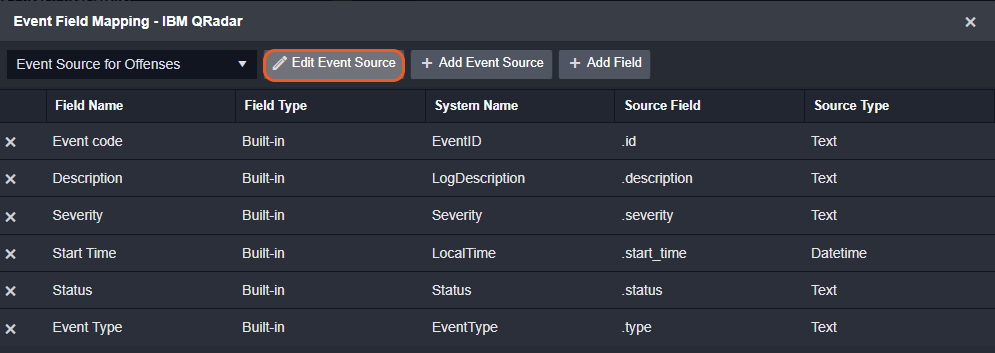
The pre-configured field mappings are detailed below:
|
Field Name |
Source Field |
|
Default Event Source (Main Event JSON Path: $.events) |
|
|
Event code |
.QID |
|
Severity |
.Severity |
|
Event name |
.EventName |
|
Low Level Category |
.LowLevelCategory |
|
High Level Category |
.HighLevelCategory |
|
Description |
.EventDescription |
|
Start Time |
.StartTime |
|
Domain |
.Domain |
|
Event Direction |
.EventDirection |
|
Source IP address |
.SourceIP |
|
Destination IP address |
.DestinationIP |
|
Log Source Hostname |
.LogSourceHostname |
|
Geographic Location |
.GeographicLocation |
|
Username |
.Username |
|
Event Type |
.LowLevelCategory |
|
Event Source for Offenses (Search String: {$.type}=offense) The search string format is {jsonpath}=value. If the value of the type key is offense in the event object under raw data, then the offense-related events will use the field mapping below. |
|
|
Event code |
.id |
|
Description |
.description |
|
Severity |
.severity |
|
Start Time |
.start_time |
|
Status |
.status |
|
Event Type |
.type |
Error Handling
If the Return Data is Failed, an Error tab will appear in the Test Result window.
The error tab contains the details responded from D3 SOAR or third-party API calls, including Failure Indicator, Status Code, and Message. This can help you locate the root cause of a command failure.
|
Parts in Error |
Description |
Example |
|
Failure Indicator |
Indicates the command failure that happened at a specific input and/or API call. |
Fetch Event failed. |
|
Status Code |
The response code issued by the third-party API server or the D3 SOAR system that can be used to locate the corresponding error category. For example, if the returned status code is 401, the selected connection is unauthorized to run the command. The user or system support would need to check the permission setting in the IBM QRadar portal. Refer to IBM QRadar Error Code List for details. |
Status Code: 422. |
|
Message |
The raw data or captured key error message from the integration API server about the API request failure. |
Message: The query_expression contains invalid AQL syntax. |
|
Error Sample Data Fetch Event failed. Status Code: 422. Message: The query_expression contains invalid AQL syntax. |
Fetch Incident
Returns offense incident(s) from the IBM QRadar platform based on specified criteria.
READER NOTE
Please refer to the details below for the difference between the input options for the Query Time Type parameter.
-
First Persisted Time - The time when the offense was created. This option can only be selected if your connection API Version is 13.1 or later.
-
Last Persisted Time - The last updated time of an offense field. This option only can be selected for your connection API Version is 13.1 or later.
-
Start Time - The time when the offense was started. This is the time when the first event contributing to the offense was seen. Please note that there is a chance that the offense has not been created yet.
-
Close Time - The time when the offense was closed.
-
Last Updated Time - The time when the last event contributing to the offense was seen.
It is recommended to use the Last Updated Time input option to fetch incidents since it provides the latest time of events added to offenses.
-
Start Time is the first event time added to an offense, and maybe earlier than the offense creation time. In this case, data loss may occur.
To avoid fetching offenses before the offenses are fully created in IBM QRadar, use Last Updated Time to fetch offenses.
Input
|
Input Parameter |
Required/Optional |
Description |
Example |
|
Start Time |
Required |
The start time of the time range to fetch incidents in UTC time. |
2022-10-01 00:00 |
|
End Time |
Optional |
The end time of the time range to fetch incidents in UTC time. |
2022-11-25 00:00 |
|
Number of Incident(s) Fetched |
Optional |
The maximum number of the most recent events to fetch. The default value is 10. |
10 |
|
Search Condition |
Optional |
The filter conditions to query offenses. The available fields to enable for filtering are id, assigned_to, categories, category_count, policy_category_count, security_category_count, close_time, closing_user, closing_reason_id, credibility, relevance, severity, magnitude, destination_networks, device_count, event_count, flow_count, inactive, last_updated_time, local_destination_count, offense_type, protected, follow_up, remote_destination_count, source_count, start_time, status, username_count, source_address_ids, local_destination_address_ids, domain_id, rules, log_sources. For more information on the filter syntax, refer to Filter Syntax from IBM's documentation. |
inactive = true |
|
Tolerance Scope |
Optional |
The tolerance scope (in minutes) for the query to fetch incidents between the specified start and end time to avoid incident loss or fetch failure. The events will be fetched between {Start Time - Tolerance Scope, End Time}. The default value is 0. |
10 |
|
Events Limit for an Incident |
Optional |
The maximum number of events to return per incident. The default value is 0. |
10 |
|
Search Condition for Event |
Optional |
The Ariel Query Language (AQL) query to retrieve the specified event data from the Ariel database. Please do NOT put time related fields(START/STOP/LAST) and LIMIT in the search condition for event. Note: If this input parameter is left undefined, the following AQL statement will be used by default: select *, qid AS 'QID', QidName(qid) AS 'EventName',CategoryName(category) AS 'LowLevelCategory', CategoryName(highlevelcategory) AS 'HighlevelCategory', QIDDESCRIPTION(qid) AS 'EventDescription', severity AS 'Severity', userName AS 'Username', DATEFORMAT(starttime, 'YYYY-MM-dd HH:mm:ss Z') AS 'StartTime', DOMAINNAME(domainID) AS 'Domain', eventDirection AS 'EventDirection', sourceip AS 'SourceIP', destinationip AS 'DestinationIP', HOSTNAME(logsourceid) AS 'LogSourceHostname', geographiclocation AS 'GeographicLocation' from events
For more information on the AQL syntax, see Sample AQL queries from IBM’s documentation. Using the provided sample data as a template is recommended to build your query by modifying the WHERE clauses as needed. If you need to filter out the events based on specific criteria such as Severity or LowLevelCategory, you can apply additional operators in WHERE clauses of a query (i.e. =, <>, <, >, <=, and >=) in addition to operators such as AND, LIKE, ILIKE, IS NULL, AND, TEXT SEARCH, or IN. For example, Severity > 9 AND LowLevelCategory = ‘Firewall Permit’. |
select *, qid AS 'QID', QidName(qid) AS 'EventName', category AS 'LowLevelCategoryID', CategoryName(category) AS 'LowLevelCategory', highlevelcategory AS 'HighlevelCategoryID', CategoryName(highlevelcategory) AS 'HighlevelCategory', QIDDESCRIPTION(qid) AS 'EventDescription', magnitude AS 'Magnitude', relevance AS 'Relevance', severity AS 'Severity', credibility AS 'Credibility', userName AS 'Username', starttime AS 'StartTime (timestamp)', DATEFORMAT(starttime, 'YYYY-MM-dd HH:mm:ss Z') AS 'StartTime', endTime AS 'StorageTime (timestamp)', DATEFORMAT(endTime, 'YYYY-MM-dd HH:mm:ss Z') AS 'StorageTime', duration AS 'Duration', devicetime AS 'LogSourceTime(timestamp)', DATEFORMAT(devicetime, 'YYYY-MM-dd HH:mm:ss Z') AS 'LogSourceTime', domainID AS 'DomainID', DOMAINNAME(domainID) AS 'Domain', eventDirection AS 'EventDirection', sourceip AS 'SourceIP', ASSETHOSTNAME(sourceip) AS 'SourceAssetName', sourceport AS 'SourcePort', preNatSourceIP AS 'PreNATSourceIP', preNatSourcePort AS 'PreNATSourcePort', postNatSourceIP AS 'PostNATSourceIP', postNatSourcePort AS 'PostNATSourcePort', sourcev6 AS 'SourceIPv6', sourceMAC AS 'SourceMAC', sourceaddress AS 'SourceAddress', sourcegeographiclocation AS 'SourceGeographicLocation', NetworkName(sourceip) AS 'SourceNetworkName', destinationip AS 'DestinationIP', ASSETHOSTNAME(destinationip) AS 'DestinationAssetName', destinationPort AS 'DestinationPort', preNatDestinationIP AS 'PreNATDestinationIP', preNatDestinationPort AS 'PreNATDestinationPort', postNatDestinationIP AS 'PostNATDestinationIP', postNatDestinationPort AS 'PostNATDestinationPort', destinationv6 AS 'DestinationIPv6', destinationMAC AS 'DestinationMAC', destinationaddress AS 'DestinationAddress', destinationgeographiclocation AS 'DestinationGeographicLocation', NetworkName(destinationip) AS 'DestinationNetworkName', payload AS 'Payload(base64)', UTF8(payload) AS 'Payload(UTF)', protocolid AS 'ProtocolID', ProtocolName(protocolid) AS 'Protocol', logsourceid AS 'LogSourceID', LOGSOURCENAME(logsourceid) AS 'LogSource', HOSTNAME(logsourceid) AS 'LogSourceHostname', deviceGroupList AS 'DeviceGroupListID', LOGSOURCEGROUPNAME(deviceGroupList) AS 'DeviceGroupListName', deviceType AS 'DeviceTypeID', LOGSOURCETYPENAME(deviceType) AS 'DeviceTypeName', eventcount AS 'EventCount', creeventlist AS 'CustomRuleIDs', RULENAME(creeventlist) AS 'CustomRules', partialmatchlist AS 'CustomRulesPartiallyMatchedIDs', RULENAME(partialmatchlist) AS 'CustomRulesPartiallyMatched', geographiclocation AS 'GeographicLocation', hasOffense AS 'HasOffense', isCREEvent AS 'IsCustomRuleEvent', isduplicate AS 'IsDuplicateevent', isunparsed AS 'EventIsUnparsed', pcappacket AS 'PCAPpacket', processorId AS 'EventProcessorID', PROCESSORNAME(processorid) AS 'EventProcessorName', adekey AS 'AdeKey', adevalue AS 'AdeValue', identityip AS 'IdentityIP', identityhostname AS 'IdentityHostName', hasIdentity AS 'HasIdentity' from events where SourceIP = '192.168.85.65' AND LowLevelCategory IN ('Information','Firewall Permit') |
|
Query Time Type |
Required |
The time type to query results. The available options are First Persisted Time, Last Persisted Time, Start Time, Close Time, and Last Updated Time. |
First Persisted Time
|
Incident Field Mapping
For this integration, the default incident fields in D3 SOAR are fixed with no built-in source fields. Users can specify the source fields as needed.
Event and Incident Intake Field Mapping
Please note that incident and event intake commands require both Event Field and Incident Field Mapping. These field mappings are the default event/incident field mappings for D3 system integrations. You can edit the provided mappings or create custom mappings as needed. Please refer to Event and Incident Intake Field Mapping for more details.
Incident Main JSON Path: $
|
Field Name |
Source Field |
|
Title |
User to define |
|
Description |
User to define |
|
Severity |
User to define, default is “Low” |
|
Incident Type * |
User to define, default is the first Incident form in D3 SOAR system |
|
Incident Creator |
User to define |
|
Incident Owner |
User to define |
|
Incident Playbook |
User to define |
|
Due In Date |
User to define |
|
Unique Key |
User to define |
|
Tactics |
User to define |
|
Techniques |
User to define |
Event Field Mapping
Main Event JSON Path
-
$.events
The event field mapping in Fetch Incident is the same as the one in Command Fetch Event.
Please refer to the command Fetch Event for detail.
Output
Error Handling
If the Return Data is Failed, an Error tab will appear in the Test Result window.
The error tab contains the details responded from D3 SOAR or third-party API calls, including Failure Indicator, Status Code, and Message. This can help you locate the root cause of a command failure.
|
Parts in Error |
Description |
Example |
|
Failure Indicator |
Indicates the command failure that happened at a specific input and/or API call. |
Fetch Incident failed. |
|
Status Code |
The response code issued by the third-party API server or the D3 SOAR system that can be used to locate the corresponding error category. For example, if the returned status code is 401, the selected connection is unauthorized to run the command. The user or system support would need to check the permission setting in the IBM QRadar portal. Refer to IBM QRadar Error Code List for details. |
Status Code: 422. |
|
Message |
The raw data or captured key error message from the integration API server about the API request failure. |
Message: The query_expression contains invalid AQL syntax. |
|
Error Sample Data Fetch Incident failed. Status Code: 422. Message: The query_expression contains invalid AQL syntax. |
Get Offenses
Retrieves a list of offenses corresponding to the given offense IDs.
READER NOTE
The input parameter Offense IDs is required to run this command.
-
You should already have your desired Offense IDs on hand to run this command. If you don’t, you may use the Fetch Incident command with defined filters to retrieve the desired Offense IDs. The Offense IDs can be found in the raw data at the path $.[*].id.
-
Ensure the input Offense IDs are valid. If the input Offense IDs do not exist, the command will run successfully with no results. If you input multiple Offense IDs, only the corresponding offense of valid input Offense IDs will return.
Input
|
Input Parameter |
Required/Optional |
Description |
Example |
|
Offense IDs |
Required |
The ID(s) of the offense(s) to retrieve corresponding objects with the properties of the offense(s). Offense IDs can be obtained using the Fetch Incident command. |
[1, 2, 3] |
Output
Error Handling
If the Return Data is Failed, an Error tab will appear in the Test Result window.
The error tab contains the details responded from D3 SOAR or third-party API calls, including Failure Indicator, Status Code, and Message. This can help you locate the root cause of a command failure.
|
Parts in Error |
Description |
Example |
|
Failure Indicator |
Indicates the command failure that happened at a specific input and/or API call. |
Get Offenses failed. |
|
Status Code |
The response code issued by the third-party API server or the D3 SOAR system that can be used to locate the corresponding error category. For example, if the returned status code is 401, the selected connection is unauthorized to run the command. The user or system support would need to check the permission setting in the IBM QRadar portal. Refer to IBM QRadar Error Code List for details. |
Status Code: 400. |
|
Message |
The raw data or captured key error message from the integration API server about the API request failure. |
Message: The value for parameter (Offense IDs) is invalid. |
|
Error Sample Data Get Offenses failed. Status Code: 400. Message: The value for parameter (Offense IDs) is invalid. |
Get Rule Names
Retrieves a list of rule names corresponding to the given rule IDs.
READER NOTE
The input parameter Rule IDs is required to run this command.
-
You should already have your desired Rule IDs on hand to run this command. If you don’t, you may use the Fetch Incident command with defined filters to retrieve the desired Rule IDs. The Rule IDs can be found in the raw data at the path $.[*].rules.[*].id.
Input
|
Input Parameter |
Required/Optional |
Description |
Example |
|
Rule IDs |
Required |
The ID(s) of the rule(s) to return. Rule IDs can be obtained using the Fetch Incident command. |
[***, ***] |
Output
Error Handling
If the Return Data is Failed, an Error tab will appear in the Test Result window.
The error tab contains the details responded from D3 SOAR or third-party API calls, including Failure Indicator, Status Code, and Message. This can help you locate the root cause of a command failure.
|
Parts in Error |
Description |
Example |
|
Failure Indicator |
Indicates the command failure that happened at a specific input and/or API call. |
Get Rule Names failed. |
|
Status Code |
The response code issued by the third-party API server or the D3 SOAR system that can be used to locate the corresponding error category. For example, if the returned status code is 401, the selected connection is unauthorized to run the command. The user or system support would need to check the permission setting in the IBM QRadar portal. Refer to IBM QRadar Error Code List for details. |
Status Code: 400. |
|
Message |
The raw data or captured key error message from the integration API server about the API request failure. |
Message: The value for parameter (Rule IDs) is invalid. |
|
Error Sample Data Get Rule Names failed. Status Code: 400. Message: The value for parameter (Rule IDs) is invalid.. |
Get Reference Set By Name
Retrieves a Reference Set and its details by reference set name.
READER NOTE
Reference Set Name is a required parameter to run this command.
-
Run the List Reference Sets command to obtain the Reference Set Name. Reference Set Names can be found in the returned raw data at the path $.[*].name.
Input
|
Input Parameter |
Required/Optional |
Description |
Example |
|
Reference Set Name |
Required |
The name(s) of the reference set(s) to retrieve. Reference set names can be obtained using the List Reference Sets command. |
*** Test* |
Output
Error Handling
If the Return Data is Failed, an Error tab will appear in the Test Result window.
The error tab contains the details responded from D3 SOAR or third-party API calls, including Failure Indicator, Status Code, and Message. This can help you locate the root cause of a command failure.
|
Parts in Error |
Description |
Example |
|
Failure Indicator |
Indicates the command failure that happened at a specific input and/or API call. |
Get Reference Set By Name failed. |
|
Status Code |
The response code issued by the third-party API server or the D3 SOAR system that can be used to locate the corresponding error category. For example, if the returned status code is 401, the selected connection is unauthorized to run the command. The user or system support would need to check the permission setting in the IBM QRadar portal. Refer to IBM QRadar Error Code List for details. |
Status Code: 404. |
|
Message |
The raw data or captured key error message from the integration API server about the API request failure. |
Message: The Reference Set does not exist. |
|
Error Sample Data Get Reference Set By Name failed. Status Code: 404. Message: The Reference Set does not exist. |
Get Rule Details With Use Case Manager
Retrieves the detail(s) of the rule(s) with QRadar Use Case Manager application. Returned fields include rule Notes, Test Descriptions, Event Description, Response Details, Action Details and Offense Type etc.
READER NOTE
Rule Names and Report ID are required parameters to run this command.
-
Run the Search Rules command to obtain the Rule Names. Rule Names can be found in the returned raw data at the path $.name.
-
Run the Create Rule Explorer Report command to obtain the Report ID. Report ID can be found in the returned raw data at the path $.reportId.
Input
|
Input Parameter |
Required/Optional |
Description |
Example |
|
Rule Names |
Required |
The name(s) of the rule(s) to get details. Rule Names can be obtained using the Search Rules command. |
[ "Excessive Database Connections" ] |
|
Report ID |
Required |
The ID of the use case explorer report. Report ID can be obtained using the Create Rule Explorer Report Command. |
***-***-***-***-*** |
Output
Error Handling
If the Return Data is Partially Successful or Failed, an Error tab will appear in the Test Result window.
The error tab contains the details responded from D3 SOAR or third-party API calls, including Failure Indicator, Status Code, and Message. This can help you locate the root cause of a command failure.
|
Parts in Error |
Description |
Example |
|
Failure Indicator |
Indicates the command failure that happened at a specific input and/or API call. |
Get Rule Details With Use Case Manager failed. |
|
Status Code |
The response code issued by the third-party API server or the D3 SOAR system that can be used to locate the corresponding error category. For example, if the returned status code is 401, the selected connection is unauthorized to run the command. The user or system support would need to check the permission setting in the IBM QRadar portal. Refer to IBM QRadar Error Code List for details. |
Status Code: 404. |
|
Message |
The raw data or captured key error message from the integration API server about the API request failure. |
Message: Rule Names not found. |
|
Error Sample Data Get Rule Details With Use Case Manager failed. Status Code: 404. Message: Rule Names not found. |
Get Search Results
Retrieves search results corresponding to the given Search ID. The returned results can be found in the returned data, at the path $.events. No events will be created in D3 SOAR.
READER NOTE
Search ID is a required parameter to run this command.
-
Run the Search command to obtain the Search ID. Search IDs can be found in the returned raw data at the path $.cursor_id.
Input
|
Input Parameter |
Required/Optional |
Description |
Example |
|
Search ID |
Required |
The ID of the search to return. Search IDs can be obtained using the Search command. |
***-***-***-***-*** |
Output
Error Handling
If the Return Data is Failed, an Error tab will appear in the Test Result window.
The error tab contains the details responded from D3 SOAR or third-party API calls, including Failure Indicator, Status Code, and Message. This can help you locate the root cause of a command failure.
|
Parts in Error |
Description |
Example |
|
Failure Indicator |
Indicates the command failure that happened at a specific input and/or API call. |
Get Search Results failed. |
|
Status Code |
The response code issued by the third-party API server or the D3 SOAR system that can be used to locate the corresponding error category. For example, if the returned status code is 401, the selected connection is unauthorized to run the command. The user or system support would need to check the permission setting in the IBM QRadar portal. Refer to IBM QRadar Error Code List for details. |
Status Code: 404. |
|
Message |
The raw data or captured key error message from the integration API server about the API request failure. |
Message: Failed to retrieve data. |
|
Error Sample Data Get Search Results failed. Status Code: 404. Message: Failed to retrieve data. |
Get Search Status
Retrieves the status of a search corresponding to the given Search ID.
READER NOTE
Search ID is a required parameter to run this command.
-
Run the Search command to obtain the Search ID. Search IDs can be found in the returned raw data at the path $.cursor_id.
Input
|
Input Parameter |
Required/Optional |
Description |
Example |
|
Search ID |
Required |
The ID of the search to return status information. Search IDs can be obtained using the Search command. |
***-***-***-***-*** |
Output
Error Handling
If the Return Data is Failed, an Error tab will appear in the Test Result window.
The error tab contains the details responded from D3 SOAR or third-party API calls, including Failure Indicator, Status Code, and Message. This can help you locate the root cause of a command failure.
|
Parts in Error |
Description |
Example |
|
Failure Indicator |
Indicates the command failure that happened at a specific input and/or API call. |
Get Search Status failed. |
|
Status Code |
The response code issued by the third-party API server or the D3 SOAR system that can be used to locate the corresponding error category. For example, if the returned status code is 401, the selected connection is unauthorized to run the command. The user or system support would need to check the permission setting in the IBM QRadar portal. Refer to IBM QRadar Error Code List for details. |
Status Code: 404. |
|
Message |
The raw data or captured key error message from the integration API server about the API request failure. |
Message: We could not find the resource you requested. |
|
Error Sample Data Get Search Status failed. Status Code: 404. Message: We could not find the resource you requested. |
Get Server Time Zone
Returns the local Time Zone of your Qradar server host.
READER NOTE
Please note this command requires Offenses permission. Please refer to User Roles for more details.
Input
|
Input Parameter |
Required/Optional |
Description |
Example |
|
Server IP or Hostname |
Required |
The private IP or host name of the Qradar server host. |
1.1.1.1 |
Output
Error Handling
If the Return Data is Failed, an Error tab will appear in the Test Result window.
The error tab contains the details responded from D3 SOAR or third-party API calls, including Failure Indicator, Status Code, and Message. This can help you locate the root cause of a command failure.
|
Parts in Error |
Description |
Example |
|
Failure Indicator |
Indicates the command failure that happened at a specific input and/or API call. |
GGet Server Time Zone failed. |
|
Status Code |
The response code issued by the third-party API server or the D3 SOAR system that can be used to locate the corresponding error category. For example, if the returned status code is 401, the selected connection is unauthorized to run the command. The user or system support would need to check the permission setting in the IBM QRadar portal. Refer to IBM QRadar Error Code List for details. |
Status Code: 404. |
|
Message |
The raw data or captured key error message from the integration API server about the API request failure. |
Message: We could not find the resource you requested. |
|
Error Sample Data Get Server Time Zone failed. Status Code: 404. Message: We could not find the resource you requested. |
List Local Destination IP Address
Retrieves a list of offense local destination addresses currently in the system. The results will be returned in ascending order and sorted by the numerical value of the ID (smaller IDs will be listed first).
Input
|
Input Parameter |
Required/Optional |
Description |
Example |
|
Fields |
Optional |
The list of fields to return in the response data. Fields that are not listed will be excluded. Separate fields with a comma. Leave this field empty to get all fields. The available input fields are:
|
local_destination_ip,id |
|
Filter |
Optional |
The expression to filter the returned results. The available search keys can be found in the returned raw data after running this command. See Filter Syntax for more information about the syntax of the filter expression. |
id in (44, 45, 46) |
|
Range |
Optional |
The maximum number of elements to return. The default value is 50. |
1 |
Output
Error Handling
If the Return Data is Failed, an Error tab will appear in the Test Result window.
The error tab contains the details responded from D3 SOAR or third-party API calls, including Failure Indicator, Status Code, and Message. This can help you locate the root cause of a command failure.
|
Parts in Error |
Description |
Example |
|
Failure Indicator |
Indicates the command failure that happened at a specific input and/or API call. |
List Local Destination IP Address failed. |
|
Status Code |
The response code issued by the third-party API server or the D3 SOAR system that can be used to locate the corresponding error category. For example, if the returned status code is 401, the selected connection is unauthorized to run the command. The user or system support would need to check the permission setting in the IBM QRadar portal. Refer to IBM QRadar Error Code List for details. |
Status Code: 422. |
|
Message |
The raw data or captured key error message from the integration API server about the API request failure. |
Message: The request was well-formed but was unable to be followed due to semantic errors. |
|
Error Sample Data List Local Destination IP Address failed. Status Code: 422. Message: The request was well-formed but was unable to be followed due to semantic errors. |
List Notes
Retrieves notes corresponding to the given Offense ID.
READER NOTE
Offense ID is a required parameter to run this command.
-
You should already have your desired Offense IDs on hand to run this command. If you don’t, you may use the Fetch Incident command with defined filters to retrieve the desired Offense IDs. The Offense IDs can be found in the raw data at the path $.[*].id.
-
Not all Offense IDs contain notes. If an input Offense ID does not contain any notes, the command will run successfully with no results returned. You can add notes to an offense using the Add Note command.
Input
|
Input Parameter |
Required/Optional |
Description |
Example |
|
Offense ID |
Required |
The ID(s) of the offense(s) to retrieve notes. Offense IDs can be obtained using the Fetch Incident command. |
1** |
|
Fields |
Optional |
The list of fields to return in the response. Fields that are not specified will be excluded. Separate fields with a comma. The valid fields are id, create_time, username, and note_text. Note: Leave this field empty to return all fields in the response. |
id,username |
|
Filter |
Optional |
The expression to filter the returned results. The available search keys can be found in the returned raw data after running this command. See Filter Syntax for more information about the syntax of the filter expression. |
id=1** |
|
Range |
Optional |
The maximum number of elements to return. The default value is 50. |
1 |
Output
Error Handling
If the Return Data is Failed, an Error tab will appear in the Test Result window.
The error tab contains the details responded from D3 SOAR or third-party API calls, including Failure Indicator, Status Code, and Message. This can help you locate the root cause of a command failure.
|
Parts in Error |
Description |
Example |
|
Failure Indicator |
Indicates the command failure that happened at a specific input and/or API call. |
List Notes failed. |
|
Status Code |
The response code issued by the third-party API server or the D3 SOAR system that can be used to locate the corresponding error category. For example, if the returned status code is 401, the selected connection is unauthorized to run the command. The user or system support would need to check the permission setting in the IBM QRadar portal. Refer to IBM QRadar Error Code List for details. |
Status Code: 400. |
|
Message |
The raw data or captured key error message from the integration API server about the API request failure. |
Message: The value for parameter (Offense ID) is invalid. |
|
Error Sample Data List Notes failed. Status Code: 400. Message: The value for parameter (Offense ID) is invalid. |
List Offense Closing Reasons
Retrieves a list of all offense closing reasons. System offense closing reasons (including False-Positive, Tuned; Non-Issue; and Policy Violation) will be listed first in alphabetical order, followed by custom offense close reasons listed in alphabetical order.
Input
|
Input Parameter |
Required/Optional |
Description |
Example |
|
Fields |
Optional |
The list of fields to return in the response. Fields that are not specified will be excluded. Separate fields with a comma. The valid fields are id, text, is_deleted and is_reserved. Note: Leave this field empty to return all fields in the response. |
id |
|
Filter |
Optional |
The expression to filter the returned results. The available search keys can be found in the returned raw data after running this command. See Filter Syntax for more information about the syntax of the filter expression. |
id=2 |
|
Include Deleted |
Optional |
The option to include deleted closing reasons in the response data when set to TRUE. The default setting is FALSE. Note: Deleted closing reasons cannot be used to close an offense. |
FALSE |
|
Include Reserved |
Optional |
The option to include reserved closing reasons in the response data when set to TRUE. The default setting is FALSE. Note: Reserved closing reasons cannot be used to close an offense. |
FALSE |
|
Range |
Optional |
The maximum number of elements to return. The default value is 50. |
1 |
Output
Error Handling
If the Return Data is Failed, an Error tab will appear in the Test Result window.
The error tab contains the details responded from D3 SOAR or third-party API calls, including Failure Indicator, Status Code, and Message. This can help you locate the root cause of a command failure.
|
Parts in Error |
Description |
Example |
|
Failure Indicator |
Indicates the command failure that happened at a specific input and/or API call. |
List Offense Closing Reasons failed. |
|
Status Code |
The response code issued by the third-party API server or the D3 SOAR system that can be used to locate the corresponding error category. For example, if the returned status code is 401, the selected connection is unauthorized to run the command. The user or system support would need to check the permission setting in the IBM QRadar portal. Refer to IBM QRadar Error Code List for details. |
Status Code: 422. |
|
Message |
The raw data or captured key error message from the integration API server about the API request failure. |
Message: The request was well-formed but was unable to be followed due to semantic errors. |
|
Error Sample Data List Offense Closing Reasons failed. Status Code: 422. Message: The request was well-formed but was unable to be followed due to semantic errors. |
List Reference Sets
Retrieves a list of all reference sets.
Input
|
Input Parameter |
Required/Optional |
Description |
Example |
|
Filter |
Optional |
The expression to filter the returned elements. The available filter fields include creation_time, element_type, name, number_of_elements, time_to_live, and timeout_type. The available element_type options include UNKNOWN, FIRST_SEEN, and LAST_SEEN. See Filter Syntax for more information about the syntax of the filter expression. |
element_type="ALNIC" and name="Asset Reconciliation NetBIOS Blacklist" or number_of_elements>0 |
|
Limit |
Optional |
The maximum number of results to return. The default value is 20. |
20 |
Output
Error Handling
If the Return Data is Failed, an Error tab will appear in the Test Result window.
The error tab contains the details responded from D3 SOAR or third-party API calls, including Failure Indicator, Status Code, and Message. This can help you locate the root cause of a command failure.
|
Parts in Error |
Description |
Example |
|
Failure Indicator |
Indicates the command failure that happened at a specific input and/or API call. |
List Reference Sets failed. |
|
Status Code |
The response code issued by the third-party API server or the D3 SOAR system that can be used to locate the corresponding error category. For example, if the returned status code is 401, the selected connection is unauthorized to run the command. The user or system support would need to check the permission setting in the IBM QRadar portal. Refer to the IBM QRadar Error Code List for details. |
Status Code: 422. |
|
Message |
The raw data or captured key error message from the integration API server about the API request failure. |
Message: The request was well-formed but was unable to be followed due to semantic errors. |
|
Error Sample Data List Reference Sets failed. Status Code: 422. Message: Filter parameter was invalid. Please make sure that the syntax is correct: Error Parsing filter. |
List Source IP Address
Retrieves a list of offense source IP addresses currently in the system. Results are sorted by the numerical value of IDs in ascending order (IDs with a smaller numerical value will be listed first).
Input
|
Input Parameter |
Required/Optional |
Description |
Example |
|
Fields |
Optional |
The list of fields to return in the response data. Fields that are not listed will be excluded. Separate fields with a comma. Leave this field empty to get all fields. The available input fields are:
|
id,source_ip |
|
Filter |
Optional |
The expression to filter the returned results. The available search keys can be found in the returned raw data after running this command. See Filter Syntax for more information about the syntax of the filter expression. |
id in (94) |
|
Range |
Optional |
The maximum number of elements to return. The default value is 50. |
1 |
Output
Error Handling
If the Return Data is Failed, an Error tab will appear in the Test Result window.
The error tab contains the details responded from D3 SOAR or third-party API calls, including Failure Indicator, Status Code, and Message. This can help you locate the root cause of a command failure.
|
Parts in Error |
Description |
Example |
|
Failure Indicator |
Indicates the command failure that happened at a specific input and/or API call. |
List Source IP Address failed. |
|
Status Code |
The response code issued by the third-party API server or the D3 SOAR system that can be used to locate the corresponding error category. For example, if the returned status code is 401, the selected connection is unauthorized to run the command. The user or system support would need to check the permission setting in the IBM QRadar portal. Refer to IBM QRadar Error Code List for details. |
Status Code: 422. |
|
Message |
The raw data or captured key error message from the integration API server about the API request failure. |
Message: The request was well-formed but was unable to be followed due to semantic errors. |
|
Error Sample Data List Source IP Address failed. Status Code: 422. Message: The request was well-formed but was unable to be followed due to semantic errors. |
Query Events
Searches events based on specified query expressions. The returned results can be found in the returned data, at the path $.events. No events will be created in D3 SOAR.
Input
|
Input Parameter |
Required/Optional |
Description |
Example |
|
Query Expression |
Required |
The Ariel Query Language (AQL) query to retrieve the specified event data from the Ariel database. For more information on the AQL syntax, see Sample AQL queries from IBM’s documentation. Using the provided sample data as a template is recommended to build your query by modifying the WHERE clauses as needed. If you need to filter out the events based on specific criteria such as Severity or LowLevelCategory, you can apply additional operators in WHERE clauses of a query (i.e. =, <>, <, >, <=, and >=) in addition to operators such as AND, LIKE, ILIKE, IS NULL, AND, TEXT SEARCH, or IN. For example, Severity > 9 AND LowLevelCategory = ‘Firewall Permit’. |
select *, qid AS 'QID', QidName(qid) AS 'EventName', category AS 'LowLevelCategoryID', CategoryName(category) AS 'LowLevelCategory', highlevelcategory AS 'HighlevelCategoryID', CategoryName(highlevelcategory) AS 'HighlevelCategory', QIDDESCRIPTION(qid) AS 'EventDescription', magnitude AS 'Magnitude', relevance AS 'Relevance', severity AS 'Severity', credibility AS 'Credibility', userName AS 'Username', starttime AS 'StartTime (timestamp)', DATEFORMAT(starttime, 'YYYY-MM-dd HH:mm:ss Z') AS 'StartTime', endTime AS 'StorageTime (timestamp)', DATEFORMAT(endTime, 'YYYY-MM-dd HH:mm:ss Z') AS 'StorageTime', duration AS 'Duration', devicetime AS 'LogSourceTime(timestamp)', DATEFORMAT(devicetime, 'YYYY-MM-dd HH:mm:ss Z') AS 'LogSourceTime', domainID AS 'DomainID', DOMAINNAME(domainID) AS 'Domain', eventDirection AS 'EventDirection', sourceip AS 'SourceIP', ASSETHOSTNAME(sourceip) AS 'SourceAssetName', sourceport AS 'SourcePort', preNatSourceIP AS 'PreNATSourceIP', preNatSourcePort AS 'PreNATSourcePort', postNatSourceIP AS 'PostNATSourceIP', postNatSourcePort AS 'PostNATSourcePort', sourcev6 AS 'SourceIPv6', sourceMAC AS 'SourceMAC', sourceaddress AS 'SourceAddress', sourcegeographiclocation AS 'SourceGeographicLocation', NetworkName(sourceip) AS 'SourceNetworkName', destinationip AS 'DestinationIP', ASSETHOSTNAME(destinationip) AS 'DestinationAssetName', destinationPort AS 'DestinationPort', preNatDestinationIP AS 'PreNATDestinationIP', preNatDestinationPort AS 'PreNATDestinationPort', postNatDestinationIP AS 'PostNATDestinationIP', postNatDestinationPort AS 'PostNATDestinationPort', destinationv6 AS 'DestinationIPv6', destinationMAC AS 'DestinationMAC', destinationaddress AS 'DestinationAddress', destinationgeographiclocation AS 'DestinationGeographicLocation', NetworkName(destinationip) AS 'DestinationNetworkName', payload AS 'Payload(base64)', UTF8(payload) AS 'Payload(UTF)', protocolid AS 'ProtocolID', ProtocolName(protocolid) AS 'Protocol', logsourceid AS 'LogSourceID', LOGSOURCENAME(logsourceid) AS 'LogSource', HOSTNAME(logsourceid) AS 'LogSourceHostname', deviceGroupList AS 'DeviceGroupListID', LOGSOURCEGROUPNAME(deviceGroupList) AS 'DeviceGroupListName', deviceType AS 'DeviceTypeID', LOGSOURCETYPENAME(deviceType) AS 'DeviceTypeName', eventcount AS 'EventCount', creeventlist AS 'CustomRuleIDs', RULENAME(creeventlist) AS 'CustomRules', partialmatchlist AS 'CustomRulesPartiallyMatchedIDs', RULENAME(partialmatchlist) AS 'CustomRulesPartiallyMatched', geographiclocation AS 'GeographicLocation', hasOffense AS 'HasOffense', isCREEvent AS 'IsCustomRuleEvent', isduplicate AS 'IsDuplicateevent', isunparsed AS 'EventIsUnparsed', pcappacket AS 'PCAPpacket', processorId AS 'EventProcessorID', PROCESSORNAME(processorid) AS 'EventProcessorName', adekey AS 'AdeKey', adevalue AS 'AdeValue', identityip AS 'IdentityIP', identityhostname AS 'IdentityHostName', hasIdentity AS 'HasIdentity' from events where SourceIP = '192.168.85.65' AND LowLevelCategory IN ('Information','Firewall Permit') |
Output
Error Handling
If the Return Data is Failed, an Error tab will appear in the Test Result window.
The error tab contains the details responded from D3 SOAR or third-party API calls, including Failure Indicator, Status Code, and Message. This can help you locate the root cause of a command failure.
|
Parts in Error |
Description |
Example |
|
Failure Indicator |
Indicates the command failure that happened at a specific input and/or API call. |
Query Events failed. |
|
Status Code |
The response code issued by the third-party API server or the D3 SOAR system that can be used to locate the corresponding error category. For example, if the returned status code is 401, the selected connection is unauthorized to run the command. The user or system support would need to check the permission setting in the IBM QRadar portal. Refer to IBM QRadar Error Code List for details. |
Status Code: 400. |
|
Message |
The raw data or captured key error message from the integration API server about the API request failure. |
Message: The value for parameter (Offense ID) is invalid. |
|
Error Sample Data Query Events failed. Status Code: 400. Message: The value for parameter (Offense ID) is invalid. |
Remove Element From ReferenceSet
Removes an element from a reference set.
READER NOTE
Reference Set Name is a required parameter to run this command.
-
Run the List ReferenceSets command to obtain the Reference Set Name. Reference Set Names can be found in the returned raw data at the path $.[*].name.
ALERT
The element value you want to remove must exist in the reference set. Otherwise, an error will return.
Input
|
Input Parameter |
Required/Optional |
Description |
Example |
|
Reference Set Name |
Required |
The name(s) of the reference set(s) to remove elements. Reference set names can be obtained using the List Reference Sets command. |
Test Reference Set |
|
Element Values |
Required |
The values of the elements to remove from the specified reference set. |
[ "000.00.00.000" ] |
Output
Error Handling
If the Return Data is Partially Successful or Failed, an Error tab will appear in the Test Result window.
The error tab contains the details responded from D3 SOAR or third-party API calls, including Failure Indicator, Status Code, and Message. This can help you locate the root cause of a command failure.
|
Parts in Error |
Description |
Example |
|
Failure Indicator |
Indicates the command failure that happened at a specific input and/or API call. |
Remove Element From ReferenceSet failed. |
|
Status Code |
The response code issued by the third-party API server or the D3 SOAR system that can be used to locate the corresponding error category. For example, if the returned status code is 401, the selected connection is unauthorized to run the command. The user or system support would need to check the permission setting in the IBM QRadar portal. Refer to IBM QRadar Error Code List for details. |
Status Code: 404. |
|
Message |
The raw data or captured key error message from the integration API server about the API request failure. |
Message: The Reference Set Name does not exist in the Reference Set. |
|
Error Sample Data Remove Element From ReferenceSet failed. Status Code: 404. Message: The Reference Set Name does not exist in the Reference Set. |
Search
Creates a new search using an Ariel Query Language (AQL) query expression and returns a search ID. You can then use the Get Search Status command with the returned search ID to check the status of the search, and use the Get Search Result command to retrieve the search results.
Input
|
Input Parameter |
Required/Optional |
Description |
Example |
|
Query Expression |
Required |
The Ariel Query Language (AQL) query to retrieve the specified event data from the Ariel database. For more information on the AQL syntax, see Sample AQL queries from IBM’s documentation. Using the provided sample data as a template is recommended to build your query by modifying the WHERE clauses as needed. If you need to filter out the events based on specific criteria such as Severity or LowLevelCategory, you can apply additional operators in WHERE clauses of a query (i.e. =, <>, <, >, <=, and >=) in addition to operators such as AND, LIKE, ILIKE, IS NULL, AND, TEXT SEARCH, or IN. For example, Severity > 9 AND LowLevelCategory = ‘Firewall Permit’. |
select *, qid AS 'QID', QidName(qid) AS 'EventName', category AS 'LowLevelCategoryID', CategoryName(category) AS 'LowLevelCategory', highlevelcategory AS 'HighlevelCategoryID', CategoryName(highlevelcategory) AS 'HighlevelCategory', QIDDESCRIPTION(qid) AS 'EventDescription', magnitude AS 'Magnitude', relevance AS 'Relevance', severity AS 'Severity', credibility AS 'Credibility', userName AS 'Username', starttime AS 'StartTime (timestamp)', DATEFORMAT(starttime, 'YYYY-MM-dd HH:mm:ss Z') AS 'StartTime', endTime AS 'StorageTime (timestamp)', DATEFORMAT(endTime, 'YYYY-MM-dd HH:mm:ss Z') AS 'StorageTime', duration AS 'Duration', devicetime AS 'LogSourceTime(timestamp)', DATEFORMAT(devicetime, 'YYYY-MM-dd HH:mm:ss Z') AS 'LogSourceTime', domainID AS 'DomainID', DOMAINNAME(domainID) AS 'Domain', eventDirection AS 'EventDirection', sourceip AS 'SourceIP', ASSETHOSTNAME(sourceip) AS 'SourceAssetName', sourceport AS 'SourcePort', preNatSourceIP AS 'PreNATSourceIP', preNatSourcePort AS 'PreNATSourcePort', postNatSourceIP AS 'PostNATSourceIP', postNatSourcePort AS 'PostNATSourcePort', sourcev6 AS 'SourceIPv6', sourceMAC AS 'SourceMAC', sourceaddress AS 'SourceAddress', sourcegeographiclocation AS 'SourceGeographicLocation', NetworkName(sourceip) AS 'SourceNetworkName', destinationip AS 'DestinationIP', ASSETHOSTNAME(destinationip) AS 'DestinationAssetName', destinationPort AS 'DestinationPort', preNatDestinationIP AS 'PreNATDestinationIP', preNatDestinationPort AS 'PreNATDestinationPort', postNatDestinationIP AS 'PostNATDestinationIP', postNatDestinationPort AS 'PostNATDestinationPort', destinationv6 AS 'DestinationIPv6', destinationMAC AS 'DestinationMAC', destinationaddress AS 'DestinationAddress', destinationgeographiclocation AS 'DestinationGeographicLocation', NetworkName(destinationip) AS 'DestinationNetworkName', payload AS 'Payload(base64)', UTF8(payload) AS 'Payload(UTF)', protocolid AS 'ProtocolID', ProtocolName(protocolid) AS 'Protocol', logsourceid AS 'LogSourceID', LOGSOURCENAME(logsourceid) AS 'LogSource', HOSTNAME(logsourceid) AS 'LogSourceHostname', deviceGroupList AS 'DeviceGroupListID', LOGSOURCEGROUPNAME(deviceGroupList) AS 'DeviceGroupListName', deviceType AS 'DeviceTypeID', LOGSOURCETYPENAME(deviceType) AS 'DeviceTypeName', eventcount AS 'EventCount', creeventlist AS 'CustomRuleIDs', RULENAME(creeventlist) AS 'CustomRules', partialmatchlist AS 'CustomRulesPartiallyMatchedIDs', RULENAME(partialmatchlist) AS 'CustomRulesPartiallyMatched', geographiclocation AS 'GeographicLocation', hasOffense AS 'HasOffense', isCREEvent AS 'IsCustomRuleEvent', isduplicate AS 'IsDuplicateevent', isunparsed AS 'EventIsUnparsed', pcappacket AS 'PCAPpacket', processorId AS 'EventProcessorID', PROCESSORNAME(processorid) AS 'EventProcessorName', adekey AS 'AdeKey', adevalue AS 'AdeValue', identityip AS 'IdentityIP', identityhostname AS 'IdentityHostName', hasIdentity AS 'HasIdentity' from events where SourceIP = '192.168.85.65' AND LowLevelCategory IN ('Information','Firewall Permit') |
Output
Error Handling
If the Return Data is Failed, an Error tab will appear in the Test Result window.
The error tab contains the details responded from D3 SOAR or third-party API calls, including Failure Indicator, Status Code, and Message. This can help you locate the root cause of a command failure.
|
Parts in Error |
Description |
Example |
|
Failure Indicator |
Indicates the command failure that happened at a specific input and/or API call. |
Search failed. |
|
Status Code |
The response code issued by the third-party API server or the D3 SOAR system that can be used to locate the corresponding error category. For example, if the returned status code is 401, the selected connection is unauthorized to run the command. The user or system support would need to check the permission setting in the IBM QRadar portal. Refer to IBM QRadar Error Code List for details. |
Status Code: 422. |
|
Message |
The raw data or captured key error message from the integration API server about the API request failure. |
Message: The query_expression contains invalid AQL syntax. |
|
Error Sample Data Search failed. Status Code: 422. Message: The query_expression contains invalid AQL syntax. |
Search Building Block Rules
Retrieves a list of building block rules matching filter conditions.
Input
|
Input Parameter |
Required/Optional |
Description |
Example |
|
Filter |
Optional |
The filter conditions to restrict the elements in a list based on the contents of various fields. Please refer to Filter Syntax for filter syntax. For example, field_one = "String" and field_two > 42 or not field_three in (1, 2, 3). |
enabled = true and name = "BB:CategoryDefinition: Authentication Failures" |
Output
Error Handling
If the Return Data is Failed, an Error tab will appear in the Test Result window.
The error tab contains the details responded from D3 SOAR or third-party API calls, including Failure Indicator, Status Code, and Message. This can help you locate the root cause of a command failure.
|
Parts in Error |
Description |
Example |
|
Failure Indicator |
Indicates the command failure that happened at a specific input and/or API call. |
Search Building Block Rules failed. |
|
Status Code |
The response code issued by the third-party API server or the D3 SOAR system that can be used to locate the corresponding error category. For example, if the returned status code is 401, the selected connection is unauthorized to run the command. The user or system support would need to check the permission setting in the IBM QRadar portal. Refer to IBM QRadar Error Code List for details. |
Status Code: 401. |
|
Message |
The raw data or captured key error message from the integration API server about the API request failure. |
Message: You are unauthorized to access the requested resource. Please log in. |
|
Error Sample Data Search Building Block Rules failed. Status Code: 401. Message: You are unauthorized to access the requested resource. Please log in. |
Search Rule Groups
Retrieves a list of rule and building block groups matching filter conditions.
Input
|
Input Parameter |
Required/Optional |
Description |
Example |
|
Filter |
Optional |
The filter conditions to restrict the elements in a list based on the contents of various fields. Please refer to Filter Syntax for filter syntax. For example, field_one = "String" and field_two > 42 or not field_three in (1, 2, 3). If you want to get the groups to which a rule belongs, you can use below filter to get the rule groups: child_items contains "{{ruleID}}". |
name=Virtualization and child_items contains "10***" |
Output
Error Handling
If the Return Data is Failed, an Error tab will appear in the Test Result window.
The error tab contains the details responded from D3 SOAR or third-party API calls, including Failure Indicator, Status Code, and Message. This can help you locate the root cause of a command failure.
|
Parts in Error |
Description |
Example |
|
Failure Indicator |
Indicates the command failure that happened at a specific input and/or API call. |
Search Rule Groups failed. |
|
Status Code |
The response code issued by the third-party API server or the D3 SOAR system that can be used to locate the corresponding error category. For example, if the returned status code is 401, the selected connection is unauthorized to run the command. The user or system support would need to check the permission setting in the IBM QRadar portal. Refer to IBM QRadar Error Code List for details. |
Status Code: 401. |
|
Message |
The raw data or captured key error message from the integration API server about the API request failure. |
Message: You are unauthorized to access the requested resource. Please log in. |
|
Error Sample Data Search Rule Groups failed. Status Code: 401. Message: You are unauthorized to access the requested resource. Please log in. |
Search Rule Mappings
Returns the rule mappings in QRadar Use Case Manager application.
READER NOTE
The parameter Rule Names is required to run this command.
-
Run the Search Rules command to obtain the Rule Names. Rule Names can be found in the returned raw data at the path $.name.
Input
|
Input Parameter |
Required/Optional |
Description |
Example |
|
Rule Names |
Required |
The name(s) of the rule(s) to get rule mappings. Rule Names can be obtained using the Search Rules command. |
[ "Excessive Database Connections" ] |
Output
Error Handling
If the Return Data is Partially Successful or Failed, an Error tab will appear in the Test Result window.
The error tab contains the details responded from D3 SOAR or third-party API calls, including Failure Indicator, Status Code, and Message. This can help you locate the root cause of a command failure.
|
Parts in Error |
Description |
Example |
|
Failure Indicator |
Indicates the command failure that happened at a specific input and/or API call. |
Search Rule Mappings failed. |
|
Status Code |
The response code issued by the third-party API server or the D3 SOAR system that can be used to locate the corresponding error category. For example, if the returned status code is 401, the selected connection is unauthorized to run the command. The user or system support would need to check the permission setting in the IBM QRadar portal. Refer to IBM QRadar Error Code List for details. |
Status Code: 404. |
|
Message |
The raw data or captured key error message from the integration API server about the API request failure. |
Message: Rule Names not found. |
|
Error Sample Data Search Rule Mappings failed. Status Code: 404. Message: Rule Names not found. |
Search Rules
Retrieves a list of rules matching filter conditions.
Input
|
Input Parameter |
Required/Optional |
Description |
Example |
|
Filter |
Optional |
The filter conditions to restrict the elements in a list based on the contents of various fields. Please refer to Filter syntax for filter syntax. For example, field_one = "String" and field_two > 42 or not field_three in (1, 2, 3). |
enabled = true and name= "Excessive Database Connections" |
Output
Error Handling
If the Return Data is Failed, an Error tab will appear in the Test Result window.
The error tab contains the details responded from D3 SOAR or third-party API calls, including Failure Indicator, Status Code, and Message. This can help you locate the root cause of a command failure.
|
Parts in Error |
Description |
Example |
|
Failure Indicator |
Indicates the command failure that happened at a specific input and/or API call. |
Search Rules failed. |
|
Status Code |
The response code issued by the third-party API server or the D3 SOAR system that can be used to locate the corresponding error category. For example, if the returned status code is 401, the selected connection is unauthorized to run the command. The user or system support would need to check the permission setting in the IBM QRadar portal. Refer to IBM QRadar Error Code List for details. |
Status Code: 401. |
|
Message |
The raw data or captured key error message from the integration API server about the API request failure. |
Message: You are unauthorized to access the requested resource. Please log in. |
|
Error Sample Data Search Rules failed. Status Code: 401. Message: You are unauthorized to access the requested resource. Please log in. |
Update Offense
Updates an offense.
READER NOTE
Offense ID is a required parameter to run this command.
-
You should already have your desired Offense IDs on hand to run this command. If you don’t, you may use the Fetch Incident command with defined filters to retrieve the desired Offense IDs. The Offense IDs can be found in the raw data at the path $.[*].id.
Input
|
Input Parameter |
Required/Optional |
Description |
Example |
|
Offense ID |
Required |
The ID(s) of the offense(s) to update. Offense IDs can be obtained using the Fetch Incident command. |
1*** |
|
Assigned To |
Optional |
The user to assign the offense to. |
admin |
|
Closing Reason ID |
Optional |
The ID of a closing reason. You must provide a valid closing_reason_id when you close an offense. Closing Reason IDs can be obtained using the List Offense Closing Reasons command. |
1 |
|
Fields |
Optional |
The list of fields to return in the response data. Fields that are not listed will be excluded. Input subfields in brackets and separate multiple fields in the same object with commas. The available input fields are:
|
description,closing_user,status,offense_source |
|
Follow up |
Optional |
The option to set a follow up flag on the offense when set to True. |
False |
|
Protected |
Optional |
The option to protect the offense when set to True. |
False |
|
Status |
Optional |
The updated status for the offense. The valid input values are OPEN, HIDDEN, and CLOSED. When the status of an offense is set to CLOSED, a valid closing_reason_id must be provided. To hide an offense, use the HIDDEN status. To show a previously hidden offense, use the OPEN status. |
CLOSED |
Output
Error Handling
If the Return Data is Failed, an Error tab will appear in the Test Result window.
The error tab contains the details responded from D3 SOAR or third-party API calls, including Failure Indicator, Status Code, and Message. This can help you locate the root cause of a command failure.
|
Parts in Error |
Description |
Example |
|
Failure Indicator |
Indicates the command failure that happened at a specific input and/or API call. |
Update Offense failed. |
|
Status Code |
The response code issued by the third-party API server or the D3 SOAR system that can be used to locate the corresponding error category. For example, if the returned status code is 401, the selected connection is unauthorized to run the command. The user or system support would need to check the permission setting in the IBM QRadar portal. Refer to IBM QRadar Error Code List for details. |
Status Code: 400. |
|
Message |
The raw data or captured key error message from the integration API server about the API request failure. |
Message: The value for parameter (Offense ID) is invalid. |
|
Error Sample Data Update Offense failed. Status Code: 400. Message: The value for parameter (Offense ID) is invalid. |
Test Connection
Allows you to perform a health check on an integration connection. You can schedule a periodic health check by selecting Connection Health Check when editing an integration connection.
Input
N/A
Output
Error Handling
If the Return Data is Failed, an Error tab will appear in the Test Result window.
The error tab contains the details responded from D3 SOAR or third-party API calls, including Failure Indicator, Status Code, and Message. This can help you locate the root cause of a command failure.
|
Parts in Error |
Description |
Example |
|
Failure Indicator |
Indicates the command failure that happened at a specific input and/or API call. |
Test Connection failed. Failed to check the connector. |
|
Status Code |
The response code issued by the third-party API server or the D3 SOAR system that can be used to locate the corresponding error category. For example, if the returned status code is 401, the selected connection is unauthorized to run the command. The user or system support would need to check the permission setting in the IBM QRadar portal. Refer to IBM QRadar Error Code List for details. |
Status Code: 401. |
|
Message |
The raw data or captured key error message from the integration API server about the API request failure. |
Message: You are unauthorized to access the requested resource. Please log in. |
|
Error Sample Data Test Connection failed. Failed to check the connector. Status Code: 401. Message: You are unauthorized to access the requested resource. Please log in. |
Use Case
The Query Events command returns event details directly, without creating actual events like the Fetch Event command. This may result in a longer running time. If the running time is too long, it is recommended to use the Search command to obtain a Search ID and use it with the Get Search Status and Get Search Result commands for future analysis.