
LAST UPDATED: Apr 11, 2025
Overview
MXToolbox is a free-to-use tool that offers a convenient way to check website and server issues with the help of its fast and accurate network consisting of diagnostic and lookup tools.
D3 SOAR is providing REST operations to function with MXToolBox.
MXToolBox is available for use in:
Known Limitations
Each paid plan has a daily limit for both simple and complex lookups. This limit applies to how many lookups you are allowed to request.
You can see your limits on the API Page or by running the API Usage call also found on that page.
If you upgrade your account, you do not need to revoke your API key. Contact the MxToolbox Sales Team to discuss increasing your daily limit or to ask any questions.
Connection
To connect to MXToolBox from D3 SOAR, please follow this part to collect the required information below:
|
Parameter |
Description |
Example |
|
Server URL |
The server URL of the MXToolBox API. |
https://mxtoolbox.com |
|
Authorization Token |
The authorization token to authenticate the API connection. |
9*************************************c |
|
API Version |
The version of the API to use for the connection. |
v1 |
Permission Requirements
Each endpoint in the MXToolBox API requires a certain permission scope. The following are required scopes for the commands in this integration:
|
Command |
Required API Quotas |
|
Lookup A Record |
DNS Request Quota |
|
Lookup DNS Record |
DNS Request Quota |
|
Lookup IP in Blacklist |
Network Request Quota (paid plan required) |
|
Lookup MX Record |
DNS Request Quota |
|
Lookup PTR Record |
DNS Request Quota |
|
Lookup SOAR Record |
DNS Request Quota |
|
Lookup SPF Record |
DNS Request Quota |
|
Lookup TXT Record |
DNS Request Quota |
As MXToolBox is using role-based access control (RBAC), the authorization token is generated based on a specific user account and the application. Therefore, the command permissions are inherited from the user account plan. Users need to configure their user profile from the MXToolBox console for each command in this integration.
READER NOTE
MXToolBox provides both free and paid versions of their service. The free version includes a DNS request quota for API access, subject to a rate limit. However, a subscription to a paid plan is required to access the network request quota of their API. For detailed information on pricing plans, please visit https://mxtoolbox.com/public/upgradev2.aspx?feature=mxrest.
Configuring MXToolBox to Work with D3 SOAR
-
Open your web browser and navigate to https://mxtoolbox.com/.
-
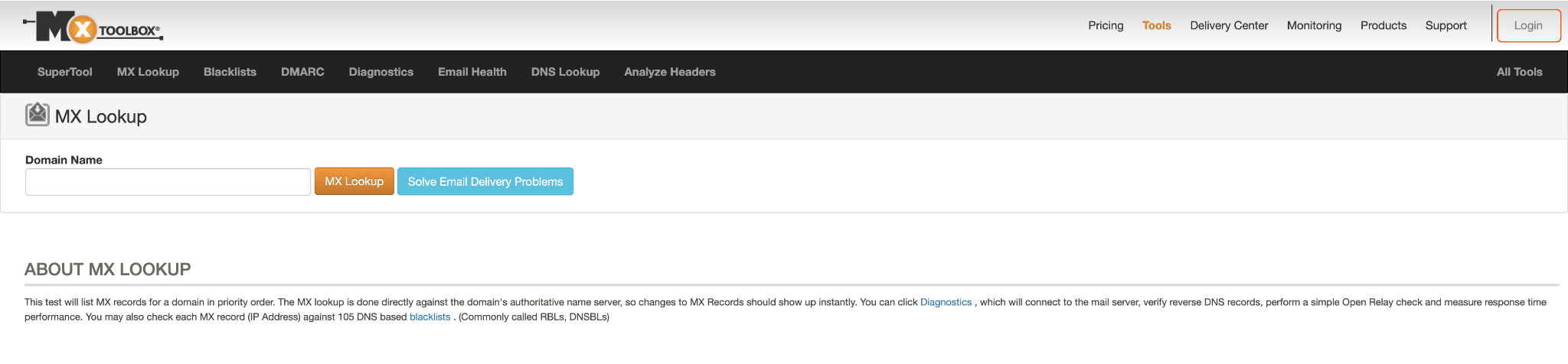
Once the page is loaded, locate and click on the Login button.
-
If you already have an account, sign in with your credentials. However, if you are a new user, choose the Sign up option and follow the provided instructions to create your account. After successfully setting up your account, log in using your new credentials.
-
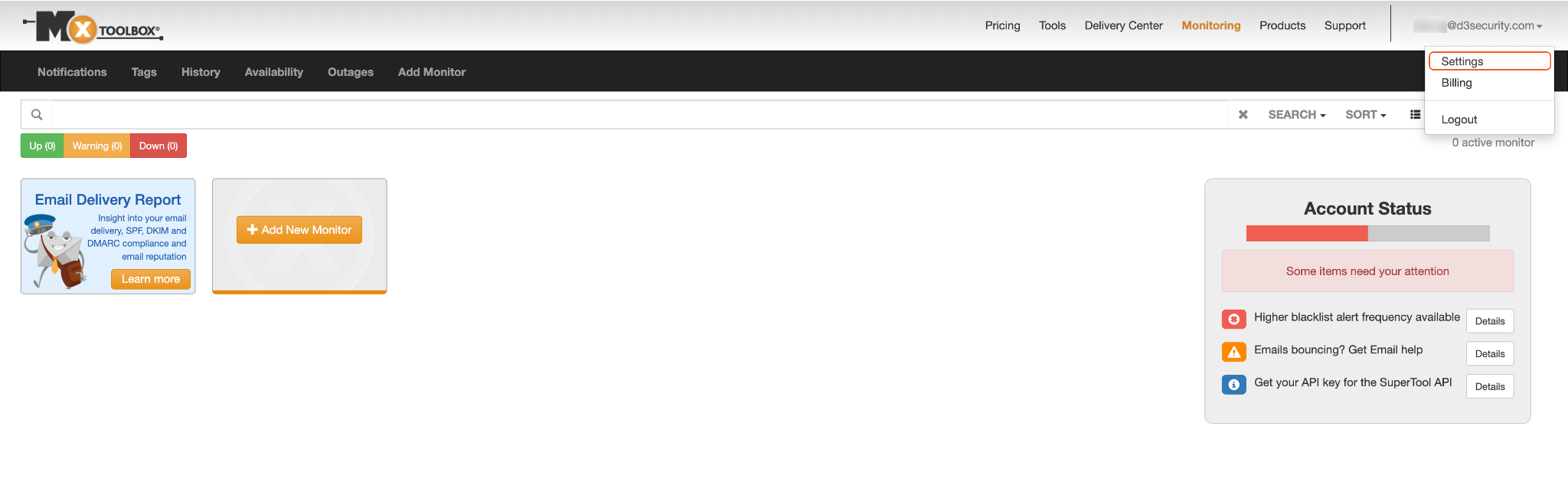
Upon logging in, find your account email address displayed near the top right corner of the screen and click on it. This action will bring up a dropdown menu. From this menu, select Settings.
-
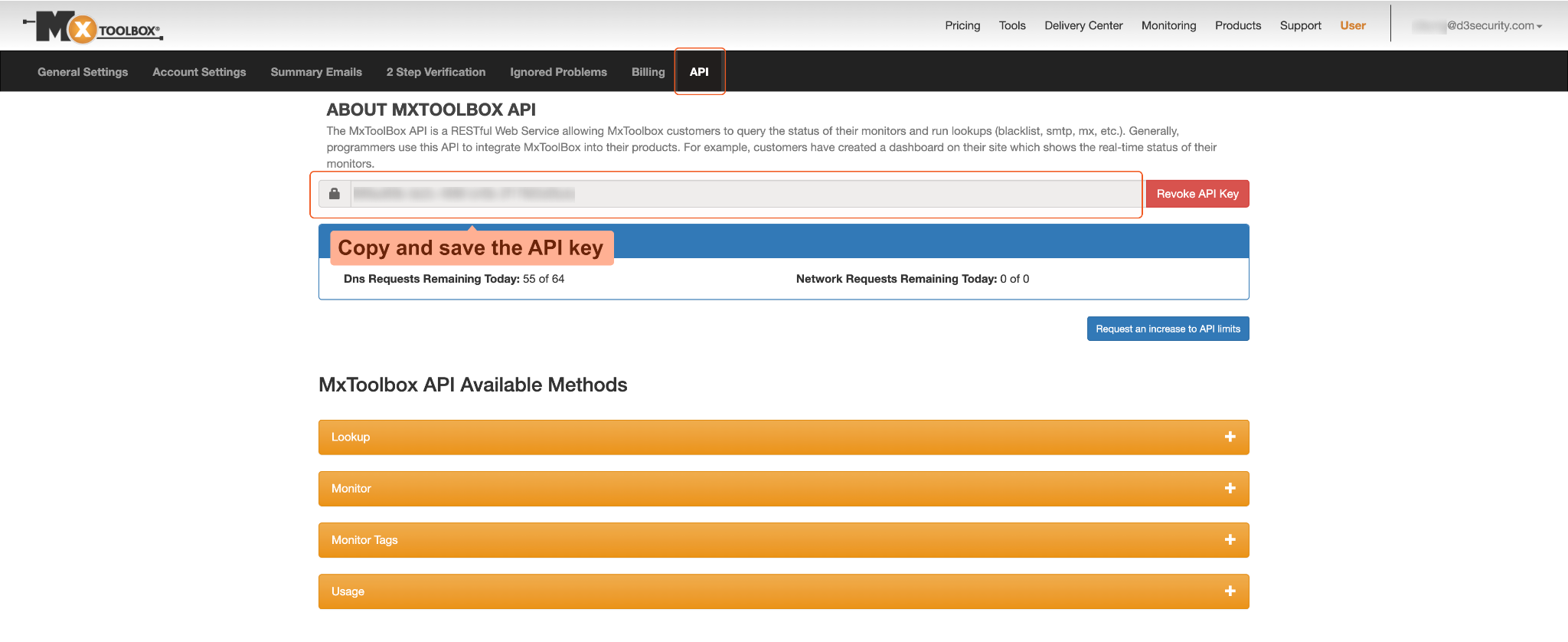
On the Settings page, navigate to the API tab, where you will find your unique API key. Copy and store the key in a secure location, as it will be required to create the connection in D3 SOAR.
Configuring D3 SOAR to Work with MXToolBox
-
Log in to D3 SOAR.
-
Find the MXToolBox integration.
-20241102-000537.png?cb=cdd1488f7ae9f995ecfed3fe248582e7)
-
Navigate to Configuration on the top header menu.
-
Click on the Integration icon on the left sidebar.
-
Type MXToolBox in the search box to find the integration, then click it to select it.
-
Click + New Connection, on the right side of the Connections section. A new connection window will appear.
-
-
Configure the following fields to create a connection to MXToolBox.
-20241102-000555.png?cb=98cba82314dc4c252ee9b3f07188cbdf)
-
Connection Name: The desired name for the connection.
-
Site: Specifies the site to use the integration connection. Use the drop-down menu to select the site. The Share to Internal Sites option enables all sites defined as internal sites to use the connection. Selecting a specific site will only enable that site to use the connection.
-
Recipient site for events from connections Shared to Internal Sites: This field appears if you selected Share to Internal Sites for Site to let you select the internal site to deploy the integration connection.
-
Agent Name (Optional): Specifies the proxy agent required to build the connection. Use the dropdown menu to select the proxy agent from a list of previously configured proxy agents.
-
Description (Optional): Add your desired description for the connection.
-
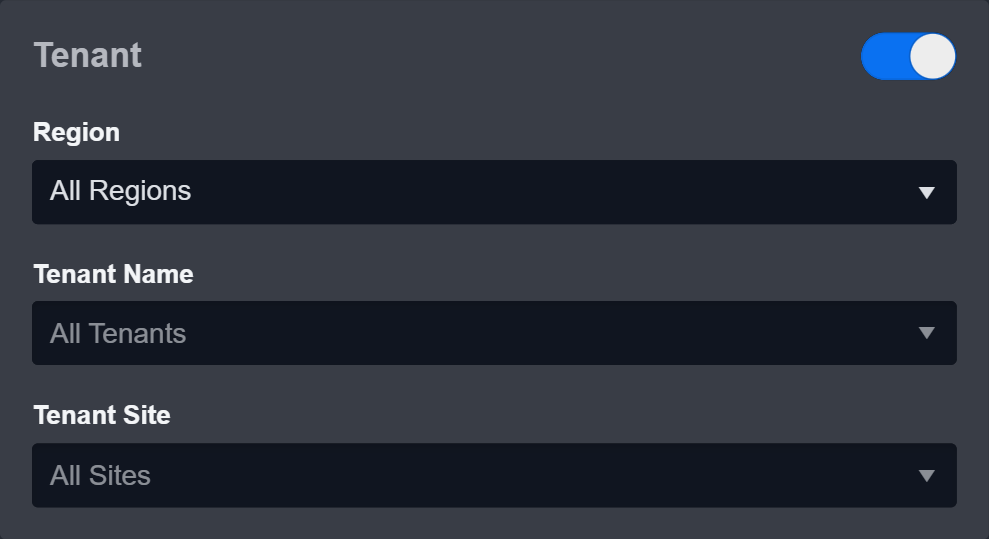
Tenant (Optional): When configuring the connection from a master tenant site, you have the option to choose the specific tenant sites you want to share the connection with. Once you enable this setting, you can filter and select the desired tenant sites from the dropdowns to share the connection.
-
Configure User Permissions: Defines which users have access to the connection.
-
Active: Check the tick box to ensure the connection is available for use.
-20241102-000606.png?cb=93d300100f706345564dccfa16cc3fd7)
-
System: This section contains the parameters defined specifically for the integration. These parameters must be configured to create the integration connection.
1. Input the Server URL. The default value is https://mxtoolbox.com.
2. Copy and paste the API Key from the MXToolBox platform (Refer to step 5 of Configuring MXToolBox to Work with D3 SOAR).
3. Input the API Version. The default value is v1. -
Enable Password Vault: An optional feature that allows users to take the stored credentials from their own password vault. Please refer to the password vault connection guide if needed.
-
Connection Health Check: Updates the connection status you have created. A connection health check is done by scheduling the Test Connection command of this integration. This can only be done when the connection is active.
To set up a connection health check, check the Connection Health Check tickbox. You can customize the interval (minutes) for scheduling the health check. An email notification can be set up after a specified number of failed connection attempts.
-
-
Test the connection.
-20241102-000636.png?cb=15fb2aaf737d80deb39590d7d239c909)
-
Click Test Connection to verify the account credentials and network connection. If the Test Connection Passed alert window appears, the test connection is successful. You will see Passed with a green checkmark appear beside the Test Connection button. If the test connection fails, please check your connection parameters and try again.
-
Click OK to close the alert window.
-
Click + Add to create and add the configured connection.
-
Commands
MXToolBox includes the following executable commands for users to set up schedules or create playbook workflows. With the Test Command, you can execute these commands independently for playbook troubleshooting.
Integration API Note
For more information about the MXToolBox API, please refer to the MXToolBox API reference.
READER NOTE
Certain permissions are required for each command. Please refer to the Permission Requirements and Configuring MXToolBox to Work with D3 SOAR for details.
Lookup A Record
Looks up DNS records for the given host names.
READER NOTE
Providing an invalid host name input will result in a successful response with no results.
Input
|
Input Parameter |
Required/Optional |
Description |
Example |
|
Host Names |
Required |
The host names to look up DNS records. |
[ "example.com" ] |
Output
Error Handling
If the Return Data is Partially Successful or Failed, an Error tab will appear in the Test Result window.
The error tab contains the details responded from D3 SOAR or third-party API calls, including Failure Indicator, Status Code, and Message. This can help you locate the root cause of a command failure.
|
Parts in Error |
Description |
Example |
|
Failure Indicator |
Indicates the command failure that happened at a specific input and/or API call. |
Lookup A Record failed. |
|
Status Code |
The response code issued by the third-party API server or the D3 SOAR system that can be used to locate the corresponding error category. For example, if the returned status code is 401, the selected connection is unauthorized to run the command. The user or system support would need to check the permission setting in the MXToolBox portal. Refer to the HTTP Status Code Registry for details. |
Status Code: 400. |
|
Message |
The raw data or captured key error message from the integration API server about the API request failure. |
Message: Name or service not known. |
|
Error Sample Data Lookup a Record failed. Status Code: 400. Message: Name or service not known. |
Lookup DNS Record
Looks up DNS records for the given domains.
READER NOTE
Providing an invalid domain input will result in a successful response with no results.
Input
|
Input Parameter |
Required/Optional |
Description |
Example |
|
Domains |
Required |
The domains to look up DNS records. |
[ "example.com" ] |
Output
Error Handling
If the Return Data is Failed, an Error tab will appear in the Test Result window.
The error tab contains the details responded from D3 SOAR or third-party API calls, including Failure Indicator, Status Code, and Message. This can help you locate the root cause of a command failure.
|
Parts in Error |
Description |
Example |
|
Failure Indicator |
Indicates the command failure that happened at a specific input and/or API call. |
Lookup DNS Record failed. |
|
Status Code |
The response code issued by the third-party API server or the D3 SOAR system that can be used to locate the corresponding error category. For example, if the returned status code is 401, the selected connection is unauthorized to run the command. The user or system support would need to check the permission setting in the MXToolBox portal. Refer to the HTTP Status Code Registry for details. |
Status Code: 400. |
|
Message |
The raw data or captured key error message from the integration API server about the API request failure. |
Message: Name or service not known. |
|
Error Sample Data Lookup DNS Record failed. Status Code: 400. Message: Name or service not known. |
Lookup IP in Blacklist
Performs a blacklist lookup on the provided IP addresses.
READER NOTE
Providing an invalid IP address input will result in a successful response with no results.
Input
|
Input Parameter |
Required/Optional |
Description |
Example |
|
IP addresses |
Required |
The IP addresses to perform a blacklist lookup. |
[ "2.2.2.2" ] |
Output
Error Handling
If the Return Data is Partially Successful or Failed, an Error tab will appear in the Test Result window.
The error tab contains the details responded from D3 SOAR or third-party API calls, including Failure Indicator, Status Code, and Message. This can help you locate the root cause of a command failure.
|
Parts in Error |
Description |
Example |
|
Failure Indicator |
Indicates the command failure that happened at a specific input and/or API call. |
Lookup IP in Blacklist failed. |
|
Status Code |
The response code issued by the third-party API server or the D3 SOAR system that can be used to locate the corresponding error category. For example, if the returned status code is 401, the selected connection is unauthorized to run the command. The user or system support would need to check the permission setting in the MXToolBox portal. Refer to the HTTP Status Code Registry for details. |
Status Code: 400. |
|
Message |
The raw data or captured key error message from the integration API server about the API request failure. |
Message: Name or service not known. |
|
Error Sample Data Lookup IP in Blacklist failed. Status Code: 400. Message: Name or service not known. |
Lookup MX Record
Looks up MX records for the given domain(s). Note: This command will count towards the DNS API request quota, so it is not recommended to schedule it with high frequency.
READER NOTE
Providing an invalid domain input will result in a successful response with no results.
Input
|
Input Parameter |
Required/Optional |
Description |
Example |
|
Domains |
Required |
The domains to look up MX records. |
["example.com"] |
Output
Error Handling
If the Return Data is Partially Successful or Failed, an Error tab will appear in the Test Result window.
The error tab contains the details responded from D3 SOAR or third-party API calls, including Failure Indicator, Status Code, and Message. This can help you locate the root cause of a command failure.
|
Parts in Error |
Description |
Example |
|
Failure Indicator |
Indicates the command failure that happened at a specific input and/or API call. |
Lookup MX Record failed. |
|
Status Code |
The response code issued by the third-party API server or the D3 SOAR system that can be used to locate the corresponding error category. For example, if the returned status code is 401, the selected connection is unauthorized to run the command. The user or system support would need to check the permission setting in the MXToolBox portal. Refer to the HTTP Status Code Registry for details. |
Status Code: 400. |
|
Message |
The raw data or captured key error message from the integration API server about the API request failure. |
Message: Name or service not known. |
|
Error Sample Data Lookup MX Record failed. Status Code: 400. Message: Name or service not known. |
Lookup PTR Record
Looks up DNS pointer records (PTRs) for the given host names. Note: This command will count towards the DNS API request quota, so it is not recommended to schedule it with high frequency.
Input
|
Input Parameter |
Required/Optional |
Description |
Example |
|
Host Names |
Required |
The host names to look up PTR records. |
["2.2.2.2"] |
Output
Error Handling
If the Return Data is Partially Successful or Failed, an Error tab will appear in the Test Result window.
The error tab contains the details responded from D3 SOAR or third-party API calls, including Failure Indicator, Status Code, and Message. This can help you locate the root cause of a command failure.
|
Parts in Error |
Description |
Example |
|
Failure Indicator |
Indicates the command failure that happened at a specific input and/or API call. |
Lookup PTR Record failed. |
|
Status Code |
The response code issued by the third-party API server or the D3 SOAR system that can be used to locate the corresponding error category. For example, if the returned status code is 401, the selected connection is unauthorized to run the command. The user or system support would need to check the permission setting in the MXToolBox portal. Refer to the HTTP Status Code Registry for details. |
Status Code: 400. |
|
Message |
The raw data or captured key error message from the integration API server about the API request failure. |
Message: Invalid Input. ptr requires a IP Address and hh is a Fully Qualified Domain Name.. Documentation available at https://mxtoolbox.com/restapi.aspx. |
|
Error Sample Data Lookup PTR Record failed. Status Code: 400. Message: Invalid Input. ptr requires a IP Address and hh is a Fully Qualified Domain Name.. Documentation available at https://mxtoolbox.com/restapi.aspx. |
Lookup SOA Record
Looks up start of authority (SOA) records for the given domains.
READER NOTE
Providing an invalid domain input will result in a successful response with no results.
Input
|
Input Parameter |
Required/Optional |
Description |
Example |
|
Domains |
Required |
The domains to look up SOA records. |
[ "example.com" ] |
Output
Error Handling
If the Return Data is Partially Successful or Failed, an Error tab will appear in the Test Result window.
The error tab contains the details responded from D3 SOAR or third-party API calls, including Failure Indicator, Status Code, and Message. This can help you locate the root cause of a command failure.
|
Parts in Error |
Description |
Example |
|
Failure Indicator |
Indicates the command failure that happened at a specific input and/or API call. |
Lookup SOA Record failed. |
|
Status Code |
The response code issued by the third-party API server or the D3 SOAR system that can be used to locate the corresponding error category. For example, if the returned status code is 401, the selected connection is unauthorized to run the command. The user or system support would need to check the permission setting in the MXToolBox portal. Refer to the HTTP Status Code Registry for details. |
Status Code: 400. |
|
Message |
The raw data or captured key error message from the integration API server about the API request failure. |
Message: Name or service not known. |
|
Error Sample Data Lookup SOA Record failed. Status Code: 400. Message: Name or service not known. |
Lookup SPF Record
Looks up sender policy framework (SPF) records for the given domains.
READER NOTE
Providing an invalid domain input will result in a successful response with no results.
Input
|
Input Parameter |
Required/Optional |
Description |
Example |
|
Domains
|
Required |
The domains to look up SPF records. |
[ "example.com" ] |
Output
Error Handling
If the Return Data is Partially Successful or Failed, an Error tab will appear in the Test Result window.
The error tab contains the details responded from D3 SOAR or third-party API calls, including Failure Indicator, Status Code, and Message. This can help you locate the root cause of a command failure.
|
Parts in Error |
Description |
Example |
|
Failure Indicator |
Indicates the command failure that happened at a specific input and/or API call. |
Lookup SPF Record failed. |
|
Status Code |
The response code issued by the third-party API server or the D3 SOAR system that can be used to locate the corresponding error category. For example, if the returned status code is 401, the selected connection is unauthorized to run the command. The user or system support would need to check the permission setting in the MXToolBox portal. Refer to the HTTP Status Code Registry for details. |
Status Code: 400. |
|
Message |
The raw data or captured key error message from the integration API server about the API request failure. |
Message: Name or service not known. |
|
Error Sample Data Lookup SPF Record failed. Status Code: 400. Message: Name or service not known. |
Lookup TXT Record
Looks up DNS text (TXT) records for the given domains.
READER NOTE
Providing an invalid domain input will result in a successful response with no results.
Input
|
Input Parameter |
Required/Optional |
Description |
Example |
|
Domains |
Required |
The domains to look up TXT records.
|
[ "example.com" ] |
Output
Error Handling
If the Return Data is Partially Successful or Failed, an Error tab will appear in the Test Result window.
The error tab contains the details responded from D3 SOAR or third-party API calls, including Failure Indicator, Status Code, and Message. This can help you locate the root cause of a command failure.
|
Parts in Error |
Description |
Example |
|
Failure Indicator |
Indicates the command failure that happened at a specific input and/or API call. |
Lookup TXT Record failed. |
|
Status Code |
The response code issued by the third-party API server or the D3 SOAR system that can be used to locate the corresponding error category. For example, if the returned status code is 401, the selected connection is unauthorized to run the command. The user or system support would need to check the permission setting in the MXToolBox portal. Refer to the HTTP Status Code Registry for details. |
Status Code: 400. |
|
Message |
The raw data or captured key error message from the integration API server about the API request failure. |
Message: Name or service not known. |
|
Error Sample Data Lookup TXT Record failed. Status Code: 400. Message: Name or service not known. |
Test Connection
Allows you to perform a health check on an integration connection. You can schedule a periodic health check by selecting Connection Health Check when editing an integration connection.
Input
N/A
Output
Error Handling
If the Return Data is Failed, an Error tab will appear in the Test Result window.
The error tab contains the details responded from D3 SOAR or third-party API calls, including Failure Indicator, Status Code, and Message. This can help you locate the root cause of a command failure.
|
Parts in Error |
Description |
Example |
|
Failure Indicator |
Indicates the command failure that happened at a specific input and/or API call. |
Test Connection failed. Failed to check the connector. |
|
Status Code |
The response code issued by the third-party API server or the D3 SOAR system that can be used to locate the corresponding error category. For example, if the returned status code is 401, the selected connection is unauthorized to run the command. The user or system support would need to check the permission setting in the MXToolBox portal. Refer to the HTTP Status Code Registry for details. |
Status Code: 400. |
|
Message |
The raw data or captured key error message from the integration API server about the API request failure. |
Message: Name or service not known. |
|
Error Sample Data Test Connection failed. Failed to check the connector. Status Code: 400. Message: Name or service not known. |