
last updated: Aug 5, 2025
Overview
Trend Micro Apex Central is the web-based centralized management console for Trend Micro Apex One as a Service, which protects endpoints, on or off the corporate network, against malware, Trojans, worms, spyware, and ransomware with protection that adapts against new unknown variants as they emerge.
D3 SOAR is providing REST operations to function with Trend Micro Apex Central.
Trend Micro Apex Central is available for use in:
|
D3 SOAR |
V14.0.158.0+ |
|
Category |
Endpoint Security |
|
Deployment Options |
Connection
To connect to Trend Micro Apex Central from D3 SOAR, please follow this part to collect the required information below:
|
Parameter |
Description |
Example |
|
Server URL |
The server URL for Trend Micro Apex Central. |
https://***.manage.trendmicro.com |
|
Application ID |
The application ID for authentication. |
***-***-***-***-*** |
|
API Key |
The API key for authentication. |
***-***-***-***-*** |
Permission Requirements
Each endpoint in the Trend Micro Apex Central API requires a certain permission scope. The following are required scopes for the commands in this integration:
All commands need Settings > Automation API Access Settings access in order to generate an API key.
As Trend Micro Apex Central is using role-based access control (RBAC), the API access token is generated based on a specific user account and the application. Therefore, the command permissions are inherited from the user account's role. Users need to configure their user profile from the Trend Micro Apex Central console for each command in this integration.
READER NOTE
Trend Micro Apex Central's default user profiles are as follows:
-
Administrator_and_DLP_Compliance_Officer
-
Administrator
-
DLP_Compliance_Office
-
DLP_Incident_Reviewer
-
Operator
-
Power_User
-
Read-only_User
-
Threat_Investigator
You may see the following section to custom create user roles to use for this integration. Please refer to Default User Roles and User Roles for details on configuring user profiles.
Configuring Trend Micro Apex Central to Work with D3 SOAR
-
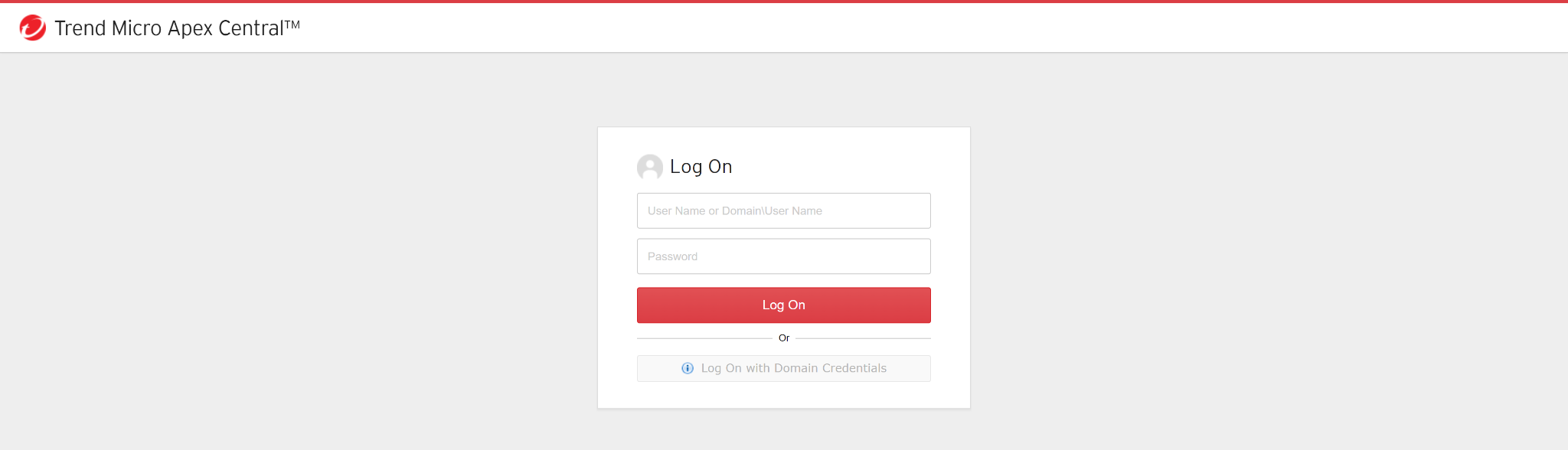
Log into the Trend Micro Apex Central portal.
-
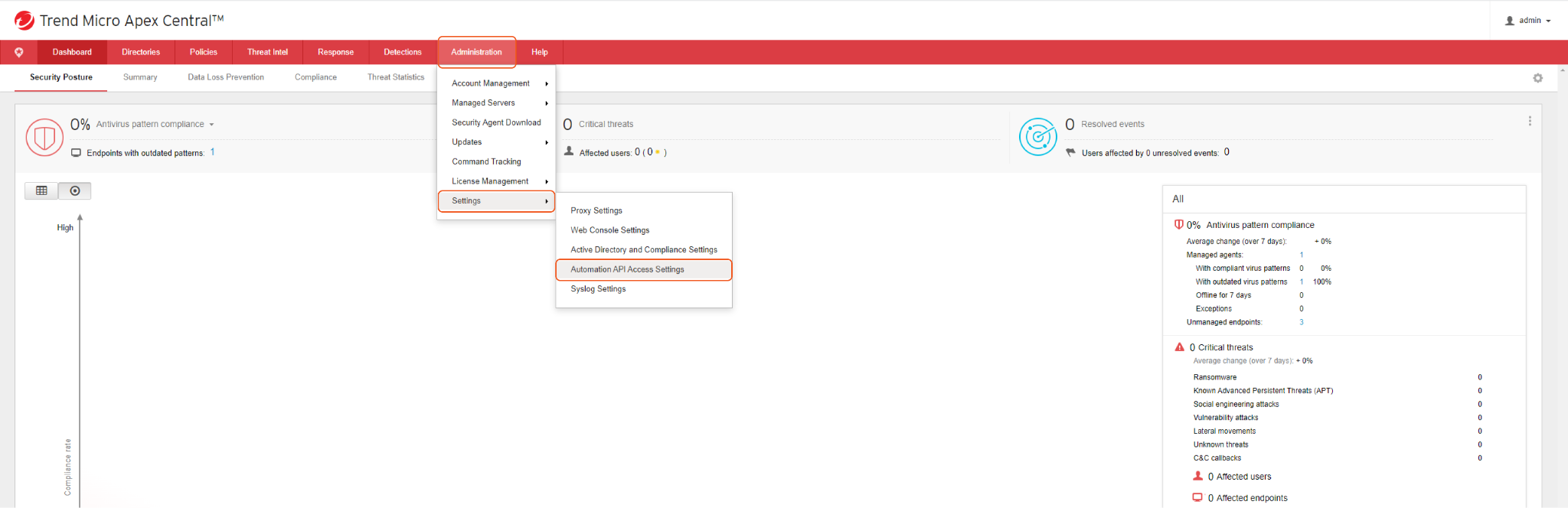
Navigate to Administration > Settings > Automation API Access Settings.
-
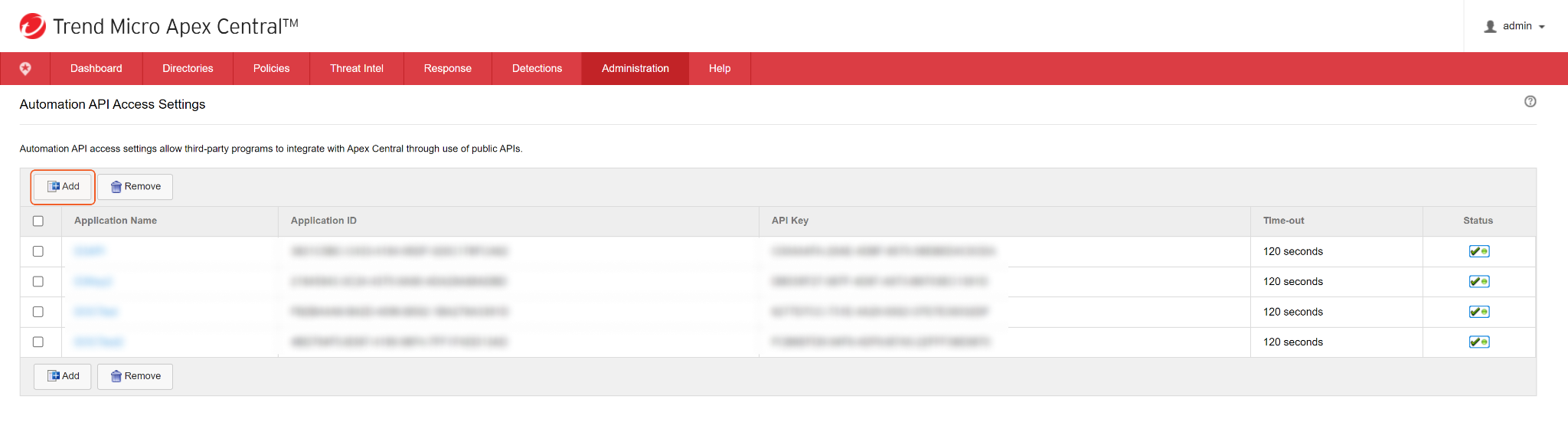
Click + Add to create a new application.
-
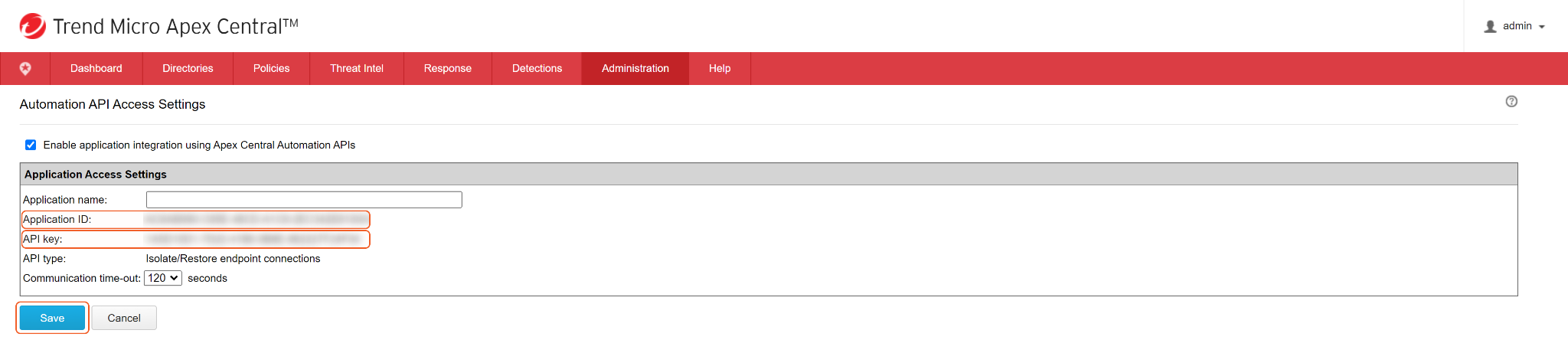
Enter a name for the application. Copy and save the Application ID and API Key. These will be required to build the integration connection in D3 SOAR.
Creating a User and Configuring API permissions
-
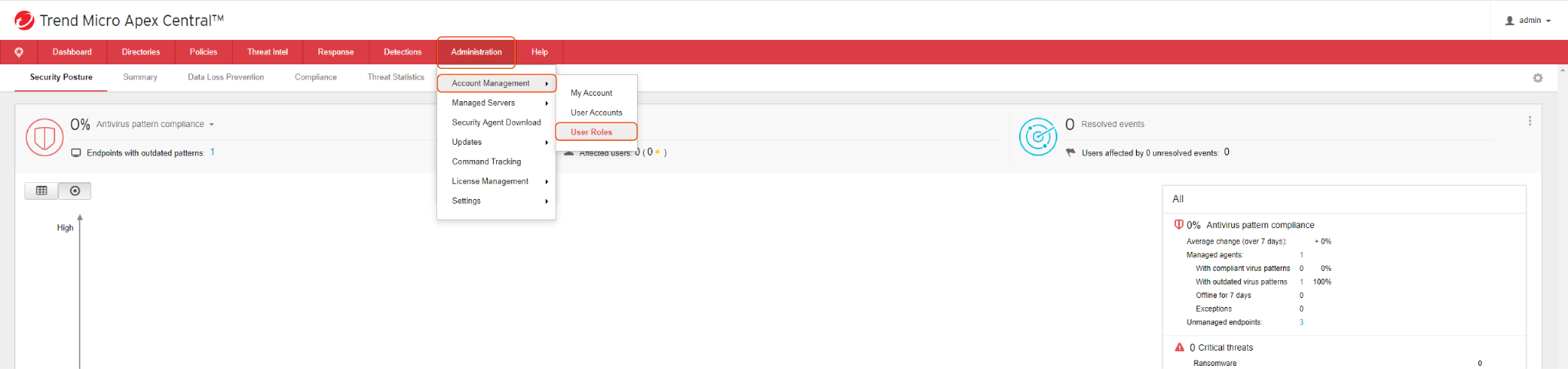
Define a custom role through the following steps. Navigate to Administration > Account Management > User Roles.
-
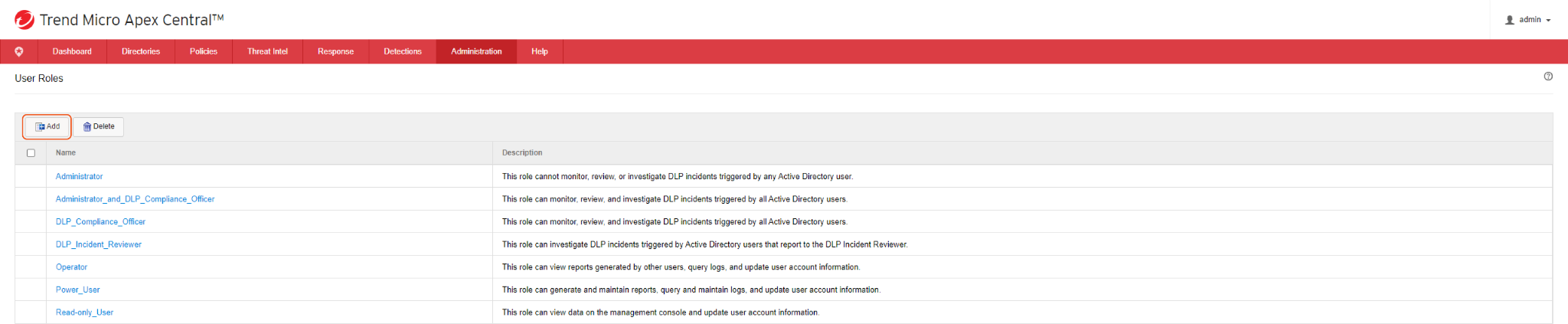
Click + Add to add a new role.
-
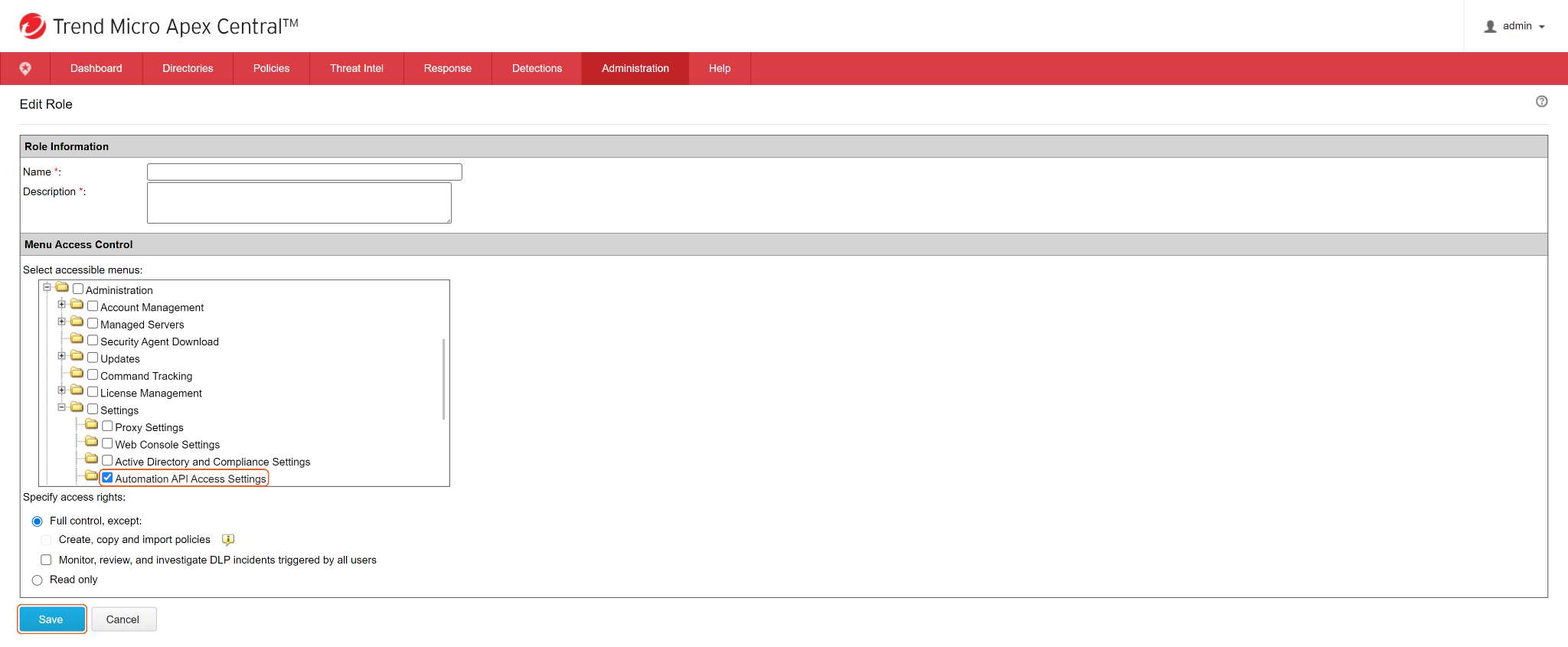
Add a name and description for the role, then specify the menu access controls for the role. Selecting Automation API Access Settings under Administration > Settings with the Full Control option selected will enable access to all commands for the integration.
-
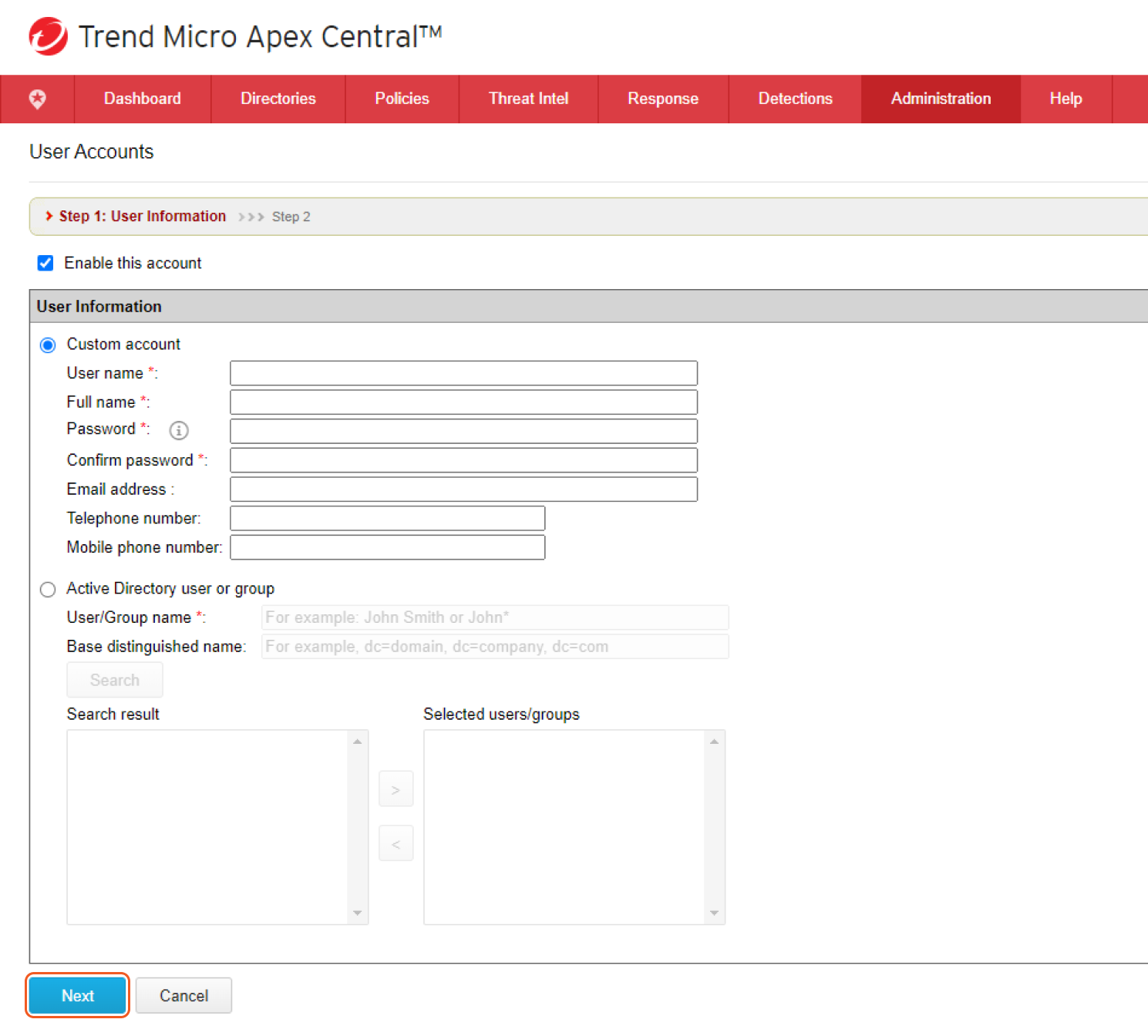
Create a user. Navigate to Administration > Account Management > User Accounts.

-
Click + Add to create a user.

-
Enter the user's User Name, Full Name and Password. Click Next.
-
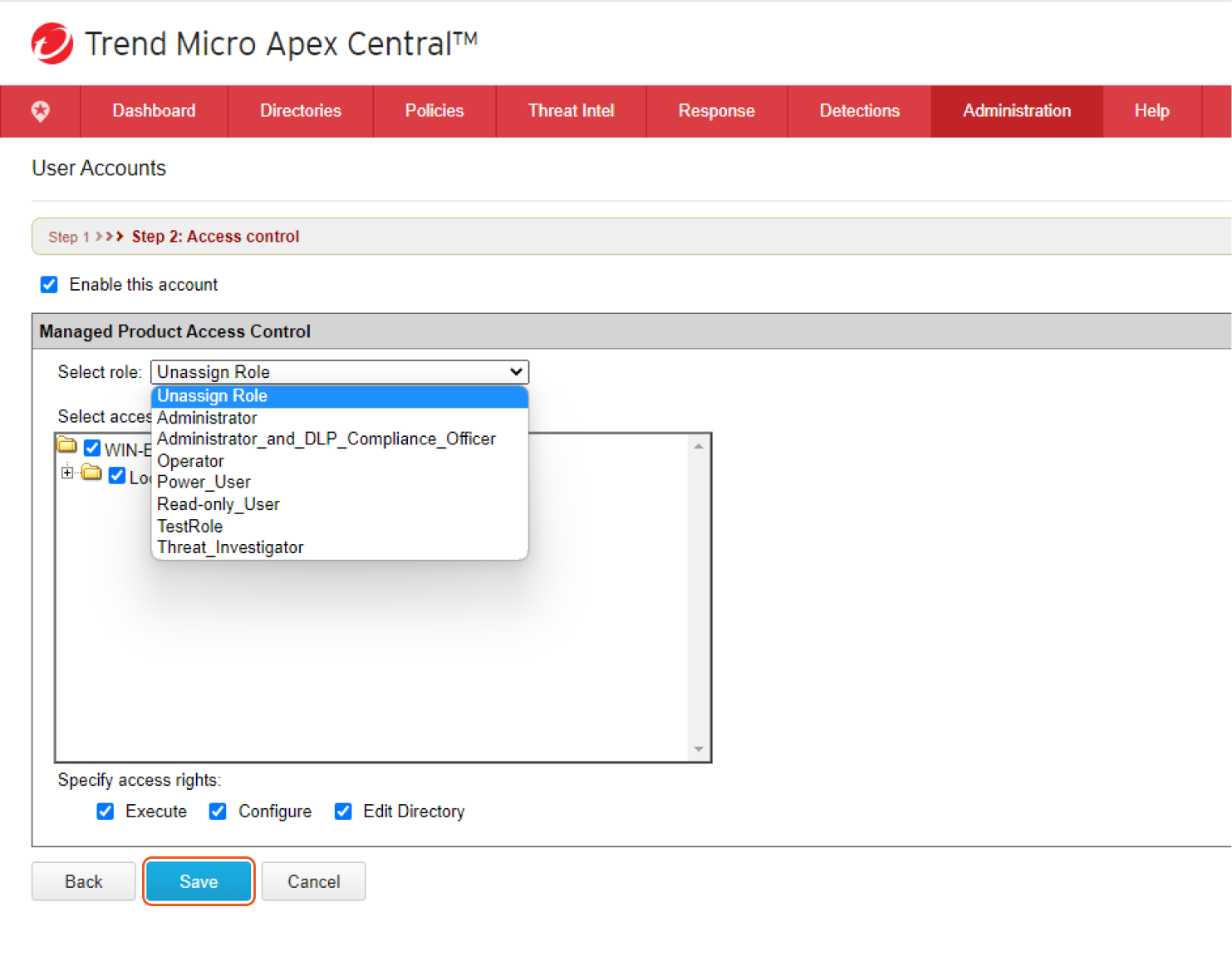
Specify the user's role and access level by selecting the custom role you created from the dropdown menu. Access rights can also be further specified with the tick boxes below this window. Click Save to create the user.
Configuring D3 SOAR to Work with Trend Micro Apex Central
-
Log in to D3 SOAR.
-
Find the Trend Micro Apex Central integration.
-20241022-174809.png?cb=2b1f191daa6929340854da43b85823ec)
-
Navigate to Configuration on the top header menu.
-
Click on the Integration icon on the left sidebar.
-
Type Trend Micro Apex Central in the search box to find the integration, then click it to select it.
-
Click + Connection, on the right side of the Connections section. A new connection window will appear.
-
-
Configure the following fields to create a connection to Trend Micro Apex Central.
-20241022-174909.png?cb=acb6ef6737e4f8624456164b9078c33f)
-
Connection Name: The desired name for the connection.
-
Site: Specifies the site to use the integration connection. Use the drop-down menu to select the site. The Share to Internal Sites option enables all sites defined as internal sites to use the connection. Selecting a specific site will only enable that site to use the connection.
-
Recipient site for events from connections Shared to Internal Sites: This field appears if you selected Share to Internal Sites for Site to let you select the internal site to deploy the integration connection.
-
Agent Name (Optional): Specifies the proxy agent required to build the connection. Use the dropdown menu to select the proxy agent from a list of previously configured proxy agents.
-
Description (Optional): Add your desired description for the connection.
-
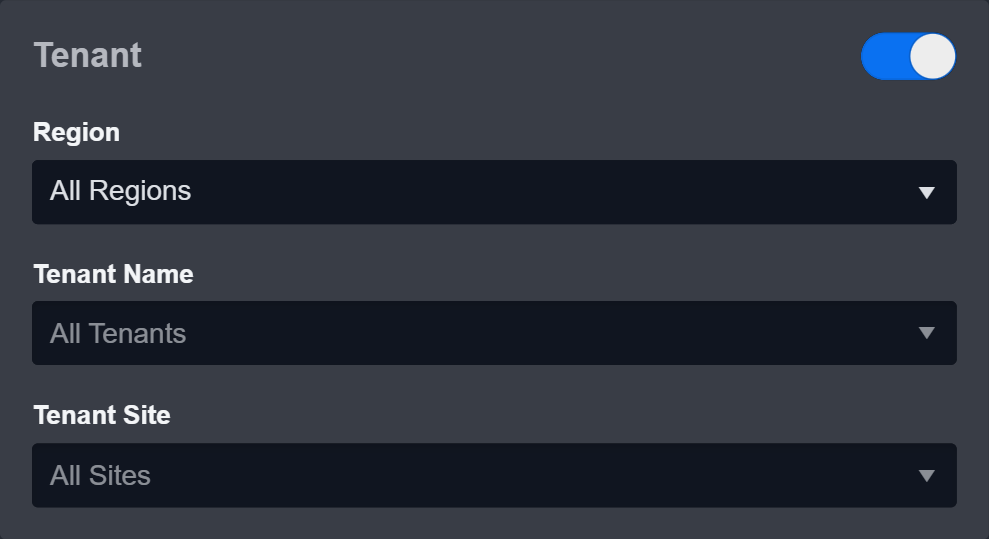
Tenant (Optional): When configuring the connection from a master tenant site, you have the option to choose the specific tenant sites you want to share the connection with. Once you enable this setting, you can filter and select the desired tenant sites from the dropdowns to share the connection.
-
Configure User Permissions: Defines which users have access to the connection.
-
Active: Check the tick box to ensure the connection is available for use.
-20241022-174948.png?cb=ffc850e280501b217a215607cef27fd3)
-
System: This section contains the parameters defined specifically for the integration. These parameters must be configured to create the integration connection.
1. Input the domain level Server URL. The default value is https://vjpptf.manage.trendmicro.com.
2. Copy the Application ID from the Trend Micro Apex Central platform. Refer to step 4 of Configuring Trend Micro Apex Central to Work with D3 SOAR.
3. Input the API Key from the TrendMicro Apex Central platform. Refer to step 4 of Configuring Trend Micro Apex Central to Work with D3 SOAR. -
Connection Health Check: Updates the connection status you have created. A connection health check is done by scheduling the Test Connection command of this integration. This can only be done when the connection is active.
To set up a connection health check, check the Connection Health Check tick box. You can customize the interval (minutes) for scheduling the health check. An email notification can be set up after a specified number of failed connection attempts. -
Enable Password Vault: An optional feature that allows users to take the stored credentials from their own password vault. Please refer to the password vault connection guide if needed.
-
-
Test the connection.
-
Click Test Connection to verify the account credentials and network connection. If the Test Connection Passed alert window appears, the test connection is successful. You will see Passed with a green checkmark appear beside the Test Connection button. If the test connection fails, please check your connection parameters and try again.
-
Click OK to close the alert window.
-
Click Add to create and add the configured connection.
-
Commands
Trend Micro Apex Central includes the following executable commands for users to set up schedules or create playbook workflows. With the Test Command, you can execute these commands independently for playbook troubleshooting.
Integration API Note
For more information about the Trend Micro Apex Central API, please refer to the Trend Micro Apex Central API reference.
READER NOTE
Certain permissions are required for each command. Please refer to the Permission Requirements and Configuring Trend Micro Apex Central to Work with D3 SOAR for details.
Note for Time-related parameters
The input format of time-related parameters may vary based on your account settings. As a result, the sample data provided in our commands is different from what you see. To set your preferred time format, follow these steps:
-
Navigate to Configuration > Application Settings. Select Date/Time Format.
-20241022-175306.png?cb=d193820a80b1afa28ab5f6e616957b51)
-
Choose your desired date and time format.
-20241022-180811.png?cb=6a9a092289ab1c1e5f5d3297f87f4ea6)
-
After that, you will be able to view your preferred time format when configuring the DateTime input parameters for commands.
Add Domain To UDSO
Adds the specified domain(s) to the User-Defined Suspicious Objects list. If a domain already exists in the UDSO list, it will be updated.
Input
|
Input Parameter |
Required/Optional |
Description |
Example |
|
Domains |
Required |
The domains to add to the UDSO list. |
[ "www.phishing_domain1.com" ] |
|
Scan Action |
Optional |
The scan action to perform on the Domains. Available options are Log and Block. If this parameter is not defined, the default scan action is Log. |
Log |
|
Notes |
Optional |
The description for the Domains. |
Suspicious Domain! |
|
Expiration UTC Date |
Optional |
The expiration date of the Domains in UTC time. |
2023-05-05 00:00 |
Output
Error Handling
If the Return Data is Partially Successful or Failed, an Error tab will appear in the Test Result window.
The error tab contains the details responded from D3 SOAR or third-party API calls, including Failure Indicator, Status Code, and Message. This can help you locate the root cause of a command failure.
|
Parts in Error |
Description |
Example |
|
Failure Indicator |
Indicates the command failure that happened at a specific input and/or API call. |
Add Domain To UDSO failed. |
|
Status Code |
The response code issued by the third-party API server or the D3 SOAR system that can be used to locate the corresponding error category. For example, if the returned status code is 401, the selected connection is unauthorized to run the command. The user or system support would need to check the permission setting in the Trend Micro Apex Central portal. Refer to the HTTP Status Code Registry for details. |
Status Code: 500. |
|
Message |
The raw data or captured key error message from the integration API server about the API request failure. |
Message: Invalid credential. |
|
Error Sample Data Add Domain To UDSO failed. Status Code: 500. Message: Invalid credential. |
Add File Hashes To UDSO
Adds the specified File Hash(es) in SHA-1 to the User-Defined Suspicious Objects list. If the Hash value already exists in the UDSO list, it will be updated.
Input
|
Input Parameter |
Required/Optional |
Description |
Example |
|
File Hashes |
Required |
The File Hashes in SHA-1 to add to the UDSO list. |
[ "B3*****A3" ] |
|
Scan Action |
Optional |
The scan action to perform on the File Hashes. Available options are Log and Block. If this parameter is not defined, the default scan action is Log. |
Log |
|
Notes |
Optional |
The description for the File Hashes. |
Suspicious File-Wildfire |
|
Expiration UTC Date |
Optional |
The expiration date of the File Hashes in UTC time. |
2023-05-05 00:00 |
Output
Error Handling
If the Return Data is Partially Successful or Failed, an Error tab will appear in the Test Result window.
The error tab contains the details responded from D3 SOAR or third-party API calls, including Failure Indicator, Status Code, and Message. This can help you locate the root cause of a command failure.
|
Parts in Error |
Description |
Example |
|
Failure Indicator |
Indicates the command failure that happened at a specific input and/or API call. |
Add File Hashes To UDSO failed. |
|
Status Code |
The response code issued by the third-party API server or the D3 SOAR system that can be used to locate the corresponding error category. For example, if the returned status code is 401, the selected connection is unauthorized to run the command. The user or system support would need to check the permission setting in the Trend Micro Apex Central portal. Refer to the HTTP Status Code Registry for details. |
Status Code: 500. |
|
Message |
The raw data or captured key error message from the integration API server about the API request failure. |
Message: Invalid credential. |
|
Error Sample Data Add File Hashes To UDSO failed. Status Code: 500. Message: Invalid credential. |
Add Files To UDSO
Adds the specified File information to the User-Defined Suspicious Objects list. If the File already exists in the UDSO list, it will be updated.
File ID and File Source
It is not recommended to use the Test Command feature with the Add Files To UDSO command as it is designed for dynamic input files in Playbooks, Incident Attachments, and Artifact Attachments. There is a simple workaround to test the command:
-
Navigate to Configuration on the top bar menu.
-
Click on Utility Commands on the left sidebar menu.
-
Use the search box to find and select the Create a File from input Text Array command.
-
Click on the Test tab.
-
Input the required information for the parameters.
-
Click on the Test Command button. A D3 File ID will appear in the output data after the file has been successfully created. The D3 File Source of the created file will be Playbook File.
Input
|
Input Parameter |
Required/Optional |
Description |
Example |
|
File IDs |
Required |
The File IDs to add to the UDSO list. |
[ "913" ] |
|
File Source |
Required |
The file source of the file to add. The options for file sources are:
|
Playbook File |
|
Scan Action |
Optional |
The scan action to perform on the Files. Available options are Log, Block and Quarantine. If this parameter is not defined, the default scan action is Log. |
Block |
|
Note |
Optional |
The description for the files. |
Small file for test |
Output
Error Handling
If the Return Data is Partially Successful or Failed, an Error tab will appear in the Test Result window.
The error tab contains the details responded from D3 SOAR or third-party API calls, including Failure Indicator, Status Code, and Message. This can help you locate the root cause of a command failure.
|
Parts in Error |
Description |
Example |
|
Failure Indicator |
Indicates the command failure that happened at a specific input and/or API call. |
Add Files To UDSO failed. |
|
Status Code |
The response code issued by the third-party API server or the D3 SOAR system that can be used to locate the corresponding error category. For example, if the returned status code is 401, the selected connection is unauthorized to run the command. The user or system support would need to check the permission setting in the Trend Micro Apex Central portal. Refer to the HTTP Status Code Registry for details. |
Status Code: 500. |
|
Message |
The raw data or captured key error message from the integration API server about the API request failure. |
Message: Invalid credential. |
|
Error Sample Data Add Files To UDSO failed. Status Code: 500. Message: Invalid credential. |
Add IPs To UDSO
Adds the specified IP(s) to the User-Defined Suspicious Objects list. If the IP already exists in the UDSO list, it will be updated.
Input
|
Input Parameter |
Required/Optional |
Description |
Example |
|
IPs |
Required |
The IP addresses to add to the UDSO list. |
[ "2.2.2.2" ] |
|
Scan Action |
Optional |
The scan action to perform on the IP addresses. Available options are Log and Block. If this parameter is not defined, the default scan action is Log. |
Block |
|
Notes |
Optional |
The description for the IP addresses. |
Suspicious phishing ip |
|
Expiration UTC Date |
Optional |
The expiration date of the IP addresses in UTC time. |
2023-05-09 00:00 |
Output
Error Handling
If the Return Data is Partially Successful or Failed, an Error tab will appear in the Test Result window.
The error tab contains the details responded from D3 SOAR or third-party API calls, including Failure Indicator, Status Code, and Message. This can help you locate the root cause of a command failure.
|
Parts in Error |
Description |
Example |
|
Failure Indicator |
Indicates the command failure that happened at a specific input and/or API call. |
Add IPs To UDSO failed. |
|
Status Code |
The response code issued by the third-party API server or the D3 SOAR system that can be used to locate the corresponding error category. For example, if the returned status code is 401, the selected connection is unauthorized to run the command. The user or system support would need to check the permission setting in the Trend Micro Apex Central portal. Refer to the HTTP Status Code Registry for details. |
Status Code: 500. |
|
Message |
The raw data or captured key error message from the integration API server about the API request failure. |
Message: Invalid credential. |
|
Error Sample Data Add IPs To UDSO failed. Status Code: 500. Message: Invalid credential. |
Add URLs To UDSO
Adds the specified URL(s) to the User-Defined Suspicious Objects list. If the URL already exists in the UDSO list, it will be updated.
Input
|
Input Parameter |
Required/Optional |
Description |
Example |
|
URLs |
Required |
The URLs to add to the UDSO list. |
[ "https://www.test123.com/index.html" ] |
|
Scan Action |
Optional |
The scan action to perform on the URLs. Available options are Log and Block. If this parameter is not defined, the default scan action is Log. |
Block |
|
Notes |
Optional |
The description for the URLs. |
Suspicious url |
|
Expiration UTC Date |
Optional |
The expiration date of the URLs in UTC time. |
2023-05-05 12:00 AM |
Output
Error Handling
If the Return Data is Partially Successful or Failed, an Error tab will appear in the Test Result window.
The error tab contains the details responded from D3 SOAR or third-party API calls, including Failure Indicator, Status Code, and Message. This can help you locate the root cause of a command failure.
|
Parts in Error |
Description |
Example |
|
Failure Indicator |
Indicates the command failure that happened at a specific input and/or API call. |
Add URLs To UDSO failed. |
|
Status Code |
The response code issued by the third-party API server or the D3 SOAR system that can be used to locate the corresponding error category. For example, if the returned status code is 401, the selected connection is unauthorized to run the command. The user or system support would need to check the permission setting in the Trend Micro Apex Central portal. Refer to the HTTP Status Code Registry for details. |
Status Code: 400. |
|
Message |
The raw data or captured key error message from the integration API server about the API request failure. |
Message: Url is invalid which should be include http:// or https://. |
|
Error Sample Data Add URLs To UDSO failed. Status Code: 400. Message: Url is invalid which should be include http:// or https://. |
Create OpenIOC Scan
Creates a new Live Investigation to scan the disk file using an OpenIOC file.
READER NOTE
Agent GUIDs and Server GUID are required parameters to run this command.
-
Run the List Security Agents command to obtain Agent GUIDs. Agent GUIDs can be found from the returned raw data at the path $.data.data.content[0].content.agentEntity[*].agentGuid.
-
Run the List Product Agents command to obtain the Server GUID. Server GUID can be found from the returned raw data at the path $.result_content[*].entity_id.
File ID and File Source
It is not recommended to use the Test Command feature with the Create OpenIOC Scan command as it is designed for dynamic input files in Playbooks, Incident Attachments, and Artifact Attachments. There is a simple workaround to test the command:
-
Navigate to Configuration on the top bar menu.
-
Click on Utility Commands on the left sidebar menu.
-
Use the search box to find and select the Create a File from input Text Array command.
-
Click on the Test tab.
-
Input the required information for the parameters.
-
Click on the Test Command button. A D3 File ID will appear in the output data after the file has been successfully created. The D3 File Source of the created file will be Playbook File.
Input
|
Input Parameter |
Required/Optional |
Description |
Example |
|
Name |
Required |
The name of the scan. |
Test Scan |
|
Agent GUIDs |
Required |
The GUIDs of the agents to be scanned. Agent GUIDs can be obtained using the List Security Agents command. |
[ "***-***-***-***-***", "***-***-***-***-**" ] |
|
Server GUID |
Required |
The GUID of the server. Server GUID can be obtained using the List Product Agents command. |
***-***-***-***-*** |
|
File ID |
Required |
The file path of the file source. |
287 |
|
File Source |
Required |
The file source of the file. The options for file sources are: Incident Attachment File: Manually uploaded file from Incident Playbook File: Output from another Task Artifact File: Ingested Artifact in an Event |
Incident Attachment File |
Output
Error Handling
If the Return Data is Failed, an Error tab will appear in the Test Result window.
The error tab contains the details responded from D3 SOAR or third-party API calls, including Failure Indicator, Status Code, and Message. This can help you locate the root cause of a command failure.
|
Parts in Error |
Description |
Example |
|
Failure Indicator |
Indicates the command failure that happened at a specific input and/or API call. |
Create OpenIOC Scan failed. |
|
Status Code |
The response code issued by the third-party API server or the D3 SOAR system that can be used to locate the corresponding error category. For example, if the returned status code is 401, the selected connection is unauthorized to run the command. The user or system support would need to check the permission setting in the Trend Micro Apex Central portal. Refer to the HTTP Status Code Registry for details. |
Status Code: 500. |
|
Message |
The raw data or captured key error message from the integration API server about the API request failure. |
Message: Invalid credential. |
|
Error Sample Data Create OpenIOC Scan failed. Status Code: 500. Message: Invalid credential. |
Create Registry Scan
Creates a new Live Investigation to search the registry.
READER NOTE
Agent GUIDs and Server GUID are required parameters to run this command.
-
Run the List Security Agents command to obtain Agent GUIDs. Agent GUIDs can be found from the returned raw data at the path $.data.data.content[0].content.agentEntity[*].agentGuid.
-
Run the List Product Agents command to obtain the Server GUID. Server GUID can be found from the returned raw data at the path $.result_content[*].entity_id.
Input
|
Input Parameter |
Required/Optional |
Description |
Example |
|
Name |
Required |
The name of the scan. |
Test Scan |
|
Agent GUIDs |
Required |
The GUIDs of the agents to be scanned. Agent GUIDs can be obtained using the List Security Agents command. |
[ ***-***-***-***-***", "***-***-***-***-***" ] |
|
Server GUID |
Required |
The GUID of the server. Server GUID can be obtained using the List Product Agents command. |
***-***-***-***-*** |
|
Registry Key |
Required |
The key to search. |
HKEY_LOCAL_MACHINE\SYSTEM\CurrentControlSet\Control\SecurityProviders\SCHANNEL |
|
Registry Value |
Required |
The registry value to search. |
EventLogging |
|
Registry Match |
Required |
The type of the match to search in the registry. |
EventLogging |
|
Registry Data |
Required |
The data to search in the registry. |
1 |
Output
Error Handling
If the Return Data is Failed, an Error tab will appear in the Test Result window.
The error tab contains the details responded from D3 SOAR or third-party API calls, including Failure Indicator, Status Code, and Message. This can help you locate the root cause of a command failure.
|
Parts in Error |
Description |
Example |
|
Failure Indicator |
Indicates the command failure that happened at a specific input and/or API call. |
Create Registry Scan failed. |
|
Status Code |
The response code issued by the third-party API server or the D3 SOAR system that can be used to locate the corresponding error category. For example, if the returned status code is 401, the selected connection is unauthorized to run the command. The user or system support would need to check the permission setting in the Trend Micro Apex Central portal. Refer to the HTTP Status Code Registry for details. |
Status Code: 500. |
|
Message |
The raw data or captured key error message from the integration API server about the API request failure. |
Message: Invalid credential. |
|
Error Sample Data Create Registry Scan failed. Status Code: 500. Message: Invalid credential. |
Create Registry Scan Schedule
Creates a scheduled Windows registry scan.
READER NOTE
Agent GUIDs and Server GUID are required parameters to run this command.
-
Run the List Security Agents command to obtain Agent GUIDs. Agent GUIDs can be found from the returned raw data at the path $.data.data.content[0].content.agentEntity[*].agentGuid.
-
Run the List Product Agents command to obtain the Server GUID. Server GUID can be found from the returned raw data at the path $.result_content[*].entity_id.
Input
|
Input Parameter |
Required/Optional |
Description |
Example |
|
Name |
Required |
The name of the scheduled Windows registry scan. |
Registry schedule scan 0111-A |
|
Agent GUIDs |
Optional |
The GUIDs of the endpoints managed by the target server. Agent GUIDs can be obtained using the List Security Agents command. If this parameter is not defined, the scheduled scan will target all agents of the managing server. |
[ "***-***-***-***-***", "***-***-***-***-***" ] |
|
Server GUID |
Optional |
The GUID of the server which manages the endpoints specified in Agent GUID. Server GUID can be obtained using the List Product Agents command. If this parameter is not defined, the scheduled scan will target all agents. |
***-***-***-***-*** |
|
Schedule Start Date |
Required |
The start date of the scheduled registry scan in UTC time. |
2023-05-04 00:00 |
|
Schedule End Date |
Required |
The end date of the scheduled registry scan in UTC time. |
2023-05-05 00:00 |
|
Schedule Repeat Type |
Required |
How often the schedule should repeat. The available options are yearly, monthly or daily. |
Daily |
|
Schedule Repeat Time |
Required |
The exact time when the schedule runs, in UTC time. |
2023-05-05 00:00 |
|
Registry Key |
Required |
The Windows registry key to scan. |
HKEY_Current_User\Software\Microsoft\Windows |
|
Registry Name Value |
Required |
The value of the Windows registry name to scan. |
default |
|
Registry Match Option |
Optional |
The operator used for the registry scan. The available options are Equal, Data contains and Data does not contain. If this parameter is not defined, the default operator is Equal. |
Data contains |
|
Registry Data |
Required |
The value of Windows registry data to scan. |
default |
|
User TimeZone |
Required |
The local timezone of the user. |
-7 |
Output
Error Handling
If the Return Data is Partially Successful or Failed, an Error tab will appear in the Test Result window.
The error tab contains the details responded from D3 SOAR or third-party API calls, including Failure Indicator, Status Code, and Message. This can help you locate the root cause of a command failure.
|
Parts in Error |
Description |
Example |
|
Failure Indicator |
Indicates the command failure that happened at a specific input and/or API call. |
Create Registry Scan Schedule failed. |
|
Status Code |
The response code issued by the third-party API server or the D3 SOAR system that can be used to locate the corresponding error category. For example, if the returned status code is 401, the selected connection is unauthorized to run the command. The user or system support would need to check the permission setting in the Trend Micro Apex Central portal. Refer to the HTTP Status Code Registry for details. |
Status Code: 500. |
|
Message |
The raw data or captured key error message from the integration API server about the API request failure. |
Message: Invalid credential. |
|
Error Sample Data Create Registry Scan Schedule failed. Status Code: 500. Message: Invalid credential. |
Create YARA Scan
Creates a new Live Investigation to scan in-memory processes using YARA.
READER NOTE
Agent GUIDs and Server GUID are required parameters to run this command.
-
Run the List Security Agents command to obtain Agent GUIDs. Agent GUIDs can be found from the returned raw data at the path $.data.data.content[0].content.agentEntity[*].agentGuid.
-
Run the List Product Agents command to obtain the Server GUID. Server GUID can be found from the returned raw data at the path $.result_content[*].entity_id.
File ID and File Source
It is not recommended to use the Test Command feature with the Create YARA Scan command as it is designed for dynamic input files in Playbooks, Incident Attachments, and Artifact Attachments. There is a simple workaround to test the command:
-
Navigate to Configuration on the top bar menu.
-
Click on Utility Commands on the left sidebar menu.
-
Use the search box to find and select the Create a File from input Text Array command.
-
Click on the Test tab.
-
Input the required information for the parameters.
-
Click on the Test Command button. A D3 File ID will appear in the output data after the file has been successfully created. The D3 File Source of the created file will be Playbook File.
Input
|
Input Parameter |
Required/Optional |
Description |
Example |
|
Name |
Required |
The name of the scan. |
Test Scan |
|
Agent GUIDs |
Required |
The GUIDs of the agents to be scanned. Agent GUIDs can be obtained using the List Security Agents command. |
[ "***-***-***-***-***", "***-***-***-***-***" ] |
|
Server GUID |
Required |
The GUID of the server. Server GUID can be obtained using the List Product Agents command. |
***-***-***-***-*** |
|
File ID |
Required |
The file path of the file source. |
288 |
|
File Source |
Required |
The file source of the file to scan. The options for file sources are: Incident Attachment File: Manually uploaded file from Incident Playbook File: Output from another Task Artifact File: Ingested Artifact in an Event |
Incident Attachment File |
Output
Error Handling
If the Return Data is Failed, an Error tab will appear in the Test Result window.
The error tab contains the details responded from D3 SOAR or third-party API calls, including Failure Indicator, Status Code, and Message. This can help you locate the root cause of a command failure.
|
Parts in Error |
Description |
Example |
|
Failure Indicator |
Indicates the command failure that happened at a specific input and/or API call. |
Create YARA Scan failed. |
|
Status Code |
The response code issued by the third-party API server or the D3 SOAR system that can be used to locate the corresponding error category. For example, if the returned status code is 401, the selected connection is unauthorized to run the command. The user or system support would need to check the permission setting in the Trend Micro Apex Central portal. Refer to the HTTP Status Code Registry for details. |
Status Code: 500. |
|
Message |
The raw data or captured key error message from the integration API server about the API request failure. |
Message: Invalid credential. |
|
Error Sample Data Create YARA Scan failed. Status Code: 500. Message: Invalid credential. |
Delete UDSOs
Deletes existing User-Defined Suspicious Objects from the Apex Central server. You can get UDSO information with the List UDSOs command.
READER NOTE
The input Contents and Content Type must match in order to delete the UDSOs.
-
It is suggested to run the List UDSOs command with the desired UDSO Type. Then the Contents will be returned. Use the value pairs to run this command to find the objects you want to delete.
Input
|
Input Parameter |
Required/Optional |
Description |
Example |
|
Contents |
Required |
The suspicious object content for the specified content type. For IPs, provide an IPv4 address. For URL, provide URLs starting with http:// or https:// (maximum length: 2047 characters). For SHA-1, provide file SHA-1 hash value. For Domain, provide the domain name. Please note, all contents in the list must be of the same content type. |
[ "www.test1.com" ] |
|
Content Type |
Required |
The suspicious object content type. The available options are IP, URL, SHA1 or Domain. |
Domain |
Output
Error Handling
If the Return Data is Failed, an Error tab will appear in the Test Result window.
The error tab contains the details responded from D3 SOAR or third-party API calls, including Failure Indicator, Status Code, and Message. This can help you locate the root cause of a command failure.
|
Parts in Error |
Description |
Example |
|
Failure Indicator |
Indicates the command failure that happened at a specific input and/or API call. |
Delete UDSOs failed. |
|
Status Code |
The response code issued by the third-party API server or the D3 SOAR system that can be used to locate the corresponding error category. For example, if the returned status code is 401, the selected connection is unauthorized to run the command. The user or system support would need to check the permission setting in the Trend Micro Apex Central portal. Refer to the HTTP Status Code Registry for details. |
Status Code: 400. |
|
Message |
The raw data or captured key error message from the integration API server about the API request failure. |
Message: Incorrect parameter. |
|
Error Sample Data Delete UDSOs failed. Status Code: 400. Message: Incorrect parameter. |
Download Open IOC File
Downloads existing Open IOC files from the Apex Central server.
READER NOTE
File Hash IDs is a required parameter to run this command.
-
Run the List Uploaded Open IOC Files command to obtain File Hash IDs. File Hash IDs can be found from the returned raw data at the path $.Data.FilingCabinet[*].FileHashID.
Input
|
Input Parameter |
Required/Optional |
Description |
Example |
|
File Hash IDs |
Required |
The file hash IDs of the files to download. File Hash IDs can be obtained using the Open IOC Files command. |
[ "5b*****e3" ] |
Output
Error Handling
If the Return Data is Partially Successful or Failed, an Error tab will appear in the Test Result window.
The error tab contains the details responded from D3 SOAR or third-party API calls, including Failure Indicator, Status Code, and Message. This can help you locate the root cause of a command failure.
|
Parts in Error |
Description |
Example |
|
Failure Indicator |
Indicates the command failure that happened at a specific input and/or API call. |
Download Open IOC File failed. |
|
Status Code |
The response code issued by the third-party API server or the D3 SOAR system that can be used to locate the corresponding error category. For example, if the returned status code is 401, the selected connection is unauthorized to run the command. The user or system support would need to check the permission setting in the Trend Micro Apex Central portal. Refer to the HTTP Status Code Registry for details. |
Status Code: 400. |
|
Message |
The raw data or captured key error message from the integration API server about the API request failure. |
Message: Incorrect parameter. |
|
Error Sample Data Download Open IOC File failed. Status Code: 400. Message: Incorrect parameter. |
Fetch Event
Retrieves syslog data that match the search condition from the Trend Micro Apex Central server.
Input
|
Input Parameter |
Required/Optional |
Description |
Example |
|
Start Time |
Required |
The Start Time of the time range for fetching syslogs in UTC time. |
2021-07-13 00:00 |
|
End Time |
Optional |
The End Time of the time range for fetching syslogs in UTC time. If this parameter is not defined the End Time will be set to the current time. |
2023-05-05 00:00 |
|
Number of Event(s) Fetched |
Optional |
The maximum number of syslogs to return. |
100 |
|
Search Condition |
Required |
Filter log data by log type. |
Virus/Malware |
Output
Fetch Event Field Mapping
Please note that Fetch Event commands require event field mapping. Field mapping plays a key role in the data normalization process part of the event pipeline. Field mapping converts the original data fields from the different providers to the D3 fields which are standardized by the D3 Model. Please refer to Event and Incident Intake Field Mapping for details.
If you require a custom field mapping, click + Add Field to add a custom field mapping. You may also remove built-in field mappings by clicking x. Please note that two underscore characters will automatically prefix the defined Field Name as the System Name for a custom field mapping. Additionally, if an input Field Name contains any spaces, they will automatically be replaced with underscores for the corresponding System Name.
As a system integration, the Trend Micro Apex Central integration has some pre-configured field mappings for default field mapping.
-
Default Event Source
The Default Event Source is the default set of field mappings that are applied when this fetch event command is executed. For out-of-the-box integrations, you will find a set of field mapping provided by the system. Default event source provides field mappings for common fields from fetched events . The default event source has a "Main Event JSON Path" (i.e., $.[*].Data.ParsedLogs) that is used to extract a batch of events from the response raw data. Click Edit Main JSON Path to view the "Main Event JSON Path".-20241022-180012.png?cb=f6e54199fdf96ea0d7ef5b5f4095ad5d)
-
Main Event JSON Path: $.[*].Data.ParsedLogs
The Main Event JSON Path determines the root path where the system starts parsing raw response data into D3 event data. The JSON path begins with $, representing the root element. The path is formed by appending a sequence of child elements to $, each separated by a dot (.). Square brackets with nested quotation marks ([‘...']) should be used to separate child elements in JSON arrays.
For example, the root node of a JSON Path is value. The child node denoting the Source product version field would be logVer. Putting it together, the JSON Path expression to extract the Unique Event Key is $.[*].Data.ParsedLogs.logVer.
-
The pre-configured field mappings are detailed below:
|
Field Name |
Source Field |
|
Source product version |
.logVer |
|
Source vendor product name |
.pname |
|
Device product version |
.pver |
|
Event code |
.eventid |
|
Event Type |
.eventName |
|
Severity |
.severity |
|
Device |
.extension.TMCMLogDetectedHost |
|
Device IP address |
.extension.TMCMLogDetectedIP |
Error Handling
If the Return Data is Failed, an Error tab will appear in the Test Result window.
The error tab contains the details responded from D3 SOAR or third-party API calls, including Failure Indicator, Status Code, and Message. This can help you locate the root cause of a command failure.
|
Parts in Error |
Description |
Example |
|
Failure Indicator |
Indicates the command failure that happened at a specific input and/or API call. |
Fetch Event failed. |
|
Status Code |
The response code issued by the third-party API server or the D3 SOAR system that can be used to locate the corresponding error category. For example, if the returned status code is 401, the selected connection is unauthorized to run the command. The user or system support would need to check the permission setting in the Trend Micro Apex Central portal. Refer to the HTTP Status Code Registry for details. |
Status Code: 500. |
|
Message |
The raw data or captured key error message from the integration API server about the API request failure. |
Message: Invalid credential. |
|
Error Sample Data Fetch Event failed. Status Code: 500. Message: Invalid credential. |
Get Endpoints By File Hashes
Retrieves End Point devices by file hashes.
Input
|
Input Parameter |
Required/Optional |
Description |
Example |
|
File Hashes |
Required |
The hash values of the files by which the end points are infected. If any hash value in the list is found on the end point, the endpoint will be returned. The hash values in the list must be the same kind of hash, for example, SHA-1. Ensure not to mix different kinds of hashes in the list. Available hash types are MD-5, SHA-1 and SHA-256. |
[ "83*****e0" ] |
|
Search Period |
Optional |
The time scope of search results. If this parameter is not defined, the default Search Period is All. |
Three Month |
Output
Error Handling
If the Return Data is Failed, an Error tab will appear in the Test Result window.
The error tab contains the details responded from D3 SOAR or third-party API calls, including Failure Indicator, Status Code, and Message. This can help you locate the root cause of a command failure.
|
Parts in Error |
Description |
Example |
|
Failure Indicator |
Indicates the command failure that happened at a specific input and/or API call. |
Get Endpoints By File Hashes failed. |
|
Status Code |
The response code issued by the third-party API server or the D3 SOAR system that can be used to locate the corresponding error category. For example, if the returned status code is 401, the selected connection is unauthorized to run the command. The user or system support would need to check the permission setting in the Trend Micro Apex Central portal. Refer to the HTTP Status Code Registry for details. |
Status Code: 400. |
|
Message |
The raw data or captured key error message from the integration API server about the API request failure. |
Message: Unable to retrieve the registered server list. There are no servers registered. |
|
Error Sample Data Get Endpoints By File Hashes failed. Status Code: 400. Message: Unable to retrieve the registered server list. There are no servers registered. |
Get Schedule Scan Result
Retrieves the result of a scheduled scan.
READER NOTE
Scan Schedule GUID is a required parameter to run this command.
-
Run the Create Registry Scan Schedule command to obtain Scan Schedule GUID. Scan Schedule GUID can be found in the returned raw data at the path $.Data.Data.content[*].content.scanScheduleGuid.
Input
|
Input Parameter |
Required/Optional |
Description |
Example |
|
Scan Schedule GUID |
Required |
The GUID of the scheduled scan to retrieve the result of. |
***-***-***-***-*** |
Output
Error Handling
If the Return Data is Failed, an Error tab will appear in the Test Result window.
The error tab contains the details responded from D3 SOAR or third-party API calls, including Failure Indicator, Status Code, and Message. This can help you locate the root cause of a command failure.
|
Parts in Error |
Description |
Example |
|
Failure Indicator |
Indicates the command failure that happened at a specific input and/or API call. |
Get Schedule Scan Result failed. |
|
Status Code |
The response code issued by the third-party API server or the D3 SOAR system that can be used to locate the corresponding error category. For example, if the returned status code is 401, the selected connection is unauthorized to run the command. The user or system support would need to check the permission setting in the Trend Micro Apex Central portal. Refer to the HTTP Status Code Registry for details. |
Status Code: 500. |
|
Message |
The raw data or captured key error message from the integration API server about the API request failure. |
Message: Invalid credential. |
|
Error Sample Data Get Schedule Scan Result failed. Status Code: 500. Message: Invalid credential. |
Isolate Endpoints
Prevents the specified endpoint(s) from connecting to the network.
Input
|
Input Parameter |
Required/Optional |
Description |
Example |
|
Host Names |
Required |
The names of the hosts to be isolated. |
[ "WIN-*****" ] |
Output
Error Handling
If the Return Data is Partially Successful or Failed, an Error tab will appear in the Test Result window.
The error tab contains the details responded from D3 SOAR or third-party API calls, including Failure Indicator, Status Code, and Message. This can help you locate the root cause of a command failure.
|
Parts in Error |
Description |
Example |
|
Failure Indicator |
Indicates the command failure that happened at a specific input and/or API call. |
Isolate Endpoints failed. |
|
Status Code |
The response code issued by the third-party API server or the D3 SOAR system that can be used to locate the corresponding error category. For example, if the returned status code is 401, the selected connection is unauthorized to run the command. The user or system support would need to check the permission setting in the Trend Micro Apex Central portal. Refer to the HTTP Status Code Registry for details. |
Status Code: 404. |
|
Message |
The raw data or captured key error message from the integration API server about the API request failure. |
Message: host name could not be found. |
|
Error Sample Data Isolate Endpoints failed. Status Code: 404. Message: host name could not be found. |
List Product Agents
Retrieves a list of Security Agents with more details, including logon User.
READER NOTE
Invalid Query input will return success with no result. Inputs in the Endpoint Query Field parameter must match the value in Query Values.
Input
|
Input Parameter |
Required/Optional |
Description |
Example |
|
Endpoint Query Field |
Optional |
The endpoint field used for the query. The available options are IP Address, MAC Address or Host Name. If this parameter is not defined, the default option is Host Name. |
Host Name |
|
Query Values |
Optional |
The field value used for the query. If Endpoint Query Field is IP Address, valid value is IP addresses; if Endpoint Query Field is MAC Address, valid value is MAC addresses, if Endpoint Query Field is Host Name, valid value is Host Names. If this paramter is not specified, all security agents will be returned. |
[ "WIN-*****" ] |
Output
Error Handling
If the Return Data is Partially Successful or Failed, an Error tab will appear in the Test Result window.
The error tab contains the details responded from D3 SOAR or third-party API calls, including Failure Indicator, Status Code, and Message. This can help you locate the root cause of a command failure.
|
Parts in Error |
Description |
Example |
|
Failure Indicator |
Indicates the command failure that happened at a specific input and/or API call. |
List Product Agents failed. |
|
Status Code |
The response code issued by the third-party API server or the D3 SOAR system that can be used to locate the corresponding error category. For example, if the returned status code is 401, the selected connection is unauthorized to run the command. The user or system support would need to check the permission setting in the Trend Micro Apex Central portal. Refer to the HTTP Status Code Registry for details. |
Status Code: 500. |
|
Message |
The raw data or captured key error message from the integration API server about the API request failure. |
Message: Invalid credential. |
|
Error Sample Data List Product Agents failed. Status Code: 500. Message: Invalid credential. |
List Product Agents v2
Retrieves a list of Security Agents with more details, including logon User.
READER NOTE
Invalid Query input will return success with no result. Inputs in the Endpoint Query Field parameter must match the value in Query Values.
Different from the List Product Agents command, this command can get logon users of the endpoints, the other command does not have this specified in the returned raw data.
Input
|
Input Parameter |
Required/Optional |
Description |
Example |
|
Endpoint Query Field |
Optional |
The endpoint field used for the query. The available options are IP Address, MAC Address or Host Name. |
Host Name |
|
Query Values |
Optional |
The field value used for the query. If Endpoint Query Field is IP Address, valid value is IP addresses; if Endpoint Query Field is MAC Address, valid value is MAC addresses, if Endpoint Query Field is Host Name, valid value is Host Names. If this parameter is not defined, all security agents will be returned. |
[ "WIN-*****" ] |
Output
Error Handling
If the Return Data is Partially Successful or Failed, an Error tab will appear in the Test Result window.
The error tab contains the details responded from D3 SOAR or third-party API calls, including Failure Indicator, Status Code, and Message. This can help you locate the root cause of a command failure.
|
Parts in Error |
Description |
Example |
|
Failure Indicator |
Indicates the command failure that happened at a specific input and/or API call. |
List Product Agents v2 failed. |
|
Status Code |
The response code issued by the third-party API server or the D3 SOAR system that can be used to locate the corresponding error category. For example, if the returned status code is 401, the selected connection is unauthorized to run the command. The user or system support would need to check the permission setting in the Trend Micro Apex Central portal. Refer to the HTTP Status Code Registry for details. |
Status Code: 500. |
|
Message |
The raw data or captured key error message from the integration API server about the API request failure. |
Message: Invalid credential. |
|
Error Sample Data List Product Agents v2 failed. Status Code: 500. Message: Invalid credential. |
List Security Agents
Retrieves a list of all Security Agents with the Endpoint Sensor feature enabled.
Input
|
Input Parameter |
Required/Optional |
Description |
Example |
|
Host Type |
Optional |
The host type to filter results by. The available options are Desktop or Server. If this parameter is not defined, the results will include both Server and Desktop hosts. |
Desktop |
|
Host Operating System |
Optional |
The host operating system to filter results by. If this parameter is not defined, the default option is All. |
Windows 10 |
|
Endpoint Filter Type |
Optional |
The endpoint field to filter results by. The available options are Host Name(Partial Match), Host IP Address, Host User Name(Partial Match), Host Type(Partial Match), Host IP Address(Partial Match), Host Operating System(Partial Match). If this parameter is not defined, the default option is Host Name(Partial Match). |
Host Name |
|
Filter Values |
Optional |
The field value to filter results by. Use Host Type parameter in order to filter by Host Type. Use the Host Operating System parameter in order to filter by Host Operating System. |
[ "WIN" ] |
Output
Error Handling
If the Return Data is Partially Successful or Failed, an Error tab will appear in the Test Result window.
The error tab contains the details responded from D3 SOAR or third-party API calls, including Failure Indicator, Status Code, and Message. This can help you locate the root cause of a command failure.
|
Parts in Error |
Description |
Example |
|
Failure Indicator |
Indicates the command failure that happened at a specific input and/or API call. |
List Security Agents failed. |
|
Status Code |
The response code issued by the third-party API server or the D3 SOAR system that can be used to locate the corresponding error category. For example, if the returned status code is 401, the selected connection is unauthorized to run the command. The user or system support would need to check the permission setting in the Trend Micro Apex Central portal. Refer to the HTTP Status Code Registry for details. |
Status Code: 400. |
|
Message |
The raw data or captured key error message from the integration API server about the API request failure. |
Message: Unable to retrieve the registered server list. There are no servers registered. |
|
Error Sample Data List Security Agents failed. Status Code: 400. Message: Unable to retrieve the registered server list. There are no servers registered. |
List UDSOs
Retrieves a list of User-Defined Suspicious Objects from the Apex Central server.
READER NOTE
If you input a UDSO Type but fail to input valid filters (including empty), List UDSOs will return success with no result. Inputs in the UDSO Type parameter must match the value in content filters.
If both parameters are not defined, the suspicious objects of all types will be returned.
Input
|
Input Parameter |
Required/Optional |
Description |
Example |
|
UDSO Type |
Optional |
The type of suspicious object to query by. The available types are IP, URL, SHA1, File or Domain. If this parameter is not defined, suspicious objects of all types will be returned. |
Domain |
|
Content Filters |
Optional |
Filters the list to suspicious objects that match the specified strings. |
[ "phishing_domain" ] |
Output
Error Handling
If the Return Data is Failed, an Error tab will appear in the Test Result window.
The error tab contains the details responded from D3 SOAR or third-party API calls, including Failure Indicator, Status Code, and Message. This can help you locate the root cause of a command failure.
|
Parts in Error |
Description |
Example |
|
Failure Indicator |
Indicates the command failure that happened at a specific input and/or API call. |
List UDSOs failed. |
|
Status Code |
The response code issued by the third-party API server or the D3 SOAR system that can be used to locate the corresponding error category. For example, if the returned status code is 401, the selected connection is unauthorized to run the command. The user or system support would need to check the permission setting in the Trend Micro Apex Central portal. Refer to the HTTP Status Code Registry for details. |
Status Code: 500. |
|
Message |
The raw data or captured key error message from the integration API server about the API request failure. |
Message: Invalid credential. |
|
Error Sample Data List UDSOs failed. Status Code: 500. Message: Invalid credential. |
List Uploaded Open IOC Files
Retrieves a list of OpenIOC files from the Apex Central server.
READER NOTE
Entering invalid Fuzzy Match Strings will result in success with no returned data.
Input
|
Input Parameter |
Required/Optional |
Description |
Example |
|
Fuzzy Match Strings |
Optional |
Filters the list for matching strings in the "File Name", "Title", and "Source Context" fields. If part of the name contains the string searched, a result will be returned. For example, when searching for a file named "diskscansample", inputting "diskscan" or "scansample" in the search will return a match. |
[ "diskscansample" ] |
Output
Error Handling
If the Return Data is Failed, an Error tab will appear in the Test Result window.
The error tab contains the details responded from D3 SOAR or third-party API calls, including Failure Indicator, Status Code, and Message. This can help you locate the root cause of a command failure.
|
Parts in Error |
Description |
Example |
|
Failure Indicator |
Indicates the command failure that happened at a specific input and/or API call. |
List Uploaded Open IOC Files failed. |
|
Status Code |
The response code issued by the third-party API server or the D3 SOAR system that can be used to locate the corresponding error category. For example, if the returned status code is 401, the selected connection is unauthorized to run the command. The user or system support would need to check the permission setting in the Trend Micro Apex Central portal. Refer to the HTTP Status Code Registry for details. |
Status Code: 500. |
|
Message |
The raw data or captured key error message from the integration API server about the API request failure. |
Message: Invalid credential. |
|
Error Sample Data List Uploaded Open IOC Files failed. Status Code: 500. Message: Invalid credential. |
Show Scan Result
Displays the result of a previously created scan (Registry/OpenIOC/YARA).
READER NOTE
Scan Summary GUID is a required parameter to run this command.
-
Run the Create OpenIOC Scan (OpenIOC Scan summary GUID), Create YARA Scan (YARA Scan Summary GUID)or Create Registry Scan (Registry scan summary Guid) commands to obtain Scan Summary GUID.
Input
|
Input Parameter |
Required/Optional |
Description |
Example |
|
Scan Summary GUID |
Required |
The GUID of the scan summary to retrieve the scan result for. The scan summary GUID can be obtained with the Create OpenIOC Scan, Create YARA Scan or Create Registry Scan commands. |
***-***-***-***-*** |
Output
Error Handling
If the Return Data is Failed, an Error tab will appear in the Test Result window.
The error tab contains the details responded from D3 SOAR or third-party API calls, including Failure Indicator, Status Code, and Message. This can help you locate the root cause of a command failure.
|
Parts in Error |
Description |
Example |
|
Failure Indicator |
Indicates the command failure that happened at a specific input and/or API call. |
Show Scan Result failed. |
|
Status Code |
The response code issued by the third-party API server or the D3 SOAR system that can be used to locate the corresponding error category. For example, if the returned status code is 401, the selected connection is unauthorized to run the command. The user or system support would need to check the permission setting in the Trend Micro Apex Central portal. Refer to the HTTP Status Code Registry for details. |
Status Code: 500. |
|
Message |
The raw data or captured key error message from the integration API server about the API request failure. |
Message: Invalid credential. |
|
Error Sample Data Show Scan Result failed. Status Code: 500. Message: Invalid credential. |
UnIsolate Endpoints
Restores network connectivity to the specified isolated endpoint(s).
Input
|
Input Parameter |
Required/Optional |
Description |
Example |
|
Host Names |
Required |
The names of the hosts to restore network connectivity to. |
[ "WIN-*****" ] |
Output
Error Handling
If the Return Data is Partially Successful or Failed, an Error tab will appear in the Test Result window.
The error tab contains the details responded from D3 SOAR or third-party API calls, including Failure Indicator, Status Code, and Message. This can help you locate the root cause of a command failure.
|
Parts in Error |
Description |
Example |
|
Failure Indicator |
Indicates the command failure that happened at a specific input and/or API call. |
UnIsolate Endpoints failed. |
|
Status Code |
The response code issued by the third-party API server or the D3 SOAR system that can be used to locate the corresponding error category. For example, if the returned status code is 401, the selected connection is unauthorized to run the command. The user or system support would need to check the permission setting in the Trend Micro Apex Central portal. Refer to the HTTP Status Code Registry for details. |
Status Code: 404. |
|
Message |
The raw data or captured key error message from the integration API server about the API request failure. |
Message: host name could not be found. |
|
Error Sample Data UnIsolate Endpoints failed. Status Code: 404. Message: host name could not be found. |
Upload Open IOC Files
Uploads OpenIOC files to the Apex Central server.
File ID and File Source
It is not recommended to use the Test Command feature with the Upload Open IOC Files command as it is designed for dynamic input files in Playbooks, Incident Attachments, and Artifact Attachments. There is a simple workaround to test the command:
-
Navigate to Configuration on the top bar menu.
-
Click on Utility Commands on the left sidebar menu.
-
Use the search box to find and select the Create a File from input Text Array command.
-
Click on the Test tab.
-
Input the required information for the parameters.
-
Click on the Test Command button. A D3 File ID will appear in the output data after the file has been successfully created. The D3 File Source of the created file will be Playbook File.
Input
|
Input Parameter |
Required/Optional |
Description |
Example |
|
File IDs |
Required |
The file path of the file source. |
[ "913", "915" ] |
|
File Source |
Required |
The file source of the file to upload. The options for file sources are:
|
Incident Attachment File |
Output
Error Handling
If the Return Data is Partially Successful or Failed, an Error tab will appear in the Test Result window.
The error tab contains the details responded from D3 SOAR or third-party API calls, including Failure Indicator, Status Code, and Message. This can help you locate the root cause of a command failure.
|
Parts in Error |
Description |
Example |
|
Failure Indicator |
Indicates the command failure that happened at a specific input and/or API call. |
Upload Open IOC Files failed. |
|
Status Code |
The response code issued by the third-party API server or the D3 SOAR system that can be used to locate the corresponding error category. For example, if the returned status code is 401, the selected connection is unauthorized to run the command. The user or system support would need to check the permission setting in the Trend Micro Apex Central portal. Refer to the HTTP Status Code Registry for details. |
Status Code: 400. |
|
Message |
The raw data or captured key error message from the integration API server about the API request failure. |
Message: Validation of request parameters unsuccessful. |
|
Error Sample Data Upload Open IOC Files failed. Status Code: 400. Message: Validation of request parameters unsuccessful. |
Upload YARA File
Uploads YARA files to the Apex Central server.
File ID and File Source
It is not recommended to use the Test Command feature with the Upload YARA File command as it is designed for dynamic input files in Playbooks, Incident Attachments, and Artifact Attachments. There is a simple workaround to test the command:
-
Navigate to Configuration on the top bar menu.
-
Click on Utility Commands on the left sidebar menu.
-
Use the search box to find and select the Create a File from input Text Array command.
-
Click on the Test tab.
-
Input the required information for the parameters.
-
Click on the Test Command button. A D3 File ID will appear in the output data after the file has been successfully created. The D3 File Source of the created file will be Playbook File.
Input
|
Input Parameter |
Required/Optional |
Description |
Example |
|
File IDs |
Required |
The file path of the file source. |
[ "288" ] |
|
File Source |
Required |
The source of the file to upload. The options for file sources are:
|
Incident Attachment File |
Output
Error Handling
If the Return Data is Failed, an Error tab will appear in the Test Result window.
The error tab contains the details responded from D3 SOAR or third-party API calls, including Failure Indicator, Status Code, and Message. This can help you locate the root cause of a command failure.
|
Parts in Error |
Description |
Example |
|
Failure Indicator |
Indicates the command failure that happened at a specific input and/or API call. |
Upload YARA File failed. |
|
Status Code |
The response code issued by the third-party API server or the D3 SOAR system that can be used to locate the corresponding error category. For example, if the returned status code is 401, the selected connection is unauthorized to run the command. The user or system support would need to check the permission setting in the Trend Micro Apex Central portal. Refer to the HTTP Status Code Registry for details. |
Status Code: 400. |
|
Message |
The raw data or captured key error message from the integration API server about the API request failure. |
Message: Validation of YARA schema unsuccessful. |
|
Error Sample Data Upload YARA File failed. Status Code: 400. Message: Validation of YARA schema unsuccessful. |
Test Connection
Allows you to perform a health check on an integration connection. You can schedule a periodic health check by selecting Connection Health Check when editing an integration connection.
Input
N/A
Output
Error Handling
If the Return Data is Failed, an Error tab will appear in the Test Result window.
The error tab contains the details responded from D3 SOAR or third-party API calls, including Failure Indicator, Status Code, and Message. This can help you locate the root cause of a command failure.
|
Parts in Error |
Description |
Example |
|
Failure Indicator |
Indicates the command failure that happened at a specific input and/or API call. |
Test Connection failed. Failed to check the connector. |
|
Status Code |
The response code issued by the third-party API server or the D3 SOAR system that can be used to locate the corresponding error category. For example, if the returned status code is 401, the selected connection is unauthorized to run the command. The user or system support would need to check the permission setting in the Trend Micro Apex Central portal. Refer to the HTTP Status Code Registry for details. |
Status Code: 500. |
|
Message |
The raw data or captured key error message from the integration API server about the API request failure. |
Message: Invalid credential. |
|
Error Sample Data Test Connection failed. Failed to check the connector. Status Code: 500. Message: Invalid credential. |