
Last Updated: October 23, 2026
Overview
The Preprocessing Playbook Viewer shows what happened to each batch of ingested events: how many events came in, which preprocessing playbooks ran on them, and the result of every task in those playbooks. Use it to check that ingestion is working, to find a task that failed, and to see why an event was escalated or dismissed.
The viewer is under WORKSPACE > Preprocessing Playbook Viewer. In earlier releases it was called the Event Playbook Viewer.
The Preprocessing Playbook Viewer
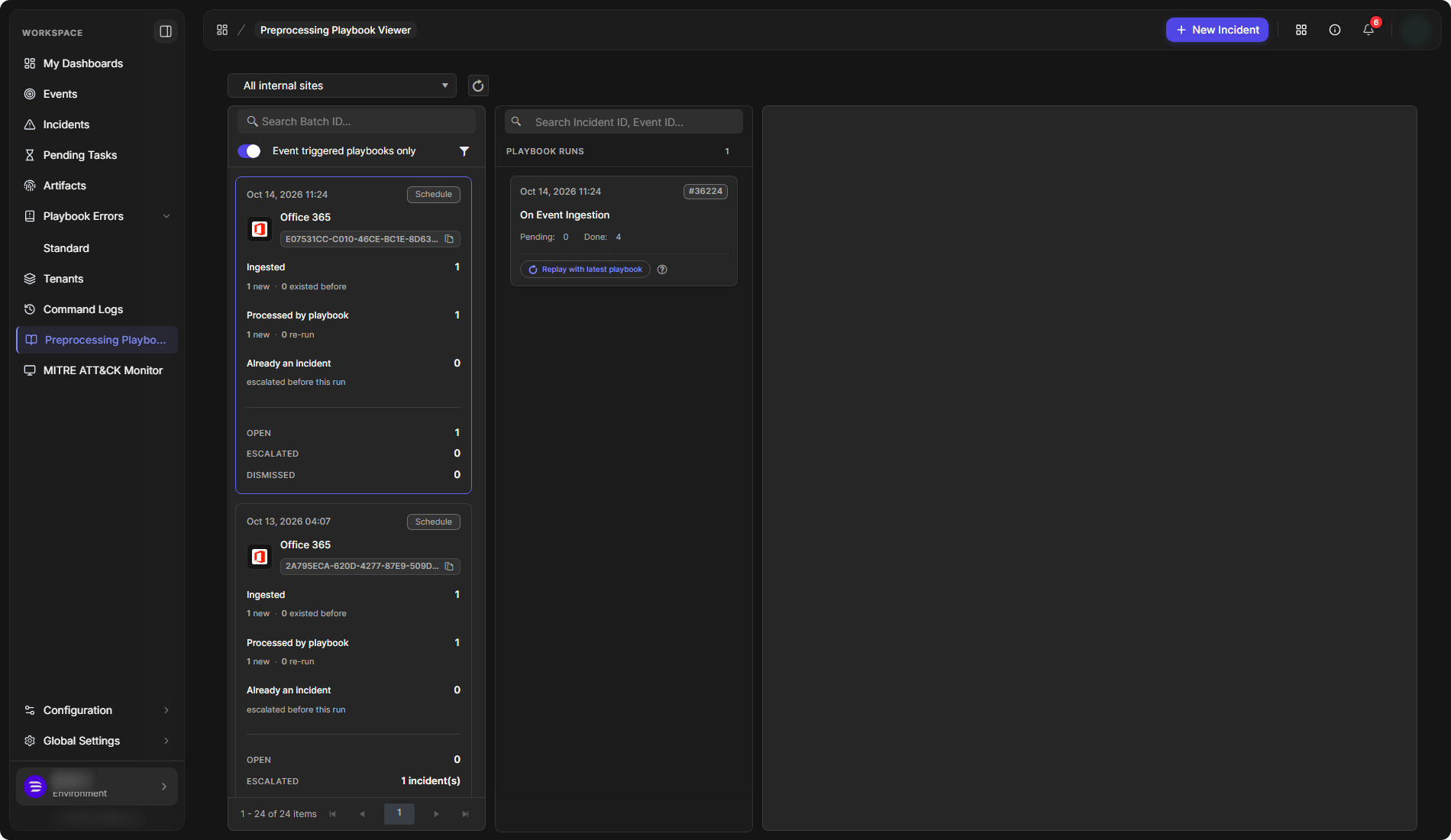
The viewer has three columns, read from left to right:
|
Column |
What it shows |
|---|---|
|
Batches |
One card for each batch of ingested events. |
|
Playbook runs |
The preprocessing playbook runs for the selected batch. |
|
Playbook panel |
The tasks of the selected run, as a diagram, a task list or output data. |
The list at the top left chooses the site, for example All internal sites. Select the refresh icon beside it to reload the batches.
A preprocessing playbook runs from one of two triggers: On Event Ingestion, when events arrive, or After Event Dismissal, when an event is dismissed. Each run follows only the tasks connected to the trigger that started it.
Batch Cards
Each card is one ingestion batch. It shows:
-
the date and time of the batch, and how the events came in, for example Schedule;
-
the integration, for example Office 365, and the batch ID, with a copy icon;
-
Ingested: the events received, split into new events and events that existed before;
-
Processed by playbook: the events a preprocessing playbook ran on, split into new runs and re-runs;
-
Already an incident: events escalated before this run;
-
OPEN, ESCALATED and DISMISSED: where the batch's events ended up.
A batch card
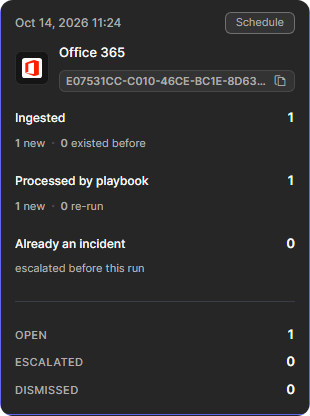
Search for a batch by its ID in Search Batch ID. The pager at the bottom of the column moves through the batches.
Filtering Batches
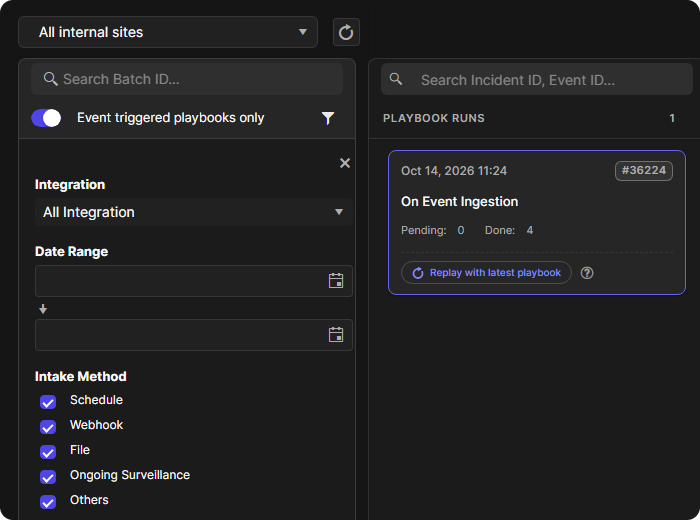
Event triggered playbooks only is on by default. It hides batches in which no preprocessing playbook ran. Turn it off to see every batch.
Select the filter icon beside it to filter the batches by:
-
Integration;
-
Date Range: a start and an end date;
-
Intake Method: Schedule, Webhook, File, Ongoing Surveillance and Others.
Select × to close the filter.
The batch filter
Playbook Runs
Select a batch card to list its runs under PLAYBOOK RUNS. Each run shows its date and time, its run number, the trigger that started it, and how many of its tasks are Pending and Done. Search for a run by incident ID or event ID in the box above the list.
A playbook run
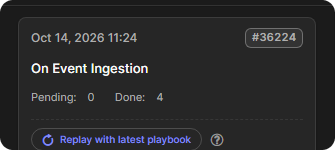
Every run card shows Replay with latest playbook. Its help icon (?) says: "Replays this event's preprocessing using the latest playbook version. If no newer version exists, the current one is used." Use it when the playbook has been changed since the run, for example to fix the task that failed.
Replay with latest playbook runs the playbook again, with all its actions, on the events in the run. Check what the playbook does before you replay it.
The Playbook Panel
Select a run to open its playbook in the panel on the right. The top of the panel names the playbook, for example Preprocessing Playbooks > Office 365 Email Preprocessing Playbook. The panel has three views: Diagram, Tasks and Output.
The Diagram View
Diagram draws the tasks that follow the trigger, with an icon on each task that has run:
|
Icon |
Meaning |
|---|---|
|
Green check |
Done: the task ran successfully. |
|
Red ! |
Error: the task failed. Fix the cause, then run it again. |
|
No icon |
The task has not run. |
The Diagram view
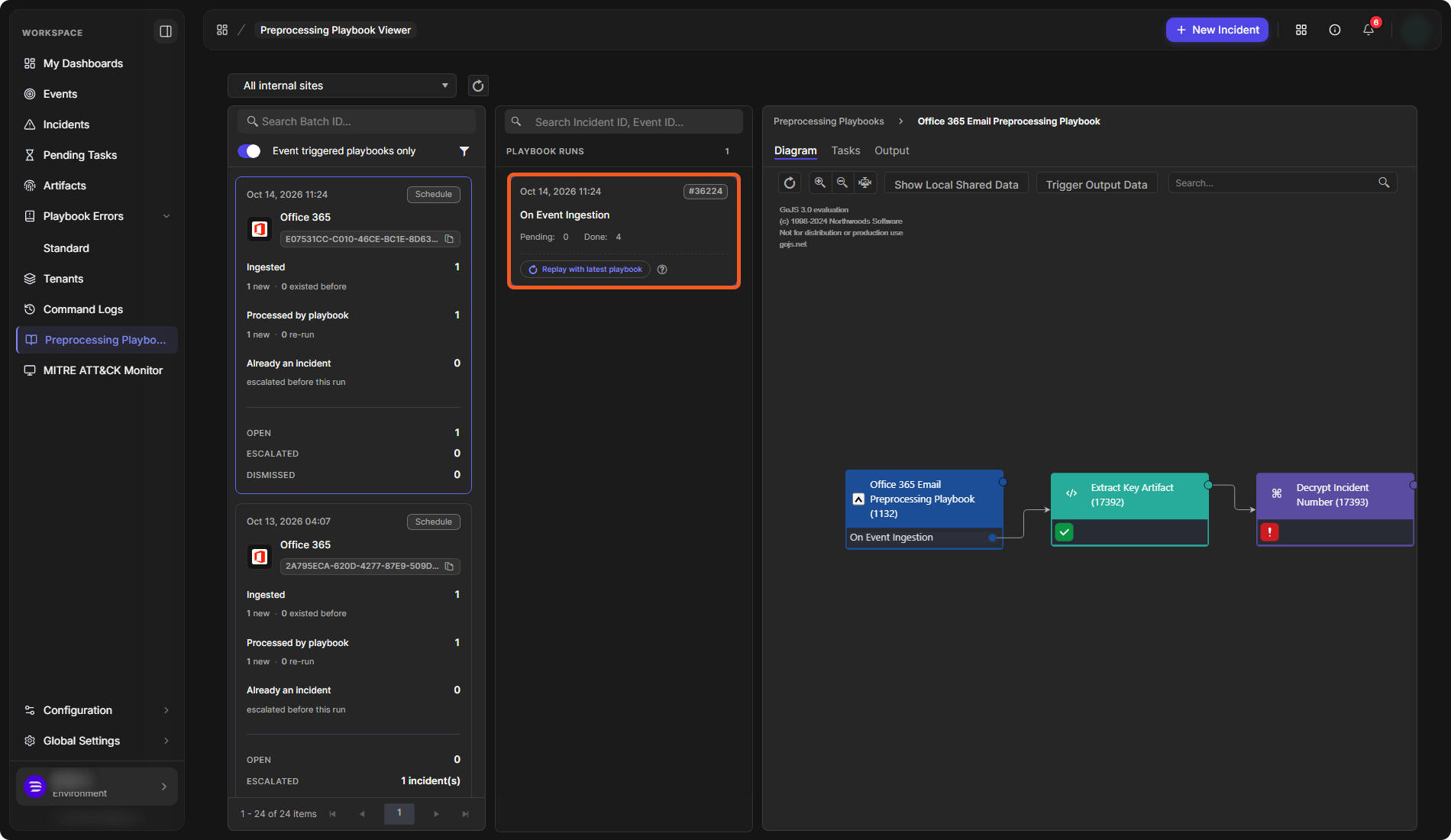
The toolbar above the diagram refreshes it, zooms in and out, and fits it to the panel. Use the search box to find a task in the diagram.
-
Show Local Shared Data opens the Local Shared Data window: the data the run shared between tasks. If there is none, it says No Data Available.
-
Trigger Output Data opens the Trigger Output Data window: the JSON the trigger produced for the event.
The Tasks View
Tasks lists the run's tasks with their Task ID, Task Name, Assignee, Assign Date, Due Date, Overdue and State. Three tabs narrow the list: All Tasks, Pending Tasks and Done Tasks.
The Tasks view
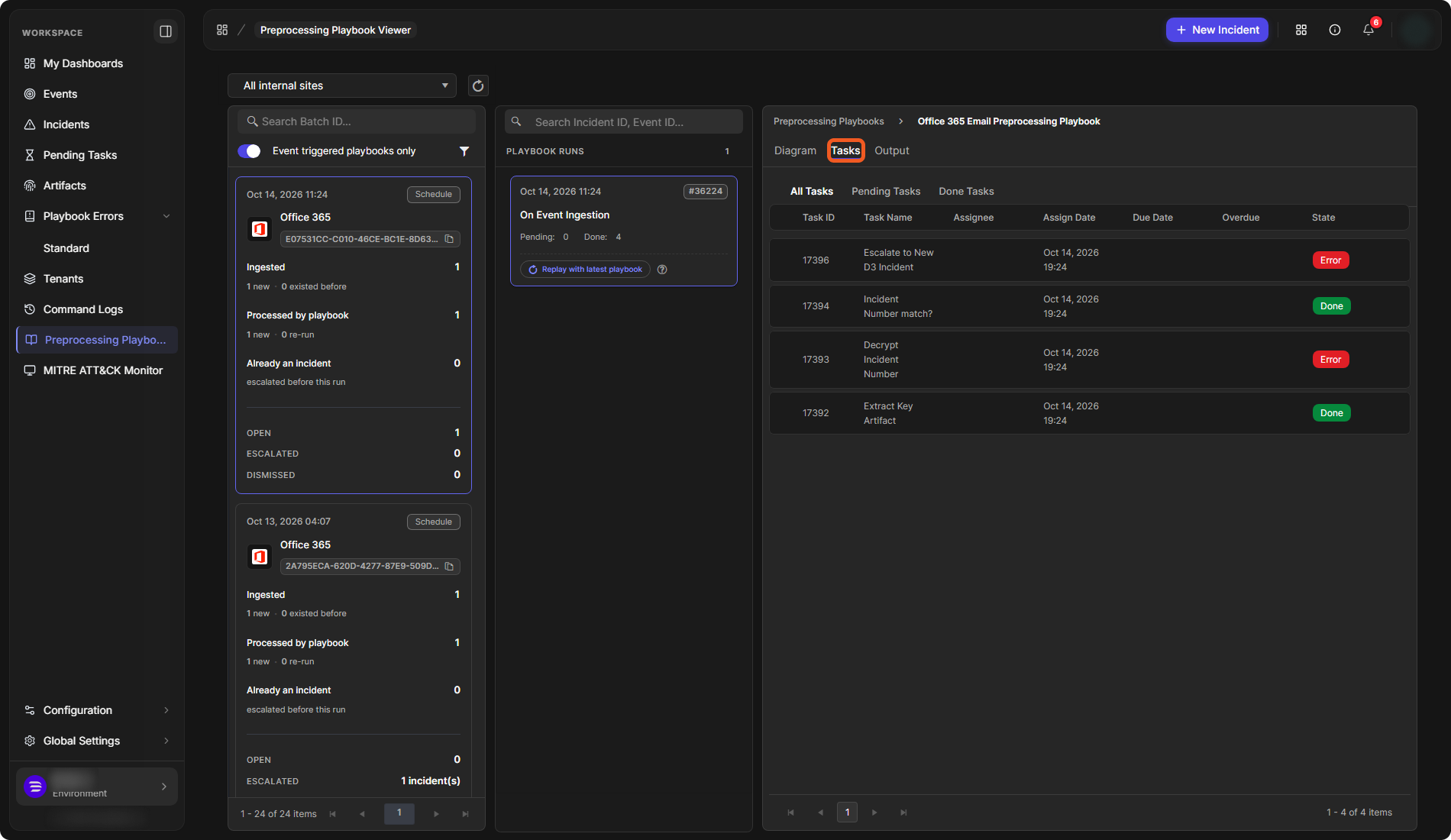
Select a task's row to open Playbook Task Details. It shows the task's Status, State and Run Mode, and the Task Details, Return Data and Playbook Data tabs. For a task that failed, the Execution section shows the error. Correct the cause, then select Rerun to run the task again.
The Output View
Output shows the data the run produced, as JSON with line numbers. For an email, for example, it includes the message fields the integration returned. A playbook can pass values from this output to later tasks.