
Last Updated: October 23, 2026
A connection facilitates communication between D3 and a third-party application. It includes authentication details, endpoints and other settings required to communicate with the external system.
Running integration commands depends on an established connection. Establishing the connection involves configuring settings on both the integration side and the D3 side:
-
Integration Configuration: first, configure settings in the integration's environment to retrieve the necessary credentials, such as a client ID, secret and base URL.
.png?cb=d2d4af83a2b192354ae38f85cf0c830a)
-
D3 Configuration: then enter these connection parameters in D3 to complete the connection setup.
Adding a Connection
Add a connection with the Add Connection button on the integration's page. For example, a CrowdStrike connection is added with the following steps.
Find the CrowdStrike integration
-
Go to Configuration > Integrations.
-
Type CrowdStrike in the search box, press Enter, and select the integration.
-
Select Add Connection.
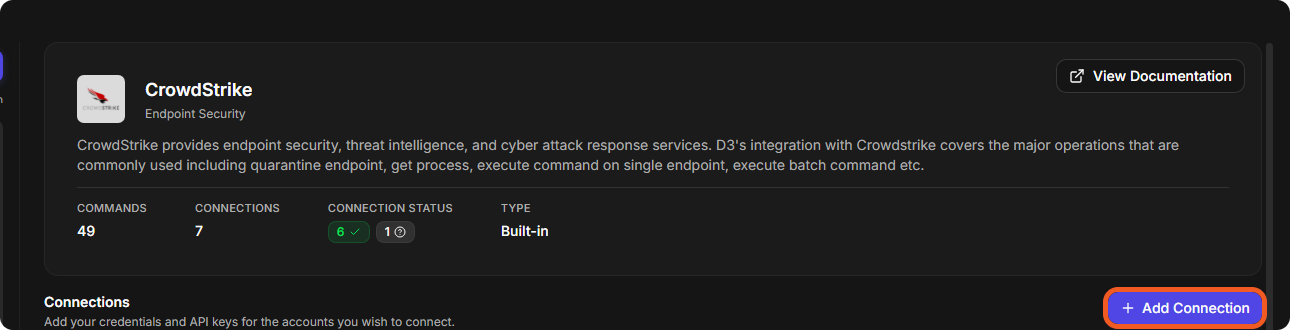
Complete the following steps
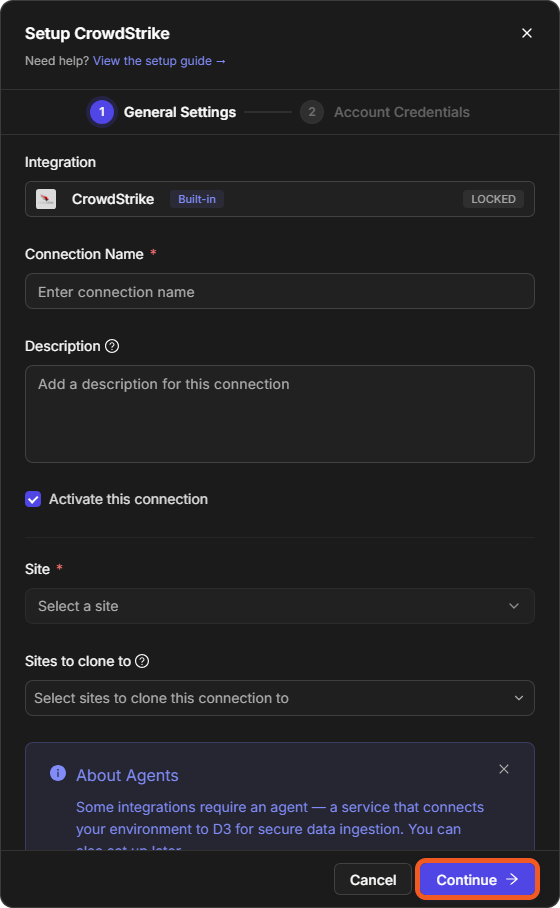
The Setup CrowdStrike window has two steps: General Settings and Account Credentials.
General Settings
-
Enter a Connection Name and, optionally, a Description.
-
Keep Activate this connection selected to make the connection available for use.
-
Select the Site that can use the connection. Sites to clone to creates copies of the connection for other sites.
-
If the integration needs an agent to reach your environment, select it under Agent Name. You can also set it up later.
-
Tenant Sites shares the connection with another tenant's site, and Connection Permissions (Configure) shows who has access to the connection.
-
Select Continue.
Account Credentials
Enter the integration-specific parameters obtained from the integration's environment. In the case of CrowdStrike, these include the Client ID and Client Secret. Then save the connection.
Alternative Method of Adding an Integration Connection
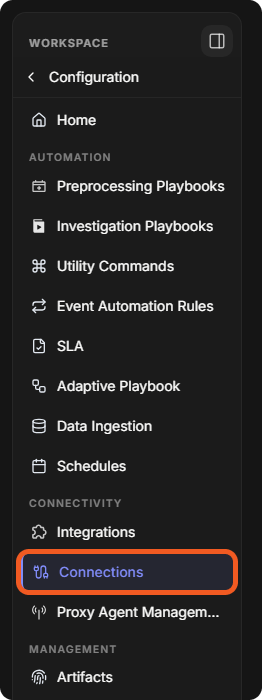
Integration connections can also be added from the Connections page: go to Configuration > Connections, select Integration Connection on the Integration Connections tab, then configure the connection and save.

For every option of a connection, see Integrations and Connections.