
last updated: mar 21, 2025
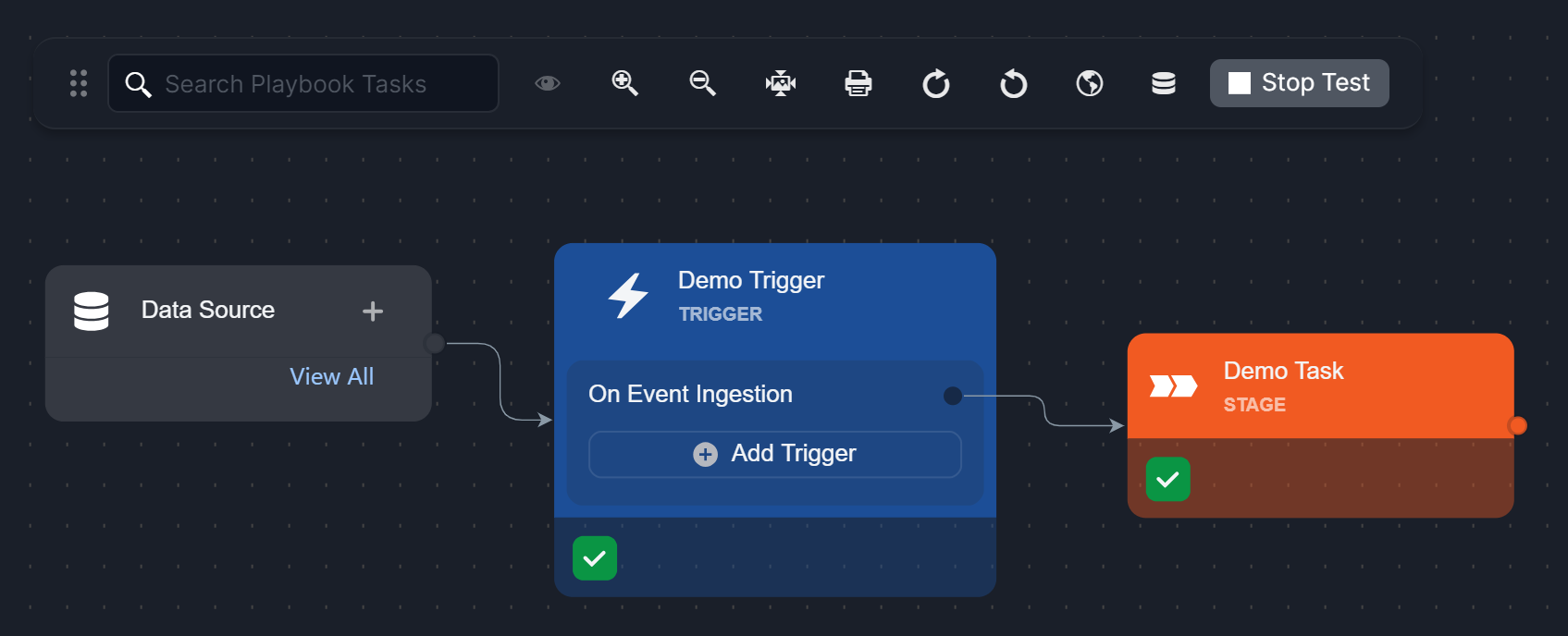
On Event Ingestion
-20250111-013718.png?cb=cb3561764a6ee7ad6f7643a098ec4c0c)
Executes tasks either during playbook test run or when the playbook is activated as part of data ingestion through a schedule or webhook.
Playbook Test Run
-
Click on the Test Playbook button.
-20250113-212426.png?cb=1a68d5e7fa3a6710d839f6018206cce7)
-
Select an ingested event, then click on the Run Test button.
-20250113-212551.png?cb=eafbe74879ccaefed4cd159f262e29d9)
-
Verify that tasks execute.
Schedule-Induced Execution (CrowdStrike)
-20250113-231715.png?cb=abe4fe27a893dda8d10bbf85c0049b61)
%201-20250113-235104.png?cb=f786b135fe3733cf25ec314144e84d6f)
-20250113-233737.png?cb=1adde19fb6136eef955c668ab380fc8b)
-20250113-233815.png?cb=473a1820bae59bd2c385c87be9e38fc4)
Webhook-Induced Execution (CrowdStrike)
-
Build a simple playbook that sends an email upon being activated.
-20250113-215612.png?cb=2fc6d06c7a6ebd405dbcca185b724cc7)
-
Submit this playbook.
-20250113-214947.png?cb=864a51dda191c02adb402b9798d97733)
-
Set up a webhook key.
-20250114-000417.png?cb=428e6d5a0cf231ccf665bd79e71df5f1)
-
Copy the POST request URL into Postman, then input the following raw JSON data:
JSON{ "resources": { "description": "Created from a webhook push" } }-20250114-001309.png?cb=34ded81be58edde57c092c5884bb1a02)
-20250114-014059.png?cb=6c7b0143a297b5473193d24100042b50)
READER NOTE *
-
The raw JSON data must include at least the main JSON path (i.e., $.resources for CrowdStrike) to generate a D3 event, which will be used to run the preprocessing playbook.
-
Subsequent POST requests with identical payloads will not generate additional D3 events.
-
Copy the POST request header key and head value into Postman.
-20250114-001839.png?cb=206c2843fd199a22f75bd17b93a3519b)
-20250114-003158.png?cb=ef871a387a4a07d918d1534614a78296)
-
Select the submitted playbook under Additional Settings.
-20250114-012140.png?cb=b6646a108b3b6cc51c9f6efef7c3fceb)
-
Send the POST request.
-20250114-013217.png?cb=1fe1ca0be973f1d65d8947238a822806)
-
Check the email to verify that the playbook was triggered.
-20250114-013057.png?cb=7a9553dc8967a9994a11ed816dd58cb2)
After Event Dismissal
Executes tasks after an event is dismissed.
Ingestion-Dismissal Example (Webhook)
-
Build a simple playbook that sends an email upon being activated.
-20250114-022931.png?cb=7ee6f2eaa0210bfd99e4ae6d07fca974)
-
Add a Dismiss task to the On Event Ingestion trigger.
%201-20250114-023412.png?cb=f7d5bb5529777d8ae57733a6b66f7e51)
-
Submit this playbook.
-
Set up a webhook key.
-
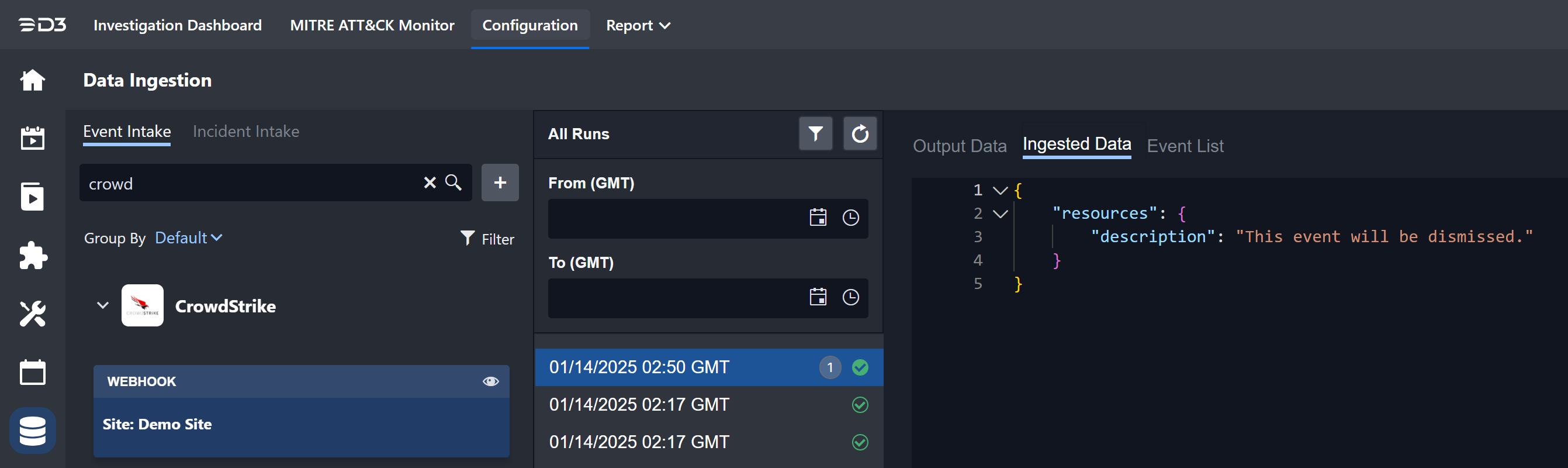
Copy the POST request URL into Postman, then input the following raw JSON data:
JSON{ "resources": { "description": "This event will be dismissed." } }
-20250114-024453.png?cb=67b0cddee981b53c1fe8e815b7491633)
READER NOTE *
-
The raw JSON data must include at least the main JSON path (i.e., $.resources for CrowdStrike) to generate a D3 event, which will be used to run the preprocessing playbook.
-
Subsequent POST requests with identical payloads will not generate additional D3 events.
-
Copy the POST request header key and head value into Postman.
-
Select the submitted playbook under Additional Settings.
-
Send the POST request.
-20250114-024951.png?cb=d7dcfbe351ad94a7960c9039ad2b9290)
-
Check the email to verify that the playbook was triggered.
-20250114-034311.png?cb=d21038f0d636577224999fa4e0869728)
-20250111-014415.png?cb=81982b4cb0144db2406de36098bd2fa4)
On Playbook Task Error
-20250111-014301.png?cb=aa4c5e2e2b48874da1421d2f7dfe3cba)
Executes tasks when a playbook task encounters an error.
Example 1 - Error in Current-Level Playbook Task
-
Set up an error-resulting task on the On Event Ingestion trigger, ensuring that the Error Trigger handling option is checked.
-20250115-191023.png?cb=85d58fbfd4c42833b66ffa6c312950fe)
-
Set up a Send Email utility command task for the On Playbook Task Error trigger.
-20250115-191437.png?cb=b700d1a6abd17aad272f99a6262fa85d)
-
Test run this playbook (see On Event Ingestion examples), ensuring that the Error Task results in lab190.d3securityonline.net_16_8_VSOC_LifeServer.aspx_div=dashboard&Open=Other&t2=0136de1ab403e957e8f2e3830f55e0d07561dc2f2fc5b0d4be07936dd48d9993 (5) 2-20250110-022826.png, and the Send Email task results in lab190.d3securityonline.net_16_8_VSOC_LifeServer.aspx_div=dashboard&Open=Other&t2=0136de1ab403e957e8f2e3830f55e0d07561dc2f2fc5b0d4be07936dd48d9993 (5) 3-20250110-022810.png.
%201-20250115-191812.png?cb=ce0668fe24da9a81a9441acd595049b4)
-
Check the email for the error message.
-20250115-192059.png?cb=d0a238c71afd411450f0423079e6978e)
%202-20250110-022826.png?cb=71401f63ccf61ba45709da14642b0595)
%203-20250110-022810.png?cb=afb1a1db20a19fe9a574af9a0eda008d)
Example 2 - Error Emitted from Nested Playbook
-
Create a Codeless Playbook utility command.
-20250115-174237.png?cb=5e96af9adf0e7bf22f8ac7844b79ae3a)
-
Setup a task that would result in an error. Click on the
%201%20(1)-20250115-174849.png?cb=849e0442b1932c4ce01463e62502e5b3)
-20250115-180256.png?cb=346e6480809ad3bcb20703b287bf328b)
-
Enable its use as a command task.
-20250115-180717.png?cb=b031a3ff96e515e2403276fa117855e1)
-
Use a image 6 (5)-20250110-020837.png passdown task to emit an error message to the parent playbook.
-20250115-181258.png?cb=6ef0b862157cdc2283d1830fc286bf30)
-
Submit this utility command.
-20250115-181557.png?cb=1fca118ebcc25b6f627a9b37e8dbcf51)
-
Create an investigation playbook.
-20250115-182023.png?cb=b752f3e5735a4ebeb560ad9da6da7fe5)
-
Set up the Demo Nested Playbook Utility Command task on the On Event Ingestion trigger, ensuring the Error Trigger checkbox is ticked.
-20250115-183744.png?cb=342e5475b432578fe84f50018995f1e6)
-
Set up a Send Email utility command task for the On Playbook Task Error trigger.
-20250115-184757.png?cb=1e64fe675d029f49d4eb4429afb9865f)
-
Test run this playbook (see On Event Ingestion examples), ensuring that the Demo Nested Playbook Utility Command task results in lab190.d3securityonline.net_16_8_VSOC_LifeServer.aspx_div=dashboard&Open=Other&t2=0136de1ab403e957e8f2e3830f55e0d07561dc2f2fc5b0d4be07936dd48d9993 (5) 2-20250110-022826.png, and the Send Email task results in lab190.d3securityonline.net_16_8_VSOC_LifeServer.aspx_div=dashboard&Open=Other&t2=0136de1ab403e957e8f2e3830f55e0d07561dc2f2fc5b0d4be07936dd48d9993 (5) 3-20250110-022810.png.
%201-20250115-185454.png?cb=a63452c74c920161d0c653a2aa408dd1)
-
Check the email for the error message.
-20250115-185739.png?cb=d6d1cdc032ae2a98c804ef51646ccee2)
-20250110-020837.png?cb=0fe0189f29fc63ffedc949a2ed51b1b5)