
Last Updated: November 23, 2026
Overview
D3 is built for MSSPs and MDRs to run their services on: one platform where a provider onboards each client, works every client's incidents, talks to the client from the incident, and reports to the client under the client's own brand. Each client's data, workflows and settings stay separate from every other client's, while your analysts work from one place.
This page is the map of that work. It walks through the five jobs a provider does on D3, says what each one gives you and what is available today in 18.6, and points to the page that covers it in full. It starts with white-label client reports, because they are the part of the service your clients see most.
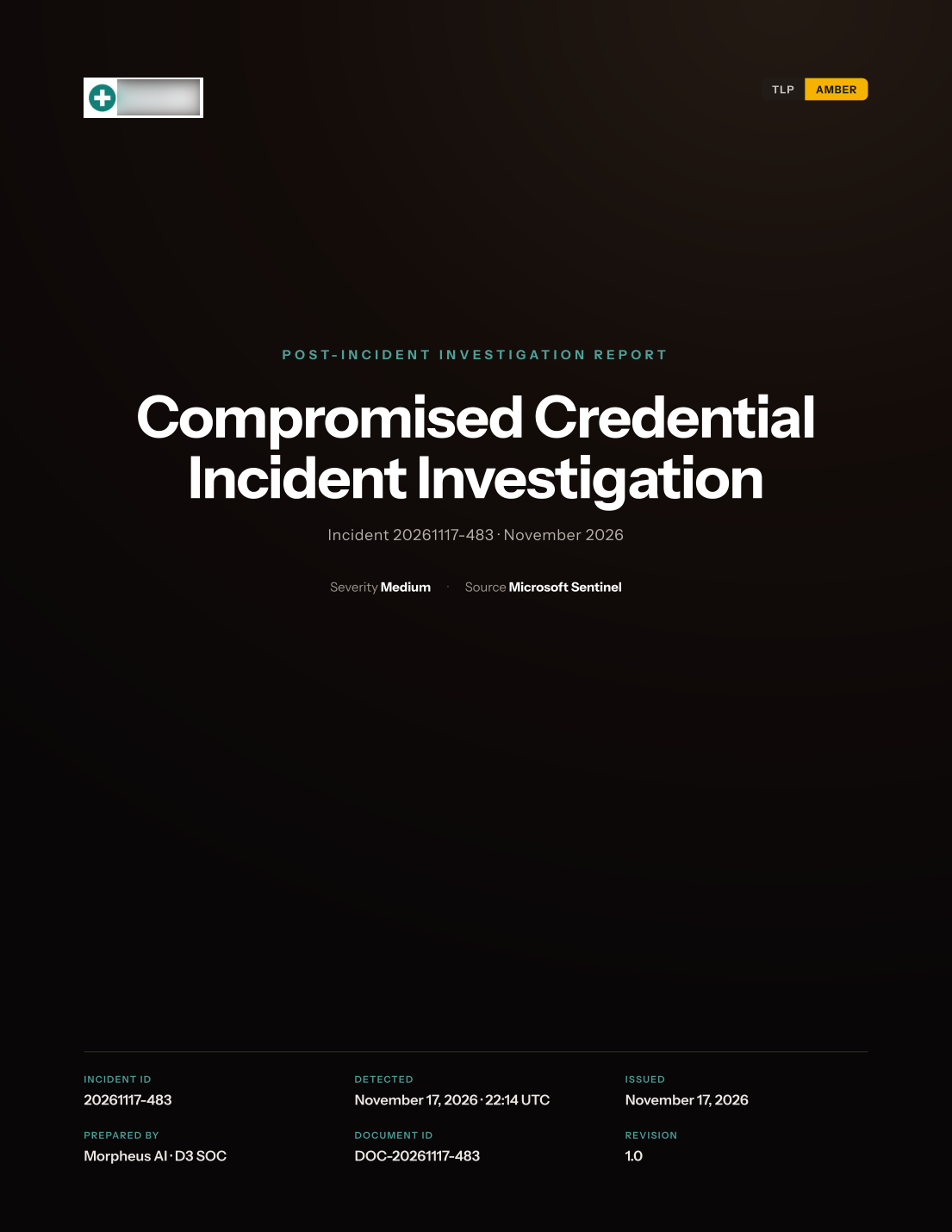
An incident report under the client's brand
In short
|
# |
Job |
Where it happens |
Covered in full by |
|---|---|---|---|
|
1 |
Report to each client under their brand |
The client's site settings, then the incident's export |
|
|
2 |
Onboard a client |
Global Settings > Organization Management > Sites, or Global Settings > Tenant Management |
|
|
3 |
Connect to the client's ticketing system |
Connections and playbooks, using a ticketing integration |
The integration's own documentation |
|
4 |
Email the client from the incident |
The Emails widget in the incident |
|
|
5 |
Work every client's incidents in one queue |
WORKSPACE > Tenants on the master instance |
Two Ways to Serve Clients
A provider can run its clients on D3 in one of two ways. Both keep each client apart; they differ in where the client's data lives.
|
|
Client sites in one instance |
Tenant instances connected to a master |
|---|---|---|
|
What it is |
Each client is a site of Site Type Client inside your D3 instance. |
Each client, or each region, has its own D3 instance. Your master instance registers them, shares content with them and shows their incidents. |
|
Why you would choose it |
The simplest set-up: every client in one instance, each with its own data, workflows and configuration. |
Client data must stay in a particular country or region, or a client needs an instance of its own. |
|
How it is set up |
You add the site yourself. |
D3 provides each tenant instance. You then register it on the master yourself, with Add Tenant in Tenant Management. |
|
Where to read more |
READER NOTE
To get a master instance and tenant instances, Contact D3. Once an instance is running, your administrator registers it on the master; see Onboarding a Client Tenant and Sharing Content.
White-label reports, ticketing integrations and client email work the same way in both set-ups, because each of them belongs to a client site. Sharing content from a master and the Tenants dashboard are master-instance features: they apply when your clients run in tenant instances.
White-Label Client Reports
A white-label client report is an incident report or dashboard report that carries your client's logo instead of D3's, so what the client receives looks like your service, not a vendor's tool.
What it gives you: every report you send a client reinforces your brand relationship with that client. The client sees their own logo, or none, and never a "D3" mark they did not buy from.
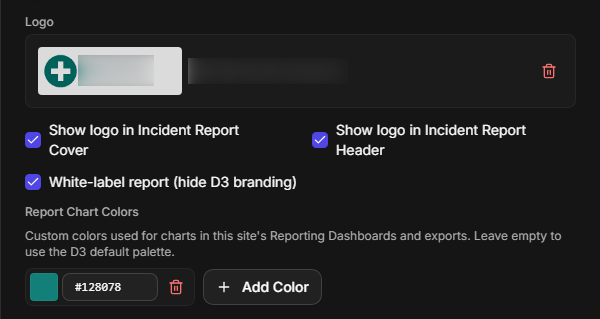
Available today in 18.6: branding is set per client site, in the site's settings under Global Settings > Organization Management > Sites.
-
Logo: the client's logo, uploaded on the site (PNG or JPG, up to 3 MB; 450×150 px recommended).
-
Show logo in Incident Report Cover and Show logo in Incident Report Header: where the logo appears in the exported report.
-
White-label report (hide D3 branding): removes D3's mark from the report. With no site logo, the cover stays neutral rather than falling back to D3's.
-
Report Chart Colors: the colors the report's charts use, so they can match the client's palette.
When a site has no logo for a placement, the report uses your instance's company logo, and only after that D3's mark; a white-labelled site skips the company logo too.
White-label covers both reports you send a client:
-
The incident report you export from an incident picks up the site's branding automatically.
-
A dashboard exported as PDF carries the logo you choose in the export window: upload the client's logo, or remove the D3 logo.
In 18.6 a scheduled dashboard email is still sent with D3 branding. When a client must see only your brand or theirs, export the dashboard as a PDF and send it yourself.
The branding section of a client site
READER NOTE
White-label reports are for one client at a time: each report carries the branding of the site its incident belongs to. Reports that combine several clients are not covered here.
For the full procedure and what each placement looks like, see White-Label Client Reports.
Client Onboarding
Client onboarding is setting up a new client so your team can start working their incidents with your standard playbooks, integrations and rules already in place, instead of rebuilding them by hand for each client.
What it gives you: a new client starts from your proven configuration on day one, and every client runs the same way.
Available today in 18.6:
-
For a client site: add a site under Global Settings > Organization Management > Sites with Site Type set to Client, give it the client's logo and regional settings, and add your analysts to it. With Custom Site Fields on the Sites tab, you define fields once for every site, and each client site holds its own values. See Organization Management.
-
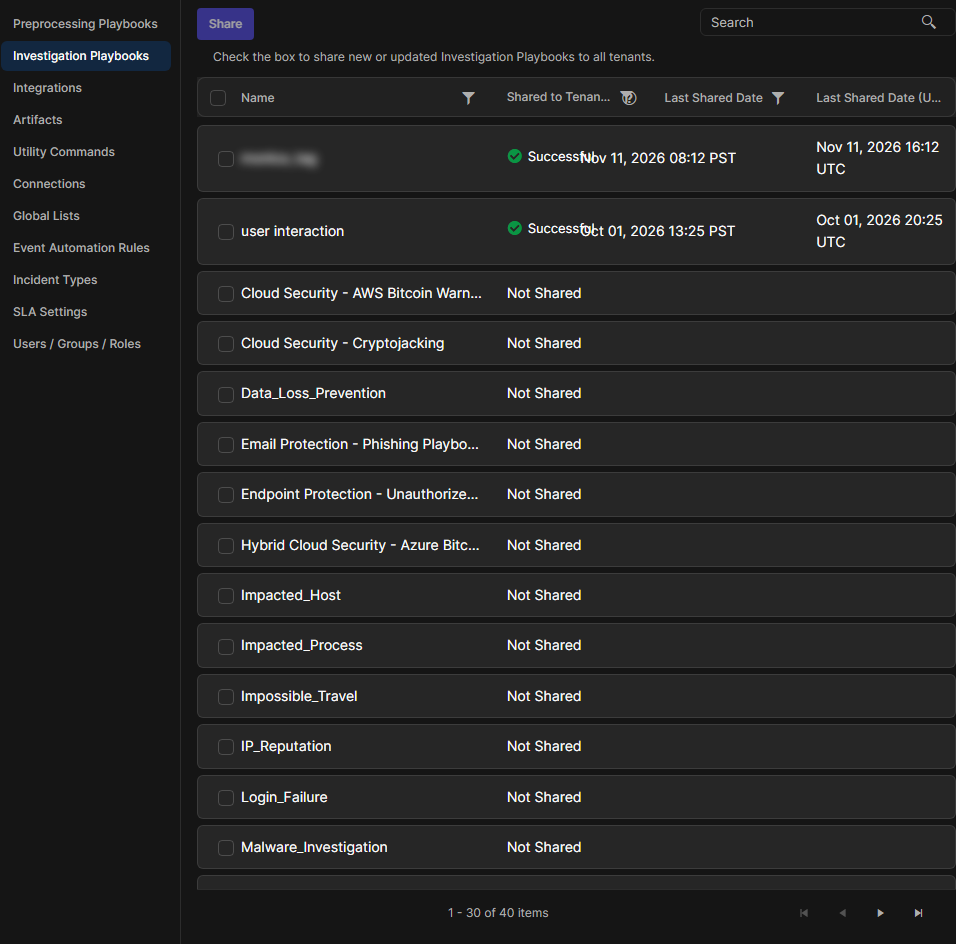
For a tenant instance: once D3 has provided the client's tenant instance, your administrator opens Global Settings > Tenant Management > Tenants on the master. Add Tenant registers the tenant instance with its URL and Key, then Register and Initiate connects it. The Shared Content tab then pushes your configuration down to every tenant: Preprocessing Playbooks, Investigation Playbooks, Integrations, Artifacts, Utility Commands, Connections, Global Lists, Event Automation Rules, Incident Types, SLA Settings and Users / Groups / Roles. Its Shared to Tenants and Last Shared Date columns show what each tenant already has.
Shared Content on the master instance
WARNING
Share pushes the selected items into every tenant instance. Check the selection before you share.
Built-in utility commands such as Create Tenant Site and Update Tenant Site Status let a playbook take on parts of this work; they are listed on the Multi-Tenancy page.
For the step-by-step runbook, see Onboarding a Client Tenant and Sharing Content. The screens themselves are described in Tenant Management, Shared Content and Users / Groups / Roles.
Ticketing Integrations
A ticketing integration connects D3 to the case-management or PSA system where you or your client track work, so your playbooks can open, read and update tickets there as part of handling an incident.
What it gives you: the ticket your client or your service desk follows reflects the work done in D3, without an analyst copying it across by hand.
Available today in 18.6: these integrations ship with D3. Each one is set up with a connection for the client site it serves (see Connections), and its commands are used as tasks in your playbooks. Where an integration has Fetch Event, a data ingestion schedule can bring its tickets into D3 as events (see Configuring Data Ingestion).
|
Integration |
What its commands do |
|---|---|
|
ServiceNow V2 |
Brings tickets in as events (Fetch Event); creates, updates and closes tickets (Create Ticket, Update Tickets, Close Tickets); creates, queries and updates security incidents and other table records. |
|
Atlassian Jira Software |
Brings issues in as events (Fetch Event); creates and edits issues (Create Issue, Edit Issue); adds and reads comments (Add Comment To Issues, Get Comment From Issues); moves an issue through its workflow (Transition Issues). |
|
Atlassian Jira Service Management |
Creates and reads requests (Create Request, Get Request, List Requests); adds comments (Create Request Comment); moves a request through its workflow (Perform Transition). |
|
Zendesk |
Brings tickets in as events (Fetch Event); creates and updates tickets (Create Ticket, Update Ticket); adds comments (Add Comment); searches and reads tickets (Search Tickets, Get Tickets Details). |
|
ConnectWise PSA |
Brings tickets in as events (Fetch Event); creates, updates and merges tickets (Create Ticket, Update Tickets, Merge Tickets); adds and reads notes (Add Ticket Notes, List Ticket Notes). |
|
Datto Autotask PSA |
Creates, updates and closes tickets (Create Ticket, Update Ticket, Close Ticket); adds notes (Add Ticket Note); reads tickets (Get Tickets). It has no Fetch Event, so Autotask tickets are not brought into D3 as events. |
READER NOTE
An older ServiceNow integration is also available. Of the two, ServiceNow V2 is the one that can bring tickets in as events.
The commands are building blocks: your playbooks decide when a ticket is opened, what is written to it and when it is closed. Each integration's own documentation page lists every command with its inputs and outputs.
Client Email from the Incident
The Emails widget puts an incident's email thread inside the incident, so an analyst can read the client's messages and reply to them without leaving D3.
What it gives you: the conversation with the client sits next to the evidence it is about. When an analyst replies from the widget, D3 writes the incident's tag into the subject line; the client's mail client keeps it on every reply, so each later message lands on the same incident. An exported incident report includes the thread under Email Communication.
Available today in 18.6: the widget works with an Office 365 mailbox, and an analyst replies to email already on the incident. The conversation starts with the client's email arriving in your monitored mailbox; the widget cannot start a new email on an incident that has none, such as one raised by an alert.
READER NOTE
The widget sends from the Office 365 mailbox that brought the incident's email in, so connect that mailbox before your analysts rely on it. See Setting Up the Emails Widget.
For the client-facing flow, see Emailing Clients from an Incident. The set-up is in Setting Up the Emails Widget, and what the widget shows is in Email and SLA Widgets.
One Queue Across Clients
The Tenants dashboard is one incident list across every client: on the master instance, it shows the incidents of all your tenant instances together, so an analyst can see where the work is without switching between clients.
What it gives you: one place to triage, prioritize and assign across your whole client base, with each row showing which client it belongs to.
Available today in 18.6: open WORKSPACE > Tenants on the master instance. The list opens on All Incidents (All Tenants), and its columns include Tenant, Incident No., Incident Type, Owner Site, Creator Site, Status, Severity, Title and Owner.
For searching, filtering and opening incidents from this list, see One Queue Across Clients: The Tenants Dashboard.
Roles and Access
The client-facing work above is split between administrators and analysts:
-
Administrators set up client sites, site branding and connections, and on a master instance use Global Settings > Tenant Management to register tenants and share content.
-
Analysts work incidents in each client site, reply to clients from the Emails widget, export incident reports, and on a master instance use the Tenants dashboard.
A user works in the client sites they have been added to; add users to a client site from the site's Users tab. In a role:
-
Access Type Administrator adds access to Tenant Management, Organization Management and Application Settings.
-
The Tenant permissions, including View Tenant's Incident, open the Tenants dashboard and its incidents.
-
Export Incident lets a user export an incident report. See Users / Groups / Roles.