
Last Updated: October 23, 2026
A group is a collection of users in D3. Groups help organizations manage access to data and are essential for keeping an organized access control policy. A user can belong to several groups.
Adding a Group
-
Go to Global Settings > Organization Management > User Groups.
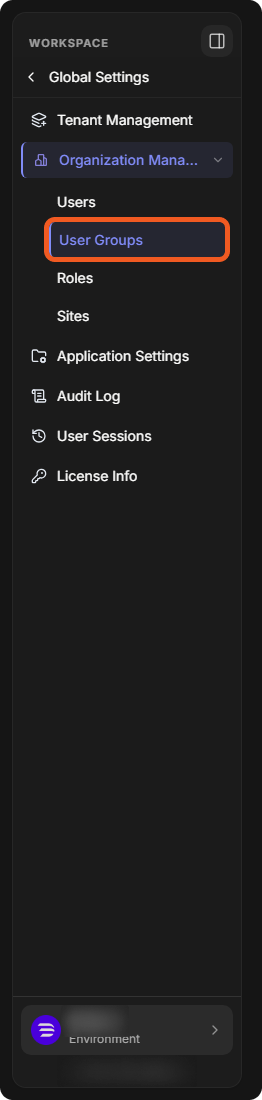
-
Select Add User Group.

-
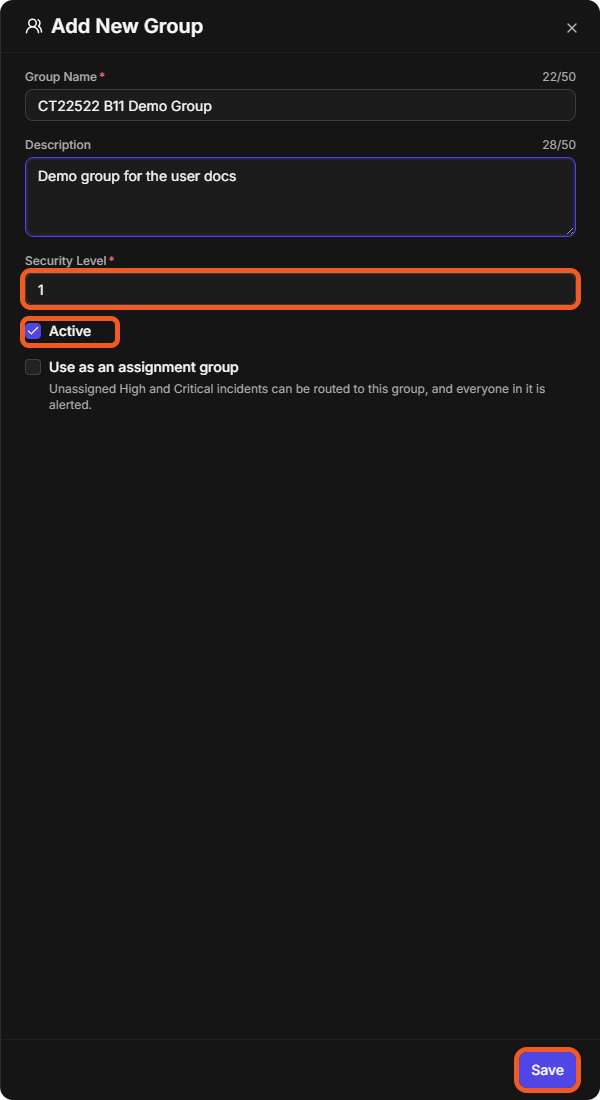
Fill in the Add New Group panel:
-
Enter a Group Name (up to 50 characters).
-
(Optional) Enter a Description.
-
Set the Security Level (a number; more information on groups can be found in Organization Management).
-
Make sure Active is selected so the group can be used.
-
(Optional) Select Use as an assignment group: unassigned High and Critical incidents can then be routed to the group, and everyone in it is alerted.
-
-
Select Save. The group is listed on the User Groups page.
Adding Users to a Group
-
Select the group, open its Users tab and select Edit Users.
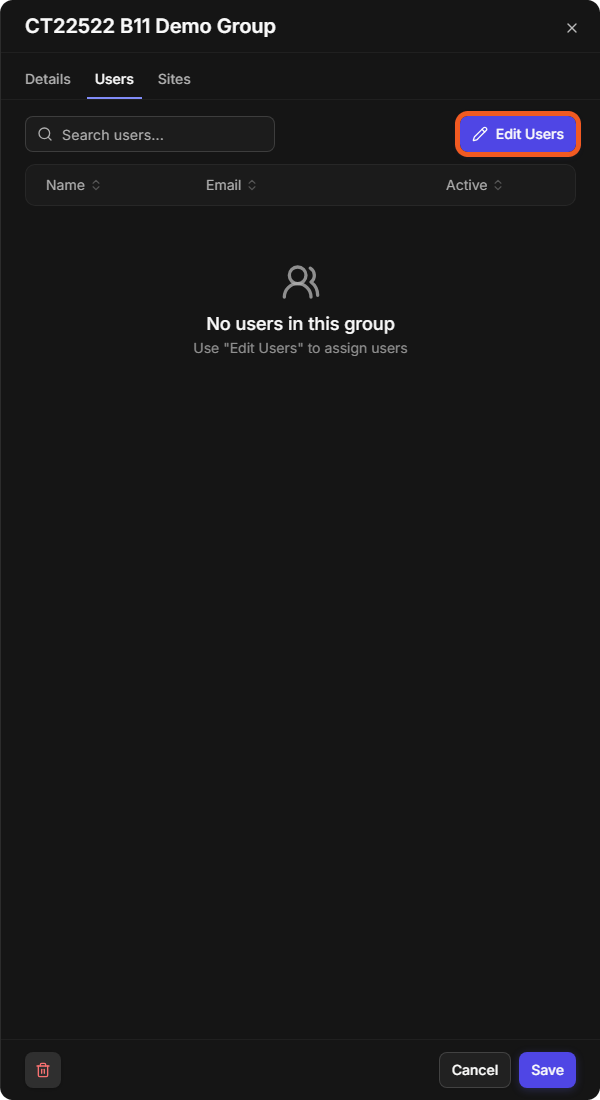
-
In Add or Remove Users, select users under Available and move them to Assigned with the arrow button, then select Save.
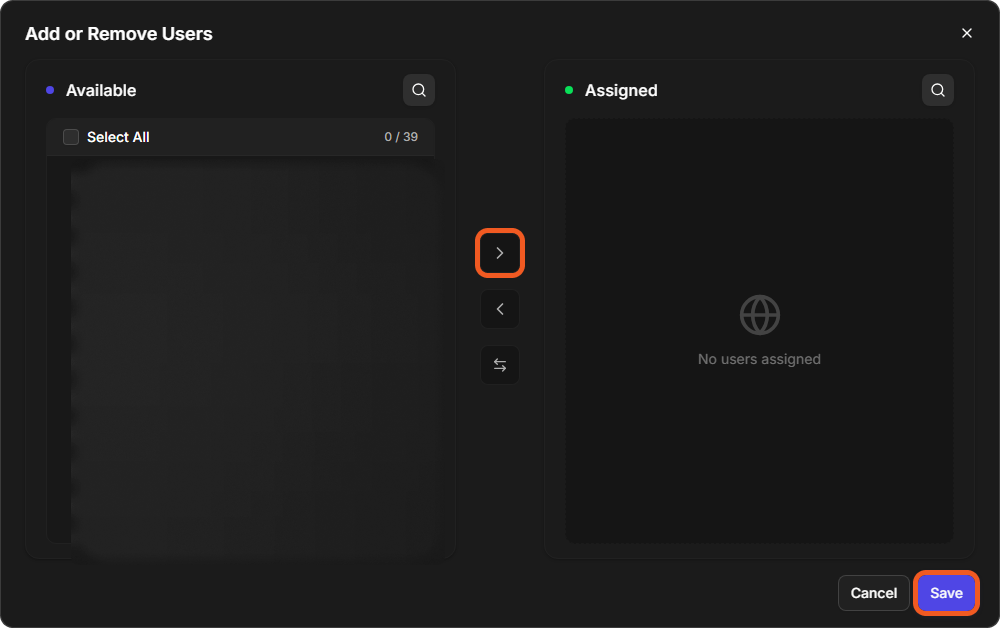
A group's panel also has a Sites tab, and its Details tab has Add as a Default Group, which makes the group one of the defaults for all new users.