
Last Updated: October 23, 2026
Roles are a key element of D3's access control system. A role decides which modules and actions its users can use, which keeps responsibilities and visibility separate. Unlike groups, which are collections of users, each user has exactly one role.
READER NOTE
Organization Management, where roles are managed, is an administrator area: a role's Administrator switch gives additional access to Tenant Management, Organization Management and Application Settings.
Adding a Role
-
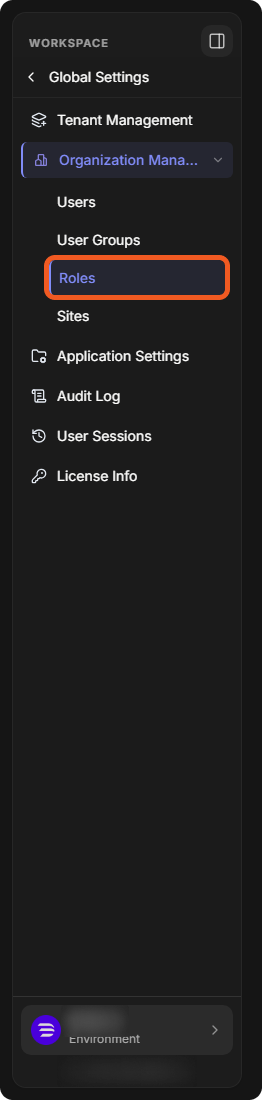
Go to Global Settings > Organization Management > Roles.
-
Select Add Role.

-
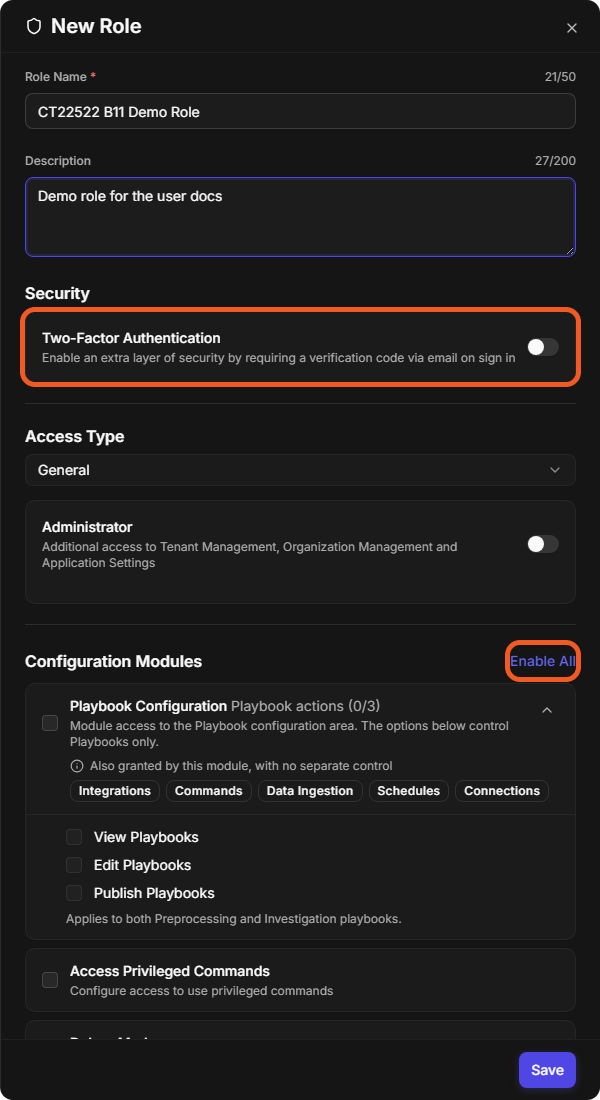
Fill in the New Role panel:
-
Enter a Role Name (up to 50 characters).
-
(Optional) Enter a Description.
-
(Optional) Switch on Two-Factor Authentication to require a verification code by email at sign-in for everyone with this role.
-
Choose the Access Type. Switch on Administrator only for roles that need Tenant Management, Organization Management and Application Settings.
-
-
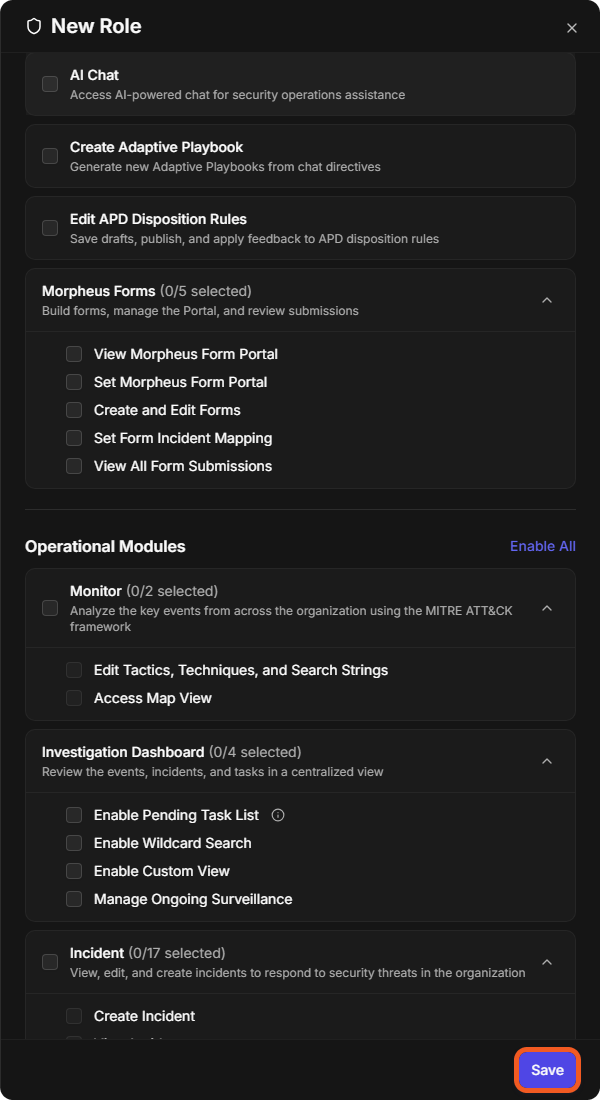
Under Configuration Modules and Operational Modules, select the modules and actions the role needs. Enable All selects every option in a section. For example, Playbook Configuration has View Playbooks, Edit Playbooks and Publish Playbooks, which apply to both preprocessing and investigation playbooks.
-
Select Save. The role is listed on the Roles page.
Adding Users to a Role
NOTE
A user has only one role at a time. A user's role is also set in the user's own panel (see Creating Users).
-
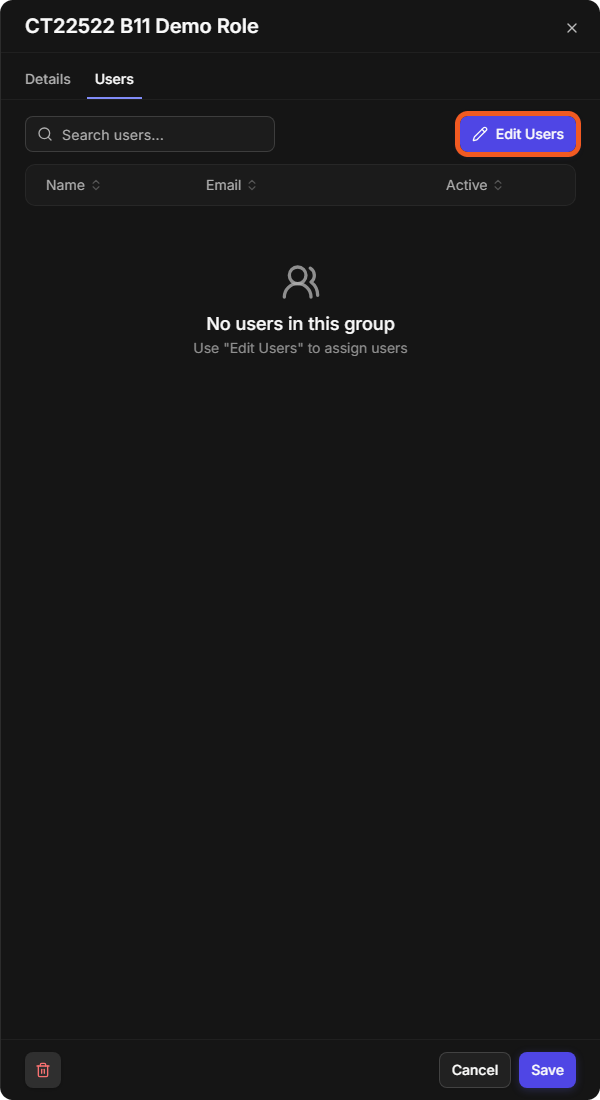
Select the role, open its Users tab and select Edit Users.
-
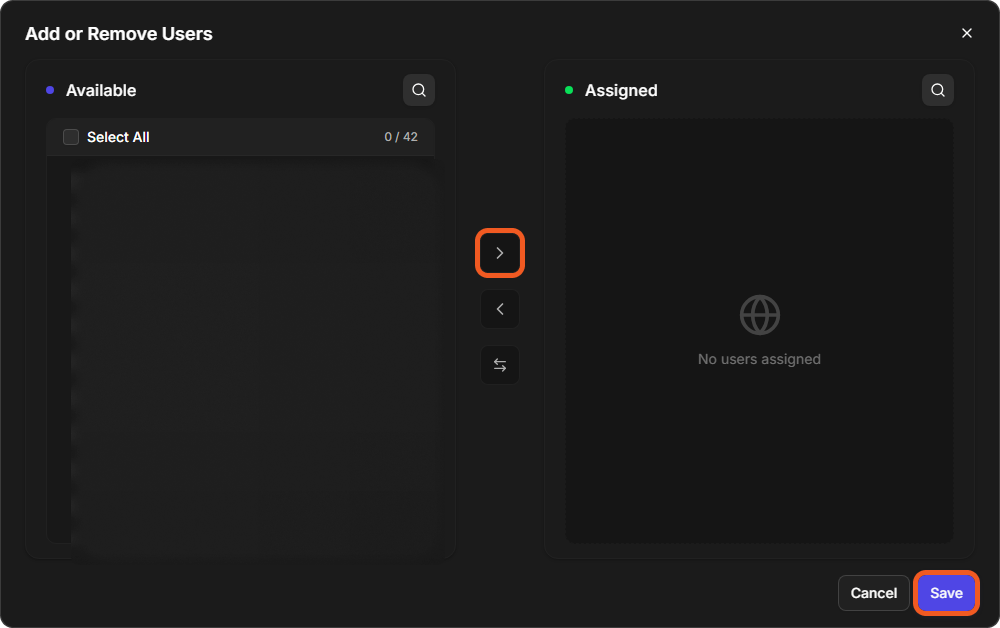
In Add or Remove Users, select users under Available and move them to Assigned with the arrow button, then select Save.
For every option of a role, see Organization Management.