
Last Updated: October 23, 2026
With roles and groups set up, users can now be created. A user's role decides what the user can do in D3, and users belong to one or more groups as an additional layer of access control. Go to Global Settings > Organization Management > Users to:
-
add a new user account;
-
bulk-add user accounts with file import.
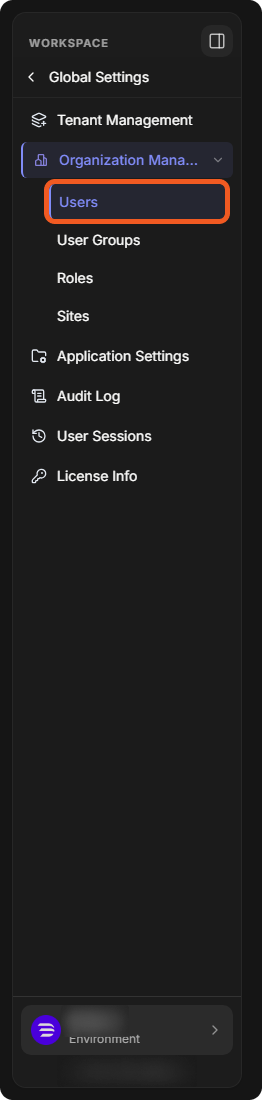
Adding a New User Account
-
Select Add User.

-
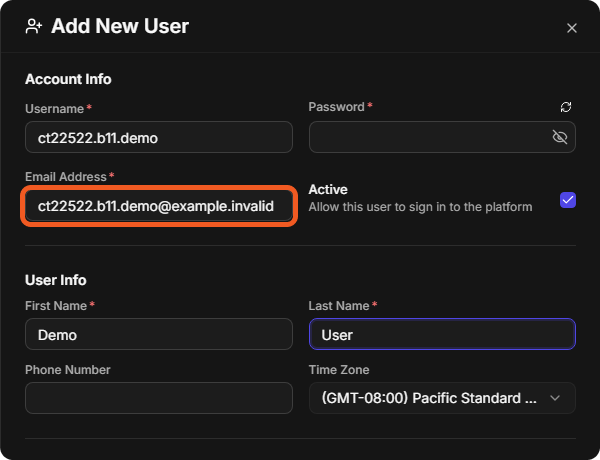
Under Account Info and User Info, fill in the fields:
-
Enter a Username.
-
Enter a Password.
-
Enter a valid Email Address. The domain of the email address must be on the email domain whitelist (see below).
-
Keep Active selected to allow the user to sign in to the platform.
-
Enter a First Name and Last Name, and optionally a Phone Number.
-
Check the Time Zone.
-
-
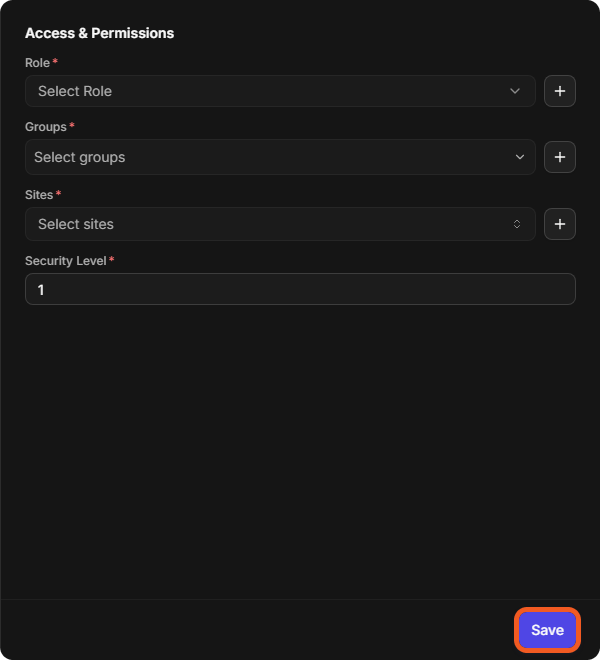
Under Access & Permissions:
-
Choose a Role. A user has one role. To set up roles, see Adding a Role.
-
Choose one or more Groups. To set up groups, see Adding a Group.
-
Choose one or more Sites the user can access.
-
Set the Security Level (see Organization Management).
-
The + button beside Role, Groups and Sites adds a new role, group or site.
-
-
Select Save to add the user.
Whitelisting an Email Domain
-
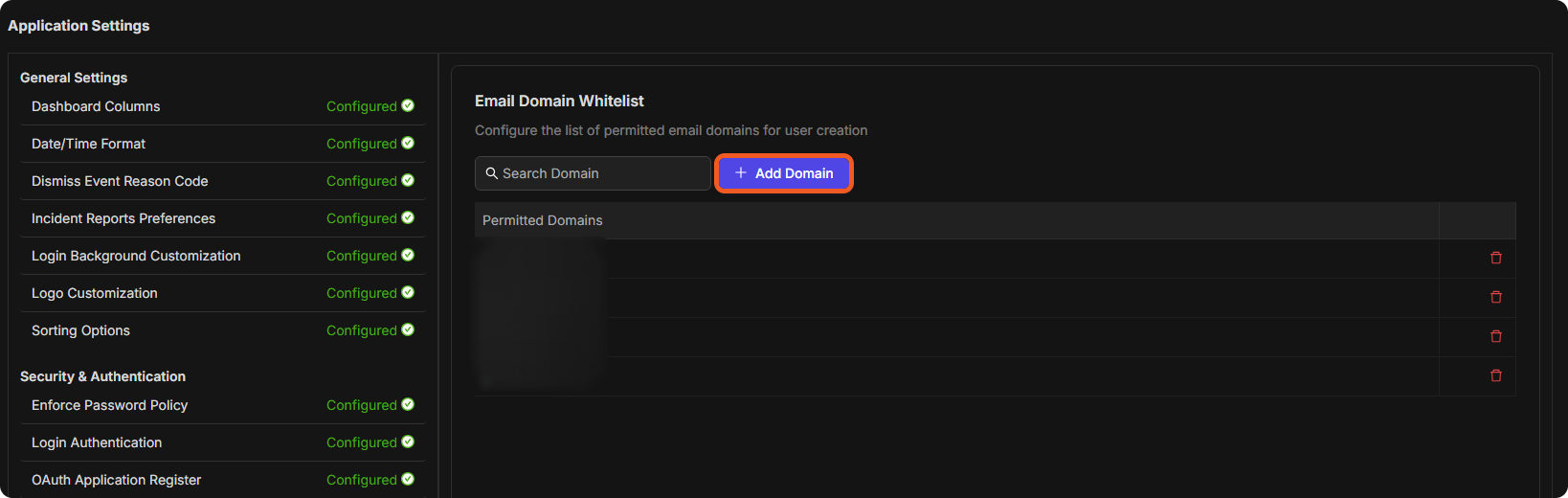
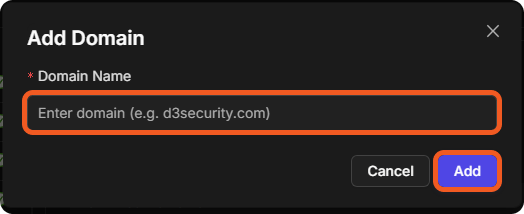
Go to Global Settings > Application Settings > Email Domain Whitelist (under Email & Communication), and select Add Domain. The Permitted Domains list shows the domains already allowed.
-
Enter the Domain Name and select Add.
Bulk-Adding User Accounts with File Import
Adding a large number of users may be necessary, for example during a platform migration. Import User adds users in bulk from a CSV file instead of one at a time.
-
On the Users page, select Import User.
-
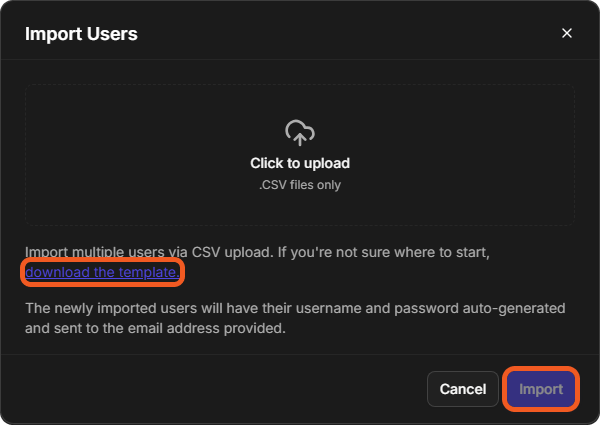
In Import Users, select download the template to get the CSV template.
-
Fill in one row per user with the template's columns: Username, Email Address, First Name, Last Name, Phone Number, Role, Groups and Sites. The template's example row separates several groups or sites with a semicolon (;). Save the file as CSV.
-
Back in D3, select Click to upload and choose the CSV file (.CSV files only).
-
Select Import.
RESULT
The newly imported users have their username and password auto-generated and sent to the email address provided.