
Last updated: September 24, 2026
Overview
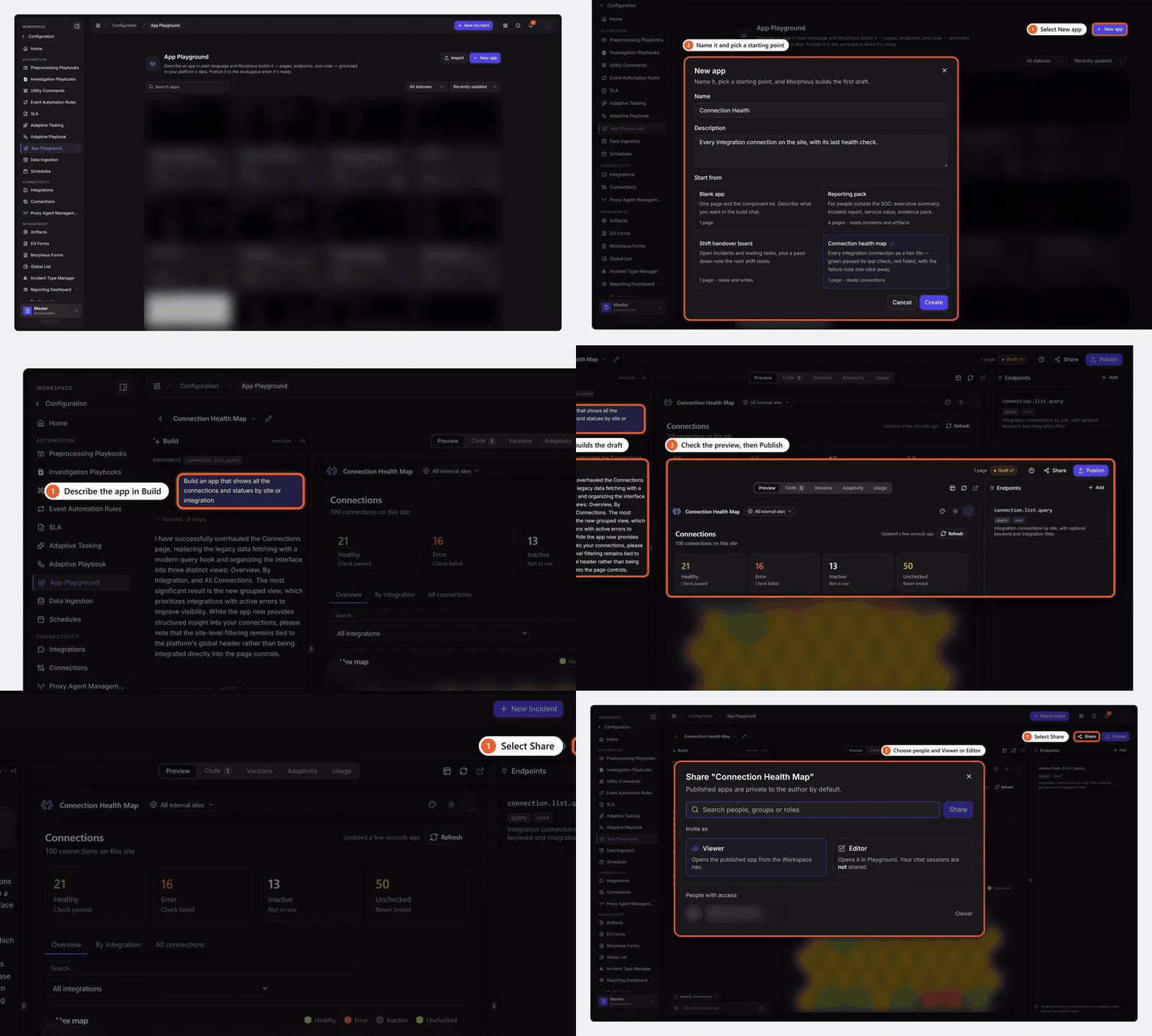
App Playground is a builder for standalone mini applications that run on live D3 vSOC data—incidents, events, tasks, connections, artifacts, and more—without writing a deployment or a report template. Describe the app in plain language, and Morpheus (the D3 AI assistant) writes the pages and the code, proposes the platform data the app needs, and keeps the app maintained as that data changes. A finished app is published to a permanent link and shared with exactly the people, groups, or roles who should see it.
Use it when a team needs a view the platform does not ship: a shift handover board, a connection health map, a reporting pack for people outside the SOC. What used to be a request to D3 is now an afternoon's work by whoever wanted it.
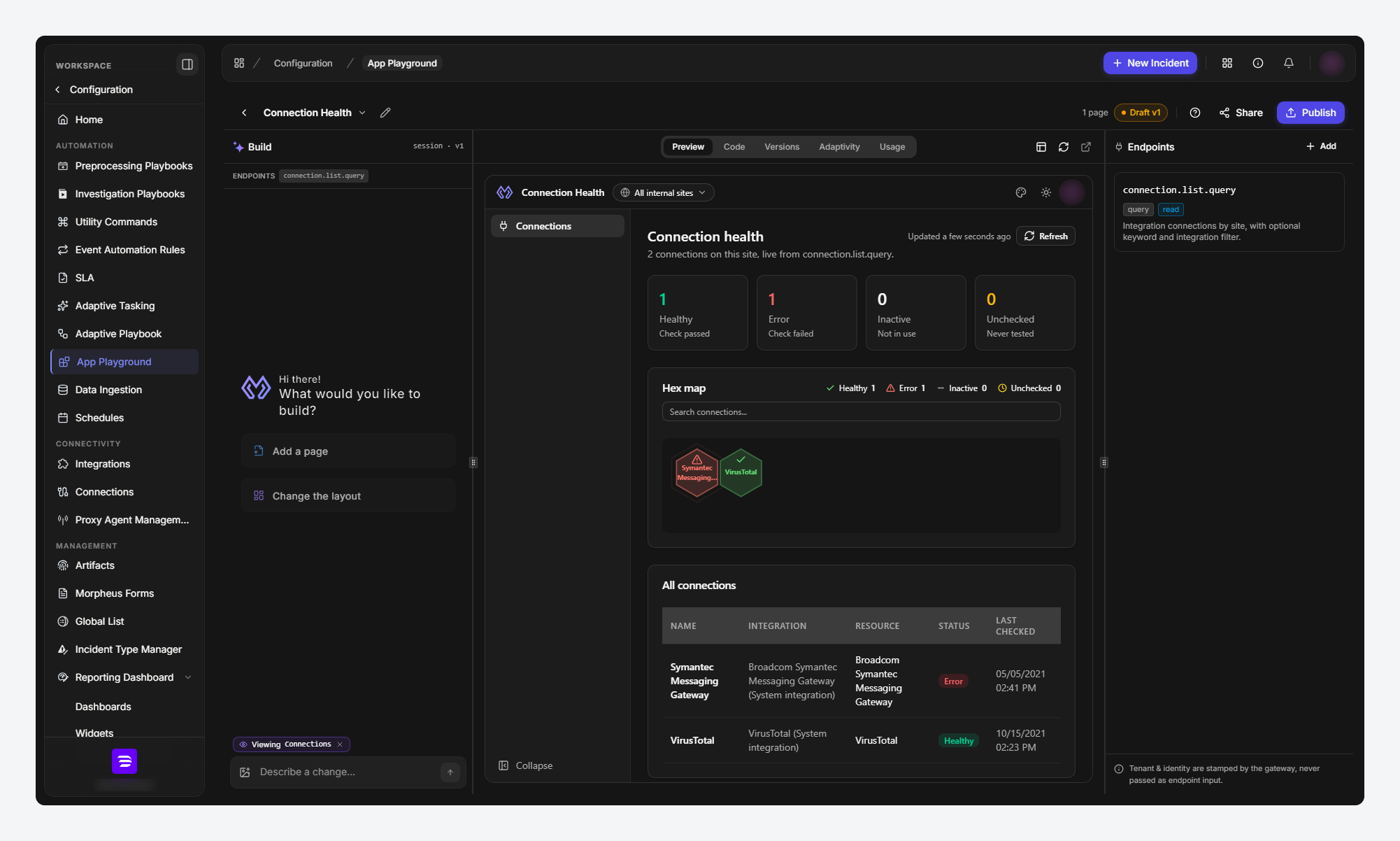
App Playground is found under Configuration > App Playground. Every app is private to its author until it is explicitly shared.
In short
|
# |
Stage |
Where it happens |
|---|---|---|
|
1 |
Name the app and pick a starting point |
Configuration > App Playground > + New app |
|
2 |
Describe what it should do |
The Build chat, in the builder |
|
3 |
Connect platform data |
The Endpoints rail > + Add |
|
4 |
Check the result and fine-tune it |
The Preview and Code tabs |
|
5 |
Publish it |
Publish, in the builder's top bar |
|
6 |
Give people access |
Share, in the builder's top bar |
|
7 |
See who is using it |
The Usage tab |
|
8 |
Keep it current as the data changes |
The Adaptivity tab |
READER NOTE
Screenshots in this article were captured on an internal development site seeded with D3's demo data.
Roles and Access
An app has its own collaborators, separate from platform permissions, so the person who builds a tool decides who gets it. Within one app, each collaborator holds one of three roles.
|
Role |
What it permits |
|---|---|
|
Viewer |
Opens the published app only. No builder access, no edits of any kind. |
|
Editor |
Edits the draft and publishes it. |
|
Owner |
Everything an Editor can do, plus sharing and deletion. The creator is the first Owner; the last Owner can never be demoted or removed. |
Sharing targets a person, a group, a role, or everyone. The Owner role is grantable only to an individual person.
READER NOTE
A fourth platform-level access type, App Only, gives a user published Playground apps and nothing else—no builder, no other D3 modules. It is intended for stakeholders outside the SOC who consume an app as their entire D3 surface.
The App List
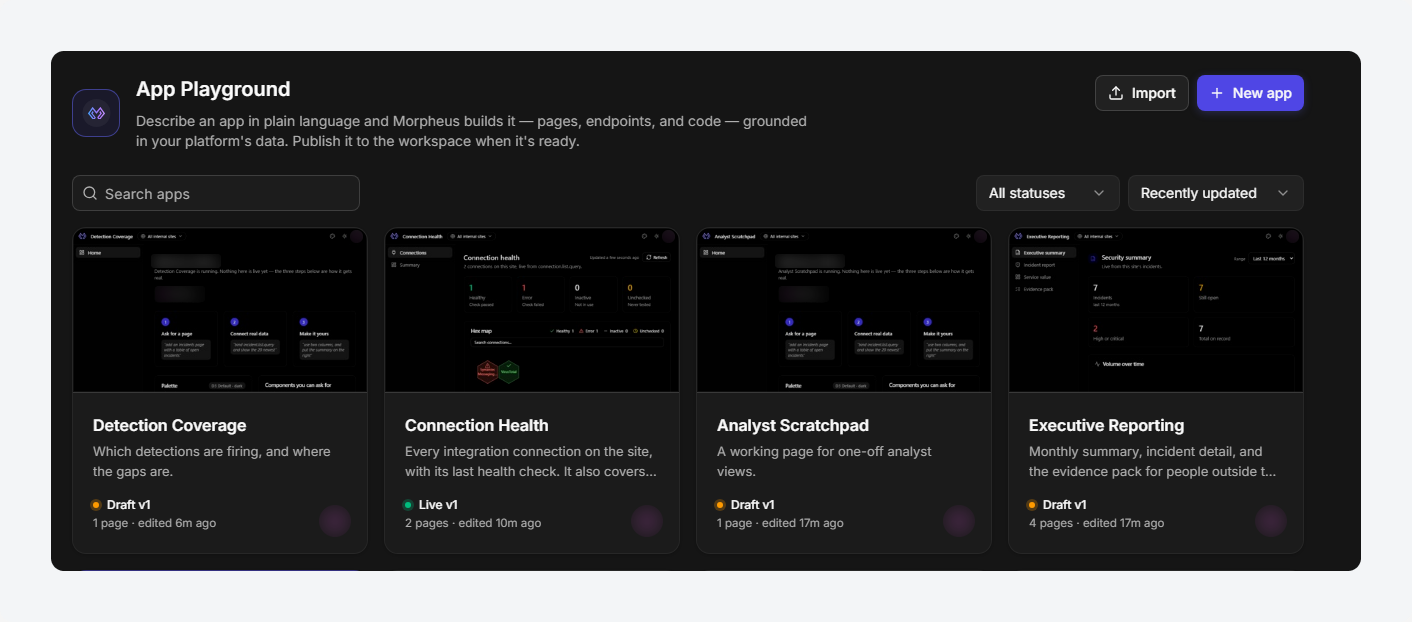
The app list is the landing page of Configuration > App Playground, and it is where every app anyone has shared with you appears alongside your own. Each card shows the app's thumbnail, name, description, publication status, page count, last-edited time, and author.
-
Search apps matches on name and description.
-
The status filter narrows the list to All statuses, Published, or Draft. The sort control offers Recently updated (the default), Oldest first, Name A–Z, Name Z–A, and Published first.
-
Status is shown on each card. Draft v1 means nothing is published yet. Live v3 means version 3 is what viewers see. Live v3 · v4 in draft means viewers have version 3 while version 4 is still being worked on—so an app can be live and under edit at the same time, and the card says both.
+ New app and Import both create a new app and both need the same permission to create one.
Creating an App
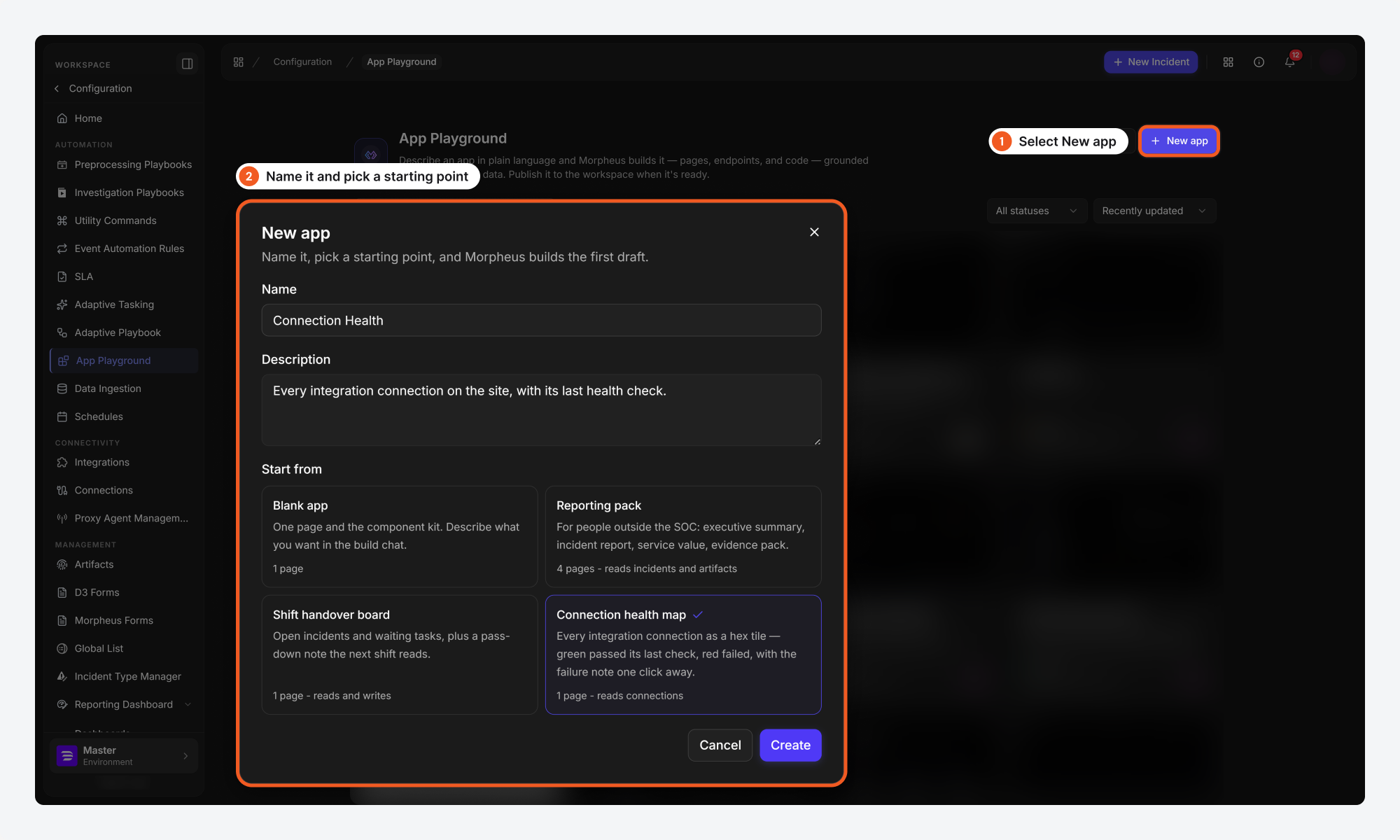
Creating an app takes a name and a starting point; everything else is described in the chat afterwards.
-
Select + New app.
-
Enter a Name and, optionally, a Description of what the app should do.
-
Choose a starting point under Start from, then select Create.
|
Starting point |
What it contains |
|---|---|
|
Blank app |
One page and the component kit. Describe what you want in the build chat. |
|
Reporting pack |
Four pages for people outside the SOC: executive summary, incident report, service value, evidence pack. Reads incidents and artifacts. |
|
Shift handover board |
Open incidents and waiting tasks, plus a pass-down note the next shift reads. Reads and writes. |
|
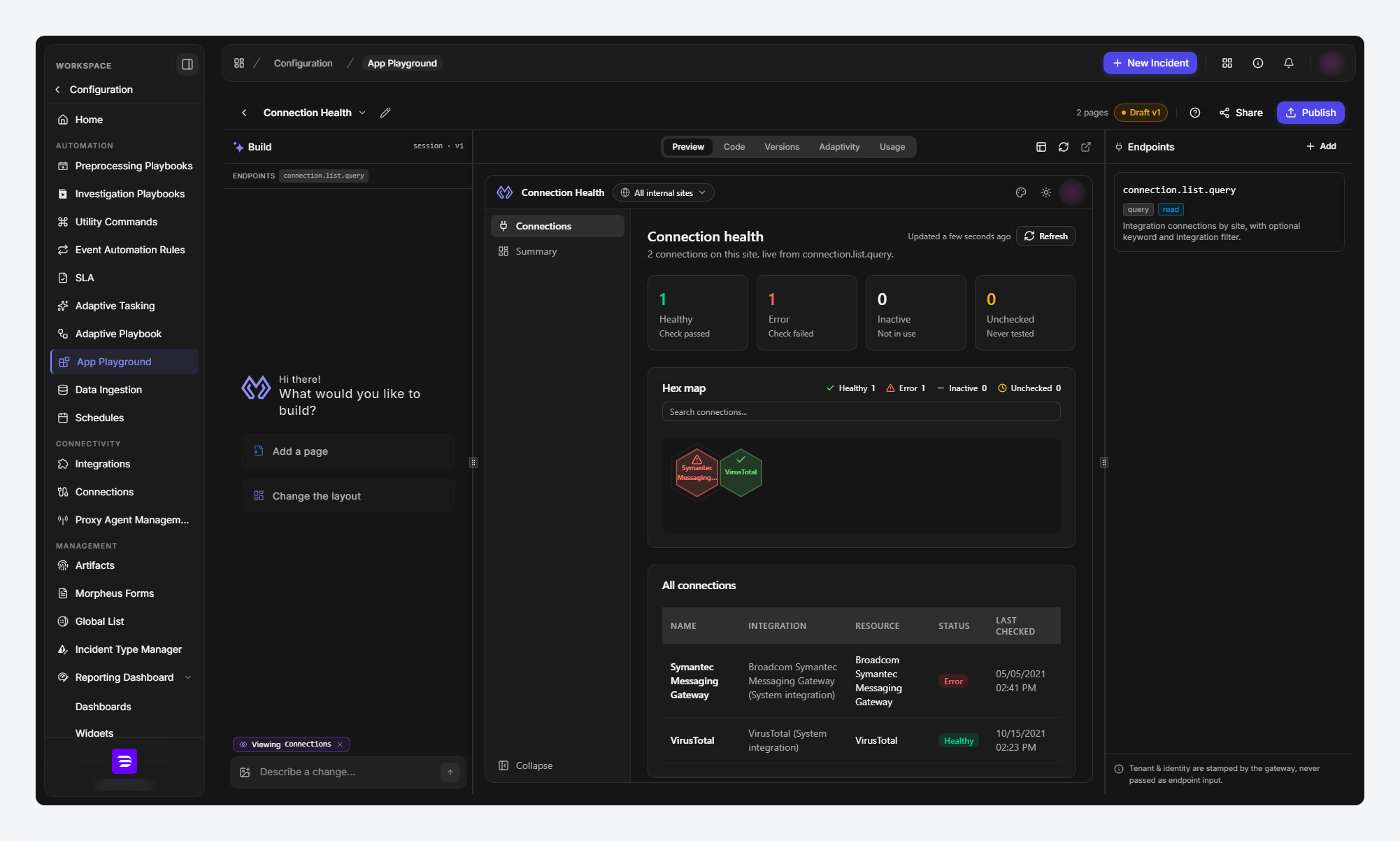
Connection health map |
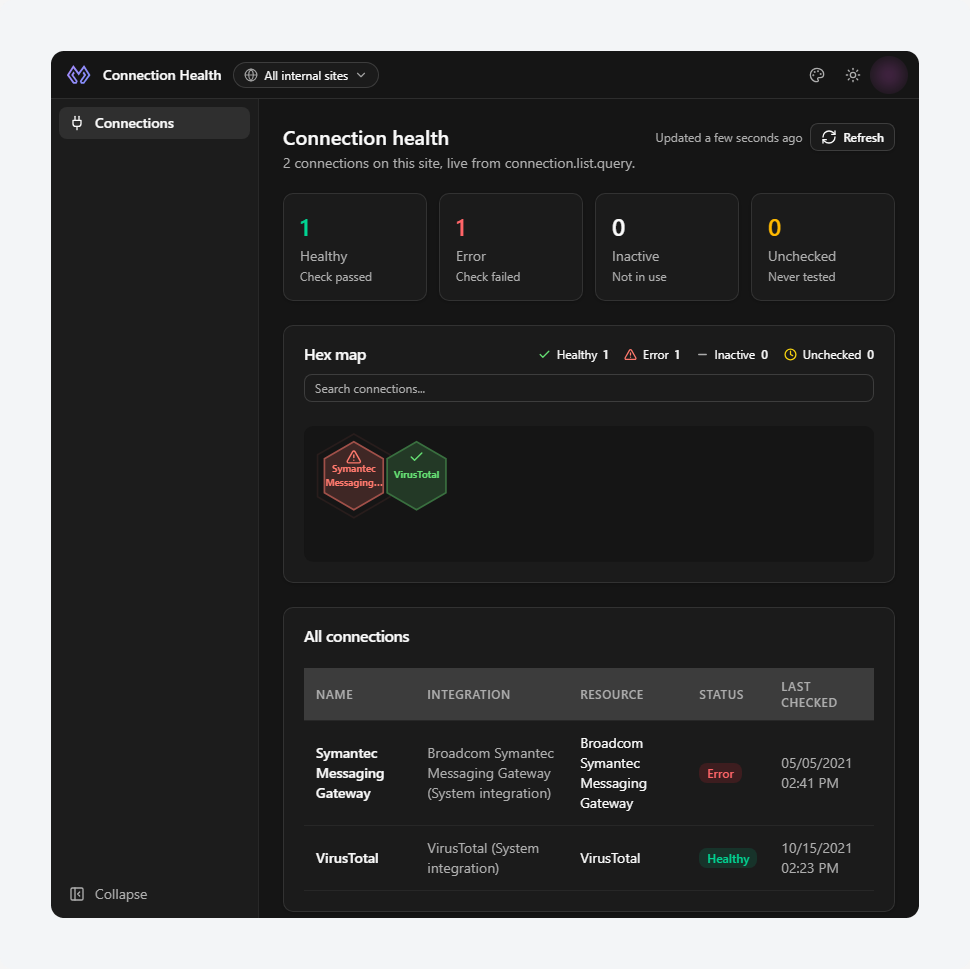
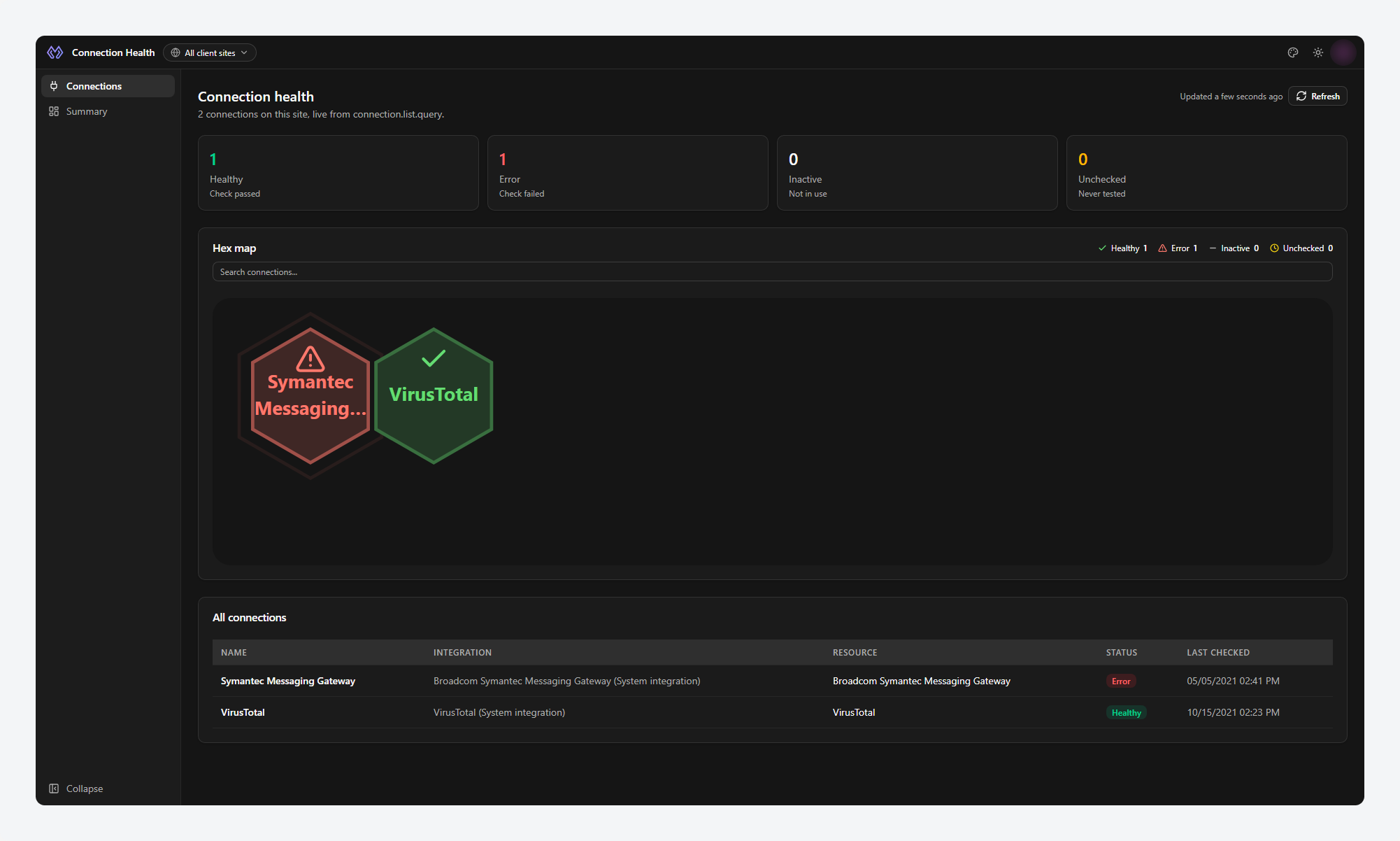
Every integration connection as a hex tile—green passed its last check, red failed, with the failure note one click away. Reads connections. |
Each starting point names its page count and the data it reads, so the choice can be made on what the app will show rather than on the name. A sample that reads live data arrives with its endpoints already connected, which is why it shows real rows the first time it opens instead of placeholders.
RESULT
Morpheus seeds the first draft and opens the builder. If the description was left blank, it is derived later from the first build request.
The Builder
The builder is a three-column workspace: the Build chat on the left, the app itself in the center, and the Endpoints rail on the right. The center column carries five tabs—Preview, Code, Versions, Adaptivity, and Usage—and the top bar holds Share, Publish, and the app's current status.
Building with Morpheus
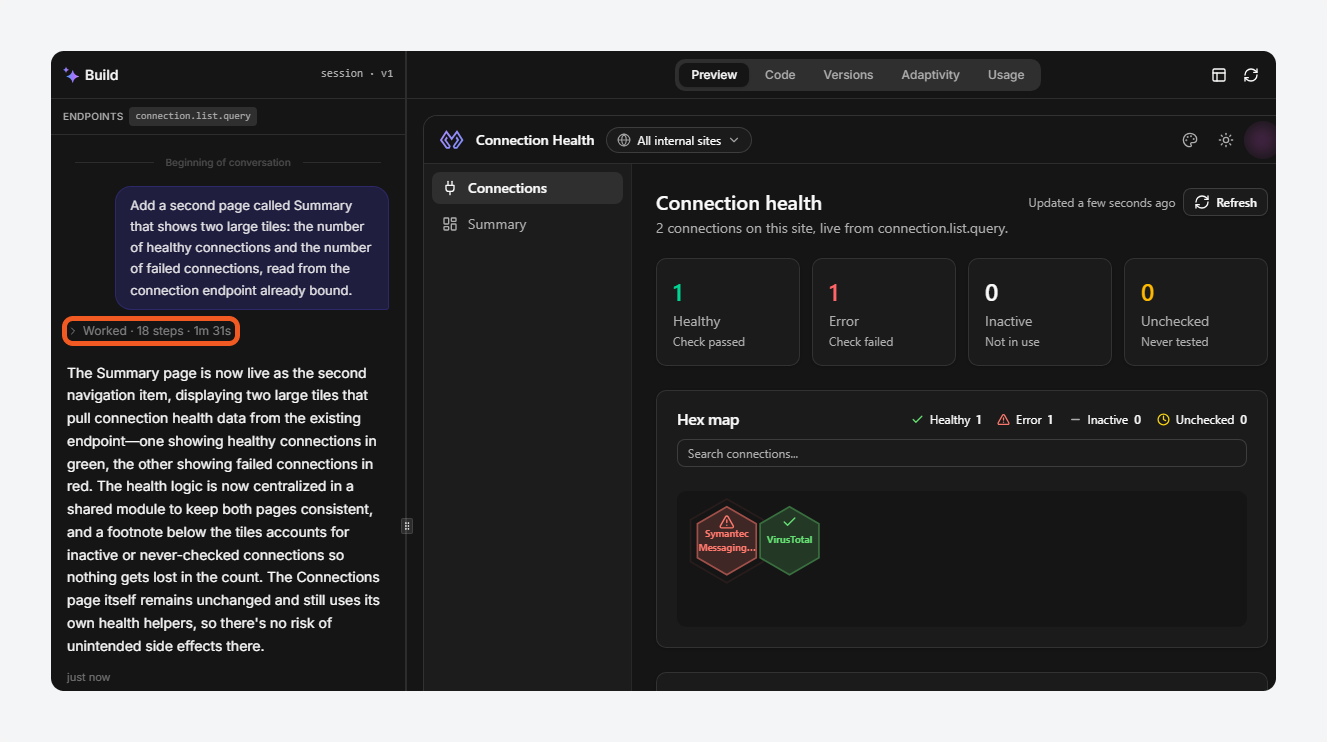
The Build chat is where the app is made, and it is the surface most of the work happens on. Write a request in plain language—"add an Incidents page with a table of open incidents", "use two columns, and put the summary on the right", "move the navigation to the top"—and Morpheus edits the draft directly. The preview rebuilds within moments.
-
While a request runs, the chat shows the steps as they happen and folds them into a single Worked · N steps summary when the turn ends. Opening it back up shows what was thought through and which file each step touched.
-
While Morpheus edits a file, that file is read-only in the Code tab until the edit completes, marked by a pulsing indicator in the file tree.
-
Images and pasted text can be attached to a message. A long paste—over 500 characters or 10 lines—is carried as an attachment rather than message text, and can be reopened from the history.
-
If a preview build ever fails, the error panel offers an inline ask Morpheus to fix it link that hands the exact error back to the chat.
Previewing the App
The Preview tab renders the draft exactly as a viewer will see it, inside the app's own frame with its header, navigation, and site scope—so what is on screen is the product, not an approximation of it. The header's site picker switches which site's data the app reads; the sun/moon control toggles light and dark mode; the palette control selects the app's color palette.
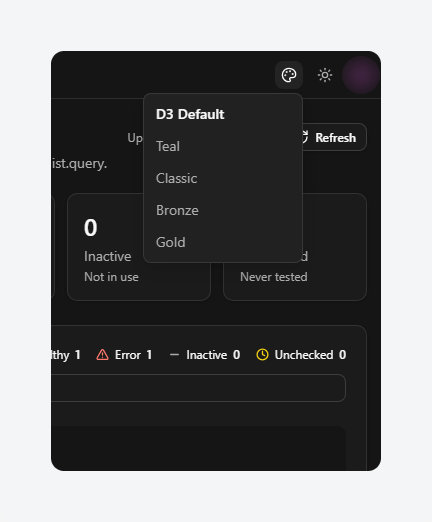
|
Palette |
Accent |
|---|---|
|
D3 Default |
Indigo—the platform's own palette. The default. |
|
Teal |
Deep teal. |
|
Classic |
The legacy D3 brand blue. |
|
Bronze |
Muted bronze. |
|
Gold |
Bright gold with a dark label. |
Because every color in a generated app is a semantic token, switching palettes re-skins the entire app—including apps built before a palette existed—without any rebuild. Light/dark and palette are viewer choices; they follow the person, not the app.
READER NOTE
An app scoped to "All client sites" genuinely reads every membership site. Narrowing to one site is done with the site picker in the app header.
Connecting Real Data
An app reads and acts on platform data through endpoints—named, pre-authorized routes such as incident.list.query or connection.list.query. Binding one is how an app stops being a mock-up and starts showing the site's real rows. The Endpoints rail lists what the app is bound to; + Add opens the catalog.
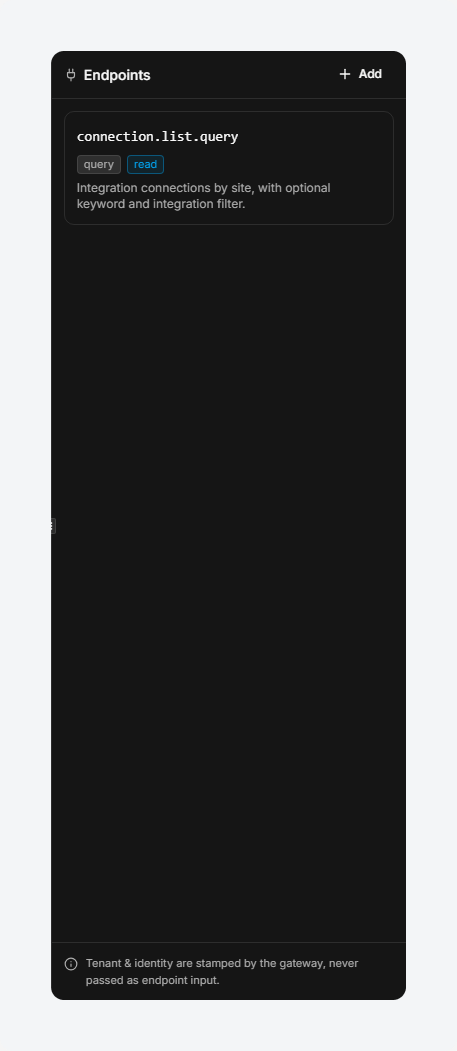
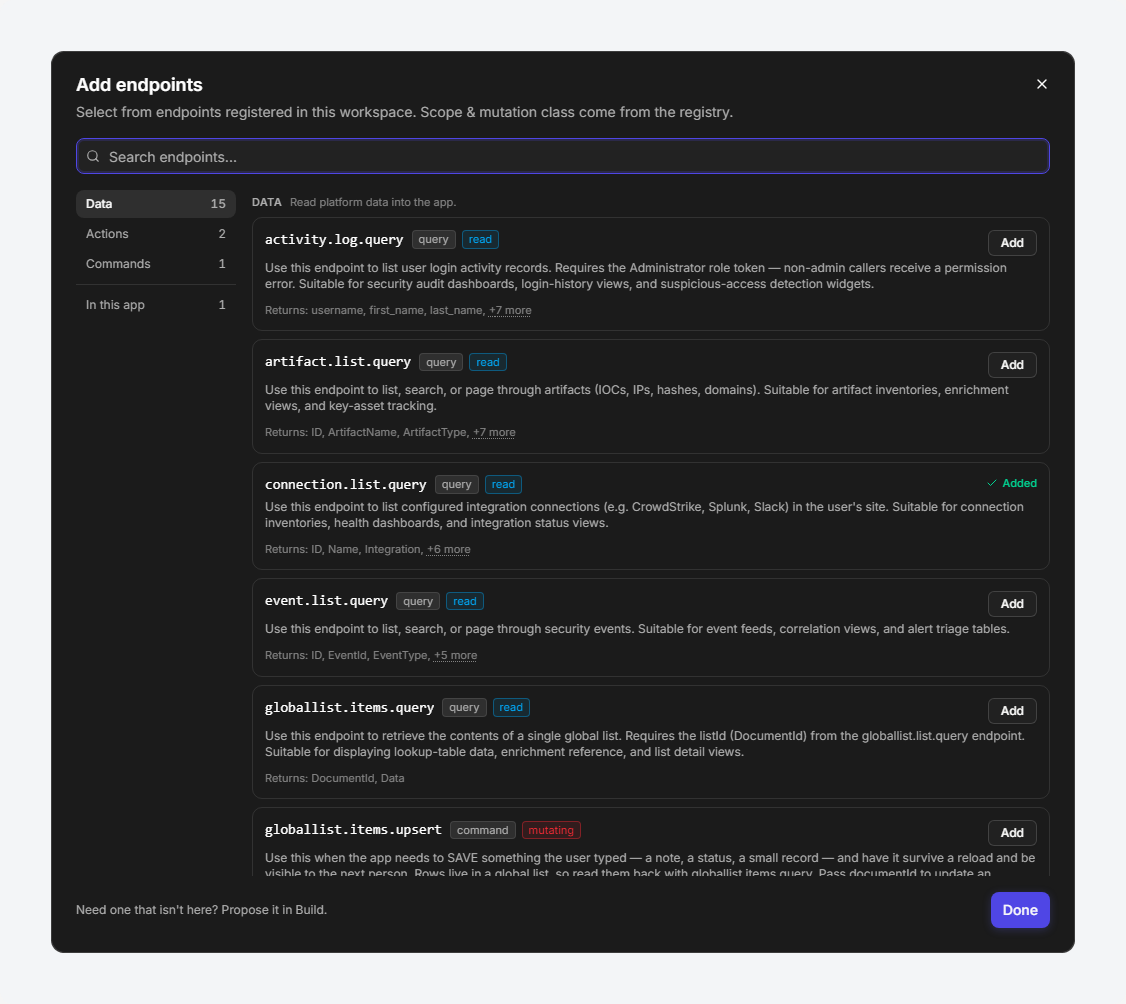
The catalog groups what is available into Data, Actions, and Commands, and each entry states what it is for and what it returns, so the right one can be picked without reading any code. Two badges qualify every entry: the first names its kind (query, command), the second what it does to your data (read, mutating).
-
Query endpoints return data—incident lists, pending tasks, connections, artifacts, activity logs, global lists. Action endpoints ask the host platform to open a real command dialog; the app itself never runs a command silently.
-
Every endpoint call is authorized as the signed-in viewer: site scope, roles, and record access all apply. Identity is stamped by the platform and is never passed as endpoint input, so an app cannot show one person another person's data.
-
Morpheus can propose endpoints during a build ("connect real data"). A proposal binds nothing by itself—it renders a confirmation card in the chat, and only approval binds. If the catalog has no entry for what is needed, Propose it in Build starts that conversation.
Configuring Navigation
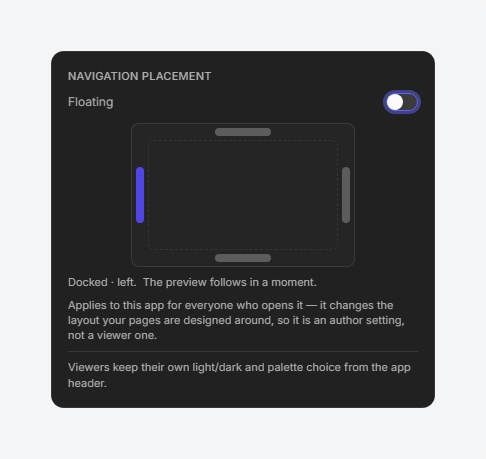
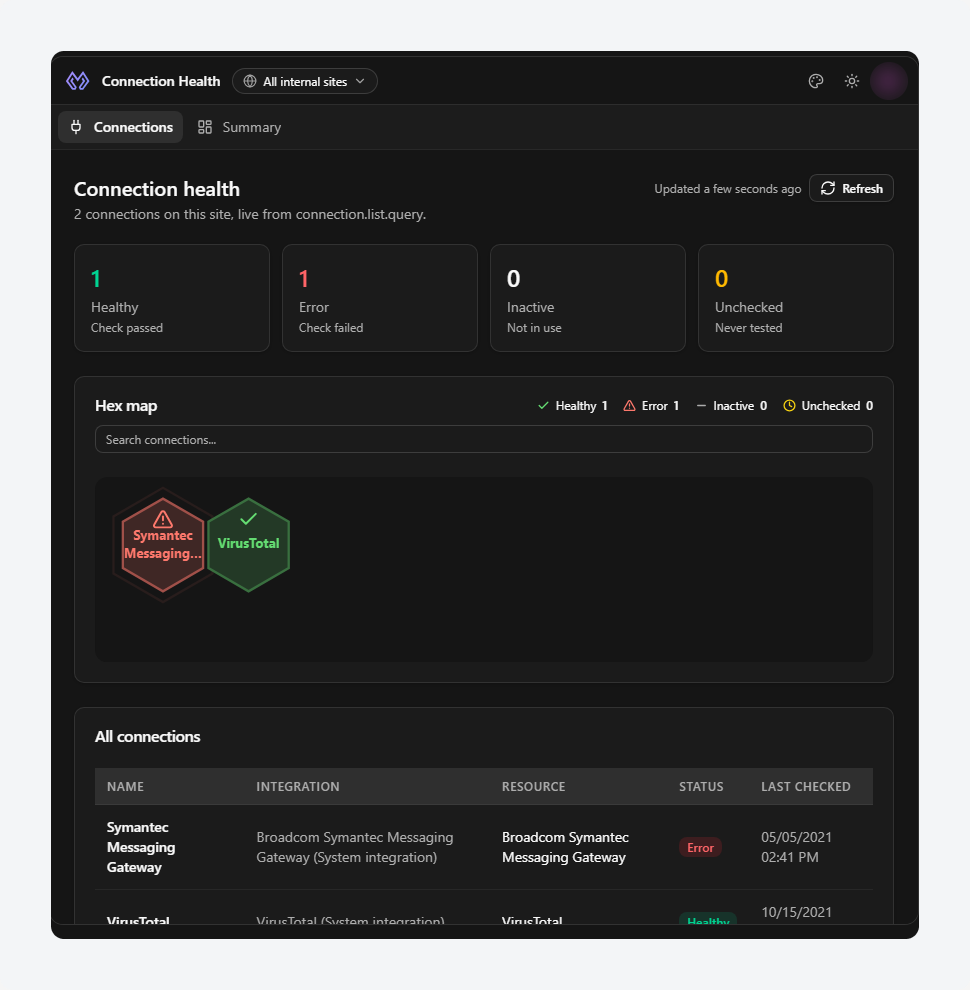
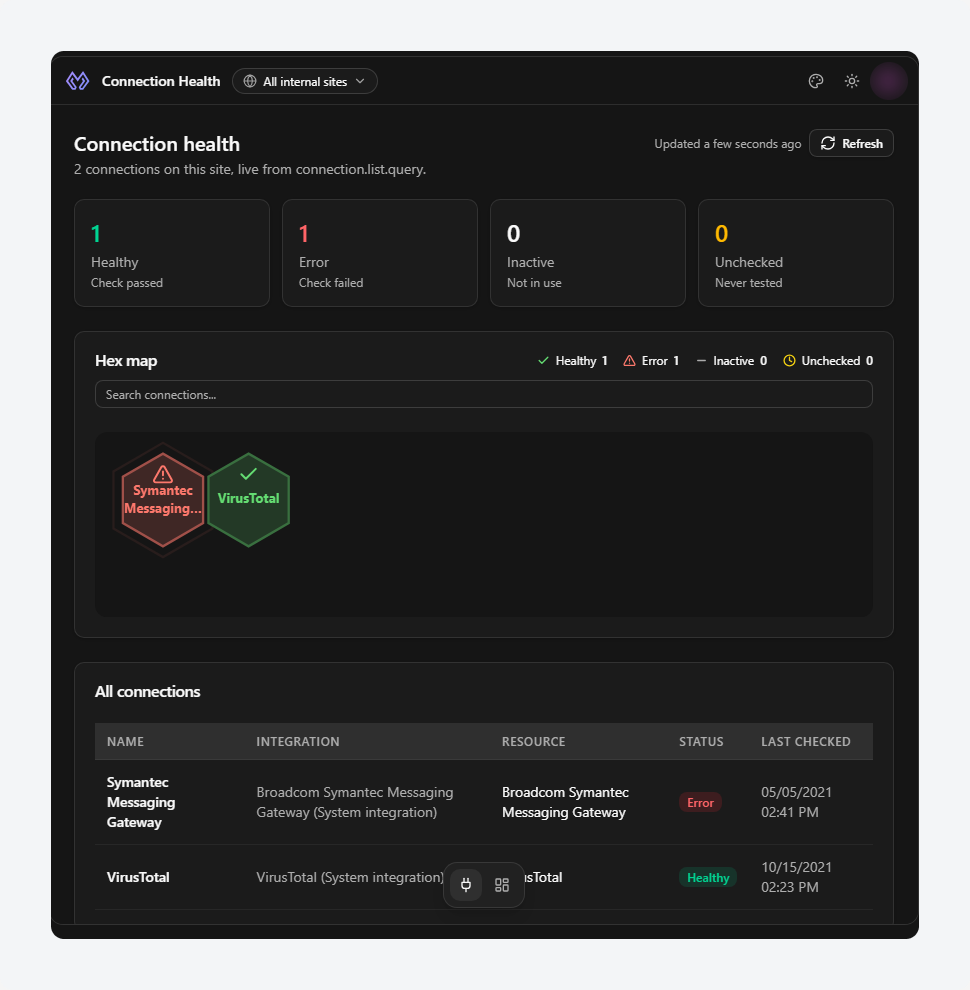
Every app carries a configurable navigation system, so the way pages are reached is a setting rather than something to build. Where the navigation lives is one choice—docked or floating, on any of the four edges—selected visually from the toolbar's navigation placement control, or changed by asking Morpheus.
|
Placement |
Rendering |
|---|---|
|
Docked left / right |
A collapsible side panel. Sub-pages render as expandable groups; a long page list scrolls inside the panel. |
|
Docked top / bottom |
A full-width bar. Pages that do not fit collapse into a More · N menu; the current page always stays visible. |
|
Floating (any edge) |
A floating dock of icons over the content, with flyouts for sub-pages and a ⋯ overflow menu when the list outgrows the screen. |
-
Sub-pages: a page may declare one level of children—"Settings" containing "General" and "Advanced". Side navigation renders them as groups; bars and docks render flyouts.
-
Icons are chosen automatically from each page's name: an Incidents page receives a shield, a Settings page a gear. A page may also name its icon explicitly from a fixed set; unnamed sub-pages show a small dot.
The placement applies to the app for everyone who opens it—it changes the layout the pages are designed around, so it is an author setting, not a viewer one.
Working with the Code
The Code tab exposes every file in the draft, for the times when describing a change is slower than making it. The tree shows the author's own files first; the platform's locked foundation files sit under a collapsed PLATFORM section, marked with padlocks and carrying a count. Locked files are maintained by the platform and edited only by Morpheus—selecting one shows its contents read-only, and an editable file is marked Editable above the editor.
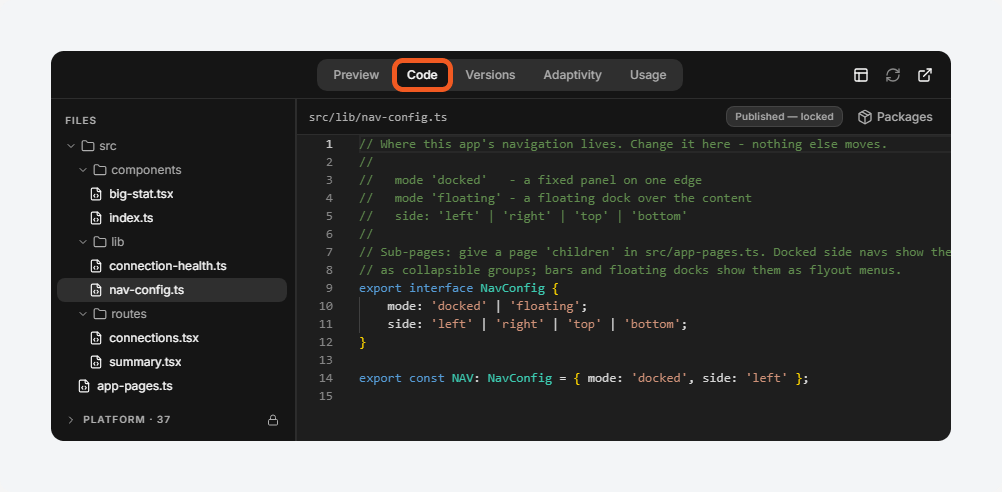
-
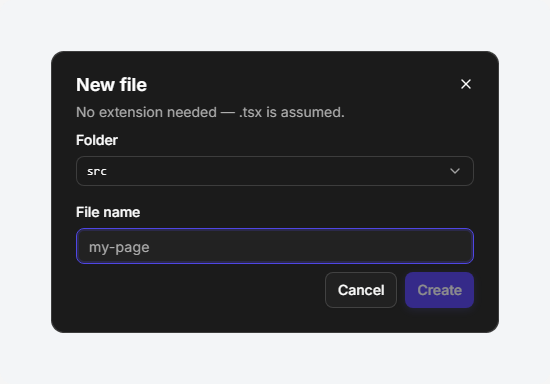
New file and New folder open a dialog with a Folder picker—submenus mirror the folder nesting, and every level is selectable—and a File name field. No extension is needed;
.tsxis assumed.
-
Files and folders the author owns can be renamed, moved, and deleted from each row's menu. Locked files, and any folder sheltering one, cannot.
-
Packages lists the libraries an app's code may import.
-
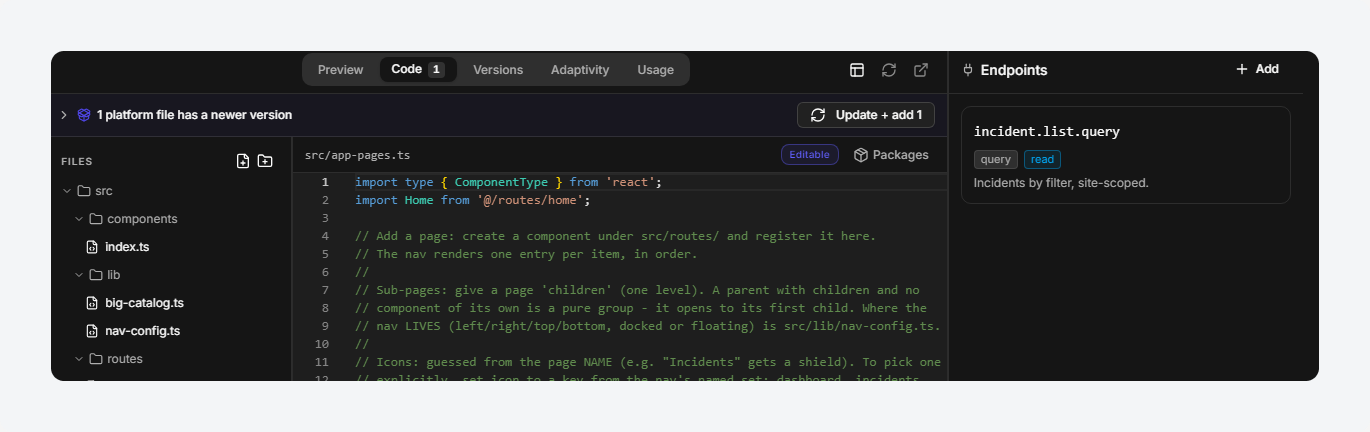
When the platform ships newer versions of the locked foundation, a banner appears above the tree, naming how many files have a newer version, and the Code tab carries a count badge. The update control applies the newer files—including any that moved to a new location—without touching the author's own code.
Versions and Publishing
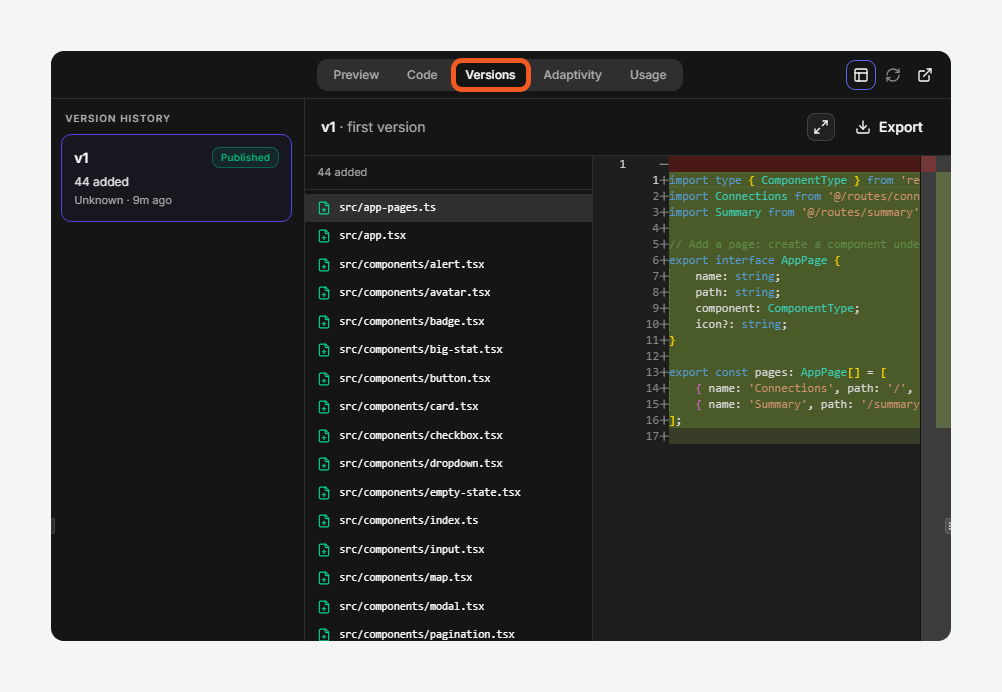
Every app has exactly one draft, and publishing is what turns that draft into the thing other people see. The Versions tab lists the history: each version shows its changes as a computed diff—files added, modified, and removed—with the author and the time. Show N unchanged reveals versions that changed no files.
Selecting Publish freezes the draft as the new published version. The published app is served from a permanent, versionless link, so viewers always see the current published version without updating any bookmark.

-
After publishing, the app is locked until New draft clones a fresh draft to continue editing.
-
Restore on an older version clones it into a new draft. Nothing is ever destroyed by restoring.
-
Unpublish takes the app off its link and returns it to draft. Viewers lose access to it; the version history is kept.
READER NOTE
Publishing also bakes the app on the server, so viewers receive a prebuilt app rather than compiling it in their browser. This is why a large app opens quickly for someone who has never seen it before.
Tracking Usage
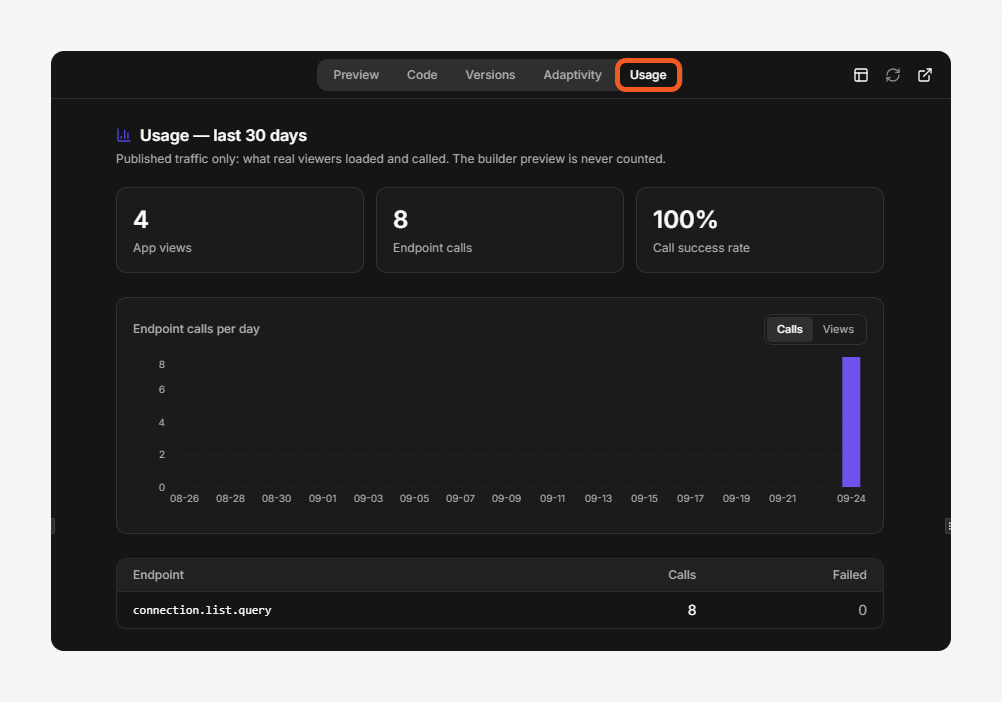
The Usage tab answers whether an app is actually being used, and by how much, over the last 30 days. It counts published traffic only—what real viewers loaded and called. The builder's own preview is never counted, so the numbers are other people's use, not the author's.
-
App views counts how many times the published app was opened.
-
Endpoint calls counts the platform data calls those views made.
-
Call success rate shows what proportion of those calls succeeded, so a failing endpoint shows up here before anyone reports it.
-
The chart below breaks the same period down by day, switchable between Calls and Views, and a table under it splits the calls per endpoint with a failure count for each—so a single misbehaving endpoint is identifiable rather than buried in the total.
Days are counted in the viewer's own local day, so an evening's use is reported on the evening it happened.
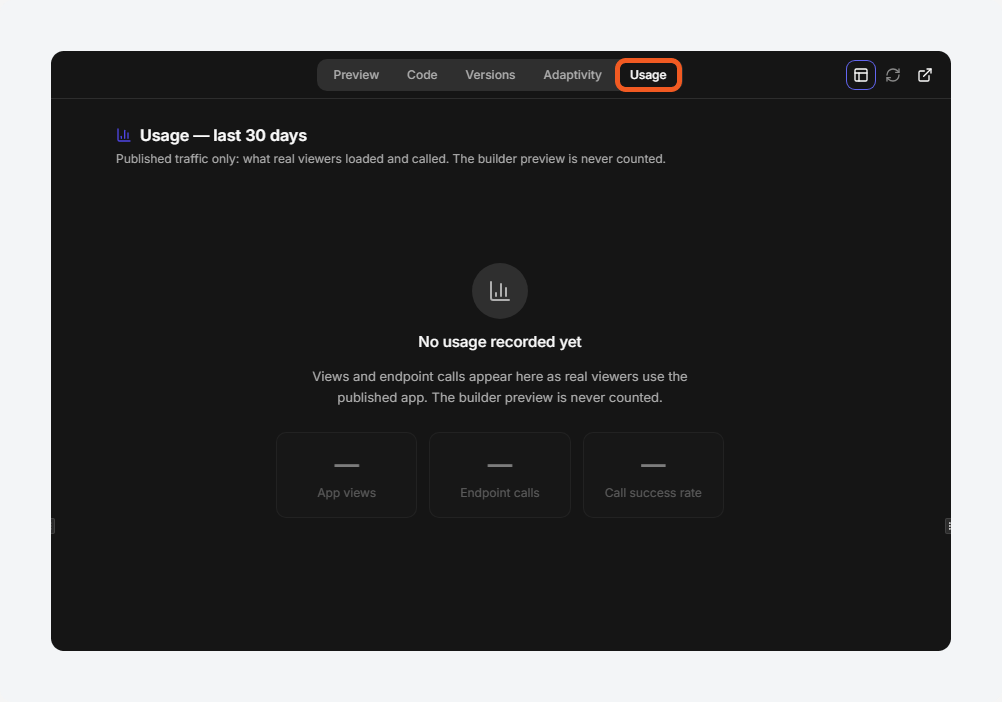
Until the app has been opened by someone other than its author, the tab says so rather than showing zeros.
Sharing an App
Sharing is how an app reaches the people it was built for; until it happens, an app is visible to its author and nobody else.
-
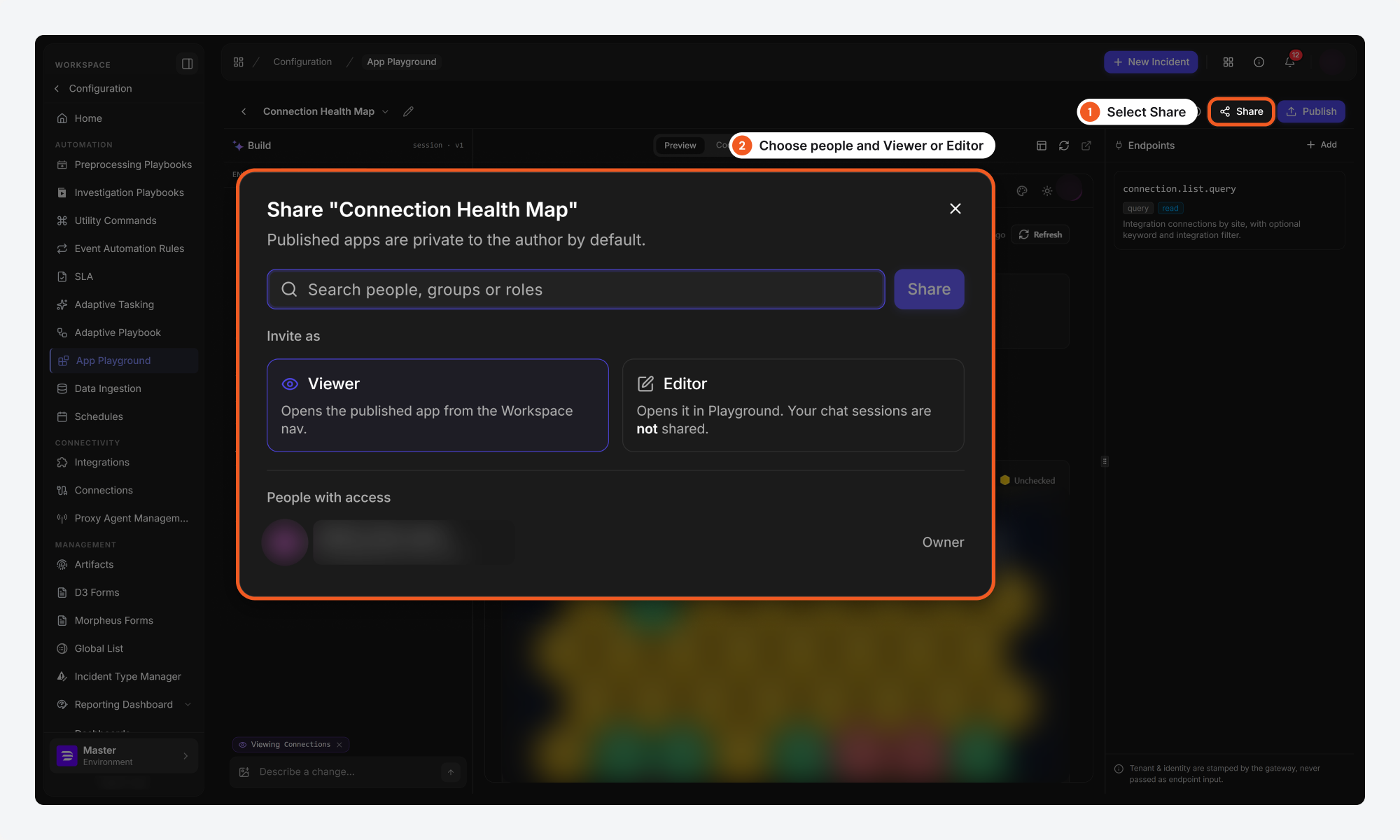
Select Share.
-
Search for a person, a group, or a role—or choose Share to All.
-
Choose Viewer or Editor, then select Share.
|
Invited as |
What they get |
|---|---|
|
Viewer |
Opens the published app from the Workspace navigation. Never sees the builder. |
|
Editor |
Opens the app in Playground and can edit and publish it. |
READER NOTE
Build chat sessions are per-person and are not shared. An Editor opening the app sees their own chat history, not the Owner's.
The Published App
A published app runs full-screen at its permanent link, with its own navigation, header, site picker, and theme controls, and nothing else from the platform around it. It reads live data as the signed-in viewer, under that viewer's own permissions—so two people opening the same app can legitimately see different rows.
Moving an App Between Sites
An app built on one site can be carried to another—a second environment, a different customer site, or a colleague's tenant—by exporting it and importing the file there. Nothing has to be rebuilt.
-
On the Versions tab, select Export on the version to carry.
-
On the destination site, open Configuration > App Playground and select Import.
-
Choose the exported file.
RESULT
The app is created on the destination site and opens in the builder. Its endpoints and command selections are reconnected automatically, and a notification states how many were connected.
-
The export carries that version's source together with a manifest of the app's pages, endpoints, and command selections. Every export is recorded on the audit page.
-
Import always creates a new app, owned by whoever imported it. It never merges into an existing app, so importing twice gives two apps rather than overwriting the first.
-
Anything the destination site does not have—an endpoint that site lacks, a command that is not configured there—is named in the notification, and every binding stays visible on the Endpoints rail so it can be reviewed or replaced.
Adaptivity
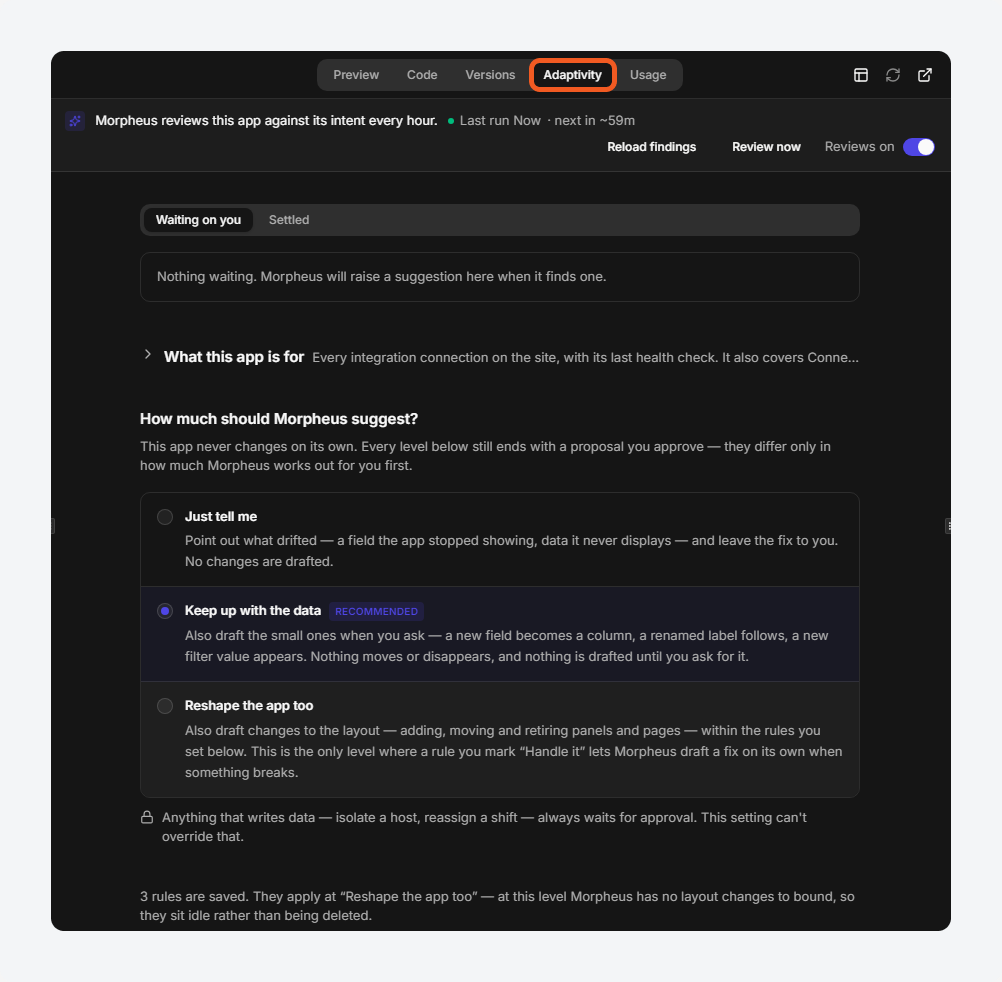
Adaptivity is a scheduled reviewer that keeps an app working after it is built: Morpheus periodically compares the app against what it is for and against the data it actually reads, and raises what it finds. It exists because the platform keeps changing underneath a published app—a field is renamed, a new status appears, an endpoint starts returning something else—and without it those changes surface as a viewer's broken page.
Nothing is ever applied on its own. Every level ends with a proposal a person approves.
Reviews are off until they are switched on for an app. Reviews on starts the schedule—Morpheus then looks once an hour—and the banner states when the last review ran and when the next one is due. Review now runs one immediately instead of waiting.
ALERT
Anything that writes data—isolating a host, reassigning a shift—always waits for approval, whatever suggestion level is chosen. No level can override that.
Findings and Fixes
A finding is something the review noticed: a field the app stopped showing, data it never displays, or a page that crashed for a viewer. Findings are queued under Waiting on you until they are answered, and move to Settled once they are. The count on the Adaptivity tab is how many are still waiting.
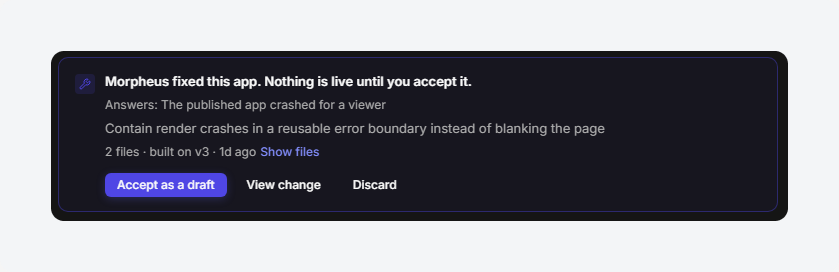
Where the level allows it, a finding arrives with a fix already written and built, so what is previewed is exactly what lands and anything that failed to build is never offered.
|
Control |
What it does |
|---|---|
|
Accept as a draft |
Applies the change to the draft. Nothing reaches viewers until the app is published. |
|
Approve & publish |
For an app with no draft: applies the change and publishes it in one step. The tab says which of the two will happen before the choice is made. |
|
View change |
Opens the exact file changes the fix would make. |
|
Discard |
Throws the fix away and leaves the finding open. |
|
Dismiss |
Answers the finding without a change. |
WARNING
On a published app with no draft, approving a fix publishes it immediately—viewers see the change at once. The tab states which of the two will happen above the queue, so check that line before approving.
What the App Is For
What this app is for records the app's intent, and it is the yardstick every review measures against—a review with nothing to compare to has nothing useful to say. It can be written by hand, or Improve with Morpheus distills one from the app's build history and shape. Where there is not yet enough activity to tell, Morpheus says so rather than inventing one.
How Much Morpheus Suggests
The suggestion level controls how much work Morpheus does before asking, not whether it asks.
|
Level |
What it does |
|---|---|
|
Just tell me |
Points out what drifted—a field the app stopped showing, data it never displays—and leaves the fix to you. No changes are drafted. |
|
Keep up with the data (recommended) |
Also drafts the small ones when you ask: a new field becomes a column, a renamed label follows, a new filter value appears. Nothing moves or disappears. |
|
Reshape the app too |
Also drafts changes to the layout—adding, moving, and retiring panels and pages—within the rules you set. |
At the Reshape the app too level, a set of rules describes what matters about the app in terms of outcomes rather than changes—"keep this app working when the data it reads changes shape"—and each rule carries what Morpheus may do about it: notice it silently, raise it and wait, or write a fix for approval. Rules are reviewer policy; changing one takes effect on the next review and never republishes the app.
An app starts with a set of rules already saved. Rules only apply at Reshape the app too, and at the lower levels the tab says so rather than hiding them, so nothing is silently switched off by changing the level.
What the App Needs from Its Data
What this app needs from its data is the record of what the app was reading when it was last published, written from the code itself. It is what each review compares live data against, which is how a renamed field or a vanished value is noticed at all.
An app gets this record the first time it is published, so an app that has never been published has nothing for a review to compare against.
RELATED ARTICLES
-
Connections
-
Utility Commands
-
Role and Permission Management