
Last Updated: October 26, 2026
Preprocessing playbooks (previously event playbooks) automate preparatory tasks, such as deduplicating, enriching, filtering and correlation, that enable deeper analysis and the incident response that follows. They are the first stage of the data flow: ingested events run through a preprocessing playbook, which can dismiss them or escalate them to incidents, and investigation playbooks then work on those incidents.
In this first tutorial you build a preprocessing playbook that formats ingested events and escalates them to incidents. It builds on Configuring an Integration: the events it handles come from a data source you have connected. In the next tutorial, My Second Playbook, you build an investigation playbook for the incidents it creates.
Generating with AI
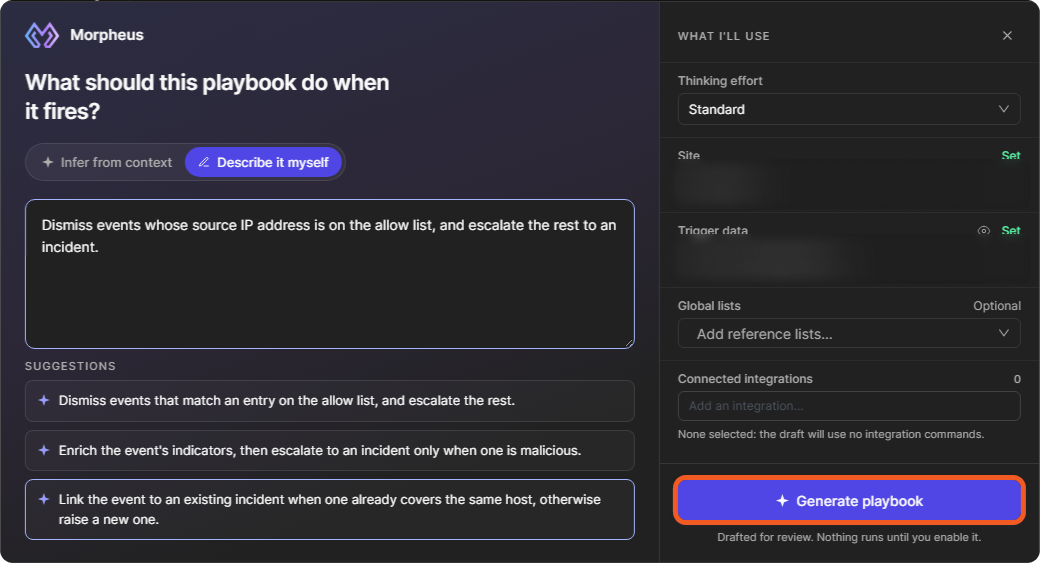
Morpheus, D3's AI assistant, can draft a preprocessing playbook for you. Describe when an event should be dismissed and when it should become an incident, or let Morpheus infer it from an event, and it composes the tasks for you to review.
-
Go to Configuration > Preprocessing Playbooks.
-
Select + Playbook, then Generate with AI ("Describe it — Morpheus composes the steps"). The Generate with AI button on the Generate a playbook with Morpheus AI banner opens the same window.
-
Choose how Morpheus starts:
-
Infer from context: Morpheus infers the playbook from the trigger data you choose ("Set the scope and I'll infer the playbook").
-
Describe it myself: type what the playbook should do when it fires. The window also lists SUGGESTIONS to start from.
-
-
Under WHAT I'LL USE, choose the Site (required) and the Trigger data (required): an event from that site. Optionally, set the Thinking effort (Standard or Deep), add Global lists as reference lists, and add Connected integrations. With no integration selected, the draft uses no integration commands.
-
Select Generate playbook.
Generating a preprocessing playbook
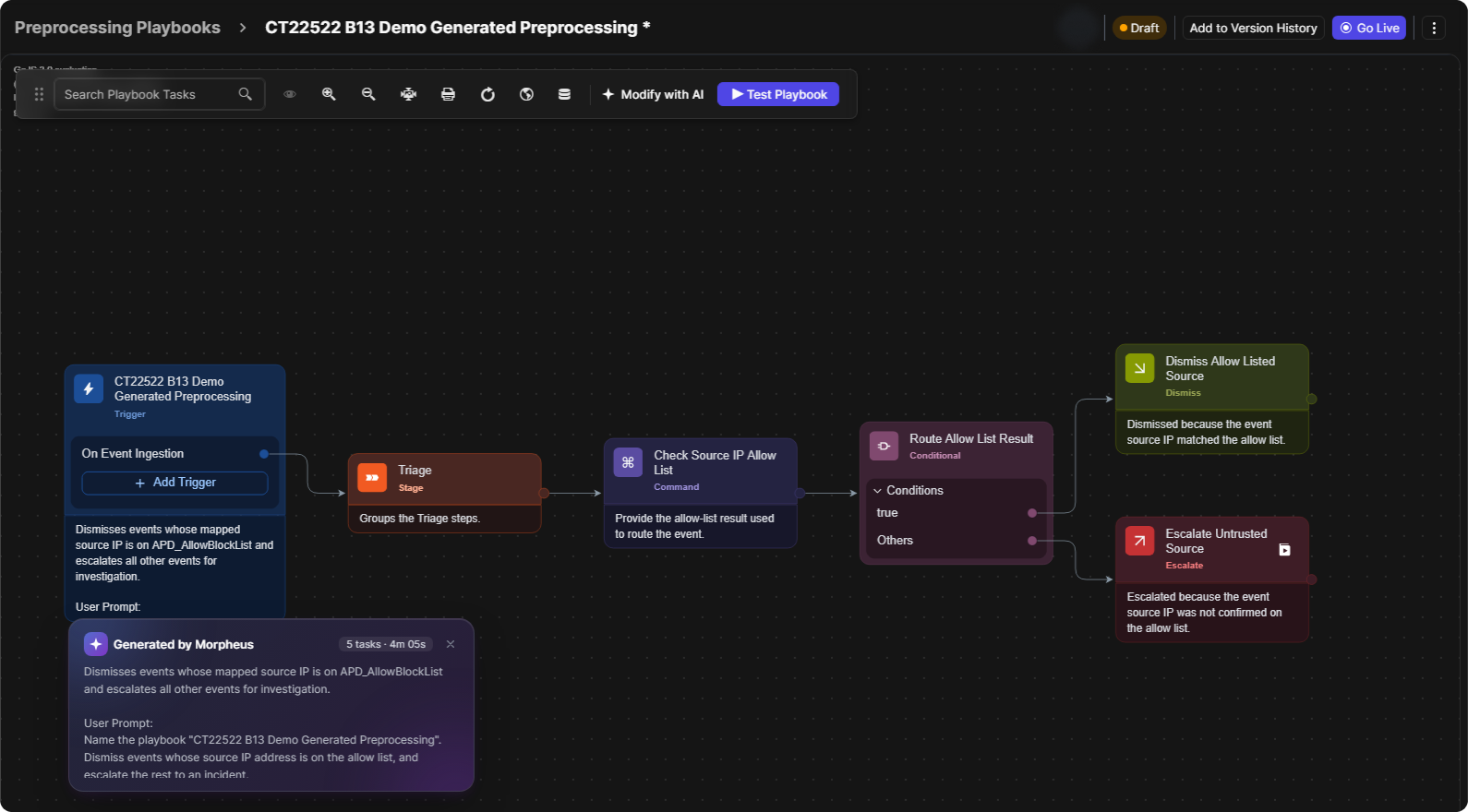
The Generating playbook window shows each step Morpheus works through and the time elapsed. It notes that this usually takes 10–20 minutes, and Cancel stops it. When it finishes, the playbook opens in the editor as a Draft. A Generated by Morpheus note sums up what the playbook does, with its number of tasks and your prompt.
A generated preprocessing playbook
REVIEW BEFORE USE
Morpheus never runs actions on its own, and nothing runs until you enable the playbook. Check every task and test the playbook before you select Go Live. To change the draft, select Modify with AI in the toolbar: Morpheus can review the whole playbook and propose changes that you approve one by one, or you can describe the change yourself. You can also edit the tasks by hand.
Creating a New Preprocessing Playbook
To build the playbook manually, follow these steps. The tutorial builds a playbook that formats ingested events and escalates them to incidents.
-
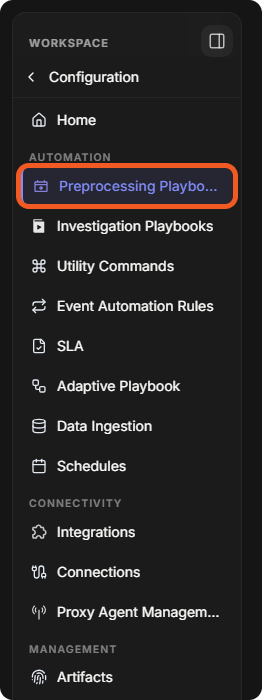
Go to Configuration > Preprocessing Playbooks (in the AUTOMATION group of the sidebar).
-
Select + Playbook, then Blank playbook.
-
Enter a Playbook Name and select OK. The new playbook opens in the editor, with its On Event Ingestion trigger, so you can begin building the workflow.
Adding Playbook Tasks
-
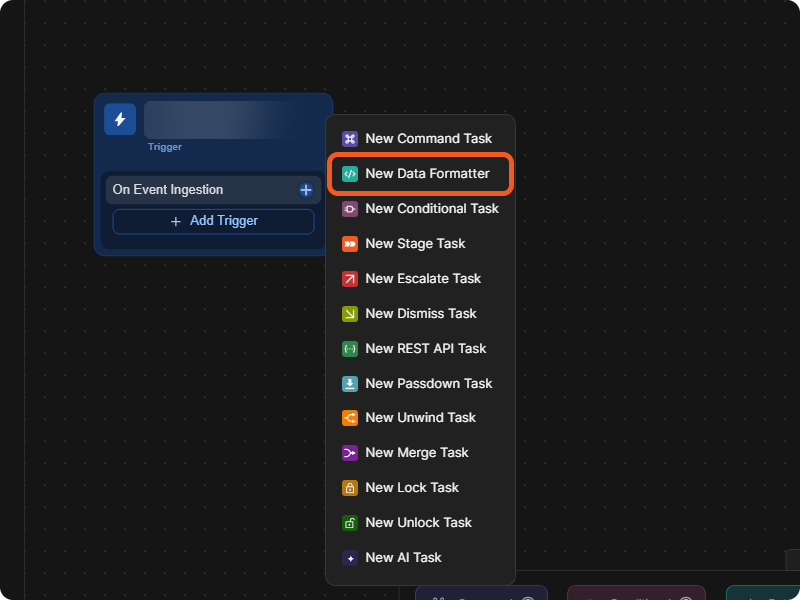
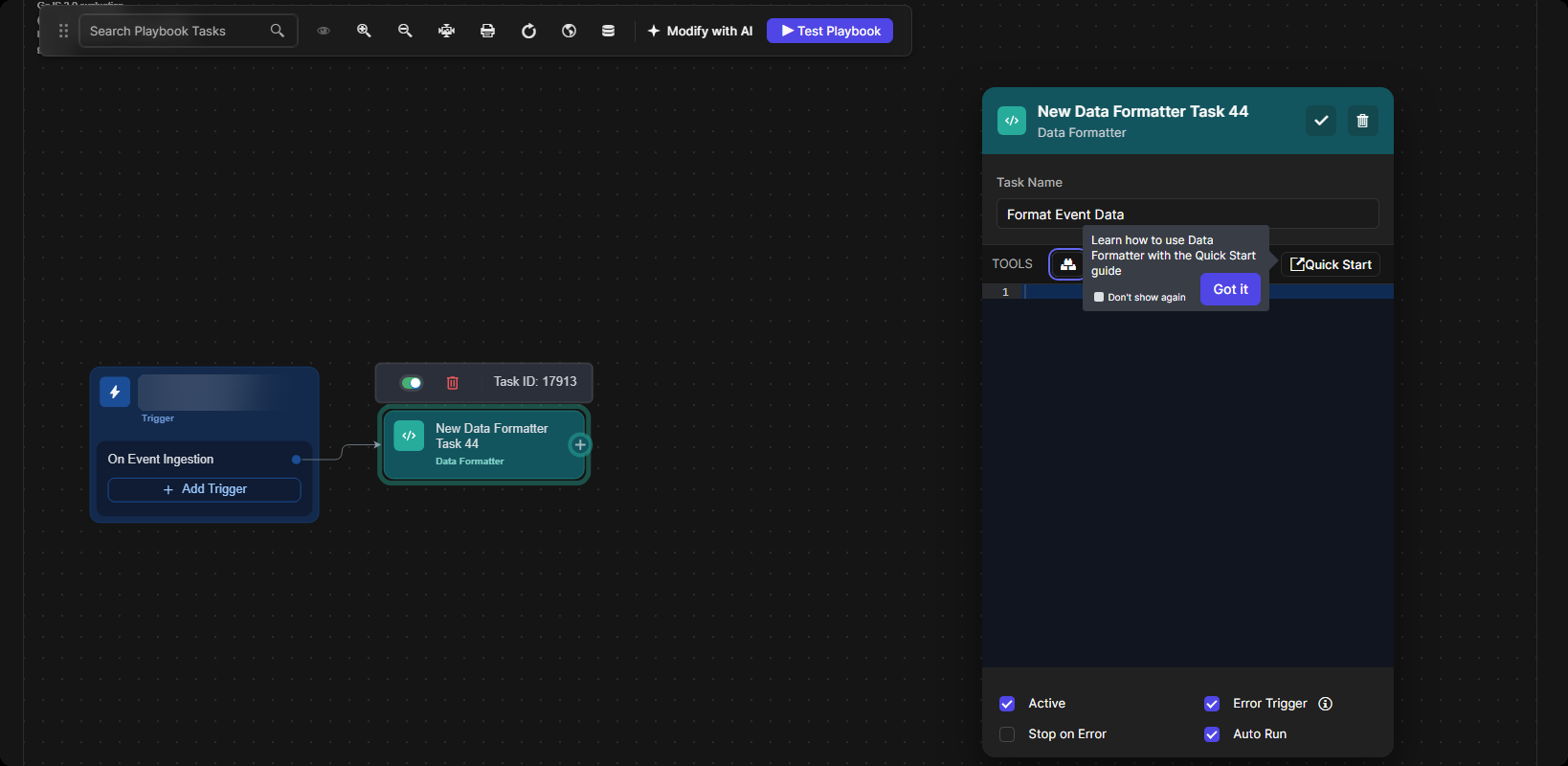
Select the + on On Event Ingestion, then New Data Formatter.
-
In the task's settings, enter a Task Name that makes the task easy to identify, then select the check mark to keep the task.
-
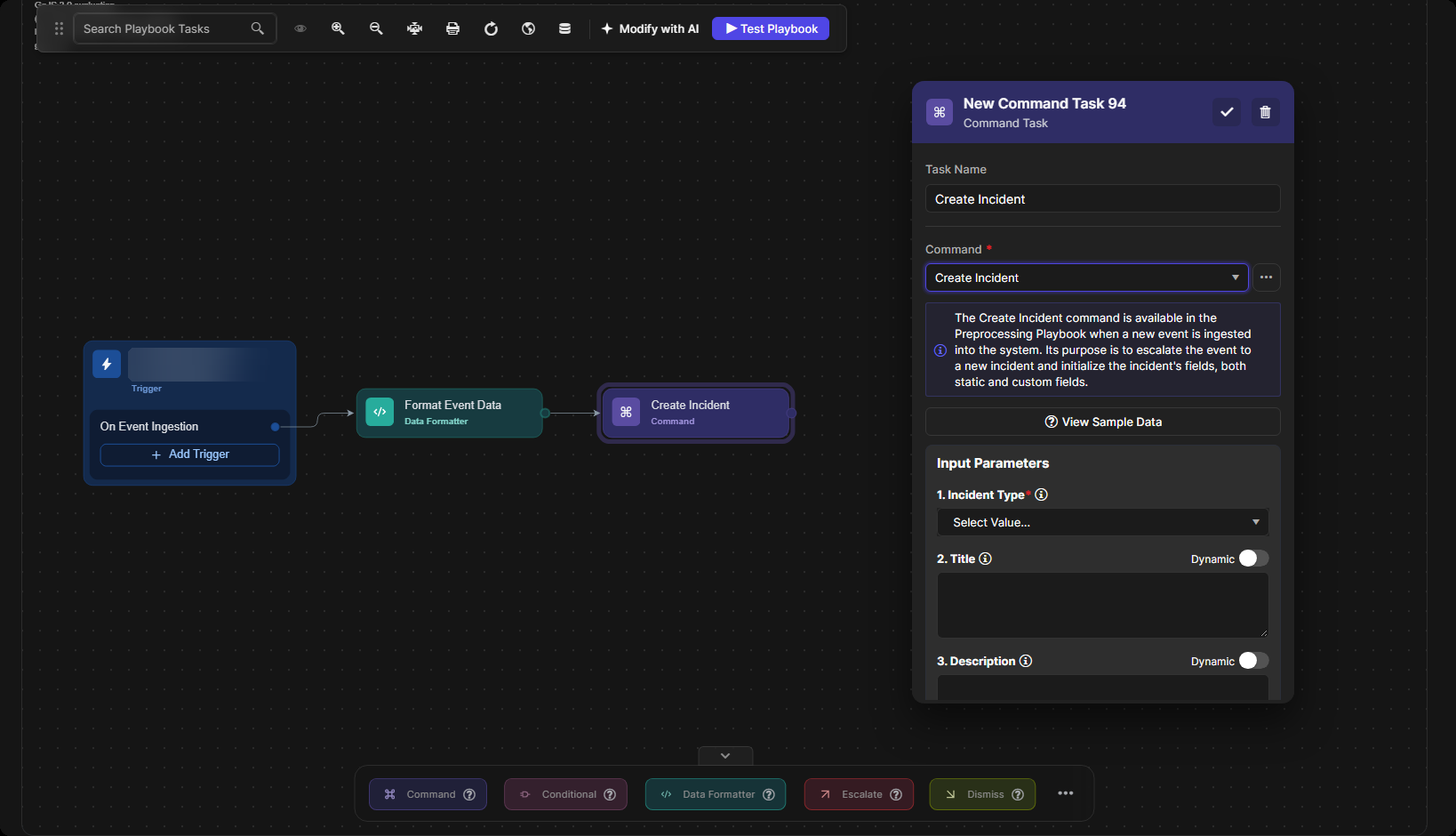
Select the + on the Data Formatter task, then New Command Task.
-
Name the task, open the Command list and select Create Incident. Fill in its input parameters, such as Incident Type, Title, Description, Severity and Playbook (required fields are marked). Playbook lists your investigation playbooks: it sets the investigation playbook that runs on the incident this task creates. You build one in the next tutorial, My Second Playbook. Until then, choose an existing investigation playbook, or keep the task with Playbook empty while the playbook is a draft and select your new playbook afterwards.
-
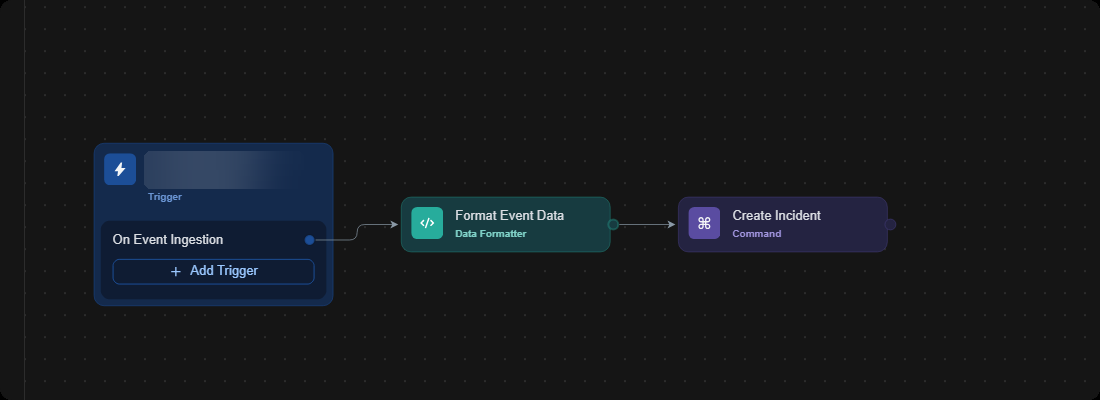
Select the check mark. The workflow now runs from the trigger, through the Data Formatter task, to Create Incident.
SUCCESS
This preprocessing playbook is ready to run on ingested events: choose it as the PREPROCESSING PLAYBOOK when you configure data ingestion. Next, in My Second Playbook, build the investigation playbook that works on the incidents it creates.
Implementing Workflows in the Playbook
Within the playbook, you design and build workflows for your requirements by adding tasks.
Using the Task Menu
-
The + on a trigger or task opens the list of every task type you can add after it, from New Command Task to New AI Task.
-
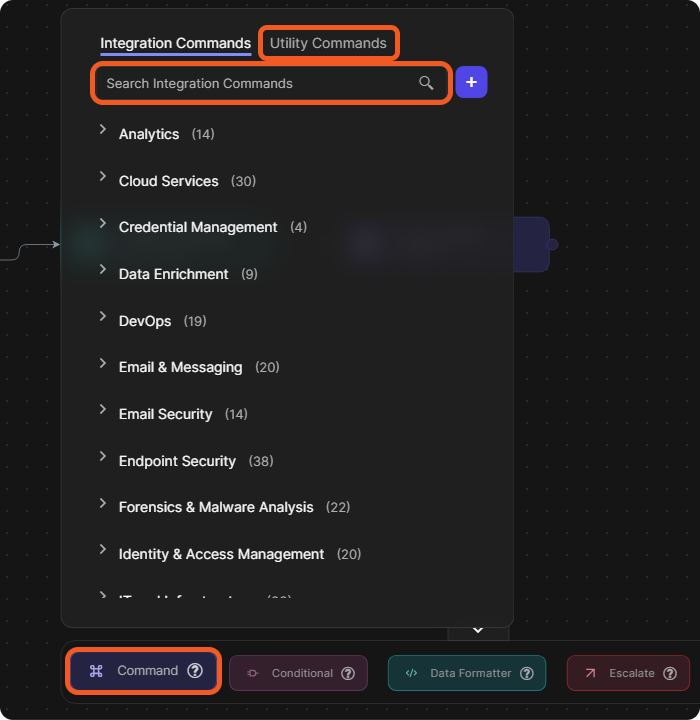
The task bar at the bottom of the canvas holds the common task types: Command, Conditional, Data Formatter, Escalate and Dismiss in a preprocessing playbook. Select Command to browse commands on the Integration Commands and Utility Commands tabs, or search for one, and drag it onto the canvas.
CAUTION
Avoid building workflows with unnecessary or redundant tasks, as this can affect system performance. Use only the tasks your workflow needs.
For the editor, see Preprocessing Playbooks.